TL;DR
A Slack bot for coding agents is a Slack app bound to one AI agent, so direct messages and mentions become agent conversations and every reply lands in the same thread. In Sharkly, each bot binds to exactly one Agent, and that Agent answers with the instructions, model, skills, and repos you configured for it.
- Open api.slack.com/apps and generate an App Configuration Token, then copy its Refresh Token.
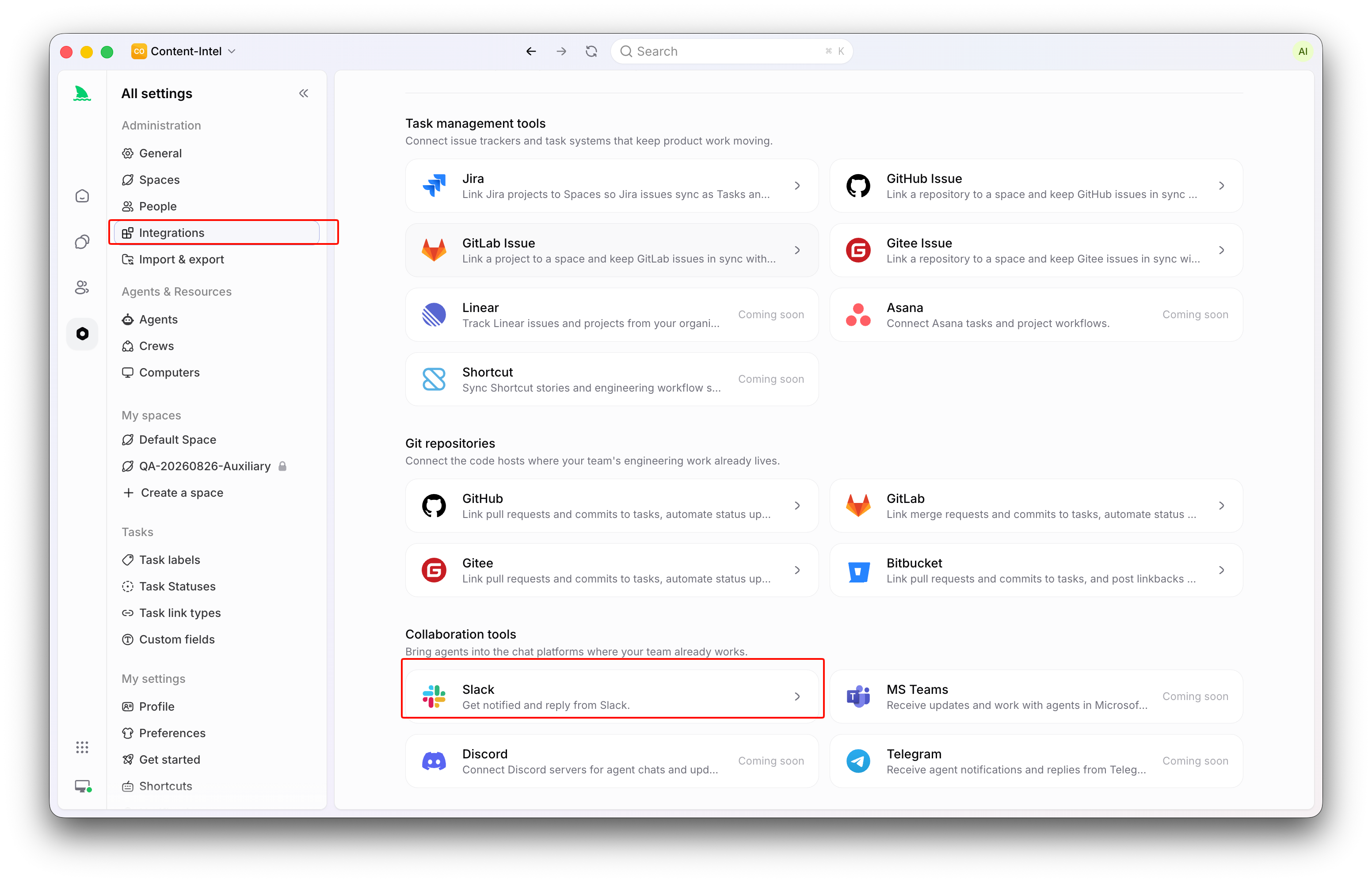
- In Sharkly, open Integrations, select Slack, and choose Connect Agent.
- Pick the Agent to bind and optionally name the app (Slack caps app names at 35 characters).
- Paste the Refresh Token and select Create & Install.
- Approve the OAuth prompt in the window Slack opens.
- Wait for the bot status to move from Installing to Connected, then send it a direct message.
Why your coding agents should answer in Slack
Your team already runs coding agents. Someone has Claude Code open in a terminal, someone else scripts Codex runs, and the output lives in each person’s shell history. Meanwhile the questions those agents could answer get asked in Slack, because Slack is where the team talks.
That gap has a cost. When a product manager asks why the export endpoint started failing, the question goes to a developer, who asks an agent and relays the answer back. The relay adds an hour to a question the agent answered in ninety seconds.
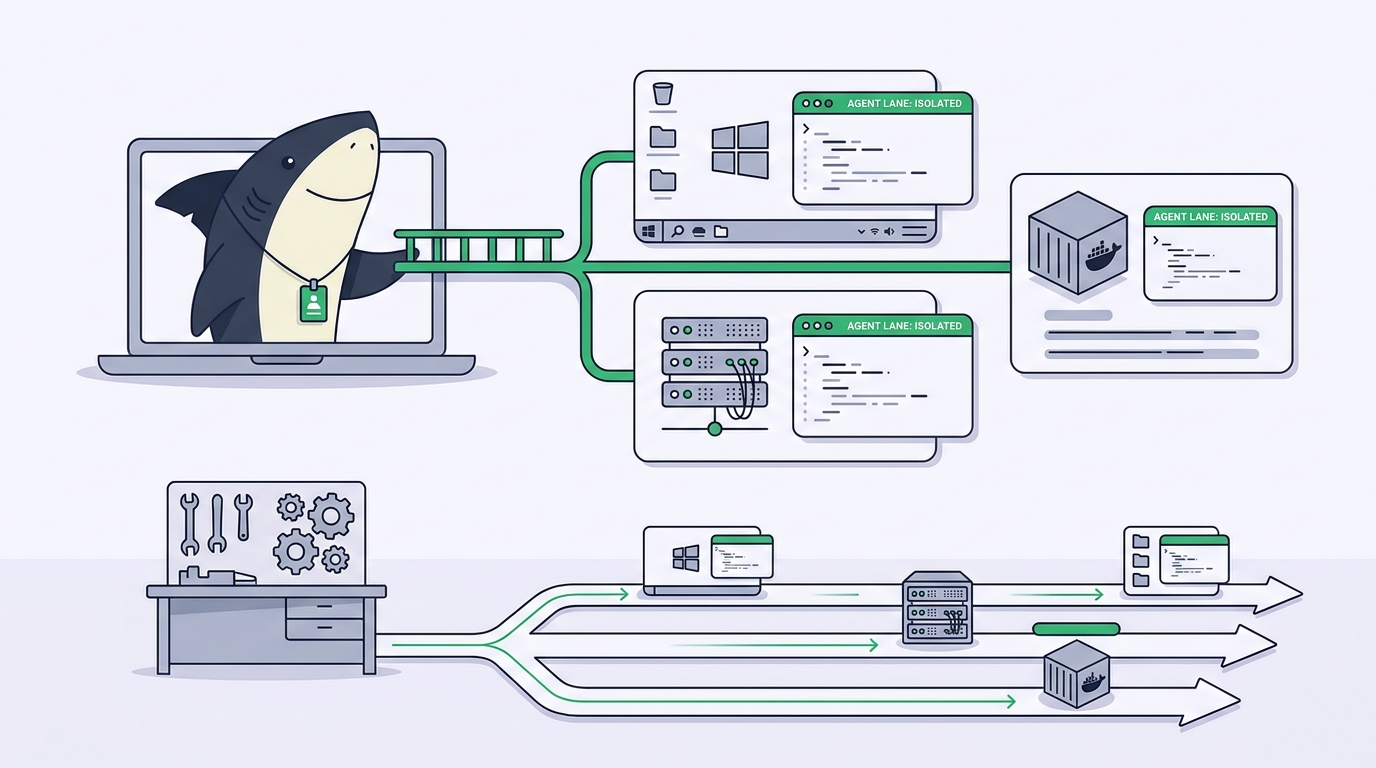
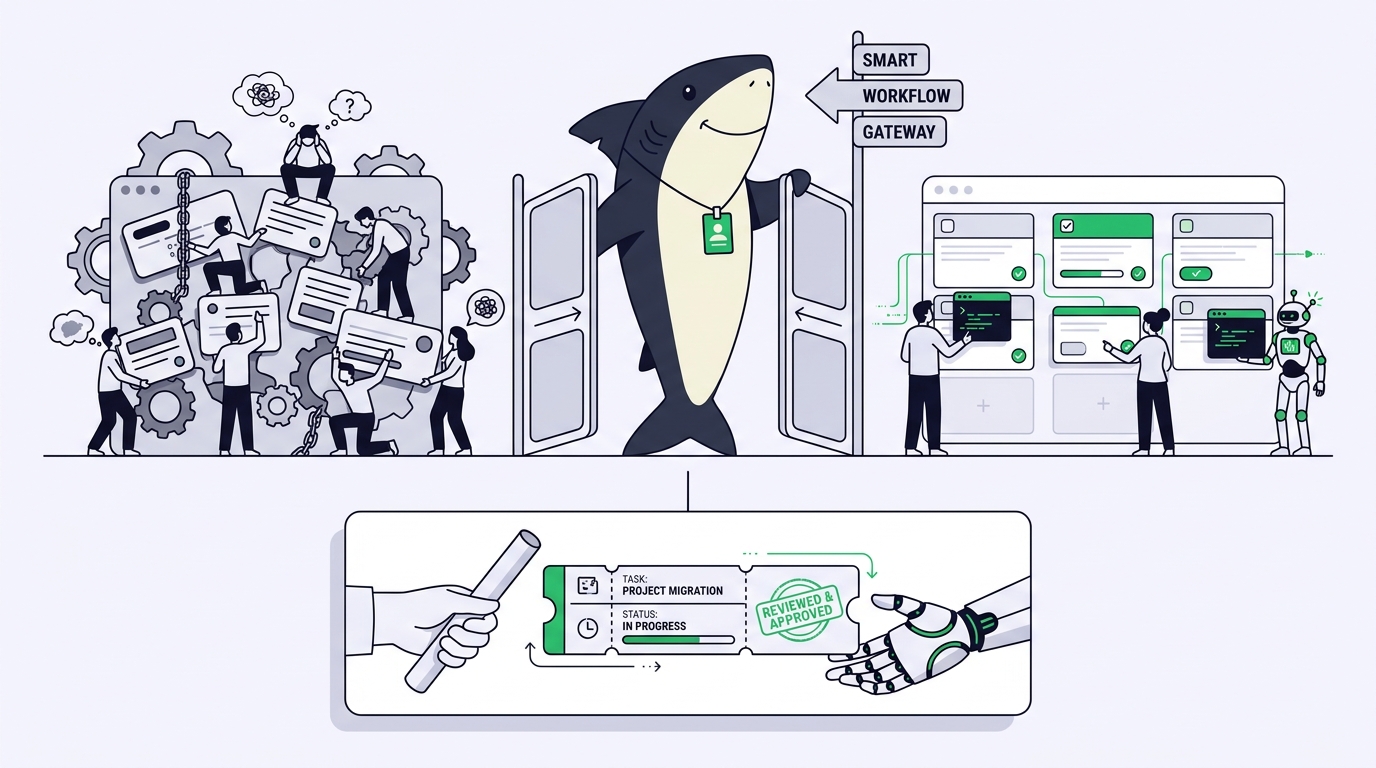
Sharkly closes that gap from the platform side. Sharkly is not a replacement for Claude Code, Codex, or other execution tools; it adds the shared task, context, control, and review layer around them. Its Slack integration extends that layer into your workspace, so teammates get the answer where the question was asked.
Two connections, two jobs
The integration provides two independent connection types, and mixing them up is the most common source of confusion:
| Connection | What it does | Who sets it up |
|---|---|---|
| Slack workspace connection | Installs Sharkly’s shared Slack app so people can create Tasks from Slack, post Task linkbacks, and preview Sharkly Task links | Organization Owners and Admins |
| Agent bot binding | Creates and installs a dedicated Slack app for one Sharkly Agent so messages become Agent conversations | Members, for Agents they can use |
They are separate installs backed by separate Slack apps, and either works without the other. Two more boundaries: a Slack workspace connects to only one Sharkly Organization at a time, and Slack actions inside Space automations use a third connection where Slack works as an action but cannot start a workflow in this release. This guide covers the Agent bot binding.
What is a Sharkly Agent Slack bot?
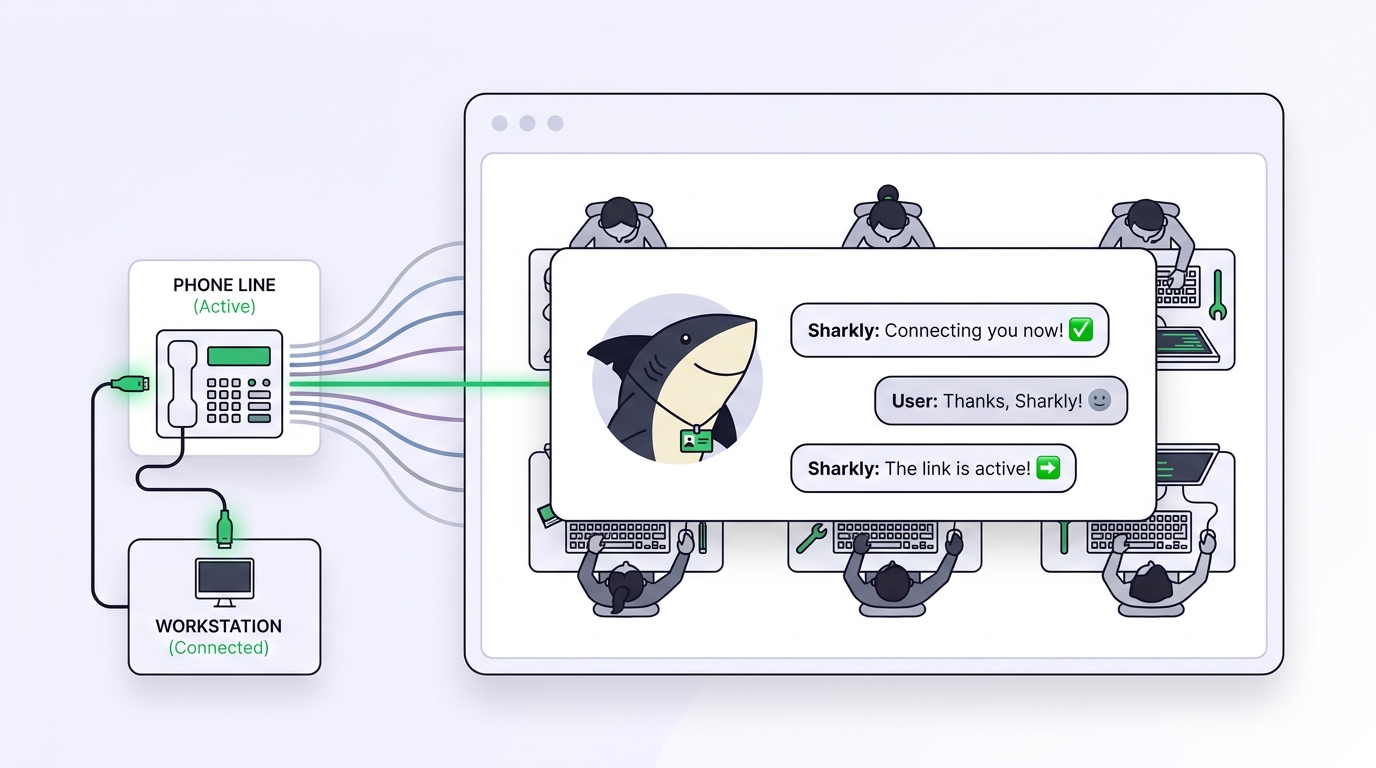
An Agent bot connects one Sharkly Agent to one Slack app. Messages become an Agent conversation, and the reply returns to the same DM or thread. The Agent that answers is the same configured teammate it is everywhere else in Sharkly: same instructions, model, skills, and repository knowledge.
The binding is strictly one to one, and you can bind your own Personal Agents plus the Space-shared Agents you are allowed to use.
Two surfaces come with the install. Direct messages create a chat session for that DM channel, and later messages continue it, so the Agent keeps context instead of starting cold. Channel mentions strip the mention, send the rest to the Agent, and reply in a thread rooted at your message.
@ReleaseShark summarize the decision in this thread and list the next steps
Sharkly ignores messages from other bots, edited-message events, and join events, which prevents reply loops once several apps share a channel.
How to connect an AI agent to Slack
You need an Agent you can configure (see the getting started guide) and permission to generate a Slack App Configuration Token and install an app for the target team.
- Open api.slack.com/apps and find Your App Configuration Tokens.
- Generate an App Configuration Token and copy its Refresh Token (Slack’s docs). Treat it as a secret and submit it only through Sharkly’s connection form.
- In Sharkly, open Integrations and select Slack.
- Select Connect Agent and choose the Agent to bind.
- Optionally enter an app name. Left blank, the Agent’s name is used.
- Paste the Refresh Token and select Create & Install.
- Complete the Slack OAuth authorization in the window that opens. If nothing appears, allow pop-ups and retry.
- Wait for the bot status to change from Installing to Connected.
Sharkly exchanges the refresh token for a short-lived configuration access token, creates the app from a manifest covering the bot identity, Slack Assistant view, OAuth redirect, Events API callback and scopes, then opens Slack to install it.
Verify by sending the bot a DM. A reply confirms the whole path: event received, session created, run completed, response delivered. If the bot stays in Installing, the OAuth callback has not stored the bot token yet, so reopen the install window and finish the prompt. If the Agent is not selectable, it is already bound to another app.
Slack bot triggers: mention, emoji reaction, any message
By default the bot responds to direct messages and channel mentions, nothing else. In the Agent’s Slack settings each trigger is a row you can toggle:
- Mentioned in a channel is the default. The Agent runs only when someone names the bot, and the reply lands in a thread under the mention.
- Emoji reaction in a channel turns a reaction into a trigger. React with the configured emoji and the bot opens a thread with nearby context.
- Any channel message runs the Agent on ordinary messages in channels you explicitly pick. It cannot apply to every channel, and other apps posting there can set it off.
The decision pair that keeps this sane: keep mention-only in shared channels, where broad triggering creates noise and exposes unrelated context to the Agent. Turn on Any channel message only in a dedicated channel where everyone expects messages to reach the Agent. The emoji trigger sits between those extremes, since nothing reaches the Agent unless a person deliberately reacts.
Each channel thread is its own Agent conversation, so two threads in one channel are two sessions with separate context, and people can continue a thread without mentioning the bot again. The app also enables Slack Assistant, the pane Slack provides for AI apps.
A Slack conversation is not a Task
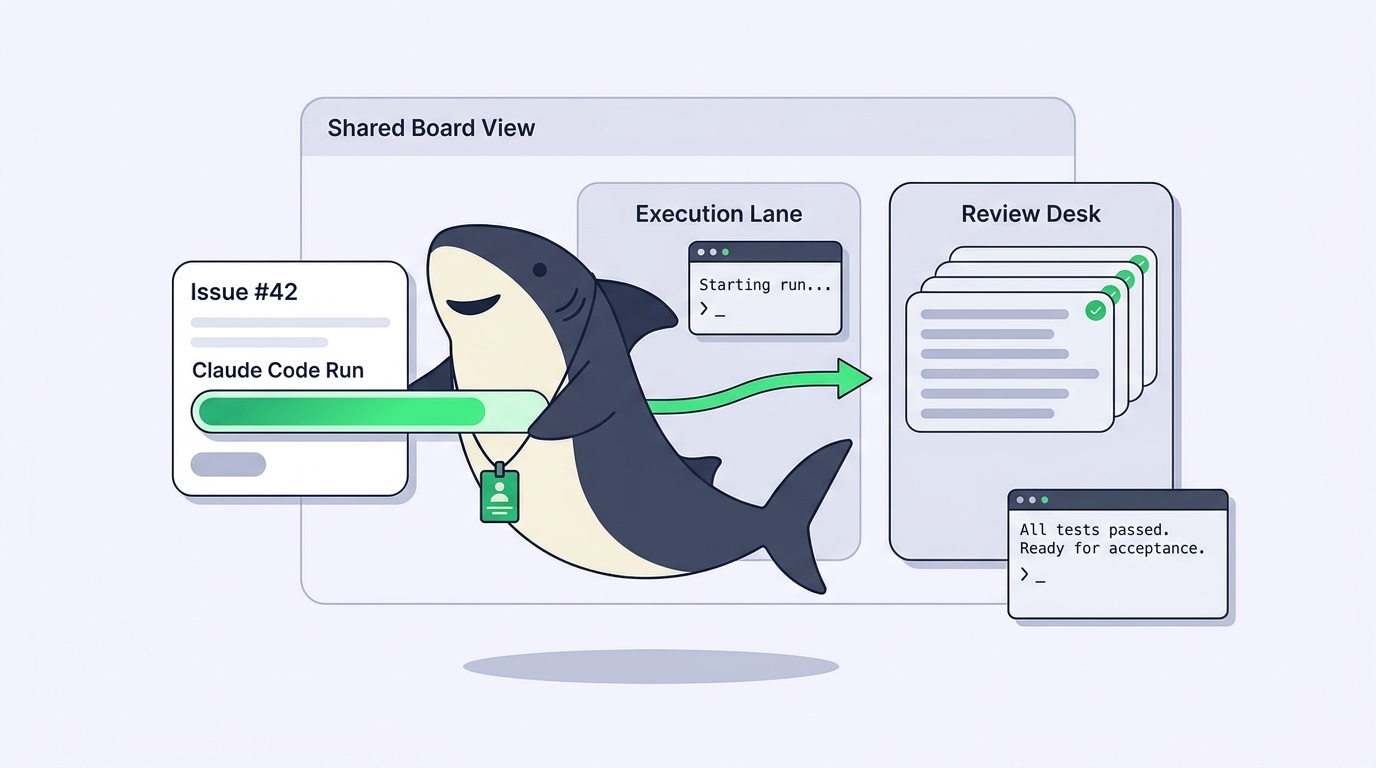
Agent bot conversations never create Tasks on their own, and that boundary is deliberate. The rule from chat versus task assignment carries over unchanged: chat when you need an answer, assign a Task when you need a result someone will review.
When an Agent creates a Task from Slack you can bind the current thread at the same time. After binding, task comments and thread messages stay in sync. Thread binding is what earns this integration its keep: a discussion starts in Slack, becomes a Task, and from then on progress, blockers, and results return to the Task while the thread stays current for the people who were in the conversation.
When a Slack bot is the wrong tool
You only want Task creation and link previews. Use the workspace connection alone. Slash commands, shortcuts, linkbacks, and unfurls all come from the shared app.
You want scheduled or event-driven channel messages. That is a Slack action inside an automation workflow, not a conversation. Since Slack events cannot trigger workflows in this release, start from a schedule, a status change, a comment keyword, or a webhook.
The work needs execution against a repository with review at the end. Assign a Task. Use the bot to ask; use Tasks to build.
You want one bot fronting your whole roster. That binding does not exist. Several specialists coordinating on real work belong in a Crew working a Task, not a channel full of bots.
Security and permissions
- The App Configuration Refresh Token is exchanged during setup and is not used as the installed bot token. The generated client secret, signing secret, and OAuth bot token are encrypted at rest.
- Events API callbacks are verified with the stored signing secret; invalid signatures are rejected and event bodies are size-limited.
- Review the requested scopes before authorizing: mentions, direct messages, channel and private-channel thread history, sending messages, opening DMs, and Assistant status updates.
- Owners and Admins manage the shared workspace and all bindings; members manage bindings for Agents they can use.
Disconnecting is not destructive: the Agent stops receiving messages through that bot, but Slack history is untouched and no past message becomes a Task.
Conclusion
A Slack bot for coding agents earns its place when it changes where the conversation happens without changing where the work lives. Bind one Agent you already trust, keep the mention-only default until a channel asks for more, and use thread binding the moment a chat turns into work. If you don’t have an Agent yet, create one first.
Frequently asked questions
Do I need to connect a Slack workspace before binding an Agent bot?
No. The two connection types are independent. You need the workspace connection only for Task creation from Slack, linkbacks, link previews, and Inbox notification DMs.
Can one Slack bot serve multiple Sharkly Agents?
No. Each bot binds to exactly one Agent, and an Agent holds only one binding at a time. To put several Agents in Slack, create a separate bot for each.
Does chatting with the bot create Tasks automatically?
No. When a conversation turns into work that needs an owner, status, or review, create the Task deliberately. If the Agent creates it from Slack, you can bind the thread so comments and messages stay in sync.
Can a Slack message start a Sharkly automation workflow?
Not in this release. Slack is available in workflows as an action, but Slack triggers through the Events API are not wired yet.