TL;DR
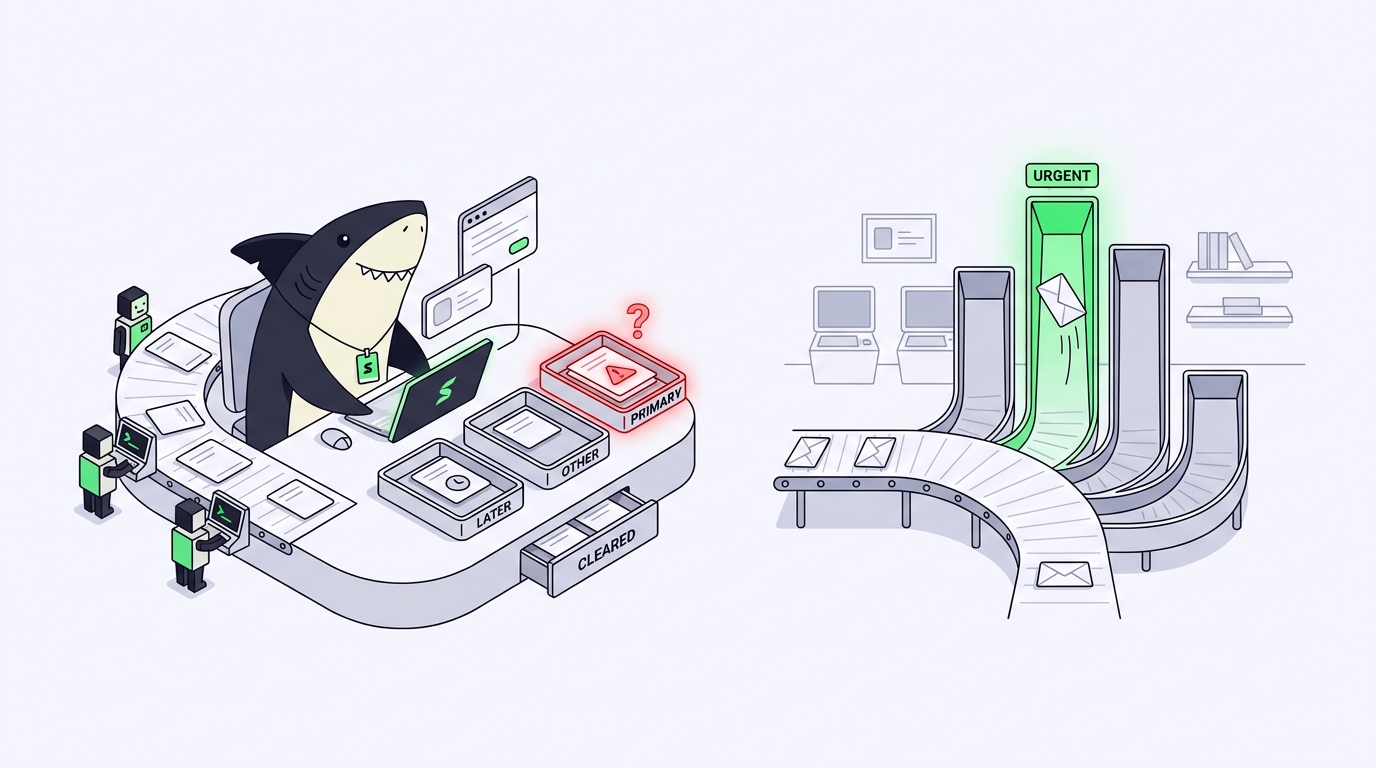
An AI agent inbox is a personal queue that collects everything your agents need from you: replies, reviews, failures, and mentions, grouped by Task instead of scattered across channels. Sharkly’s Inbox sorts that activity into four sections so the items that block work reach you first.
- Agent runs, comments, mentions, and status changes generate activity on Tasks you’re connected to.
- The Inbox groups that activity by Task, one row per Task, with a count for additional events.
- Primary holds Tasks with an active signal that needs you: a reply request, a review, a failed run, a mention, or an assignment.
- You snooze rows to Later, clear rows you’re done with, and reply in context with one click.
Why AI agent notifications overwhelm the tools you already have
Your notification stack was designed for humans, who write a handful of comments a day and ask for review once per branch. Volume stayed proportional to headcount, so Slack channels kept up.
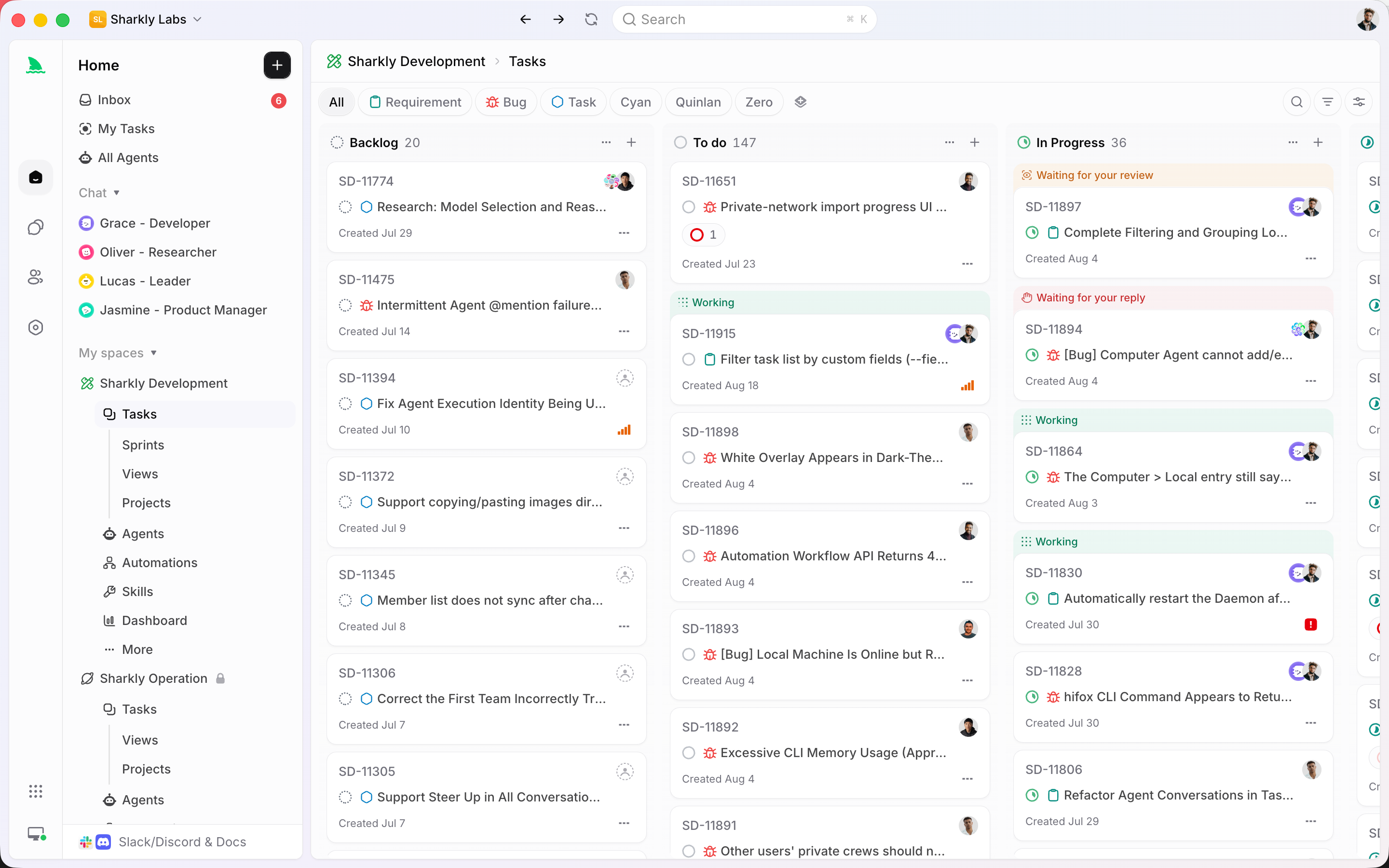
Agents change the math. One developer running five parallel agents produces the event stream of a six-person team. Every run starts, streams progress, finishes or fails, and posts a result. Add a Crew of specialist Agents coordinating on one goal and the stream gets denser again.
Volume is only half the problem. The other half is that agent events differ wildly in urgency, and flat channels flatten that difference:
- An Agent waiting on your answer is a blocker. Every minute it waits, a compute slot sits idle.
- A failed run needs a decision: retry, rewrite the Task, or reassign.
- A finished run needs review before anyone can build on it.
- A status change on a Task you follow is context, useful but not urgent.
Dump all four into one channel and you will skim past the blocker while reading the context. That is the gap Sharkly fills. Sharkly is not a replacement for Claude Code, Codex, or the other tools that execute work. It adds the shared task, context, control, and review layer around them, and the Inbox is where that layer talks back to you.
What is the Sharkly Inbox?
The Inbox is a personal queue of task-related activity that Sharkly has recorded for you. It groups activity by Task, so several updates on the same Task appear as one row with a count of additional events. Selecting a row opens the Task’s details, landing on the specific comment when the item refers to one.
Three design choices separate it from a notification feed:
It’s personal. Your Inbox reflects your relationship to each Task: Assignee, mentioned person, subscriber, or reviewer. Your teammate’s Inbox sorts the same activity differently, because the same event carries different weight for each of you.
It’s grouped by Task. Eight events on one Task make one row, not eight. You triage work items, not individual pings.
It’s a record, not a to-do list. Reading an item, snoozing it, or clearing it never changes the Task, its comments, or its activity history. The Inbox controls your attention; the Task remains the shared record for the team. You can clear aggressively without editing anything the team relies on.
Primary, Other, Later, Cleared
Every Task with active Inbox activity lives in exactly one section:
| Section | What it contains |
|---|---|
| Primary | Tasks with an active signal that requires your attention: waiting for your reply, waiting for your review, failed or blocked work, direct mentions, and assignment to you. |
| Other | Relevant Task activity that doesn’t currently place the Task in Primary for you, such as an Agent status change on a Task you follow but don’t own. |
| Later | Tasks whose current activity you’ve snoozed until a future time. |
| Cleared | Task groups you’ve removed from the active list. Clearing is not deletion; the Task and its history are untouched. |
Four behaviors are worth internalizing. Primary is signal-ranked: when a Task matches several signals, Sharkly places the row by the highest-priority one. Other is context by design: the status change that lands in the Assignee’s Primary lands in a follower’s Other, so one event stream serves a whole team without spamming it. Later is quiet on purpose: snoozed items are excluded from the active unread count. Cleared is reversible: Unclear returns a row to Primary, Other, or Later based on its current activity.
Working the queue: read, snooze, clear
You get five moves per row.
- Open the row. Review the latest event with full Task context. Opening an unread row marks all matching activity for that Task as read.
- Reply in the Task. Answer where the work lives. On an agent-assigned Task, an eligible comment can start the follow-up run directly.
- Mark it unread. If you opened something but can’t act yet, this restores the visual cue for the whole Task group.
- Snooze it. Presets cover 1 hour, tomorrow, next week, and next month, or you can pick a date.
- Clear it. Moves all current active activity for that Task to Cleared.
Read state is tracked at the Task-group level and is never visible to your team. Snooze applies to all current active activity for that Task, and new non-snoozed activity can bring the row back early, which is what you want: “remind me next week” should not suppress “the run failed an hour later.” There is currently no manual unsnooze, so you either wait for the return time or clear the row.
Tuning the queue for heavier agent traffic
- Filter by Space. Include or exclude Spaces across Primary, Other, and Later so you triage one world at a time. Cleared loads separately and ignores the filter.
- Search inside a section. Search matches Task titles and comment bodies in the section you have open.
- Mute by notification group. Assignments, status changes, comments, mentions, and Agent activity can each be muted. Use the scalpel instead of learning to ignore the whole queue, because a queue you ignore fails you on the day a run breaks.
- Add Slack as an outbound channel. Slack delivers Inbox events as DMs once connected. The Inbox stays the complete record: mute a group in Slack and the Inbox item survives. Slack only delivers events created after you enable it, so it is the doorbell, not the front desk. See docs.sharkly.ai.
- Pair it with Automations. Scheduled and triggered runs produce the same reviewable activity as manual ones, so an overnight job that hits a wall becomes a Primary item in your morning queue instead of a silent failure in a log file.
When you don’t need the Inbox
Skip Inbox-centric triage when you’re one person running one Agent on one Task. Watching the run directly, or working in a standalone Agent chat that never becomes a Task, gives you everything the Inbox would with less ceremony.
Rely on the Inbox when runs happen in parallel, when more than one person can answer an Agent’s question, or when work continues while you are elsewhere. Five agents working isolated worktrees do not pause as a group when you go to lunch, and a ranked queue is how you catch up in minutes instead of replaying five transcripts.
It is also worth saying what the Inbox is not. It is not a task board: your views and Sprints answer “what is the state of the work,” while the Inbox answers “what needs me now.”
Where this leaves your team
Agent throughput is easy to scale. Human attention is not. Teams that win with agents are the ones whose humans respond fastest to the runs that need them: the blocked question, the failed job, the finished diff awaiting acceptance.
Assign one Agent something boring before you log off, then open your Inbox and work the queue top to bottom. When the ranking earns your trust on one Agent, add the second. The ten-minute setup guide gets you there, and the agent project management guide covers writing Task descriptions clear enough that fewer runs come back asking.
FAQ
What is an AI agent inbox?
A personal queue that collects the activity your AI agents and teammates generate on shared work: reply requests, review requests, failures, mentions, and status changes. It ranks items by whether they need your action, so blocked agents get answers quickly and routine updates don’t interrupt you.
How is the Sharkly Inbox different from Slack or email notifications?
Slack and email are flat streams where a blocker and a status change look identical. The Inbox groups activity by Task, ranks it by your relationship to the work, and links every item to the Task where you can act. Slack remains available as an optional outbound channel.
Does clearing an Inbox item delete anything?
No. Clearing moves a Task’s current active activity to the Cleared section and nothing more. The Task, its comments, and its history are unchanged, and Unclear returns the row to the appropriate active section.
What puts a Task in my Primary section?
An active signal that needs you: an Agent waiting for your reply, work waiting for your review, a failed or blocked run, a direct mention, or an assignment. Activity on Tasks you are assigned also stays in Primary, and the highest-priority signal wins.
Do AI agents get their own Inbox?
No. Only accepted human members receive Inbox items. Agents can appear as subscribers on a Task for context, but notification queues exist for people. Agents get their context from the Task itself.