Every engineering team carries a layer of recurring work that nobody planned and everybody pays for. Someone assembles the standup summary. Someone reads each incoming bug report and routes it. Someone compiles the Friday status report from six tabs of scattered state. None of this is hard. All of it is toil: predictable, repeatable, and quietly expensive, because it lands on whoever noticed it first.
This is exactly the kind of work an AI Agent handles well, if something starts the Agent at the right moment without a person typing a prompt. That starting mechanism is what Automations provide in Sharkly. An Automation is a Space-owned definition for repeatable Agent or Crew work: written instructions, an execution assignee, one or more triggers, and a run history you can inspect.
The point is not to automate judgment. Sharkly’s own framing is blunt: automation stops where team judgment is required. An Automation can draft the standup summary, do the first-pass read of a bug, and assemble the weekly report. A person still decides what the team does about any of it. If you are new to Sharkly itself, start with what Sharkly is and come back.
TL;DR
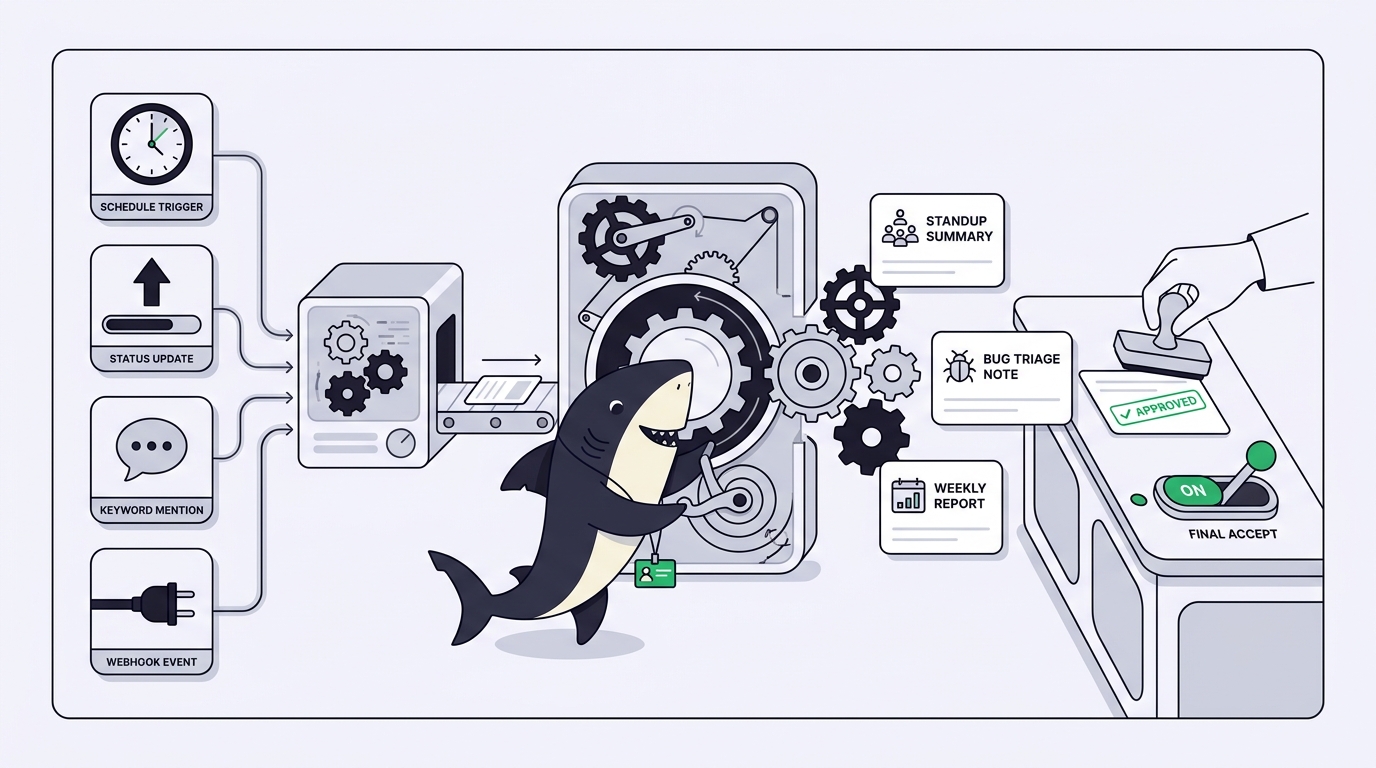
An Automation in Sharkly is a Space-owned rule that starts an Agent or Crew with a fixed set of instructions whenever a trigger fires. There are four trigger types: a schedule (five-field cron with a timezone), a task-status change, a comment containing a configured phrase, and a secret webhook URL for external services, plus a Run now button for manual testing. Each run is recorded in run history with its source, result, and failure reason, and an Automation can be paused and resumed while you revise it. Use Automations for well-defined recurring work: standup summaries, first-pass bug triage, periodic reports. The Agent does the reading and drafting; a person reviews the output and makes the call.
What an Automation is, and what it is not
An Automation stores a small, complete definition of one repeatable job: a name and instructions describing the goal, steps, constraints, and expected result; the Space that owns it; an assignee, meaning the Agent or Crew that performs the work; a priority; a status of Active or Paused; one or more triggers; and run history recording each run’s source, result, Agent run, and failure reason.
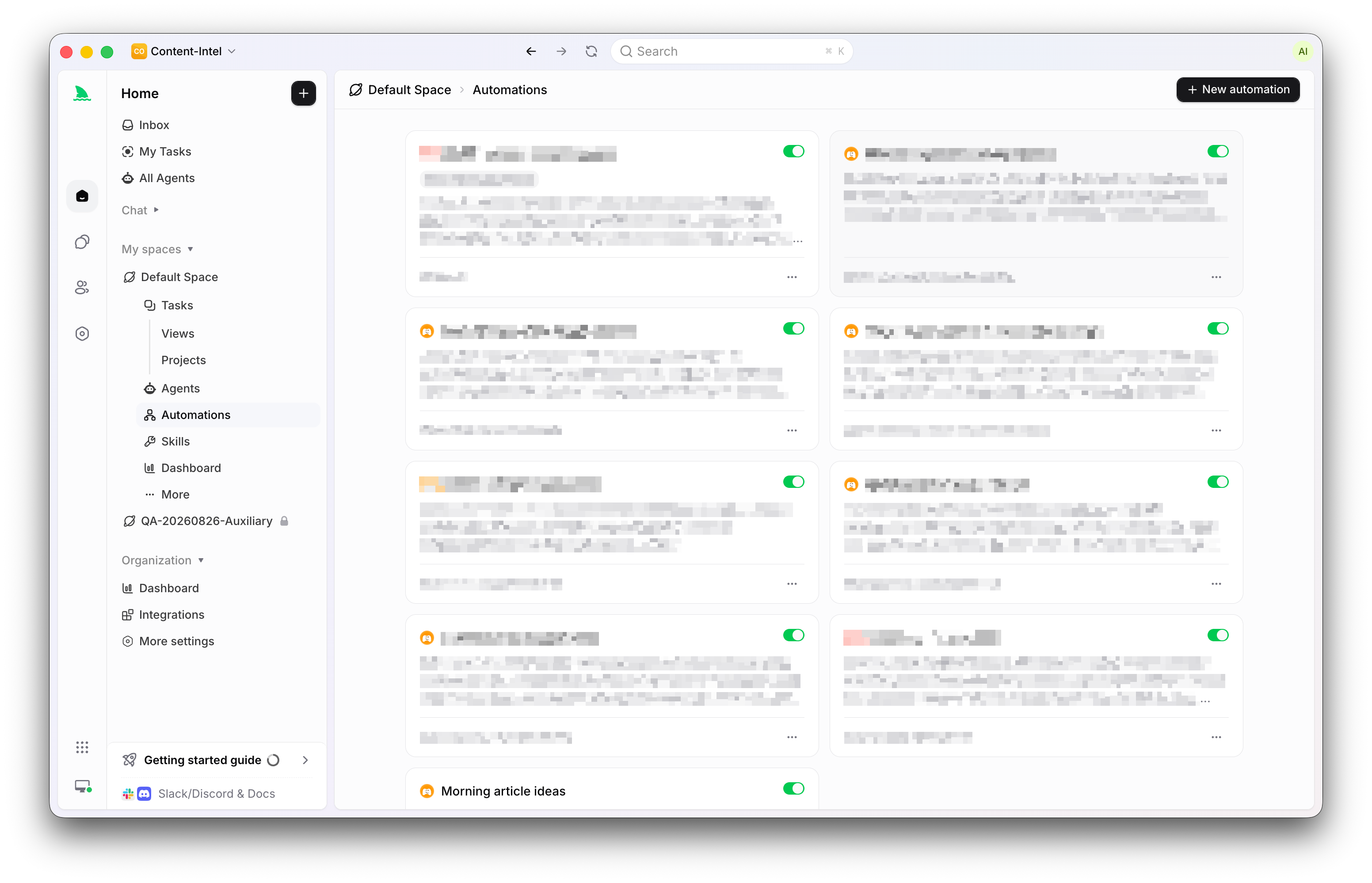
Two boundaries would otherwise surprise you.
First, an Automation does not create a Task for each run. It starts an Agent or Crew run directly. The run, its output, and any failure land in the Automation’s run history rather than in your task list, so your board does not fill up with machine-generated Tasks every morning at nine.
Second, Automations are not Sharkly’s workflow canvas. A Space has two automation surfaces: Automations, the single rule described here, and Automation workflows, a canvas of trigger and action nodes that can call third-party connectors. Use an Automation when one Agent or Crew should run one set of instructions in response to a predictable event. Use a workflow when you need multi-step or cross-app actions before the Agent gets involved.
Because the assignee is a full Sharkly Agent, everything you already configured on that Agent applies: its instructions, Runtime, Skills, repositories, and run settings. If you have not built one yet, Agents in Sharkly covers how a saved working configuration becomes something a team can reuse. An Automation is, in effect, a standing appointment with that Agent.
The four trigger types
An Automation can have multiple triggers, each enabled or disabled independently. One definition can serve several entry points: the same triage instructions can fire on a status change and on a slash command, without duplicating anything.
| Trigger | Fires when | Best for | Watch out for |
|---|---|---|---|
| Schedule | A cron expression matches, in a chosen timezone | Recurring checks, summaries, reminders, maintenance | Timezone choice; runs happen whether or not anything changed |
| Task status change | A task moves into one selected Organization status | Intake queues, review follow-up, triage | Matching is Organization-wide, not Space-filtered |
| Comment phrase | A task comment contains a configured phrase, case-insensitive | On-demand commands like /triage from inside a discussion | Also listens Organization-wide; pick a distinctive phrase |
| Webhook | An external service sends a POST to a secret URL | CI results, GitHub events, alerts from other systems | The URL is a bearer secret; store and rotate it carefully |
Schedule uses a standard five-field cron expression and a timezone, with common hourly, daily, weekday, and weekly presets. This is the trigger for work that should happen because it is Tuesday, not because something changed.
Task status change starts the Automation when a task moves into one selected Organization status. One detail matters: statuses are reusable Organization definitions, and current event matching is Organization-wide. If several Spaces use the same “Needs Triage” status, a matching transition in any of them can start your Automation. Write the instructions so the Agent verifies the triggering task before acting.
Comment phrase starts a run when a task comment contains a configured phrase. Matching is case-insensitive, checks anywhere in the comment, and also listens across the Organization. The docs’ advice: prefer a distinctive slash command like /triage-bug rather than “check”, and have the instructions validate the triggering task.
Webhook creates a secret URL that accepts a POST from an external service. The full URL is shown when the trigger is created or regenerated and is not available for later viewing, because by default the URL itself acts as a bearer secret. If you configure a signing secret, requests must also pass signature verification, the same pattern GitHub uses for its own webhooks. Keep these secrets out of source control, and regenerate them if exposed. For scripting Sharkly beyond webhooks, see the Sharkly CLI and API.
One more way to start a run is not a trigger at all: Run now starts the Automation directly, the way to test instructions and assignee availability before trusting the four triggers with the job.
What an Automation actually runs
When a trigger fires, Sharkly starts the assigned Agent or Crew with the Automation’s instructions. Those instructions are the whole contract, so the docs are specific about what they should state: the outcome to produce, the inputs to inspect, the steps to follow, where the result should be recorded, which changes are allowed, and when a person must review or decide.
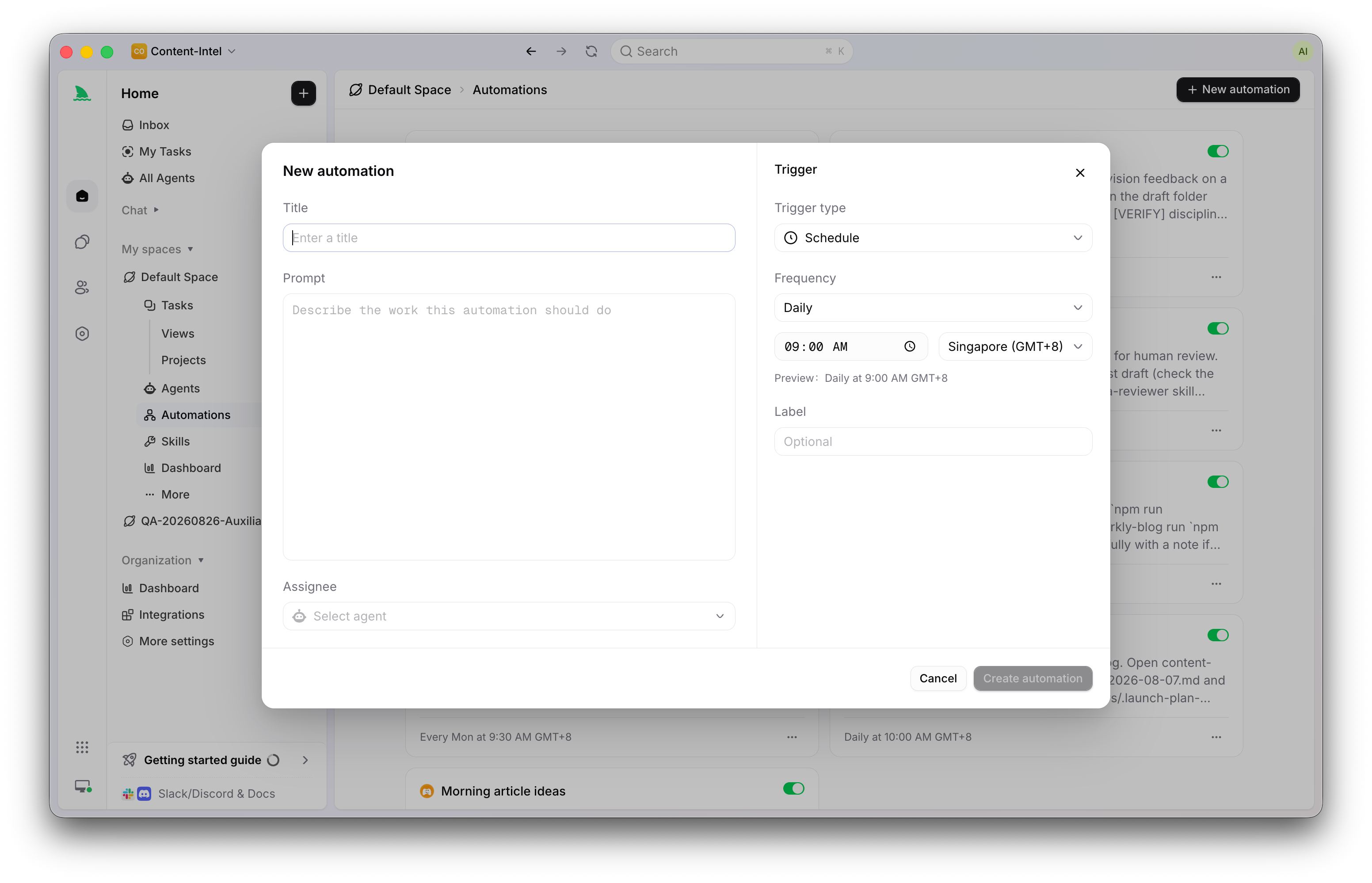
That last item deserves emphasis. A well-written Automation names its own stopping point. “Draft the summary and record it; do not change task statuses” is a better instruction than a longer one that leaves authority ambiguous. The docs’ rollout guidance is equally plain: start with work that is observable and reversible, and review several runs before expanding scope.
Three chores worth automating first
Each of these stays at the fidelity the product supports: the Agent reads, drafts, and records; people keep the decisions.
The daily standup summary. Trigger: a schedule, weekday preset, in the team’s timezone. Assignee: a reporting Agent with read access to the relevant context. Instructions: inspect the current Sprint’s tasks, note what moved, what is blocked, and what is waiting on review, then record a short summary where the team reads it, without changing any task. The Agent does the part of standup nobody enjoys, assembling the picture, and standup becomes a conversation about the two items that need judgment. If your team runs its cadence through Sharkly, Sprints supply the structure the Agent inspects.
First-pass bug triage. Trigger: a task-status trigger on your bug intake status, or a comment trigger on a distinctive phrase like /triage, or both. Assignee: a triage Agent whose repositories cover the affected code. Instructions: verify the triggering task is a bug in the intended Space, read the report, inspect the relevant area of the codebase, then record what the bug appears to touch, whether the report contains enough to act on, and a suggested priority with reasoning. Recommend; do not decide. The verification step is not decoration: because status and comment matching are Organization-wide, the instructions are your scope filter. The payoff is that every bug gets the same careful first read within minutes of arriving. The same division of labor holds when work arrives from outside Sharkly; see how a Jira ticket becomes an Agent’s job.
The periodic report. Trigger: a schedule, weekly preset. Assignee: the same kind of reporting Agent, with instructions scoped to a longer window: summarize what was completed, what slipped, and what is blocked. The difference from the standup case is only scope and audience, which is precisely why it belongs in an Automation. The report that exists every Friday at the same fidelity beats the better report that exists when someone has time.
Across all three, notice what never appears in the instructions: accept, approve, ship, close, decide.
Run history, health, and pause and resume
Automation you cannot inspect is automation you cannot trust, so every run is recorded. Run history reports each run as Running, Completed, Failed, or Skipped, and the run details let you open the trigger payload, the Agent run, the output, and the recorded failure reason. Above the individual runs, a health signal summarizes the latest useful state: never tested, running, healthy, skipped, or needs attention.
One boundary negation belongs in bold in your head: a Completed status describes the Automation run, not a promise that every downstream outcome was correct. Completed means the machinery worked. Whether the summary was accurate or the triage call was sound is still a human read.
Pause and resume exist for exactly the moments you would expect. Pause an Automation to stop new triggered runs while you revise its instructions, triggers, or assignee, then resume it when the configuration is ready; the definition and its history stay put in between. Deleting is the only removal path, so reserve it for definitions whose run history you no longer need. And before archiving an Agent, check whether Automations still depend on it.
Before relying on any Automation, the docs suggest a short checklist: run it manually with Run now, confirm the Agent or Crew has the required access, inspect the run and its output, test each trigger separately, use a narrow status or a distinctive comment phrase, and keep webhook secrets out of source control.
Where automation stops
It would be easy to conclude that the goal is an unattended pipeline. It is not, and the product’s own design says so. Automations do not accept their own output, and they record every run for review.
So the honest decision rule is this. Use an Automation when the same well-defined work should start repeatedly or in response to a predictable event, and when a consistent first draft beats an excellent occasional one. Assign a Task to an Agent directly when the work is one-off, and keep the work entirely with people when the job is the judgment itself: a priority call under conflicting pressure, an acceptance decision, anything where being consistently wrong is worse than being occasionally slow.
Start small and boring. Get set up, create one reporting Agent, write one Automation with a weekday schedule and instructions that end with “do not change any task”, and run it manually once. Read the output. If it is useful, let the schedule take over. The docs cover Automations and the workflow canvas in more depth.
FAQ
What trigger types do Sharkly Automations support?
Four: a schedule using a five-field cron expression with a timezone, a task-status trigger that fires when a task moves into a selected Organization status, a comment trigger that fires on a configured phrase, and a webhook trigger that accepts a POST at a secret URL. An Automation can combine several triggers, each enabled or disabled independently, and Run now starts a run manually for testing.
Does an Automation create a Task every time it runs?
No. Current Automations start Agent or Crew runs directly and do not create a Task for each run. The run, its output, and any failure reason are recorded in the Automation’s run history. If you want the result somewhere the team reads, say so in the instructions.
How are Automations different from Automation workflows?
They are two separate surfaces in a Space. An Automation is one rule: when to start, which Agent or Crew runs, and what instructions it follows. Automation workflows are a canvas of trigger and action nodes that can call third-party apps through connectors. Use the single rule for recurring checks and comment commands; use the canvas for multi-step, cross-app flows.
Can an Automation handle bug triage on its own?
It can handle the first pass: verify the triggering task, read the report, inspect the relevant code, and record findings with a suggested priority. The triage decision stays with a person, and the instructions should say so explicitly. The docs recommend starting with observable, reversible work and reviewing several runs before expanding scope.
What happens when an Automation run fails?
The run is recorded as Failed in run history with the failure reason when one is available, and the health signal moves to needs attention. Open the run details to inspect the trigger payload, Agent run, and output, fix the instructions, trigger, or assignee, and use Run now to verify the fix before trusting the triggers again.