Every conversation about AI coding agents eventually hits the same practical question, usually later than it should: where does the code actually run? Not which model, but which machine holds your repository, your credentials, your caches, and the shell the agent is typing into.
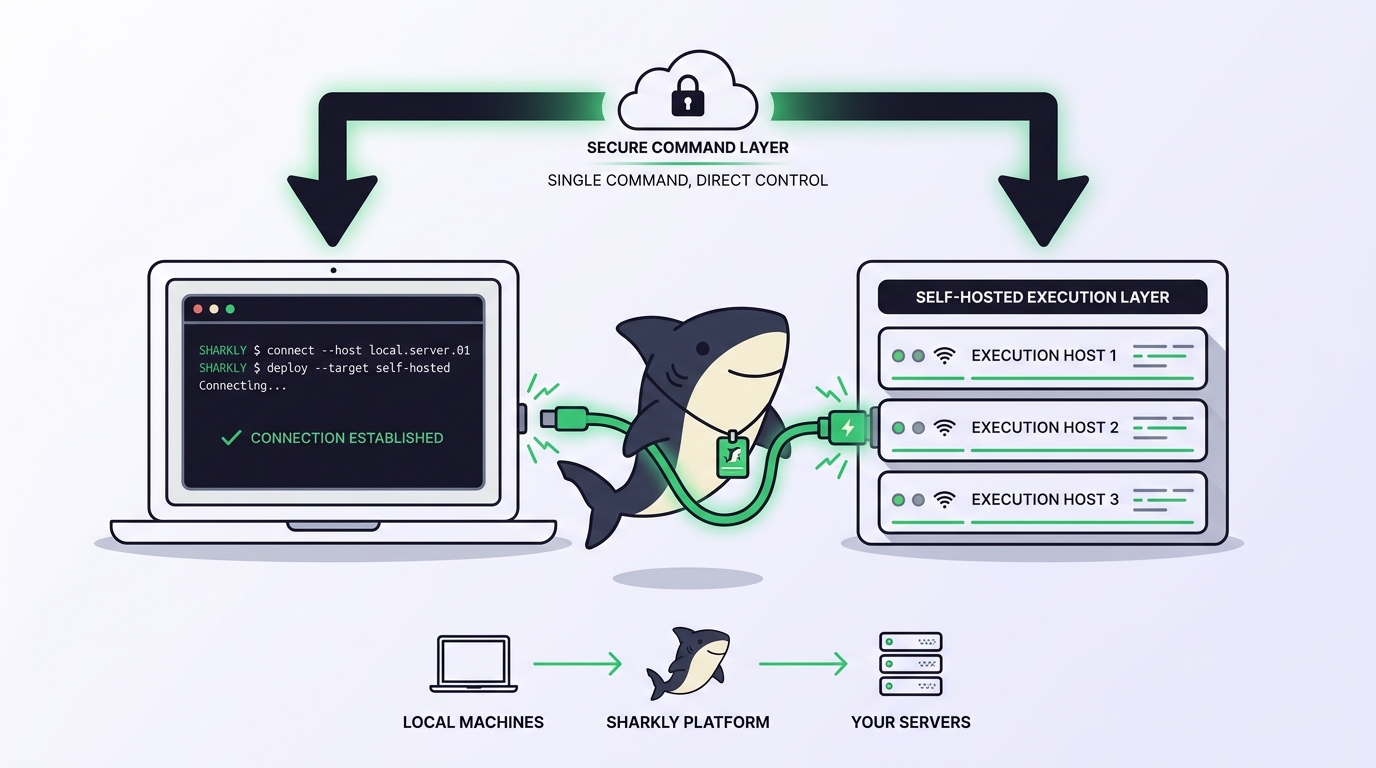
Sharkly makes that answer a first-class concept called a Computer. A Computer provides the execution host for Agent work. It can be a local computer, a remote server, a container, or a supported cloud host. Your laptop qualifies. So does the Linux box in your rack. You choose the host, you control it, and Sharkly coordinates work onto it rather than running your code somewhere you cannot see.
Sharkly is not a replacement for Claude Code, Codex, or other execution tools. It adds the shared task, Computer, context, control, and review layer around the tools your team already uses. Those tools stay installed on your machines, and model usage continues through the subscriptions or API keys configured in them.
TL;DR
A Computer is the execution host for Agent work in Sharkly: a local computer, a remote server, a container, or a supported cloud host that you control. A small local service connects the Computer to Sharkly, detects available Runtimes (the concrete agent tools installed there, such as Claude Code or Codex), receives queued runs, prepares the task directory, starts the selected Runtime, and streams progress back to the Task. Connect a personal machine with Sharkly Desktop, or a remote host with the Sharkly CLI and a one-time install token. Model usage flows through the subscriptions and API keys already configured in your tools; concurrency limits decide how much parallel work one host carries.
What a Computer is, and what it is not
Sharkly splits execution into four roles, and each has exactly one job:
- The Agent defines how work should be handled: instructions, Skills, repositories, run settings.
- The Computer supplies the host and local resources: OS, files, credentials, network, tools.
- The Runtime performs the actual agent session: the coding tool detected on that Computer.
- The Task remains the shared record: goal, discussion, execution state, trace, result.
That separation explains most of what follows. An Agent is not the execution host; the same Agent configuration can point at different Computers over time. A Computer is not an agent; it holds one or more Runtimes and does nothing until work is dispatched to it. And a single Computer can serve several Agents at once, bounded by its concurrency limit.
It also explains the pitch. Hosted platforms bundle the model, the runner, and the infrastructure into one product, which means your code executes on infrastructure you do not operate. Sharkly takes the other position: the execution host is yours, and what it adds on top is assignment, queueing, and review. If you are new to that model, what Sharkly is covers the full picture.
The local service: the piece that does the actual work
A small local service connects each Computer to Sharkly. It registers the Computer, detects installed Runtimes, sends heartbeats, receives queued runs, prepares task directories, starts the selected agent tool, and reports progress and results back.
One design detail carries a lot of operational weight: the local service initiates the connection to the server, so a typical setup does not require an inbound port. That is what makes a laptop behind a home router, a workstation behind a corporate firewall, and a server in a private subnet all equally viable Computers.
Heartbeats are how Sharkly knows a Computer is alive: Online when the server is receiving them, Offline when they stop. The boundary that saves troubleshooting time: online only means heartbeats are arriving. It does not mean the selected Runtime can execute a Task.
Runtimes: what your Computer can actually run
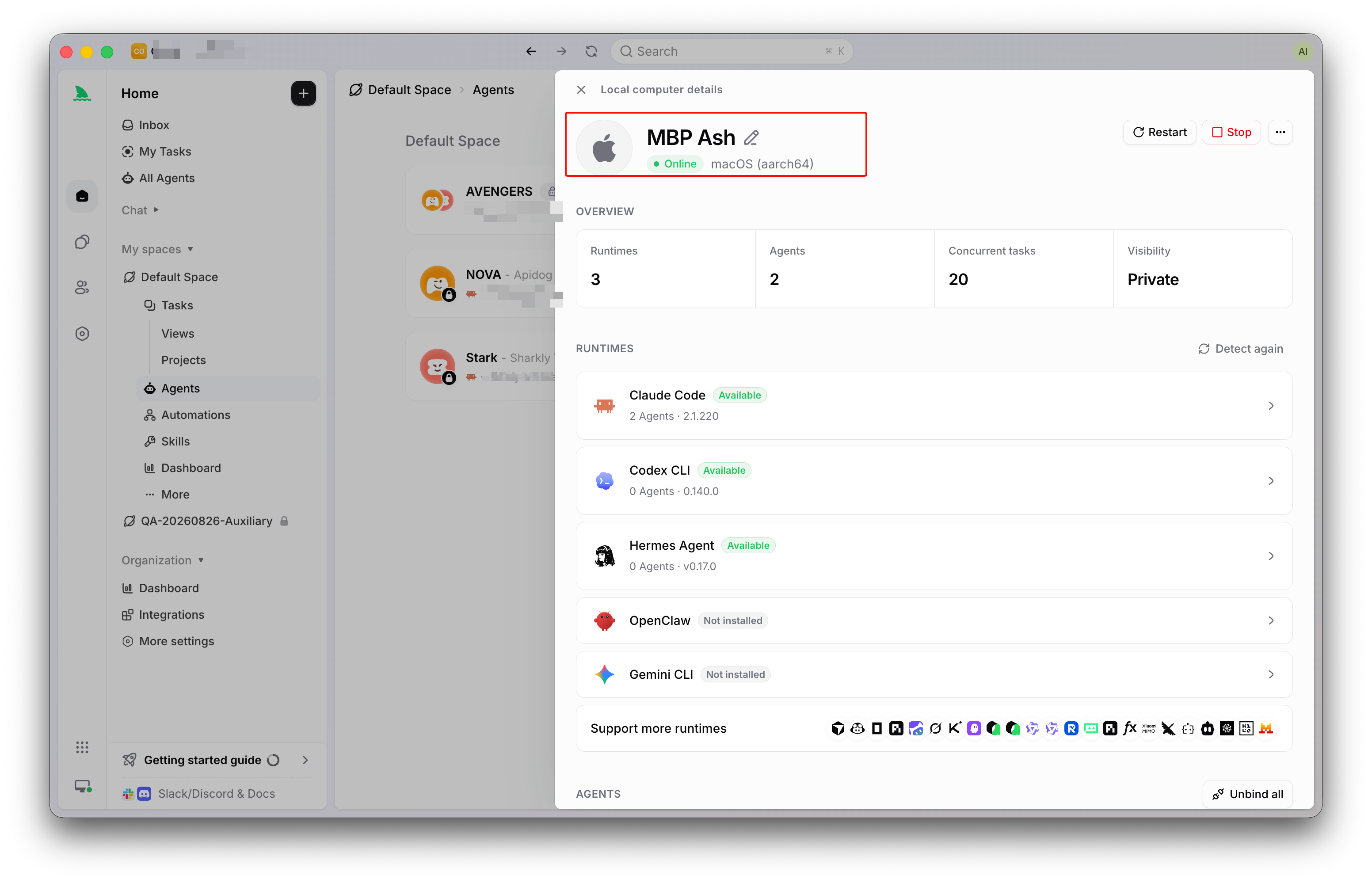
A Runtime is a supported agent execution capability detected on a Computer. The local service scans for supported agent tools and reports each usable one, so a Computer with Claude Code and Codex installed exposes both as Runtimes an Agent can select.
The Computer detail page reports a capability status for each Runtime:
- Available: the Runtime is connected and can execute Agent work.
- Needs configuration: the tool is detected but required configuration is missing.
- Not installed: the tool is not available to the local service; install it or choose another Runtime.
- Unsupported: the Runtime or environment is outside the supported capability set.
Installation stays your responsibility, by design. You install and authenticate each tool the same way you would for direct use; the Computer detail page links the official installation guide, and a rescan confirms the local service can see it. If a capability you rely on is not detected, you can add a custom ACP Runtime with a name and startup command, then test the connection.
Two consequences follow. The bring-your-own-subscription framing is literal: model quota depends on the AI coding tools, plans, and API accounts your team connects, so a quota error points at the account configured in the tool, not a Sharkly setting. And model selection lives with the tool: an Agent follows its Runtime’s default model. How Agents are configured is covered in Agents in Sharkly.
Connecting your first Computer
The first Computer is usually the machine you are sitting at. Open Settings, go to Computers, choose Connect Computer, and pick the setup path for your operating system. For a supported personal computer, the recommended path is installing Sharkly Desktop, which bundles the local service and walks through registration. The getting started guide runs this end to end in about ten minutes.
Once connected, confirm that at least one Runtime reports Available. This is the checkpoint people skip: a connected Computer without a usable Runtime cannot execute Agent work.
Two desktop-only settings matter for laptops. Prevent sleep keeps the machine awake so a long run is not interrupted, and Keep running with lid closed is a separate macOS option. Both appear only on the local machine, never on a remote Computer.
Adding a remote server
A laptop is a fine first Computer and a poor permanent one. It sleeps, travels, and competes with your IDE for memory. The natural second step is a remote host that stays on. Install the Sharkly CLI and local service on it directly:
curl -fsSL https://file-assets.sharkly.ai/download/install.sh | bash
sharkly version
Then, from the Computers page, generate a one-time install token and run the registration command it gives you on the target host:
sharkly computer register --install-token sit_...
Registration records the Computer in your organization, starts the local service, and kicks off Runtime detection. The install token expires after 30 minutes and is single-use, which leads to a hygiene rule the docs state plainly: do not put it in a reusable image, script, Task, or comment.
Credentials are deliberately separated here. A personal access token does not register a computer, and an install token does not create a human CLI login. The shk_ personal access token authenticates you for resource commands like sharkly task list; the sit_ install token creates the session the local service uses. The broader command surface is the subject of the Sharkly CLI and API guide.
After registration, the same CLI doubles as your diagnostic kit: sharkly computer status and sharkly computer logs read local state on the host, while sharkly computer list, show, usage, and ping inspect registered Computers from anywhere. The remote host needs the same things your laptop had: agent tools installed and authenticated, and Git access for private repositories.
Local, remote, or container: an honest comparison
There is no single right host. The docs treat all of them as Computers, and the trade-offs are the ordinary infrastructure ones.
| Host | Best for | Strengths | Watch out for |
|---|---|---|---|
| Local computer (Sharkly Desktop) | First setup, solo work, Specified-directory runs that reuse your existing checkout and caches | Zero extra infrastructure; your exact environment and credentials; Specified working directories are available only on local Computers | Sleep and shutdown interrupt availability; runs compete with your own work for CPU and memory |
| Remote server (CLI + local service) | Team workloads, always-on capacity, higher concurrency | Stays online; isolates agent load from anyone’s laptop; one host can serve several Agents | You install and authenticate Runtimes and Git access yourself; capacity planning is on you |
| Container or supported cloud host | Reproducible, disposable execution environments | Clean rebuildable environment; same registration flow via install token | The one-time token must be generated per registration, never baked into a reusable image |
The decision pair that matters most: use your local Computer when you want Agents working in the environment you already trust; use a remote one when Tasks should keep flowing while your laptop is closed. Many teams end up with both, since routing work to a different host is a configuration change, not a workflow change.
What happens during a run
When a Task assigned to an Agent becomes ready, Sharkly queues a run and dispatches it to the selected Computer. Before the Runtime starts, the local service may wait for concurrency capacity, prepare a directory, fetch the repositories, and project the allowed environment variables.
Directory preparation follows one of two modes. In Temporary mode, each Task gets an isolated directory, and repository-backed runs can prepare a fresh Git worktree from cached repository data; use it for most repository work and whenever several Tasks may modify the same codebase in parallel, as explored in how Sharkly runs Agents in parallel without merge conflicts. In Specified mode, the run reuses one configured absolute directory on a local Computer, along with the dependencies and caches already in it, and one specified directory serves one run at a time.
While the Runtime works, progress streams back. Run state moves through Queued, Dispatched, Waiting for local directory, Running, and then Completed, Failed, or Canceled. Trace events, tool calls, and the final response all return to the Task. The Computer is where execution physically happens; the Task is where acceptance does.
Concurrency: how much should one Computer carry?
Each Computer has a task concurrency limit, and each Agent has its own maximum for parallel running Tasks. Defaults are conservative on purpose: an Agent using temporary directories defaults to 50% of the Computer limit, and one using specified directories defaults to its configured directory count. Push a manual value above that count and the product warns that writes may collide. Believe the warning.
The docs’ guidance is the one to follow: higher concurrency consumes more CPU, memory, disk, provider capacity, and repository bandwidth, so increase it only after the current setup handles the existing workload reliably. Provider capacity is the ceiling people forget: ten parallel runs through one model account hit its rate limits ten times faster. For scaling patterns, see running multiple Claude Code agents in parallel.
An online Agent can still have queued work simply because concurrency or directory capacity is full. Queued is a healthy state, not a stuck one.
Sharing, ownership, and keeping the host clean
Once a Computer does team duty, three controls matter. Visibility decides who can see and use it: Personal, Organization, or Space. Ownership is separate: the owner can transfer the Computer and is the only person who can delete it. And for a local personal Computer, the owner controls which Organizations may use it at all, so joining a new organization never silently volunteers your laptop.
Agent runs leave working directories, caches, and artifacts behind, so cleanup is built in. It makes completed or canceled runs eligible after about 7 days by default, can enforce a minimum free-space threshold, and never touches running or queued work, pinned runs, or failed runs still under investigation. For an immediate check, sharkly daemon disk-usage reports usage and sharkly daemon cleanup previews what would be reclaimed.
Start with the machine you have
The Computer concept answers a question hosted platforms prefer you not ask: whose infrastructure is the agent on? Here the answer is yours, from one laptop to a shared server fleet. You do not need the fleet on day one. Connect one Computer, confirm one Runtime shows Available, create one Agent, and assign it something boring. When the laptop’s limits show up, register a server next to it. The Sharkly documentation covers every setting here in more depth.
FAQ
What is a Computer in Sharkly?
A Computer is the execution host for Agent work: a connected device, server, or container that provides the operating system, files, credentials, network access, and tools an Agent needs. A small local service connects it to Sharkly, detects Runtimes, receives runs, and streams progress back to the Task.
Does Sharkly run my code on its own cloud?
No. Agent work executes on the Computers you connect, which are machines you control. Sharkly coordinates assignment, queueing, progress, and review around those hosts. Model usage also stays yours: it flows through the subscriptions or API keys configured in the coding tools installed on each Computer.
How do I connect a remote server as a Computer?
Install the Sharkly CLI on the host, generate a one-time install token from the Computers page, and run sharkly computer register --install-token sit_... on that machine. The token expires in 30 minutes and works once, so never bake it into an image or script. Then install and authenticate the agent tools you want, and confirm each Runtime shows Available.
Why does my Computer show Online but the run will not start?
Online only means the local service is sending heartbeats; it does not mean the selected Runtime can execute work. Open Computer detail and check the Runtime’s capability status: Needs configuration and Not installed both block runs. sharkly computer ping confirms whether a specific Runtime completes a round trip.