Claude artifact apps for teams are artifacts installed as Mac or Windows apps through “Install as app,” a beta in Claude for Mac and Windows. Each app gets its own window, can use Claude and your connectors, and updates for everyone when the artifact changes. Team plans have it on by default with full computer access off.
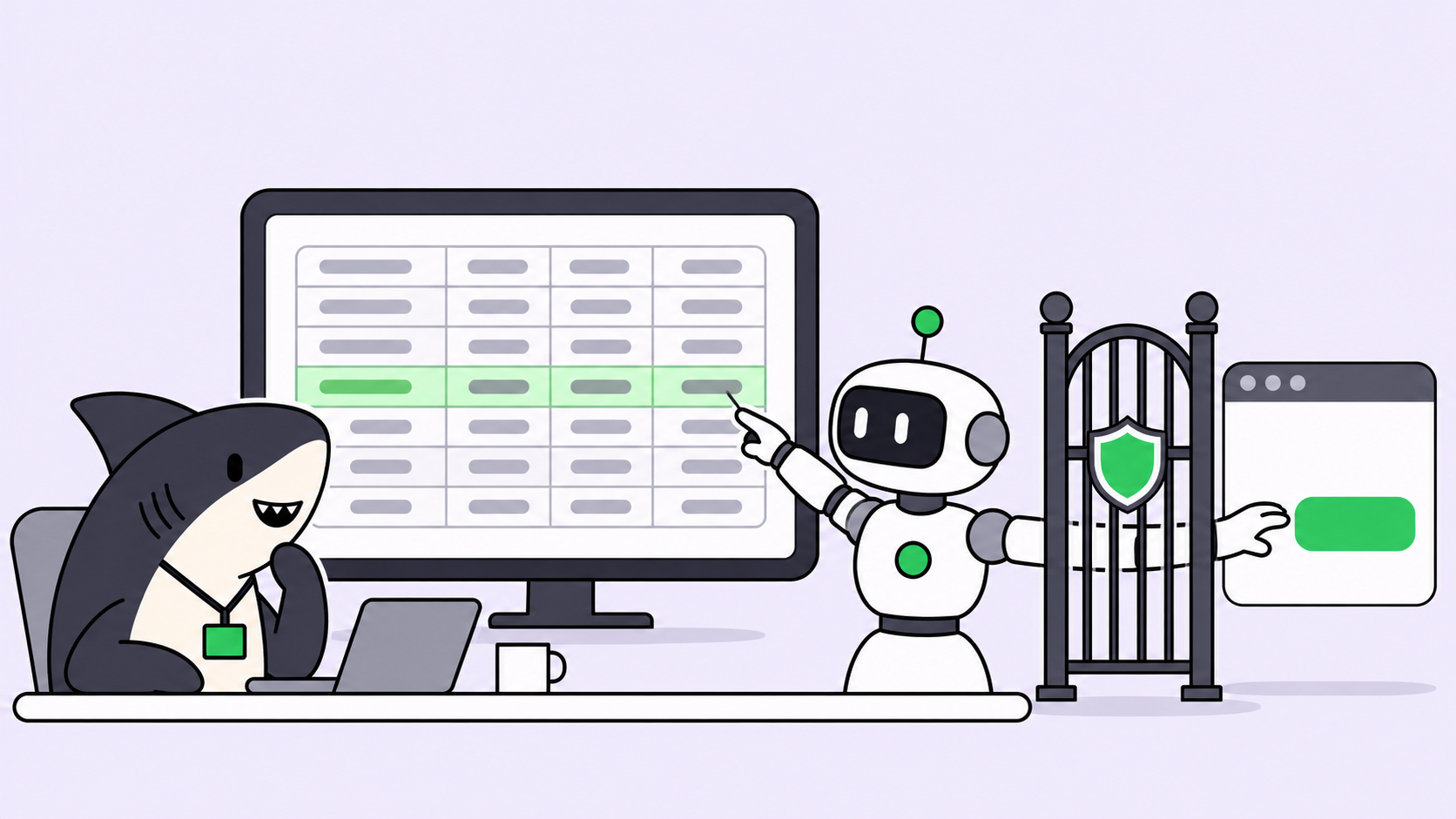
That last detail shapes everything else in this guide. A shared tool is easy to roll out, but the strongest permission level stays locked until an admin decides otherwise.
If your team already hands work to coding agents, you’ll also want a place where that work gets assigned and reviewed. Sharkly is that board, and the last section shows where it fits next to an installed app.
What changed on November 24, 2026
Anthropic’s Install as app announcement turns an artifact into a desktop app. You describe the tool to Claude, try it as an artifact, then pick “Install as app” from the Share menu. There’s no packaging, no code signing, and no API key, because the app runs on your Claude account.
Artifacts started as outputs you’d share, like a chart or a web page. The announcement names two everyday tools people already build with them: a meeting prep page that pulls from a calendar and email, and a tracker for orders that need to ship today. Installing one gives it an icon, a window of its own, and the ability to notify you.
A few limits apply before you plan a rollout:
- You must be online and signed in to Claude to open an installed app.
- Requests the app makes to Claude count toward your plan’s usage limits.
- Claude Docs, Slides and Sheets can’t be installed.
- HIPAA-ready organizations and hybrid deployments can’t use the feature.
- Anthropic doesn’t review apps before you install them.
Claude artifact app permissions, level by level
Every installed app runs at one of three permission levels. You choose per app, and Team and Enterprise admins can switch the two higher levels on or off for the whole organization.
| Level | What the app can do | Who can grant it |
|---|---|---|
| Default | Only what a page in a browser can do | Anyone who installs it |
| App permissions | Always-on-top windows, global shortcuts, notifications, menu bar or system tray items | The user, if the org allows it |
| Full computer access | Run programs and read, change or delete files without asking each time | Only for apps you made, or on Team and Enterprise, apps made by people in your organization |
Two rules matter more than the table. Your approval covers only the current version, so Claude asks again after every update, including your own edits. And any part of the app loaded from another website can change without a new prompt.
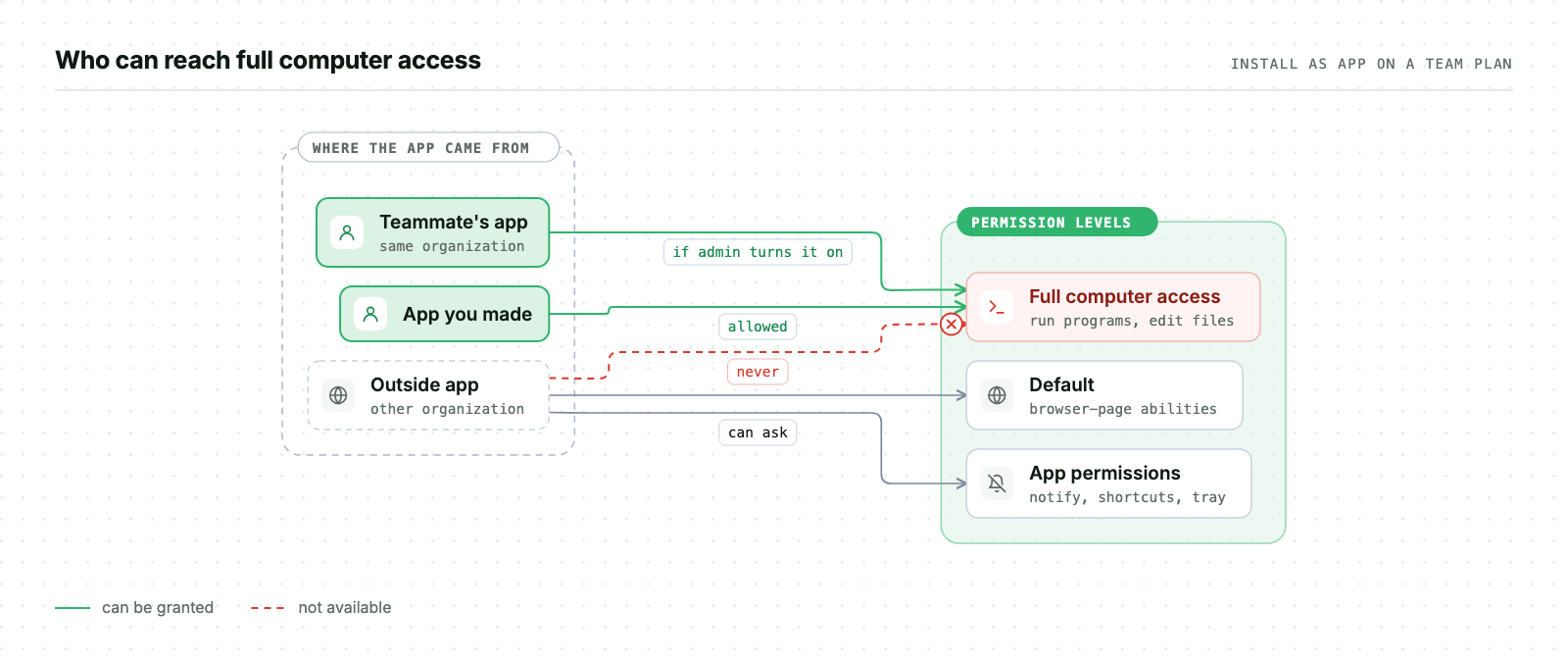
Can a teammate’s app get full computer access?
Yes, on Team and Enterprise, if the app was made by someone in your organization and your admin has turned full access on. On Team it starts off. An app from outside your organization can’t reach full access at all, whoever shares it.
How one shared tool updates for the whole team
The update model is the part that makes an artifact app a team tool rather than a personal toy. The app follows the underlying artifact, so one person’s fix reaches every installed copy without a reinstall.
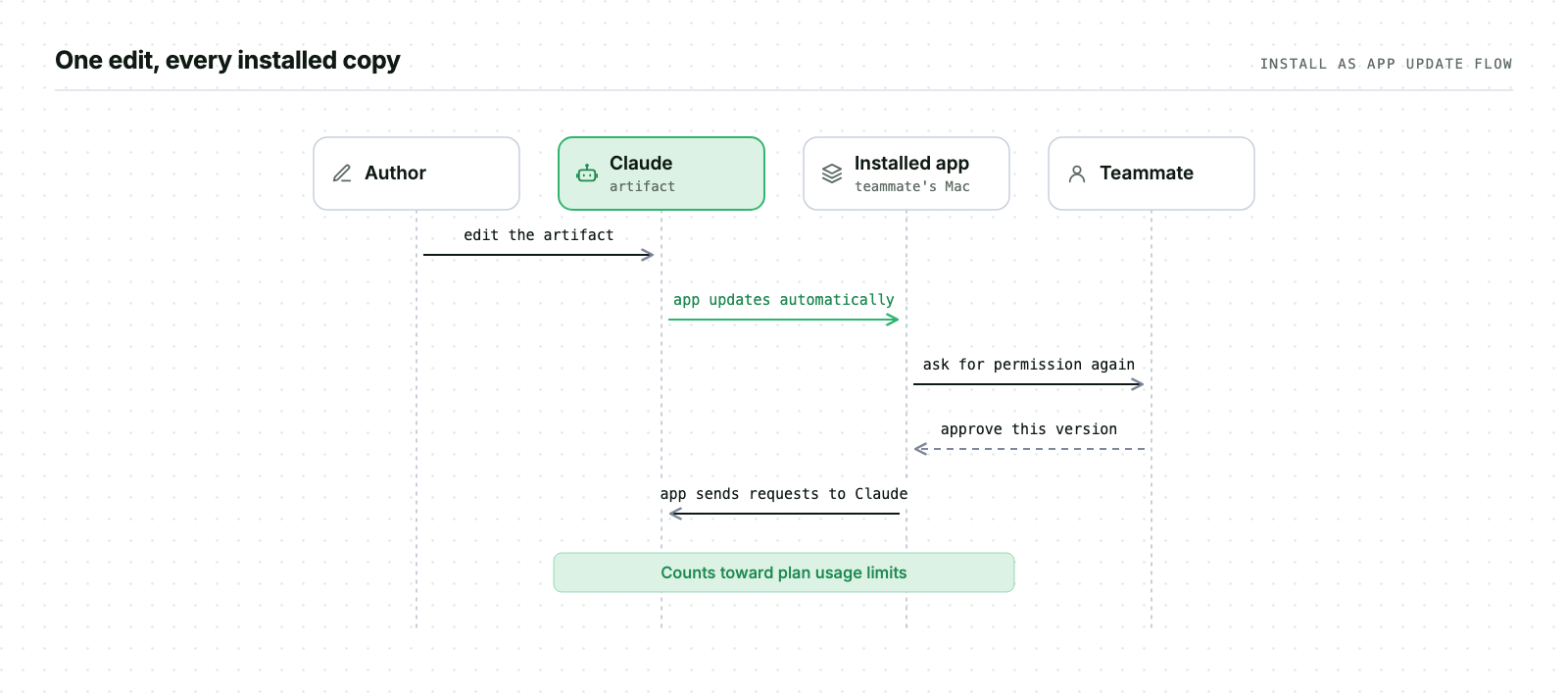
Each update also resets the permission prompt. That’s a safety feature, but it means a busy author who ships five small edits in a morning will make teammates approve five times. Batch your changes.
Whose Claude usage does a shared app spend?
Anthropic’s page says two things: the app uses your Claude account, and requests it makes to Claude count toward your plan’s usage limits. It doesn’t say whose plan a shared app draws on when a teammate opens it. The natural reading is the signed-in teammate’s plan, but treat that as unconfirmed until you test it on a Team plan [VERIFY]. A standup app that calls Claude twenty times every morning adds up, so check before you roll it out widely. If your team watches usage closely, read our guide to Claude Code usage limits for the bigger picture.
Build a team standup app in four steps
Here’s a concrete team tool: a standup board that collects yesterday, today and blockers from each person, then drafts a summary. Keep it at the Default level so nobody needs to approve anything beyond what a browser can do.
- Describe it to Claude. Be specific about inputs, storage and what Claude should write.
- Test it as an artifact. Fill it in with two or three fake updates and check the summary.
- Install it. Choose “Install as app” from the artifact’s Share menu in Claude for Mac or Windows.
- Share it and batch your edits. Tell the team when you edit it, since every edit triggers a new permission prompt.
A prompt that gets a usable first version:
Build a team standup app as an artifact.
- One form per person: Yesterday, Today, Blockers (free text, 3 fields).
- A "Team view" tab that lists today's entries, newest first.
- A "Draft summary" button that asks Claude for a 5-bullet summary
  and lists every blocker with the person's name next to it.
- No external scripts or fonts; keep everything in the artifact.
- Ask for notification permission only if I turn on "Remind me at 9:30".
The “no external scripts” line is deliberate. Code loaded from another website can change without Claude asking again, so a self-contained artifact keeps the permission you approved meaningful.
If you want a 9:30 reminder, the app needs App permissions for notifications. That’s a smaller ask than full access, and an admin can allow it without opening file access.
An admin checklist before you turn on full access
Team plans ship with full access off, and that’s a sensible default. Before you flip it, run through these checks:
- List who builds apps. Full access follows the author’s organization, so every builder’s app becomes eligible.
- Read the app’s sources. Anthropic doesn’t review installed apps, so someone on your side should.
- Remove remote code. Parts loaded from other sites can change after you approve.
- Set an update rhythm. Every edit asks again; a weekly release window keeps approvals meaningful.
- Prefer App permissions. Notifications and tray items cover most team tools without file access.
- Decide on connectors. Apps can use your connectors, so check which data each one reaches.
The same thinking applies to any agent you let near files. Our post on human-in-the-loop controls for AI agents covers the approval patterns in more depth, and making team tools ready for AI agents covers the access side.
Where Sharkly fits when the work spans agents
An installed artifact app is a personal window onto a shared tool. It’s great for a standup form or an order tracker. It doesn’t track who owns a piece of work across days, which agent ran it, or whether a person signed off.
That gap shows up once your standup’s blockers turn into tasks for coding agents. Sharkly keeps them on one board: you assign a task to a person or an Agent, the Agent runs it on a connected Computer through a Runtime such as Claude Code or Codex, and the result waits for review.
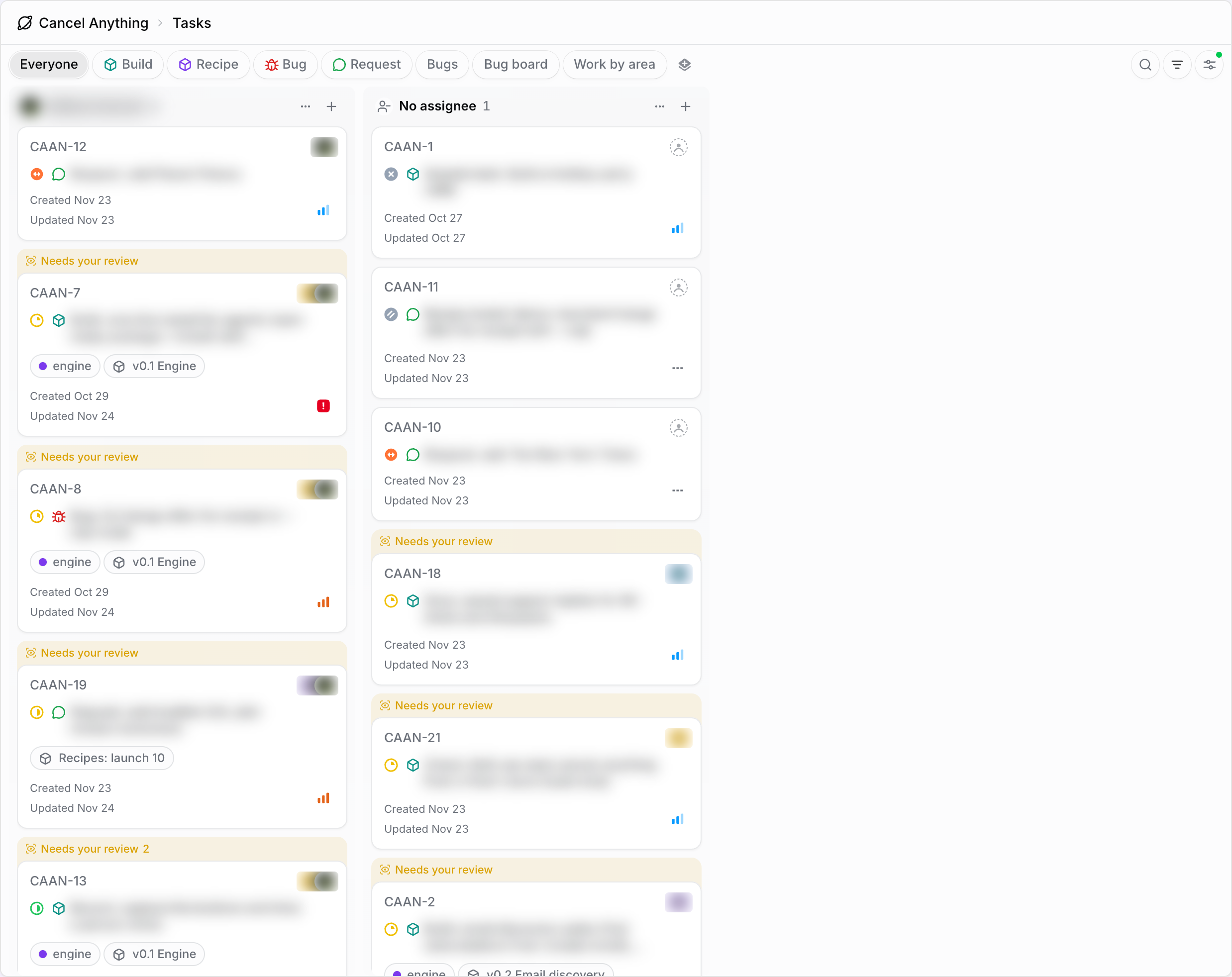
Tasks waiting on a person carry a “Needs your review” flag, so a blocker raised in the morning standup doesn’t vanish into chat. The agent task execution docs explain how a run moves from assignment to result.
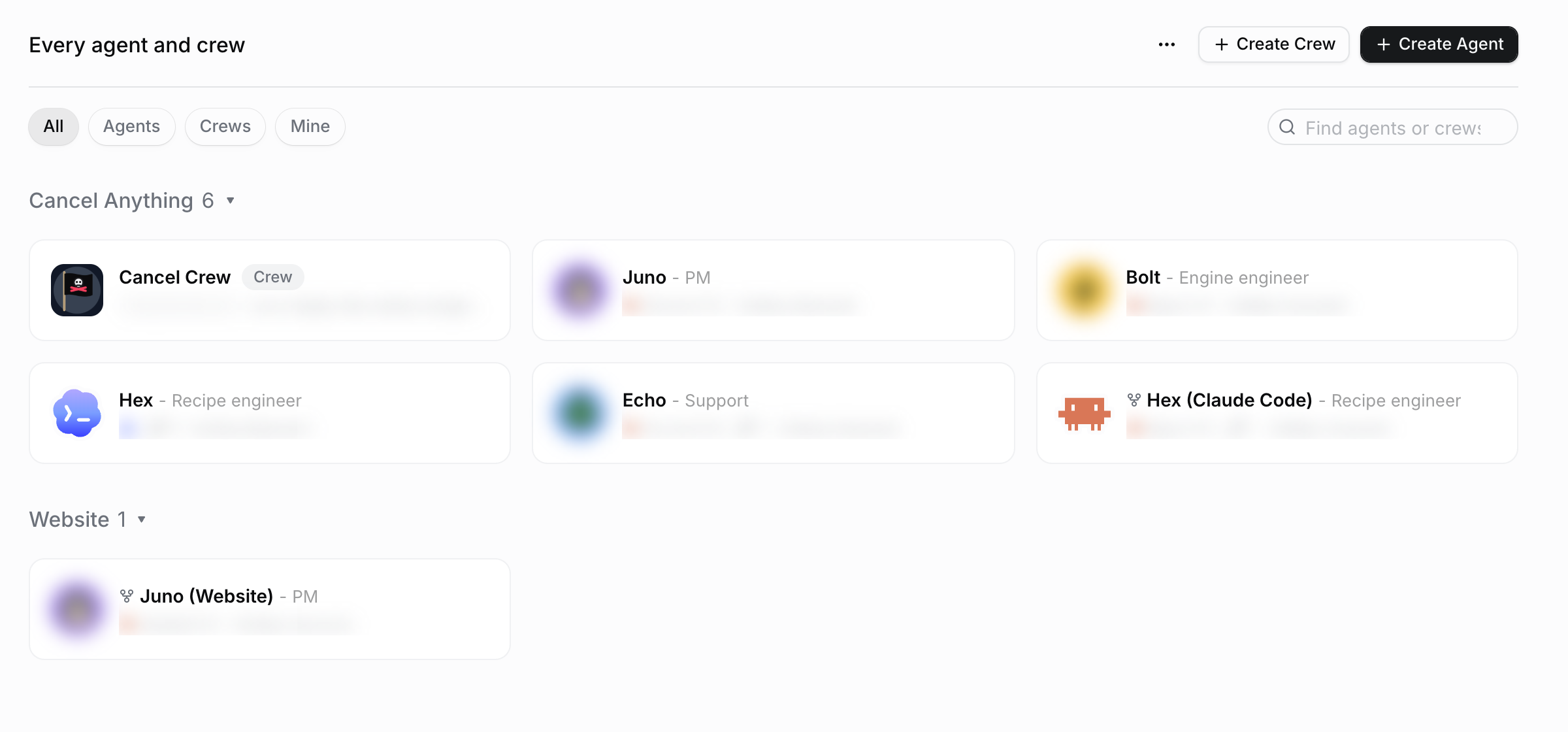
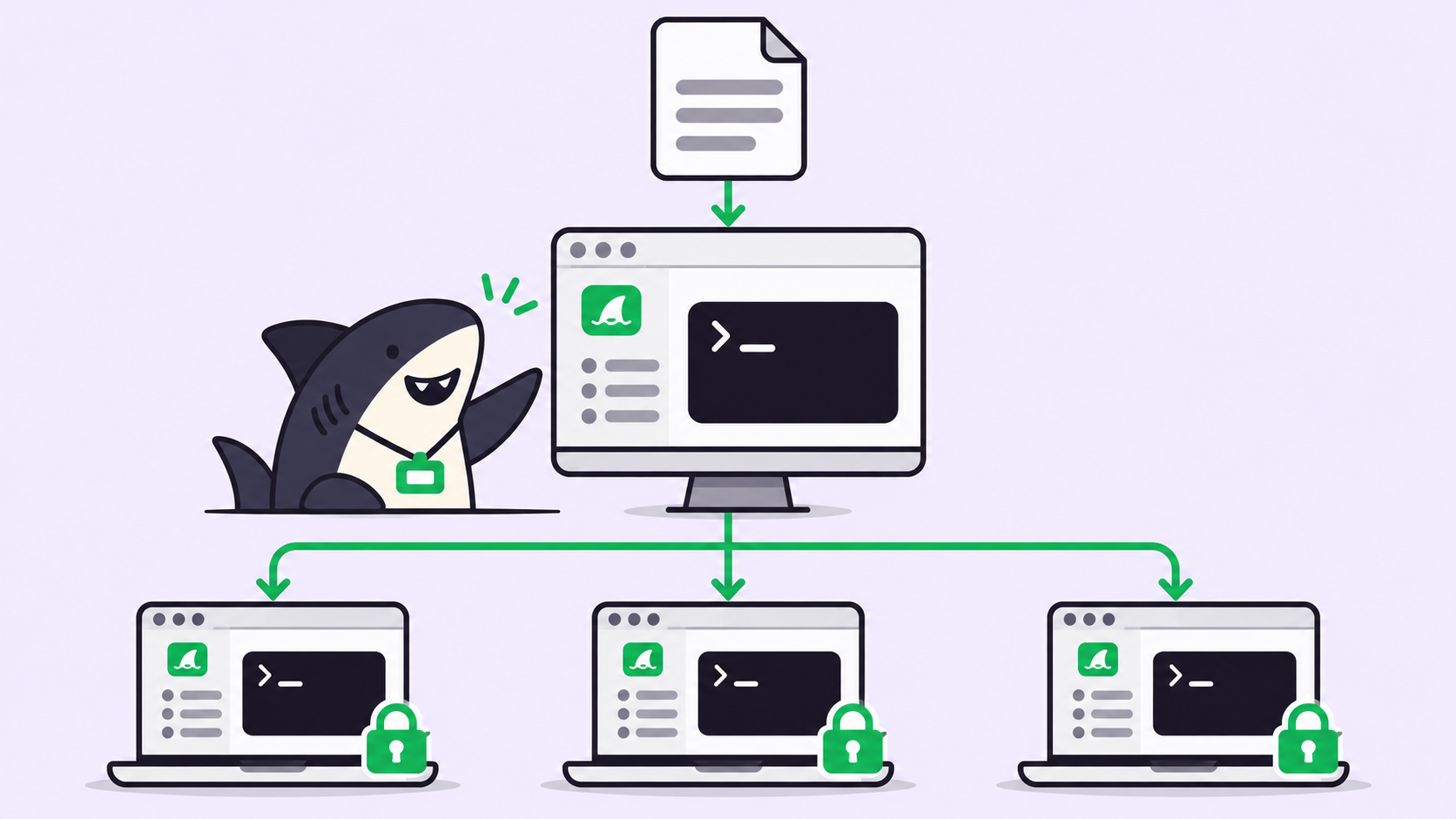
Agents and Crews sit next to People in the same workspace. Sharkly doesn’t sell model usage: runs bill against the Claude Code, Codex or API plan already set on the Runtime. To connect your first Computer, start with the Sharkly quickstart:
sharkly computer register --install-token sit_your_install_token
sharkly computer status
The sit_ install token comes from the Computers page, works once and expires after 30 minutes. It’s separate from your personal access token, which logs you in to the CLI but doesn’t register a Computer.
A practical split: the artifact app collects the standup, and anything that needs an owner, an agent run or a review becomes a Sharkly task. Our walkthrough of turning a Slack bug report into an agent task shows the same handoff from chat.
Which tools are worth installing first?
Start with tools your team opens daily and that stay useful at the Default level: a standup board, a release checklist, an order tracker, or a meeting prep page. Anthropic’s own examples (Linnet, an image editor; Phosphor, a file manager; Sift, for folder rules; Tern, a terminal with Claude; Vitals, a performance monitor) lean on deeper permissions, so treat them as demos of the ceiling rather than a team starting point.
Install one app, share it with two teammates, ship one edit, and watch how the re-approval feels. Then, when its blockers start turning into agent work, create a Sharkly workspace and give those tasks an owner and a review step.
Frequently asked questions
Is Install as app available on every Claude plan?
Yes, it’s rolling out in beta on all plans, in Claude for Mac and Windows. HIPAA-ready organizations and hybrid deployments can’t use it, and on Enterprise it stays off until an owner turns it on.
Do I need an API key or code signing?
No. The app uses your Claude account, so there’s no API key, separate login, packaging or signing.
Does an installed app update when the artifact changes?
Yes. It updates automatically when the underlying artifact is edited, and Claude asks for permission again after each update.
Can installed apps work offline?
No. You need to be online and signed in to Claude to open one.
Can I install Claude Docs, Slides or Sheets as an app?
No. Those artifacts are excluded, along with some others.
Does Anthropic review apps before I install them?
No. Only give full access to apps you trust, and on Team plans keep full access off until you’ve reviewed who builds apps.