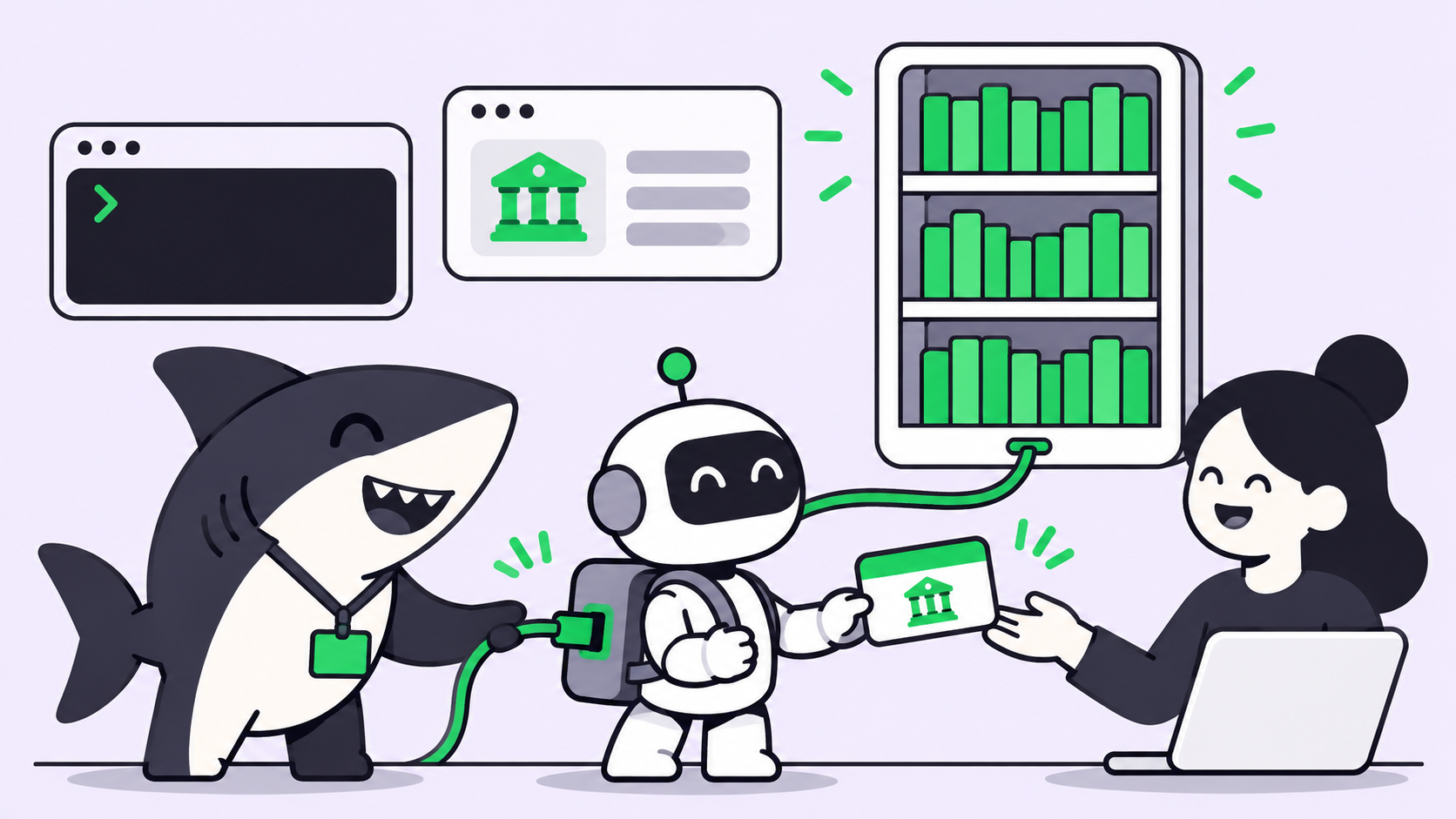
To add an MCP server to an agent in Sharkly, open the Agent, click Settings, expand Tools, Knowledge & MCP, then Add connection > Add custom MCP. Give it a lowercase name, pick Streamable HTTP or STDIO, paste the server URL or command, choose the authentication, and click Connect. Sharkly checks the server answers before it saves, and the Agent’s next run gets its tools.
A support Agent that can only read your repo answers half the question. When a user asks about a dependency, the honest answer lives in that dependency’s docs. This tutorial adds an MCP server to an agent for real in Cancel Anything, a small team building a subscription-cancelling CLI. Echo, the team’s support Agent, gets a keyless public docs server, answers a real request with it, and then we remove the server again.
You’ll end with one MCP server on one Agent, a run that shows the tool calls, and what went wrong for us on the way. New to the product? Sharkly is free to start, and the getting started guide gets you to a first run.
Before you start
You need three things:
- A Computer with a Runtime. Ours is a Mac running Claude Code and Codex. See how Computers work if yours isn’t connected.
- An Agent to give the server to. We use Echo, the support Agent on Claude Code with Sonnet 5.5. It drafts replies and never posts them.
- An MCP server that needs no key. We picked DeepWiki’s public server at
https://mcp.deepwiki.com/mcp. It answers questions about public GitHub repos without a sign-in, and cancel-anything runs on Playwright, which is one.
MCP, the Model Context Protocol, is the standard way an agent calls tools that live outside it. If you’re deciding between an MCP server and a written procedure, read Skills vs MCP first.
How an Agent’s MCP server reaches a run
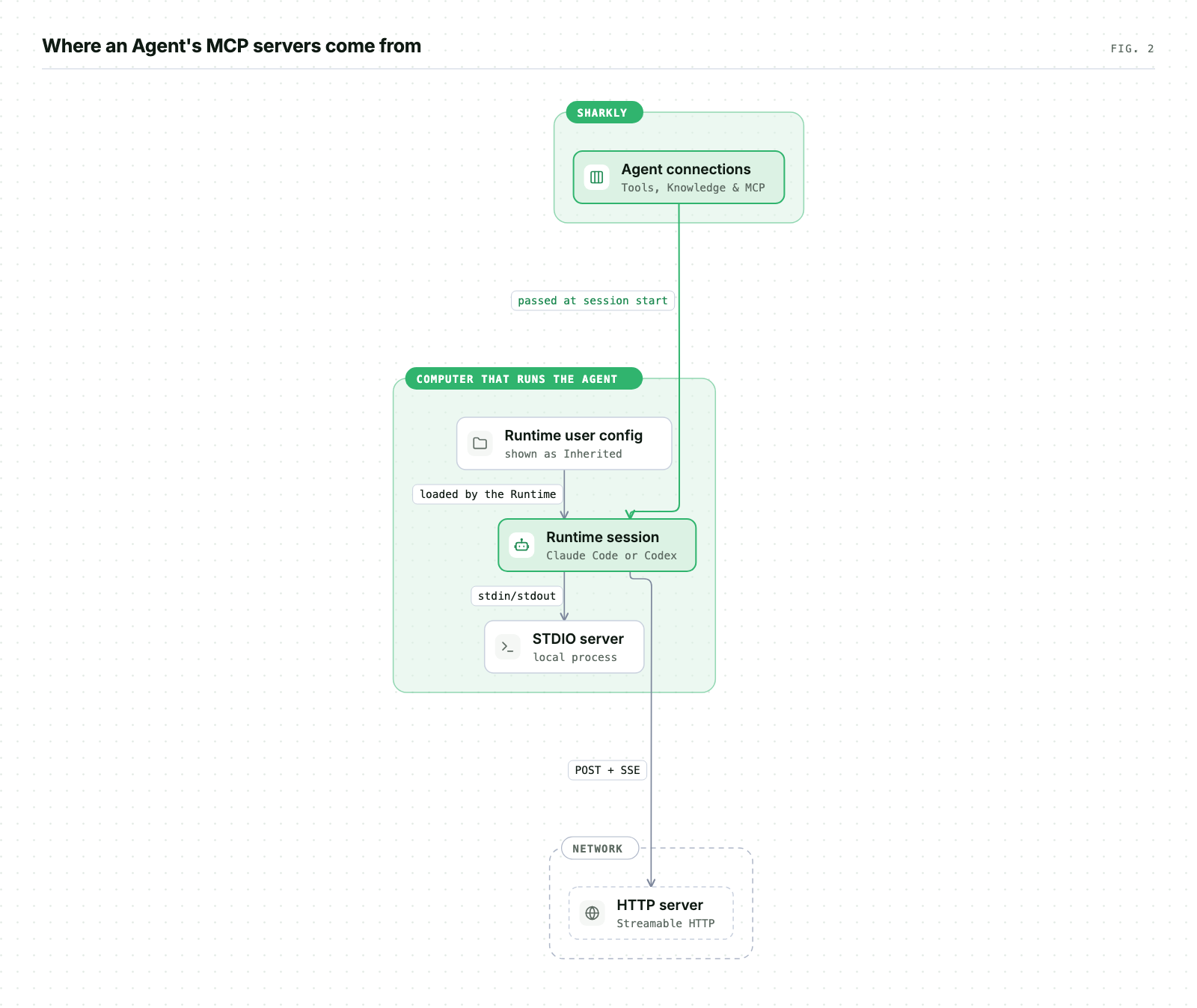
An Agent’s MCP servers come from two places. Servers you add in Tools, Knowledge & MCP belong to the Agent in Sharkly and travel with it. Servers in the Runtime’s own config on that Computer show up as Inherited. When a run starts, Sharkly hands the Agent’s servers to the Runtime session, and the Runtime calls them itself.
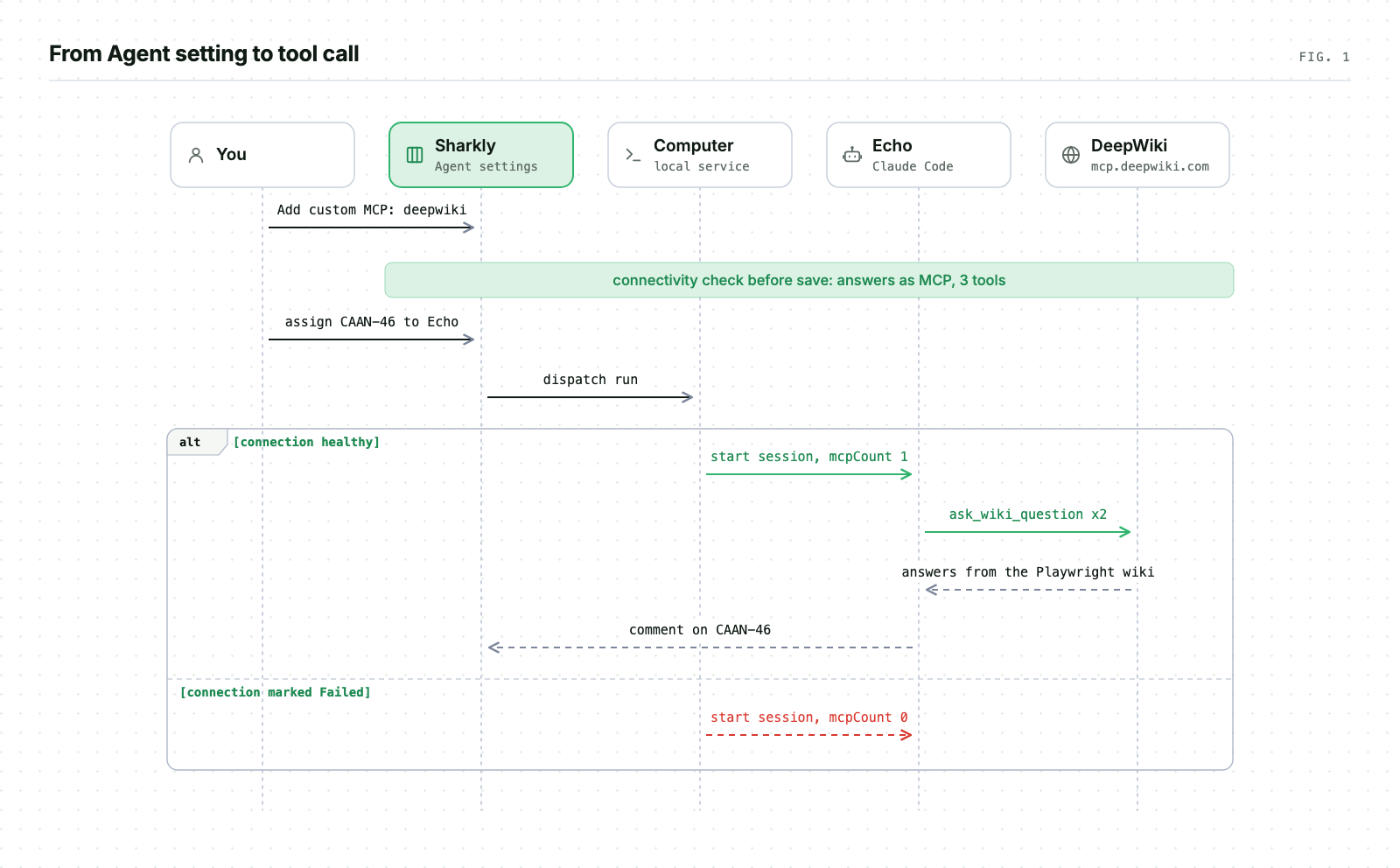
The run log is where you confirm it. Each run’s session start records an mcpCount: the number of Agent servers the Runtime received. Ours read 0 on the first run and 1 on the second, and the next sections explain why.
Add an MCP server to a Sharkly agent, step by step
Step 1: Find Tools, Knowledge & MCP
Go to All Agents, open the Agent, and click Settings. Expand Tools, Knowledge & MCP (“Set the external app data, tools, and MCP this Agent can use”). The section lists the Agent’s own servers first, then a block named after the Runtime.
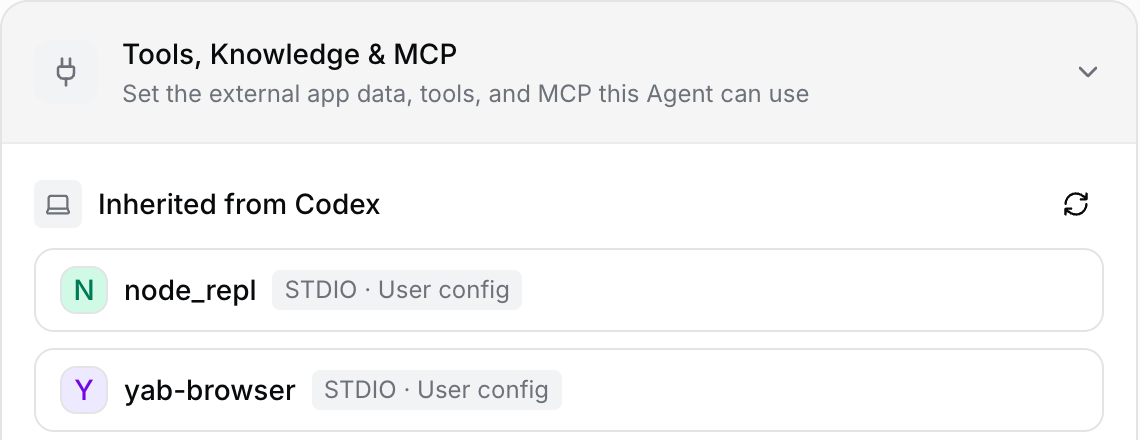
Look at the block’s title. On Hex, our recipe Agent, it says Inherited from Codex; on Echo it says Inherited from Claude Code. That hint names the Runtime this setting reaches.
Inherited servers come from the Runtime’s user config on the Computer, tagged STDIO · User config or HTTP · Claude Plugin. You can’t edit them here; change them in the Runtime’s own config on that Computer.
Step 2: Add the server
Click Add connection. A catalog opens with ready-made connectors grouped by category: GitHub, Linear, Sentry, Supabase and more under Developer tools. Most of them sign in to your account first.
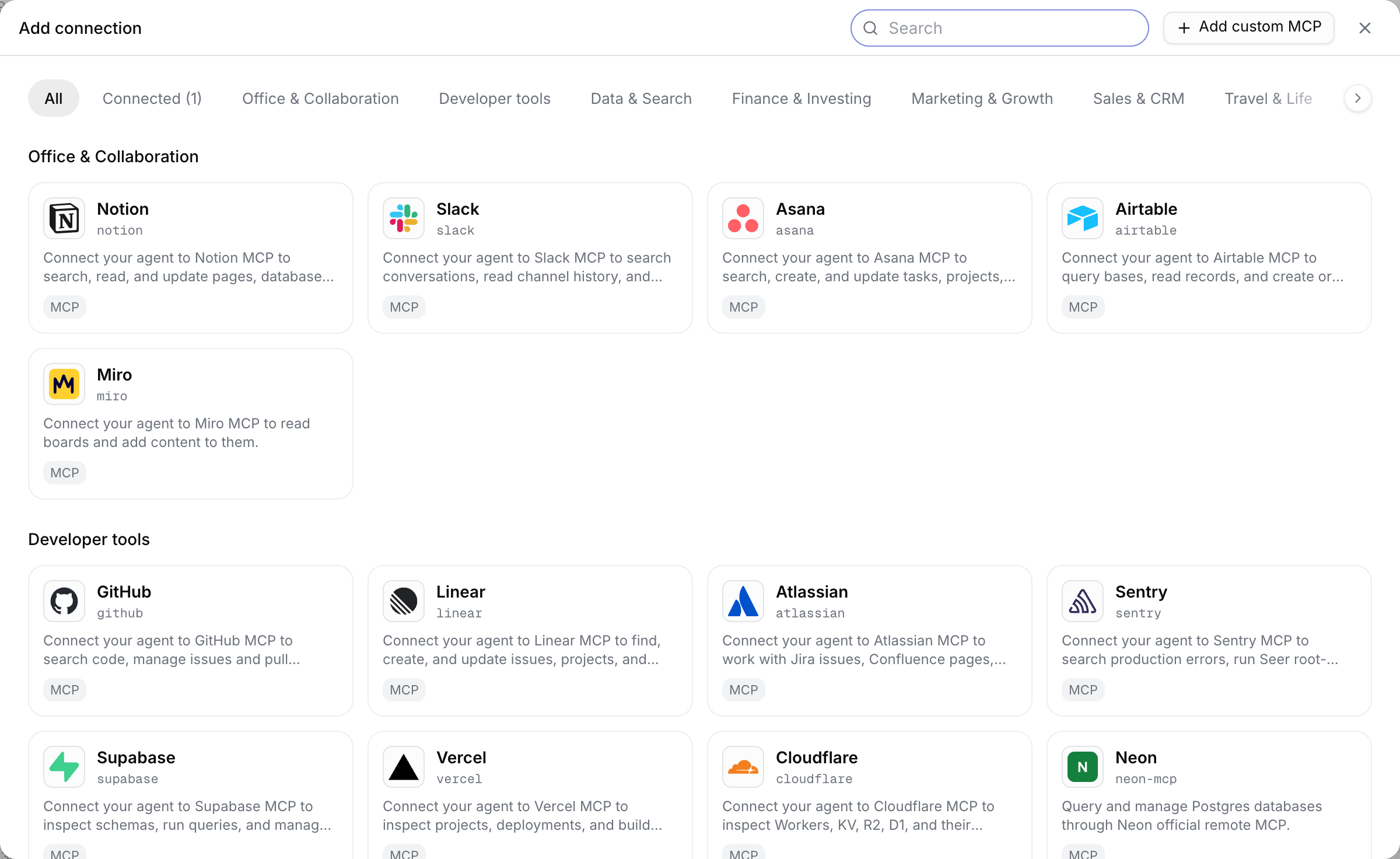
The Connected tab counts what the Agent already has. Add custom MCP sits next to the search box.
DeepWiki isn’t in the catalog, so click Add custom MCP. We typed deepwiki as the Name (lowercase letters, digits and hyphens; it becomes part of the tool names), left Streamable HTTP selected, pasted the URL into Server URL, and kept Authentication on None.
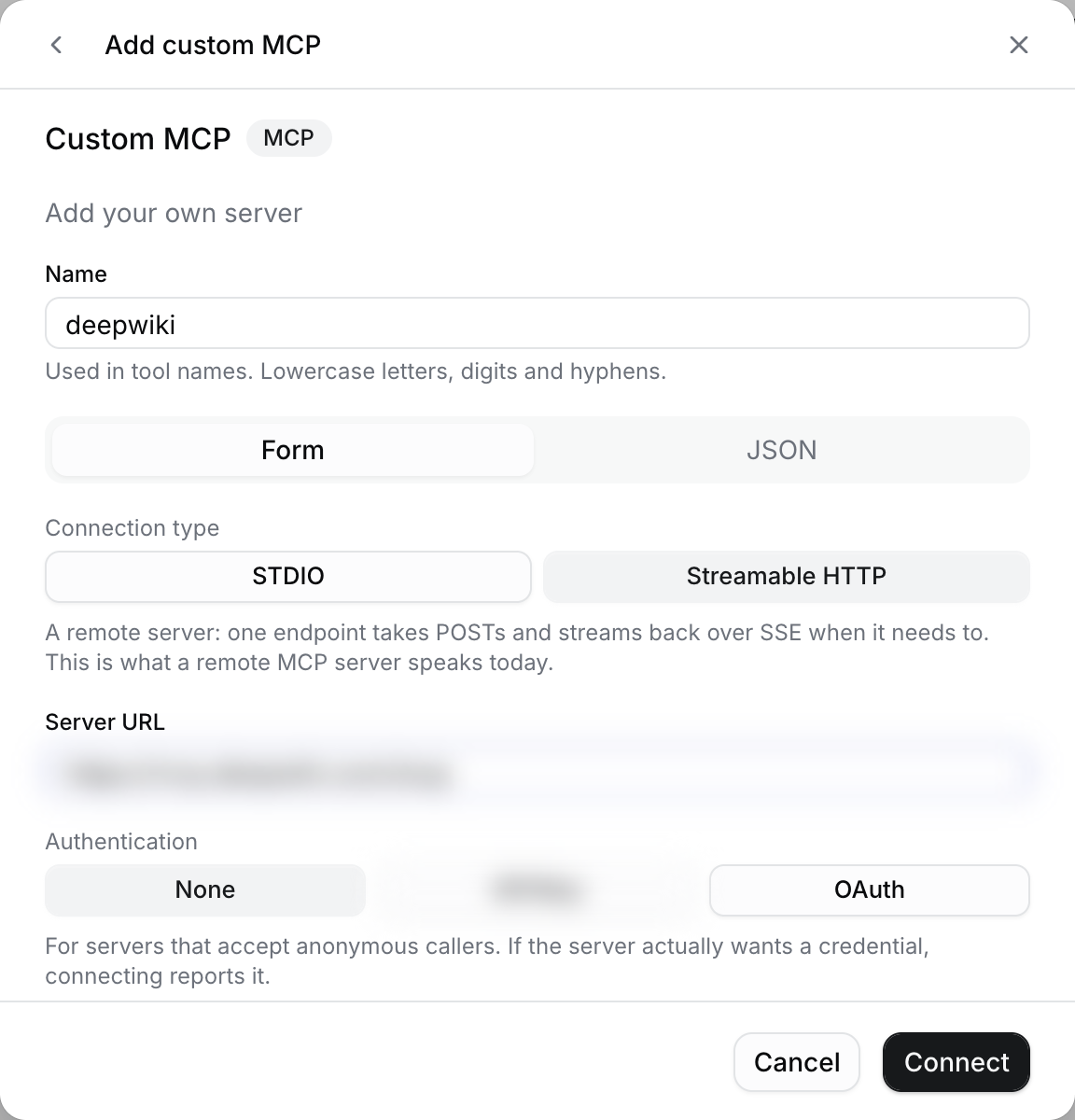
The URL is blurred in our capture. The hint under None matters: “If the server actually wants a credential, connecting reports it.”
Click Connect. Within a few seconds, deepwiki appeared at the top of the section with 3 available tools.
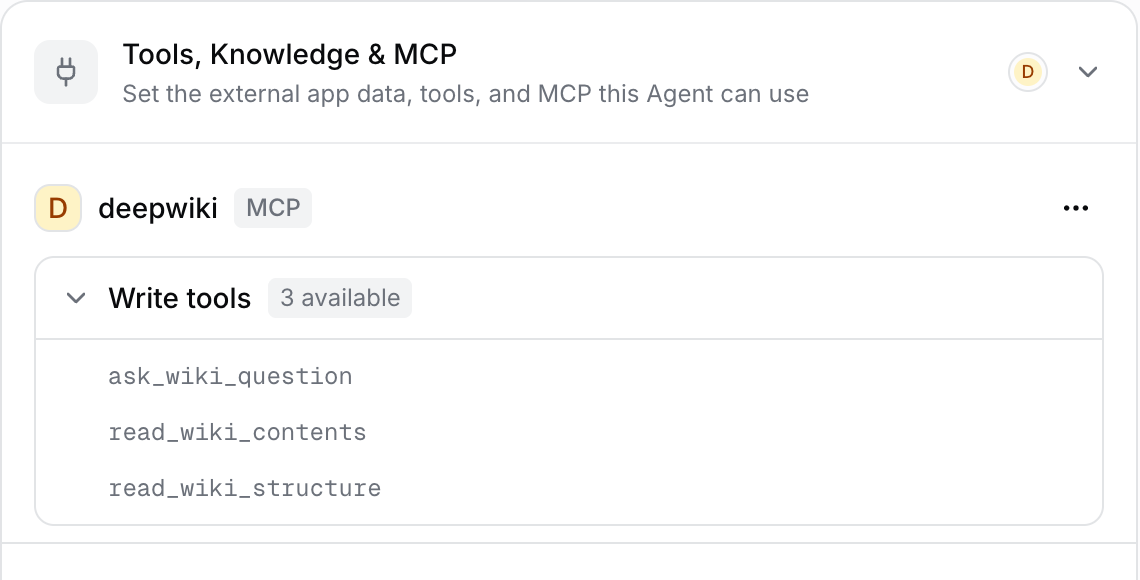
Expand the group to see the tool names Sharkly read from the server: ask_wiki_question, read_wiki_contents and read_wiki_structure.
Two other ways in: STDIO asks for a Command, Arguments and Environment variables and starts the server as a process on the Computer that runs the Agent. The JSON tab takes one server or a whole mcpServers document:
{
  "mcpServers": {
    "deepwiki": { "url": "https://mcp.deepwiki.com/mcp" }
  }
}
Step 3: Edit the connection and run the check
Open the server’s … menu and choose Edit. You can change the name, URL, authentication and, under Advanced settings, HTTP headers. The transport is fixed: to switch between HTTP and STDIO, disconnect and add the server again.
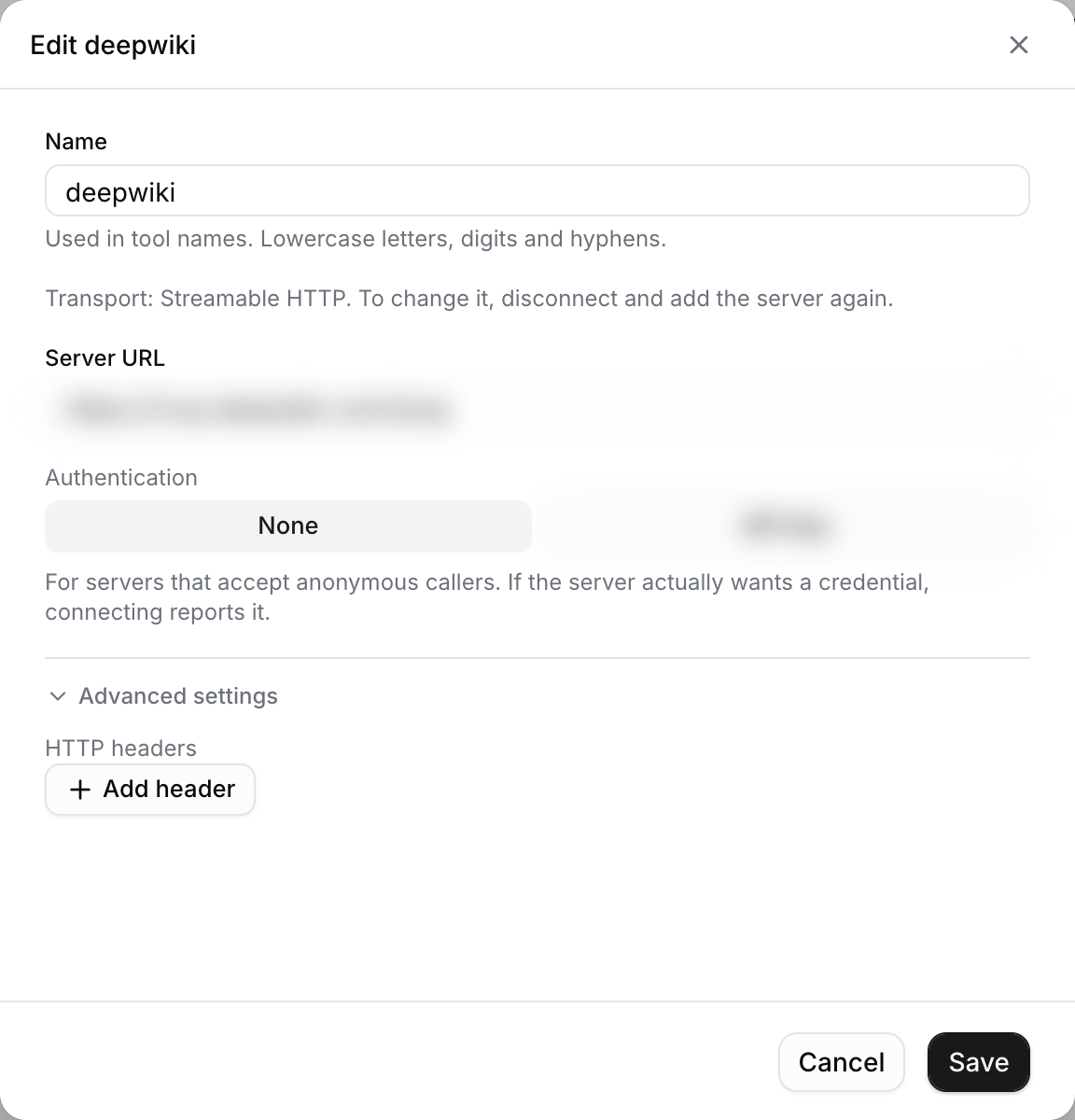
Secrets you saved earlier never show here. Per the changelog, leave a secret field blank to keep the stored value.
Save is the connectivity check. We tested it with a typo, /mcpx instead of /mcp, and Save stopped with “the endpoint did not answer as an MCP server.” The same check accepts intranet-only addresses, so a server inside your office network works.
Step 4: Give the Agent a real task
A user on Discord asked: “My work laptop only has Microsoft Edge, no Chrome, and I can’t install software. Can cancel-anything use Edge?” We filed it as CAAN-46, a Request assigned to Echo, and asked for a draft reply that checks Playwright’s docs through deepwiki.
Step 5: OAuth servers, and removing a server
Pick OAuth in the add form when the server signs you in on its own page. Leave OAuth Client ID and OAuth Client Secret empty and Sharkly registers itself (Dynamic Client Registration, RFC 7591). If your server needs a pre-made OAuth app, register the callback URL the form prints. The button reads Authorize instead of Connect.
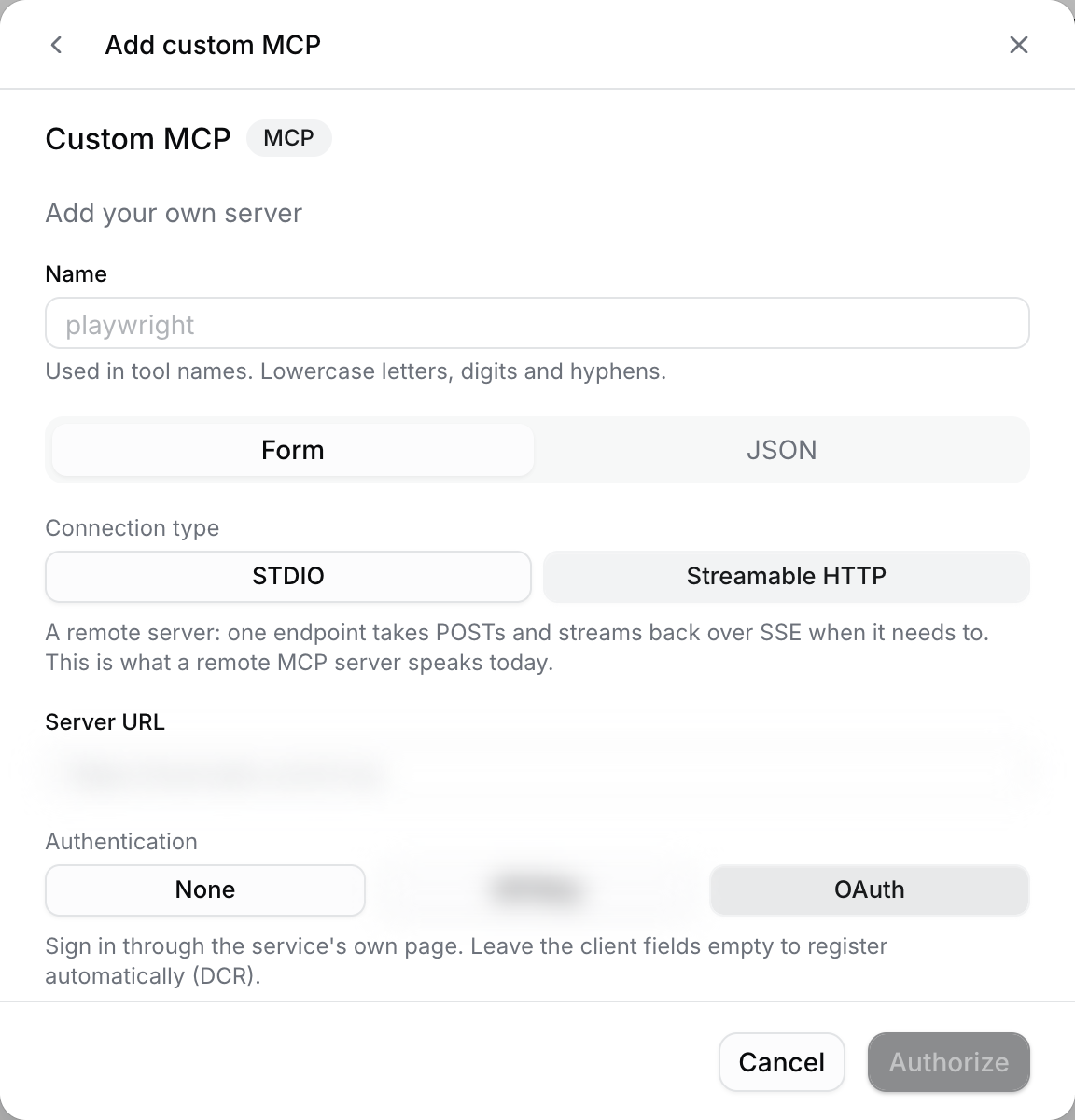
The client fields and the callback URL sit below the fold in this dialog; scroll to see them.
If the sign-in page doesn’t come back, the waiting page shows Reopen authorization page and Copy authorization link, so you can finish in another browser or profile. We didn’t run an OAuth server for this tutorial, since every candidate needed an outside account.
To remove a server, open its … menu and click Disconnect. There’s no confirmation step: a toast says “Disconnected deepwiki” and the server is gone from the list. We removed ours once the run was done, so Echo is back to its inherited servers.
The real result
Echo’s run on CAAN-46 took 1 minute 22 seconds. It loaded the deepwiki tools, asked ask_wiki_question twice about microsoft/playwright, and read our launch code. Its comment: Edge isn’t supported by default, because the code launches Chrome only. Playwright’s msedge channels exist, and attaching to Edge over the Chrome DevTools Protocol through our --cdp flag might work, but nobody had tested it.
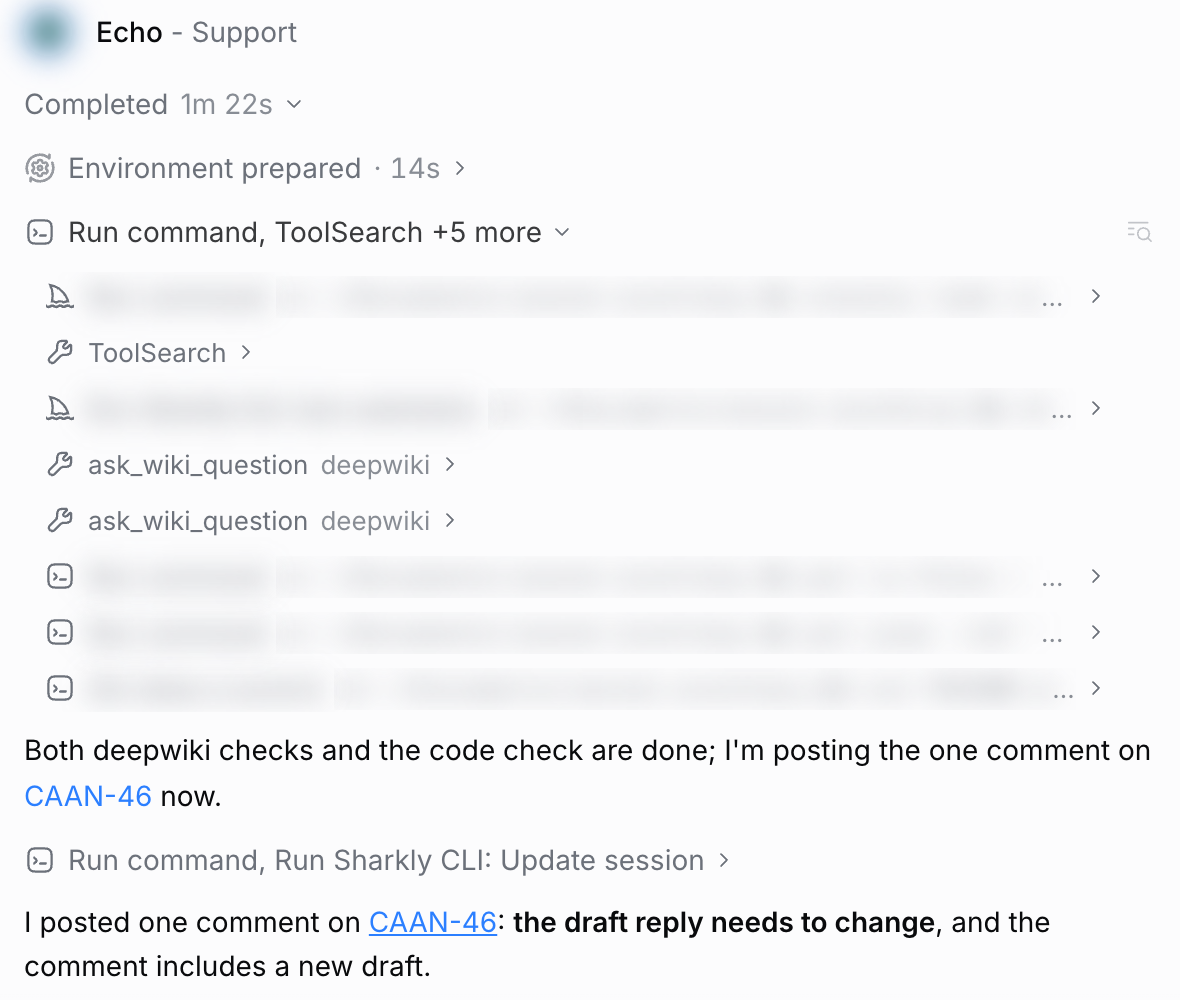
Expand Completed and then the tool group. Each MCP call shows the tool name with the server name beside it.
Echo also flagged its own limits: DeepWiki’s answers are AI-written from a wiki of the repo, not verbatim quotes. It still set the draft to Needs your review, and nothing went out to the user.
What went wrong for us
- A failed Save still saved. Our typo test failed, we clicked Cancel, and the bad URL stuck anyway. The server showed Failed with “0/1” on the section header. Echo’s first run started 4 minutes later with
mcpCount0, fell back to reading Playwright’s docs by hand, and told us DeepWiki wasn’t connected. After any failed edit, reopen the menu and check the URL. - Read tools filed as Write tools. Sharkly listed all three DeepWiki tools under Write tools, though they only read. DeepWiki’s tool definitions carry no read-only annotation, so nothing marks them as safe. Judge a server by what it does, not the label.
- One task, two runs. Creating the Request also started the Space’s intake workflow, which ran Echo once more on its own. Check your automations before you count runs.
- The help page is quiet. The Agents page doesn’t mention MCP. The facts live in the changelog and in a STDIO troubleshooting entry on Agent task execution.
Variations: two other teams
- A platform team with an internal docs server. Their MCP server only exists on the office network. They add it as Streamable HTTP with an intranet URL and give it to the on-call Agent only, so the coding Agents don’t get tools they shouldn’t call.
- A data team on Codex. They want a database server that starts locally. They add it as STDIO with the full path to the command, since some Runtimes won’t resolve a bare
npx, then confirm the block reads Inherited from Codex so they know which Runtime gets it.
Recap checklist
- [ ] Open Settings > Tools, Knowledge & MCP and note which Runtime the hint names.
- [ ] Add the server with Add custom MCP, or pick a catalog connector.
- [ ] Use None only for servers that accept anonymous callers.
- [ ] After any edit, check the server isn’t marked Failed.
- [ ] Run one real task and look for the tool calls under Completed.
- [ ] Check
mcpCountin the run log if the Agent says a tool is missing. - [ ] Disconnect servers the Agent no longer needs.
FAQ
Do inherited servers count toward the Agent’s MCP servers?
No. Inherited servers come from the Runtime’s own config on that Computer, and the Runtime loads them itself. The mcpCount in the run log counts only the servers you added in Sharkly.
Which transport should I pick?
Pick Streamable HTTP for a remote server with a URL. Pick STDIO for a server you start as a command; it runs on the Computer that executes the Agent’s tasks, and the form says every Runtime supports it.
Can I add an MCP server to all Agents at once?
Not from this panel: it works per Agent. A server in the Runtime’s user config reaches every Agent on that Runtime and Computer, which is usually wider than you want.
Where do API keys go?
Pick API Key under Authentication. Sharkly never echoes a saved secret back, so the edit form shows an empty field; leave it blank to keep the stored key.
Why does my Agent say the MCP tool isn’t available?
Check the server’s status in Tools, Knowledge & MCP first. A Failed server isn’t passed to the run. Then read the run log’s session start for mcpCount.
Next step
Pick one Agent that keeps answering from memory, add one keyless docs server, and give it one real question. Read the tool calls before you trust the answer. For the settings around it, see the Agents explainer, what happens after you assign a run and the working directory tutorial. For Playwright’s own browser list, see its browsers page.