Quick answer: The Gemini Omni 1.2 Flash API generates and edits 3 to 15 second videos through the Interactions API, under the model ID gemini-omni-1.2-flash. To run it as agent work, give each job a Task that holds the brief, references, length, and attempt cap. Save the interaction ID, and put a person between turns.
Google made Gemini Omni 1.2 Flash generally available on November 5, 2026. For teams, that changes the question. You can stop asking whether the model is worth a side experiment and start asking who owns a video job from brief to sign-off.
A video call isn’t a chat reply. It bills by the second, it returns a file, and someone has to approve that file before it reaches a customer. If your agents already take work from Sharkly Tasks, a video job fits the same shape, and this guide shows that shape.
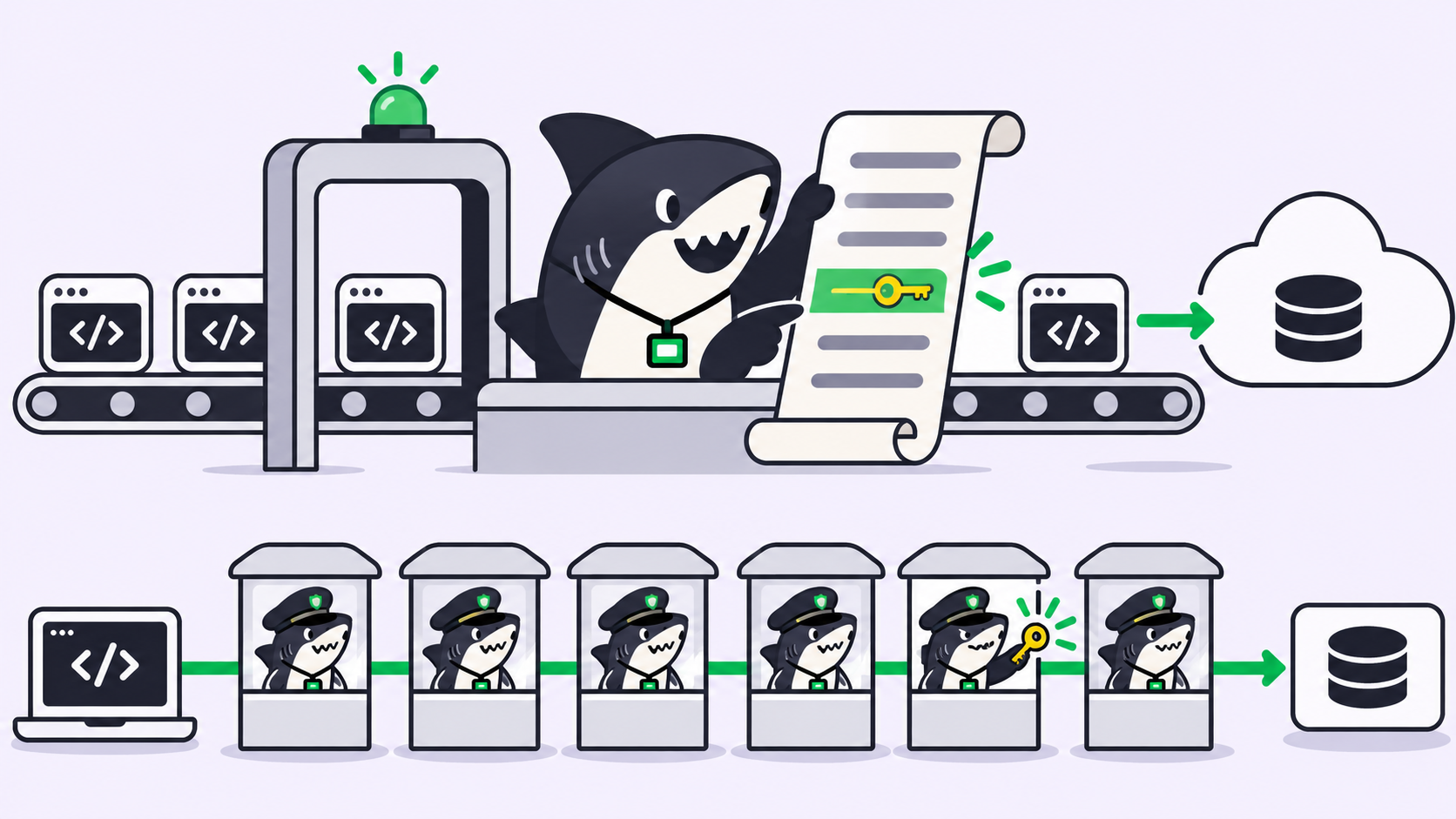
One boundary first. Sharkly doesn’t generate video and has no native Omni integration. Your Agent calls Google’s API. Sharkly manages the work around the call.
What a Gemini Omni 1.2 Flash API call looks like
A Gemini Omni 1.2 Flash API call is one interactions.create request carrying a prompt, optional reference media, and a response_format for resolution and duration. Follow-up edits reuse the earlier result through previous_interaction_id, so you describe the change without uploading the clip again.
This sketch follows the Omni docs as read on November 6, 2026. We haven’t run it, so test it on one clip first.
import base64
from google import genai

client = genai.Client()  # reads GEMINI_API_KEY from the environment
MODEL = "gemini-omni-1.2-flash"

# Turn 1: a cheap draft at the length the brief asks for
draft = client.interactions.create(
    model=MODEL,
    input="A slow 360-degree spin of a matte black water bottle on a grey plinth.",
    response_format={"type": "video", "resolution": "360p", "duration": "15s"},
)

# Turn 2: edit the draft after a person reviews it
edit = client.interactions.create(
    model=MODEL,
    previous_interaction_id=draft.id,
    input="Keep the spin. Change the plinth to pale oak.",
)

with open("clip.mp4", "wb") as f:
    f.write(base64.b64decode(edit.output_video.data))

print(draft.id, edit.id)  # these IDs belong on the Task
Four details from the docs matter for an agent:
- Duration defaults to 10 seconds. Set it in
response_format, because that value beats any length in the prompt. output_videois SDK-only. Raw REST callers read the video from thestepsarray.- Large files need URI delivery. Above 4MB, use
delivery: "uri"and poll the file until it’sACTIVE. - Omni has no free API tier. The pricing page lists it for paid projects only, at about $0.07 per second for 720p.
Why a video generation task beats a chat prompt
Run this from a private terminal and the job splits across four places. The brief sits in a chat, the references sit in a folder, the interaction ID sits in a log, and the approval sits in someone’s memory. That split costs you more with video than with text, for three reasons.
The edit handle expires. Multi-turn editing depends on a stored interaction. The Interactions API docs say paid projects keep those for 55 days by default, and you can shorten that to 7, 14, or 28 days. Lose the ID or pass the window, and you start again from a fresh generation.
A speed tip removes editing. Google’s performance guidance suggests store=false for faster generation. The same line warns that the video then can’t be edited through previous_interaction_id. An agent tuning for speed could turn off the one capability your review loop needs.
Requests are scarce. The rate limits page gives Tier 1 projects 8 requests a minute and 40 a day. Every draft and every edit spends one. Three agents trying variants can burn that before lunch, and nobody sees why the fourth job failed.
The five parts of a video job
Treat a video job like any other unit of agent work. It needs five parts, and each one has an owner.
1. The brief
The brief goes in the Task description. Keep it short enough to check against the finished clip:
Goal: 15-second product spin for the launch page
Format: 16:9, 720p final, 15s
References: bottle-front.png, bottle-back.png, brand-colors.png
Must keep: logo text readable, matte finish, no people
Attempt cap: 4 drafts at 360p, 3 edits at 720p
Reviewer: the person who owns the launch page
The attempt cap does the most work. Without it, “try a few variants” has no end.
2. The reference assets
Attach references to the Task so every run reads the same files. Omni takes up to 6 reference images per request, with at most 3 images per character for up to 2 characters. Reference videos run up to 3 seconds each: one for clips of 11 to 15 seconds, up to three for shorter ones.
Watch one gap. Google’s announcement mentions audio cues, but the API docs say uploading audio isn’t supported in the current version. Describe sound in the prompt.
3. The Agent that calls the API
The Agent needs an execution environment and a key. In Sharkly, Agent settings hold plain and secret environment variables, so GEMINI_API_KEY goes there as a secret. Calls bill to your Google account, because Sharkly doesn’t sell tokens.
4. The multi-turn edits
Each edit is a new turn on the same interaction, and each turn produces a new video. Have the Agent post the interaction ID, resolution, and duration on the Task after every turn. The next run, or the next person, can then continue from the right clip.
5. The human review
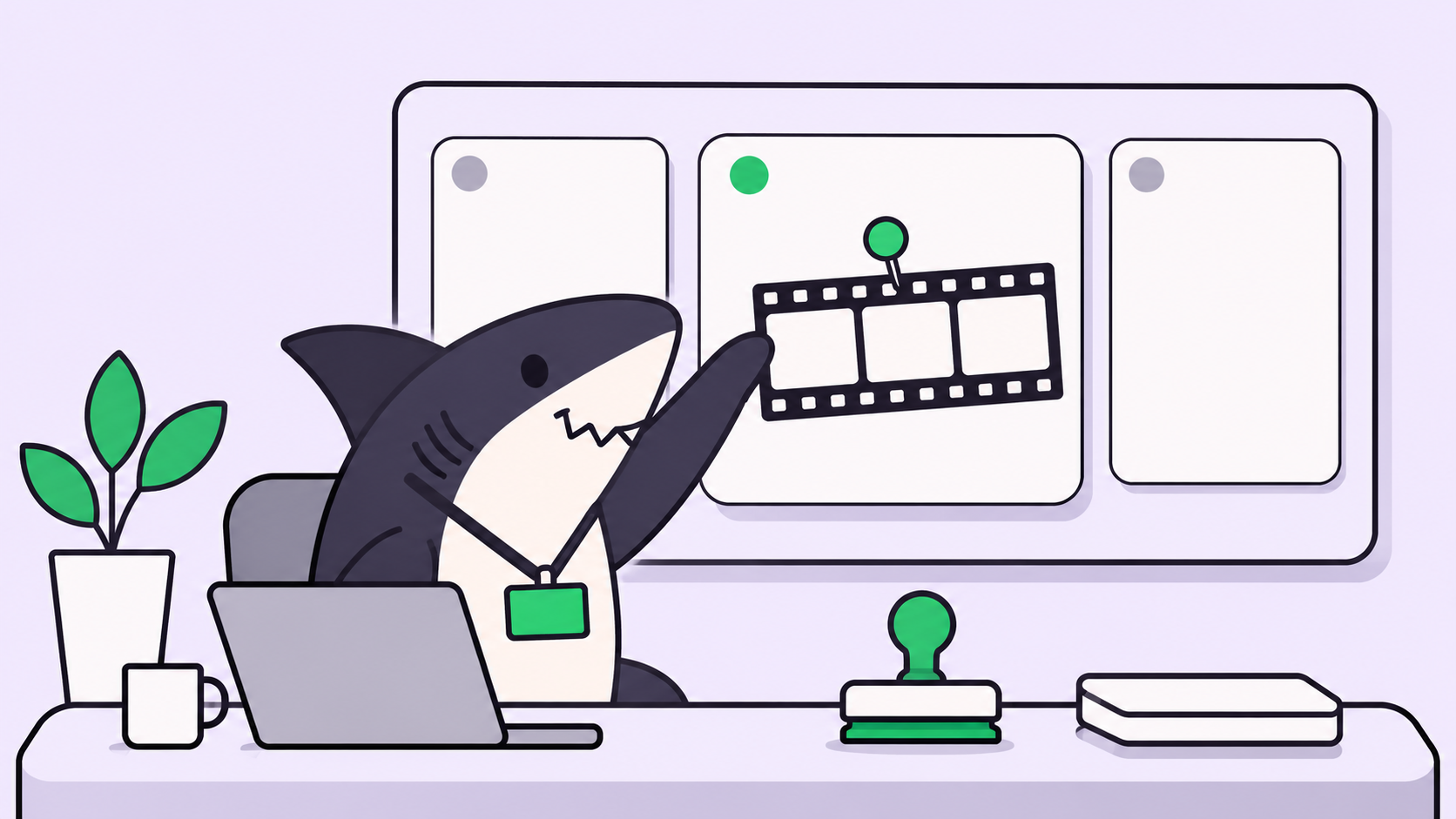
Stop the Agent after the draft round and again before the final render. Those are the points where a person’s judgment saves money or catches a brand mistake.
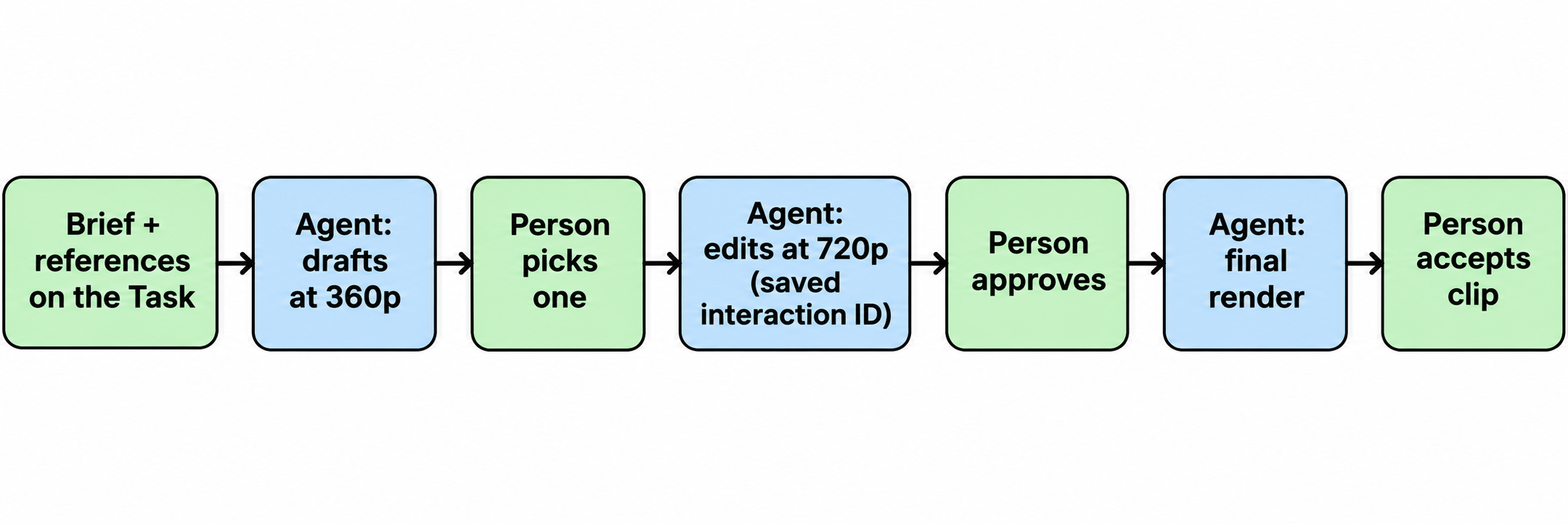
Agents generate, edit, and report. People set the brief, pick the take, and accept the clip.
How Sharkly carries the job
Sharkly’s part is ownership and review. A Task is the shared record, and progress, trace events, and the result return to the Task.
The mechanics map cleanly:
- Prepare in Backlog. An assigned Task doesn’t start a run there, so you can finish the brief and references first.
- Start the run. Moving the Task out of Backlog starts the assigned Agent on its Computer.
- Hand off for review. The Agent leaves the task conversation needing review, and that hand-off appears in the Task Chats module.
- Continue with a comment. A person’s eligible comment can start a follow-up run with the next edit.
- Close it. Attach the clip, then a person moves the Task to its final status.
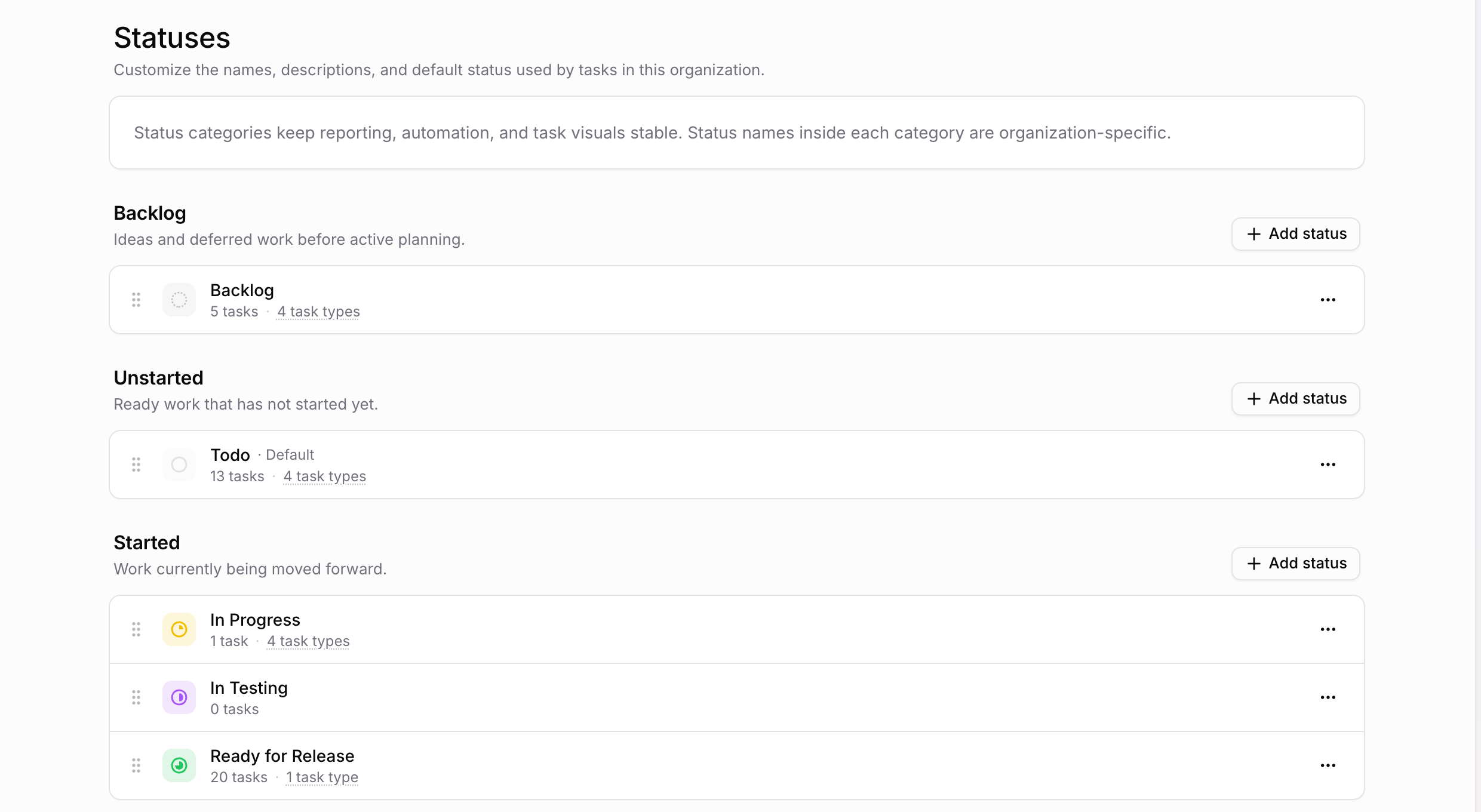
Status names inside each category belong to your organization, so a team could add one for clip review. Run states such as Queued or Running stay separate from those statuses.
The rules that repeat belong in a Skill, which packages instructions for every Agent bound to it. Write the Omni rules once and every video Task inherits them. Keep the key out of the Skill, since the docs say secrets never belong there. We cover the wider pattern in approval gates for coding agents.
Limits to write into your Skill
Omni doesn’t support system instructions, temperature, or negative prompts as settings, so your rules have to reach the model through the prompt. These limits come from the Omni docs.
| Limit | Rule for the Agent |
|---|---|
| 3 to 15 seconds per generation | Set duration every time, in whole seconds |
| Extension adds 3 to 10 seconds per turn, 30 seconds total | Plan longer pieces as extensions before drafting |
| Extension appends to the end only | Don’t promise a new opening or middle |
| Voice editing unsupported | Regenerate if dialogue needs changing |
| Reference videos work for new generations only | Use reference images during edits |
| Certain recognizable people blocked in uploads | Check source images before the run |
| Uploaded video edits unavailable in the EEA, Switzerland, and UK | Edit model-generated clips there |
| Only English fully supported | Flag other languages for closer review |
One gap needs a test. The docs set resolution per request and label 1080p and 4K as upscaled, but they show no example of upscaling an existing clip. Google’s announcement describes that workflow, so confirm the call on one clip before your Skill relies on it.
When a Task is too much
Use a Task when a clip needs a named owner, a budget limit, or a reviewer. Use Google’s own apps when one person wants one clip by hand: Flow handles multi-turn edits, and Google Vids generates 15-second clips.
Use a pipeline when you need research, script, and edit stages rather than one model call. OpenMontage goes that route. A Task can still own the outcome of a run like that, but the production logic sits in the pipeline.
Real-world video jobs that fit
Good first jobs are short, repeatable, and easy to judge:
- Release clips. A feature ships, and an Agent drafts a 15-second clip from the changelog for a person to approve.
- Catalog spins. Product photos go in as references, and Google says packaging text and brand colors hold across camera angles.
- Ad variants. One approved clip gets edits per audience, with each edit tied back to the same Task.
Start with the release clip. The source is already written, and the reviewer already exists.
Your next step
Pick one clip your team needs this month and write the six-line brief above. Then connect a Computer and assign one low-risk Task to an Agent with a Gemini key. Set the cap to two drafts and one edit, and check that the interaction IDs land on the Task. The Sharkly quickstart covers the setup. Once one job runs clean, move the rules into a Skill.
FAQ
What is the model ID for the Gemini Omni 1.2 Flash API?
It’s gemini-omni-1.2-flash, and it’s stable. Requests to gemini-omni-1.1-flash route to 1.2 from December 3, 2026.
How do I edit a video with the Gemini Omni API?
Send a new interactions.create request with previous_interaction_id set to the earlier result, and describe the change in plain language. The model keeps elements you didn’t mention.
How long does Gemini keep an interaction for editing?
Paid projects keep interactions for 55 days by default. You can shorten that in AI Studio to 7, 14, or 28 days, and store=false turns storage off.
Can an AI agent call the Gemini Omni API on its own?
Yes. Any agent that can run code and read an API key can make the call. The harder question is where the brief, the limits, and the approval live.
Does Sharkly integrate with Gemini Omni directly?
No. The Agent calls Google’s API from its Computer with your key. Sharkly handles the Task, the Skill, and the review around that call.
Are Gemini Omni videos watermarked?
Yes. All generated videos carry SynthID, an invisible watermark that can be detected programmatically.