TL;DR: To have an AI agent create tasks in Sharkly, open Agent Chat, pick an Agent, and describe the request with the shape you want: one parent task, the scoped work under it, types, labels and relations. The Agent creates the tasks directly and replies with a task card for each. You then check what it filled in, fix anything wrong by hand, and assign one task for a real run.
The job, and what you end with
A user writes “cancel my gym membership.” Somebody has to turn that sentence into work: a request to track, the recipe to build, the steps under it, and the links to what already exists. Typing five tasks by hand takes longer than the planning does.
In this tutorial an AI agent creates tasks from that one request, and you end with a small, linked task tree you’ve checked. Everything below was done for real on 2026-11-26 in the Cancel Anything organization, a small team building a subscription-cancelling CLI, with two real agent runs. Sharkly is free to start if you want to follow along.
Before you start
You need three things:
- A Space with task types that fit your work. Ours is Cancel Anything (key
CAAN) with Build, Recipe, Bug and Request types. - An Agent you can chat with, on a connected Computer. We used Juno, the team’s PM agent, running Claude Code with Sonnet 5.5. New to agents? Read what Sharkly agents are.
- A second Agent for the first real run. We used Echo, the support agent.
How one request becomes tasks in Sharkly
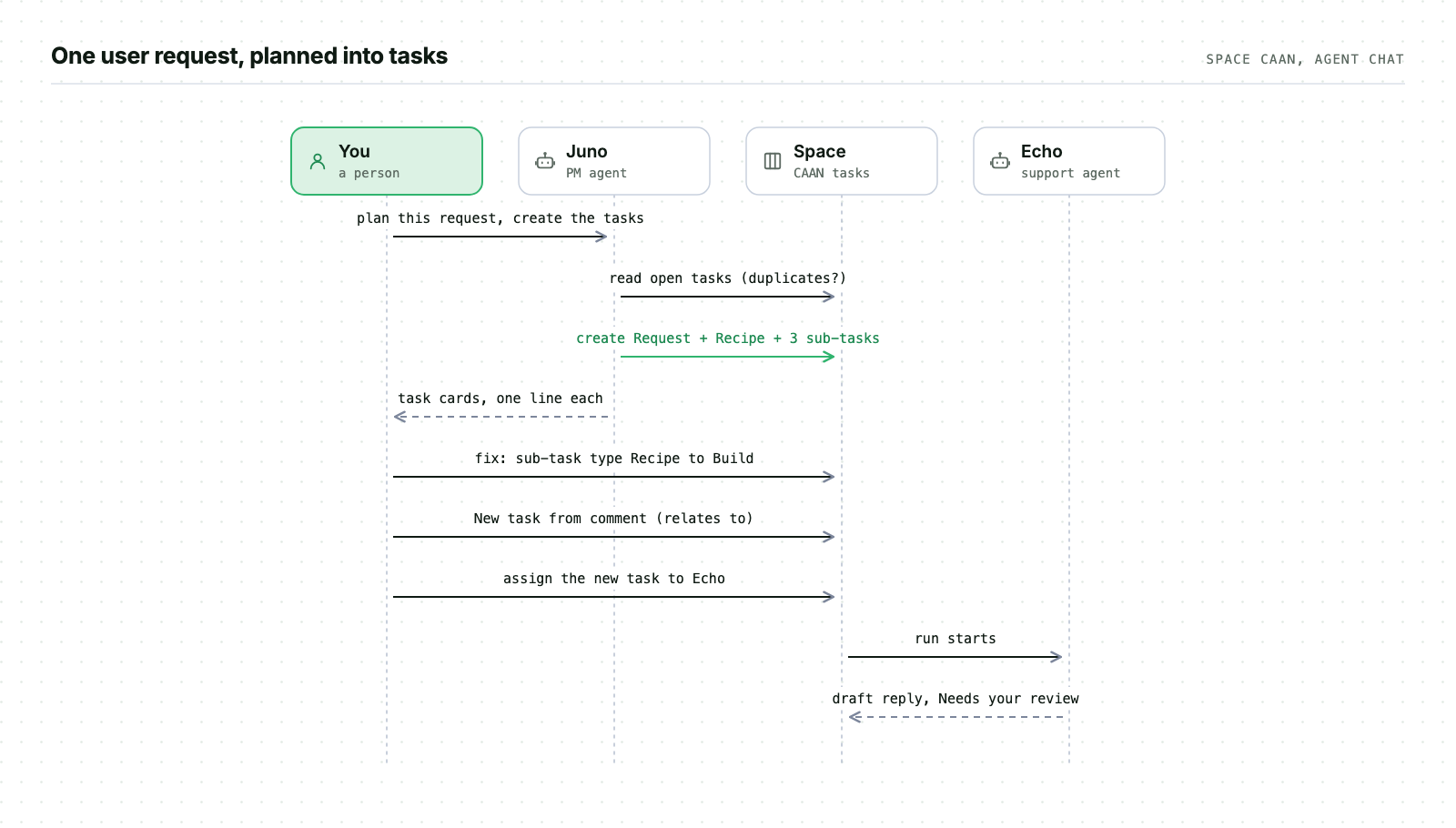
The Agent plans and files. You review, correct and decide what runs first. There’s no confirmation step: since the 2026-11-05 release, the Sharkly changelog says Agents create tasks directly and send a task card you can click to open.
Step 1: Ask the agent to plan the request and create the tasks
In the left rail, open Chat and click + (the tooltip reads “New task or conversation”). Pick Chat with a new Agent, type the Agent’s name in Find an Agent or crew, and pick it. If that Agent already has chats, Sharkly opens the latest one. Click the new-conversation icon next to the chat title to get an empty “Open a chat with Juno” screen.
Write the request the way you’d brief a teammate. Ours named the parent task, the split we wanted, an existing example (CAAN-13 to CAAN-15), the task to check for duplicates (CAAN-25), the fields to set, and three limits: leave everything unassigned in Backlog, don’t touch repo files, and mark anything about the gym that nobody has checked as unverified. Press Enter.
Juno worked for 7m 31s. It searched the Space, read the team’s recipe guide in Docs, then created five tasks: Request CAAN-37, Recipe CAAN-38 under it, and three step sub-tasks, CAAN-39 to CAAN-41.
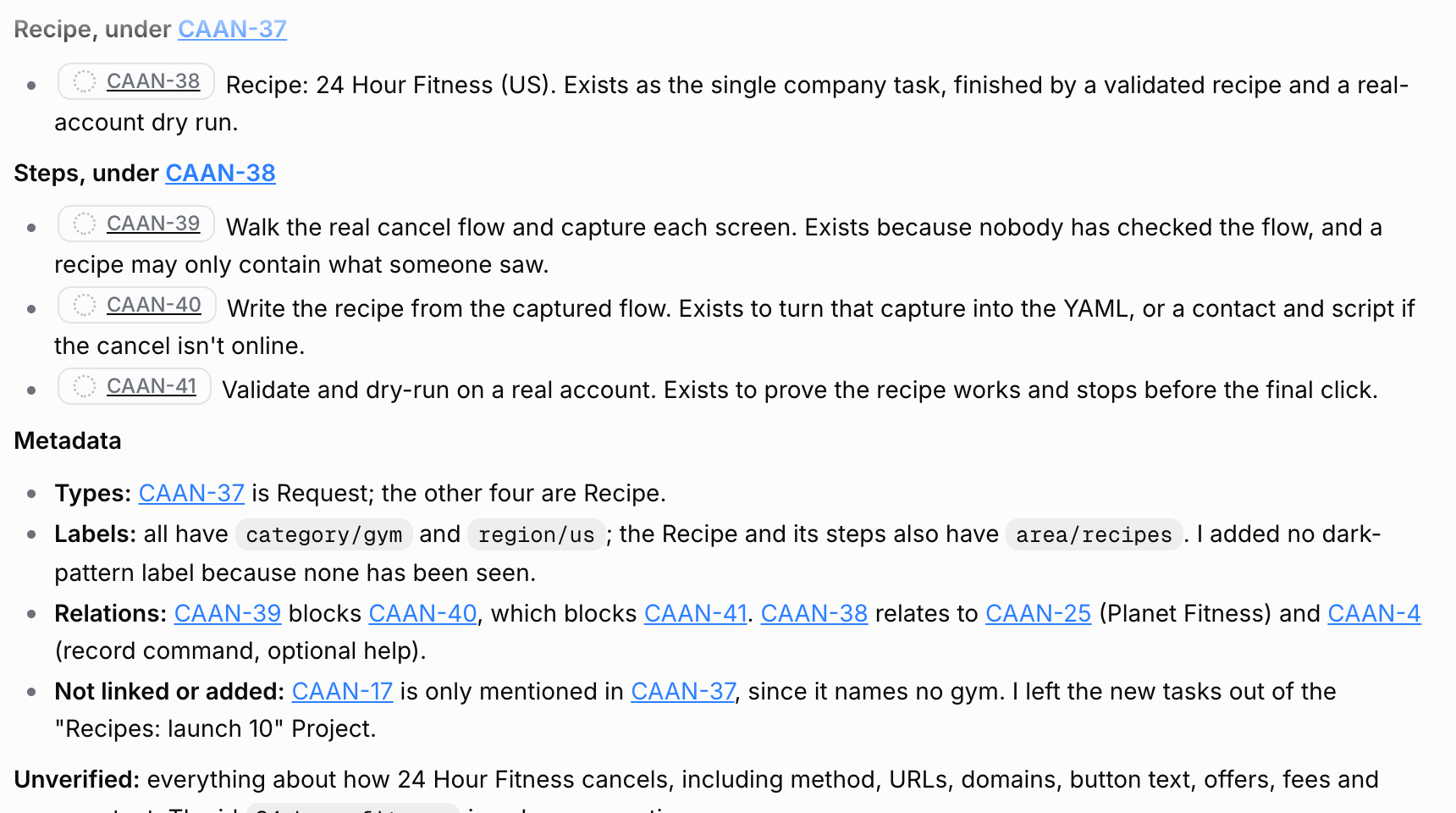
Each task card opens the task. Read the “Metadata” block under them: it’s the agent’s own list of what to check.
Asking for “one line per task saying why it exists” pays off here. You review five reasons, not five descriptions.
Step 2: Turn a comment into its own task
Follow-ups often arrive as comments. On CAAN-37 we posted one: the same user also wants to know whether they’ll owe another month of dues. That’s a support answer, not recipe work.
Hover the comment, click its … menu, and pick New task from comment…. (New sub-task from comment… makes it a child of the current task instead.) The dialog fills the title and description with the comment text and shows “CAAN-37 > Another related task” at the top. Rewrite the title, set the type, and click Create.
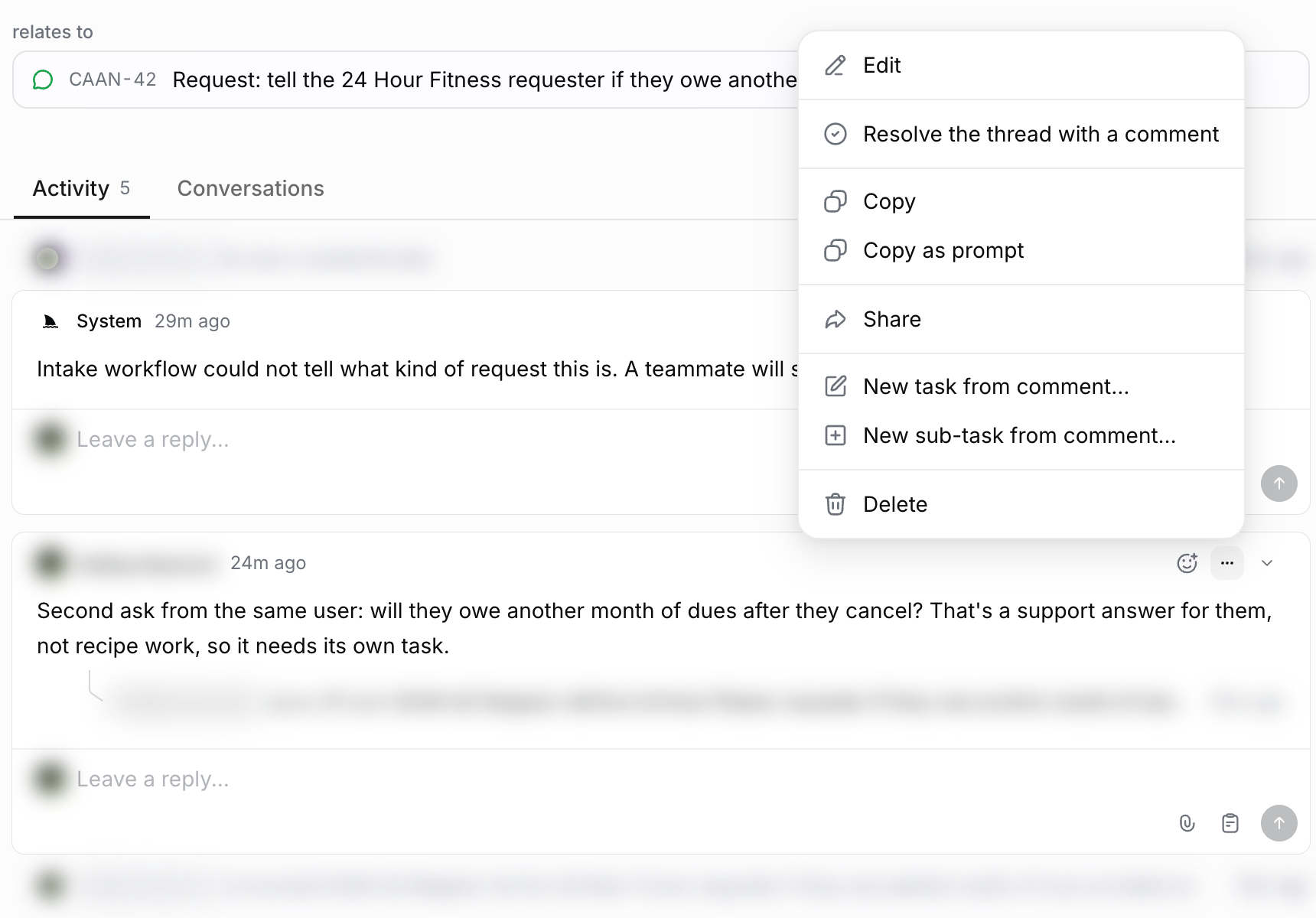
Linked items already reads “relates to CAAN-42”. Under the comment, a thread line records that it spun off the task.
The new task, CAAN-42, links back on its own. The task relations page says a task created from a comment gets a “relates to” link to the comment’s task, with no manual step.
Step 3: Check what the agent filled in
Open the parent and walk down. Here’s what Juno built:
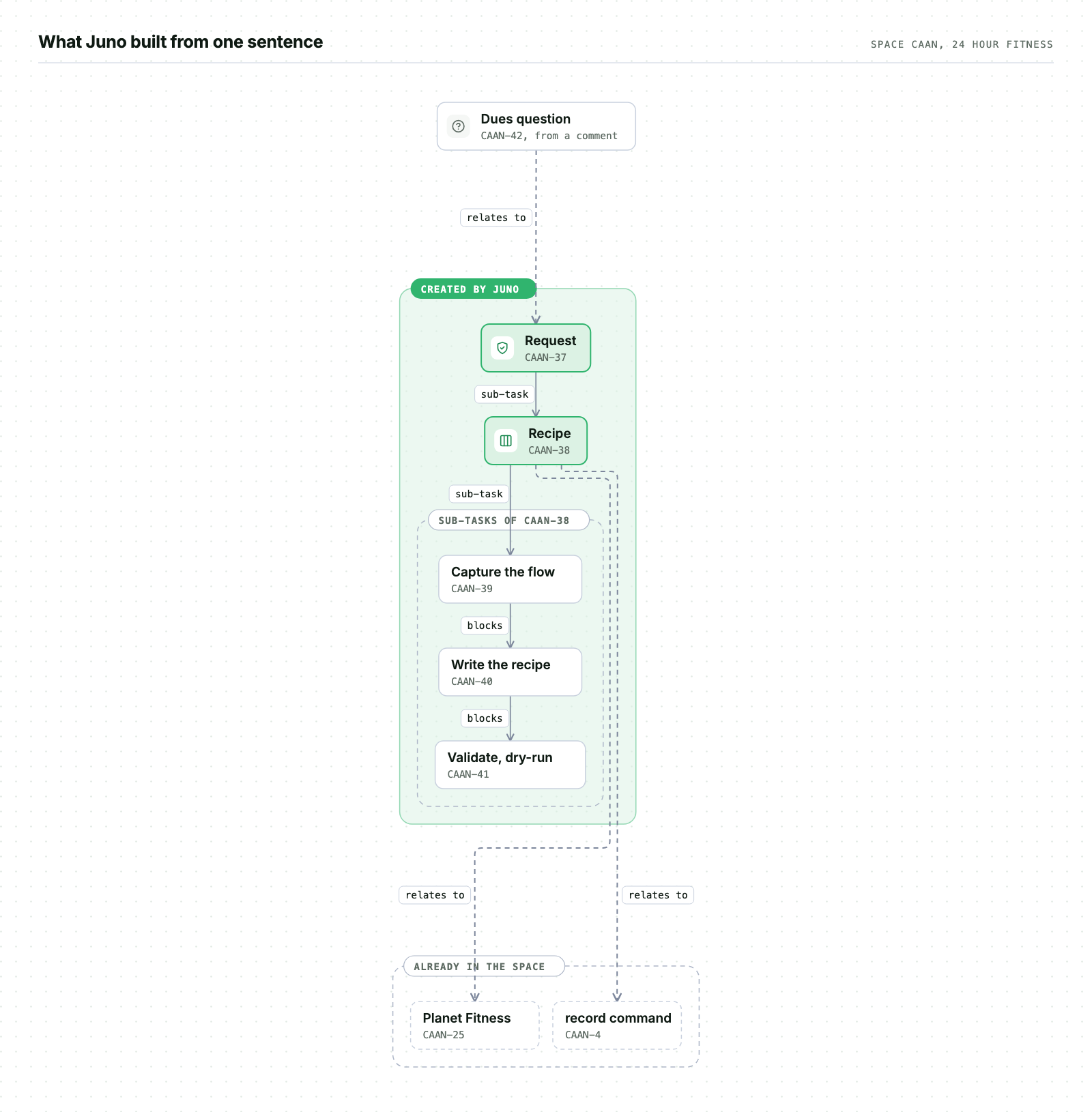
Check four things on each task:
| Field | What Juno set | Verdict |
|---|---|---|
| Type | Request for CAAN-37, Recipe for the other four | Wrong on the three steps |
| Labels | category/gym, region/us, plus area/recipes below the Request |
Right |
| Sub-tasks | CAAN-37 > CAAN-38 > CAAN-39, 40, 41 | Right |
| Relations | 39 blocks 40, 40 blocks 41; CAAN-38 relates to CAAN-25 and CAAN-4 | Right |
The type was the miss. Our Recipe board View shows every Recipe-type task, so one gym now took four cards on it: 11 instead of 8. The team’s existing steps, CAAN-13 to CAAN-15, are typed Build.
To fix it, open the sub-task, click the type chip left of the title (Pick task type), and choose Build. Sharkly asks first:
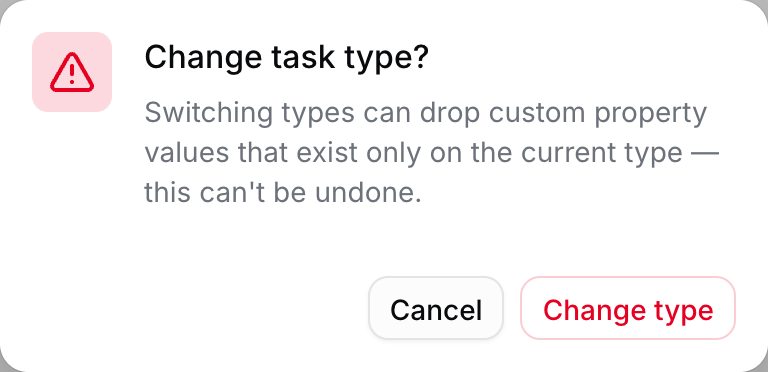
Read the warning before you click Change type: custom fields bound only to the old type lose their values.
Our steps had no custom fields, so we clicked Change type on all three. The Recipe board dropped back to 8 cards, one per company.
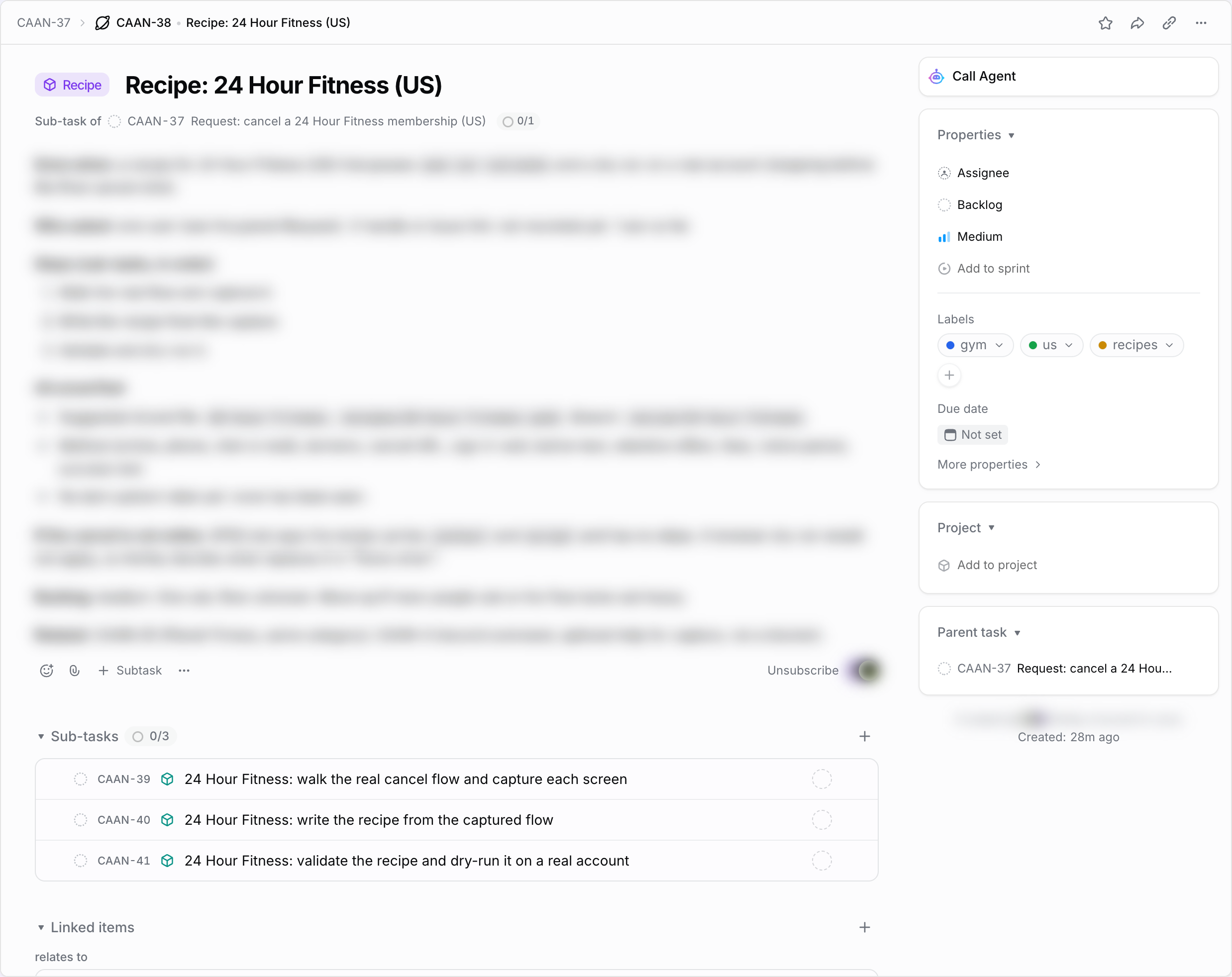
The parent line and the green Build icons on the three steps are what to check.
For the type system itself, see task types and workflows.
Step 4: Assign one task for a real run
Pick the first task an Agent can finish alone. CAAN-39 wasn’t it: walking a real cancel flow needs a person signed into a real account. CAAN-42, the dues question, was.
Open CAAN-42, click Assignee in Properties, and pick Echo. The task was in Todo, so the run started at once. Echo moved it to In Progress and worked for 7m 32s.
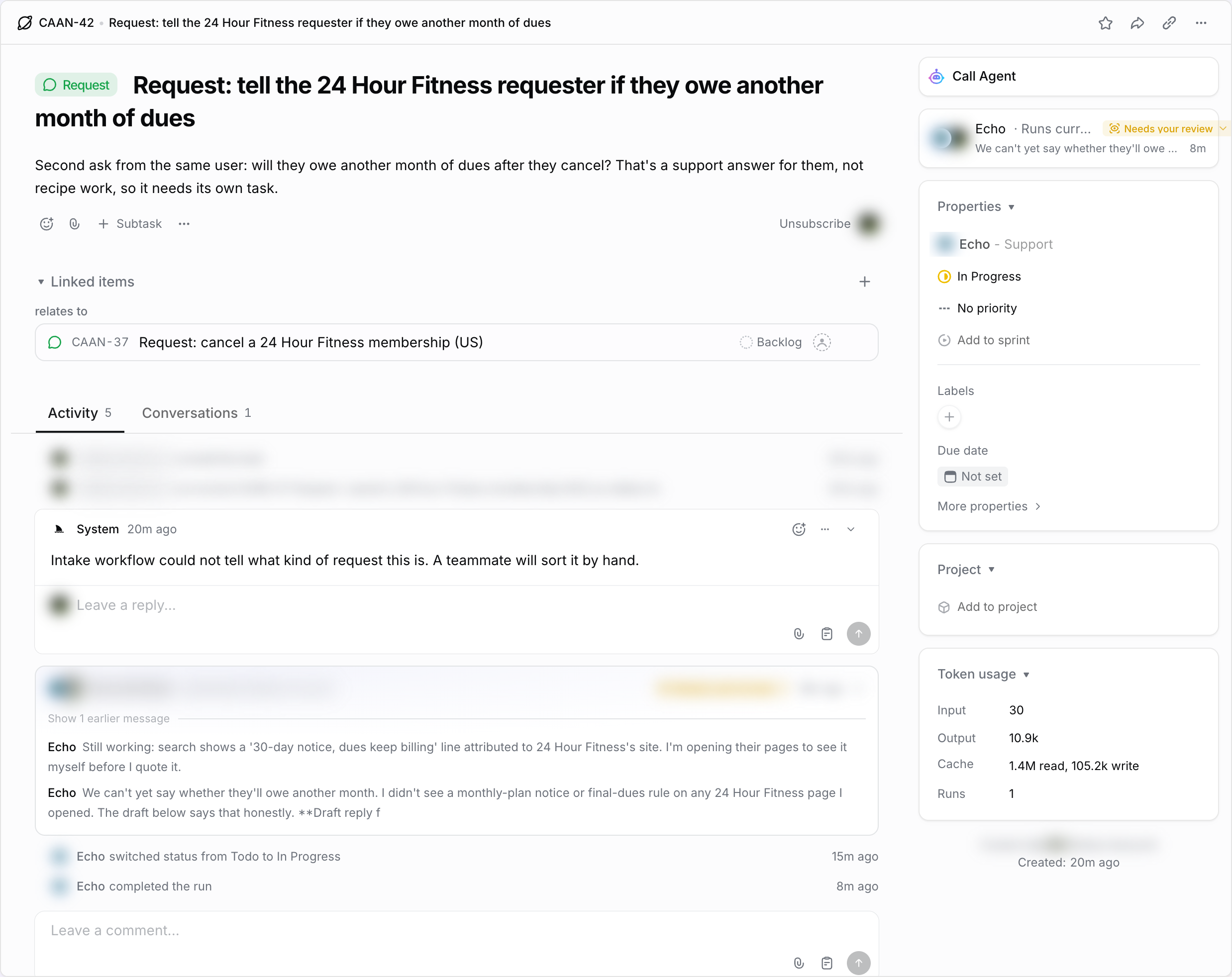
The chat card’s “Needs your review” is your cue. The Token usage panel shows this task’s one run.
Echo’s draft was honest: it couldn’t confirm the dues rule on any 24 Hour Fitness page it opened. Search summaries mentioned a 30-day notice period, so it flagged that as unverified and left it out of the reply. That’s the behavior you want from the brief in Step 1.
Step 5: Keep agent-created tasks tidy
An agent that files tasks fast can also file noise fast. The habits that kept ours clean:
- Make it search first. Name one existing task it must check. Juno found CAAN-25 and linked it instead of filing a second gym recipe.
- File into Backlog, unassigned. The tasks help page says Backlog is a parking state: creating a task there, or assigning an Agent, doesn’t start a run.
- Ask for one reason per task. A task with no reason to exist gets deleted in review, not discovered a week later.
- Keep it out of Projects until you’ve read it. Juno left the new tasks out of “Recipes: launch 10” on purpose.
- Skip it for one-task requests. Use Create with agent in the new-task dialog when the work is one task, not a tree.
If a request will produce more than about 8 tasks, ask for the plan first and the tasks second.
What went wrong for us
- Sub-tasks copied the parent’s type. Fixed by hand in Step 3. Say the type for each level in your brief.
- An automation commented on the new tasks. The Space’s intake workflow, from our classifier tutorial, posted “could not tell what kind of request this is” on CAAN-37 and CAAN-42. Agent-made tasks go through your automations like any other.
- The comment dialog had its own defaults. It opened as type Build in Todo, with the whole comment as the title. Set both before you click Create.
- The help page and the app differ in wording. Help says the creator row reads “human → Agent”; the app shows the two names joined by “&”, as in “Sam & Juno” for a request from Sam. The menu item reads “New task from comment…”. The app wins.
Variations
A product team pastes a customer feature request into Agent Chat and asks for frontend, backend and docs sub-tasks, each with a Definition of Done. The lead reviews the tree, then assigns the backend task to a coding Agent.
An on-call team uses New sub-task from comment… during an incident. Each follow-up someone writes in the thread becomes a child of the incident task, so the post-mortem list builds itself.
Both are a light work breakdown structure: the Agent drafts the split, a person owns it. Small, testable pieces in the sense of INVEST are easier for the next Agent to run, too.
Recap checklist
- [ ] Brief names the parent, the split, the types per level and one task to dedupe against
- [ ] Agent files into Backlog, unassigned, with one reason per task
- [ ] You checked type, labels, sub-tasks and relations on every task
- [ ] Comment follow-ups became tasks with New task from comment…
- [ ] One task, safe for an Agent alone, assigned for a real run
- [ ] The run’s result reviewed from Needs your review
FAQ
Can an AI agent create tasks in Sharkly without asking me to confirm? Yes. Agents create tasks directly and reply with a task card for each one. Review comes after, on the tasks themselves.
Who shows as the creator of an agent-created task? The person who asked and the Agent both appear in the Created by row, so you can tell who requested the work.
Does creating a task from a comment link it to the original? Yes. New task from comment… adds a “relates to” link to the source task. New sub-task from comment… makes it a child instead.
How do I stop an agent-created task from starting a run? Have the Agent file it in Backlog. Backlog doesn’t start execution, even with an Agent assigned.
Where do I chat with an Agent outside a task? Agent Chat, from Chat in the left rail. The chat with an AI agent guide covers it.
Additional resources
- Sharkly sub-tasks and linked tasks: blocking chains like CAAN-39 to CAAN-41
- Tasks help page and Chat with an Agent
- Claude Code overview, the Runtime behind Juno and Echo
Next step: open Agent Chat in your own Space, paste one real request from your backlog, and ask for the tree. Check it with the table in Step 3 before anything runs. Start at sharkly.ai.