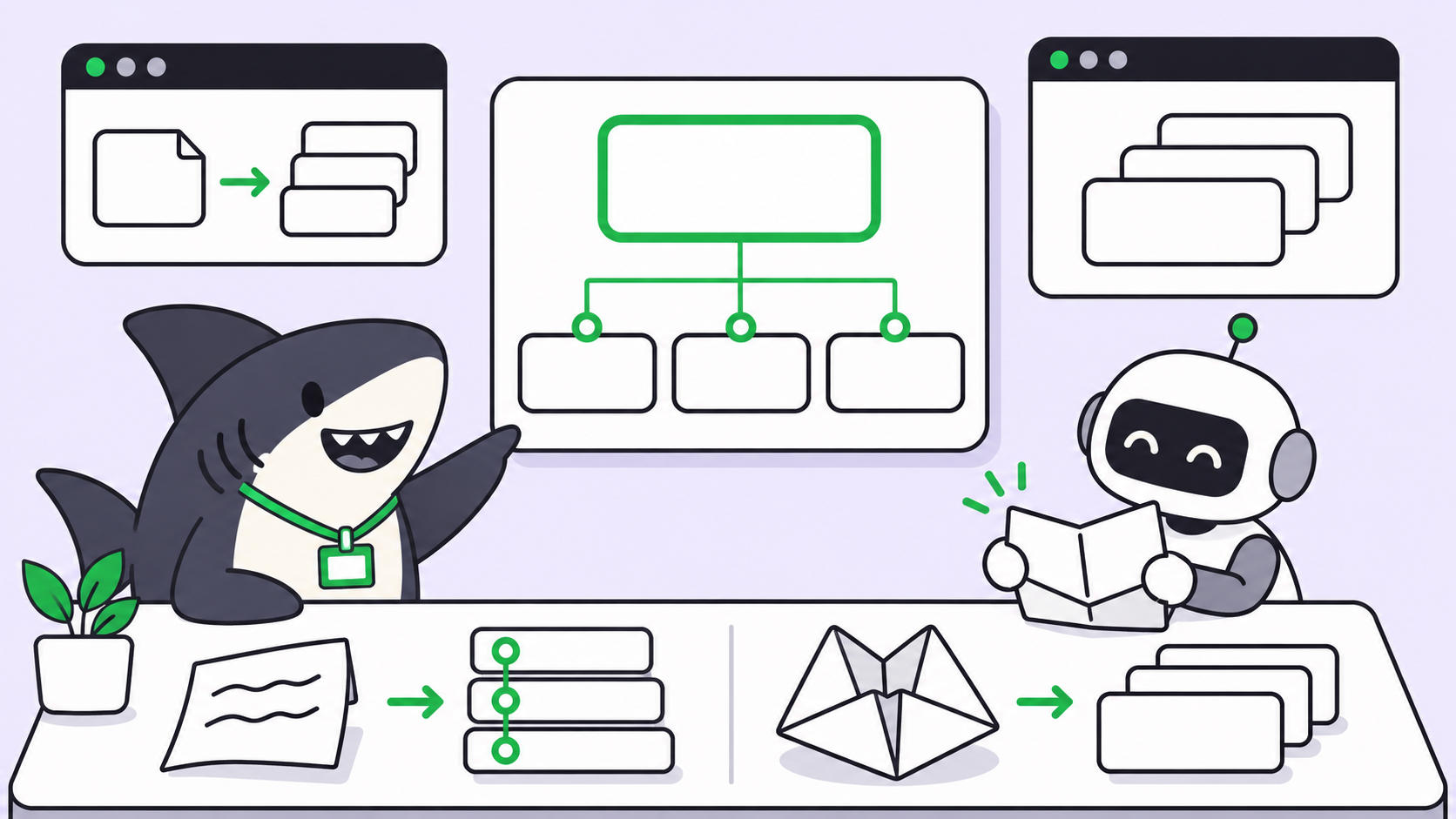
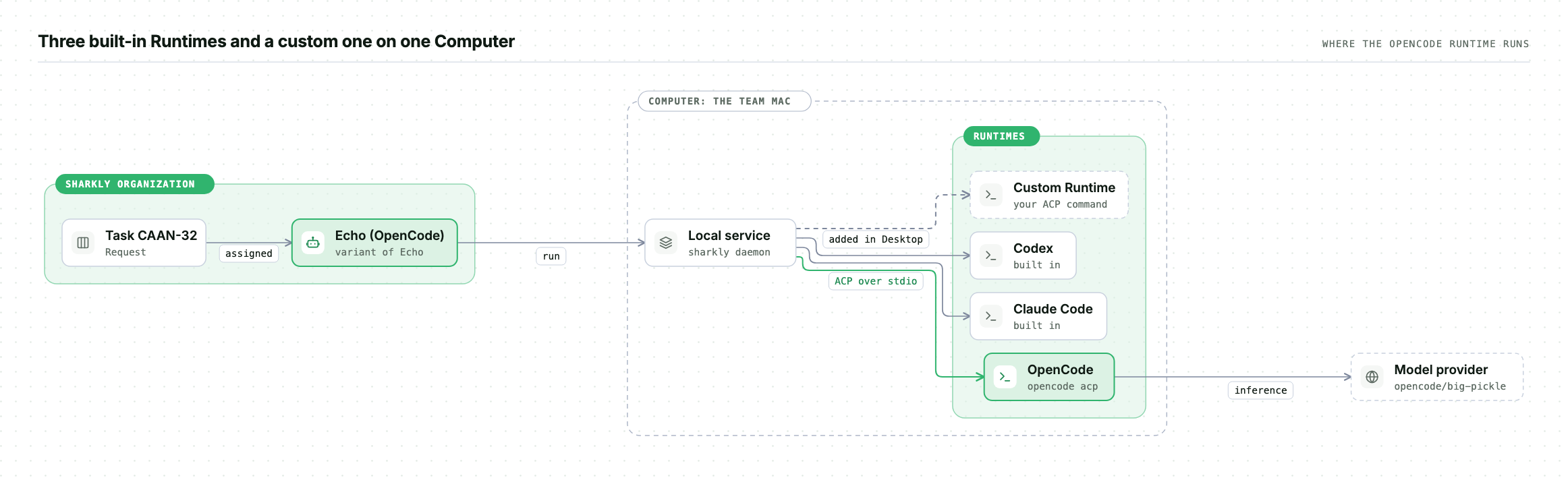
A custom ACP runtime in Sharkly is a Runtime you define yourself: a display name plus a command that starts an Agent Client Protocol (ACP) server, such as opencode acp. You add it in Sharkly Desktop from the Computer’s page. If your tool is already a built-in Runtime, as OpenCode is, skip that step: point an Agent at the built-in Runtime and pick its model.
Most teams start Sharkly with one coding agent runtime, usually Claude Code or Codex. Then someone asks for a third one: OpenCode for its free models, a local model for private code, or a new CLI nobody has heard of yet. This tutorial does that for real in Cancel Anything, a small team building a subscription-cancelling CLI. The goal: one support Agent on OpenCode, next to the Claude Code and Codex Agents, on the same Computer.
You end with an Agent variant called Echo (OpenCode), one real Task it answered, and the two fixes we needed on the way. If you don’t have an organization yet, Sharkly is free to start.
Before you start
You need three things:
- A connected Computer. Ours is the team’s Mac, already running Claude Code and Codex for five Agents. See how Computers work if yours isn’t connected.
- The runtime’s CLI installed on that Computer. Run
which opencodein a terminal. Ours printed a path andopencode --versionprinted 1.19.3. Sharkly detects installed tools; it doesn’t install them for you here. - An Agent to copy. We used Echo, the support Agent. Echo drafts replies to user questions and never posts them.
How Sharkly runs a Runtime over ACP
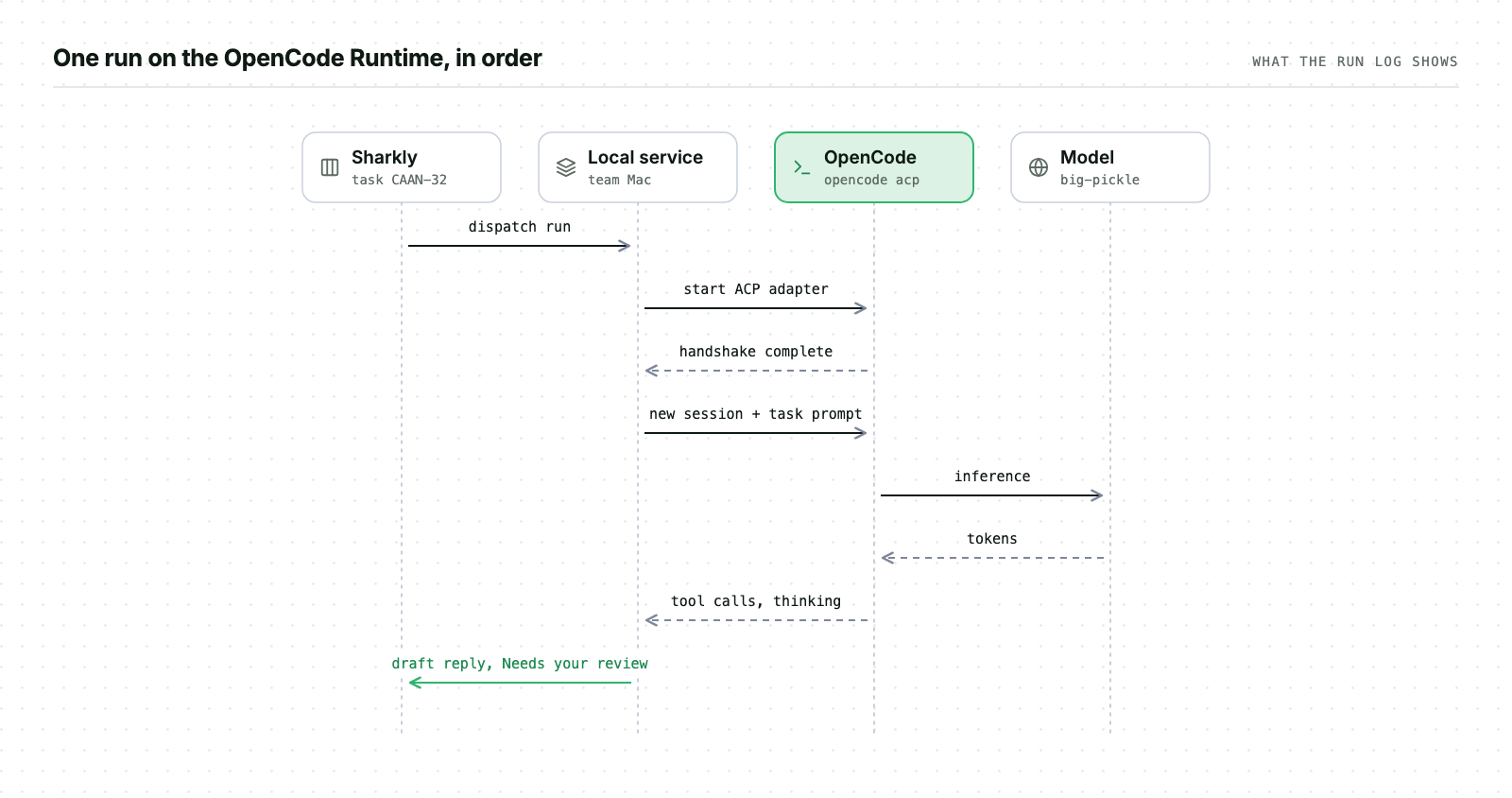
ACP, the Agent Client Protocol, is a JSON-RPC protocol that lets an editor or a platform drive a coding agent over stdio. The client starts the agent’s process, does a handshake, opens a session and sends prompts. The agent streams back its thinking, tool calls and answer.
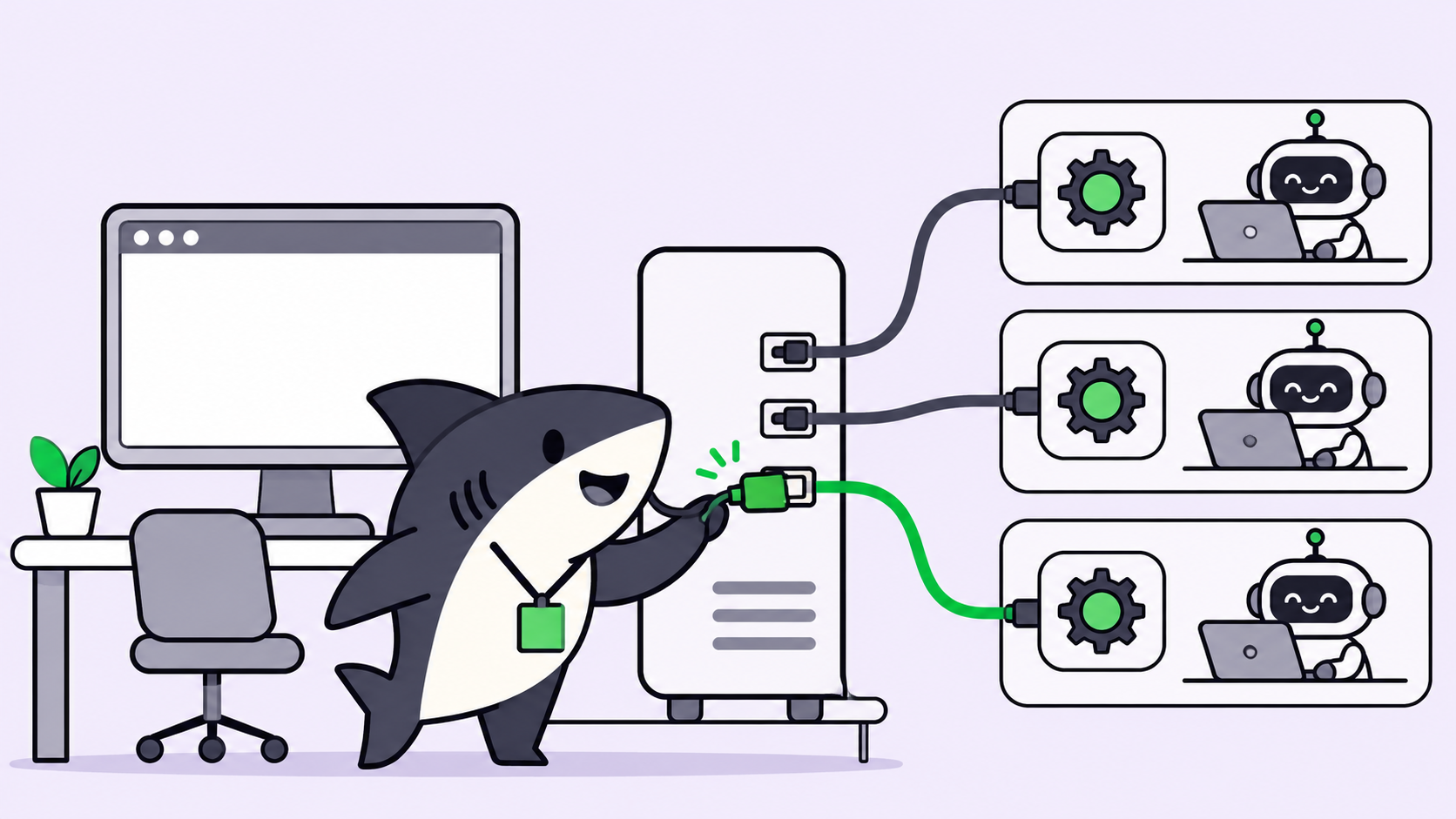
Sharkly’s local service, the background process on each Computer, is that client. A Runtime is a tool the local service knows how to start. Claude Code, Codex, OpenCode and Hermes were all detected on our Mac without any setup. A custom Runtime is the same idea with a command you write.
Step 1: Confirm the Runtime on the Computer
Open All settings > Computers and click your Computer. Under Runtimes, each detected tool shows a status. Ours listed Claude Code, Codex, OpenCode and Hermes as Available, with a Free tokens badge on OpenCode.
Click the OpenCode row to expand it. You see the version, Check again, Test the connection, the executable path, and three Runtime-wide settings: Default model, Launch arguments and Environment variables.
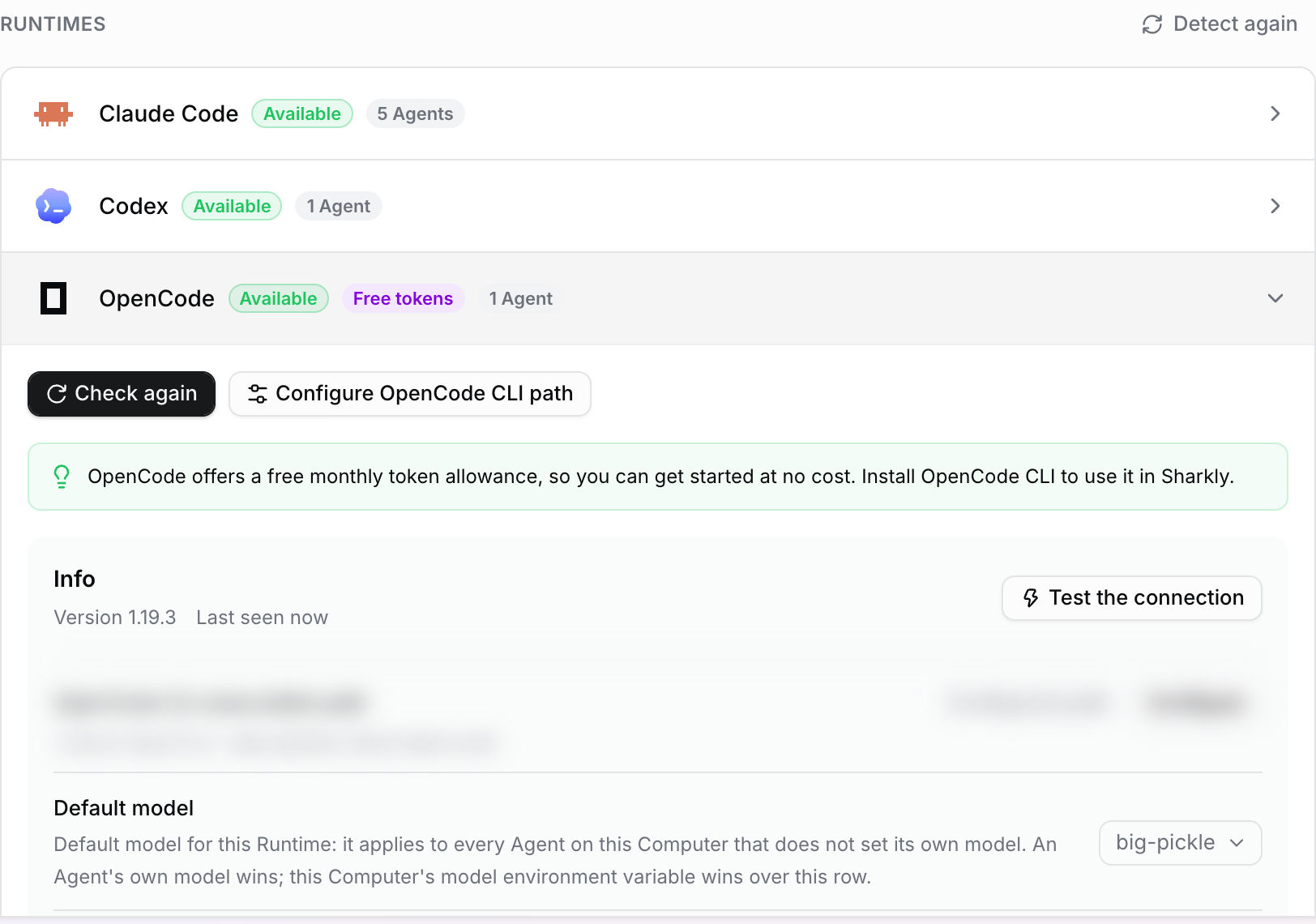
Read the Default model note before you touch it: it “applies to every Agent on this Computer that does not set its own model.” Our Mac also serves a second Sharkly organization, so we left every Runtime-wide setting alone and changed only the Agent. If your Computer is shared, do the same.
Step 2: Create a variant of the Agent
Go to All Agents, hover Echo’s card, open the ⋯ row menu and choose Create variant. Name it Echo (OpenCode) and click Create variant.
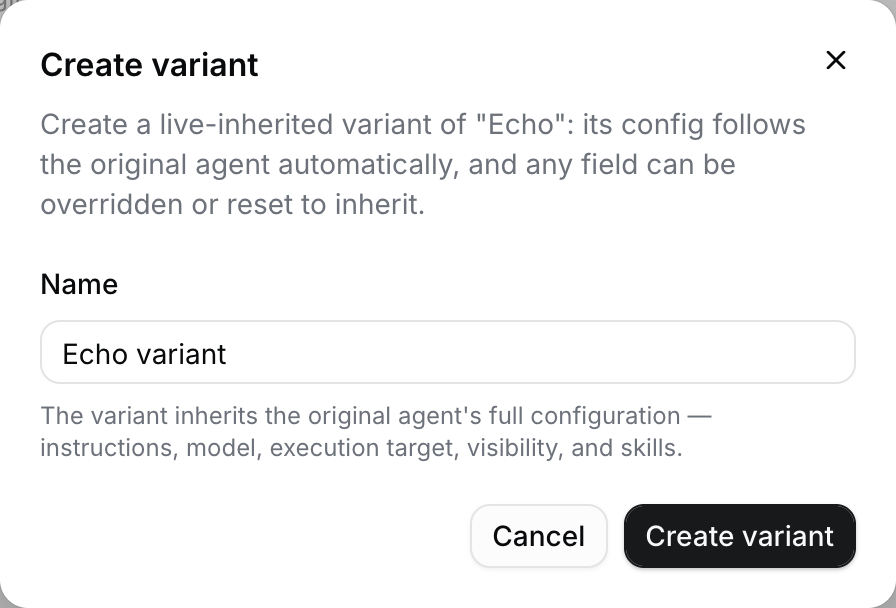
A variant keeps the original’s instructions, Skills and visibility in sync, and lets you override single fields. That’s what you want here: Echo’s support rules stay in one place, and only the runtime changes.
Step 3: Point the variant at OpenCode
In the variant’s settings, open Computer, Runtime & working directory. Click the Runtime button. The Choose a Runtime list groups Runtimes by Computer. Pick OpenCode under your Computer.
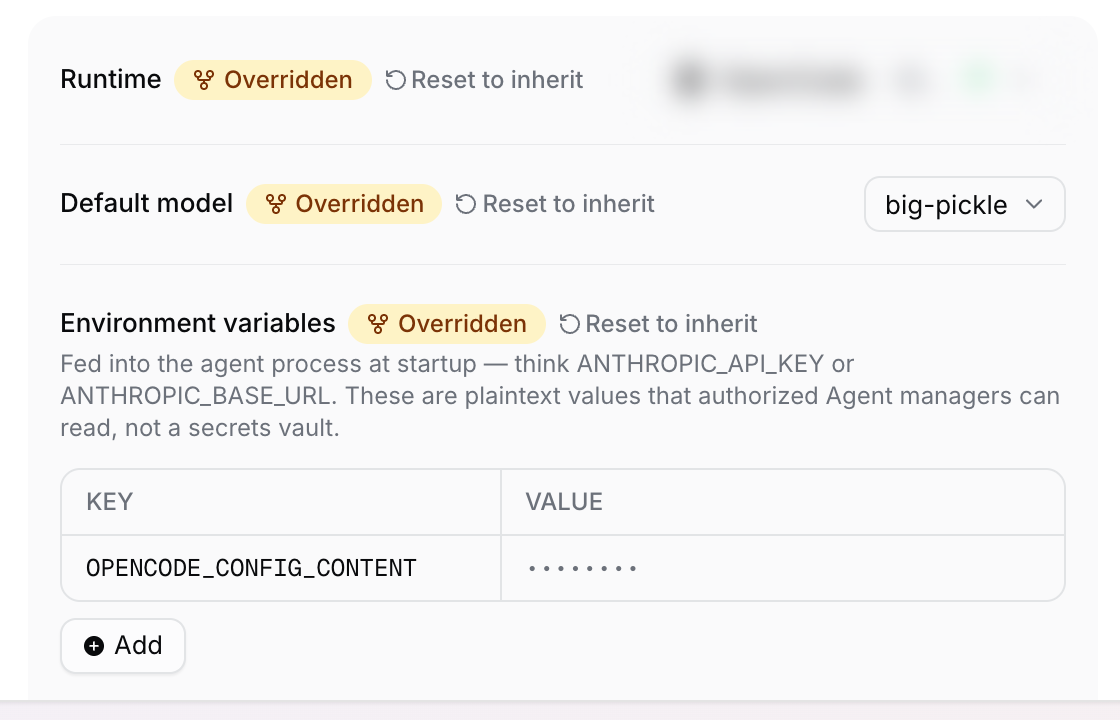
Sharkly saves at once (“Changes saved to the agent”) and marks Runtime as Overridden. It also switched Default model from Sonnet 5.5 to OpenCode’s default, opencode/big-pickle.
Step 4: Set the model by hand
Open the Default model list. It reads From OpenCode CLI and shows every model the Runtime reported: 47 on our Mac, including opencode/big-pickle, opencode/beam-free and opencode/deepseek-v4.1-flash-free.
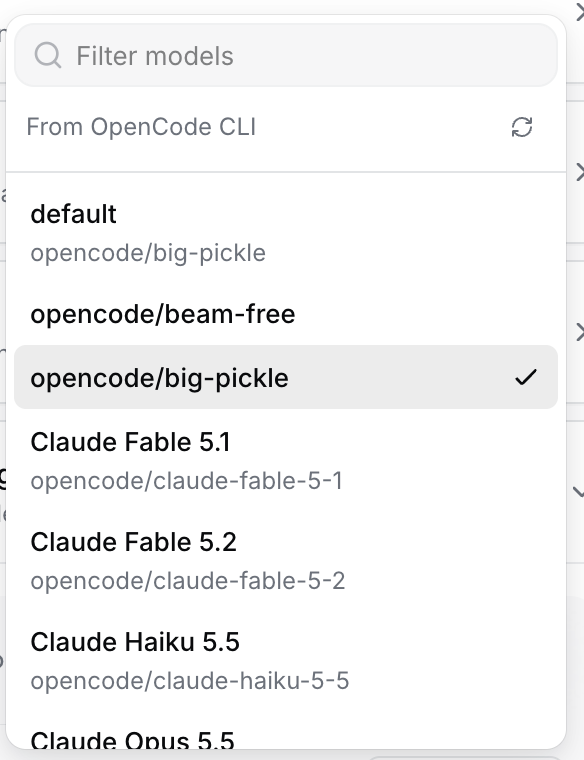
Pick one. We first chose opencode/deepseek-v4.1-flash-free. If the list is empty because detection failed, the help page describes Set up models manually: you type a model id in <provider-id>/<model-id> form, copied from the runtime, not guessed from a display name.
Step 5: Run a real Task
Cancel Anything had a real question waiting in Todo, CAAN-32: a user asked whether the tool works with Apple subscriptions bought through the App Store. We set Echo (OpenCode) as the assignee. The run started within a second.
The run log reads like the ACP sequence: “Starting the opencode ACP adapter”, “ACP handshake complete”, “ACP session ready”, then the agent’s own thinking and shell calls as it searched the repository and its Skill for “Apple”.
The real result
The second run took about 100 seconds and used 1.4k input tokens, 125 output tokens and 37.6k cached tokens. Echo (OpenCode) posted this draft in the task conversation and set it to Needs your review:
Hi [name], thanks for asking. Right now Cancel Anything works in a browser on your own computer, following a short recipe for each company’s website. Apple subscriptions on iPhone are managed in iOS Settings, not on a company website, and we don’t have an Apple/App Store recipe, so we can’t cancel those for you today.
It also noted that a Claude Code version of Echo had drafted a reply the day before, and offered this one as an alternative. Same instructions, a different runtime, a usable answer.
What went wrong for us
The first run hung on a free-tier limit. It sat on “Waiting for opencode to respond” for several minutes with no error in Sharkly. OpenCode’s own log (~/.local/share/opencode/log/opencode.log) said “Free usage limit reached” for the DeepSeek free model. We cancelled the run, switched the variant to opencode/big-pickle, and reassigned the Task. If a run stalls on a free model, read that log before you wait longer.
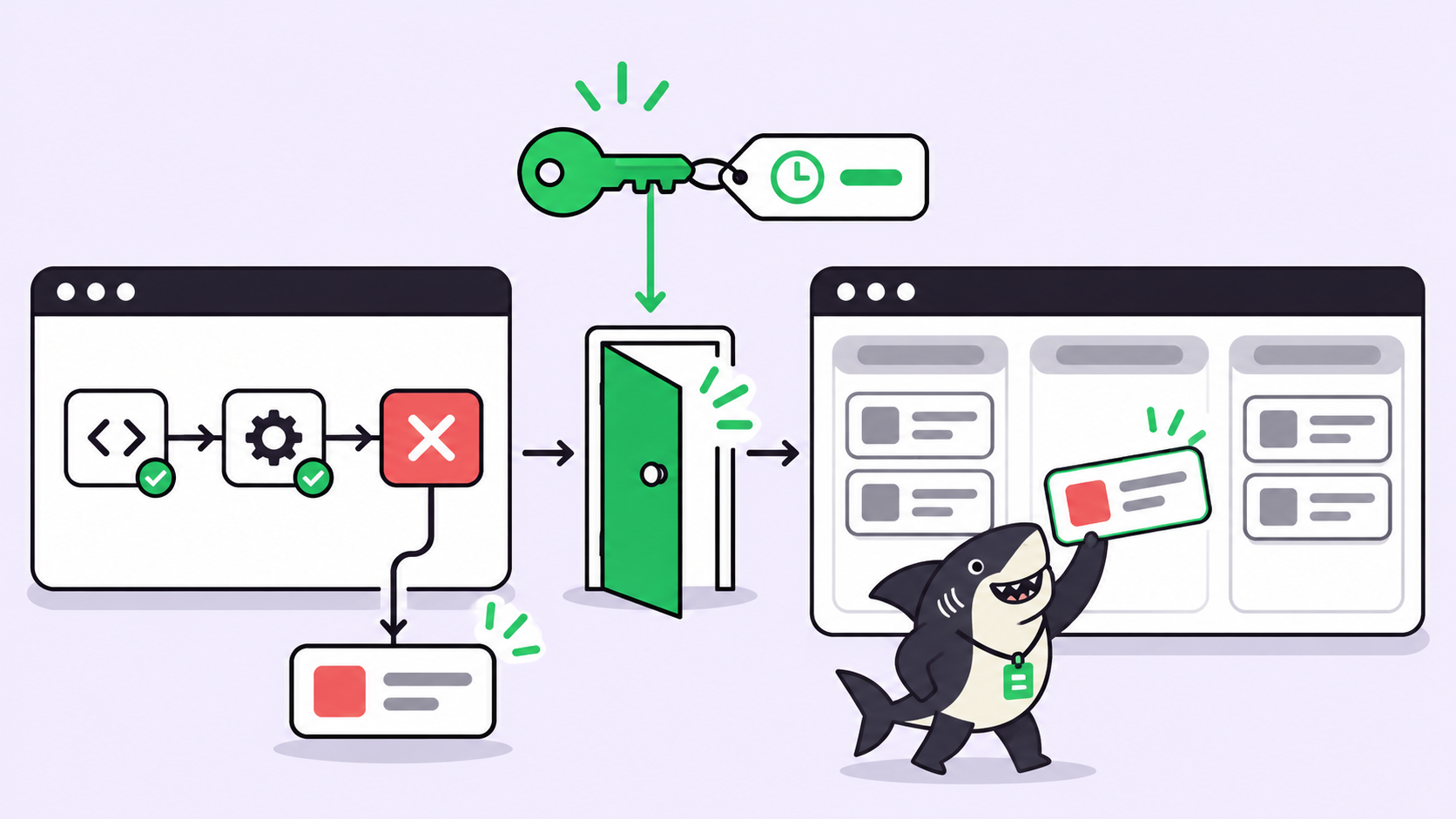
The second run did the work, then failed. The draft was posted, and the run was still marked failed: “The model service quota ran dry”. The cause wasn’t the model we picked. OpenCode names each session with a separate small model, which on our Mac was the paid gpt-5.4-nano. With no credits on the account, that background call failed after the answer was already sent.
The fix is OpenCode’s small_model setting, passed as an Agent environment variable so it touches only this Agent:
OPENCODE_CONFIG_CONTENT={"small_model":"opencode/big-pickle"}
Add it under Environment variables on the variant. We confirmed it in a terminal with opencode run --print-logs: without it, the title step called gpt-5.4-nano and failed; with it, both steps used big-pickle.
The custom Runtime form wasn’t in the web app. More on that next.
Custom ACP Runtimes: when your tool isn’t built in
The Computer page lists the Runtimes Sharkly already supports under Support more runtimes: GitHub Copilot, Gemini CLI, Kimi Code, Qwen Code, Goose, Cline and more, 20 in our list. If your tool is there, install its CLI and click Check again.
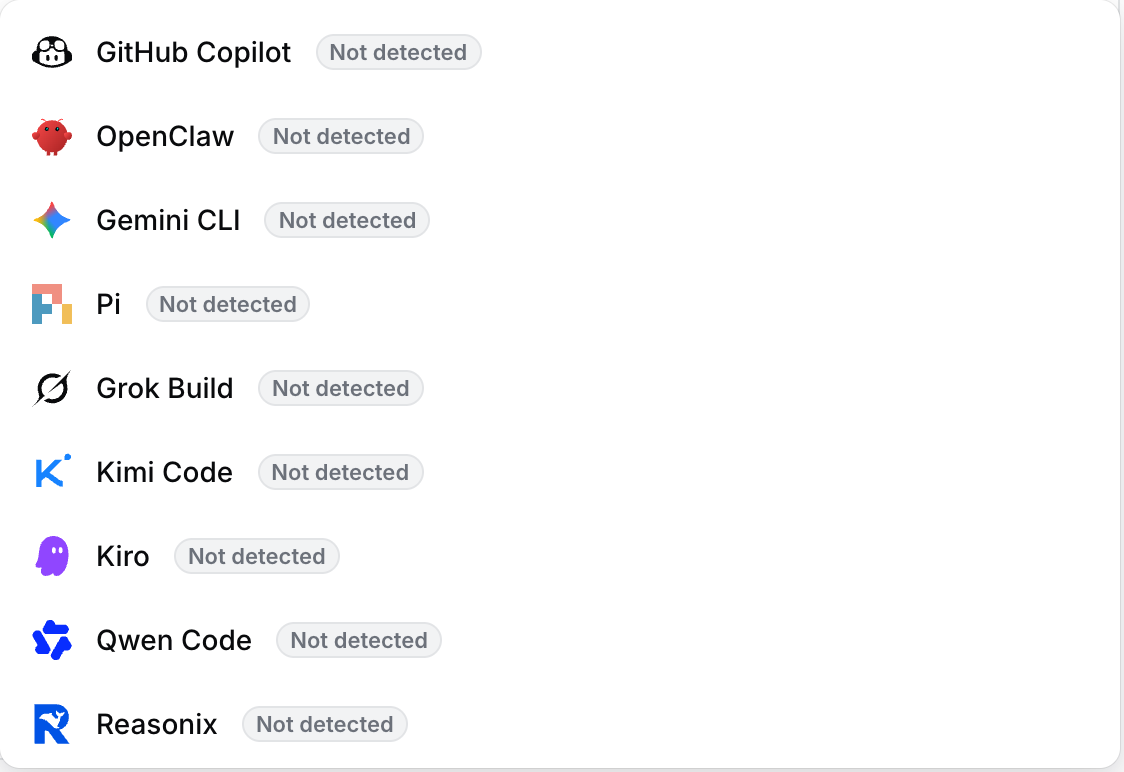
If it isn’t, you define a custom Runtime. The help page says to add it “from Computer detail” with an icon, a name and a startup command, then Test connection. In our test, that form only exists in Sharkly Desktop. The web app’s Computer page has no entry for it, so we didn’t create one for this tutorial.
The form’s fields, as the app labels them:
- Compatible protocol: ACP compatible, or compatible with a built-in Runtime’s protocol.
- Display name: must be unique on that Computer.
- Command: for ACP, a command that starts an ACP server directly. Leave model and protocol arguments out of it.
- Description and Icon, both optional.
The protocol can’t change after you create the Runtime. Edits apply to runs that start afterwards; a run already in flight keeps the definition it started with. When you’re done with it, archive the custom Runtime.
Roll back or keep it
To roll back, reassign the Task to the original Agent and archive the variant, or click Reset to inherit on Runtime to send it back to Claude Code. Write down the variant’s model and environment variables first: on a variant, some settings reset together.
To keep it, leave the variant in place. Assign it the cheap, frequent questions and keep the original on Claude Code for the hard ones.
Two other ways teams use this
A team with private code. It runs a local model behind an ACP-speaking CLI on one locked-down Computer, as a custom Runtime. Only Agents pointed at that Runtime run on that Computer.
A team trying a new agent CLI. It adds the CLI as a custom Runtime on a single Computer and creates one variant per Agent it wants to test. After a week of real Tasks, it compares runs and keeps the winner. See how to test a new model on real tasks.
Recap checklist
- [ ] The runtime’s CLI is installed and shows Available on the Computer
- [ ] Runtime-wide defaults left alone on a shared Computer
- [ ] Create variant on the Agent, named for the runtime
- [ ] Runtime set to the new Runtime, model picked (or added by hand)
- [ ] OpenCode only:
small_modelset to a model you can pay for, or a free one - [ ] One real Task assigned, run log and result read
- [ ] Not built in? Add a custom Runtime in Sharkly Desktop
Ready to add a third runtime to your team? Start free on Sharkly, connect a Computer, and give one Agent a variant on OpenCode.
FAQ
What is a custom ACP runtime in Sharkly? A Runtime you define with a name and a command that starts an ACP server. Sharkly’s local service starts it like any built-in Runtime.
Do I need a custom Runtime for OpenCode? No. OpenCode is a built-in Runtime. Install the CLI on the Computer and it appears under Runtimes.
Where do I add a custom Runtime? In Sharkly Desktop, on the Computer’s page. In our test the web app had no form for it.
Can I use OpenCode’s free models with Sharkly Agents? Yes, but free models have usage limits. Our first run stalled on one. Set small_model too, or a paid title model can fail the run.
Does changing a Runtime’s default model affect other Agents? Yes. A Runtime-wide default applies to every Agent on that Computer without its own model. Set the model on the Agent instead.
Can I go back to Claude Code later? Yes. Click Reset to inherit on the variant’s Runtime, or archive the variant.