Sharkly docs live in the Docs library: My docs for you alone, Shared docs for the whole team. Save an Agent’s chat artifact with Save to Docs, keep the editable version as a document with automatic version history, and link it from the Tasks it feeds. The Agent reads the Doc on its next run instead of a pasted copy.
Research that stays in a chat dies there. Next week nobody remembers which conversation held the answer, and the Agent that picks up the Task starts from zero. This tutorial does the fix for real in Cancel Anything, a small team building a subscription-cancelling CLI. You’ll end with one spec Doc saved from a research chat, two recipe Tasks that link it, a restored version, a template for the next spec, and an Agent run that worked from the Doc.
New to the product? Sharkly is free to start, and the getting started guide gets you to a first run.
Before you start
You need three things:
- A Space with a Computer and a Runtime. Ours is a Mac running Claude Code and Codex.
- An Agent that writes notes, not code. We use Juno, the PM Agent on Sonnet 5.5. See how Sharkly agents work if you haven’t set one up.
- Real Tasks that need the research. Ours are two recipe Tasks: Audible (US) and Audible (UK). A recipe is the script the CLI follows to cancel one service, and both need the same facts about Audible’s cancel flow.
The Docs library help page is the reference. Where the app and the page differ, this tutorial follows the app.
How the spec moves from a chat to the tasks
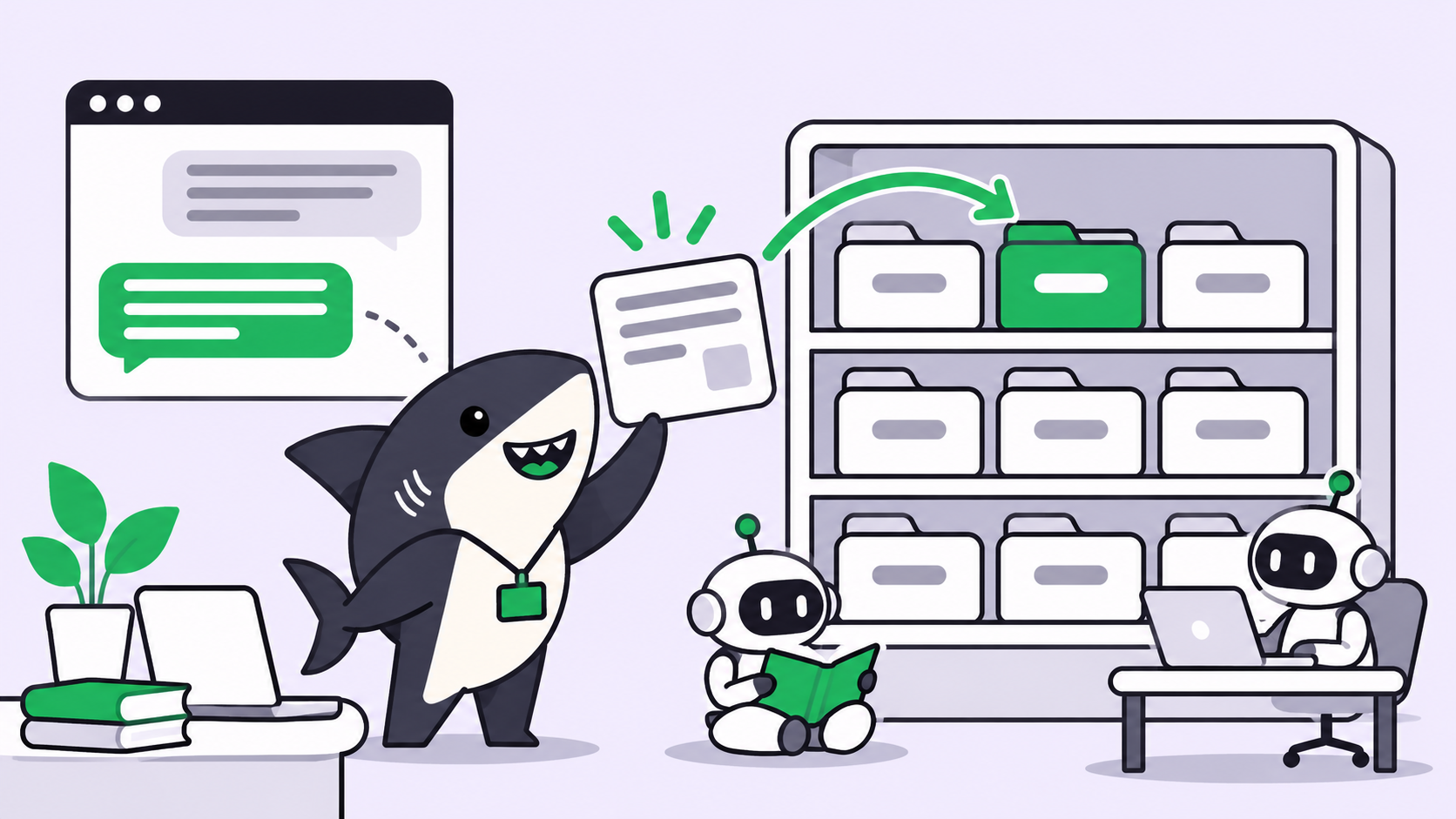
The Docs library sits between conversations and Tasks. A chat produces the material, the library keeps it with its history, and Tasks point at it. The Agent then reads the current Doc when it runs.
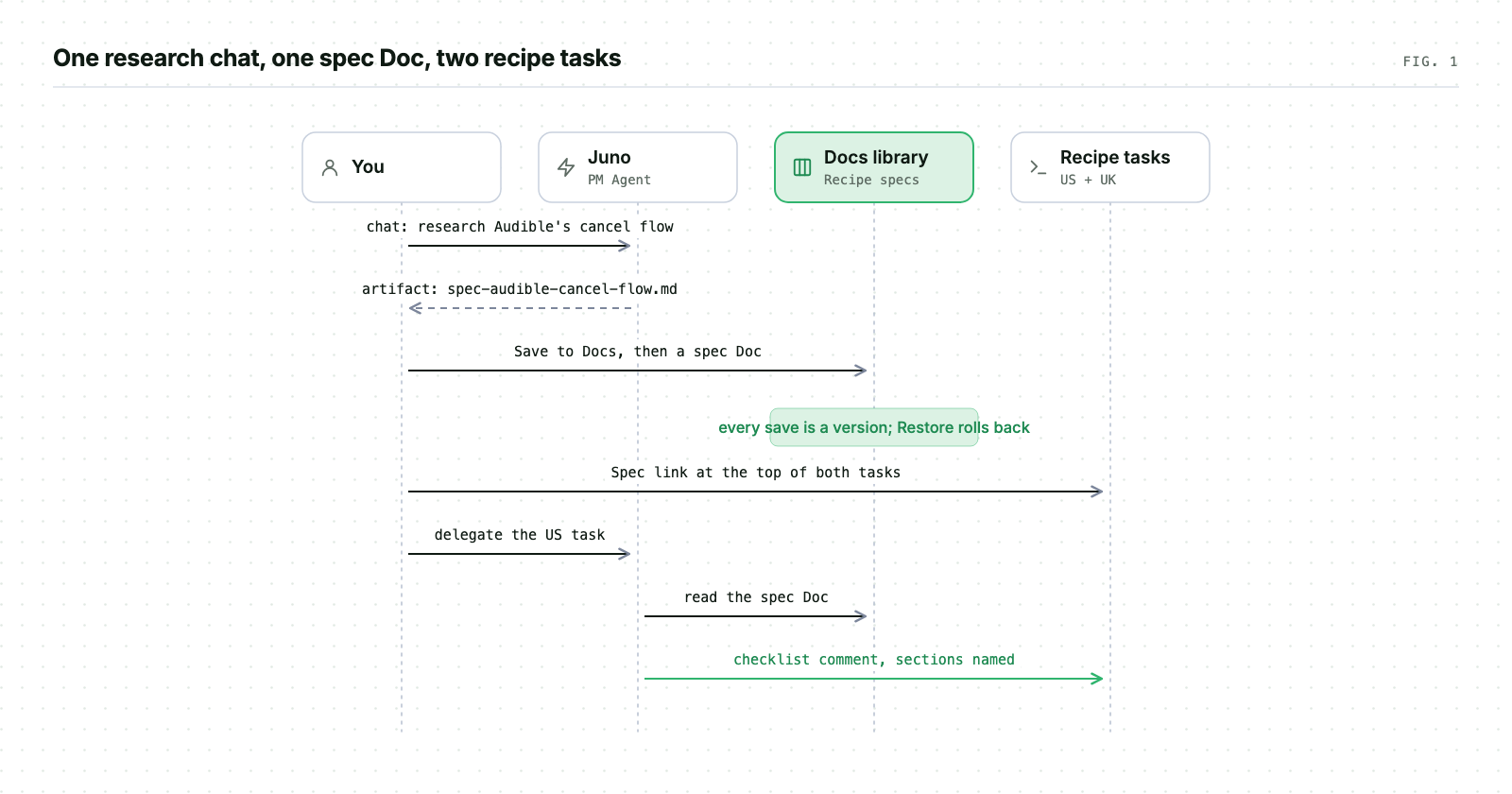
Two rules decide the design. Every saved edit to a document creates a version. A file you send into a chat as an attachment is a snapshot, so later edits to the Doc never reach that message. Links stay current; attachments don’t.
Save chat research as Sharkly docs, step by step
Step 1: Ask the Agent for an artifact, not a reply
Open Chat, start a new session with Juno, and ask for a file. Our prompt asked for a cancel-flow note on Audible: the entry point, the screens in order, the retention screens and how a person gets past each one, and which of our dark-pattern labels apply. It also said to mark anything not checked on the live site as unverified, keep it under 400 words, and send it as a Markdown artifact.
Asking for an artifact matters. A reply is text in a thread. An artifact is a file the chat can hand to the library.
Juno finished in 26 seconds and returned spec-audible-cancel-flow.md. Click the artifact card and it opens in the right-hand panel with its toolbar.
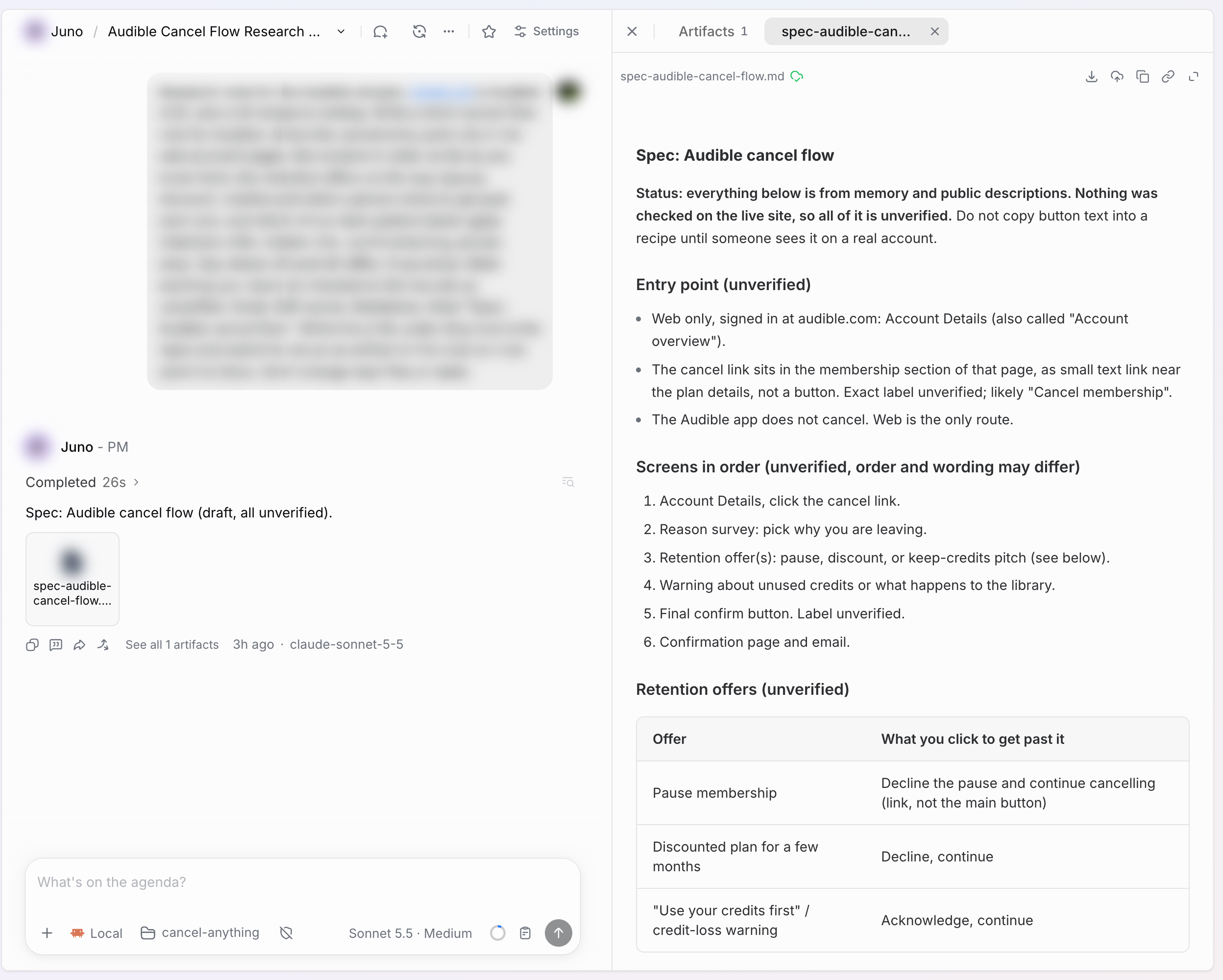
Look at the status line at the top of the note: Juno marked every claim unverified, as asked. That line has to survive every edit.
Step 2: Save the artifact to the library
In the artifact toolbar, choose Save to Docs. A dialog asks where it goes: My docs, or a shared collection. We picked Cancel Anything, the team’s shared collection, and clicked Save. The toolbar icon changes to show the artifact is saved.
The note now appears in the library as spec-audible-cancel-flow, a file anyone in the collection can open and share.
Step 3: Make the editable spec and use version history
We wanted a document the team edits in place, so we created one. In the collection, New gives you a folder or a document; we made a folder called Recipe specs, then New document (.md) inside it, named it “Spec: Audible cancel flow” and pasted in Juno’s note. That was version v1.
Then we edited it. Every edit you save creates a new version, with no button to press. To see them, open the document and click Version history (the clock icon in the header). Pick any version on the left to preview it, then click Restore this version to roll back.
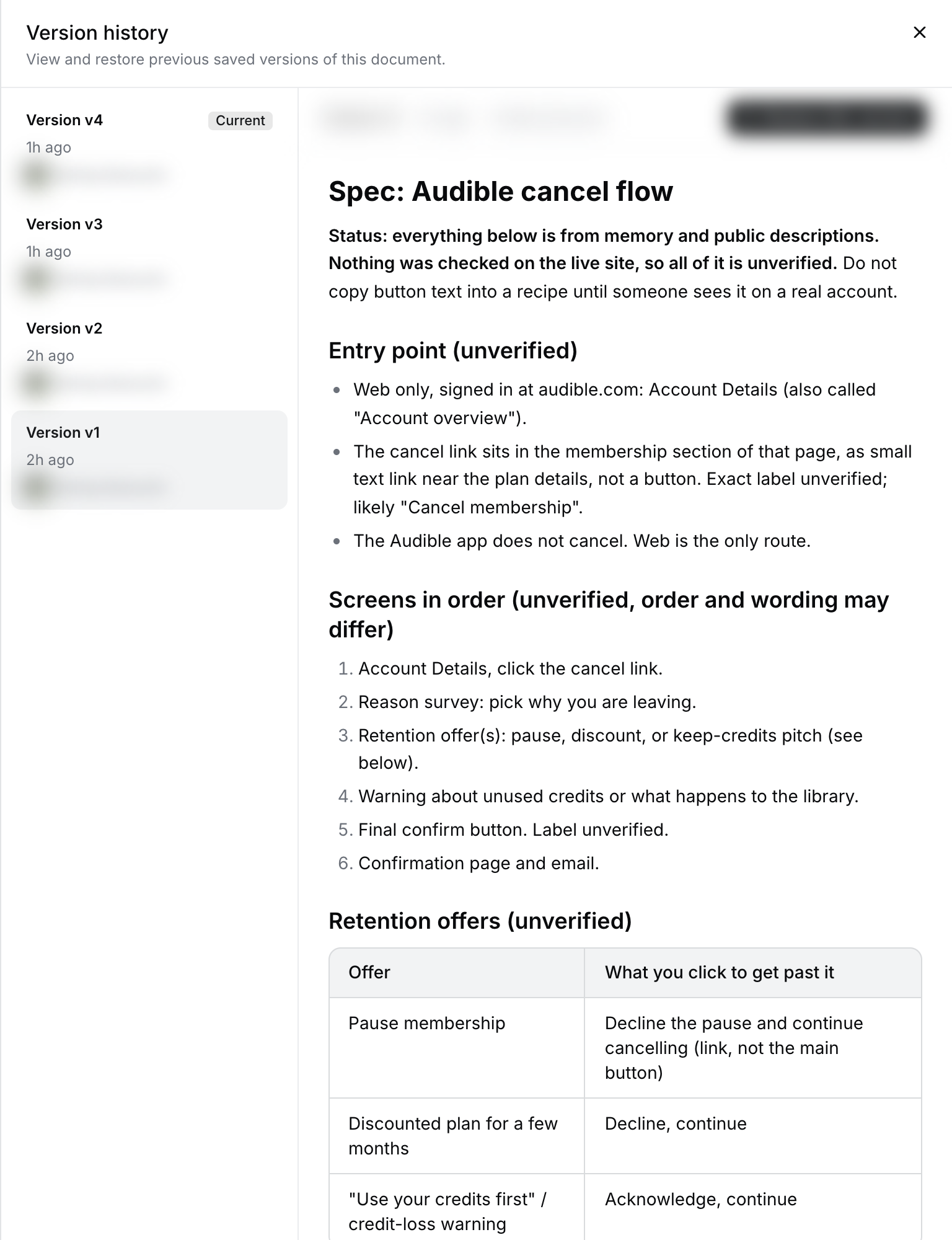
Restoring v1 did not delete v2. The list grew instead, and the restored text became a new current version. You can undo a restore the same way.
This is the safety net for Agent edits. If an Agent rewrites a Doc and drops the “unverified” line, you get it back in one step.
Step 4: Link the Doc from the Tasks it feeds
Open the Doc, copy its link, and put it at the top of each Task’s description. We gave both recipe Tasks the same first line: Spec: followed by the link, plus one sentence telling whoever works the Task to read it first.
Sharkly recognizes Docs links in descriptions, comments and documents. On the desktop app, clicking one opens the Doc inside the app instead of the browser.
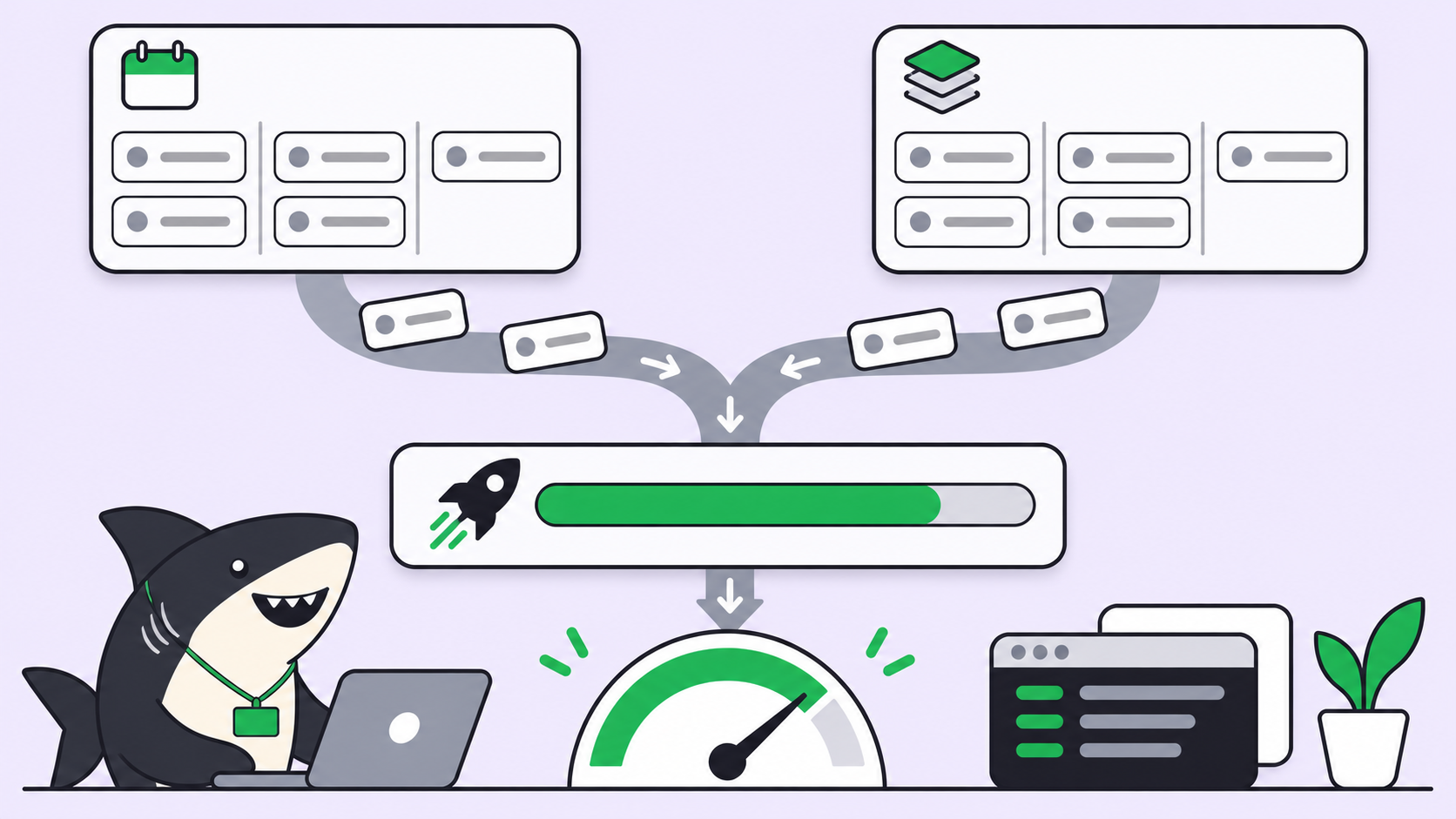
The UK Task gained the most. It’s a separate account area on its own domain, but the research is the same company’s, so both recipes read one Doc instead of two copies drifting apart.
Step 5: Organize the library with a spec template
One spec is a file. Ten specs need a shape. We added a Recipe spec template document to the Recipe specs folder.
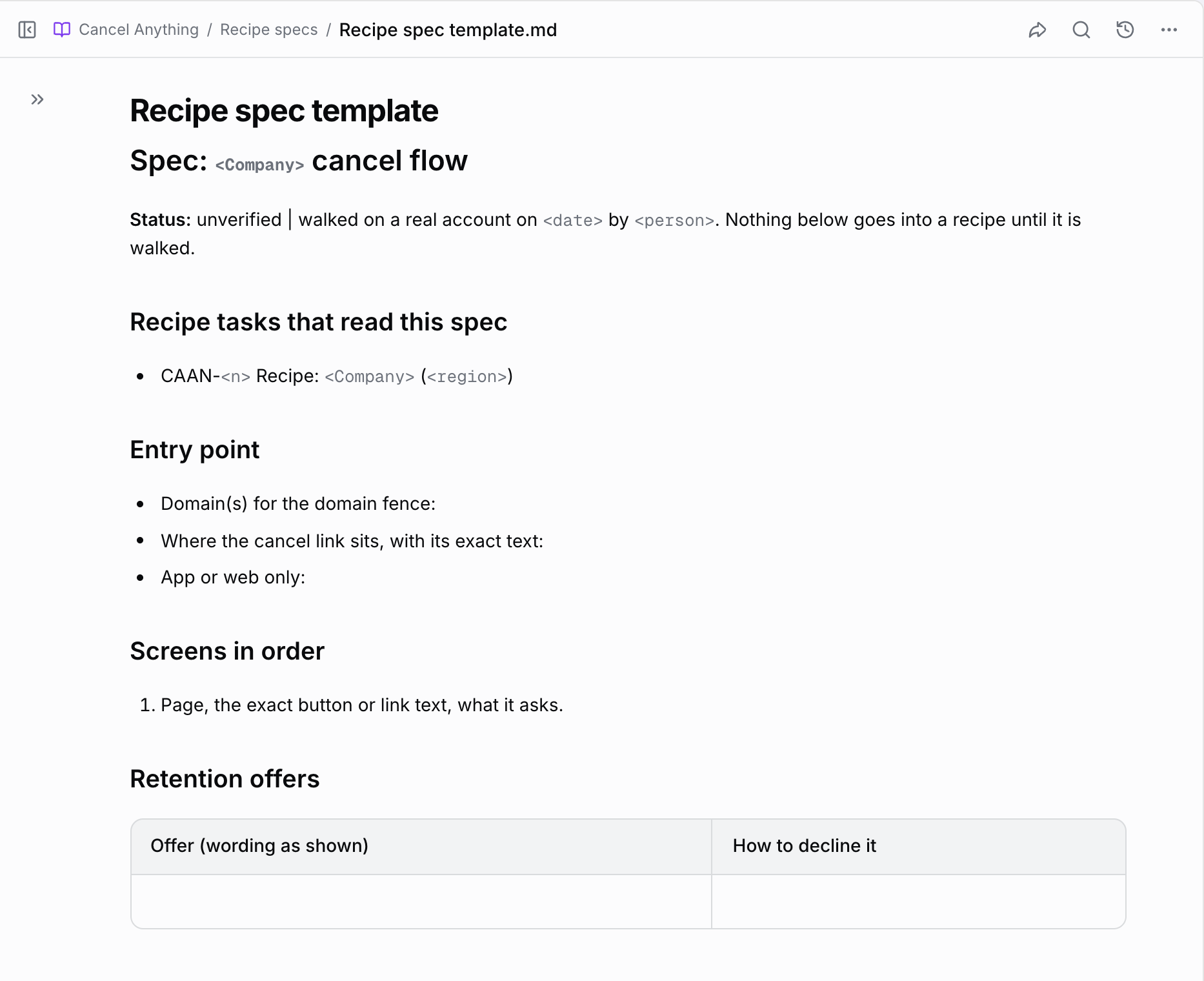
The template starts with the status line and a “Recipe tasks that read this spec” list, so the link runs both ways: Task to Doc and Doc to Task.
Sharkly has no separate template type in the library; a template is a document you copy. The folder view lists what’s inside with who updated each item and when.
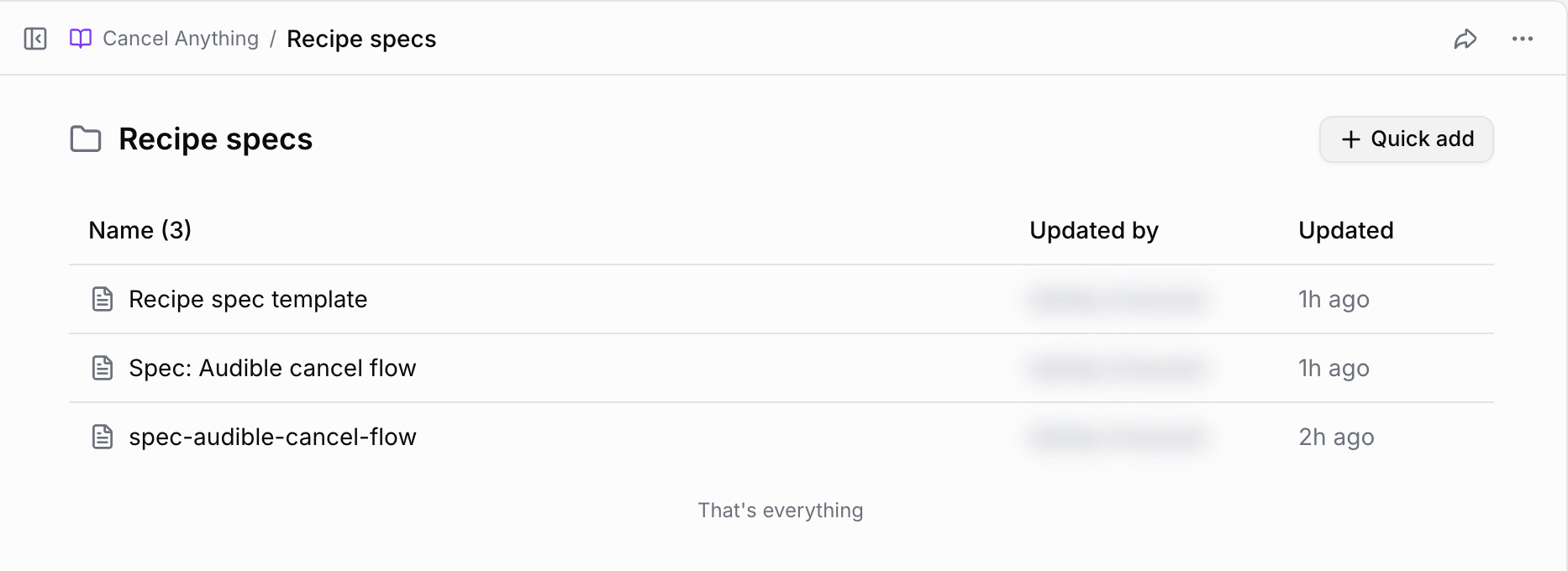
Three items: the template, the live spec, and the original chat file kept as the source.
The library’s search matches names and body text across My docs and every collection you can see, so “Audible” finds the spec even when you forget the folder.
Step 6: Let the Agent work from the Doc
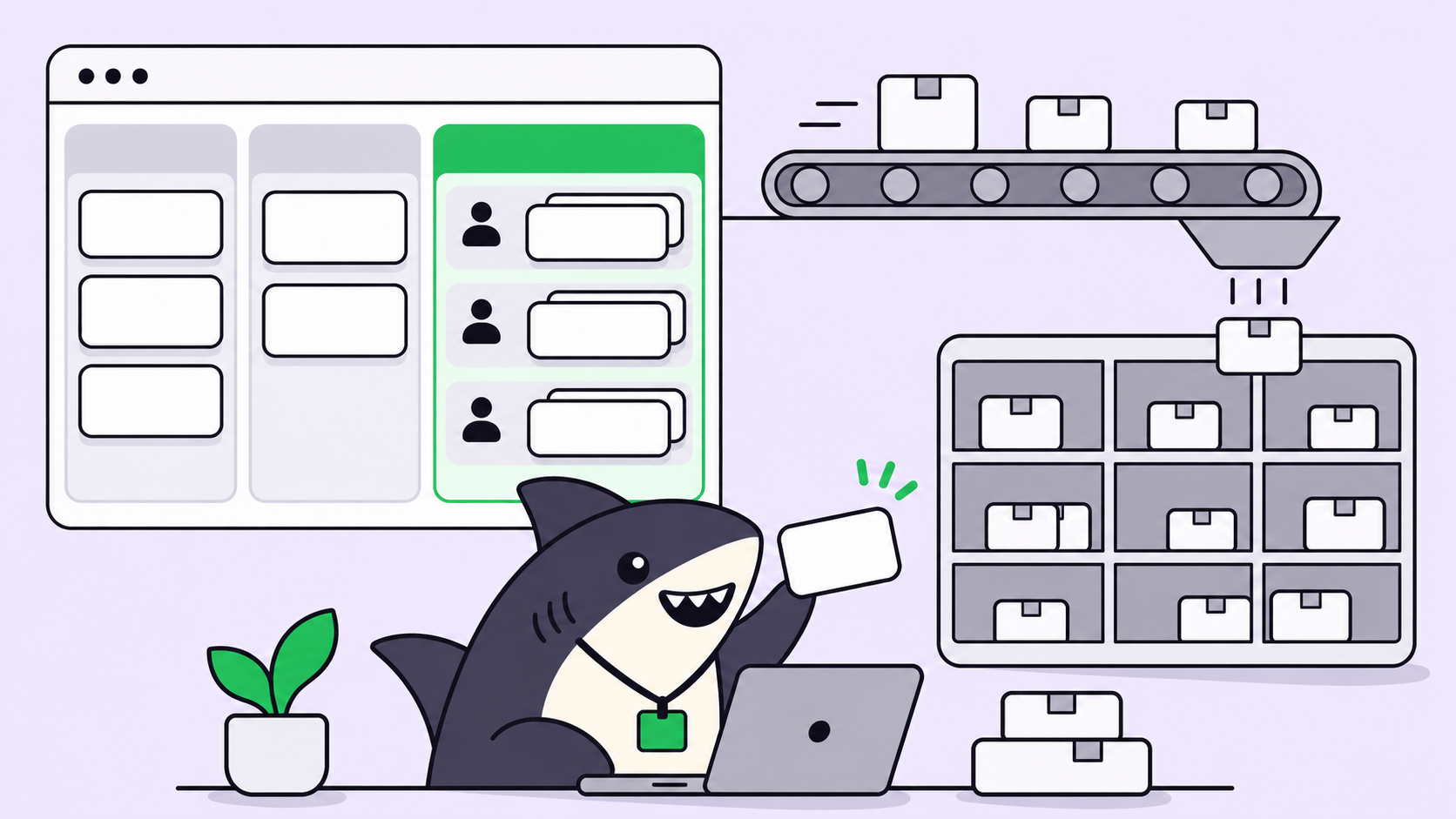
We delegated the US Task to Juno with a comment: turn the spec into a walk-through checklist for whoever checks the real flow, one line per screen with a blank for the exact button text, post it as a comment, and say which parts of the Doc you used.
The real result
Juno’s run finished about two minutes after we delegated the Task. It posted the checklist on the US Task and stated its sources: Entry point, Screens in order, the retention table, Dark-pattern labels, and the US half of the US vs UK section. It skipped the UK points and left every button text blank, because the Doc marks them unverified.
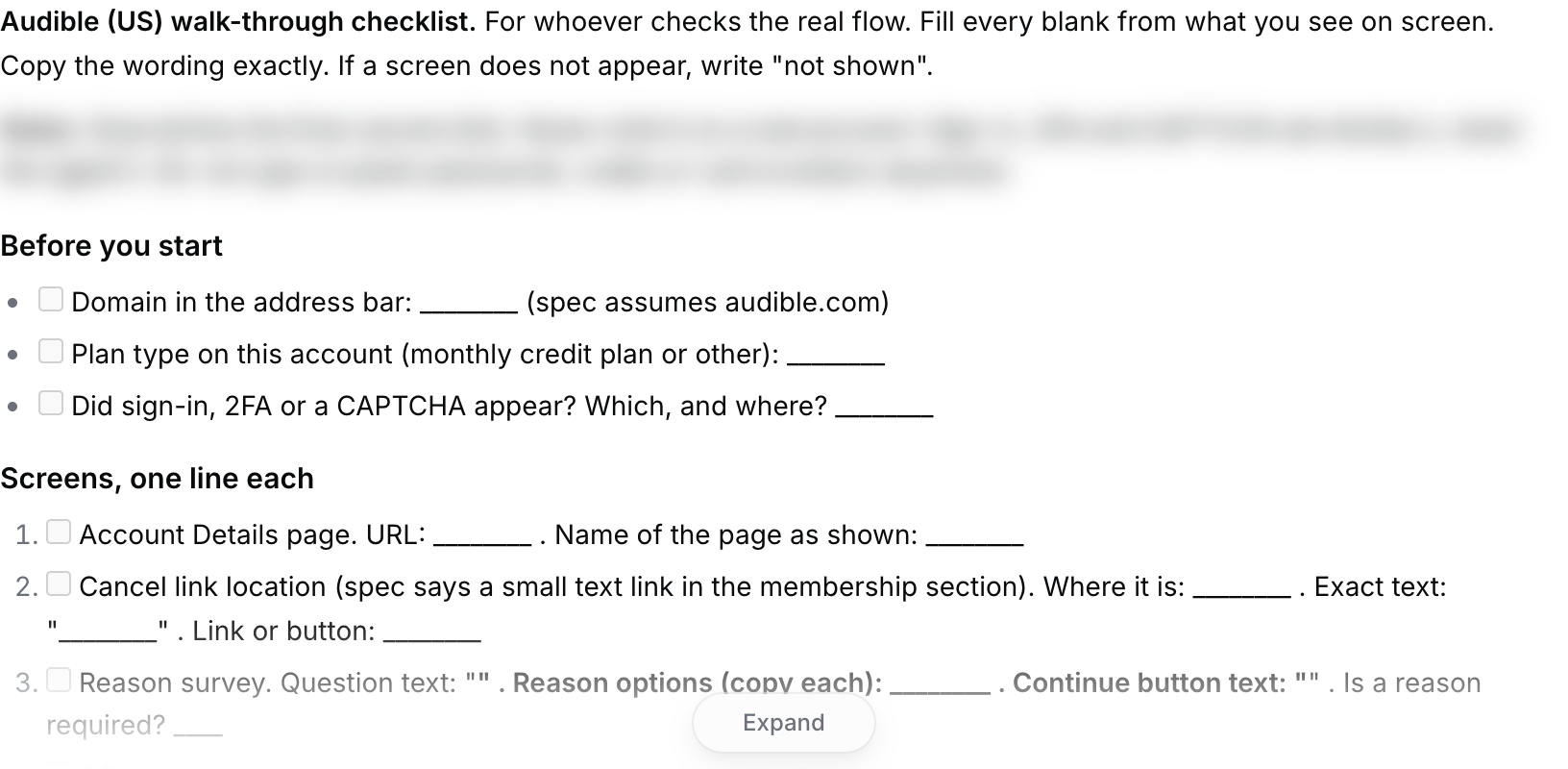
Every blank is a fact nobody has verified yet. The Doc’s status line did that job: the Agent copied no guesses into the checklist.
No repo files changed and the Task status stayed put, as the comment asked. The next step belongs to a person with a real Audible account.
What went wrong for us
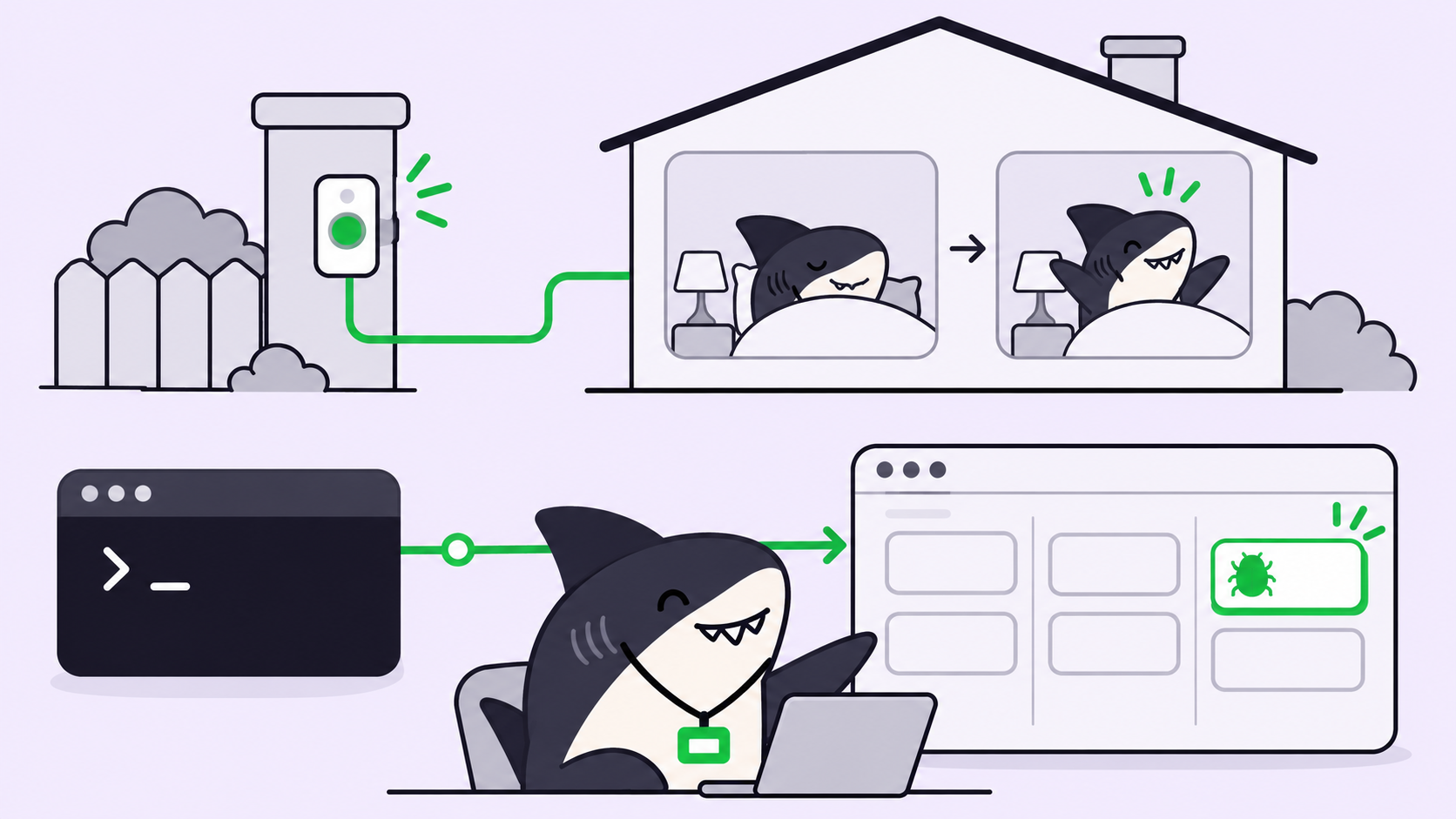
Save to Docs gave us a file, not the document we wanted to edit. The saved artifact opens and shares fine, but we wanted a living spec with a clean name and version history, so we created a document and pasted the text in. Keep the original file next to it as the source.
The Agent’s run waited. Juno has working hours set for off-peak runs, and the delegation landed outside the window, so the run queued. Run now on the Task started it at once.
Attachments go stale. The chat composer’s + → Choose from Library sends a Doc into a conversation, but as a snapshot. When the spec changes, that message doesn’t. Link the Doc in the Task instead.
One Doc stayed out of every shot. The collection holds a document we didn’t want public. Crop the library list to your own folder before you share a screenshot.
Variations
- A support team saves the Agent’s drafted replies from a chat into a “Saved replies” folder, then links the right one from each incoming request Task, the way the triage inbox tutorial routes them.
- A QA team keeps one test plan per release as a Doc. Agents append results after each run, and version history shows exactly what each run changed, which pairs with Skills that define how the Agent reports.
Why a spec Doc beats a long chat
A chat is a stream; a spec is a page. Write the research down once in plain Markdown, and people, Agents and diff tools can all read it. The Doc adds the history a chat never had. For research like ours, the FTC’s report on dark patterns and the general overview of dark patterns give the label set a shared vocabulary, so every spec names the same tricks the same way.
Recap checklist
- Ask the Agent for a Markdown artifact, with unverified claims marked.
- Save to Docs into a shared collection, not My docs, if the team needs it.
- Create an editable document for the living spec; keep the chat file as source.
- Use Version history and Restore this version when an edit goes wrong.
- Put a Spec: link at the top of every Task the research feeds.
- Add a template document so the next spec has the same shape.
- Delegate the Task and check that the Agent names the Doc sections it used.
Start with one research chat this week. Save it, link it from two Tasks, and watch the next run read it. Your Agents in Sharkly can then work from one shared source instead of a lost conversation, and your agent inbox shows when each result is ready for review.