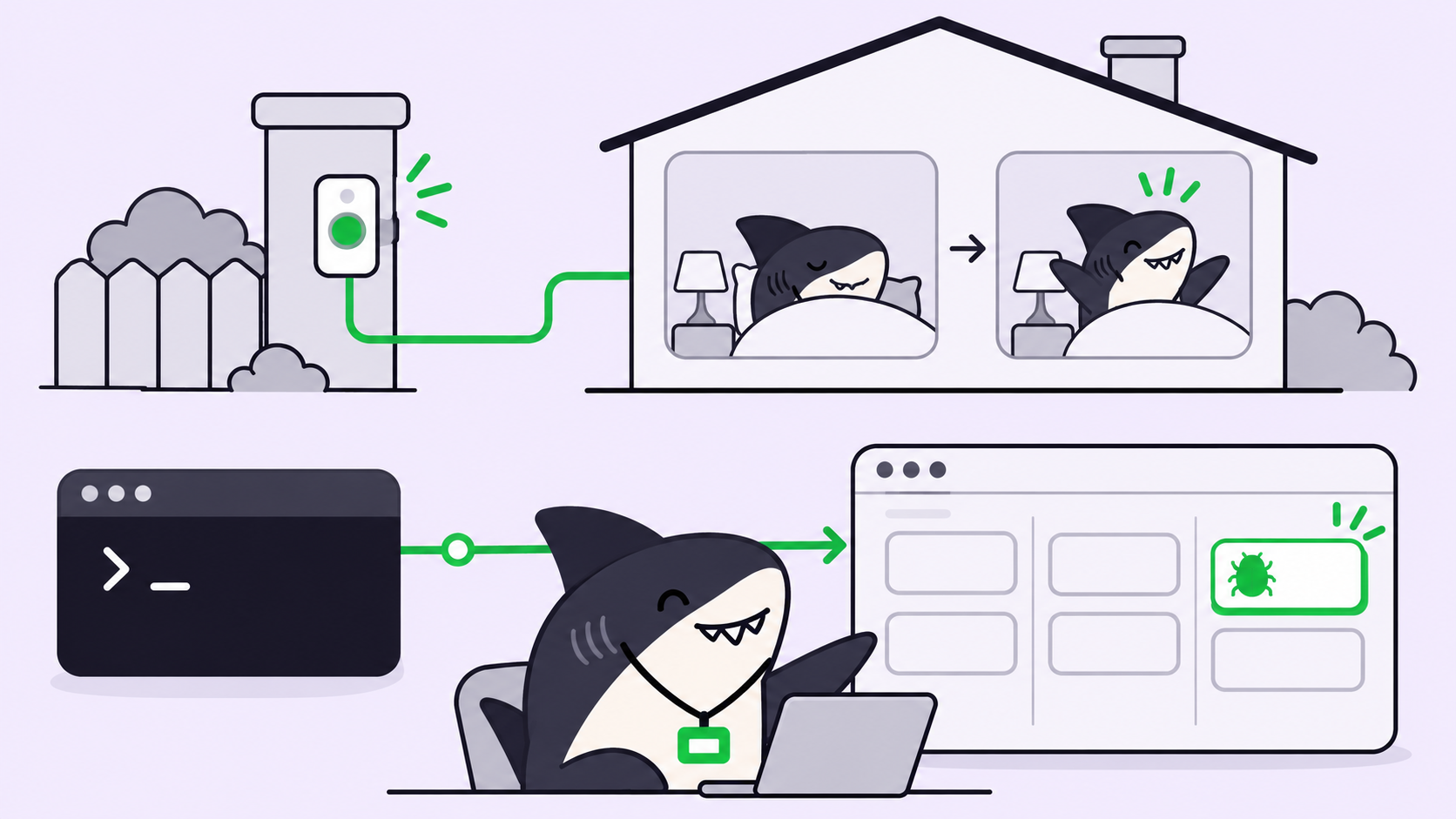
A Sharkly webhook automation gives you a secret URL. Any script, CI job or alert that can send an HTTP POST can start an agent run with it. The JSON you send reaches the agent as the run’s payload, and the agent’s instructions decide what happens next: file a task, comment, or stop. You get a 202 back the moment the run starts.
The job, and what you end with
Cancel Anything is a small team building a subscription-cancelling CLI. Each company it supports has a recipe, a YAML file of clicks, and a nightly check makes sure every recipe’s cancel page still works. When a check fails, nobody should have to read a log at 3 a.m. The failure should land on the board as a Bug, with an agent’s first diagnosis already on it.
By the end of this tutorial you’ll have a Sharkly webhook automation that does that, a payload shape you can copy, and a way to tell a bad payload from a bad agent run. We did every step in the Cancel Anything organization on 2026-11-24: one automation, one trigger, two real runs.
Sharkly is free to start if you want to follow along in your own Space.
Before you start
You need four things:
- A Space where the work lands. Ours is Cancel Anything (key
CAAN), with a Bug task type and a Triage status. - A Computer that’s online, so the agent run has somewhere to execute. See how Sharkly Computers work.
- An agent with access to the repo. We used Echo, a support agent on Sonnet 5.5 with the cancel-anything repository attached.
- A terminal with
curl, or any program that can send a POST.
How a Sharkly webhook automation runs
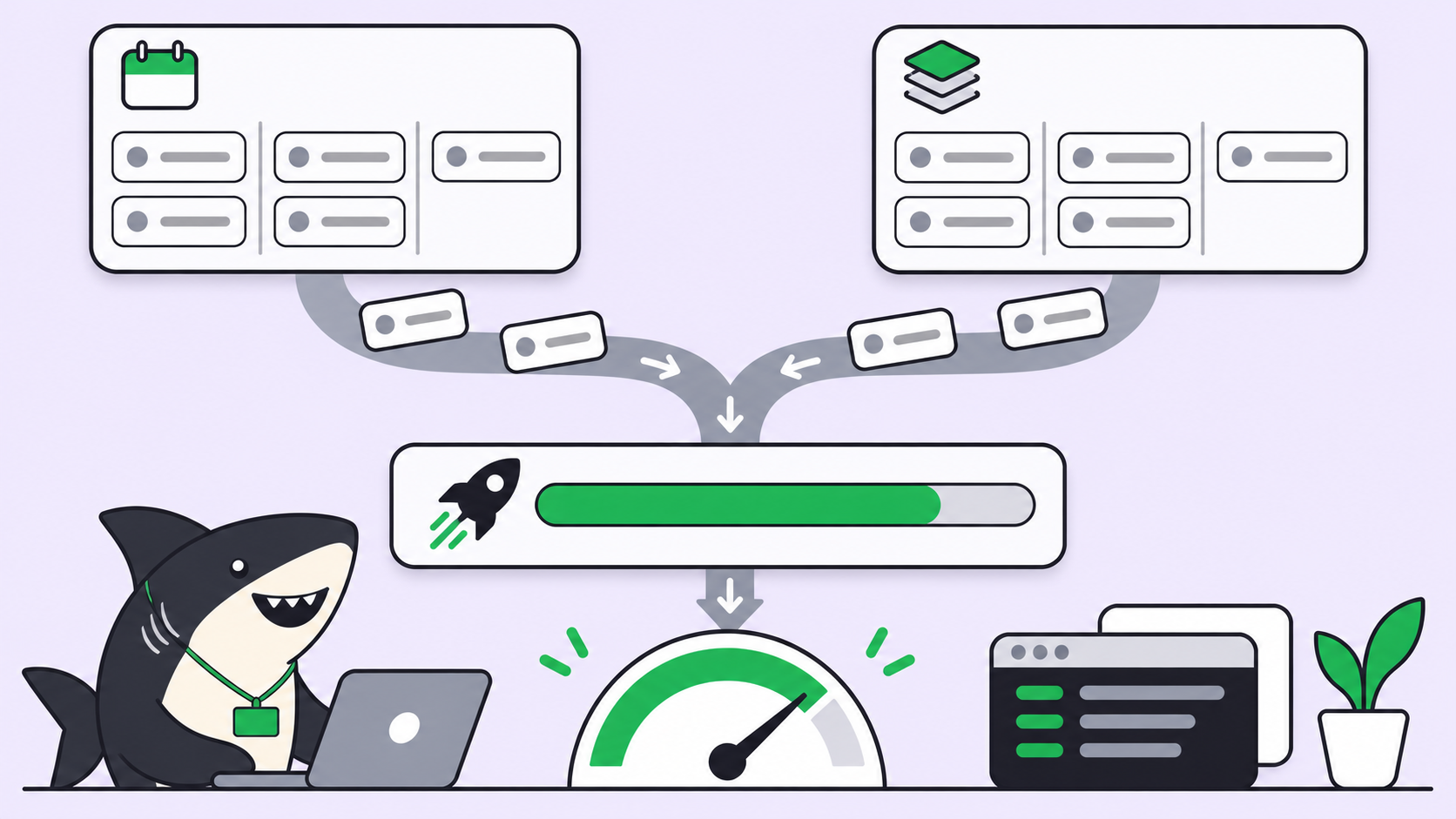
An automation in Sharkly is instructions plus an assignee plus one or more triggers. The Automations help page is clear on one point that shapes everything below: automations start agent runs directly, and webhook runs “create a run with no linked task, and do not create a Task for each run.” If you want a task on the board, the instructions have to tell the agent to file one.
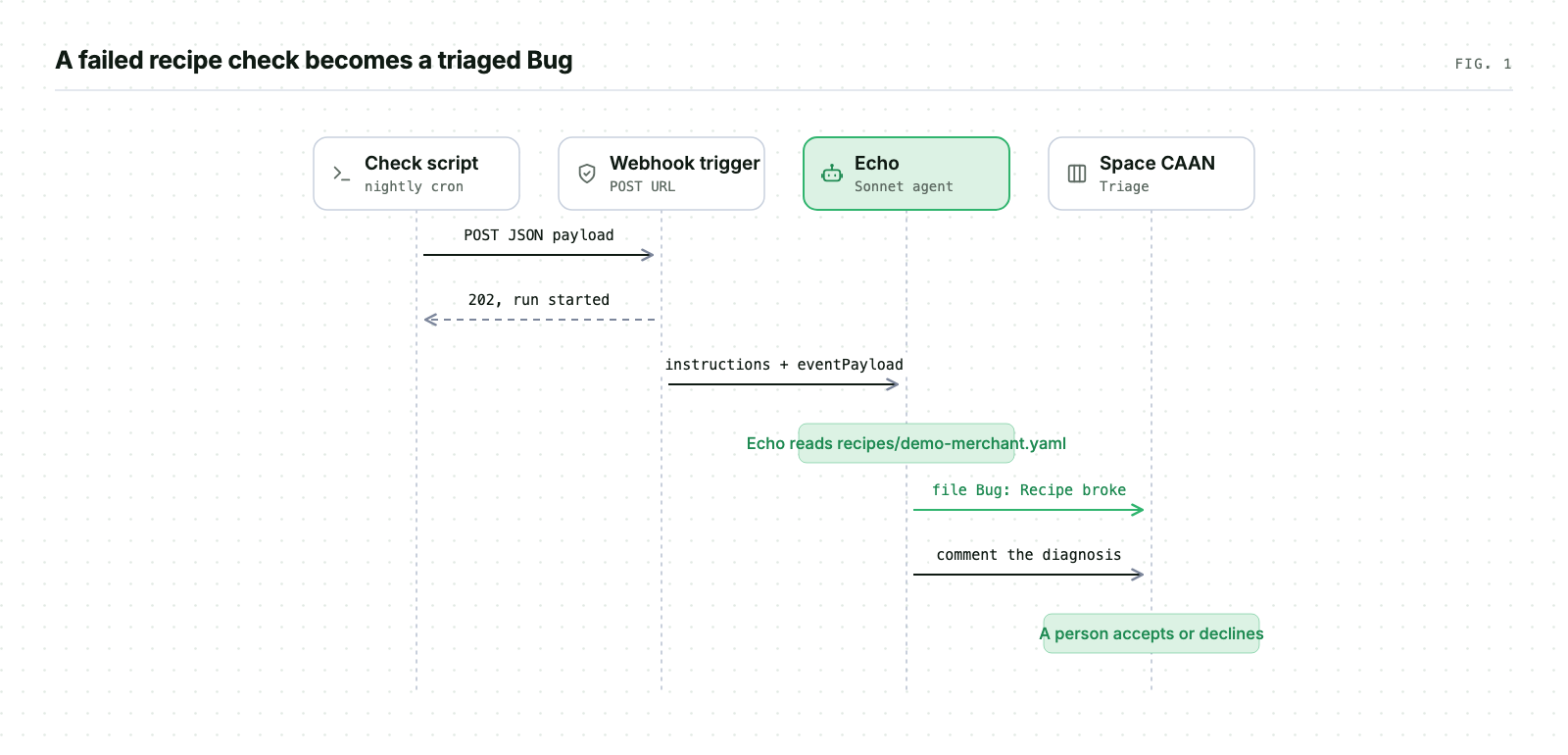
That split is useful. The webhook stays dumb, and the judgment (file, update, or refuse) lives in plain-language instructions you can edit without touching the caller.
Step 1: Open the Space’s automations
In the sidebar, open your Space and go to Automations. The list shows each automation’s name, its trigger in grey underneath, the creator and an Enabled switch. Cancel Anything already had a CI failed on GitHub webhook for its build pipeline and a Nightly recipe check on a 03:00 schedule.
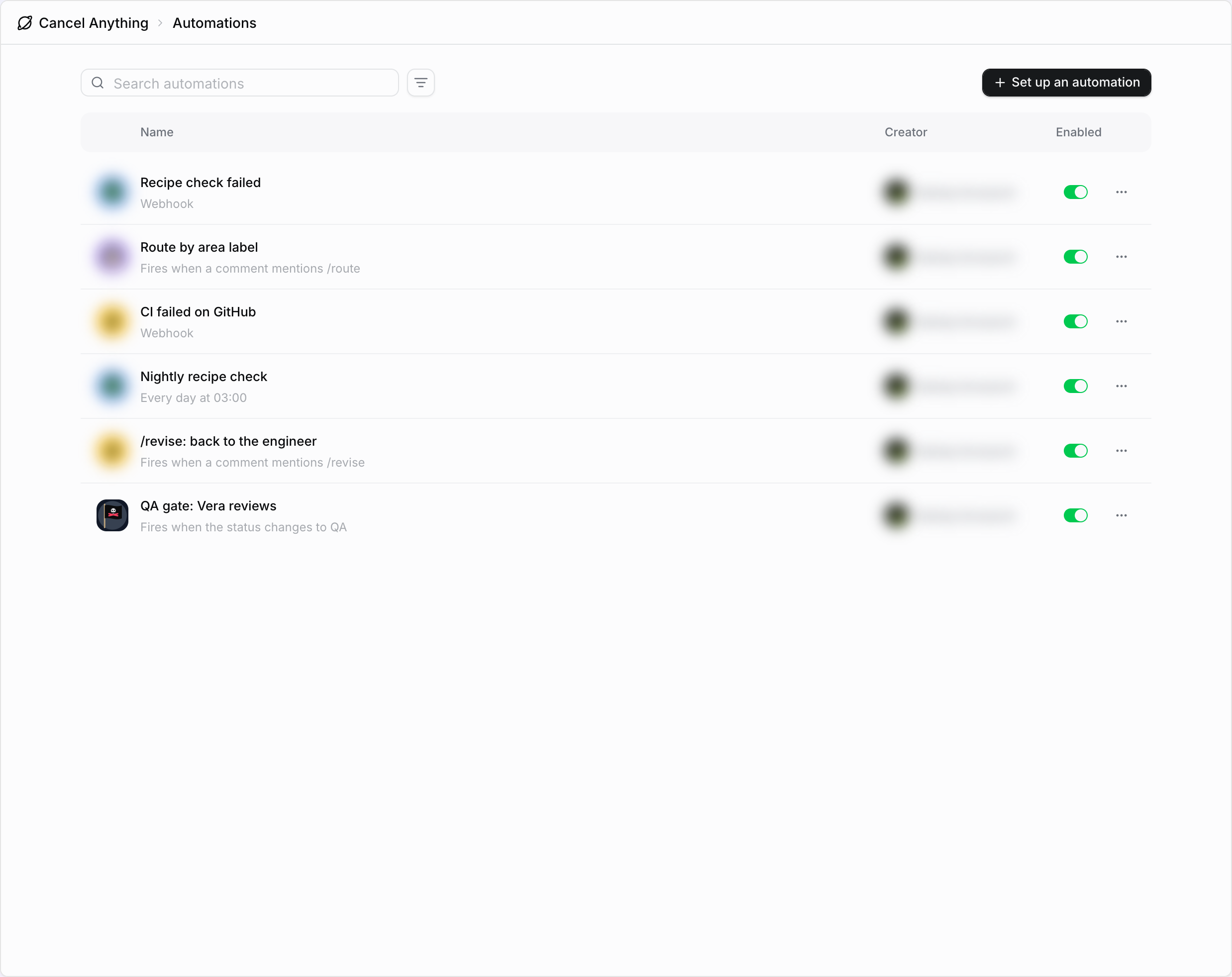
The new Recipe check failed automation sits at the top, labelled Webhook, next to the CI webhook and the scheduled nightly check.
Click Set up an automation to start a new one.
Step 2: Write instructions that read the payload
Give it a title (Recipe check failed), pick the agent under Assignee, and write the Prompt. Name every payload field the agent should expect, then give it numbered steps with an exit for bad input. Ours:
A recipe check called this webhook because a cancel recipe failed. The JSON payload carries:
recipe_id, failed_step, expected, found, error, cancel_url, last_good_run, check_run_id.

1. If recipe_id or error is missing, file nothing. End your reply with "BAD PAYLOAD:" and the missing fields.
2. Search Space CAAN for an open task titled "Recipe broke: <recipe_id>". If one exists,
   comment the new failure there instead of filing a duplicate.
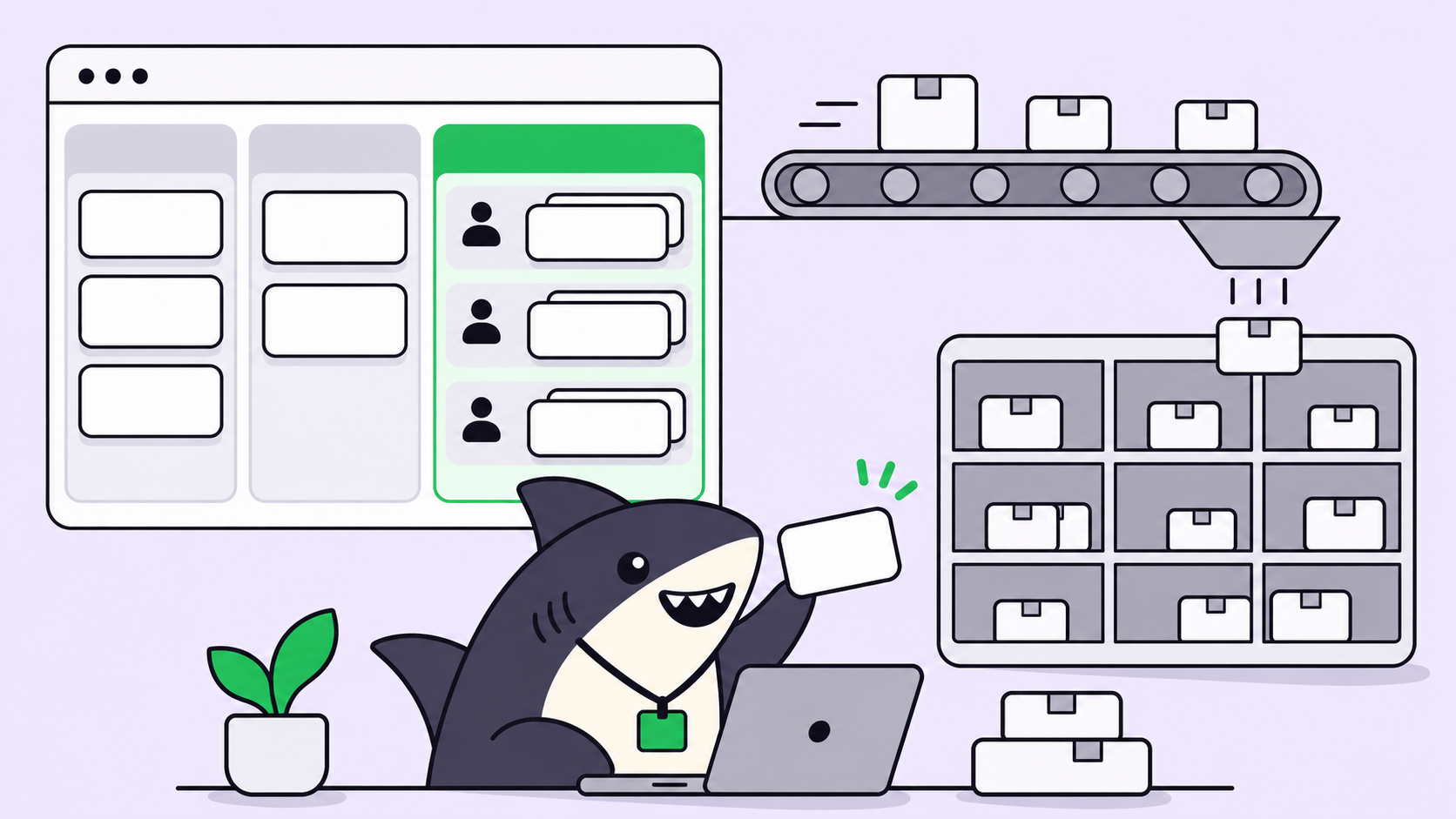
3. Otherwise file one task in Space CAAN: type Bug, status Triage,
   title "Recipe broke: <recipe_id> (<failed_step>)". Put every payload field in the body.
4. Open recipes/<recipe_id>.yaml, compare the failed step with what the check found, and comment:
   which step broke, the likely cause, and the one-line recipe change you would propose.

Do not edit the recipe, do not push, do not assign anyone. A person triages the task.
Step 2 matters more than it looks. A nightly check that fails three nights running would otherwise file three Bugs.
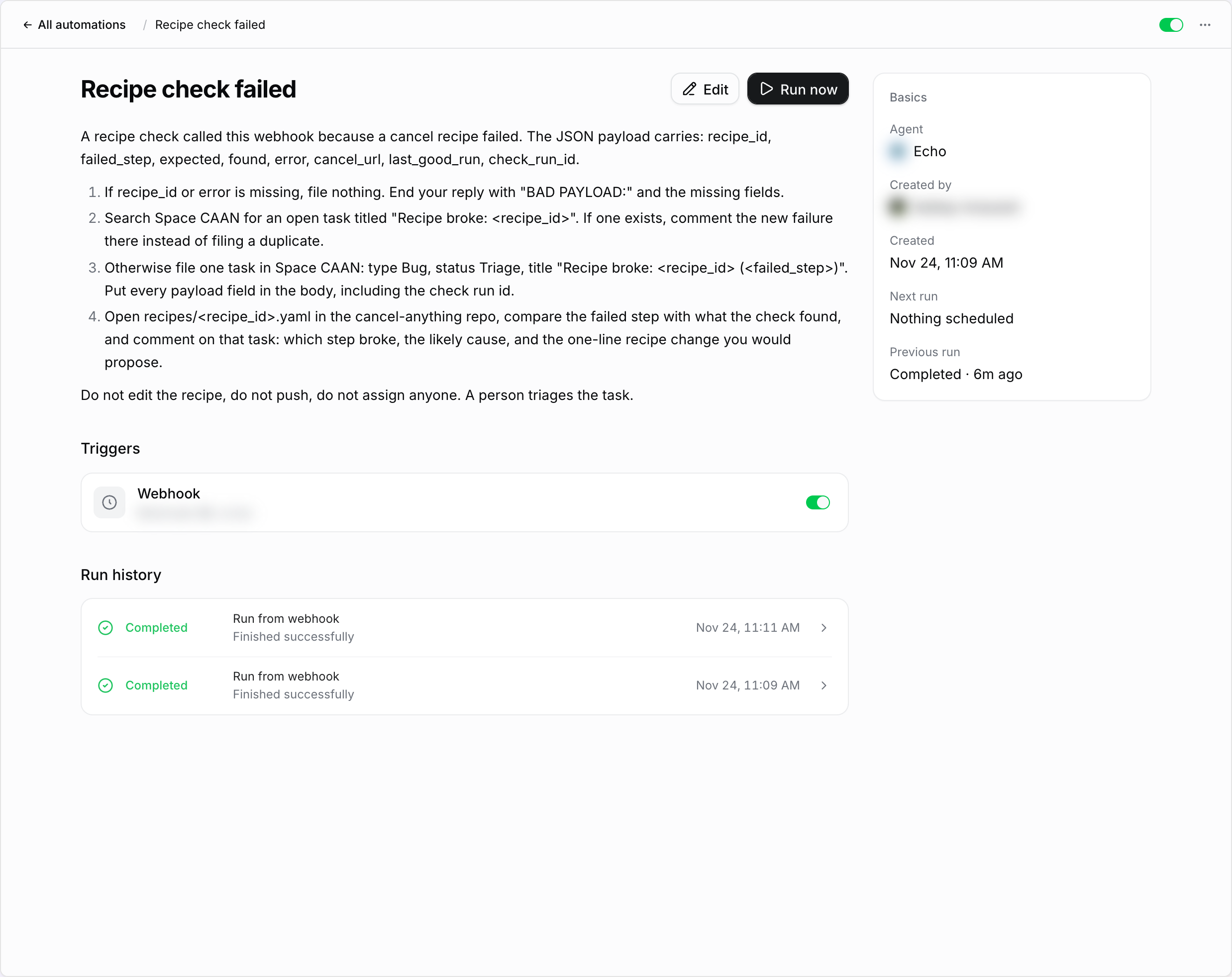
After saving: the prompt, a Triggers card reading Webhook, the Run history, and Echo under Basics.
Step 3: Add the webhook trigger and copy the URL once
Under Trigger, set Trigger type to Webhook and save. Sharkly shows the full URL once, at creation, and never again. Copy it straight into your secret store (we keep ours as a CI secret). Anyone holding the URL can start a run, so treat it like a password.
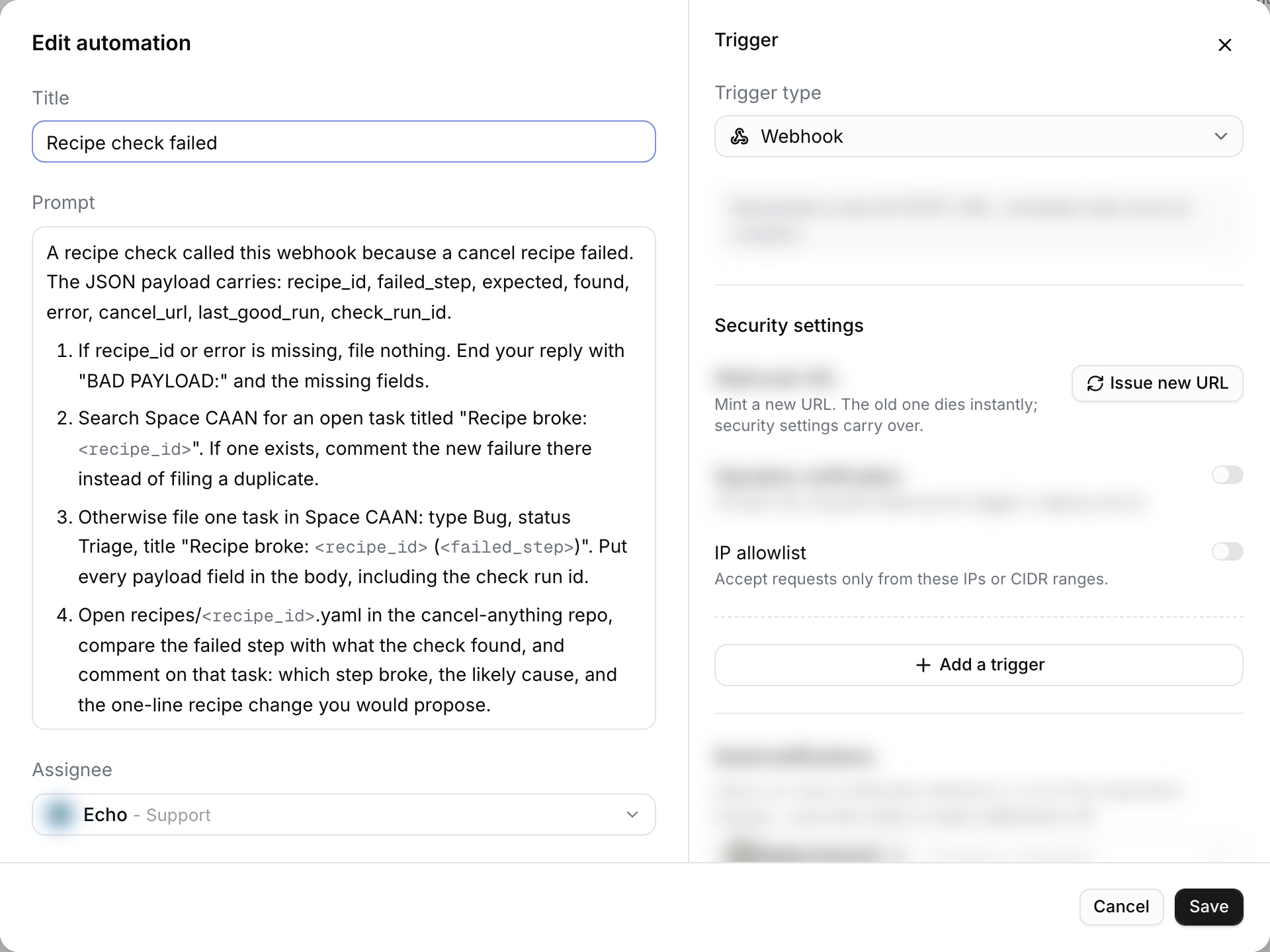
The trigger’s Security settings: Issue new URL, Signature verification and IP allowlist, all off by default.
Under Security settings you’ll find three controls. Issue new URL kills the old URL at once (the help page calls this button Regenerate URL; the app labels it Issue new URL today). Signature verification makes every request carry an HMAC signature built from a whsec_ secret. IP allowlist accepts up to 20 addresses or CIDR ranges.
Step 4: Fire it from a terminal
The nightly check command is still in review, so we sent the failure it will report by hand:
curl -sS -X POST "<YOUR_WEBHOOK_URL>" \
  -H "Content-Type: application/json" \
  -d '{
    "recipe_id": "demo-merchant",
    "failed_step": "click: Cancel membership",
    "expected": "button named \"Cancel membership\" on the account page",
    "found": "no such button; the account page now shows \"End membership\"",
    "error": "step 3 timed out after 15000 ms waiting for role=button name=\"Cancel membership\"",
    "cancel_url": "http://127.0.0.1:4173/account.html",
    "last_good_run": "2026-11-23T03:00:00+08:00",
    "check_run_id": "nightly-2026-11-24-0300"
  }' \
  -w '\nHTTP %{http_code}\n'
Sharkly answered HTTP 202 with "status":"running", a runId, and our JSON echoed back under triggerPayload.eventPayload beside "event":"webhook.received". That echo is your first check: if a field is missing there, the agent never saw it either.
The result: a Bug in Triage with a diagnosis
The run finished in 49 seconds. Echo searched for an open “Recipe broke: demo-merchant” task, found none, and filed CAAN-29 as a Bug in Triage with every payload field in the body. Then it commented its diagnosis.
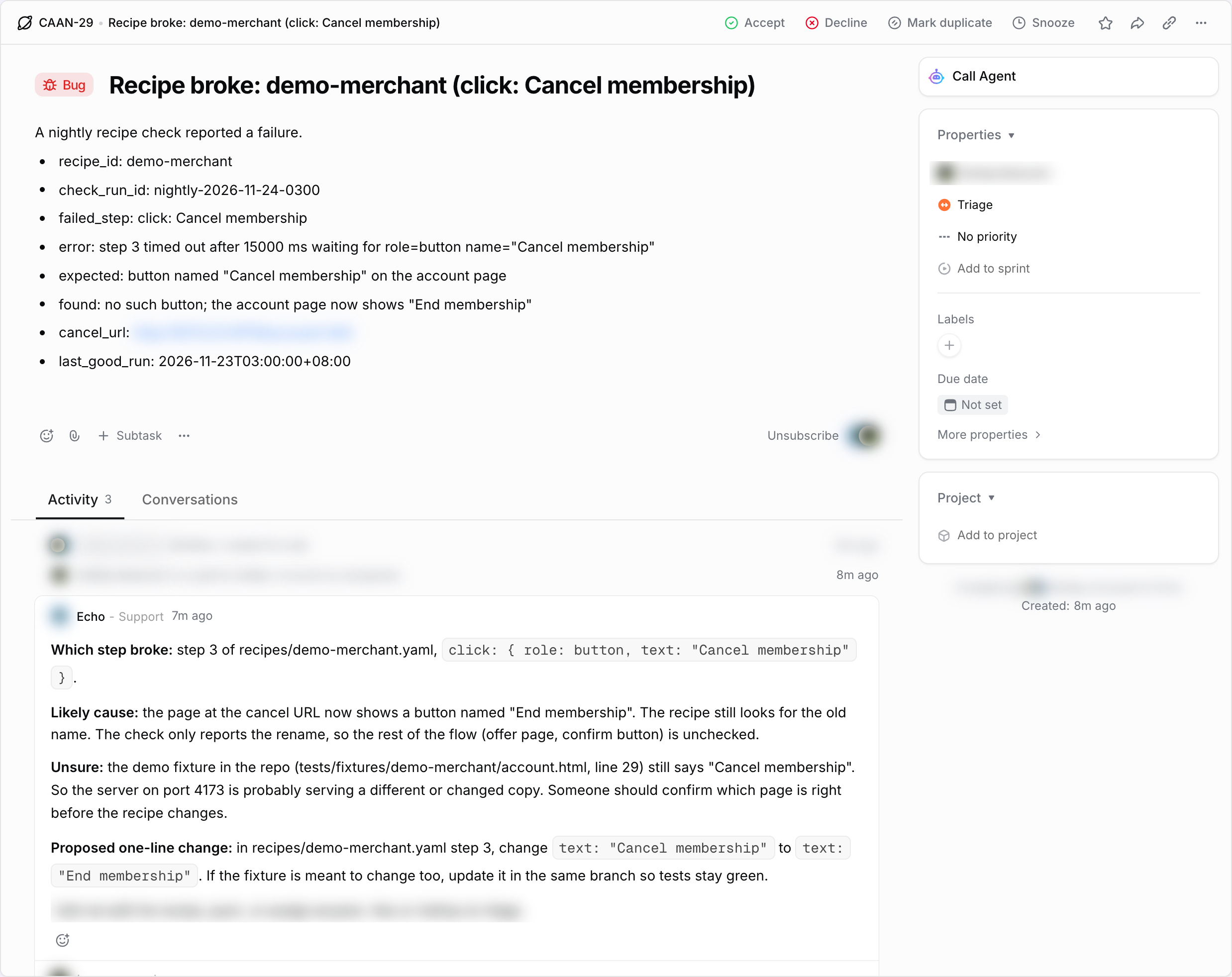
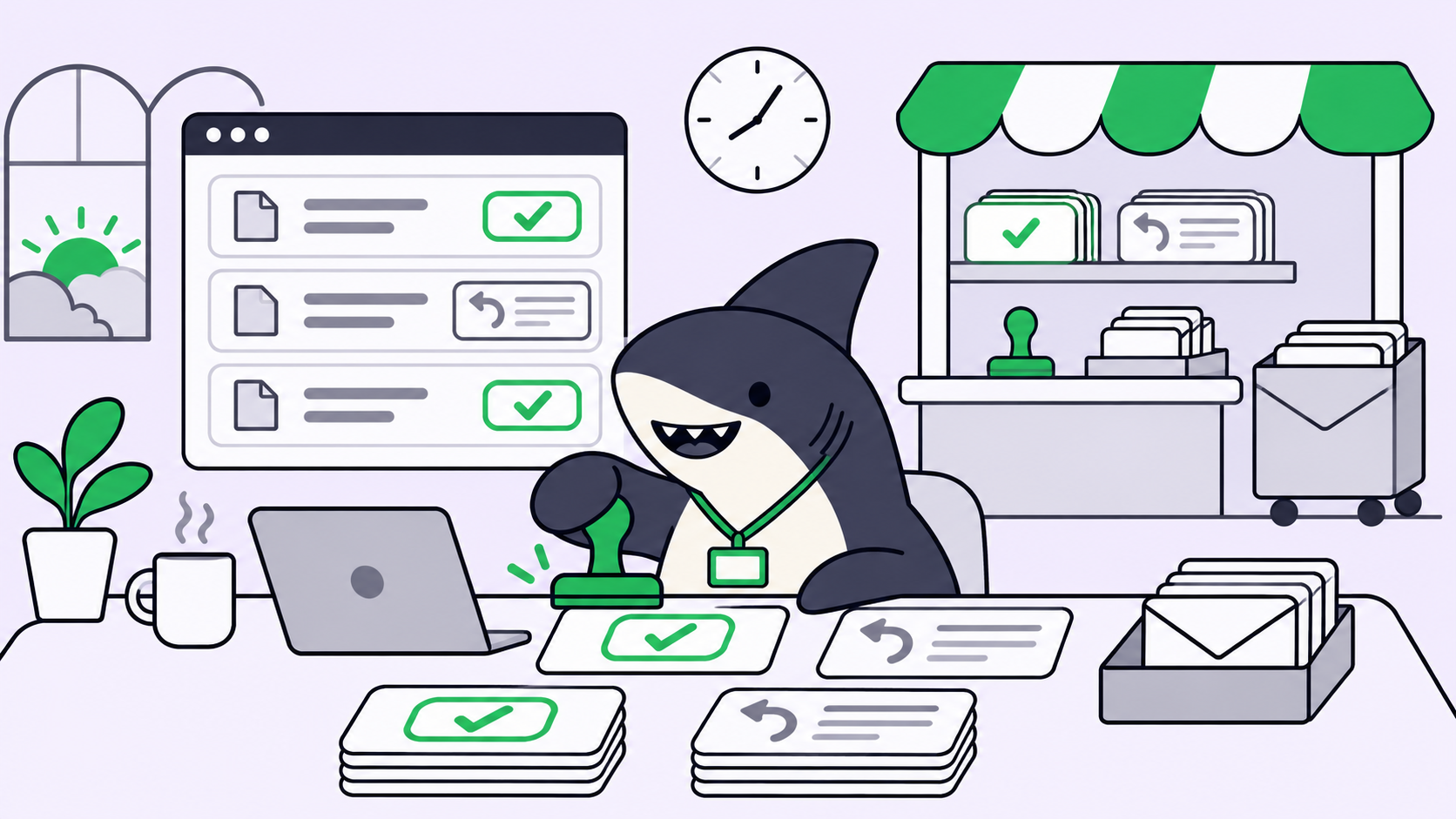
CAAN-29 in Triage, with Accept and Decline at the top and Echo’s four-part comment underneath.
The comment named step 3 of recipes/demo-merchant.yaml and proposed changing text: "Cancel membership" to text: "End membership". It also caught something we didn’t ask for: the repo’s own test fixture still says “Cancel membership”, so the page on port 4173 might be a different copy. It asked a person to confirm before anyone edits the recipe. That’s the right call, because our payload was hand-written.
Payload design: give the agent enough to act
The payload is the agent’s whole briefing. A good one answers four questions without a follow-up:
| Field | Question it answers |
|---|---|
recipe_id |
Which file do I open? |
failed_step, expected, found |
What changed on the page? |
error |
What did the runner report, word for word? |
last_good_run, check_run_id |
When did it last work, and which run is this? |
Send identifiers, not summaries. “1 recipe failed” tells a person something; it tells an agent nothing it can open.
Run health: bad payload or bad run?
We sent a second request with only {"status":"failed","error":"1 recipe failed"}. The run took 23 seconds and showed Completed. Echo filed nothing and ended with BAD PAYLOAD: missing recipe_id.
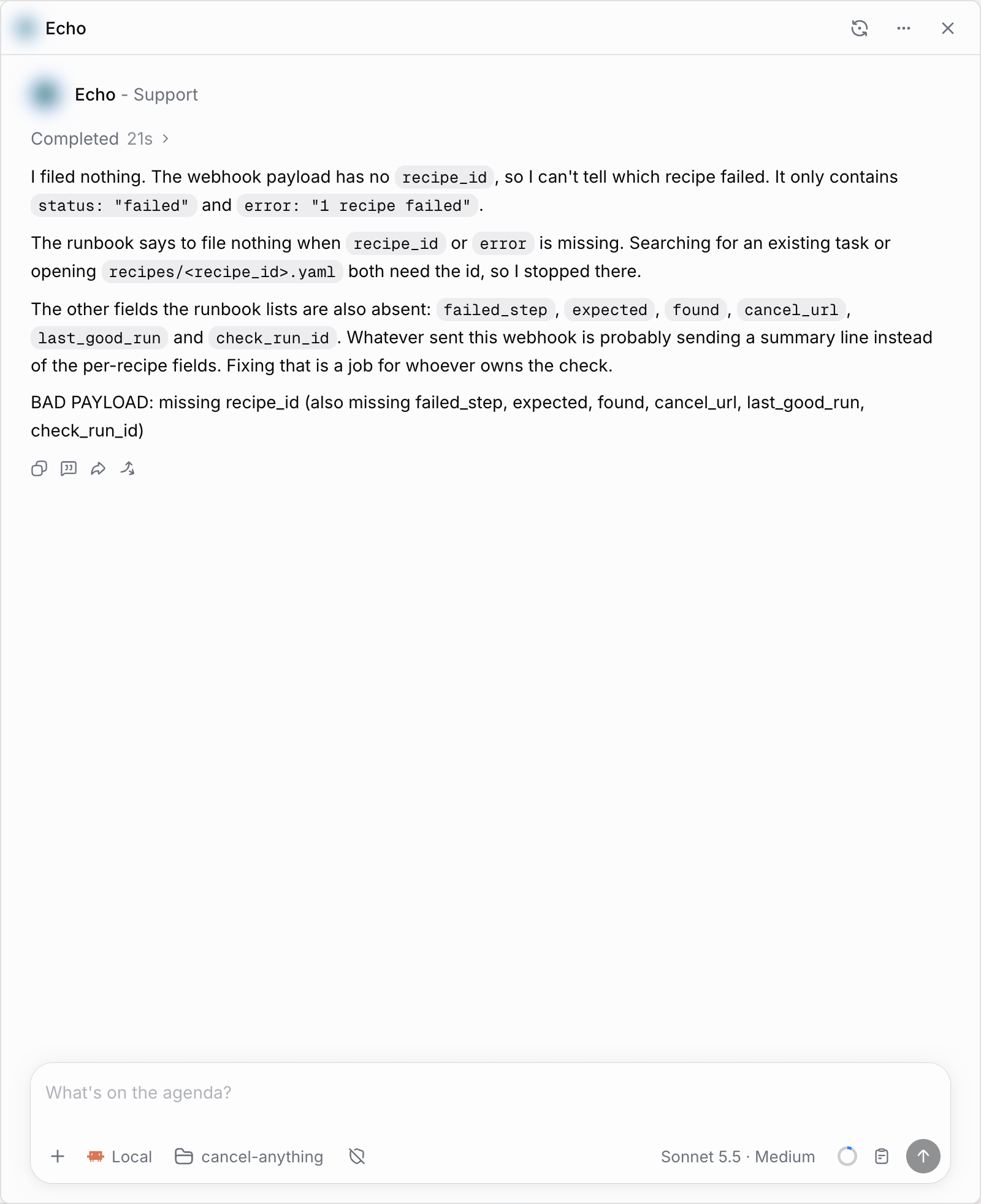
Completed in 21s by the agent’s clock, with the BAD PAYLOAD line at the end.
Completed means the run ended, not that work happened. The help page says the same: review the agent’s output when the work matters. Here’s how to sort it out:
- Bad payload: the run completes fast and the reply names missing fields. Fix the caller.
- Bad agent run: the payload echo is complete, but the run is Failed, or the reply misreads fields it had. Fix the instructions or the agent’s access.
- No run at all: check the HTTP answer first.
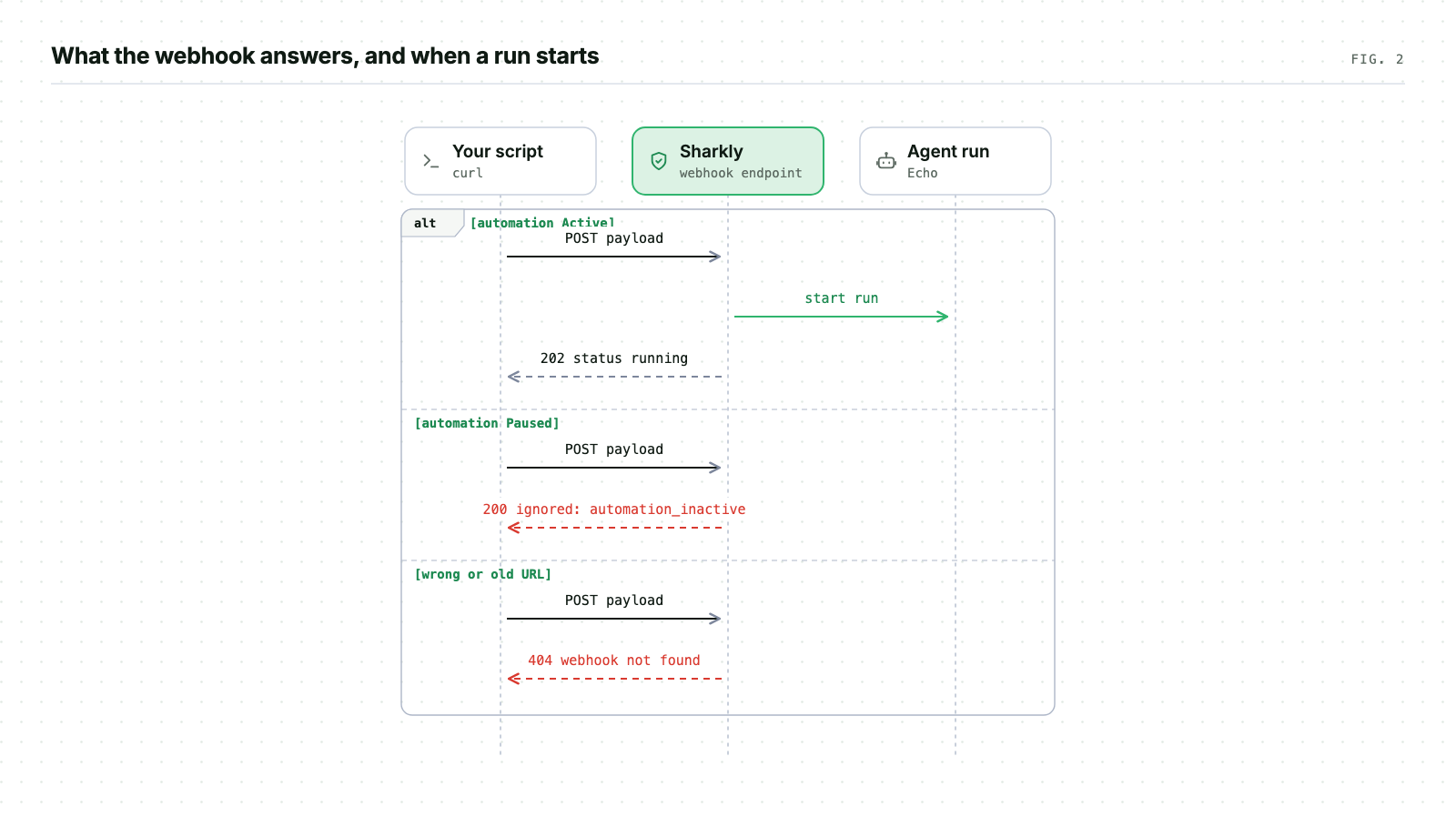
We paused the automation and posted again: HTTP 200 with "status":"ignored" and "reason":"automation_inactive", and no run. A wrong URL got HTTP 404 with webhook not found. So a caller that only checks for a 2xx will miss a paused automation. Check for 202.
What went wrong for us
We couldn’t fire the existing CI webhook. Its URL was shown once, months ago, and lives in a GitHub secret. Issuing a new URL would have broken the build pipeline. We built a sibling automation instead. If you’ll want to test a webhook by hand, store the URL somewhere you can read it back.
Our test payload described a page that doesn’t exist. Echo noticed the fixture mismatch and said so instead of patching the recipe. Write “do not edit” into the instructions until you trust the runs.
Two other ways teams use this
- An on-call team points an uptime alert at a webhook automation. The agent pulls the last deploy and recent errors, then files an incident task with its first read, so the on-call human starts from a summary.
- A support team sends a form tool’s “bug report” POST to an agent that checks for duplicates and files one clean task, comparable to our duplicate search in step 2.
For the other trigger types (schedule, task status, comment phrase), see our Sharkly automations explainer. Status triggers pair well with task statuses as gates for agent runs, and filed tasks land in the Triage inbox.
Recap checklist
- [ ] Instructions name every payload field and include a bad-payload exit
- [ ] Instructions search for an open task before filing a new one
- [ ] Webhook URL copied once into a secret store
- [ ] Signature verification on before the URL goes into any shared config
- [ ] Caller checks for HTTP 202, not any 2xx
- [ ] First runs reviewed by a person before you widen the agent’s permissions
Ready to wire up your own? Read the automations product page, then create one in your Space and send it a single test POST.
FAQ
Does a Sharkly webhook automation create a task by itself?
No. Webhook runs start an agent run with no linked task. File tasks through the agent’s instructions, as in step 3 of our prompt.
What happens if I post to a paused automation?
Sharkly returns HTTP 200 with status ignored and reason automation_inactive, and no run starts.
How do I secure a Sharkly webhook URL?
Keep it out of source control, turn on Signature verification (HMAC-SHA256 with a whsec_ secret and a 300-second timestamp window), and add an IP allowlist if your caller has fixed addresses.
Can I see the payload the agent received?
Yes. The 202 response echoes it under triggerPayload.eventPayload, and the run details in Run history show the same data.
Which agent should run a webhook automation?
Pick one with the narrowest access that can do the job. Ours reads the repo and files tasks, but the instructions forbid edits and pushes.