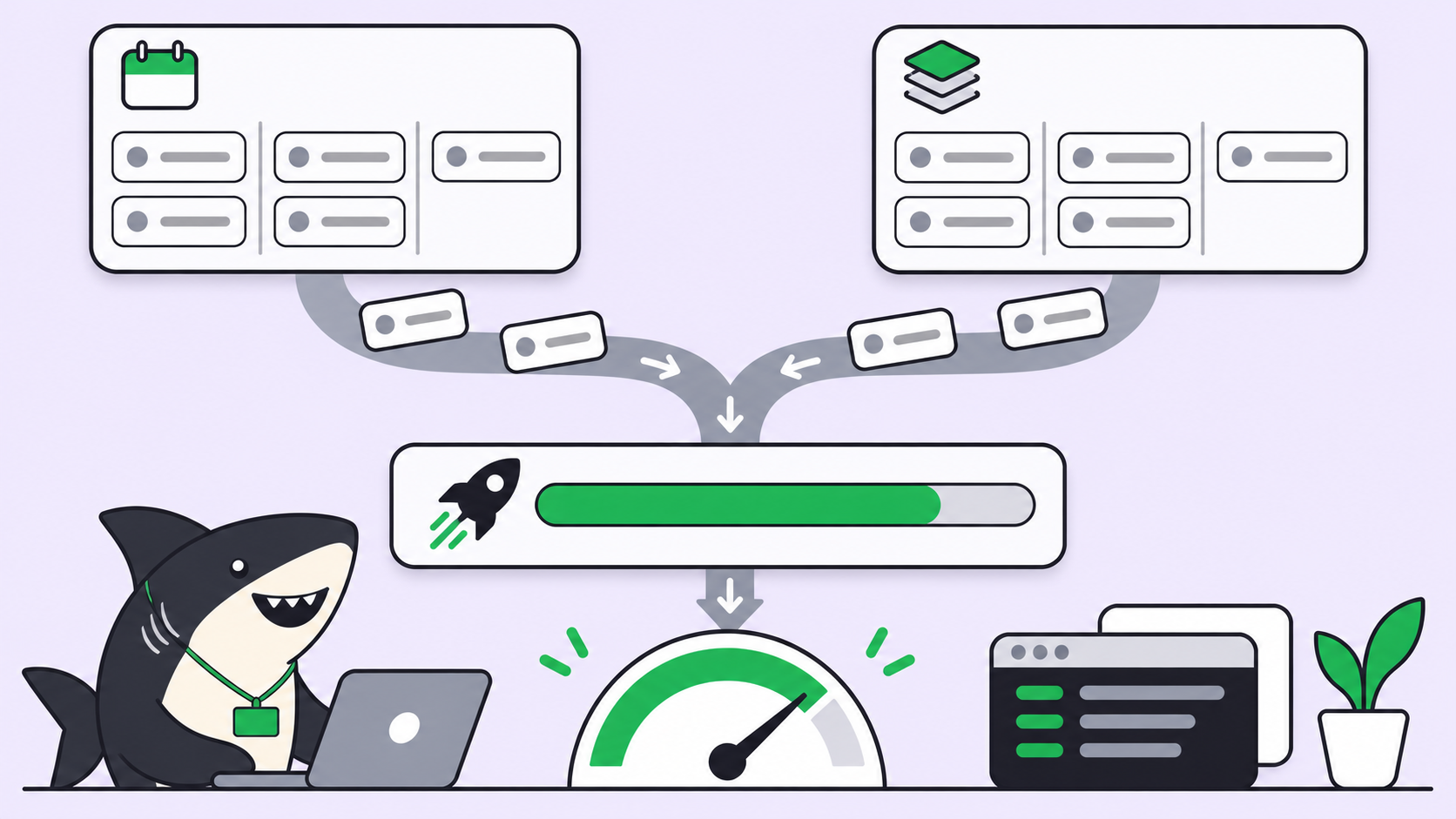
Sharkly Projects group tasks around one outcome, even when those tasks live in different Spaces. Each task keeps its own Space, type and workflow; the Project adds an owner, a status, a priority and a progress bar. That bar counts only tasks in a Completed status category, so a task waiting in QA doesn’t move it.
The job, and what you end with
Sharkly Projects answer one question: is the launch on track? Cancel Anything, a small team building a subscription-cancelling CLI, is launching with ten company recipes and a landing page that lists them. The recipes live in the engineering Space. The landing page lives in the Website Space. Agents do part of the work and people do the rest.
By the end of this tutorial you’ll have one Project that spans two Spaces, eleven real tasks linked to it, one finished agent run that moved the progress bar, and a weekly check-in you can copy. Everything below was done in the Cancel Anything organization on 2026-11-24: real clicks, a real run, real results.
If you haven’t set up Sharkly yet, it’s free to start.
Before you start
You need four things in place:
- Projects turned on for your Space. Ours is Cancel Anything (key
CAAN). - A second Space if the work crosses teams. Ours is Website (key
WEB), which an earlier tutorial created for an agent variant. - A Computer that’s online, so agent runs have somewhere to execute.
- At least one Agent. We used Juno, a PM agent on Claude Code with Sonnet 5.5.
How a Sharkly Project holds work from two Spaces
A task belongs to exactly one Space and to one Project or none. The Projects help page puts it plainly: a cross-Space Project can contain tasks from different Spaces “while each task keeps its own identifier, task type, Workflow, labels, and access boundary.”
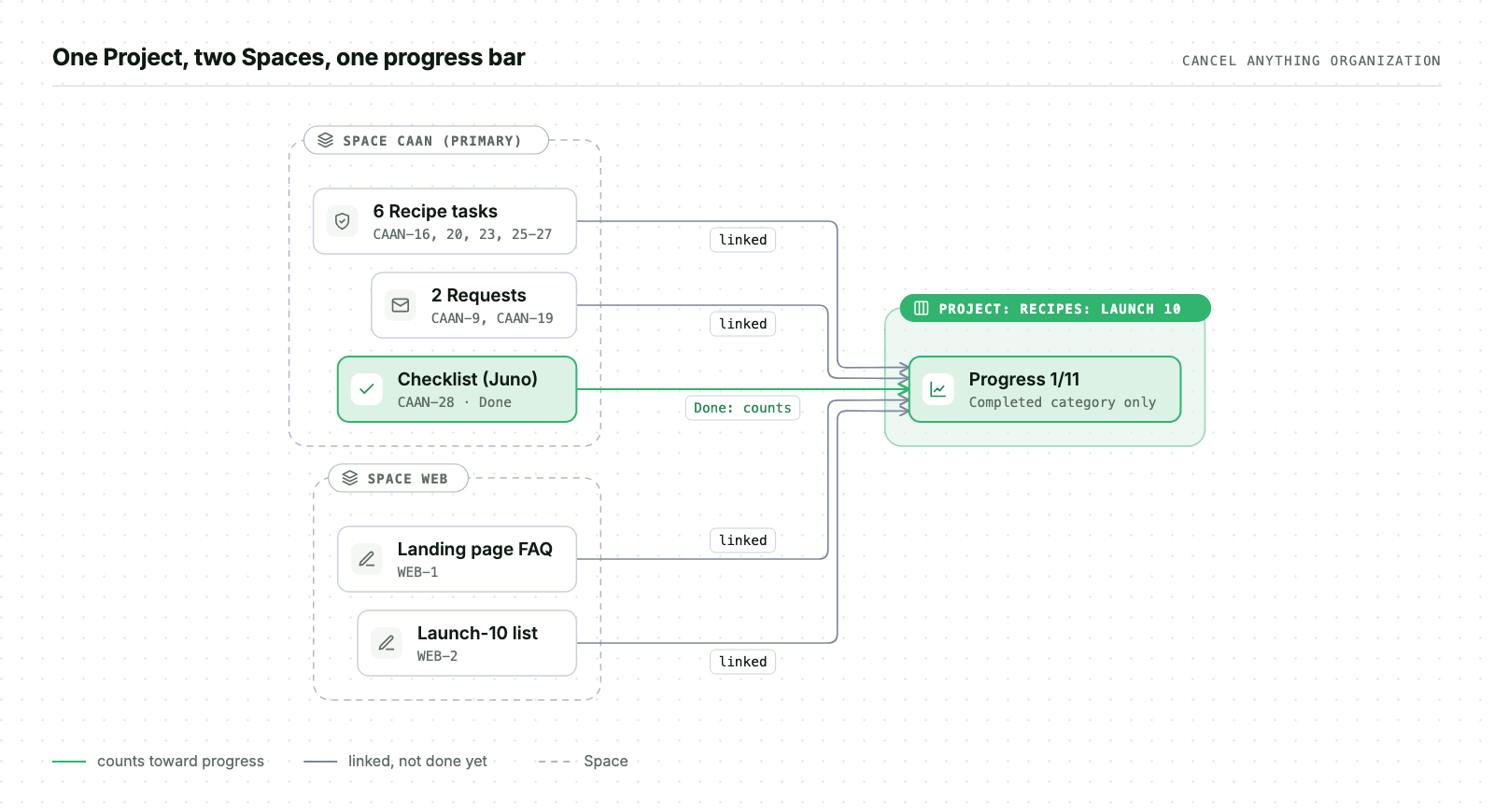
So the Project is a lens, not a container. Comments, status changes and agent runs still happen on the task.
Step 1: Open the Project and set its properties
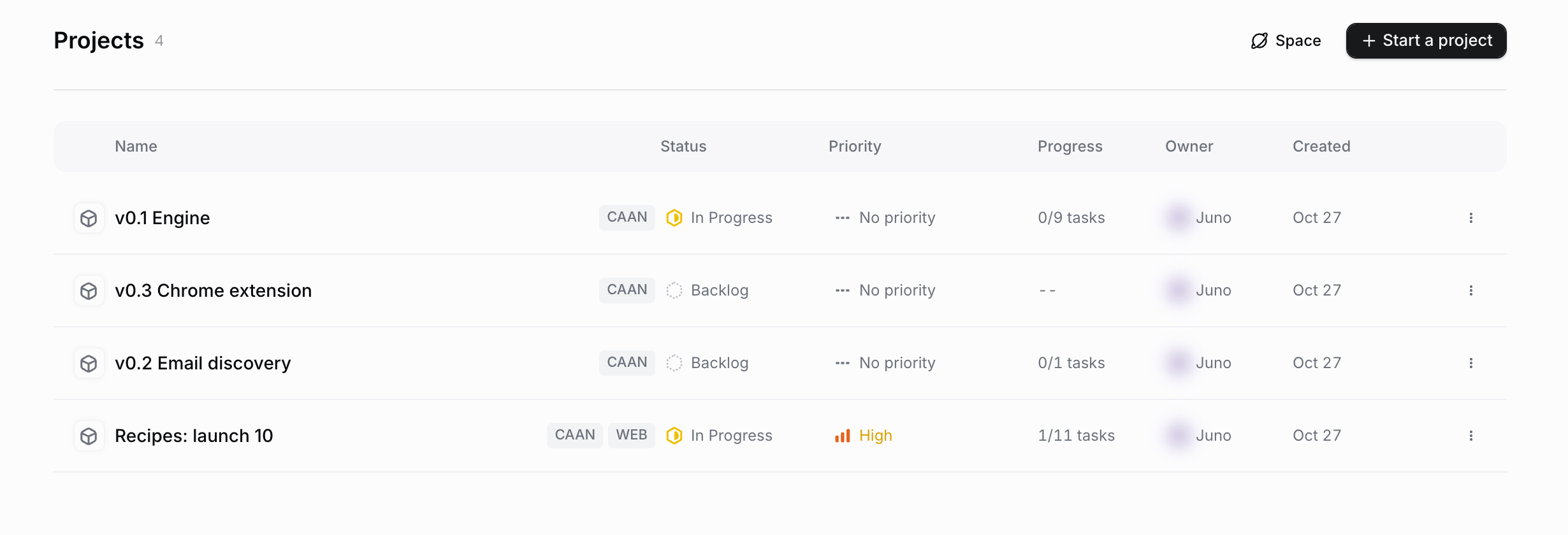
In the sidebar, open your Space and go to Projects. The list shows every Project with its Spaces, Status, Priority, Progress and Owner. Click Start a project to make a new one. We opened the existing Recipes: launch 10.
The Overview tab holds the properties. We clicked Planned and picked In Progress, clicked No priority and picked High, and kept Juno as owner. The owner coordinates the outcome; each task’s assignee still owns that task. Then we rewrote the description so it says what done means: every recipe passes validation and a dry run, and the page links only to recipes that pass.
A Project has no members list of its own. Access follows the Spaces each person can open, and linking a private Space doesn’t expose its tasks to people outside it.
Step 2: Add the second Space
On the Spaces row, click Add Space… and pick the Space. We picked Website (WEB). The row now shows both Spaces, and a star marks the primary one.
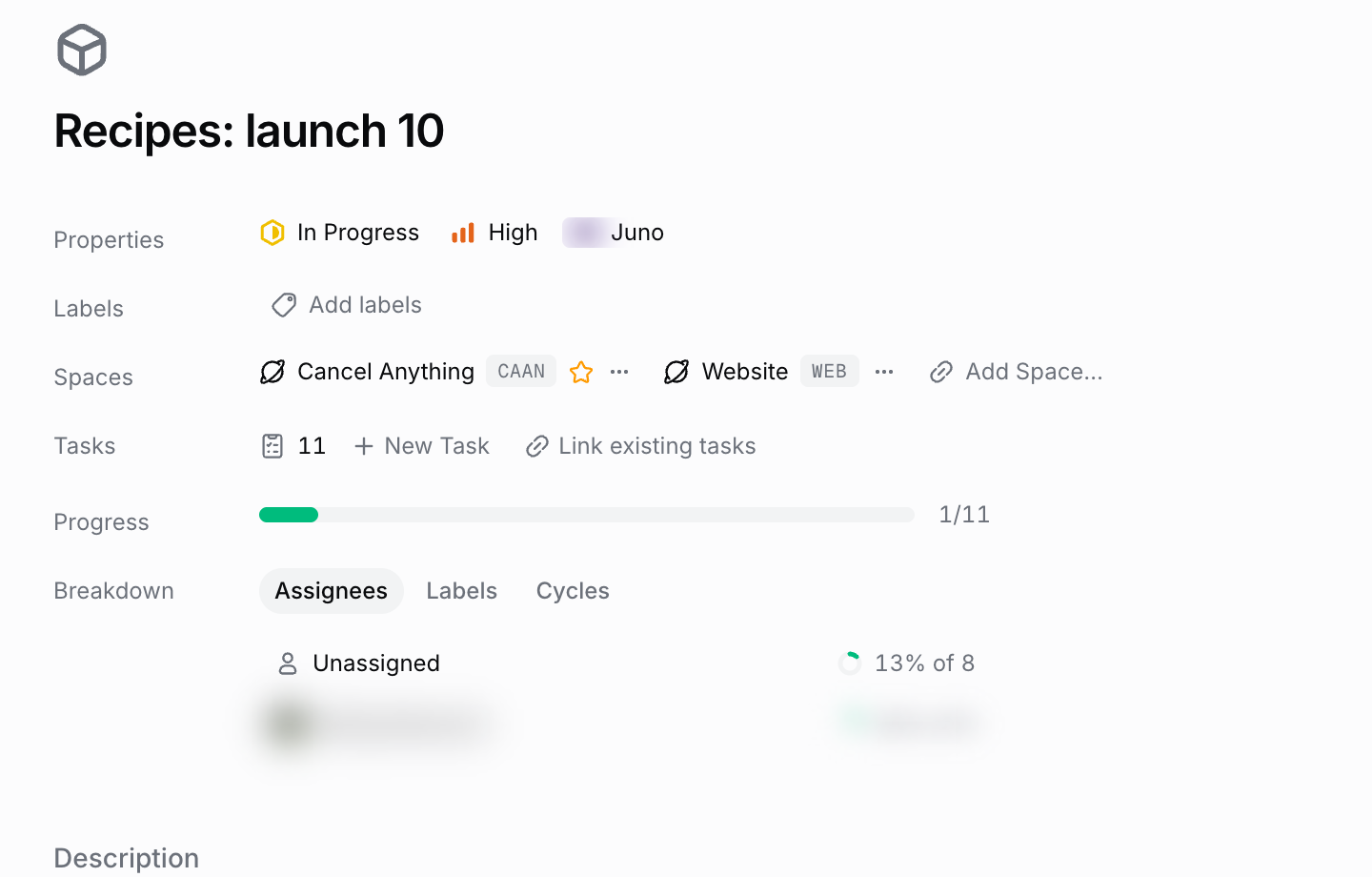
The primary Space is the Project’s home. To change it, open the … menu next to another Space and click Make primary. The same menu has Remove from project; Sharkly won’t let you remove the last Space.
Step 3: Link tasks from both Spaces
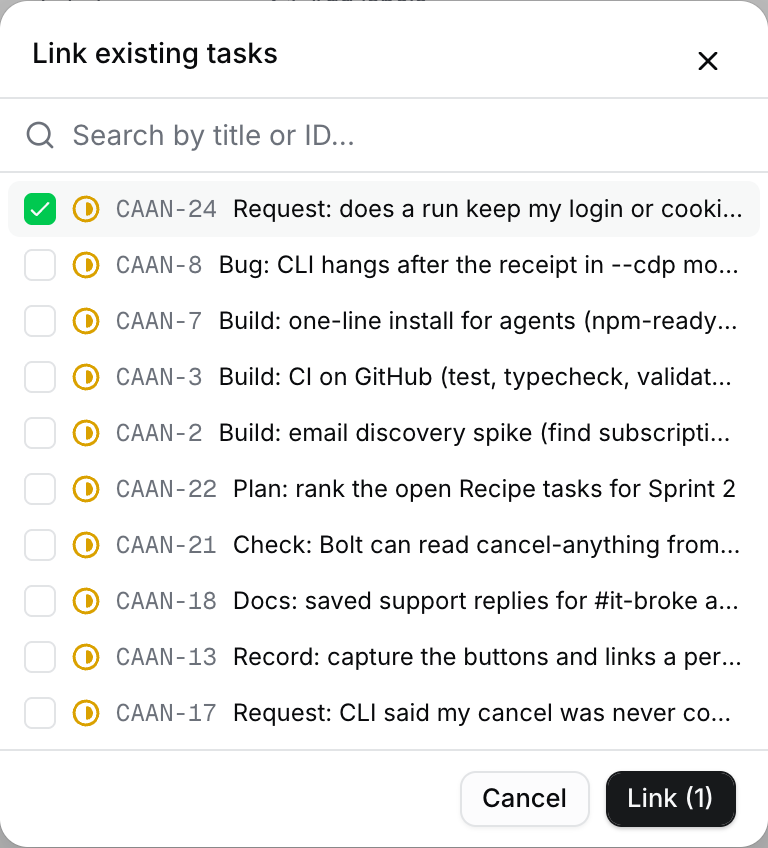
You have three ways in. New Task on the Project creates a task that’s already linked. The Project field on any task links it from the task side. Link existing tasks opens a picker with a search box and checkboxes.
We used all three. We created three new Recipe tasks (Planet Fitness, The New York Times and Adobe Creative Cloud) with the Project set. We set the Project on the two Audible recipes and on WEB-1, the landing page FAQ, from the CLI:
sharkly task edit WEB-1 --project a09a6929-b71c-4e6a-a7e1-f60c946c999e
Then we used the picker to link CAAN-19 (the Audible request) and CAAN-28, a new checklist task. The picker lists tasks that already belong to another Project, and linking one moves it, because a task can’t sit in two Projects.
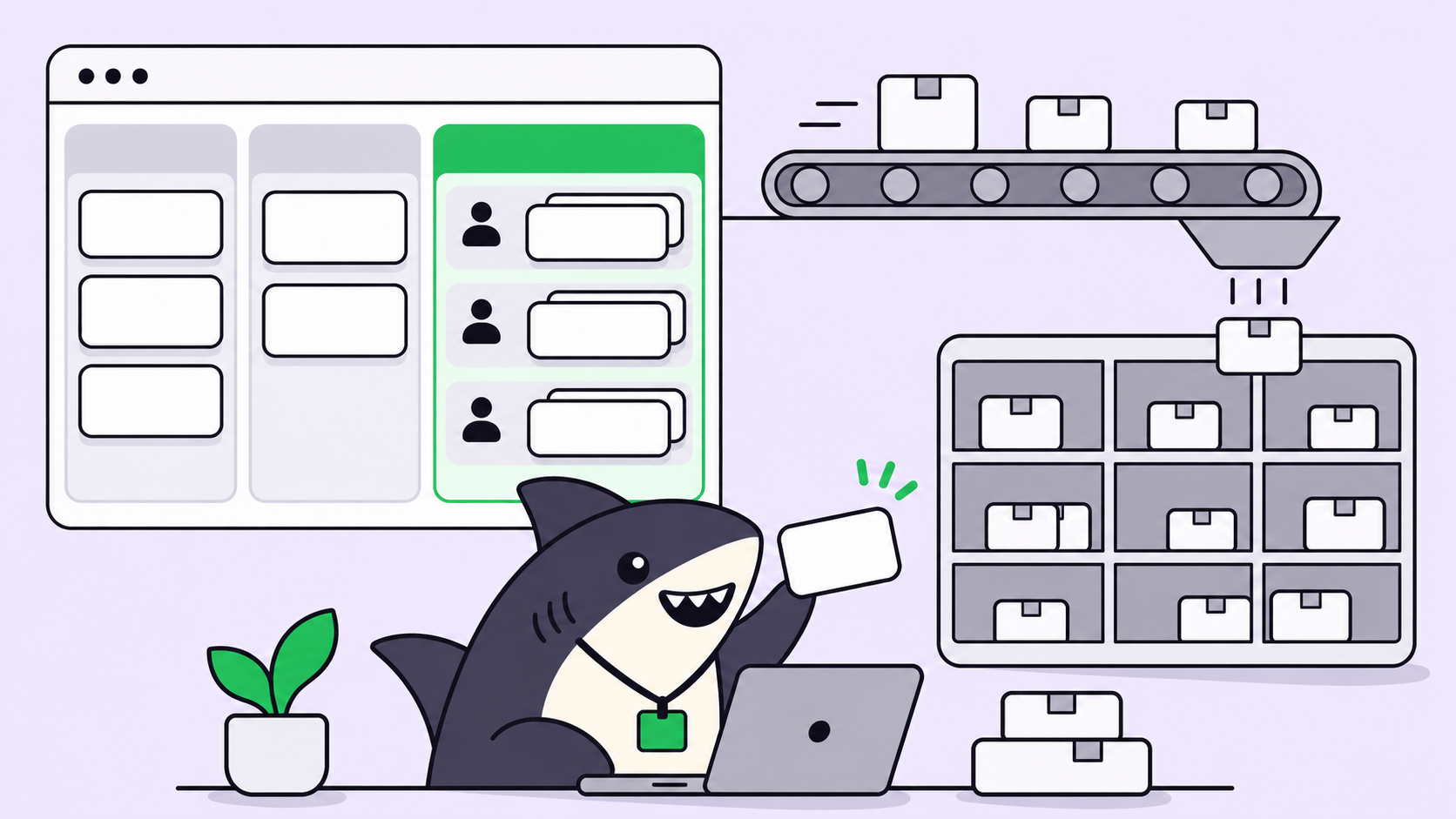
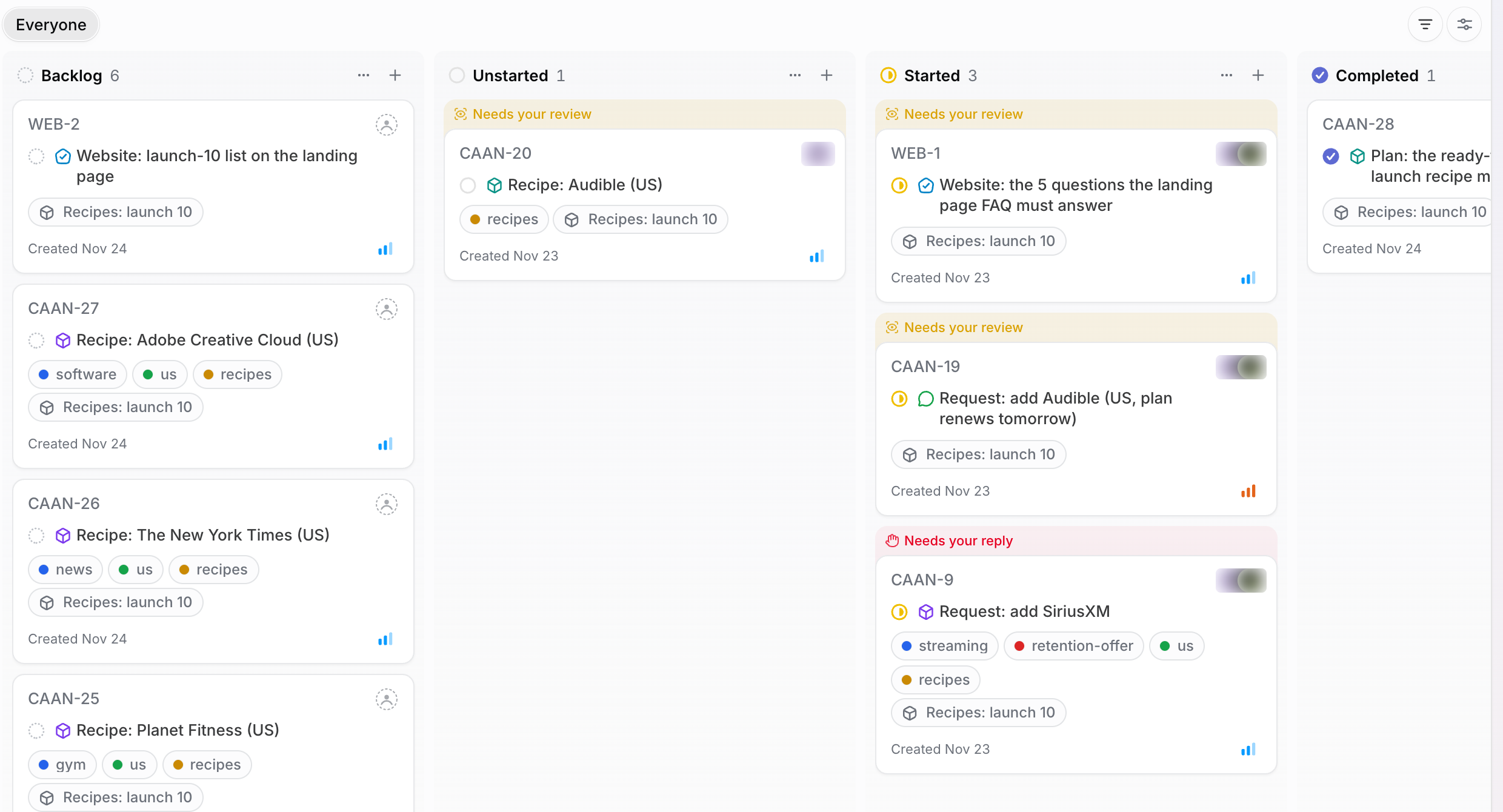
The Tasks tab then shows all eleven on one board, grouped by status category. WEB-1 and WEB-2 sit next to the CAAN recipes, each with its own key and type.
Step 4: Let an agent finish a task and watch the bar
The landing page should only list a recipe that’s ready, and “ready” needs one definition both teams share. That’s a small job, so we gave it to Juno as CAAN-28. Its “Done when:” asked for 5 to 8 checks taken from the project’s SPEC and Recipe guide, and told Juno to move the task to Done, since there’s no code to review.
We assigned Juno and clicked Run now (more on that below). 79 seconds later Juno had posted a 7-check list (validates, dry run on a real account, domain fence, one confirm step, and so on), each check citing its source, and moved CAAN-28 to Done. The sidebar shows the Project link and one run.
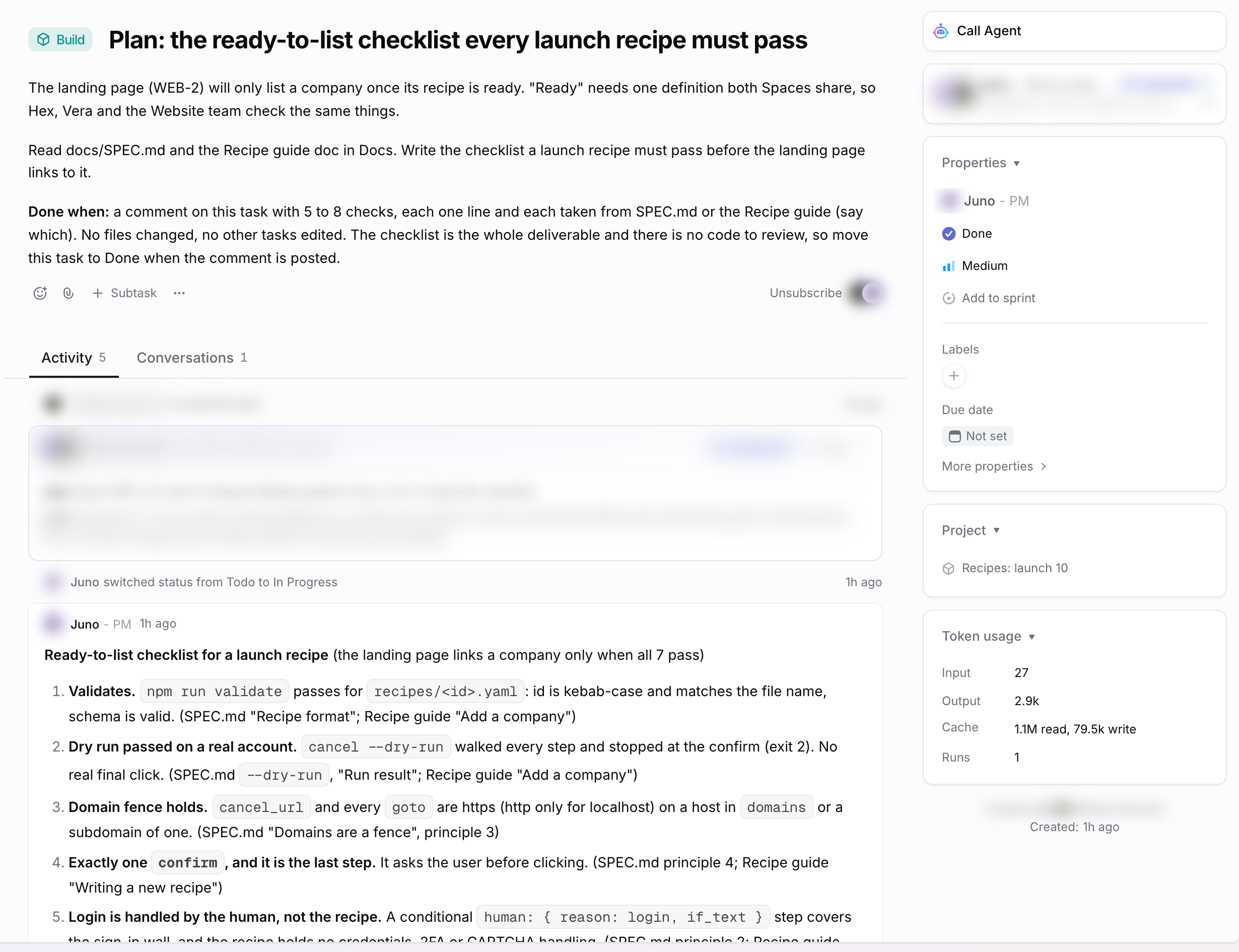
Back on the Project, the bar went from 0/11 to 1/11. That’s the whole rule: progress counts tasks in a Completed status category. Backlog, Todo and In Progress don’t count, and neither does a custom review status.
What went wrong for us
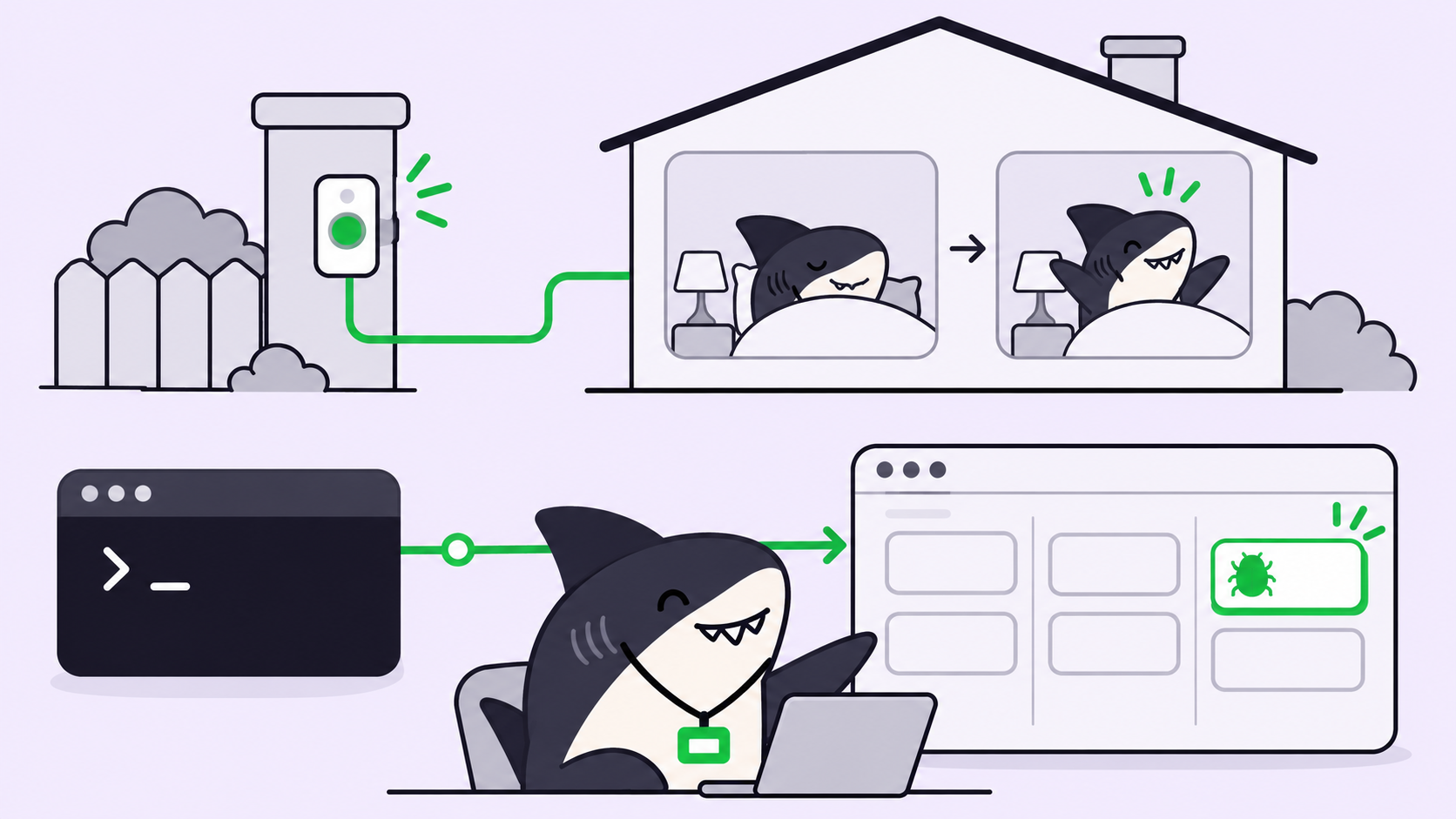
The run waited until 22:00. Juno has off-peak working hours, so the assignment queued with “it runs automatically at 11-24 22:00”. The fix was Run now in the chat panel. If your launch check-in depends on agents, check their hours first.
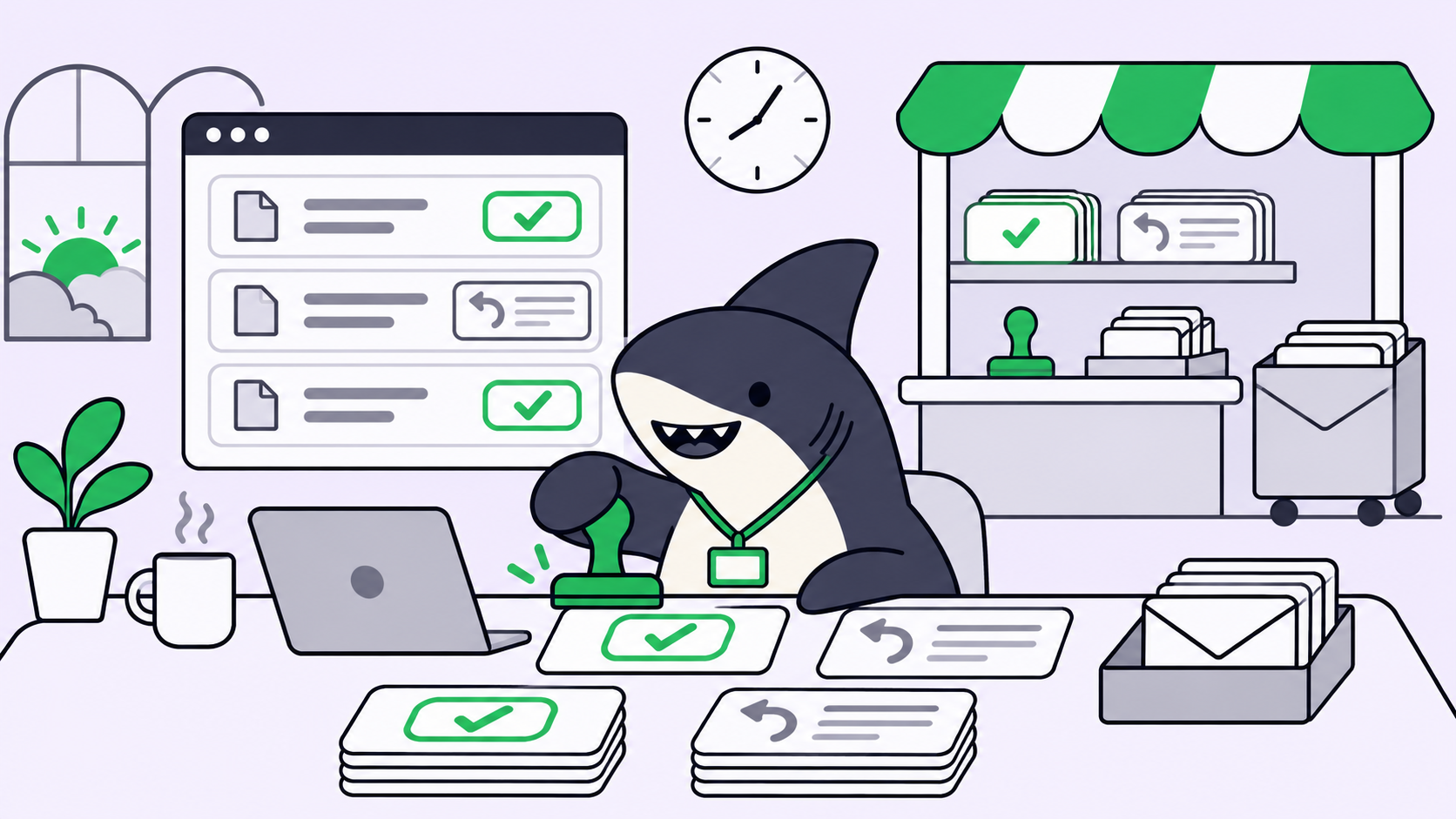
QA counts as not done. Our v0.1 Engine Project shows 0/9 even though three of its tasks sit in QA. QA is in the Started category, so the bar ignores it until a person moves the task to Done. That’s correct, but it surprises people. See how statuses gate agent runs.
Agent work shows as Unassigned. The Assignees breakdown groups by person. CAAN-28 has Juno but no human assignee, so its Done task landed under Unassigned at “13% of 8”. Use Labels in the breakdown if you want to see agent areas instead.
Project vs Sprint vs View
Each one answers a different question. The help page draws the same line.
| Use | Question it answers | Cancel Anything uses it for |
|---|---|---|
| Project | Is this outcome done? | Recipes: launch 10, across CAAN and WEB |
| Sprint | What ships in this time box? | Sprint 1, seven days of engine work |
| View | How do I see these tasks? | Recipe board: type Recipe, board by status |
A Sprint is a timebox; the Scrum Guide keeps it to a month or less. A Project can outlive several Sprints. A View is a saved filter, like a kanban board for one slice of work. In the Project’s breakdown, the app labels the Sprint tab Cycles. For the time-box side, read Sharkly Sprints.
A weekly launch check-in you can copy
Open the Project every Monday and walk these five checks:
- Progress bar. Compare it to last week. Flat means nothing reached Done.
- Started column. Anything in QA or In Progress for more than three days needs a person: review it, or comment what’s blocking it.
- Backlog column. Every task here needs an assignee or a reason in a comment. Unassigned recipes don’t move.
- Agent tasks. Open any task where an agent finished but the status didn’t change. Check its working hours if a run hasn’t started.
- Project status. Move it to Completed only when every task is Done or Canceled. Completing the Project doesn’t close its tasks, and one Done task doesn’t complete the Project.
Variations
An agency with client Spaces. One Project per client deliverable, linking tasks from a private client Space and an internal design Space. Access follows Spaces, so the client never sees internal tasks.
A reliability push. A platform team links bug tasks from three product Spaces into one “p99 under 300 ms” Project, with code agents on the fixes and the owner set to the on-call lead.
Recap checklist
- Projects are on, and the Project names the outcome in its description.
- Status, priority and owner are set; every Space is added, with the right one primary.
- Tasks are linked through New Task, the Project field or Link existing tasks.
- “Done when:” lines tell agents which status to finish in.
- The weekly check-in reads the bar, then Started, Backlog and agent tasks.
Ready to try it on your own launch? Start with getting started with Sharkly, then open Projects and link your first eleven tasks.