To invite your team to Sharkly, open All settings > Members, click Invite, and either enter email addresses or turn on an invite link. Each invite carries an organization role (Member, Admin or Guest) and, optionally, the Spaces the person joins on accepting. Use Guest for clients: a guest sees only the Spaces you add them to.
The job: four teammates join the main workspace and one client contact joins a single private Space, and nobody sees more than they should. You’ll end with a private client Space, the right role on every invite, an invite link you know how to close, and a checklist for what stays out of a guest’s view.
Org roles, Space roles and guests
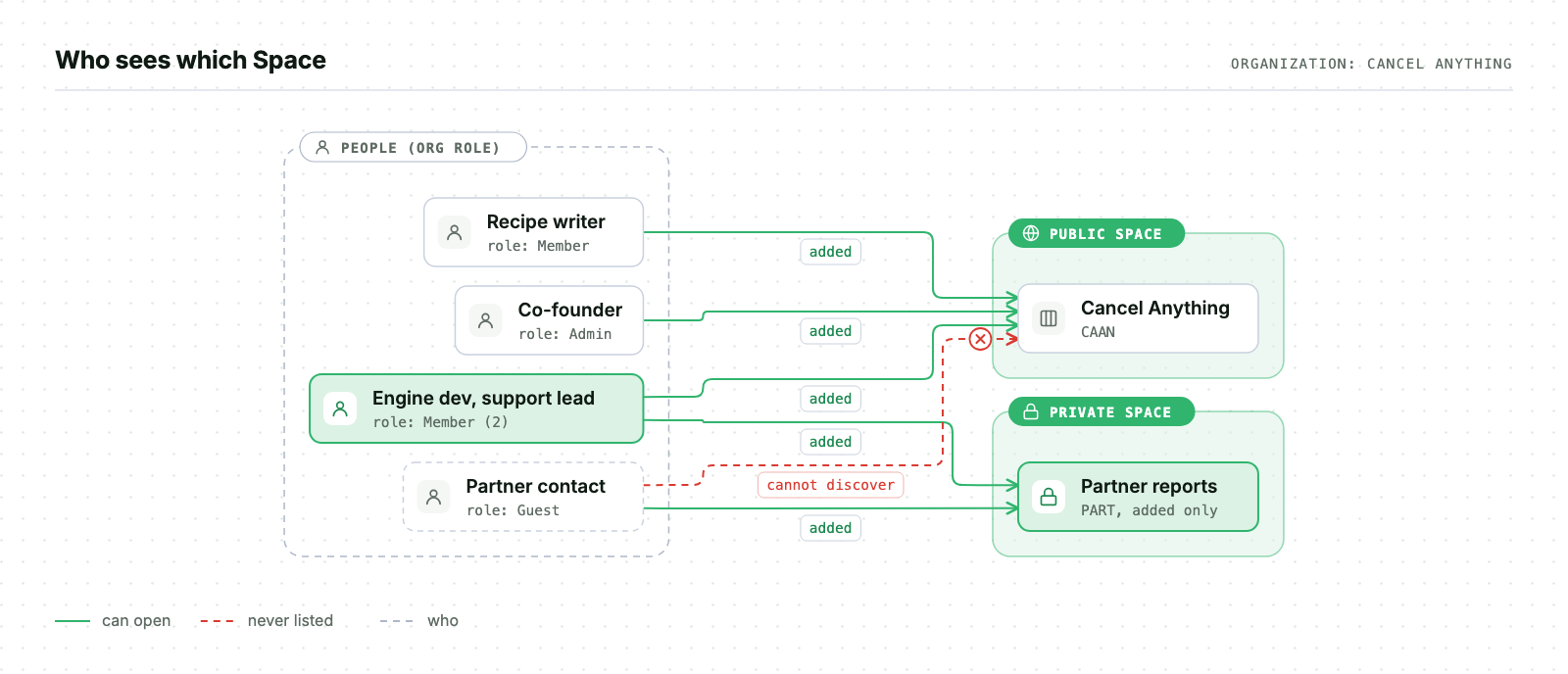
Sharkly checks access at two levels. The organization role decides what a person can find and manage across the whole org. The Space role decides what they can do inside one Space. The People help page lists four organization roles:
| Org role | What they can do |
|---|---|
| Owner | Full organization settings. Every org keeps at least one. |
| Admin | Manages People and organization settings. |
| Member | Creates and works on tasks, finds and joins public Spaces, opens private Spaces they were added to. |
| Guest | Opens only the Spaces they were explicitly added to. Can’t discover or self-join public Spaces. |
Inside a Space, each person is an Administrator (settings and membership), a Member (creates and updates work) or a Viewer (in a private Space, comments and attaches files but doesn’t create or edit tasks). Guest and Viewer aren’t the same: Guest limits which Spaces someone can find, Viewer limits what they can change once inside.
One cost detail matters for client work: guests don’t occupy a seat, per the Sharkly pricing page.
Before you start
- You’re an Owner or Admin of the organization. Only they manage People.
- You know which Spaces each person needs. Write it down before you open a dialog.
- A separate home for the client’s work (Step 1 makes one).
Step-by-step: invite your team to Sharkly
Step 1: Make a private Space for the client
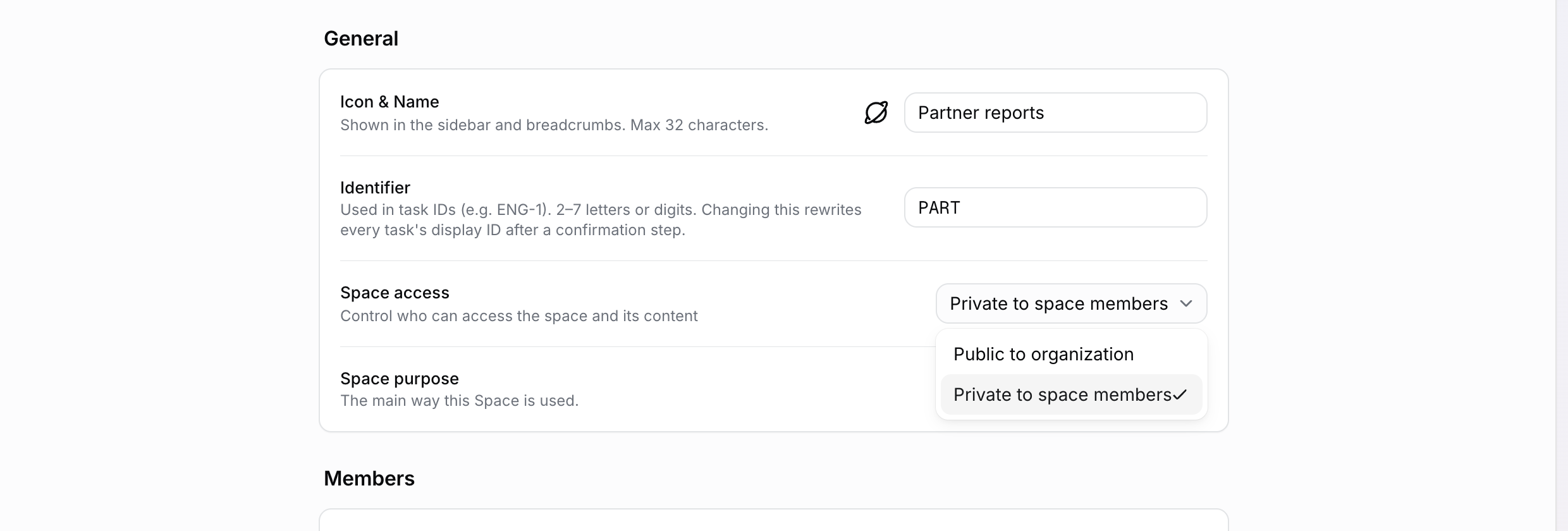
Open All settings > Spaces and click Create Space. Pick what kind of work the Space holds (we chose Operations), then name it. Under Space access, choose Private.
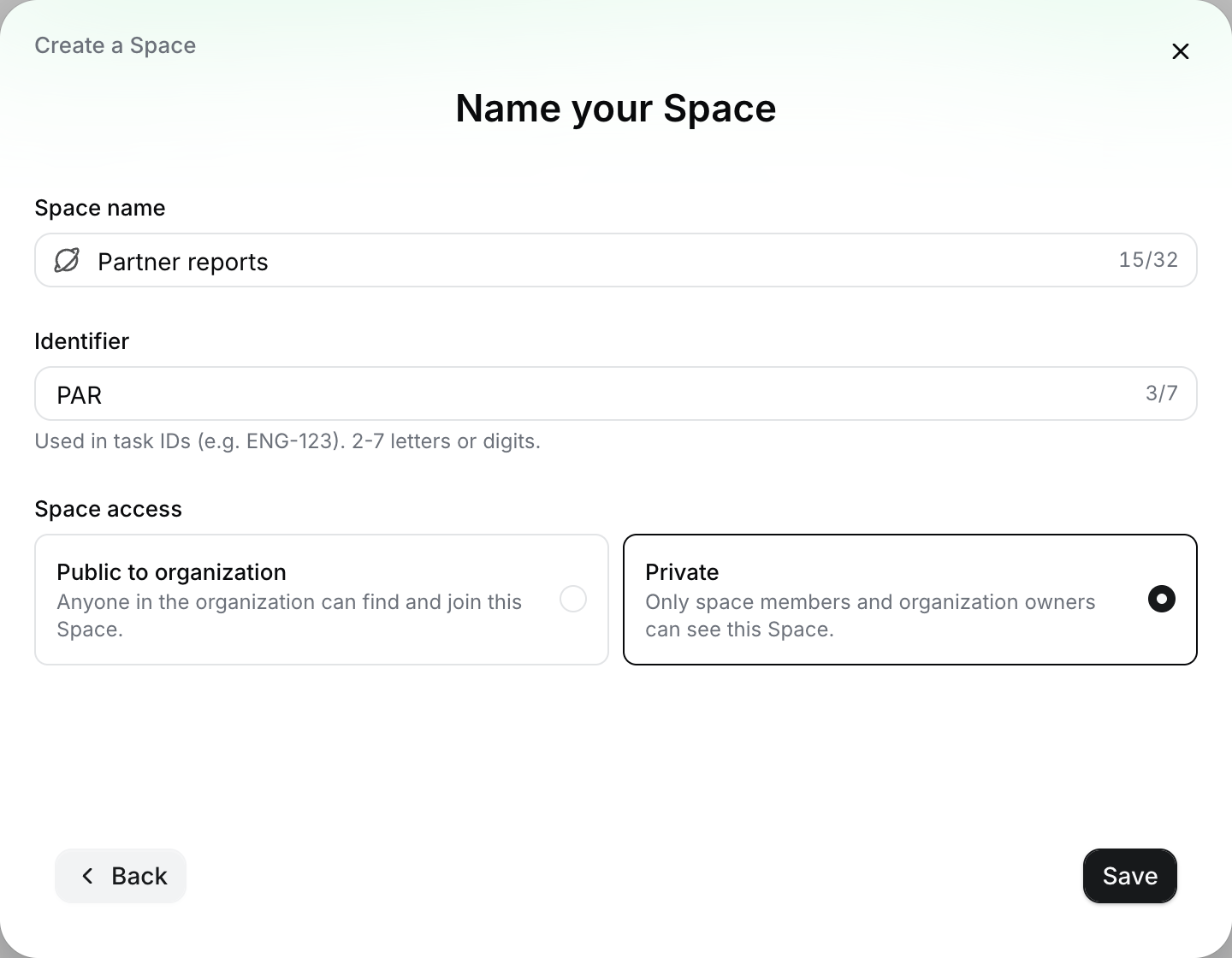
Cancel Anything’s client is a consumer-rights partner that sends in reports of hard-to-cancel subscriptions. We named the Space Partner reports, changed the auto-filled identifier to PART, clicked Save, and filed the partner’s first two reports as PART-1 and PART-2.
Step 2: Pick the right role for each person
In All settings > Members, click Invite and open the Role menu. Each of the three roles shows its rule in one line.
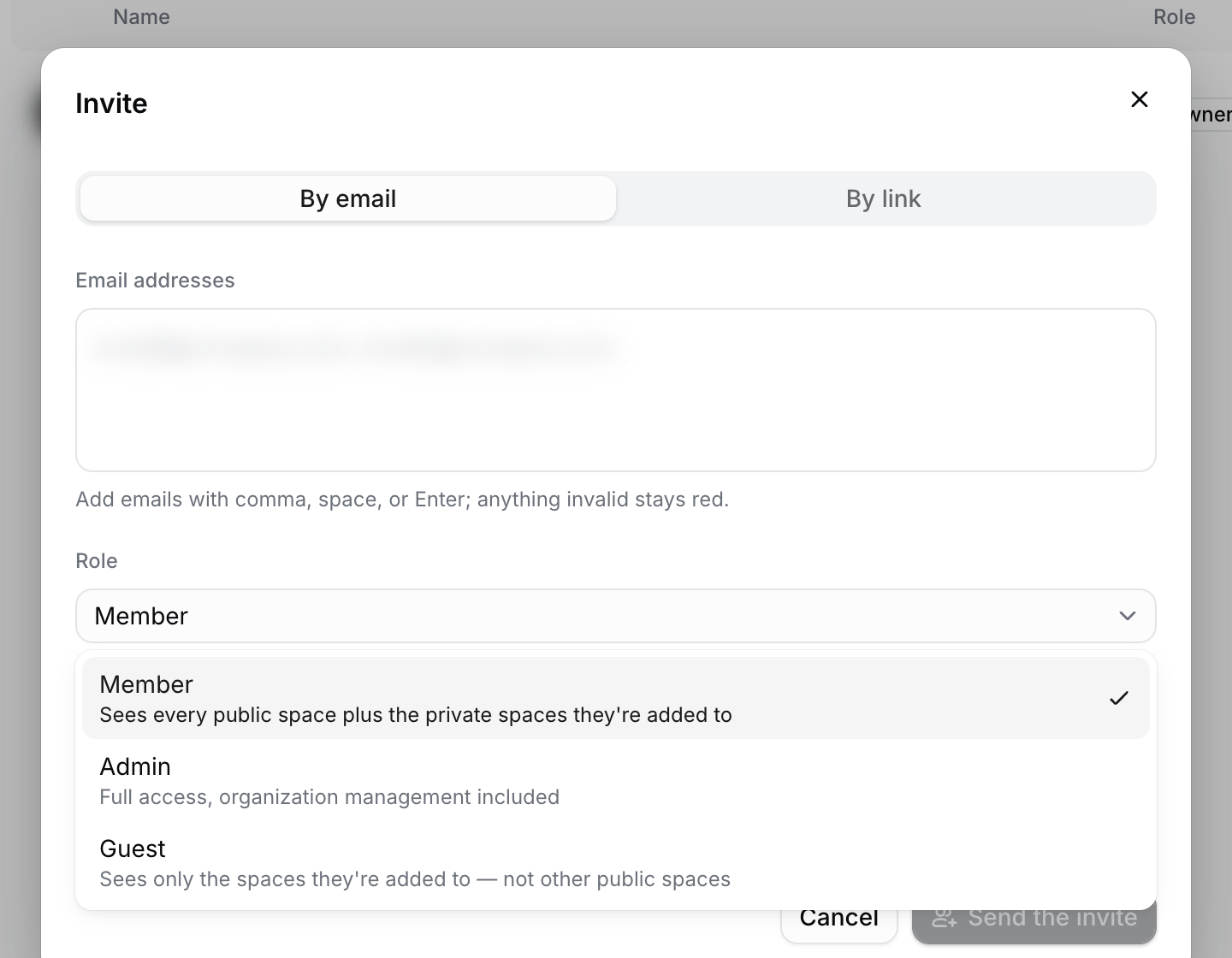
Cancel Anything’s mapping:
| Person | Org role | Spaces on invite |
|---|---|---|
| Engine developer | Member | CAAN, PART |
| Recipe writer | Member | CAAN |
| Support lead | Member | CAAN, PART |
| Co-founder who handles billing and People | Admin | CAAN |
| Partner contact | Guest | PART |
Owner isn’t on the list. Invite a future co-owner as Admin and promote them after they join.
Step 3: Invite by email
Stay on the By email tab. Paste the addresses into Email addresses; commas, spaces or Enter separate them, and an invalid one stays red. One invite carries one role, so send the Members in one batch and the Guest in another.
For the partner, set Role to Guest. Under Add to spaces (optional), remove the default CAAN chip and pick PART. Accepted invites come with membership in the chosen Spaces, so the guest lands in the right place on their first click.
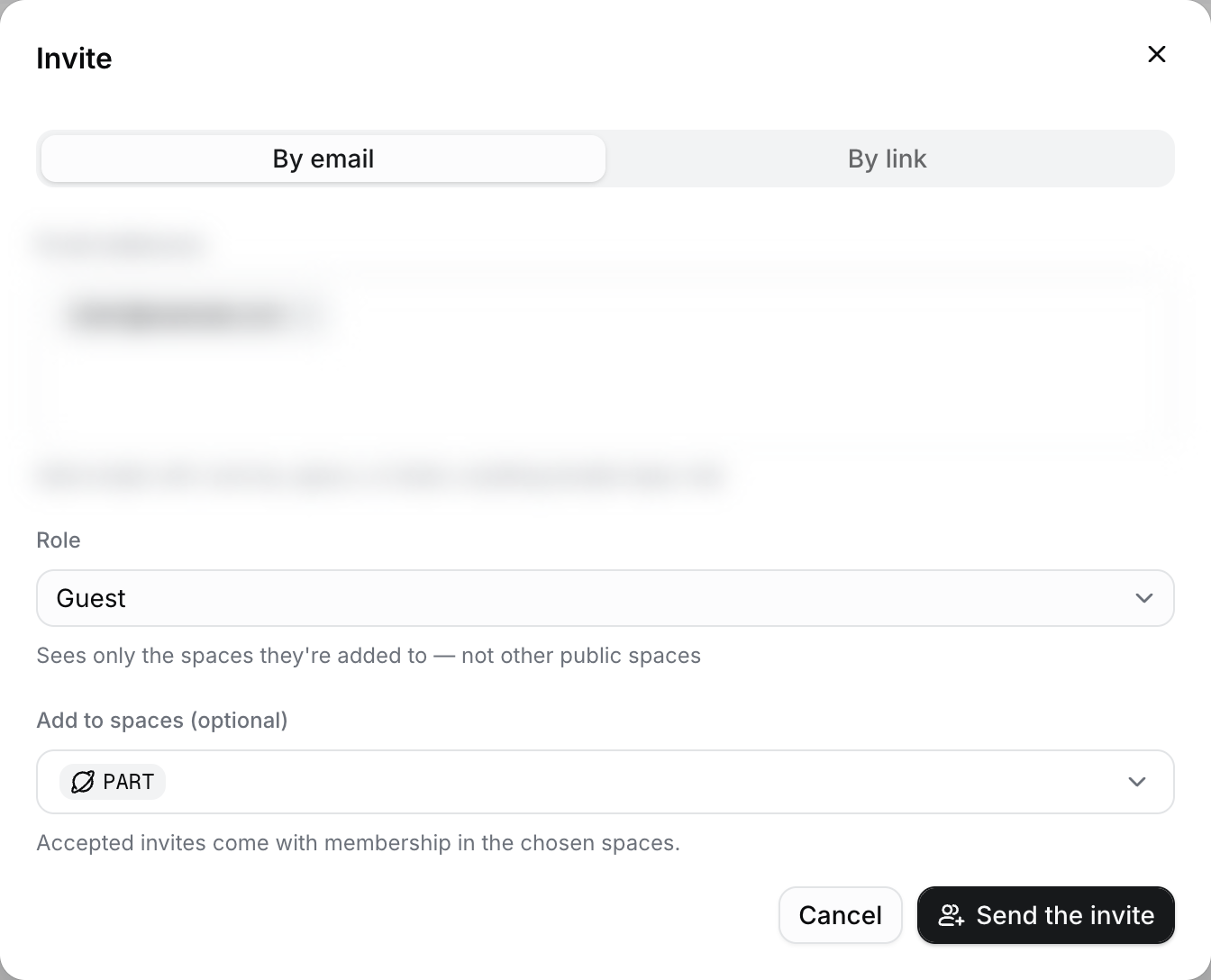
Click Send the invite. A pending invitation stays listed until it’s accepted, revoked, expired or failed, and a pending invitee already shows up in assignment pickers. We stopped before sending: this demo org doesn’t invite real addresses.
Step 4: Or share an invite link, then turn it off
Switch to By link and turn on Turn on the invite link. A link carries one role (Member or Guest) and optional Spaces, and anyone holding it joins with exactly that access.
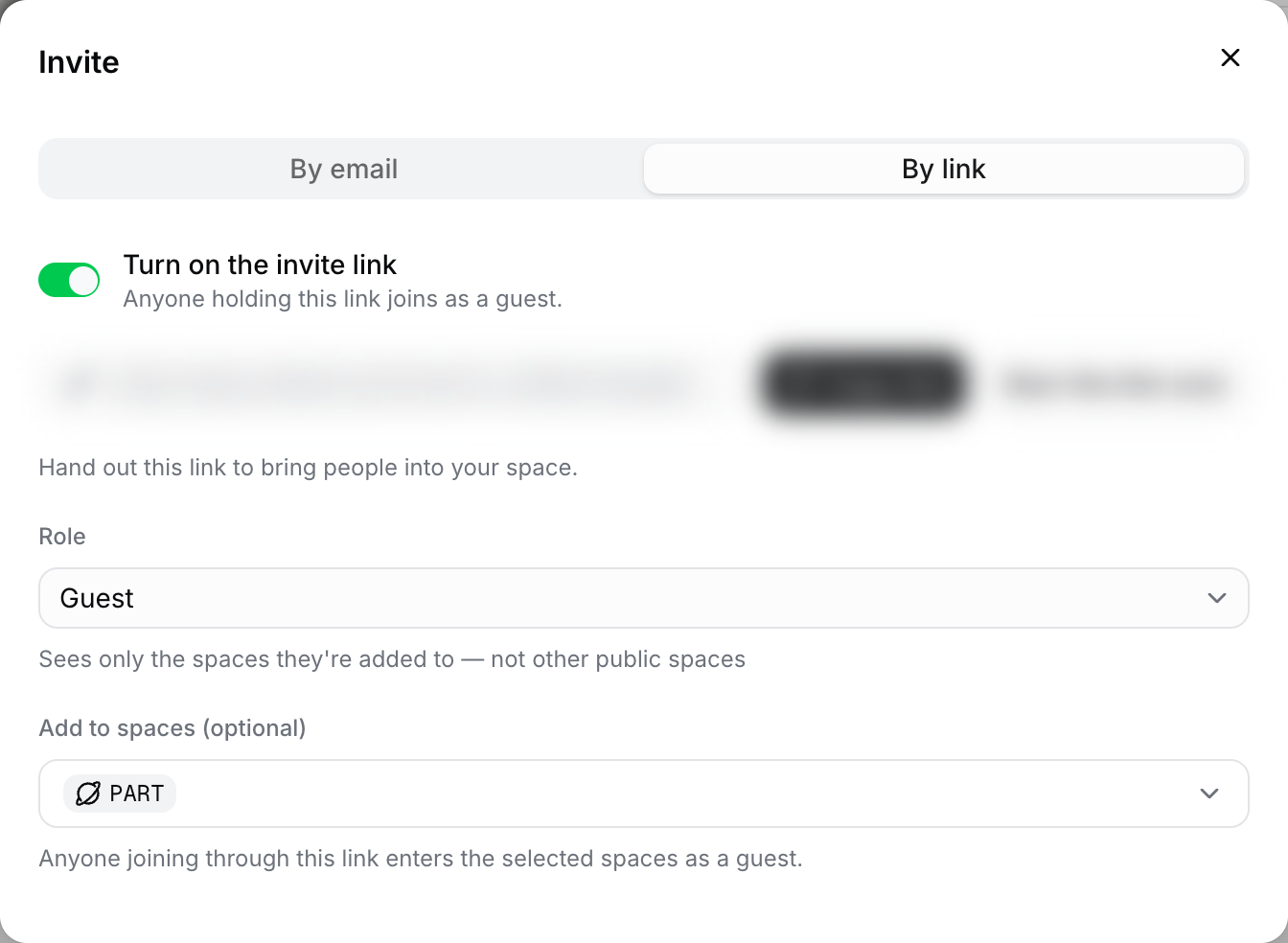
When everyone’s in, close it in two moves. Click Start the link over and confirm: the old URL stops working the moment you reset it. Then switch the link off. We did both right after this screenshot; nobody joined.
Step 5: Check what the guest will see
A guest sees the Spaces they were added to and nothing else. For the partner, that’s the PART board:
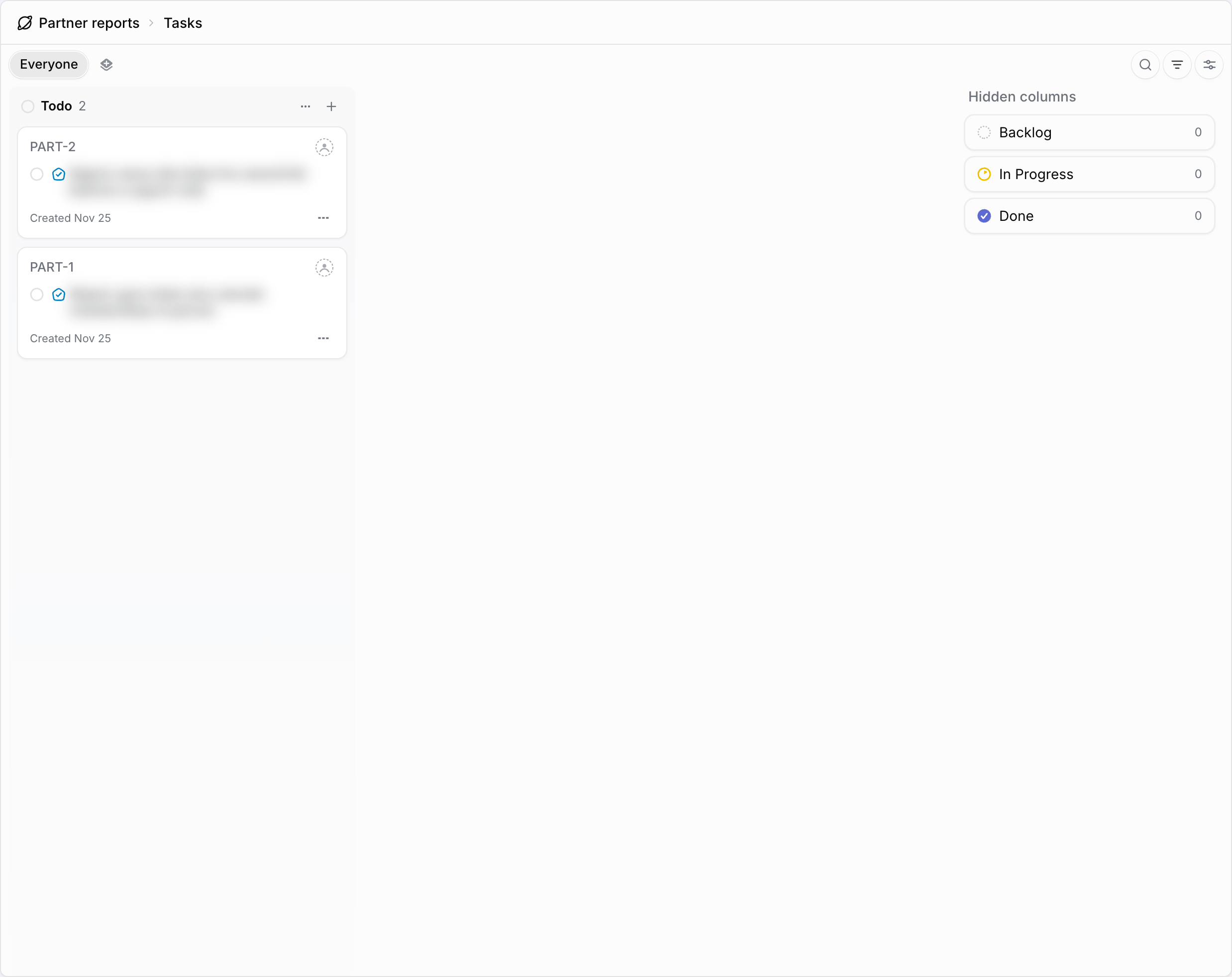
They won’t find CAAN, its Projects, its Views or its automations, and they can’t browse the public Space list. Inside PART they see everything: every task, comment and attachment. That’s why the client’s Space holds client work only.
You can switch an existing Space later under Space settings > General > Space access:
Step 6: Change a role or remove access
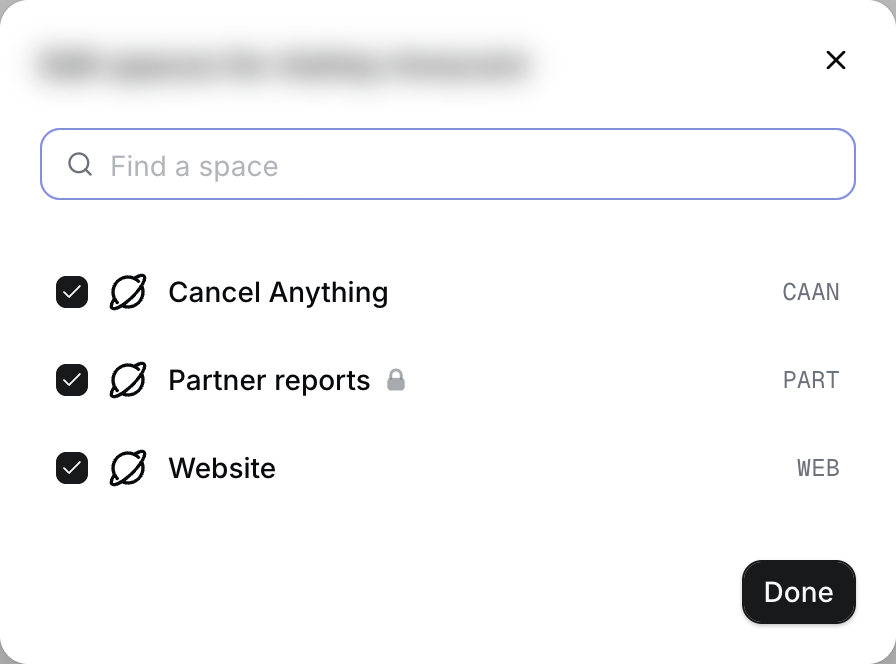
- Organization level: in Members, open the menu at the end of a person’s row. Edit spaces… toggles each Space on or off for that person. A lock marks private ones.
- Space level: in Space settings > Members, filter by Administrators, Members or Viewers, and use Add a member to bring in someone already in the org.
Removing someone from a Space keeps them in the organization. When a contract ends, remove the guest from the organization, after moving any tasks, Project ownership and subscriptions they held.
The real result
Cancel Anything now has a private PART Space holding two partner reports, an email invite set to Guest with PART only, and an invite link that was created, reset and switched off. When the partner accepts, they’ll see two tasks and nothing else.
What went wrong for us
- The link URL shows even when the link is off. Switching it off doesn’t hide the address, and per the help page Copy link turns the link back on before copying. Reset it whenever you’ve shared it.
- Switching the link off dropped its Spaces but kept the role. The link still said Guest afterwards. We set it back to Member so the next person to switch it on doesn’t hand out guest access by accident.
- The app and the help page describe private Spaces differently. The Create a Space dialog says only Space members and organization owners can see a private Space. The help page says Owners and Admins see its metadata but not its tasks. Trust the app, and add anyone who needs the tasks to the Space.
- Your own row has one action. As the only Owner, our row’s menu offered only Edit spaces…: the last Owner can’t be demoted until someone else is promoted.
Variations
An agency with one Space per client. Every client contact is a Guest in exactly one Space. Staff are Members of all of them. Use Views to watch every client board from one place.
An open-source maintainer team. Core maintainers are Members. Outside contributors who report bugs are Guests in an intake Space with Triage on, so new reports land in review before they reach the board.
Checklist: what to keep out of a guest’s Space
- Internal pricing, contracts and margin notes
- Credentials, tokens and webhook URLs (use placeholders like
$SHARKLY_TOKENin task text) - Other clients’ names, tasks and attachments
- Agent runs over private repositories the client shouldn’t read
- Automations that post internal status into client tasks
Least privilege is the rule behind all five: give each account only the access its job needs (NIST definition). The OWASP Authorization Cheat Sheet says deny by default.
Recap checklist
- [ ] Private Space created for the client’s work
- [ ] Roles mapped per person before inviting
- [ ] Members invited by email with their Spaces
- [ ] Client invited as Guest to one Space
- [ ] Invite link reset and switched off after use
- [ ] Space membership reviewed in Edit spaces…
Sharkly is free to start. Create your workspace, make one private Space, and send your first invite today. The full People reference is in the Sharkly docs.
FAQ
How do I invite my team to Sharkly?
Open All settings > Members, click Invite, enter email addresses or turn on an invite link, choose a role, and optionally pick Spaces.
What can a guest see in Sharkly?
Only the Spaces they were added to. Guests don’t see or join other Spaces, public ones included.
Do guests take a paid seat?
No. Sharkly’s pricing page says guests, Agents and Computers don’t occupy seats.
What’s the difference between a Guest and a Space Viewer?
Guest is an organization role that limits which Spaces someone can find. Viewer is a Space role that limits what they can create or edit inside a Space.
How do I revoke an invite link?
In Invite > By link, click Start the link over and confirm. The old URL stops working right away. Then switch the link off.