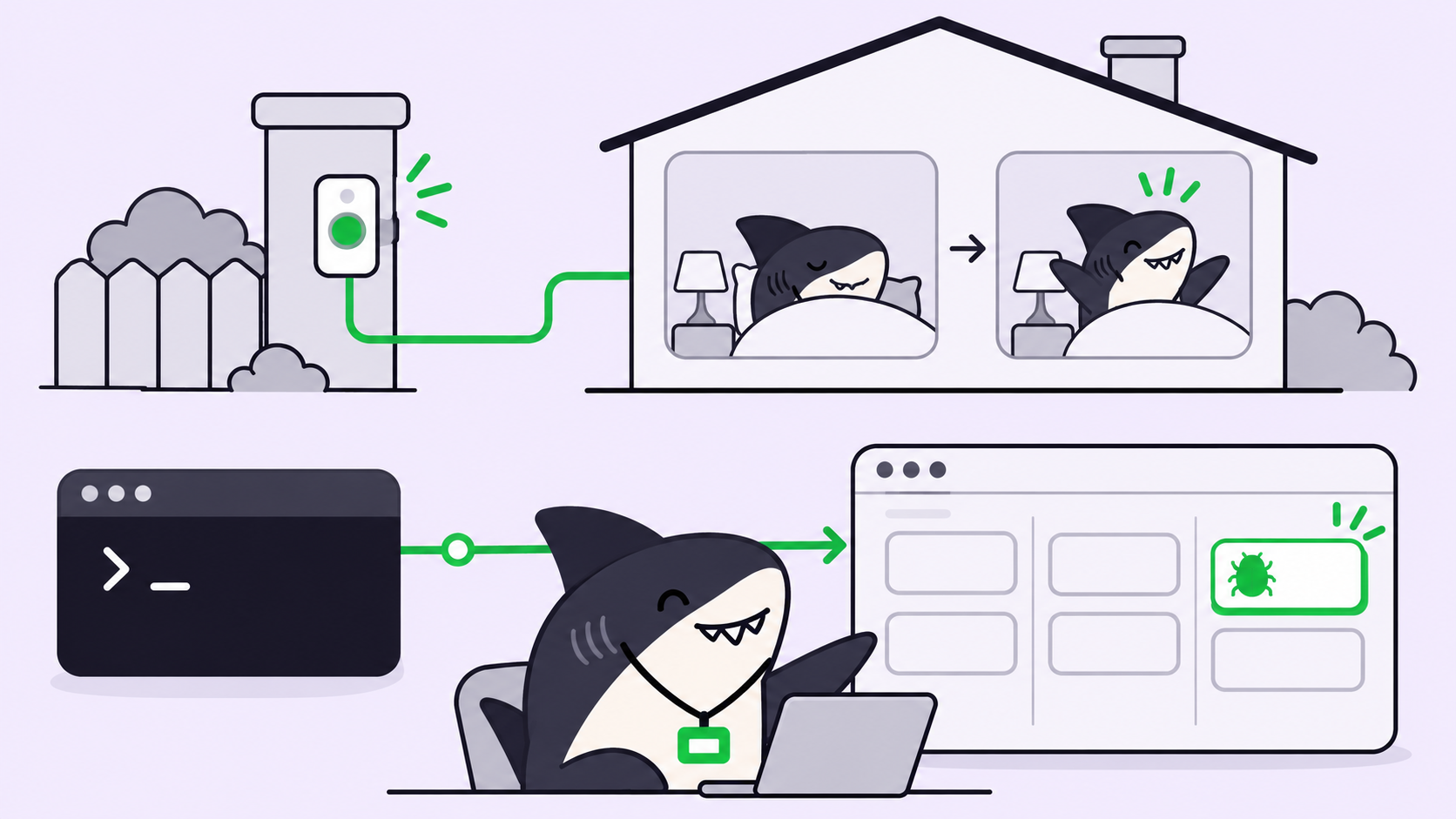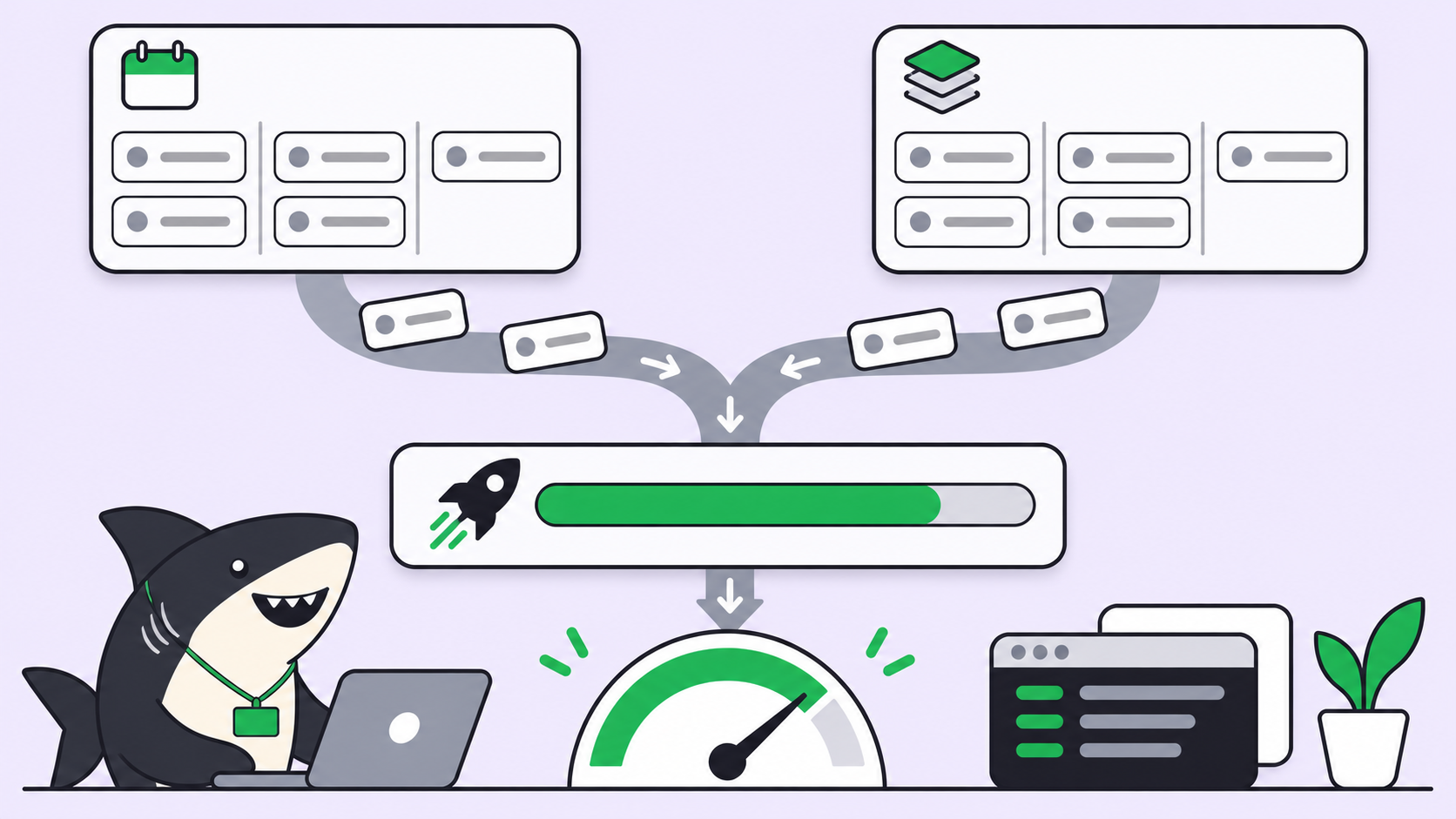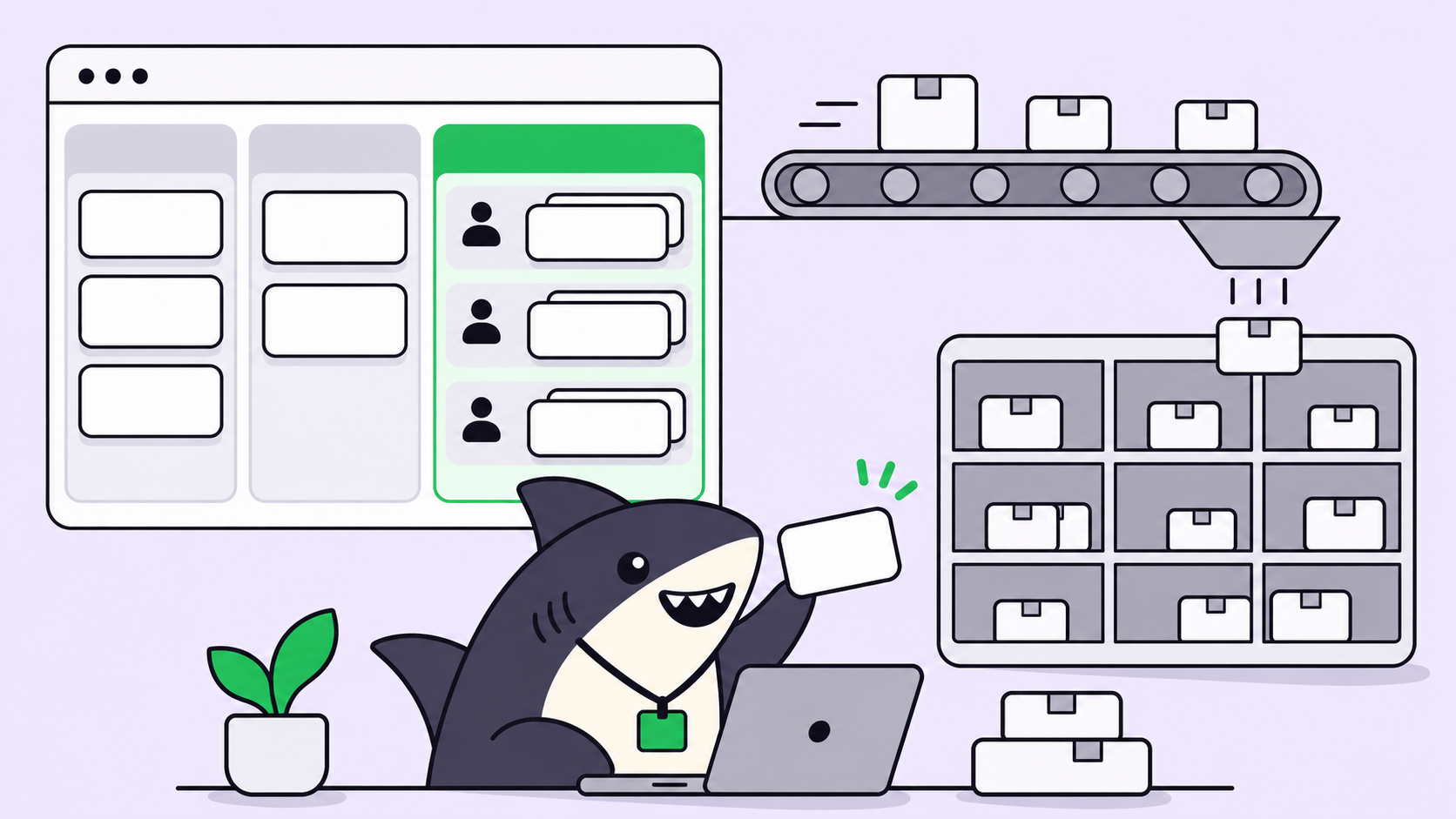
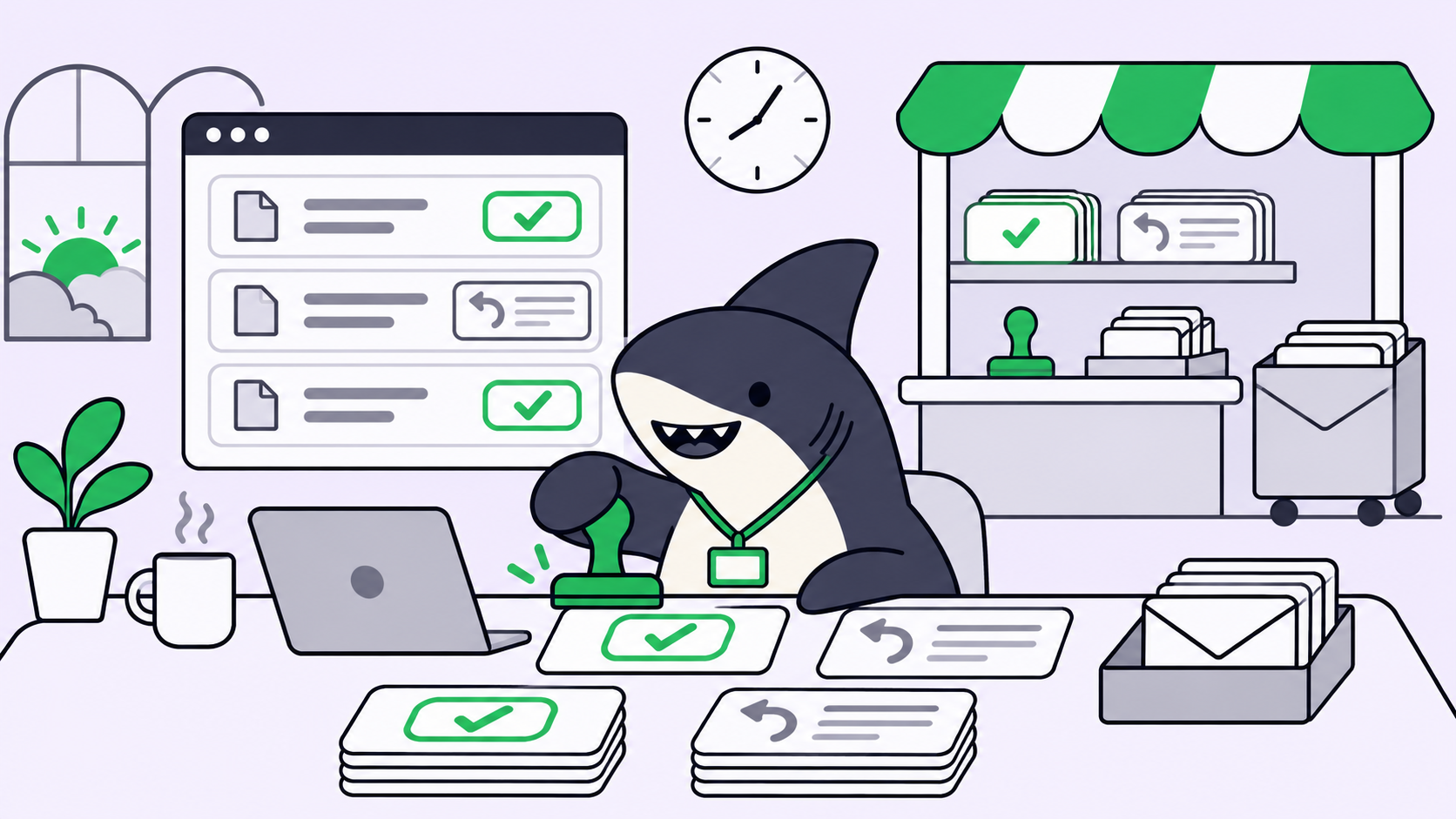
Sharkly quick replies are saved responses you send from any comment, reply or Agent chat composer. Click one to send it, or hover and click Insert to edit it first. Save one that starts with an @mention of an Agent to send work back in two clicks, and use Reviewed, no issues to clear a task’s review marker.
The job, and what you end with
Agents finish work while you sleep. By morning there’s a queue: results waiting for review, and a question or two an agent can’t answer alone. Opening a chat with each agent to say “looks good” or “fix this one thing” eats the first hour of the day.
This tutorial clears that queue from comments. You’ll approve one finished result, send another back with one concrete fix, and answer an agent’s question, each in a click or two. Everything below was done for real on 2026-11-24 in the Cancel Anything organization, a small team building a subscription-cancelling CLI, with two real agent runs.
Sharkly is free to start, if you want to follow along.
Before you start
You need three things:
- A Space where agents post results on tasks. Ours is Cancel Anything (key
CAAN). - An Agent that’s available to you in that Space. We used Juno, the team’s PM agent, running Claude Code with Sonnet 5.5 on a connected Computer. New to agents? Read what Sharkly agents are.
- At least one task waiting on you. We had CAAN-22, Juno’s ranking of open Recipe tasks for Sprint 2.
Where agent results and questions show up
An agent’s work lands in three places. The answer goes in a comment on the task, under the Activity tab. The conversation that produced it sits under Conversations, and opens in a side panel. When the agent hands off, the conversation carries a state: Needs your review for a finished result, Needs your reply for a question.
The Inbox gathers those states onto task rows, so it’s where your morning starts.
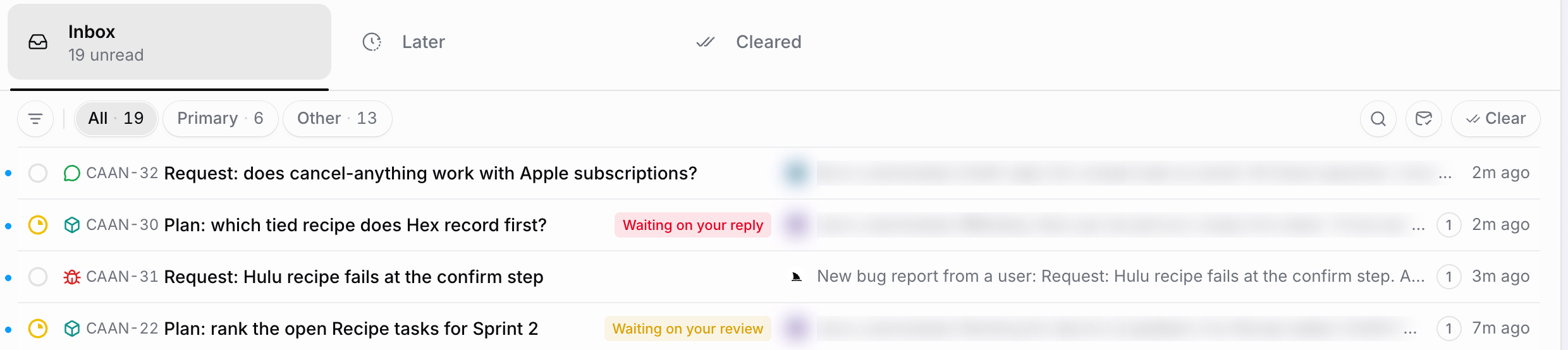
Look at the labels: red “Waiting on your reply” is a question, yellow “Waiting on your review” is a finished result.
The ai agent inbox explainer covers the Inbox itself. Here we work from the task.
How a review pass flows
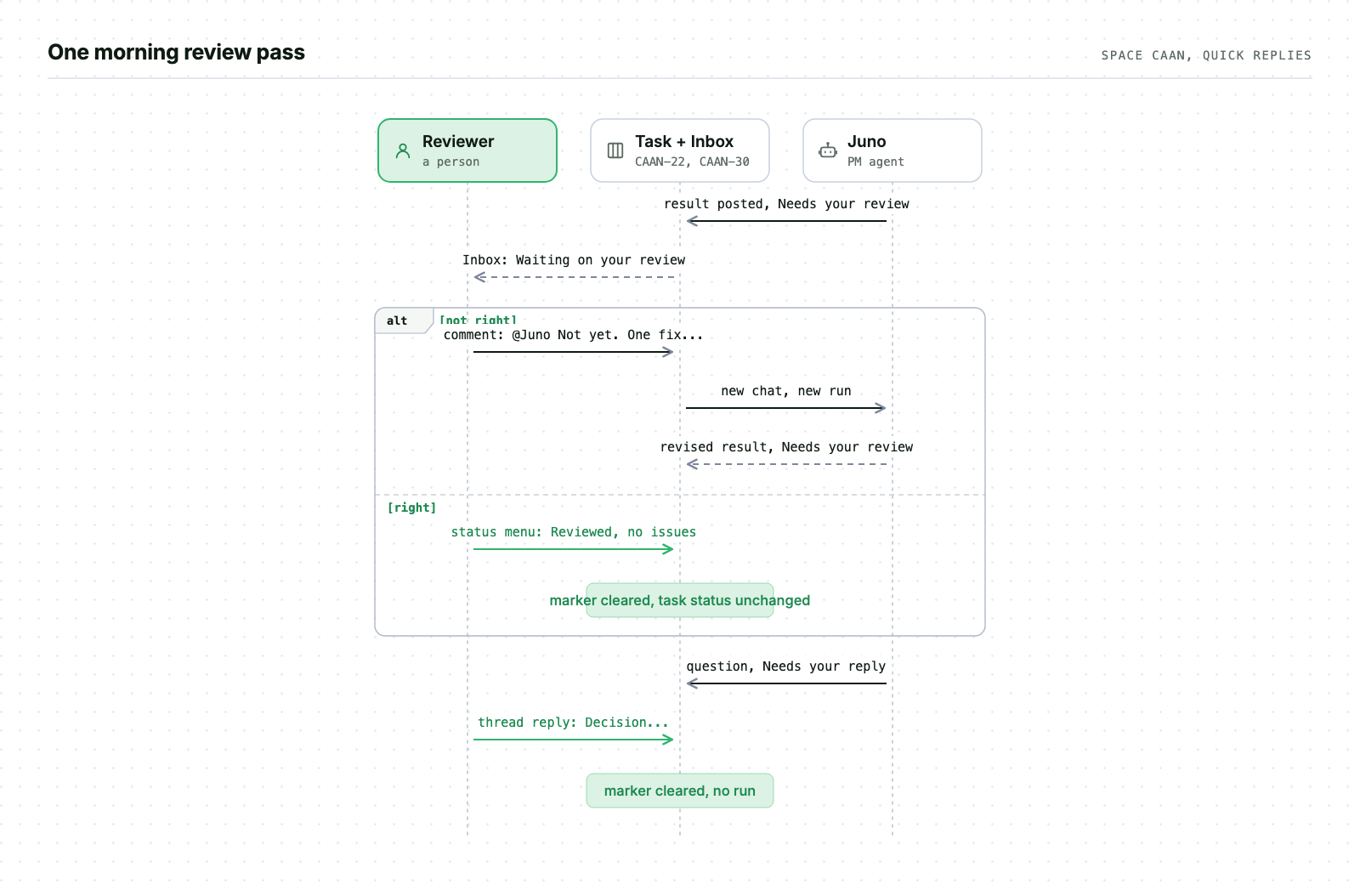
Three moves cover almost every morning: send back, approve, answer. Each one has its own quick reply.
Step 1: Save a send-back quick reply
Open any task and click the Quick replies icon (the clipboard) at the bottom of the comment composer. The menu lists your saved replies, then Add a quick reply and Manage.
Click Add a quick reply. In the field “Type a new quick reply and hit Enter”, type @Ju, pick Juno - PM from the Agent list, then finish the text. Ours reads: “@Juno Not yet. One fix, then hand it back for review:”. Press Enter.
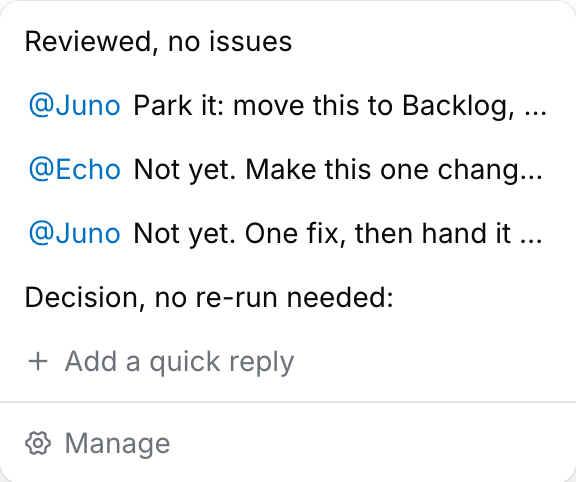
Saved replies with an Agent mention show the mention in blue. Ours is the fourth line.
Quick replies are personal. The comments and replies help page says they’re stored per person, not shared with the team, so each reviewer builds their own set.
Step 2: Send work back with one concrete fix
Juno’s first ranking of CAAN-22 covered two Recipe tasks, but three more had been filed since. That’s a send-back.
Open Quick replies again and hover your saved reply. A button appears: Insert, with the hint “Inserts into the composer without sending”. Click it. The text lands in the comment box with the @Juno mention intact, and the cursor waits at the end.
Type the one fix. Ours: “three more Recipe tasks are open now (CAAN-25 Planet Fitness, CAAN-26 The New York Times, CAAN-27 Adobe Creative Cloud). Re-rank all five with the same rule.” Click Submit the comment.
Don’t click the reply’s text when it needs a fix after it. A click sends it at once, half finished.
The real result in Sharkly
The @mention started a new chat on the task, titled after the request, and Juno went to work. Three minutes later the re-ranked list was back:
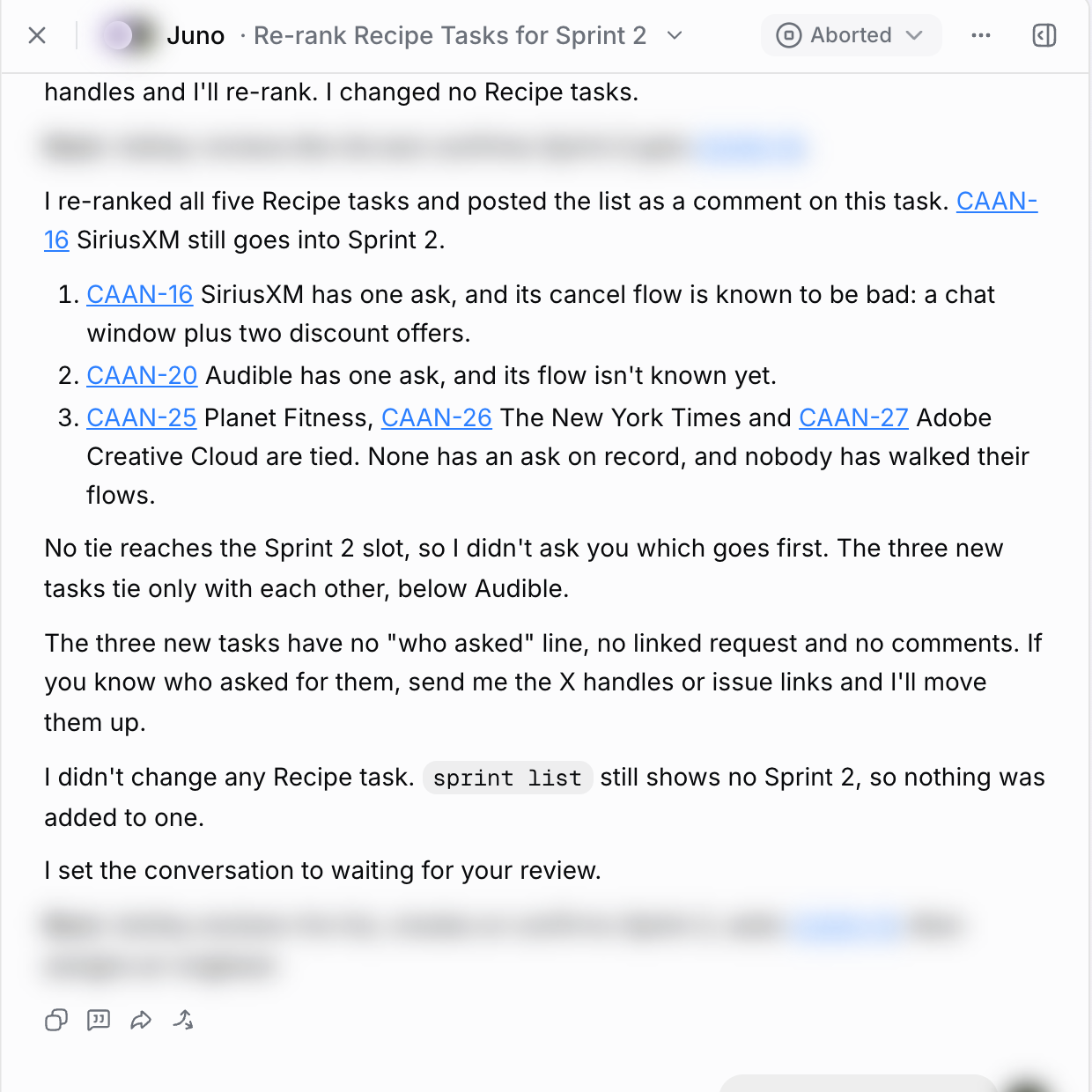
Your message on top, Juno’s answer below, and a fresh Needs your review marker in the header.
Juno kept SiriusXM in the Sprint 2 slot and placed the three new tasks below Audible. She also flagged what she couldn’t know: none of the new tasks has a “who asked” line. The old chat’s review marker cleared when the new chat opened, so only one item waited on us.
Step 3: Approve with Reviewed, no issues
The ranking was right. Click the Needs your review badge in the chat header to open Mark conversation state, then hover Quick replies and click Reviewed, no issues.
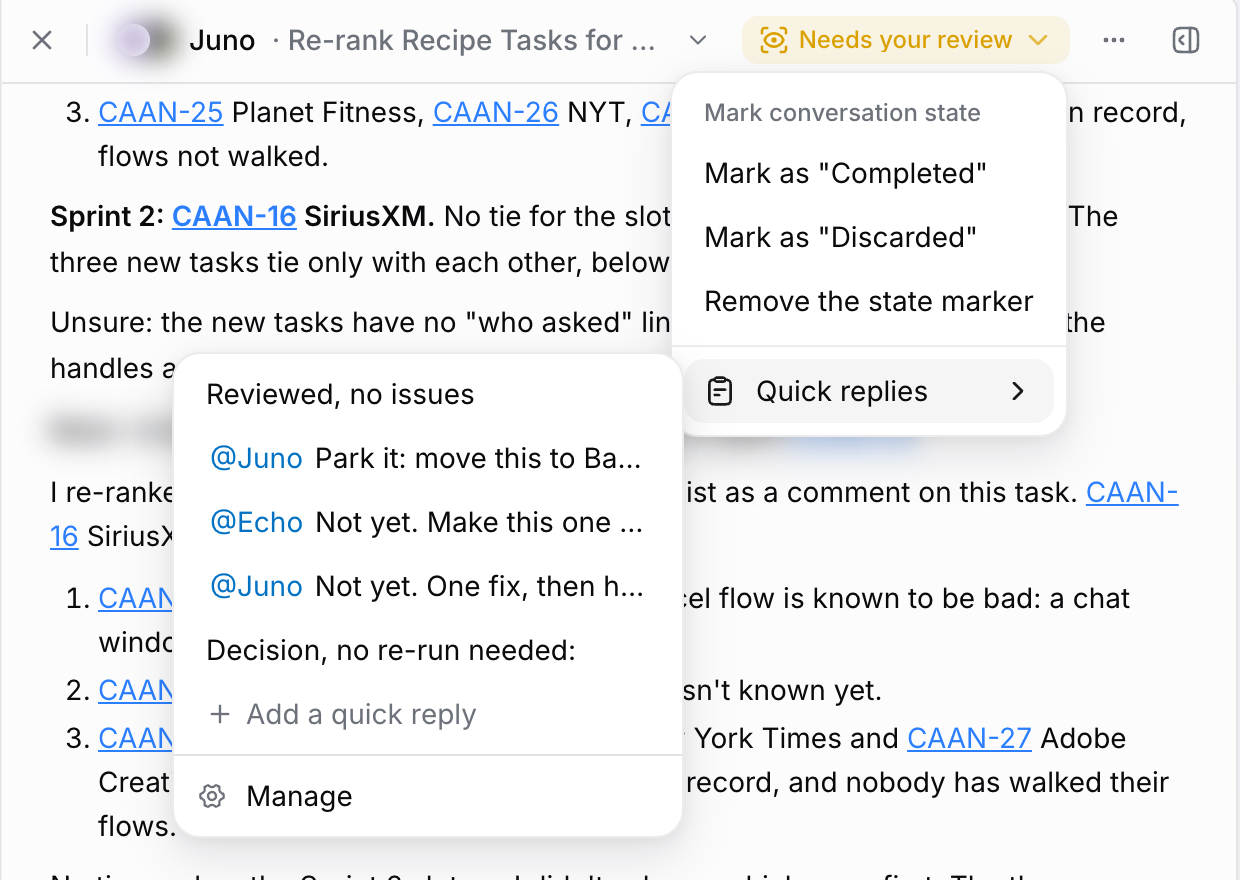
The approve path: the yellow badge, then Quick replies, then the first line.
The marker cleared in the task list, the task page and the Inbox. The task stayed In Progress. As the help page puts it, this “does not change the Task’s lifecycle status”, so move the status yourself if your workflow needs it.
Step 4: Answer an agent’s question
We gave Juno a task with a real choice, CAAN-30: three tied recipes, and Hex can record one this week. Juno posted a comment asking which goes first, with one fact per company, and set the conversation to Needs your reply.

Juno’s options, one line each, so you can decide without opening the Recipe tasks.
We saved a second quick reply with no mention, “Decision, no re-run needed:”, inserted it in the reply box under Juno’s comment, added “CAAN-26 The New York Times goes first”, and sent it. The Needs your reply marker cleared, and no new run started.
Comments from people vs agents, and what an @mention dispatches
- A plain comment from a person doesn’t wake the task’s Agent. It’s a record for the team.
- An @mention of an Agent or Crew starts a new chat on the task, with your comment as its first message. Mention the same Agent again and you get another chat, not a continuation.
- Replies stay one level deep under their root comment, so a thread is always one topic.
- When an Agent mentions another Agent that already has a pending run on the task, Sharkly skips it, so agents can’t trigger each other in a loop. A person’s mention is never skipped.
That’s why a send-back needs the @mention and a decision doesn’t.
What went wrong for us
The send-back sat in a queue. Juno’s follow-up run showed Queued until 22:00, because Juno has working hours set to an off-peak window. The panel said “A scheduled assignment triggered this conversation”. Clicking Run now started it at once.
Juno didn’t ask. Our fix said “if two tie for the Sprint 2 slot, ask me”. Nothing tied for the slot, so she ranked and stopped. Agents follow the condition you write, so ask for a question in plain words when you want one.
Reviewed, no issues didn’t clear the marker as a comment. Sent as a new comment, then as a thread reply under Juno’s result, it posted fine and the badge stayed. Only the status menu in the chat header cleared it.
That status-menu path sends into the Agent chat. Our click sent the message to Juno, and she started working. We stopped it at “Preparing environment” with Stop execution, and the marker stayed cleared. If your agent bills per run, stop it the same way, or use Remove the state marker instead.
Variations
A support team. A reviewer saves “@Echo Not yet. Make this one change, then hand it back for review:” and reads Echo’s drafted customer replies each morning. One fix per send-back keeps each re-run short.
A platform team. A lead saves “Approved for merge, waiting on CI” without a mention and uses it on every passing change, so the thread records who signed off. Google’s code review guide asks for a first response within one business day; saved replies make that easy to hit.
Recap checklist
- Start in the Inbox: red labels are questions, yellow labels are results.
- One saved send-back that starts with an @mention, one saved decision without a mention.
- Insert, add the fix, then send. Never click a reply you still need to finish.
- Approve with Reviewed, no issues from the Needs your review badge menu.
- Check the task status yourself; approval doesn’t change it.
Want the statuses behind this to be solid? Read how task statuses drive agent runs, then open any waiting task and click Quick replies. See what agents can take on at Sharkly agents.