Quick answer: Sharkly agent working hours is a per-Agent schedule that holds new runs until an off-peak window opens. Turn it on under Computer, Runtime & Working directory, set up to two windows per day, and pick which triggers wait. A Task assigned outside the window queues with an exact start time, and Run now starts it anyway.
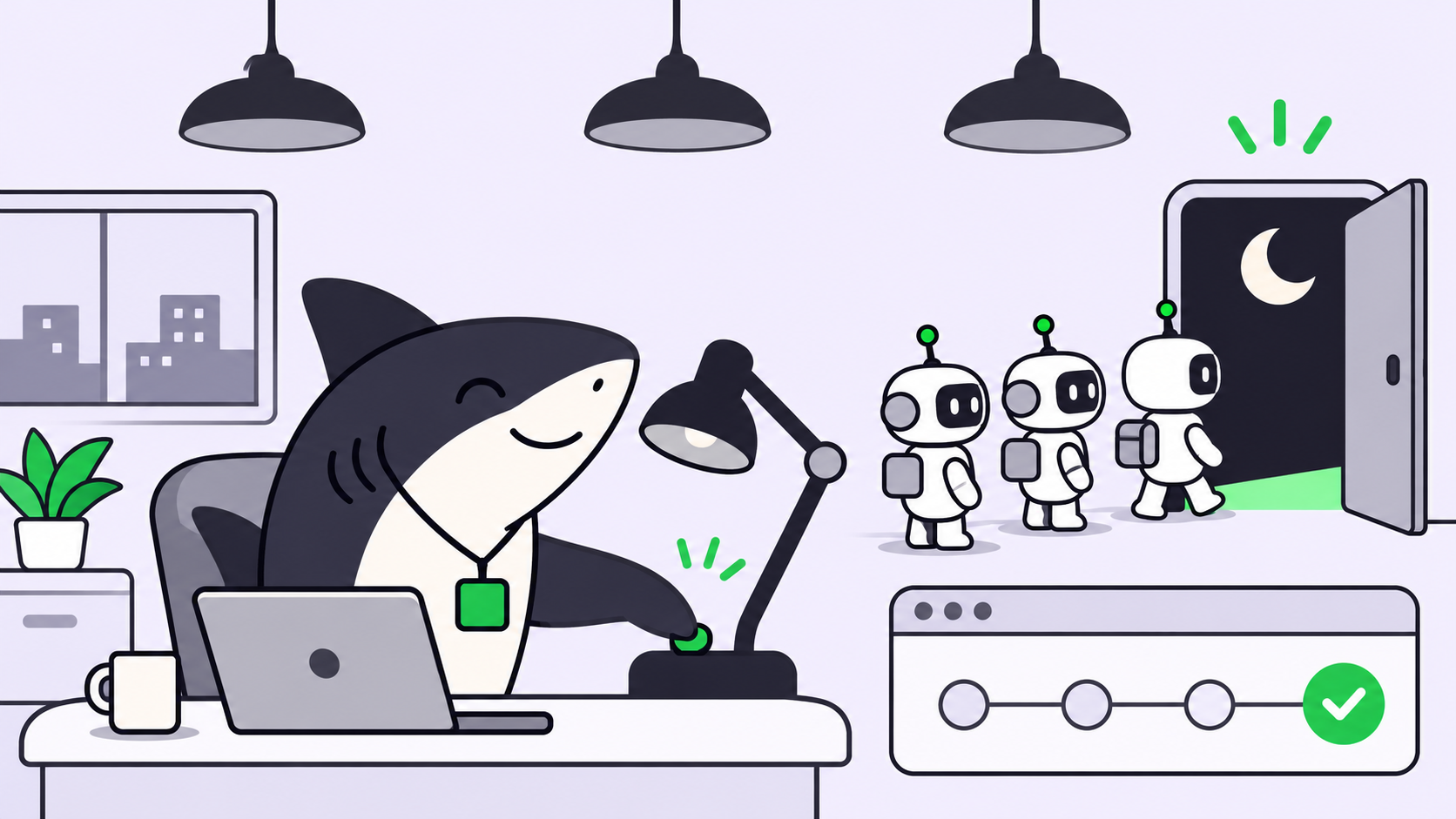
Your team’s daytime model usage is the budget you feel most. Slow research and drafting work can wait for the night, but only if something holds it there. This tutorial sets up Sharkly agent working hours for real in Cancel Anything, a small team building a subscription-cancelling CLI. You’ll end with one Agent on a night schedule, a Task queued for 22:00, an urgent Task pushed through with Run now, and a variant that inherits the schedule.
New to the product? Sharkly is free to start, and the getting started guide gets you to a first run.
Before you start
You need three things:
- A Computer with a Runtime. Ours is a Mac running Claude Code and Codex. See how Computers work if yours isn’t connected.
- An Agent whose work can wait. We use Juno, the PM Agent on Sonnet 5.5, which turns requests into ranked tasks and never writes code.
- A real Task to hold back. Ours is CAAN-2, a low-priority spike on finding subscriptions in receipt emails.
The team also runs a “Nightly recipe check” automation at 03:00 on its own schedule. Working hours covers Agents, not that automation’s clock.
How working hours decide when a run starts
Working hours checks the clock only when a controlled trigger fires. The help page lists three triggers:
| Trigger | Default | Outside the window |
|---|---|---|
| Assigned tasks | On | Run waits for the next window |
| @mentioned in task comments | On | Run waits for the next window |
| Direct chat | Off | Message runs at once unless you turn it on |
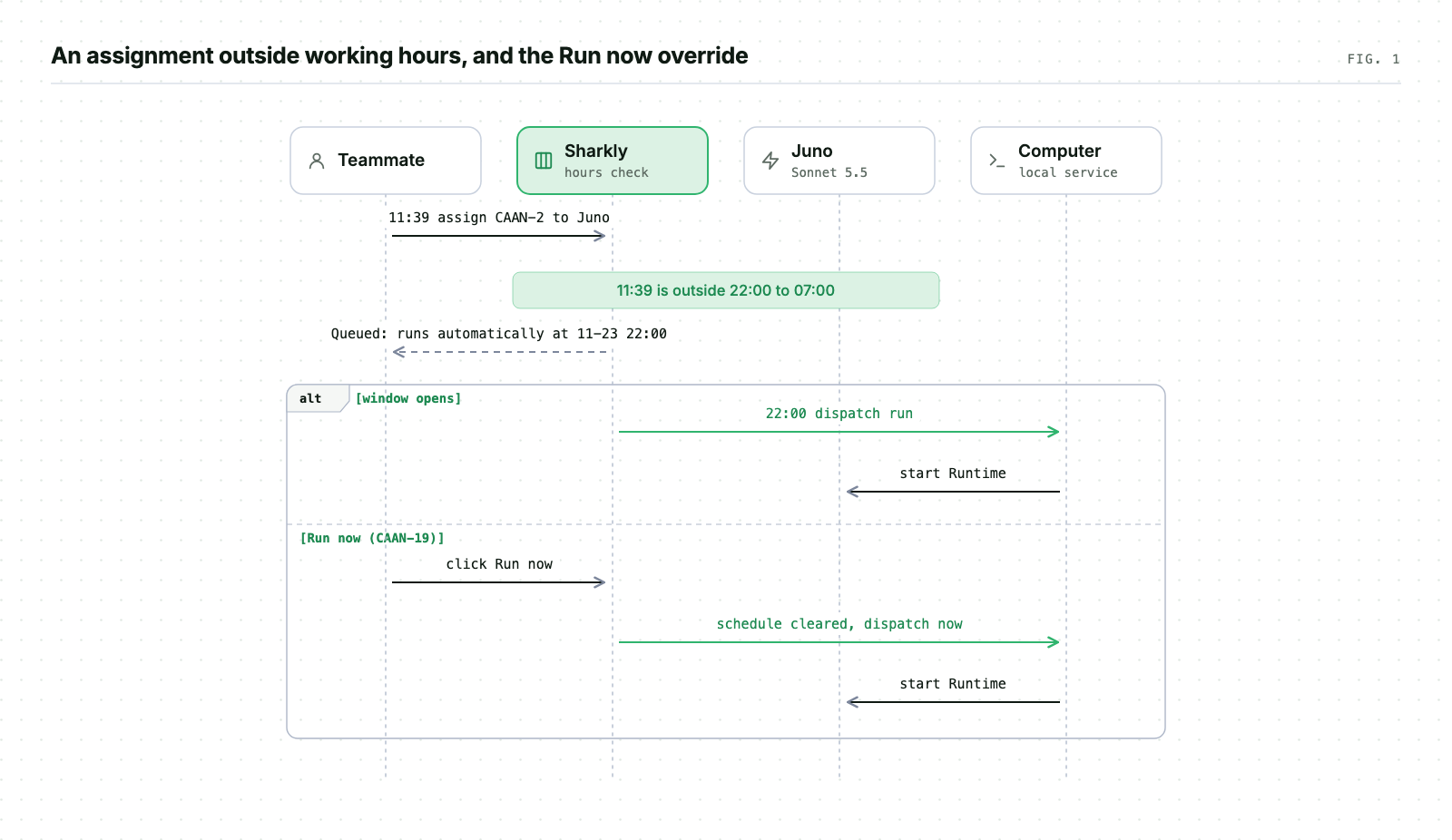
Inside a window, the run starts as usual, subject to the Agent’s concurrency. Outside it, Sharkly works out the next window start in the Agent’s time zone and stamps the run with it. An unchecked trigger ignores the schedule.
Set up Sharkly agent working hours, step by step
Step 1: Turn on Working hours
Go to All Agents, click the Agent, then Settings, and expand Computer, Runtime & Working directory. Scroll to the Working hours module and flip its switch. It’s off by default.
The first time you switch it on, Sharkly fills in an off-peak week: Monday to Friday 00:00 to 08:00 and 20:00 to 24:00, Saturday and Sunday all day. Reset to off-peak defaults brings that back at any time.
Step 2: Set your own window
Juno’s work suits a tighter night. Each weekday has two range boxes; we changed the first range’s end from 08:00 to 07:00 and the second range’s start from 20:00 to 22:00, five times. Weekends stayed all day. Changes save as you leave each field.
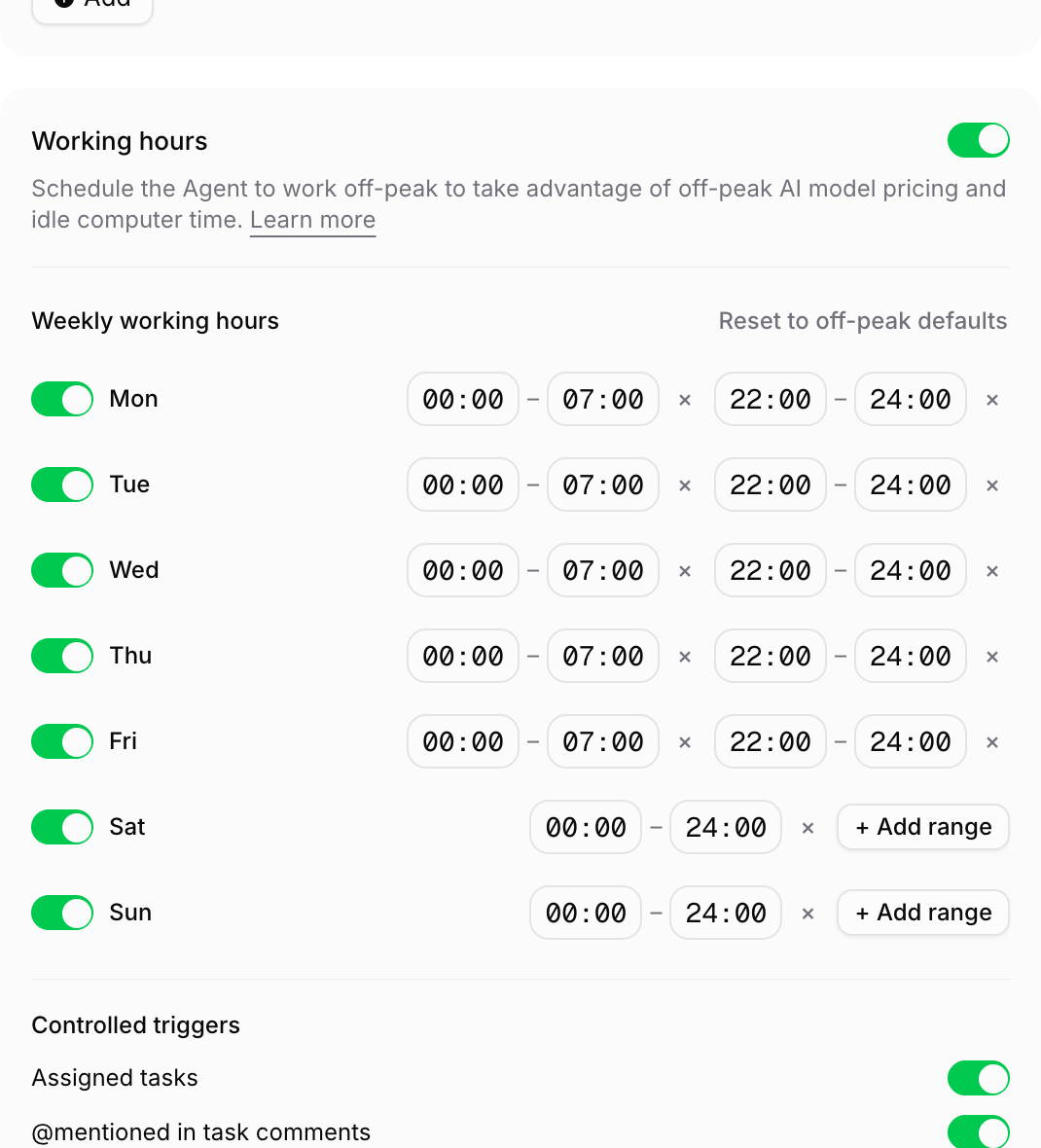
Look at the weekday rows: two ranges each, written as HH:mm, with 24:00 marking the end of the day. Each day takes at most two ranges.
A night that crosses midnight is two ranges: 22:00 to 24:00 and 00:00 to 07:00 on the next day. The schedule saved in the browser’s time zone, Asia/Shanghai, which is UTC+8 like our office. The zone uses IANA names, so a distributed team should pick one on purpose.
Step 3: Choose the controlled triggers
Below the week, Controlled triggers holds three switches. We left Assigned tasks and @mentioned in task comments on and Direct chat off. Assignments wait; a teammate can still ask Juno a quick question in chat during the day.
Step 4: Assign a Task during the day
At 11:39 we assigned CAAN-2 to Juno with a comment scoping the night’s work: the design note only, plus a ranked list of receipt formats, no code. Nothing ran. The Properties panel showed Juno with a start time chip, and the run sat in Queued.
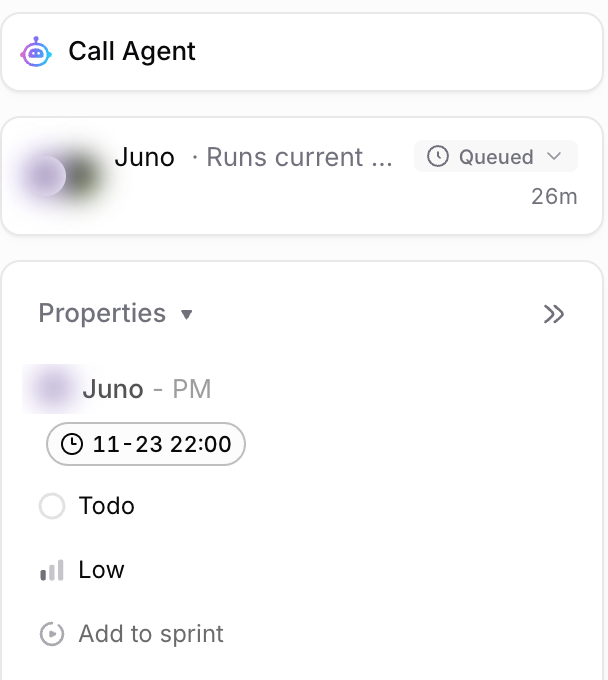
The chip under Juno’s name is the scheduled start: 11-23 22:00, the next window opening.
Open the Task’s conversation with Juno and the banner says why it’s waiting.
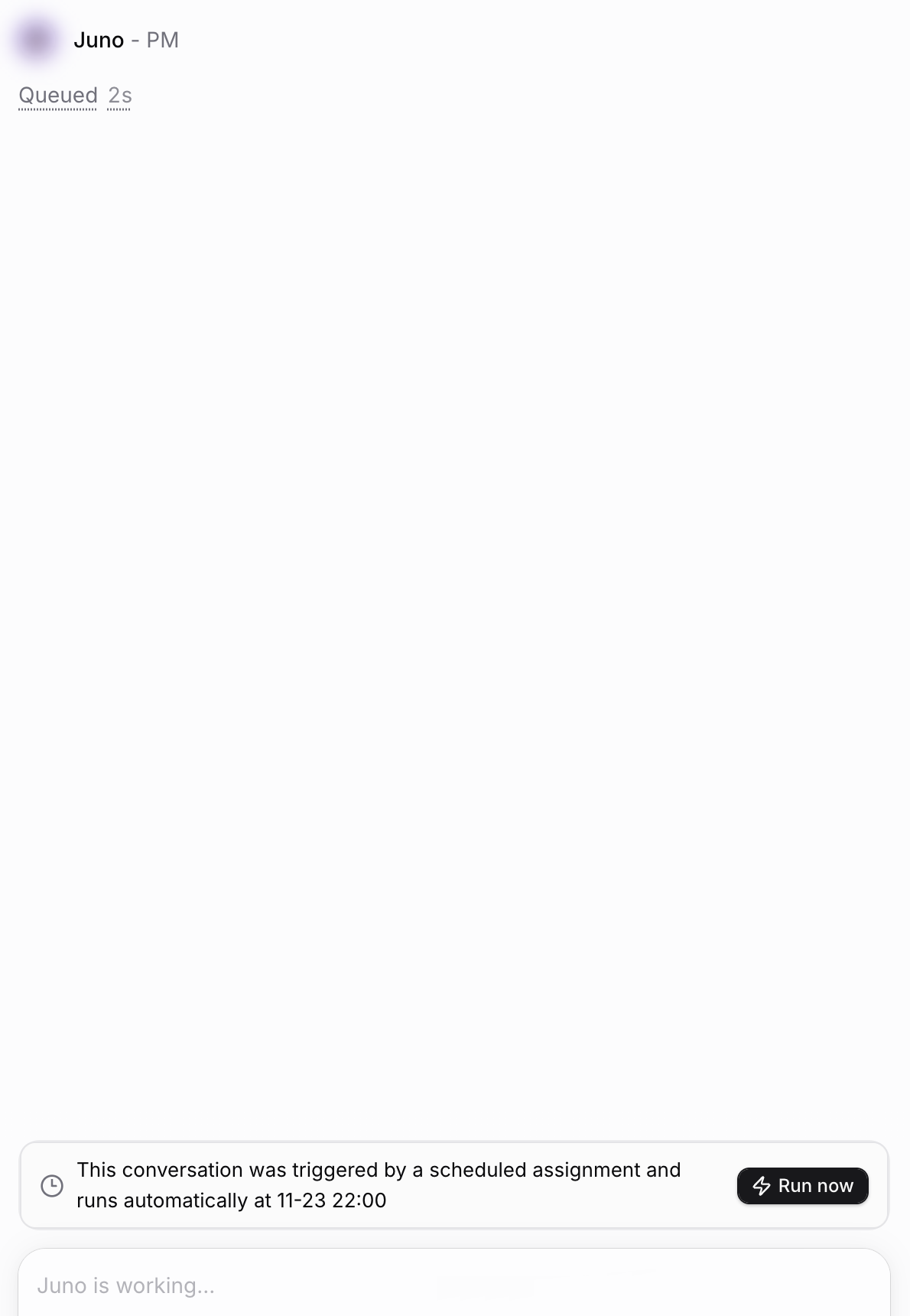
The banner sits right above the message box: “This conversation was triggered by a scheduled assignment and runs automatically at 11-23 22:00.”
Step 5: Use Run now for the Task that can’t wait
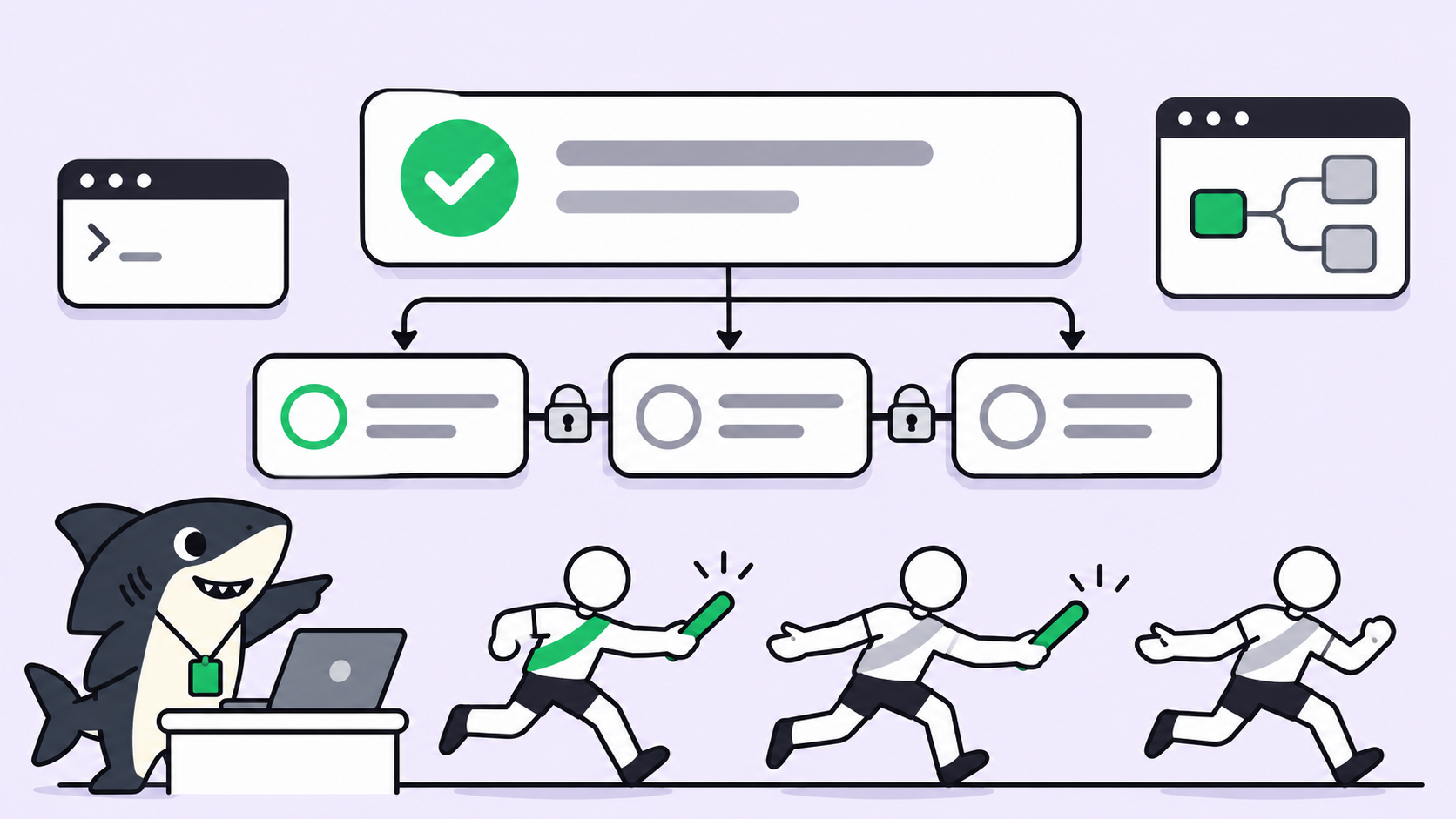
Then a request came in that couldn’t wait: a user’s Audible plan renews tomorrow morning. We filed CAAN-19, “Request: add Audible (US, plan renews tomorrow)”, at high priority and assigned it to Juno. It queued for 22:00 too. Priority doesn’t skip the schedule.
We clicked Run now on its banner. A toast confirmed the schedule was cleared, and Juno started within seconds. CAAN-2 stayed queued for 22:00, and Juno’s schedule didn’t change. Run now applies to one run only.
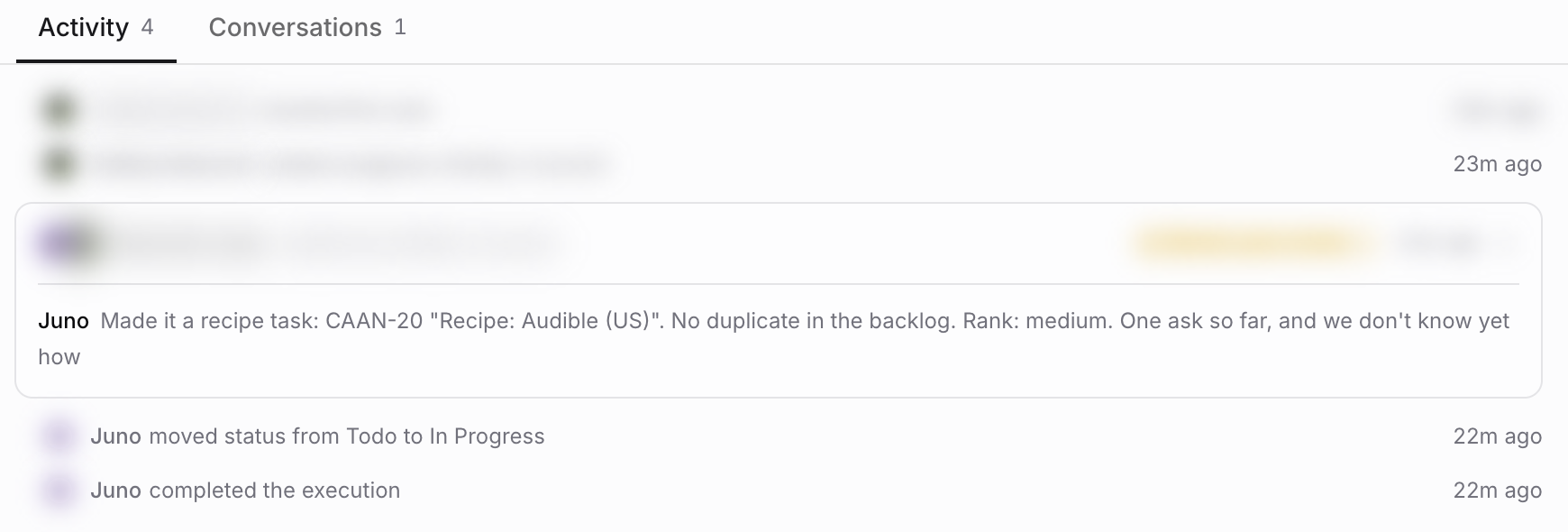
The activity feed tells the story: Juno moved CAAN-19 to In Progress, filed CAAN-20, and completed the run.
Step 6: Give a variant the schedule, then override one day
Agent variants inherit working hours from the original. Hex, our recipe Agent on Codex, has a variant called Hex (Claude Code). We turned Working hours on for Hex, which filled in the default off-peak week. On the variant, the module read Inherited with the same schedule.
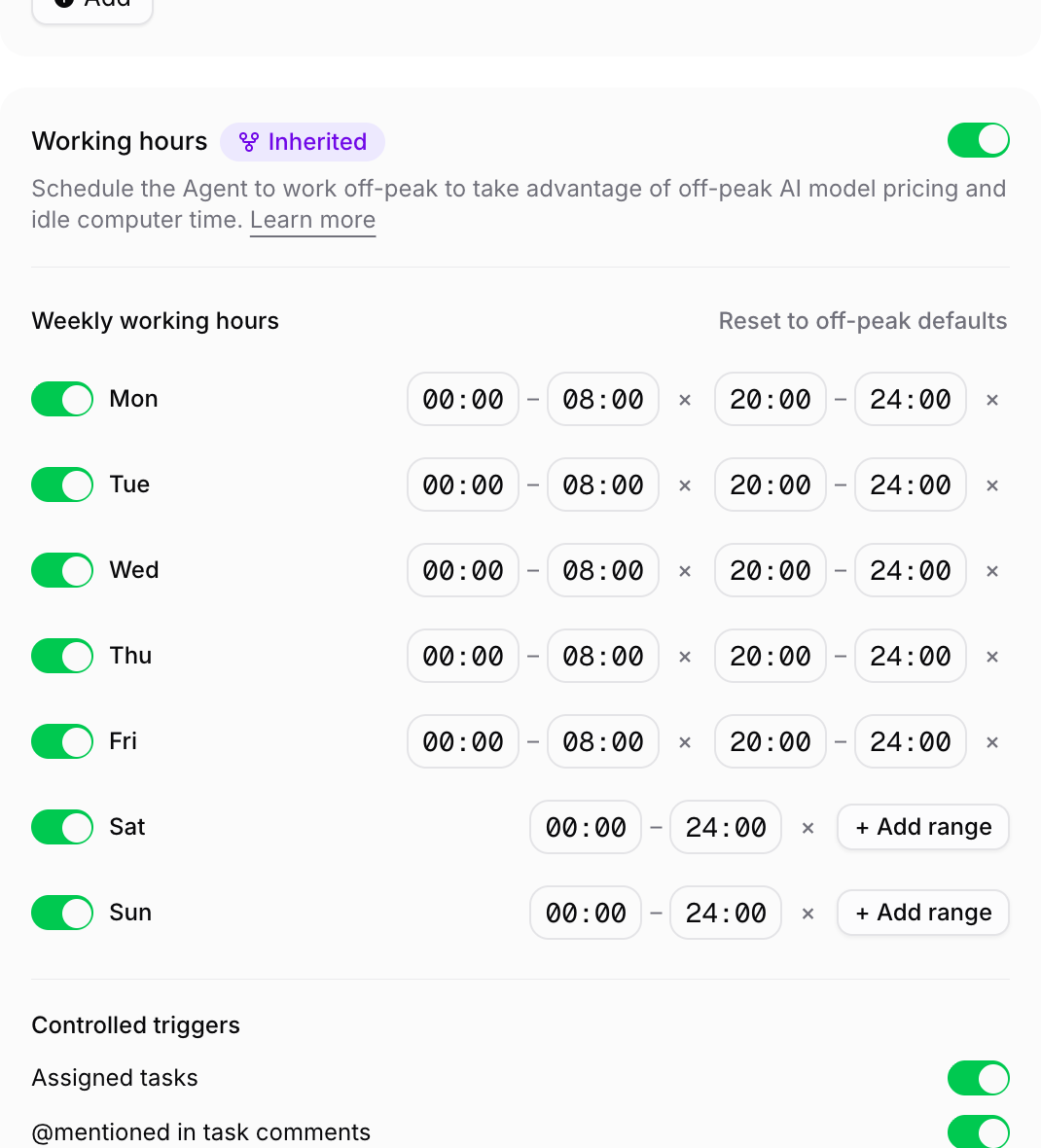
The purple Inherited badge means any edit on Hex flows to the variant live.
Next we turned Sunday off on the variant. The badge flipped to Overridden with a Reset to inherit link, and Sunday now shows + Add range.
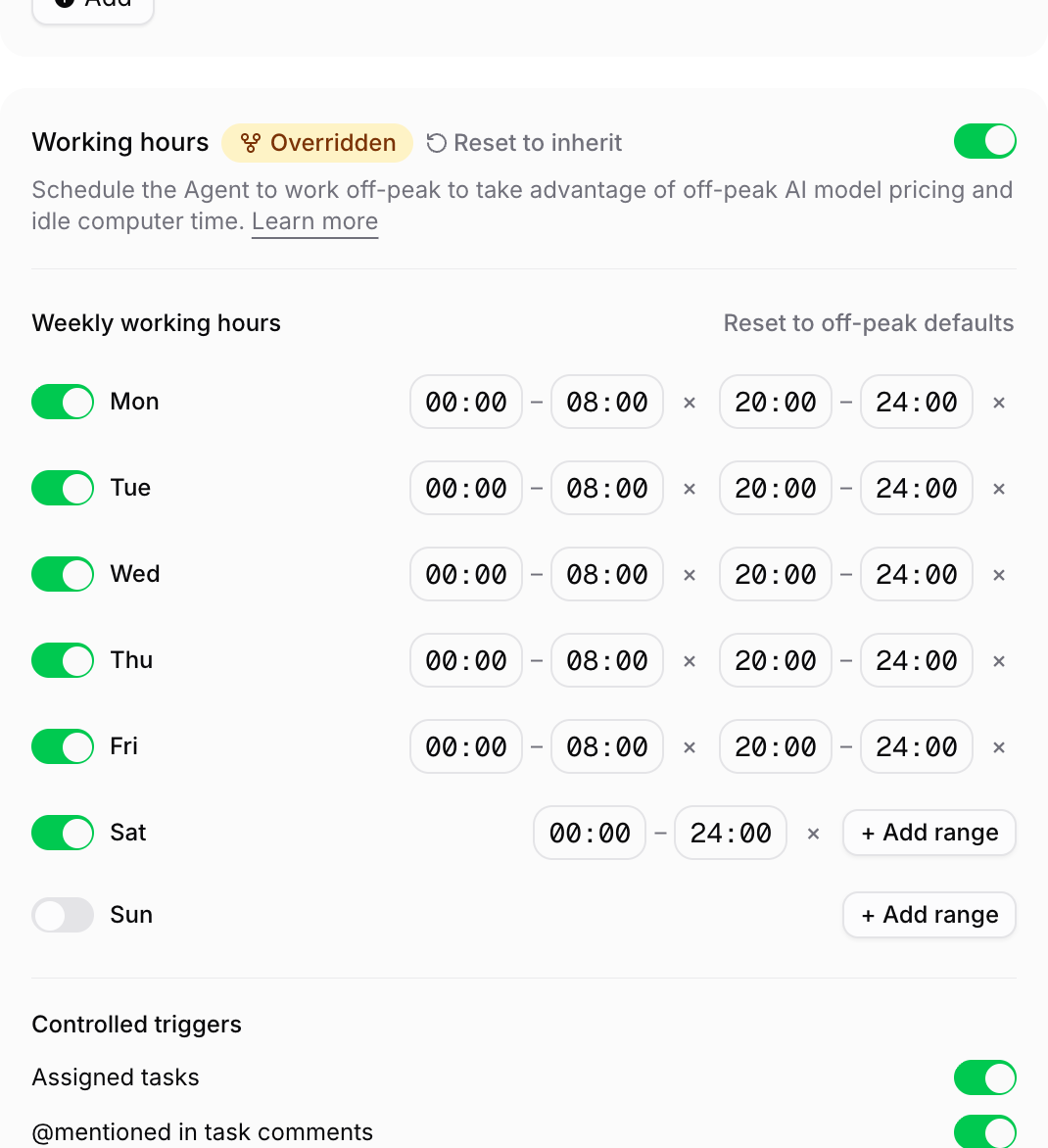
From here, changes to Hex’s schedule no longer reach the variant until you reset it.
The real result
Juno’s run on CAAN-19 took 45 seconds. It turned the Audible request into a recipe task, CAAN-20 “Recipe: Audible (US)”, ranked it medium because it was one ask so far, and listed what’s still unknown: the cancel path, the screens in order, any retention offer. It also said the recipe couldn’t be ready before the renewal, so the requester should cancel by hand, and set the conversation to review.
CAAN-2 waits for 22:00, and the daytime window stayed free for interactive work.
What went wrong for us
- The banner isn’t at the top. The help page says the scheduled banner appears at the top of the Task conversation. In the app on 2026-11-23, it sat at the bottom, above the message box, with different wording.
- High priority still waited. CAAN-19 was a high-priority Task and queued anyway. If something is urgent, click Run now or assign it to an Agent without working hours.
- Overriding working hours overrides more. On the variant, changing Sunday also flipped Max run duration and Queue timeout to Overridden. They share one setting group.
- Reset to inherit reset more, too. Before our Sunday edit, we clicked Reset to inherit on the variant’s working hours. It also put the variant’s model back to Hex’s Codex model, and we had to pick Opus 5.5 again. Check the model row after any reset.
- The message box says “Juno is working…” while the run is queued. Trust the banner and the Queued status instead.
Variations: two other teams
- A team on a shared Mac Studio. Daytime runs compete with people for the same Computer. Put the dependency-bump and test-coverage Agents on the default off-peak week and leave the review Agent unscheduled.
- A team split between Berlin and San Francisco. Pick one time zone for the schedule, say
Europe/Berlin, and set a window that falls outside both offices’ hours. A 07:00 to 09:00 Berlin window lands before Berlin starts and after San Francisco’s evening.
Recap checklist
- [ ] Working hours on only for Agents whose work can wait.
- [ ] Windows set in the right time zone, at most two per day.
- [ ] Direct chat off unless chats should queue too.
- [ ] Teammates know where Run now is.
- [ ] Variants checked for Inherited or Overridden.
- [ ] Model row checked after any Reset to inherit.
- [ ] Computer awake during the windows.
FAQ
Will a running Task stop when the window ends?
No. Working hours only decides when a new run starts. A run that starts at 06:55 finishes even if it goes past 07:00.
Does waiting for the window count against Queue timeout?
No. A scheduled run waits for its start time first, then normal Queue timeout and concurrency apply. Queue timeout defaults to 24 hours, per the Agents page.
What if the Computer is asleep overnight?
The run stays queued and starts when the Computer reconnects. Keep the Computer on and stop it from sleeping during your windows; on a Mac, caffeinate or the Energy settings handle that.
Does Run now change the Agent’s schedule?
No. It starts one queued run. Everything else assigned to that Agent keeps its scheduled start.
What happens if I set a later start time when assigning?
Sharkly keeps your later time. If that time falls outside working hours, it moves to the next window. See Agent task execution.
Do direct chats queue too?
Only if you turn on Direct chat under Controlled triggers. Then the queued tray shows the scheduled start.
Next step
Pick one Agent whose work is slow and rarely urgent, turn on Working hours, and assign it one Task before lunch. Check the banner, then read the result in the morning. For the settings next door, see the working directory tutorial, the Agents explainer and why cheap models can cost more. Background on why off-peak hours exist is on peak demand.