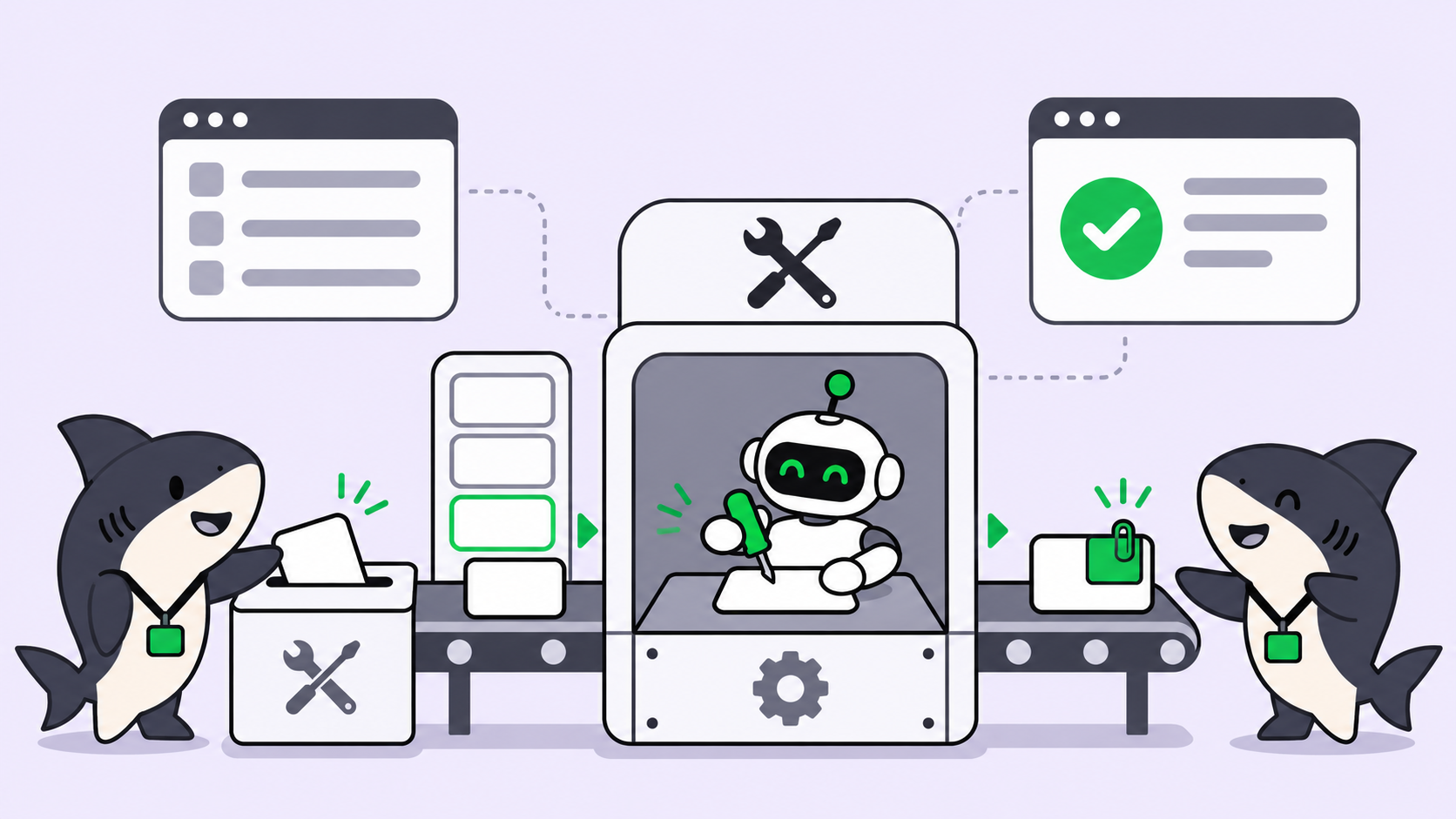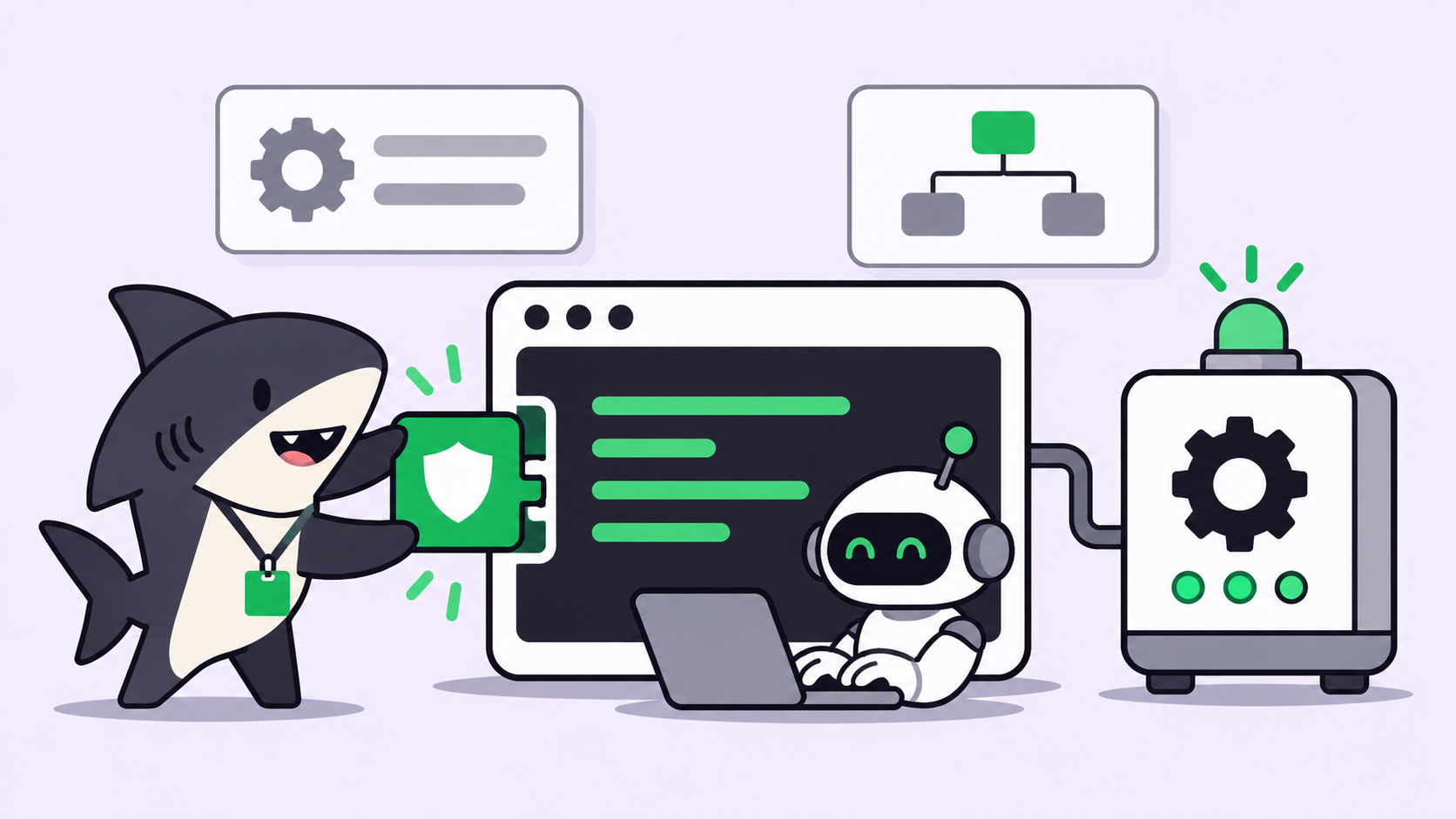
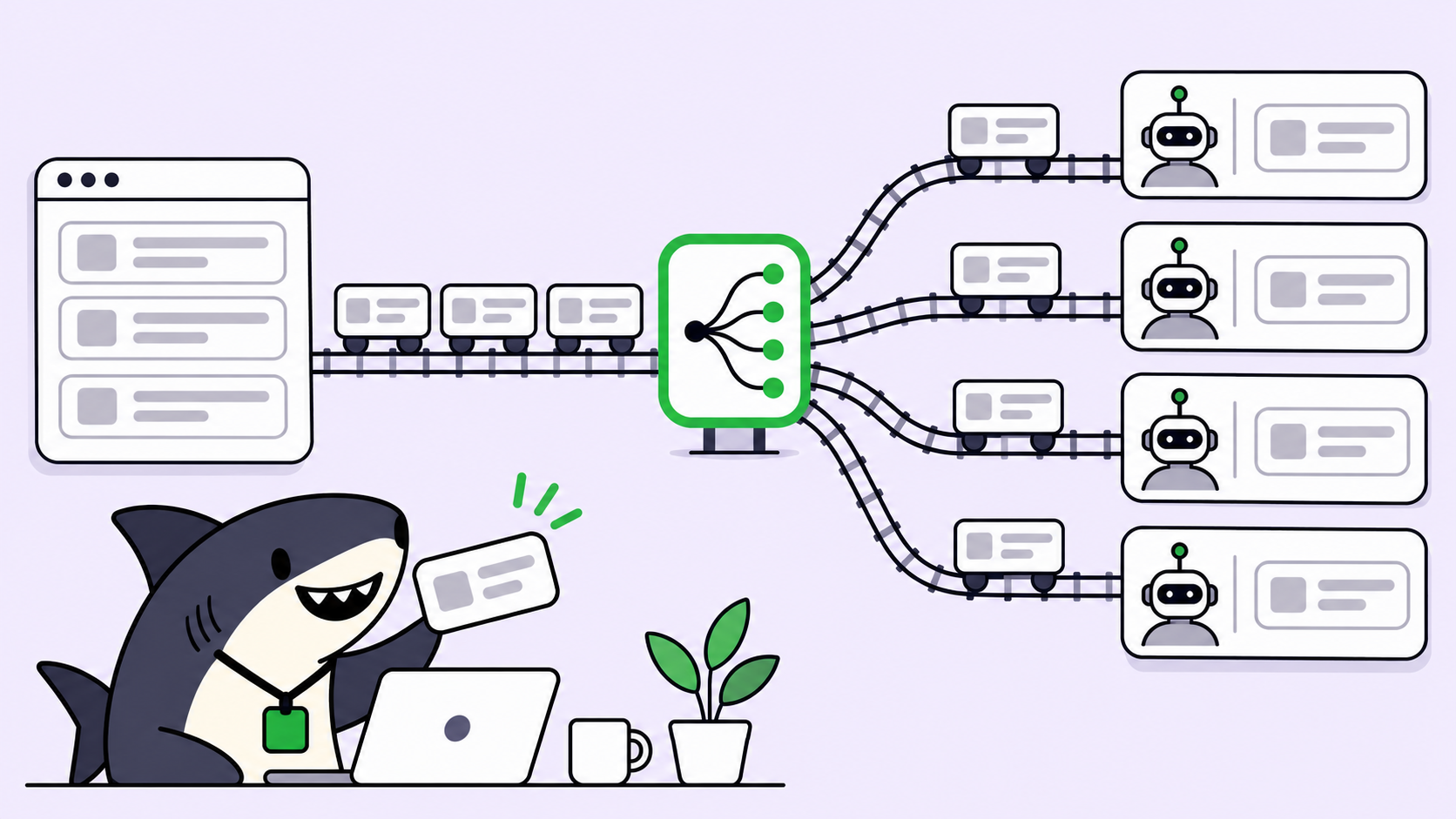
TL;DR: A Sharkly automation workflow is a canvas of blocks that runs when something happens in a Space. This one fires on every new Request task, checks the title with a Condition block, and sends each request down one of four branches: questions to a support agent, bugs to the Inbox, recipe requests to a PM agent, and anything else to a person. The Classifier block can do the sorting with a model, but it needs your own provider key.
The job, and what you end with
Cancel Anything is a small team building a subscription-cancelling CLI. User requests arrive as Request tasks, and they’re a mix of three things: “add this company”, “this recipe broke” and plain questions. Sorting them by hand every morning is the kind of work a Sharkly automation workflow should do.
By the end you’ll have a deployed workflow that types, prioritizes and routes every new Request, three real Requests it routed on 2026-11-24, and a way to see which branch any task took. If you’re new to Sharkly, it’s free to start.
Before you start
You need four things:
- A Space with a Request task type plus the types you route into. Ours,
CAAN, has Build, Recipe, Bug and Request. - A Computer that’s online, so agent runs have somewhere to execute.
- Agents that allow workflow calls. Each agent has a switch for being invoked by a workflow, on by default. We used Echo (support) and Juno (PM), both on Claude Code with Sonnet 5.5.
- Admin access to the Space, so you can deploy.
How the intake workflow routes a Request
A workflow and an automation are different tools. The Automations page describes an automation as one rule that starts one agent. A workflow chains several blocks, so one event can change fields, notify people and call an agent in order.
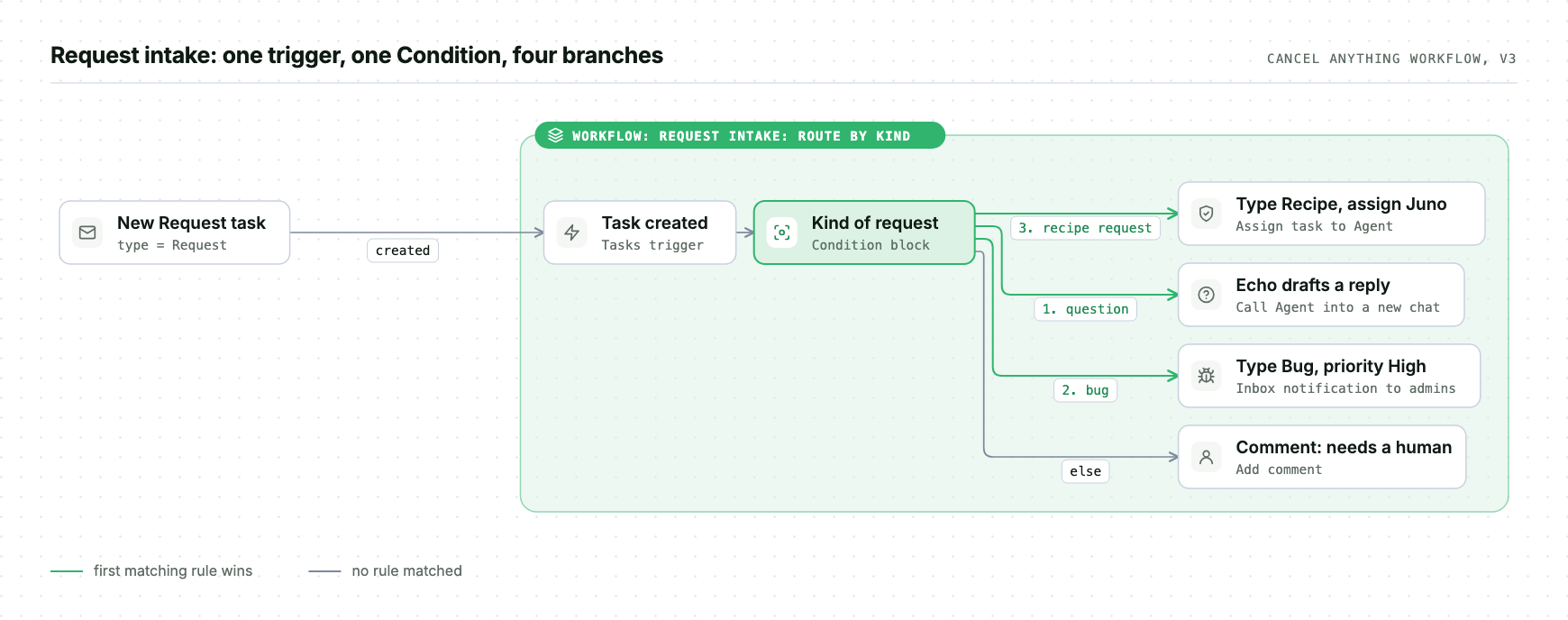
The Condition block checks its rules top to bottom and the first match wins. Order matters, and you’ll see why in the debugging section.
Step 1: Create the workflow
In the sidebar, open your Space and click Workflow. The page has four tabs: Workflows, Skills, Variables and Runs. Click New from template, open the Task automation rules tab, and pick Assign new tasks of a type to an Agent. It gives you a Tasks trigger and one assign step to build on. We named ours “Request intake: route by kind”.
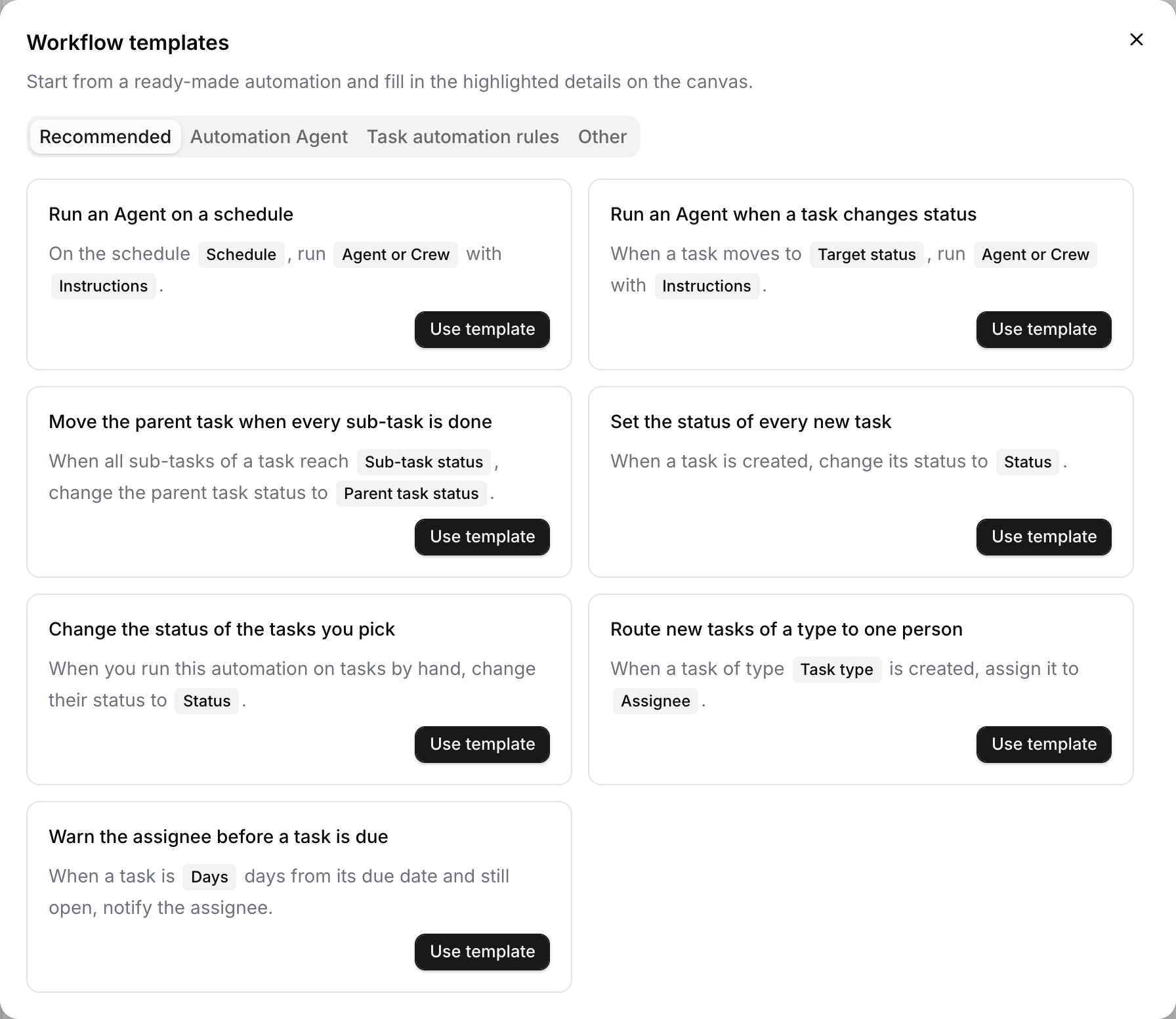
You can do the same from the CLI, which is how we saved and versioned the graph:
sharkly workflow template use task-rules.ai.delegate-on-created-by-type \
  --space CAAN --locale en --name "Request intake: route by kind"
Step 2: Set the trigger
Click the trigger block. Set Trigger Type to Task created, Task type to Request, and Run as to System. Leave priority empty so every new Request fires it.
Every later block can read the task through references such as <taskcreated.task.title> and <taskcreated.task.identifier>. The prefix is the trigger block’s name, lowercased, without spaces.
Step 3: Add the Condition block
Hover the trigger’s right edge, click +, and add a Condition block. We named it “Kind of request”. Each row is a JavaScript expression in advanced mode, and the block has one output per row:
// if: question
/\?\s*$/.test(<taskcreated.task.title>) || /^(how|can|does|do|is|are|what|why|will)\b/i.test(<taskcreated.task.title>)
// else if: bug
/(broke|broken|fail|error|crash|stuck|not working)/i.test(<taskcreated.task.title>)
// else if: recipe request
/^(request:\s*)?(add|support|please add)\b|recipe for/i.test(<taskcreated.task.title>)
// else: no match
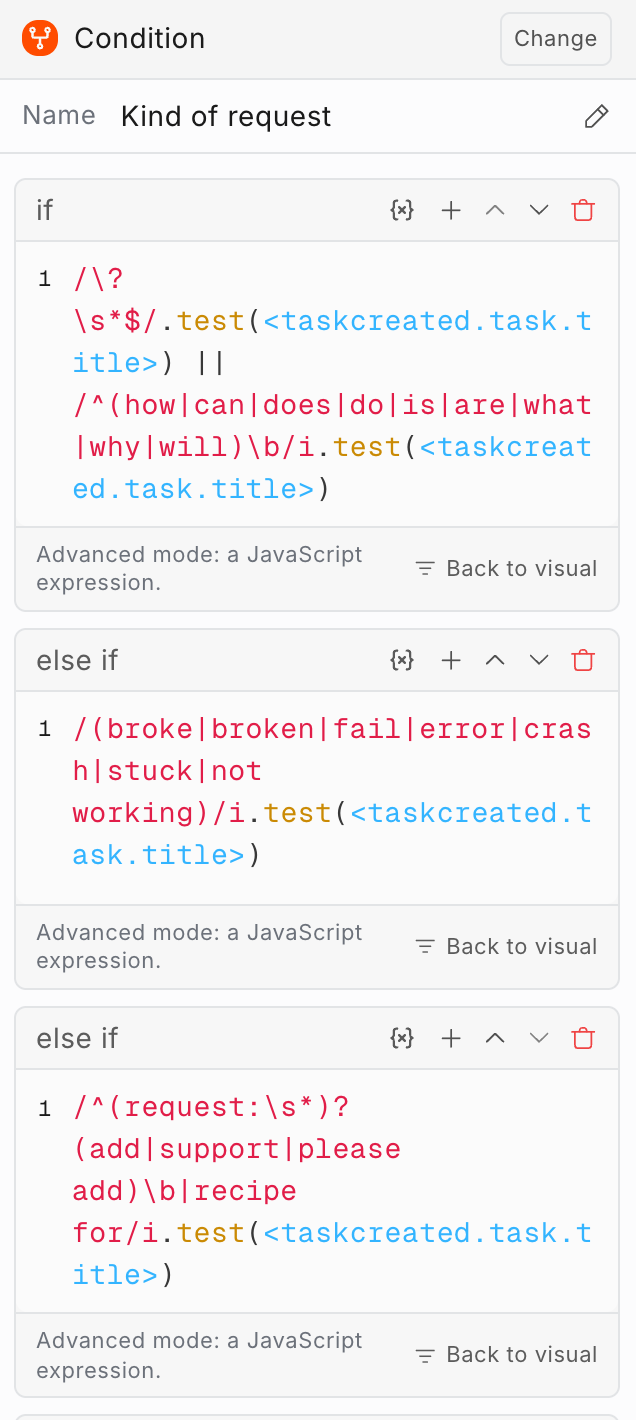
The patterns are ordinary regular expressions run with RegExp.prototype.test(). Read rules in the panel, not on the canvas: the canvas cuts each rule off after one line.
Step 4: Wire the four branches
Each branch is one or more Tasks blocks. Pick the operation first; the fields change with it.
- Question: Call Agent or Crew into a new chat, Executor Echo. The prompt asks for one comment with a draft reply under 120 words, using only what the README and spec say, and no field changes. Calling keeps the task’s assignee as it is.
- Bug: Set a task field (Task type, Bug), then Change task priority (High), then Send inbox notification to Space administrators. We don’t auto-assign Bolt, the engine agent: a user bug needs repro steps before an Opus run is worth it.
- Recipe request: Set a task field (Task type, Recipe), then Assign task to Agent or Crew, Executor Juno, with a prompt for a recipe brief and a move to Backlog. The workflow waits until Juno finishes.
- Else: Add comment saying a person will sort it.
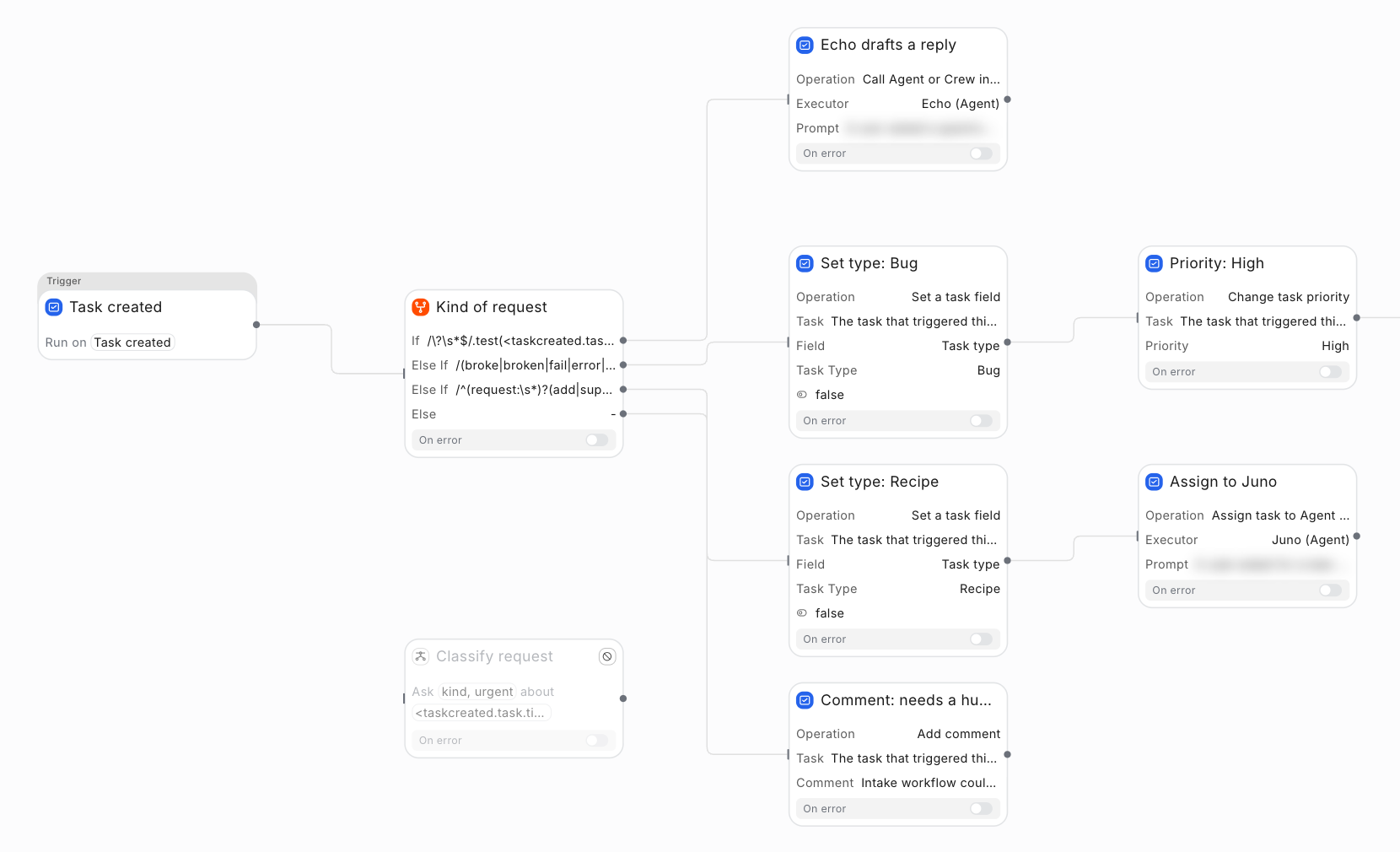
Slack isn’t connected in this org, so the bug branch notifies through the Inbox. If you’ve connected Slack under the Space’s connectors, the Slack block slots into the same place and posts to a channel instead.
Step 5: Where the Classifier block fits
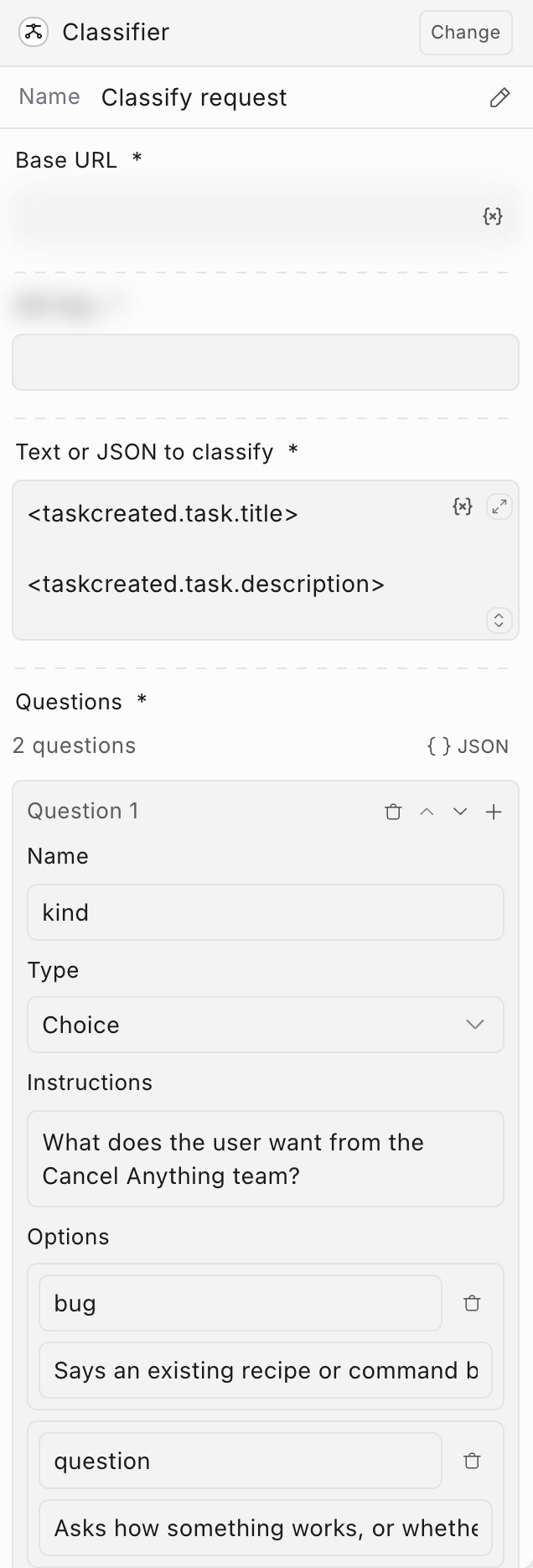
The Classifier block is a text classification step: it asks typed questions about a piece of text in one call: choice (pick one option), noul (yes or no) or score (a 2 to 10 level rubric). Answers come back as answers.<name>, so a Condition can branch on answers.kind.choice instead of keywords.
We set up the block with a kind choice question (bug, question, recipe_request) and an urgent yes-or-no question, fed by the task title and description. Then we disabled it, because it requires Base URL and API Key for an outside classification provider. No vendor is built in, each run spends that provider’s prepaid credits, and a failed run isn’t retried. The Router block, the other model-based option, needs your own model key too.
Keyword rules add no provider cost, run in milliseconds and are easy to read. A classifier handles phrasing your patterns miss. Start with rules, and add the Classifier when misroutes cost you more than the provider does.
Step 6: Deploy and file real Requests
Click Deploy. The badge next to it changes from Draft to Published. We filed three real Requests:
| Task | Title | Branch | Result | Workflow time |
|---|---|---|---|---|
| CAAN-31 | Hulu recipe fails at the confirm step | bug | Type Bug, priority High, Inbox notification | 703 ms |
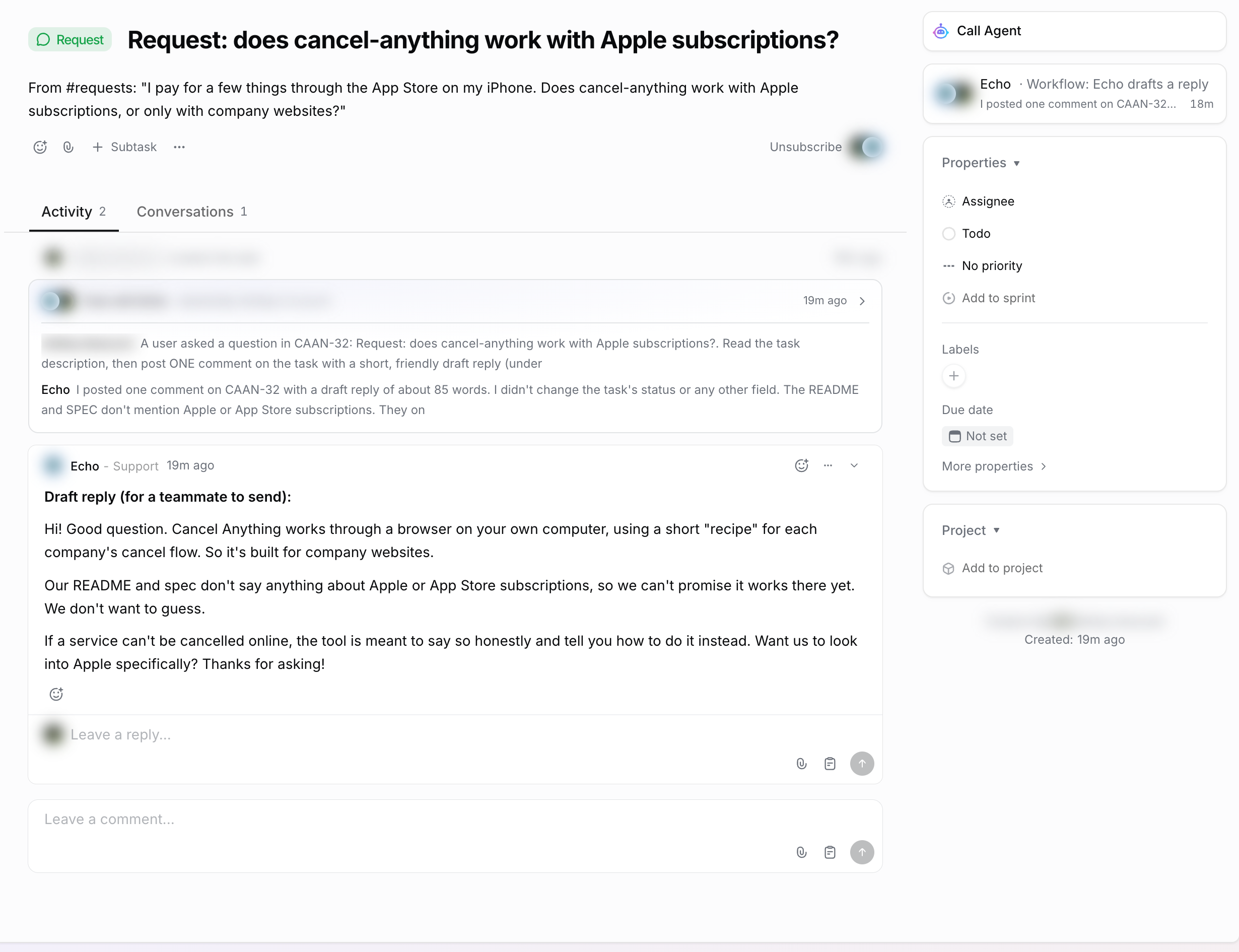
| CAAN-32 | does cancel-anything work with Apple subscriptions? | question | Echo posted a draft reply | 67 s |
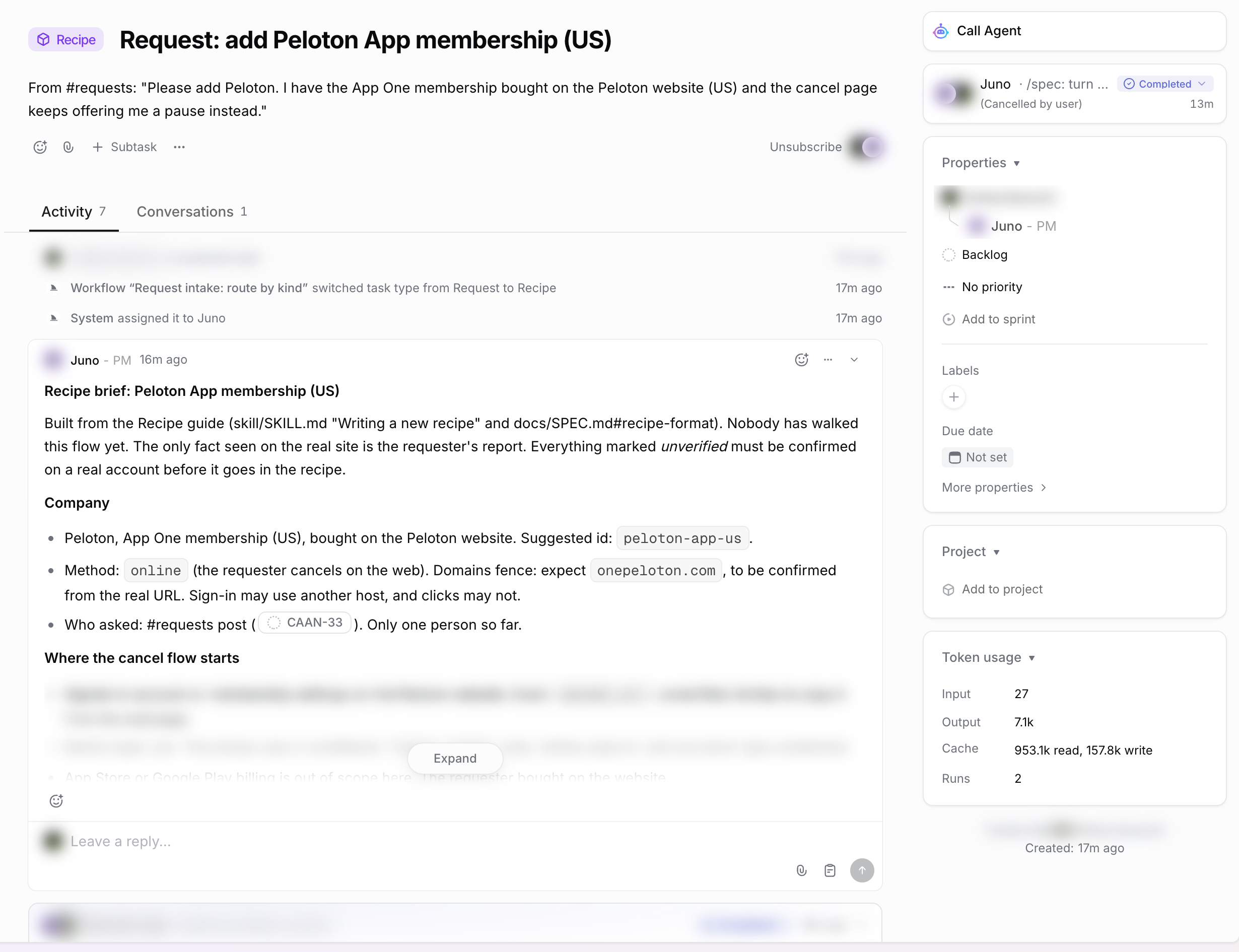
| CAAN-33 | add Peloton App membership (US) | recipe request | Type Recipe, Juno’s recipe brief, moved to Backlog | 2 min 10 s |
Echo’s reply was honest: the README and spec don’t mention App Store subscriptions, so it didn’t promise support.
On CAAN-33 the Activity feed reads “Workflow “Request intake: route by kind” switched task type from Request to Recipe”, then “System assigned it to Juno”. Juno’s brief names the company, the expected steps and every unverified point.
Step 7: See which branch a task took, and fix a misroute
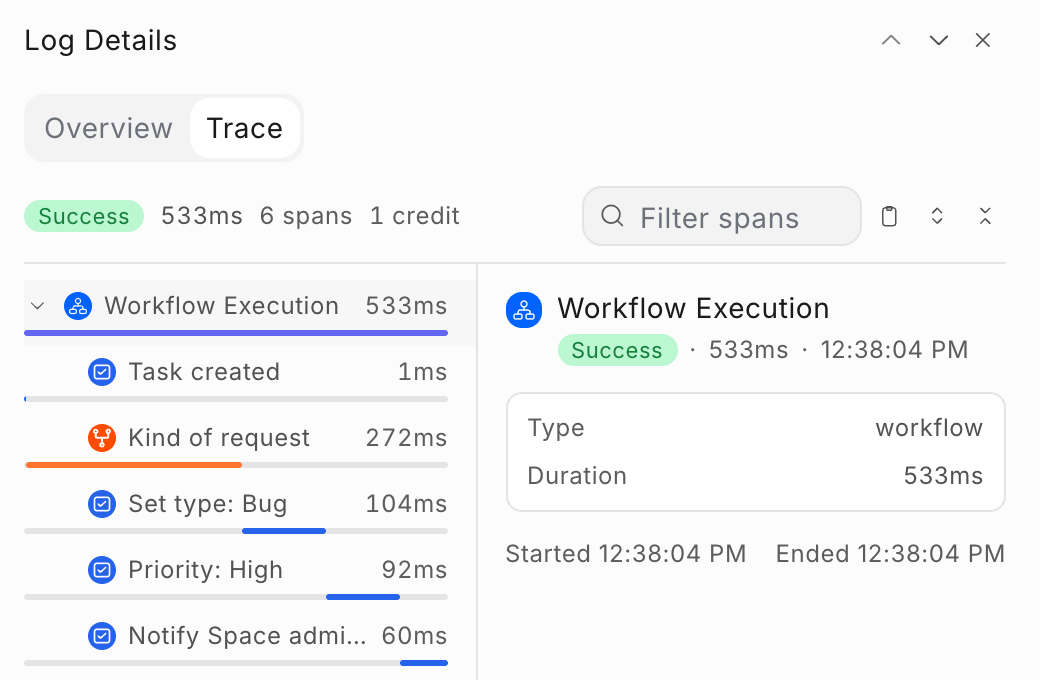
Open Workflow, then the Runs tab. Every execution is a row with date, status, cost, trigger and duration. Ours each showed 1 credit, which the panel explains as a base charge plus model and tool usage. Click a row and open Trace to see each block that ran.
We tested a fourth Request: “why does the Audible recipe fail on UK accounts?” It’s a question, but the trace showed Kind of request followed by Set type: Bug. The word “fail” matched the bug rule, which sat above the question rule.
The fix took two minutes. We moved the question rule to the top with the arrows on its row, and deployed again as version 3. Then we set CAAN-35 back to Request, priority medium, and commented that it was routed by hand. The workflow doesn’t undo its own changes, so fix the task yourself.
What went wrong for us
A comment trigger fired on an agent’s own words. Juno’s brief cited docs/SPEC.md. The Space already had a comment automation on the phrase /spec, and comment matching is a case-insensitive substring. It started a second Juno run, which filed a Recipe task (CAAN-34) before we cancelled it. Pick trigger phrases that can’t appear in file paths, and read the comment trigger rules before you add one.
Question marks beat keywords. Ordering rules by “most specific first” isn’t enough. Put the cheapest reliable signal first: a trailing “?” is more reliable than any verb.
The help page and the app use different labels. The help page mentions a Publish button; the app shows Deploy and a Published badge. Follow the app.
Variations
A platform team with an alerts Space. Trigger on Task created with type Incident, branch on a severity field instead of the title, and call an investigating agent only for high severity.
An agency with client feedback. Route by label instead of title: area/design to a person, area/copy to a writing agent, everything else to the account lead’s Inbox. Pair it with Triage rules so tasks are typed before the workflow sees them.
Recap checklist
- The trigger is Task created, filtered to one task type, run as System.
- Condition rules go cheapest-signal first, with an else branch that hands off to a person.
- Each branch sets the type first, then priority, then notifies or calls an agent.
- Agents that should be called have workflow invocation allowed.
- After deploy, file one real task per branch and check Runs and Trace.
- Add the Classifier only when you have a provider key and misroutes justify the cost.
Ready to build your own? Read Sharkly task types and workflows to set up the types you’ll route into, then open Workflow in your Space and start from a template. New to the product? Getting started with Sharkly covers Spaces, Computers and agents first.