
Quick answer: Sharkly Spaces are boundaries inside one organization. Each Space owns its task IDs, task types, Views, Sprints and automations, and a Private Space shows its tasks only to its members. Create one under All settings > Spaces > Create Space, put a variant of an existing agent in it, and move stray tasks in with Move to Space.
The job: Cancel Anything, a small team building a subscription-cancelling CLI, needed a place for security findings that the whole org shouldn’t read. You’ll end with a private Space, an agent that works inside it, a task moved in from the main board, and a clear picture of what retiring a Space does.
We did every step for real in Cancel Anything’s org on Sharkly. It already had three Spaces: the public engine Space CAAN, a public WEB Space for the landing page, and a private PART Space for a consumer-rights partner, set up in our guide to inviting members and guests. This post adds a fourth.
What a Space holds
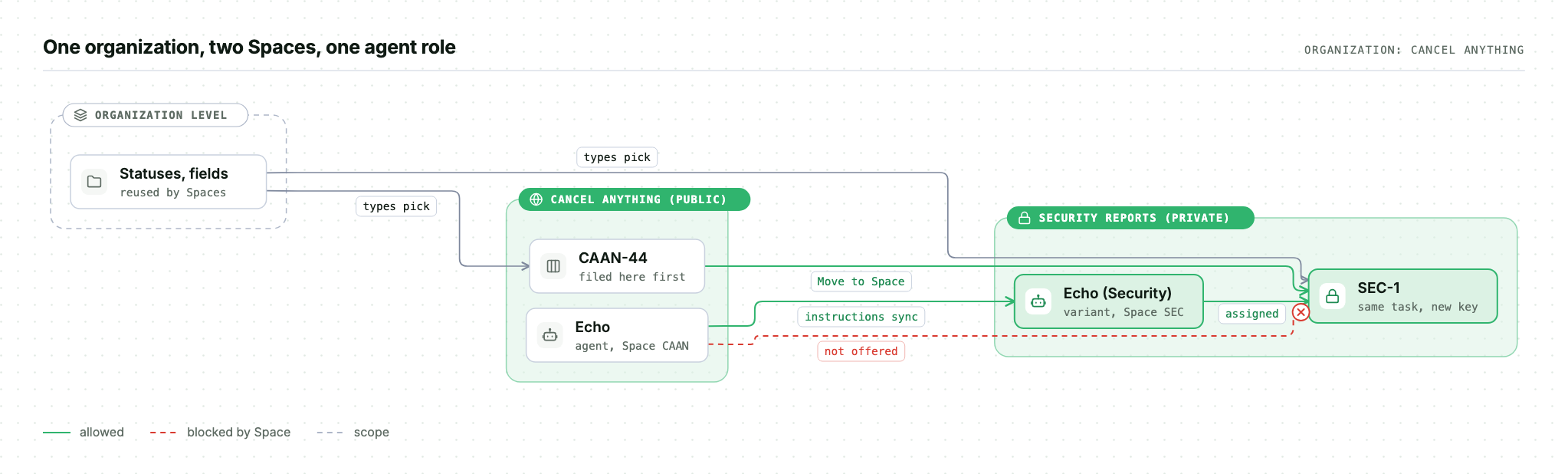
A Space is a continuing area of work, not a folder. The Spaces help page puts every task in exactly one Space, and the Space decides the key that task gets (SEC-1, CAAN-44).
| Lives in the Space | Lives at the organization |
|---|---|
| Task IDs and the identifier (2 to 7 letters or digits) | People and organization roles |
| Task types and each type’s workflow | The status catalog and custom fields |
| Space labels | Organization labels |
| Views, Sprints, Triage, automations | Projects (linked to one or more Spaces) |
| Space members and Space roles | Agents (each with one home Space) |
Statuses are the subtle row. You define them once for the organization, and each Space’s task types pick which ones they use. Two Spaces can share “In Progress” without sharing a board.
When should work get its own Space? The help page gives four reasons: different people need access, the task types differ, the work needs its own Sprints, Views or automations, or it’s a stable operating area. If none apply, a Project, label or saved View is the smaller tool. Security findings tick the first box on their own.
Before you start
- You’re an Owner or Admin of the organization.
- You know who needs to read the new Space. For us: one person, plus one agent.
- An agent already exists in another Space that can do the work. Ours is Echo, the support agent on Sonnet 5.5.
Step-by-step: set up Sharkly Spaces
Step 1: Decide the boundary
Write the Space’s purpose in one line before you click anything. Ours: “security findings stay here until they’re fixed.” That line decides access (Private), task types (Bug for confirmed issues, Request for reviews) and whether you need Triage (yes: reports arrive unsorted).
Step 2: Create the Space
Open All settings > Spaces and click Create Space. The dialog asks three questions in order.
- What kind of work do you do? We picked Software development. The purpose sets the starting types and makes Code development the default type for a first agent.
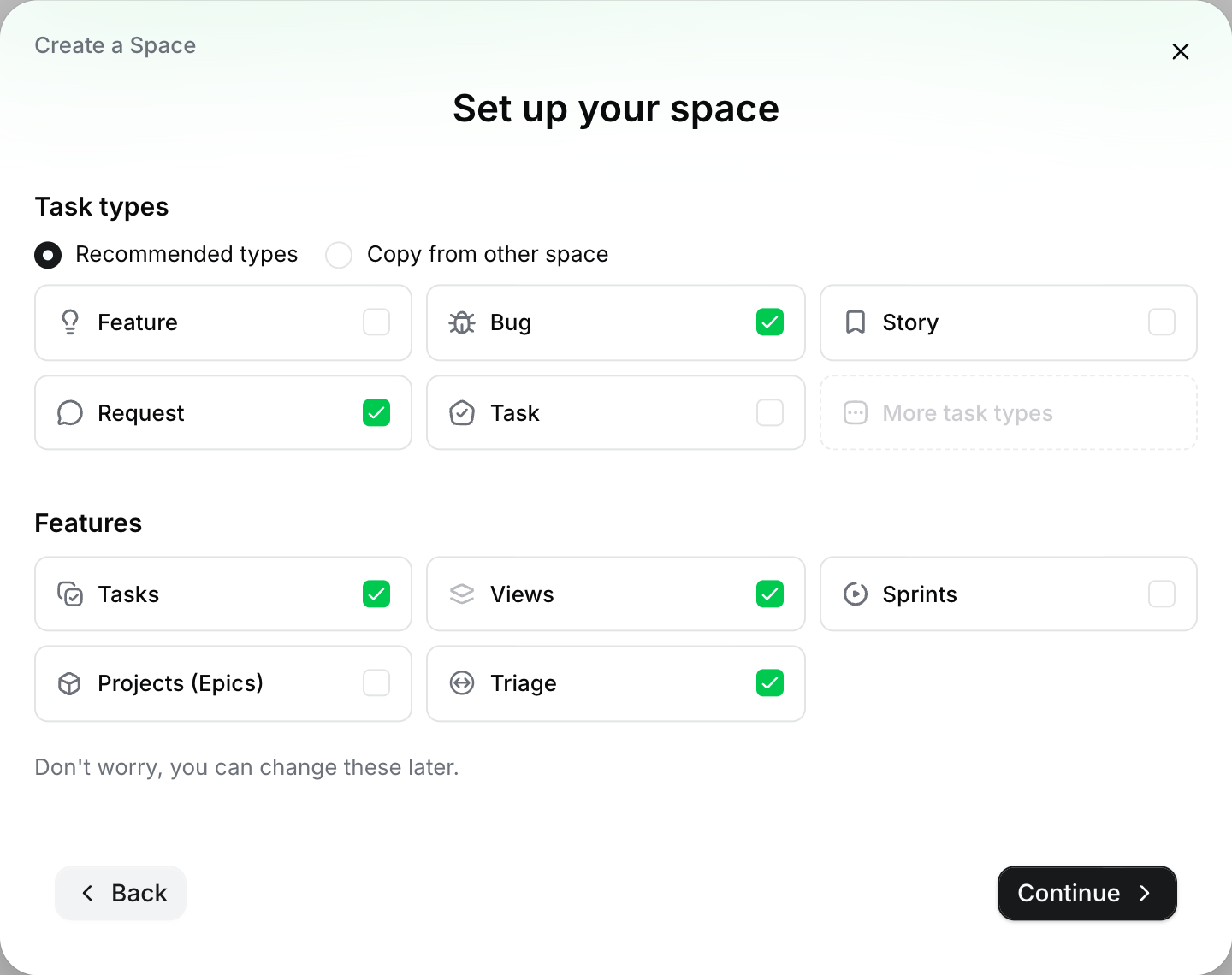
- Set up your space. Choose Recommended types or Copy from other space. We kept Bug, ticked Request, unticked Feature, and turned on Triage in the next group down.
- Name your Space. We typed Security reports, set the identifier to
SECand picked Private.
Click Save. Sharkly opens the empty SEC board, and the Space appears in the sidebar with a lock. Its settings page confirms what you chose:
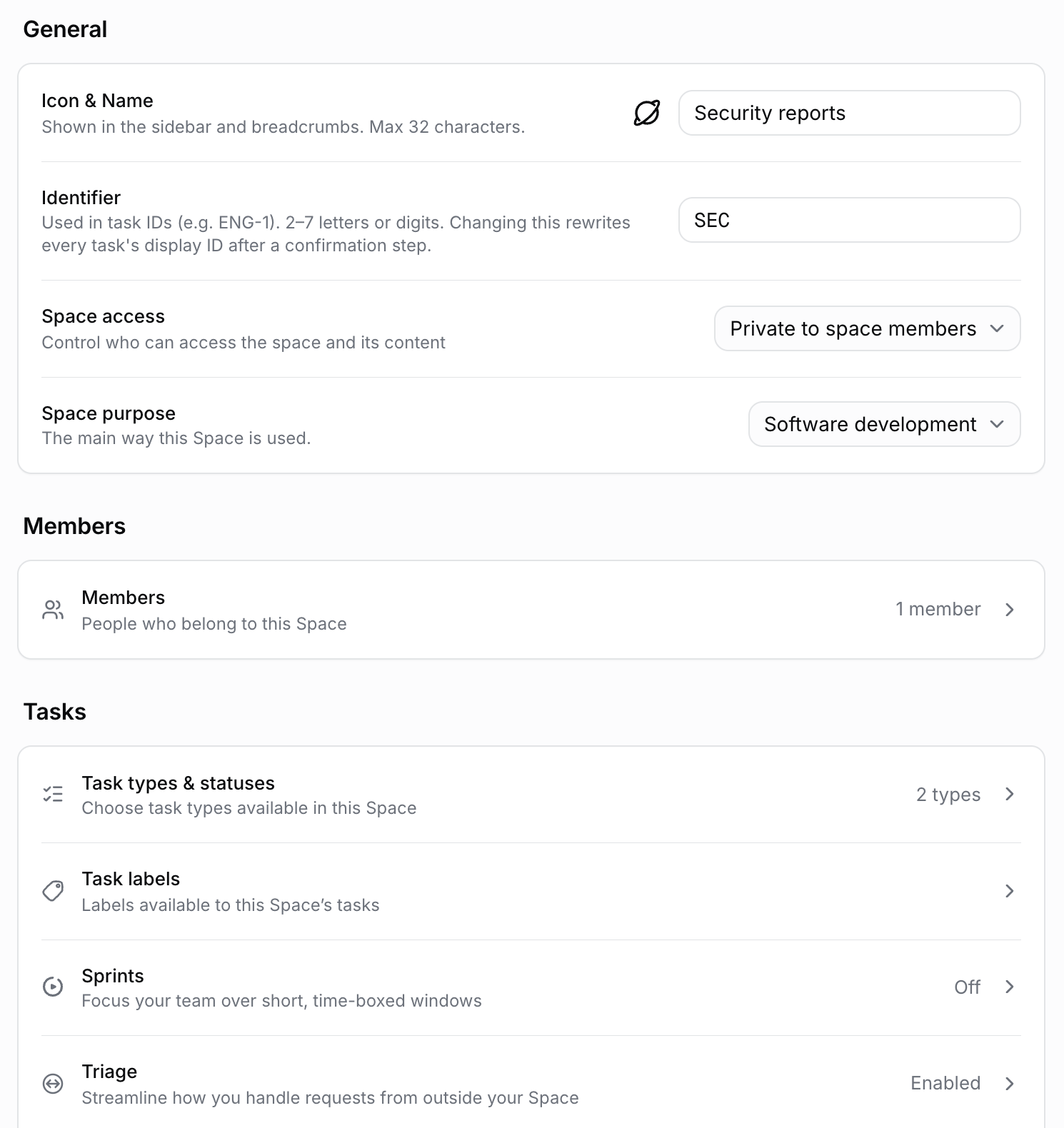
Everything here can change later. The identifier is the one to settle early: changing it rewrites every task’s display ID after a confirmation step, though old keys keep redirecting.
Step 3: Give the Space an agent
Here’s what surprised us first. We opened a task in SEC, clicked Assignee, and the Agents list said No Agents available. In Sharkly, each agent belongs to one Space, and Cancel Anything’s five agents all live in CAAN.
The fix is an agent variant: a linked copy that inherits the original’s instructions, model and Runtime live and overrides only what you change. Open All Agents, click ⋯ on Echo’s card, choose Create variant, and name it. We used Echo (Security).
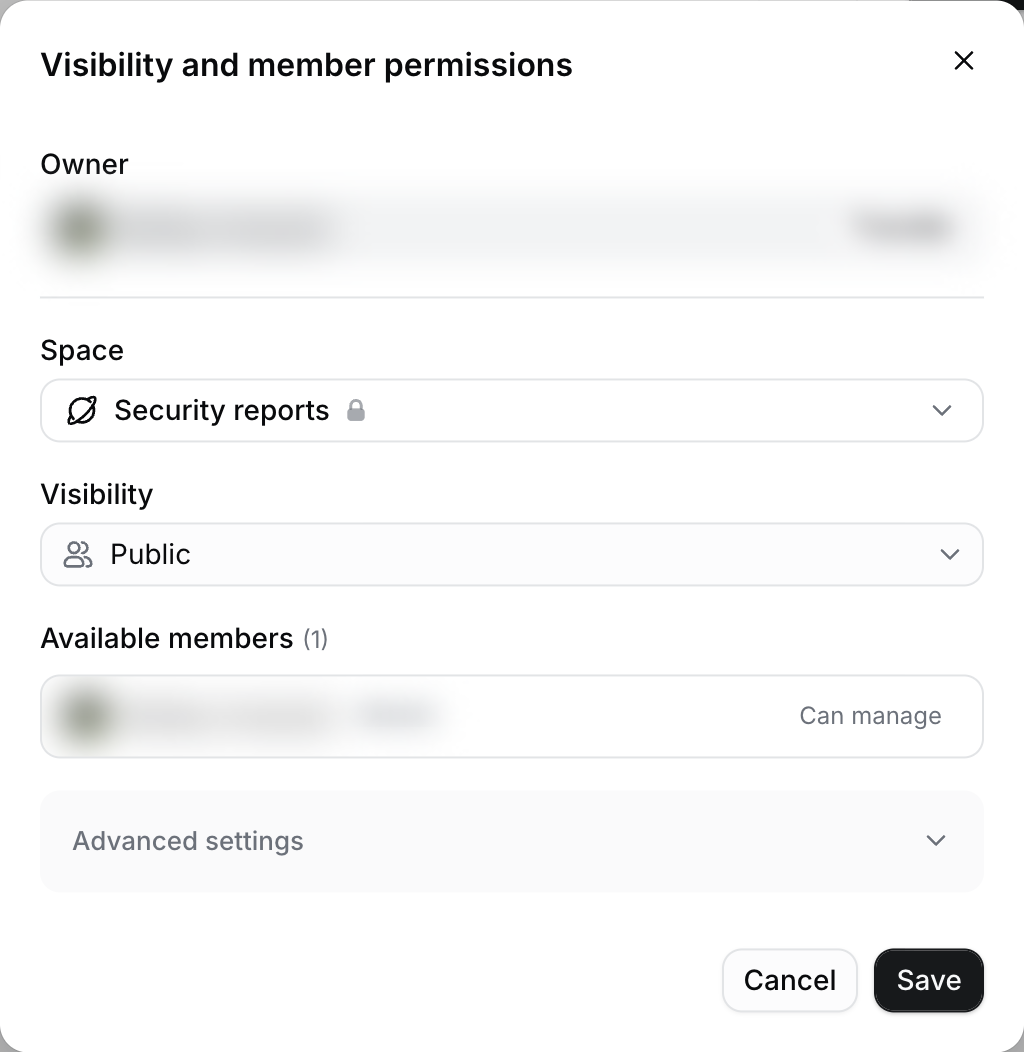
On the variant’s settings, click the visibility line under its name to open Visibility and member permissions. Change Space to Security reports and click Save. The picker’s footer asks “Need this Agent in more than one Space?”, which is the app pointing you at variants.
Back on the task, the picker now lists exactly one agent:
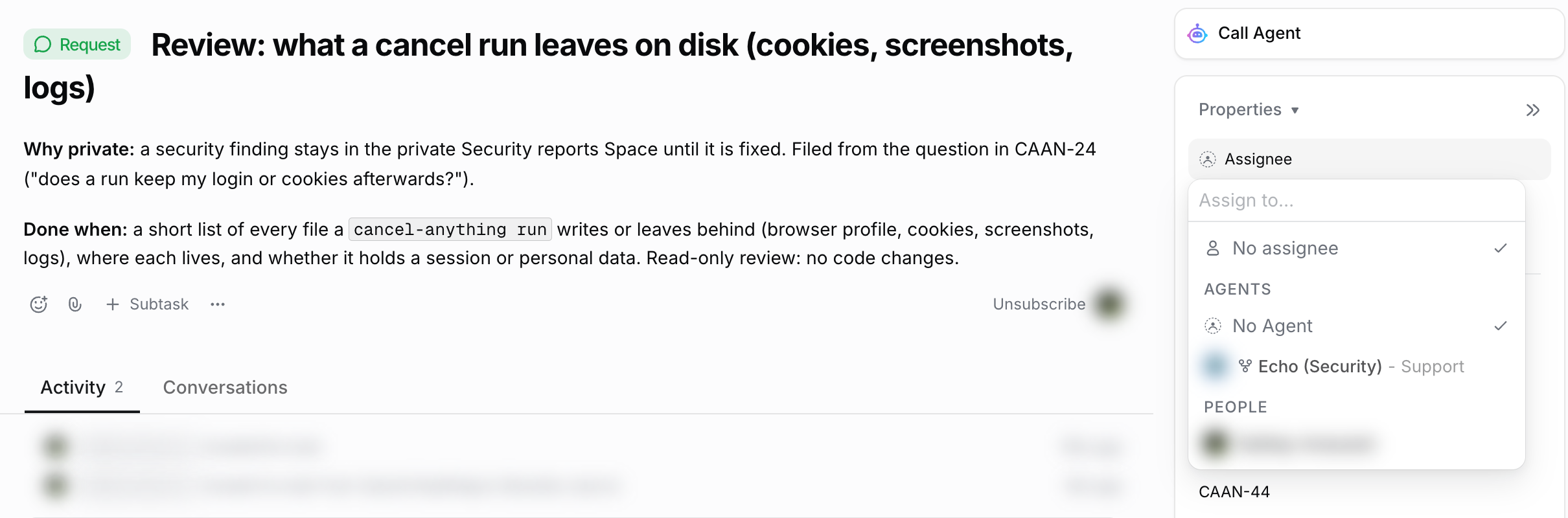
That’s the useful part of the boundary. Bolt and Hex, the code agents, can’t be handed a security task by accident, and any edit to Echo’s instructions still reaches the variant.
Step 4: Move a task in from another Space
Someone had already filed the review in the main board as CAAN-44. To move it, open the task, click ⋯ in the top-right corner, choose Move to Space and pick Security reports. Private Spaces carry a lock in that list.
Because the two Spaces have different task types, Sharkly asks you to map them first:
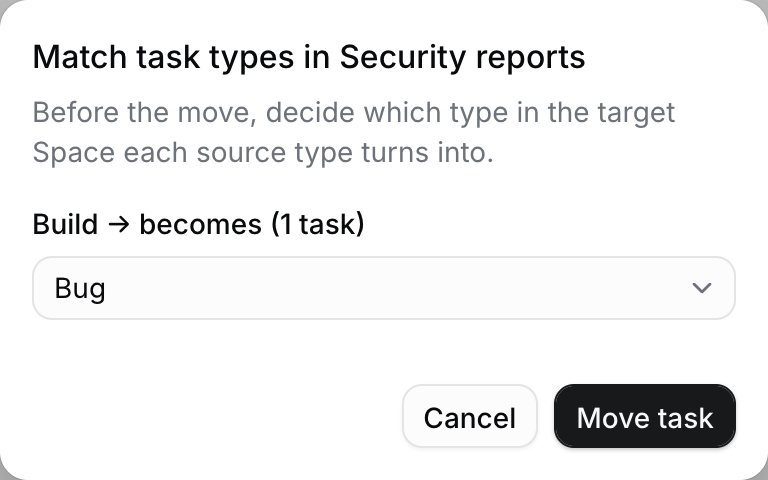
It suggested Bug. We picked Request, because a review isn’t a confirmed bug yet, and clicked Move task. The task became SEC-1, its Former IDs field kept CAAN-44, the activity log recorded the move, and the old CAAN-44 link now redirects to SEC-1. Then we assigned it to Echo (Security).
Step 5: Know what retire and delete do
Every Space’s settings end with a Danger zone holding three actions:
- Retire Space makes the Space read-only. You restore it from the Retired filter on the Spaces list.
- Clone Space copies the Space into another organization and leaves the source unchanged.
- Delete Space stays greyed out until the Space is retired. Only a retired Space can be deleted permanently.
Retiring asks what happens to unfinished tasks. We opened the dialog on WEB, which has two open tasks, and stopped there:
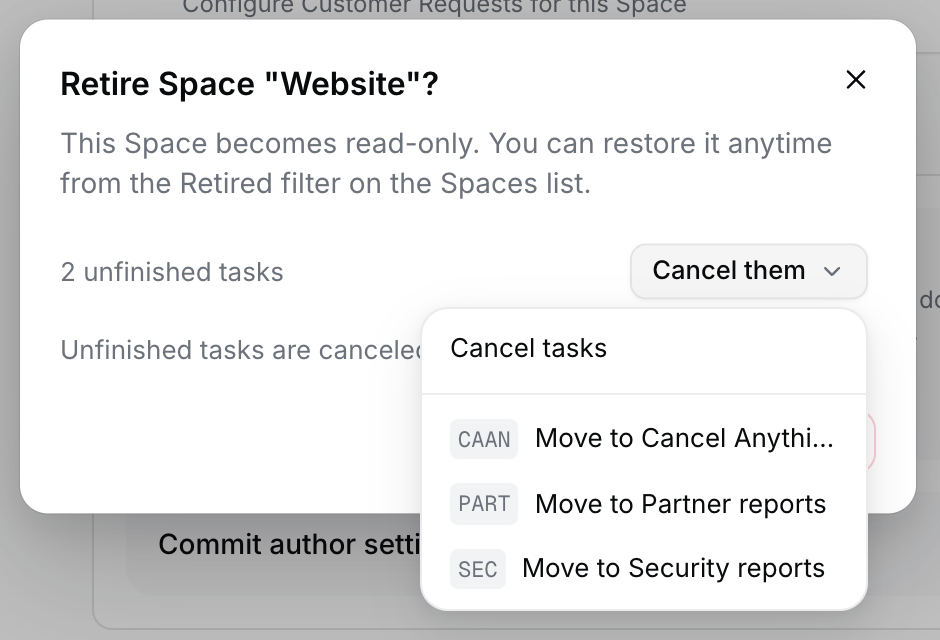
Pick Move to another Space when the work still matters, or Cancel tasks when it doesn’t. Completed tasks stay in the retired Space either way. Retire first, always: it’s reversible and keeps the history, Projects and Views.
The real result
Echo (Security) ran on Sonnet 5.5 in the Cancel Anything checkout. It read the code on main and the unmerged branches, ran the demo site in a throwaway folder, and confirmed one real finding with dummy values. Then it deleted the folder, changed no code, and set the task to Needs your review with four questions for us.
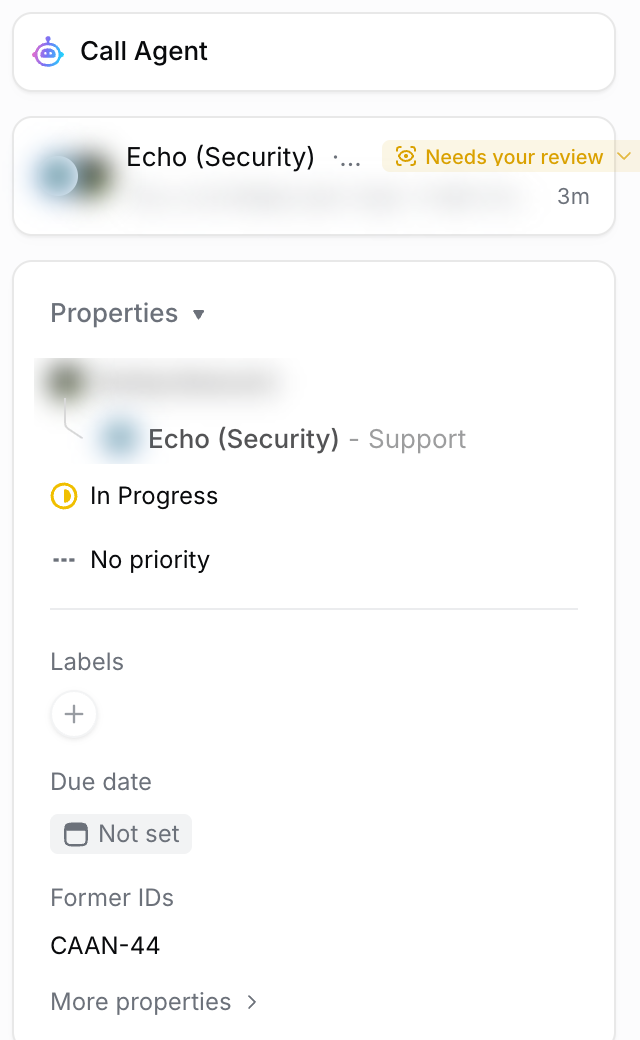
The finding’s details stay in SEC, which is the whole point. Anyone browsing CAAN sees a redirect, not the report.
What went wrong for us
- No agent could take the first task. A new Space starts with zero agents. Plan the variant before you move work in, or the task sits unassigned.
- The agent suggested an agent the Space can’t reach. Echo’s last question was whether to file the fix for Hex in Security reports. Hex lives in
CAAN, so theSECpicker won’t offer it. A fix that stays private needs a Hex variant inSECtoo. - The variant kept Echo’s description. Its card still says it handles support reports and the nightly check. Descriptions are inherited like everything else; override it if the name alone doesn’t explain the job.
- The app disagrees with itself on retiring. The Danger zone says unfinished tasks are canceled. The dialog lets you move them instead. The dialog is right.
- The Spaces list showed 0 members for our private Spaces. The settings page for the same Space said 1 member. Trust the settings page.
Variations
An agency with one Space per client. Each client gets a private Space, a Guest account for the client contact and its own task types. One QA agent’s variants sit in every client Space, so a checklist change ships everywhere in one edit.
A platform team taking requests from other teams. A public intake Space with Triage on catches requests from across the org. Accepted work moves to the team’s own Space with Move to Space, and the requester’s link still works. Sharkly is free to start, so you can try the split before committing to it.
Recap checklist
- [ ] One-line purpose written before you click Create Space
- [ ] Identifier settled before the first task lands
- [ ] Access set to Private for anything sensitive
- [ ] Task types chosen for the work, Triage on for inbound reports
- [ ] A variant of each needed agent moved into the Space
- [ ] Stray tasks moved in with Move to Space, types mapped
- [ ] Retire, never delete, when the work ends
Your next step: open All settings > Spaces in Sharkly and write the one-line purpose for the Space your team keeps putting off.