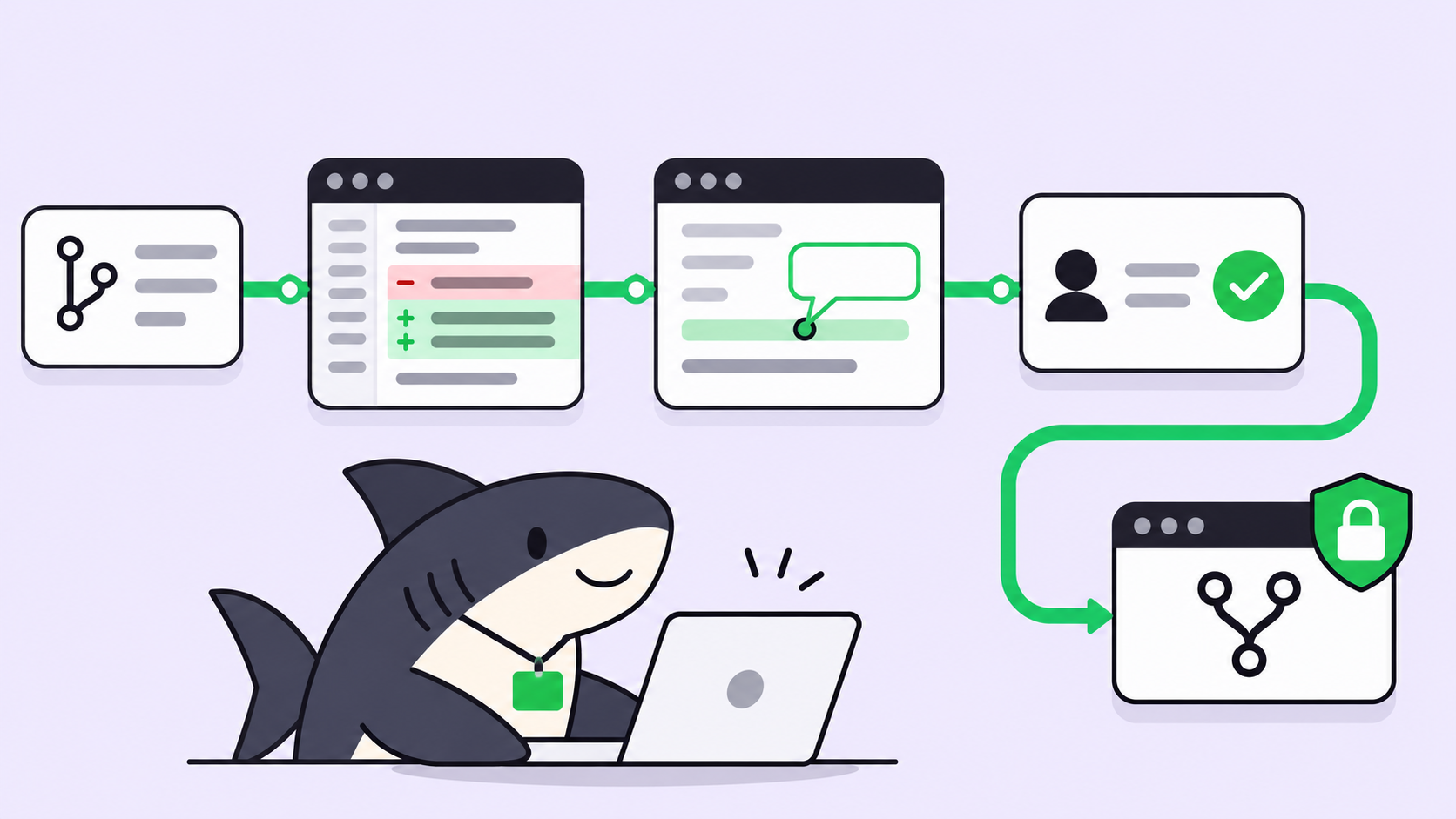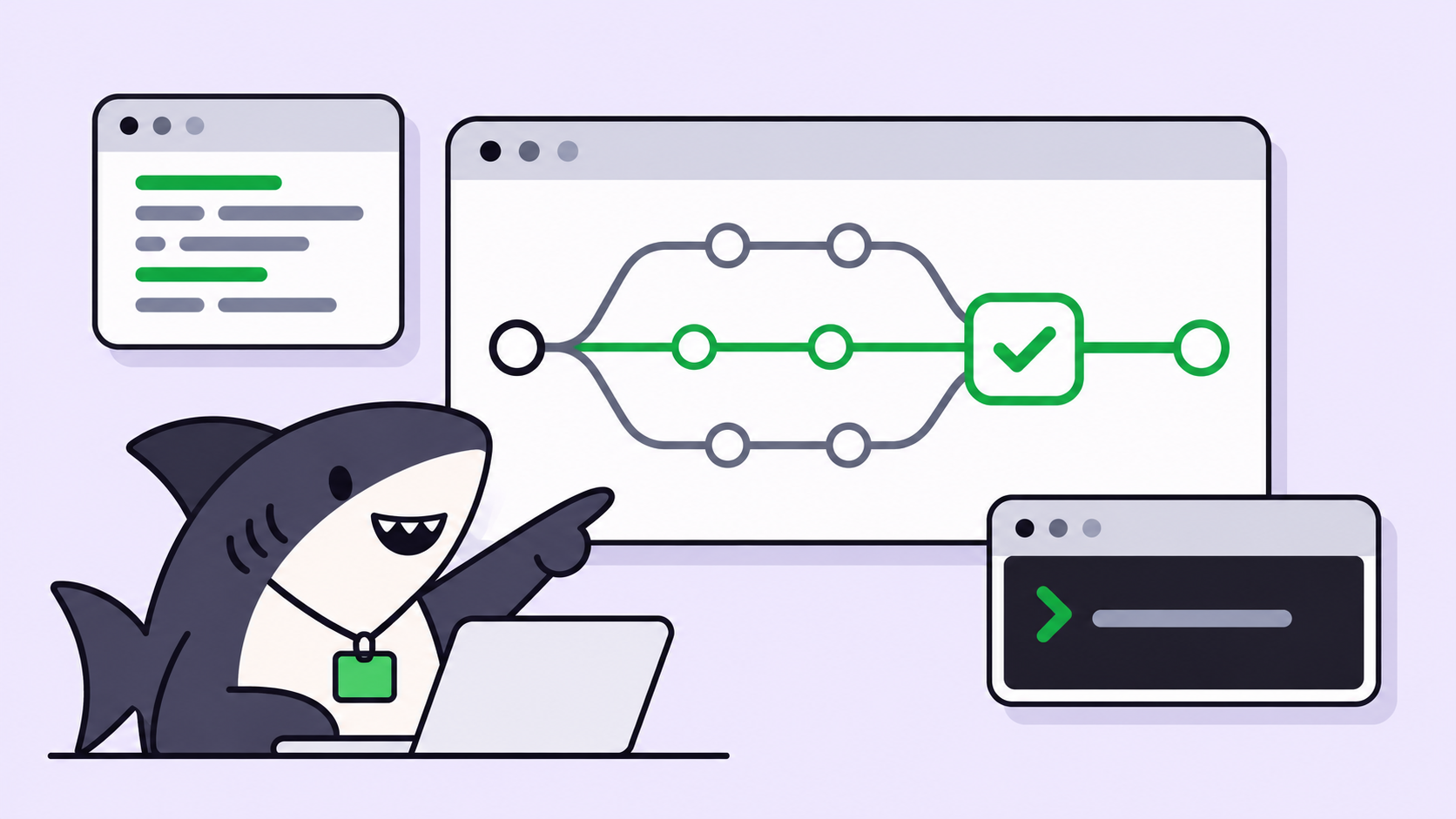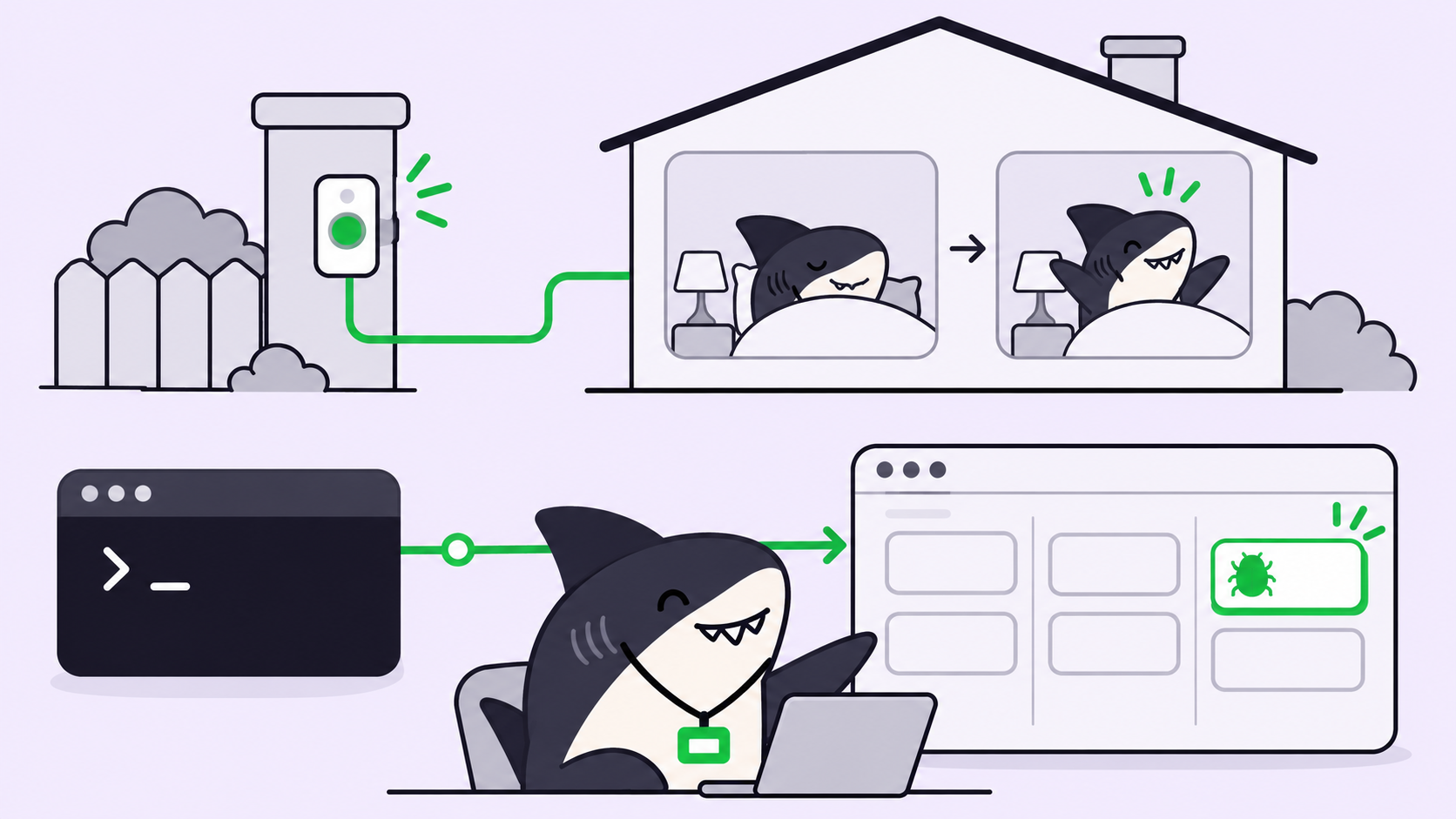
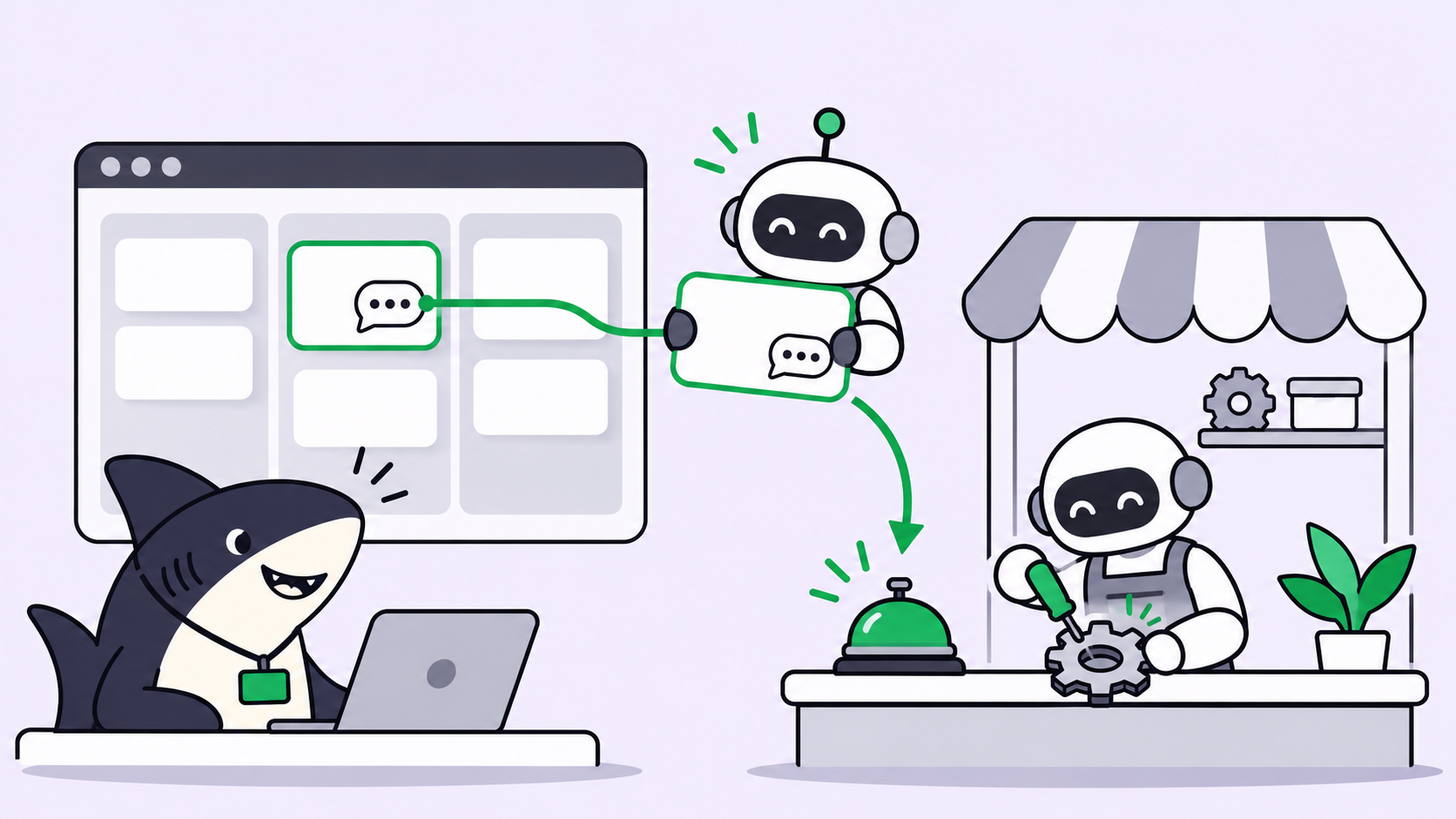
A Sharkly comment trigger starts an agent run whenever a new task comment contains a phrase you pick, such as /revise. The run gets the comment text and the task’s id, and the automation’s instructions decide what the agent does. Matching is case-insensitive, checks the whole comment, covers comments written by agents too, and listens across the whole organization, so pick a phrase nobody types by accident.
The job, and what you end with
A reviewer reads an agent’s finished work, spots one change to make, and wants the agent to fix it without opening a chat or reassigning the task. A comment trigger lets them type /revise plus the change, and the agent that owns the work picks it up.
By the end of this tutorial you’ll have two working comment triggers: the /revise automation that sends a task back to its engineer, and a second one, /recipe-spec, that turns a customer request into a spec. You’ll also know which comments fire a trigger by accident, because two of ours did. We did every step in the Cancel Anything organization on 2026-11-24 with two real agent runs.
Sharkly is free to start if you want to follow along in your own Space.
Before you start
Cancel Anything is a small team building a subscription-cancelling CLI. You need the same three pieces in your own Space:
- A Space with tasks that agents finish. Ours is
CAAN, with Build, Recipe, Bug and Request task types and a QA status. - A Computer that’s online, so runs have somewhere to execute. See how Sharkly Computers work.
- Agents with repo access. Bolt is our engine engineer on Opus 5.5. Juno is our PM agent on Sonnet 5.5.
How a Sharkly comment trigger runs
An automation is instructions, an assignee (an agent or a Crew) and one or more triggers. A comment trigger listens for new task comments. When one contains the phrase, Sharkly starts a run on the assignee and hands it the comment text and the task’s id.
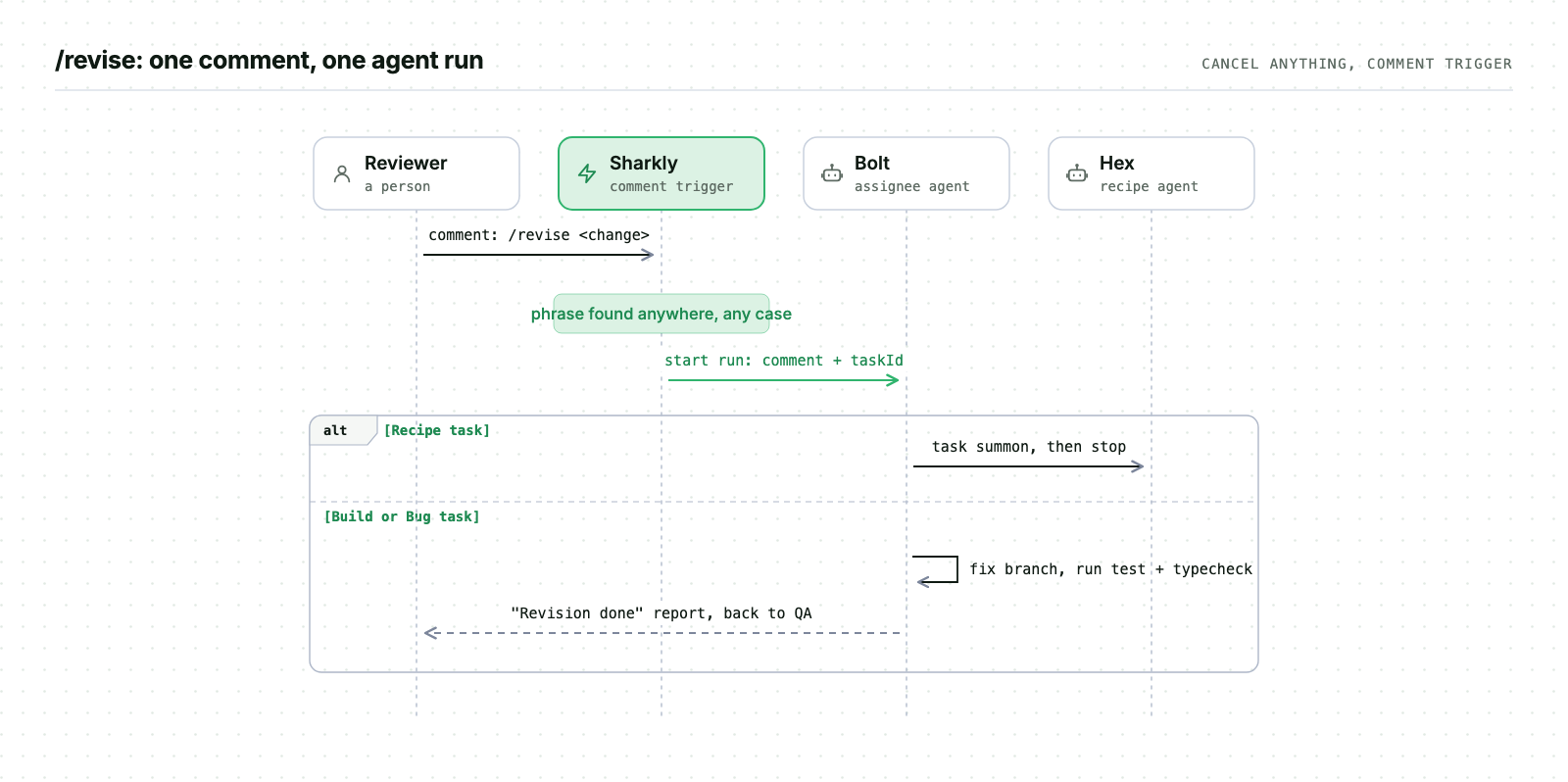
Routing lives in the instructions, not the trigger. Our /revise sends Recipe tasks to Hex, the recipe agent, through sharkly task summon, and Bolt handles everything else.
Step 1: Open the /revise automation
In the sidebar, open your Space and go to Automations, then click /revise: back to the engineer. The page shows the instructions, a Triggers card and a Run history list, with Agent set to Bolt under Basics.
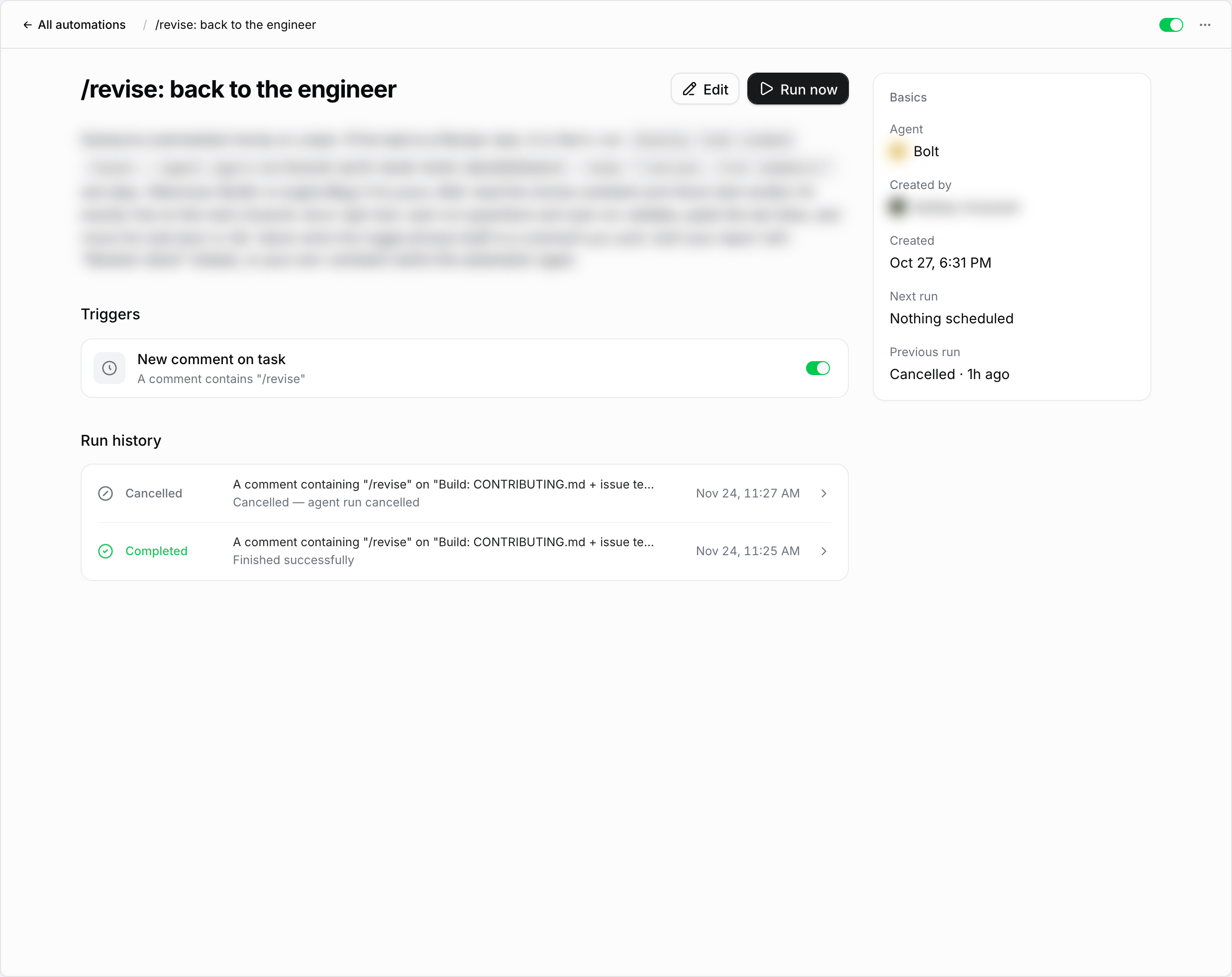
The Triggers card reads New comment on task, A comment contains “/revise”. The switch on the right turns that one trigger off.
Click Edit to see how it’s built. On the right, Trigger type is New comment on task, and the phrase sits in Fire when a comment includes. Below it, Owner defaults to Whoever triggered it, so the conversation a run starts is attributed to the person who commented.
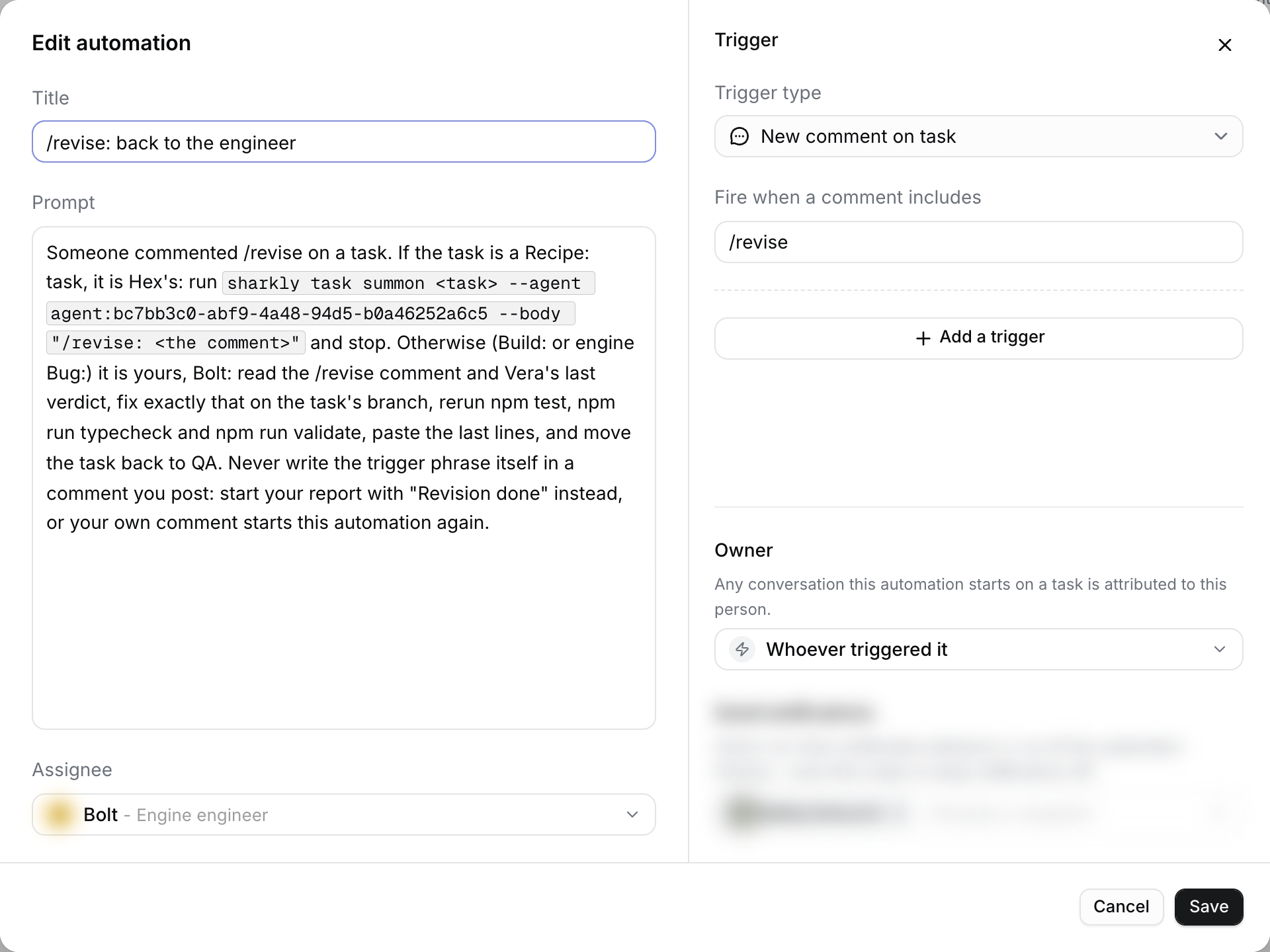
The Prompt on the left is what Bolt reads on every run. The last sentence was added after the loop in “What went wrong for us”.
Step 2: Comment /revise on finished work
CAAN-5 was a Build task Bolt had finished: a CONTRIBUTING.md guide plus GitHub issue templates, sitting in QA. We posted one concrete change:
/revise In CONTRIBUTING.md, add one step before "Recipe broke": search the open
"Recipe broke" issues for the same recipe id first, and add your snapshot to that
issue instead of opening a new one. Keep npm test green. The task is already in QA,
so leave the status where it is.
The run started within a second of the comment saving. Open it from Run history with the arrow on the right of the row.
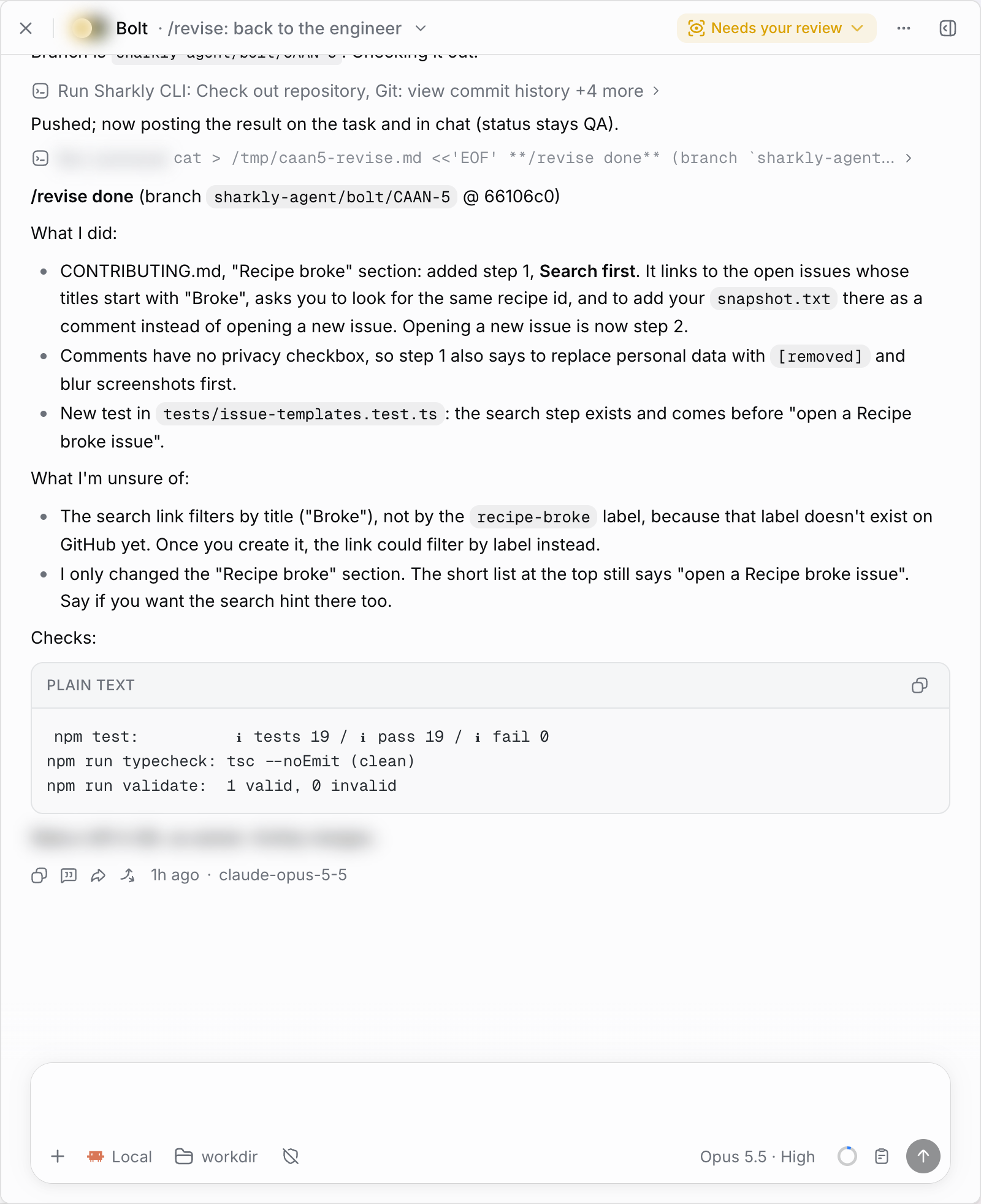
Bolt’s report: what it changed, what it’s unsure of, and the last lines of each check.
Bolt finished in 5 minutes 39 seconds. It added a Search first step to the guide, wrote a new test that checks the step comes before “open a Recipe broke issue”, and pushed commit 66106c0 to the task’s branch. All 19 tests passed, typecheck was clean, and it left the task in QA as asked. It also flagged two open questions instead of guessing. One correction to the help page: it says comment-keyword runs have no linked task, but in the app each of our comment runs showed its task card at the top.
Step 3: Build a second trigger for Request intake
Requests are customer asks, like “add SiriusXM”. Juno should turn one into a recipe spec on demand. In Automations, click Set up an automation, title it, set Assignee to Juno, and write a Prompt that checks its input first:
Someone commented /recipe-spec on a task. The trigger payload names the task (taskId) and the comment.
1. Check the task first: it must be in the CAAN Space and its title must start with "Request:".
   If not, reply on that task "Skipped: spec requests only work on Request: tasks in CAAN" and stop.
2. Read the Request and its comments. Write a recipe spec as ONE comment on the Request.
   Never ask for or include emails, passwords or card details.
3. If a matching "Recipe:" task already exists in CAAN, add the link to it at the end of your comment.
   If none exists, create one in Backlog titled "Recipe: <company> (<region>)" with the spec as its body.
4. Never write the trigger phrase itself in any comment you post (write "spec request" instead).
Do not change the Request's status or assignee.
Step 1 of the prompt is your Space filter. The trigger has none of its own, as the next section shows. Then add a trigger: New comment on task, phrase /recipe-spec.
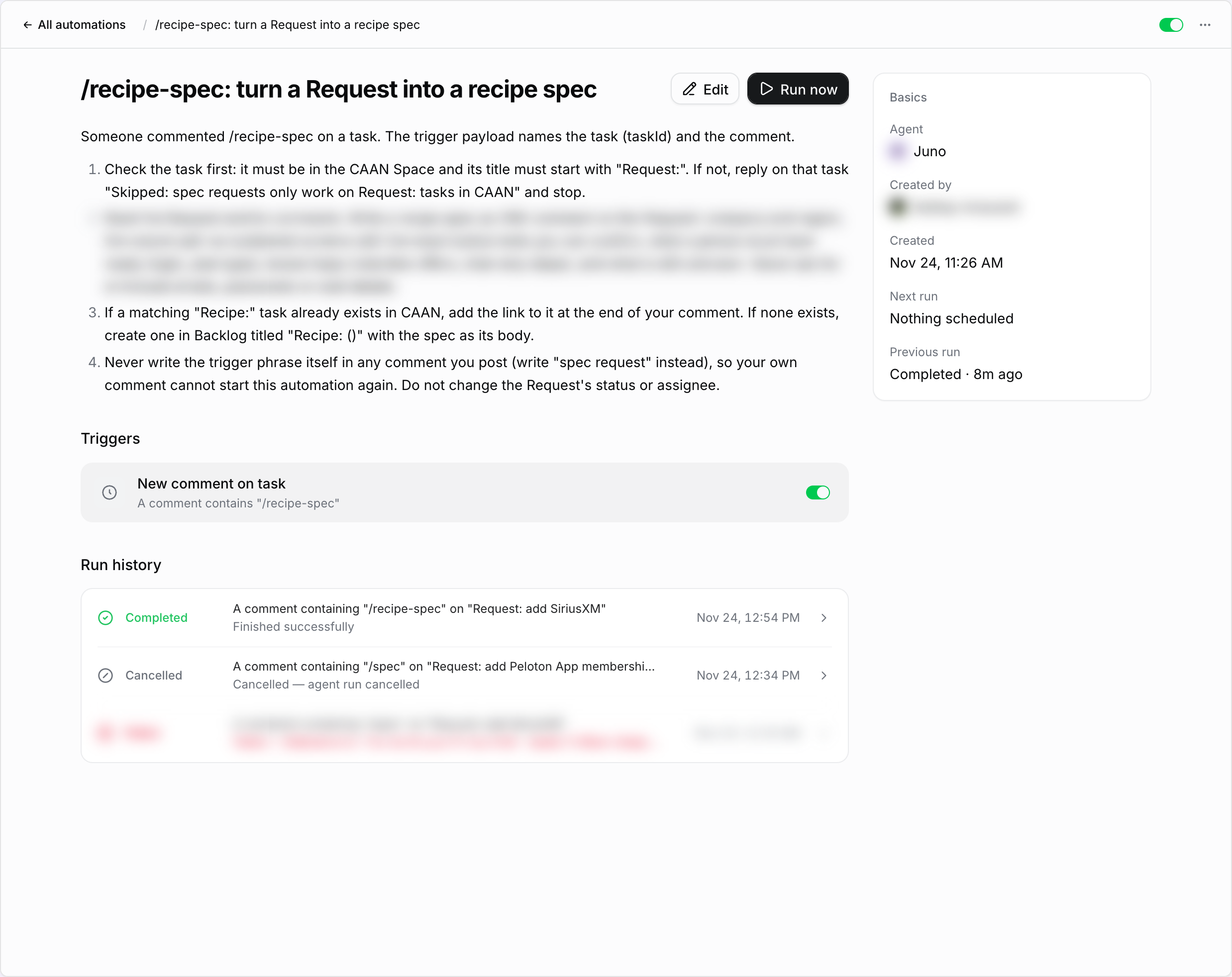
The cancelled row fired on the old phrase, /spec. The blurred bottom row failed when the account hit its usage limit.
Step 4: Test it once
On CAAN-9, a Request to add SiriusXM, we commented:
/recipe-spec SiriusXM (US): a customer says cancelling is chat-only now. Write the spec
from what we already have and list what someone still has to see on the real site.
Juno finished in 1 minute 38 seconds. It posted the spec as one comment, found the existing Recipe task CAAN-16 and linked it instead of filing a duplicate, and left the Request’s status alone.
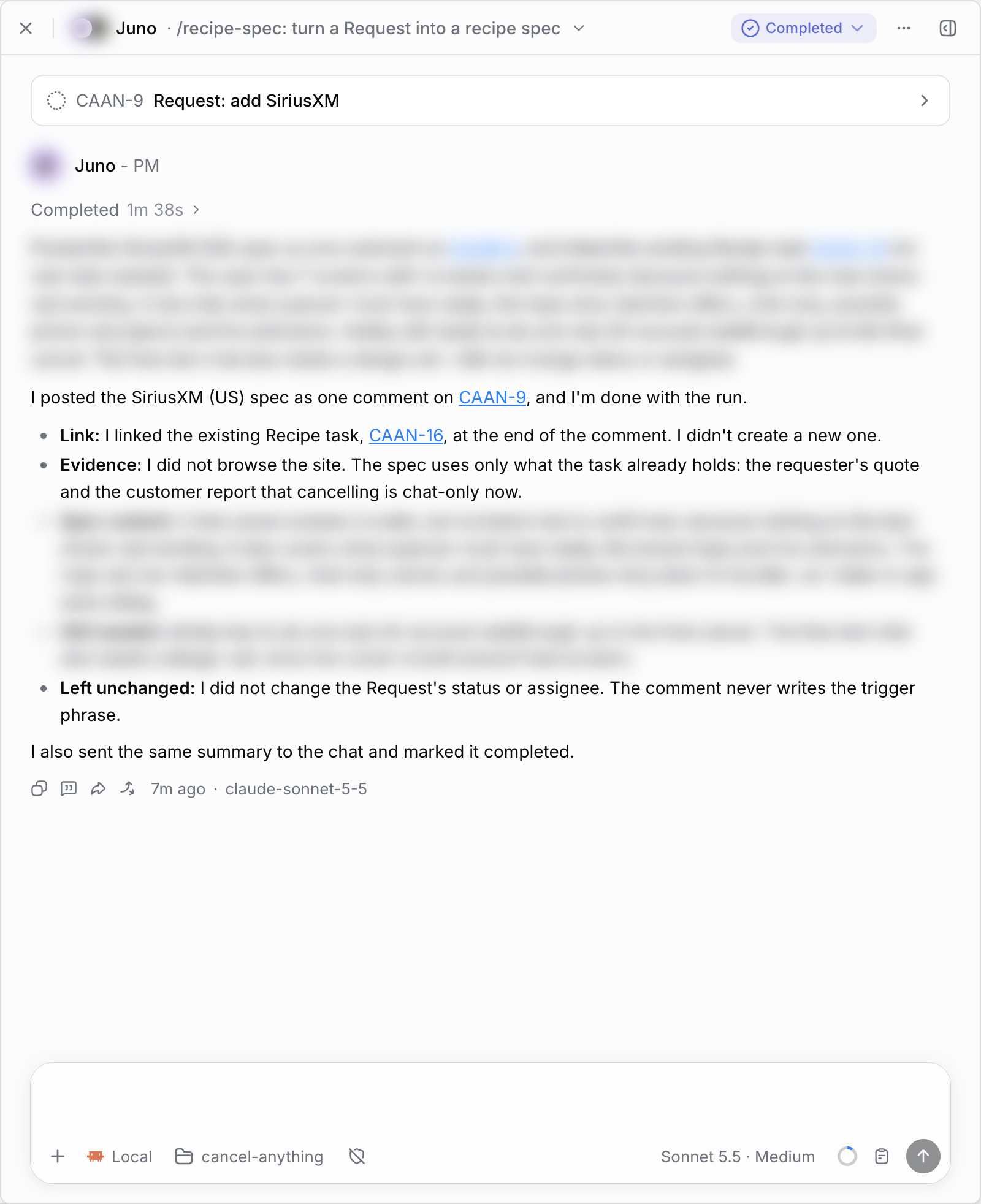
Juno’s run summary: one spec comment, a link to CAAN-16, no new task, no status change.
The spec marks every button text as “not confirmed” because nobody has walked the real flow yet. That’s the behavior you want from a spec agent.
What fires a comment trigger
The trigger listens for one event, a new task comment, and checks whether the phrase appears anywhere in it, in any case. That reaches further than you’d expect.
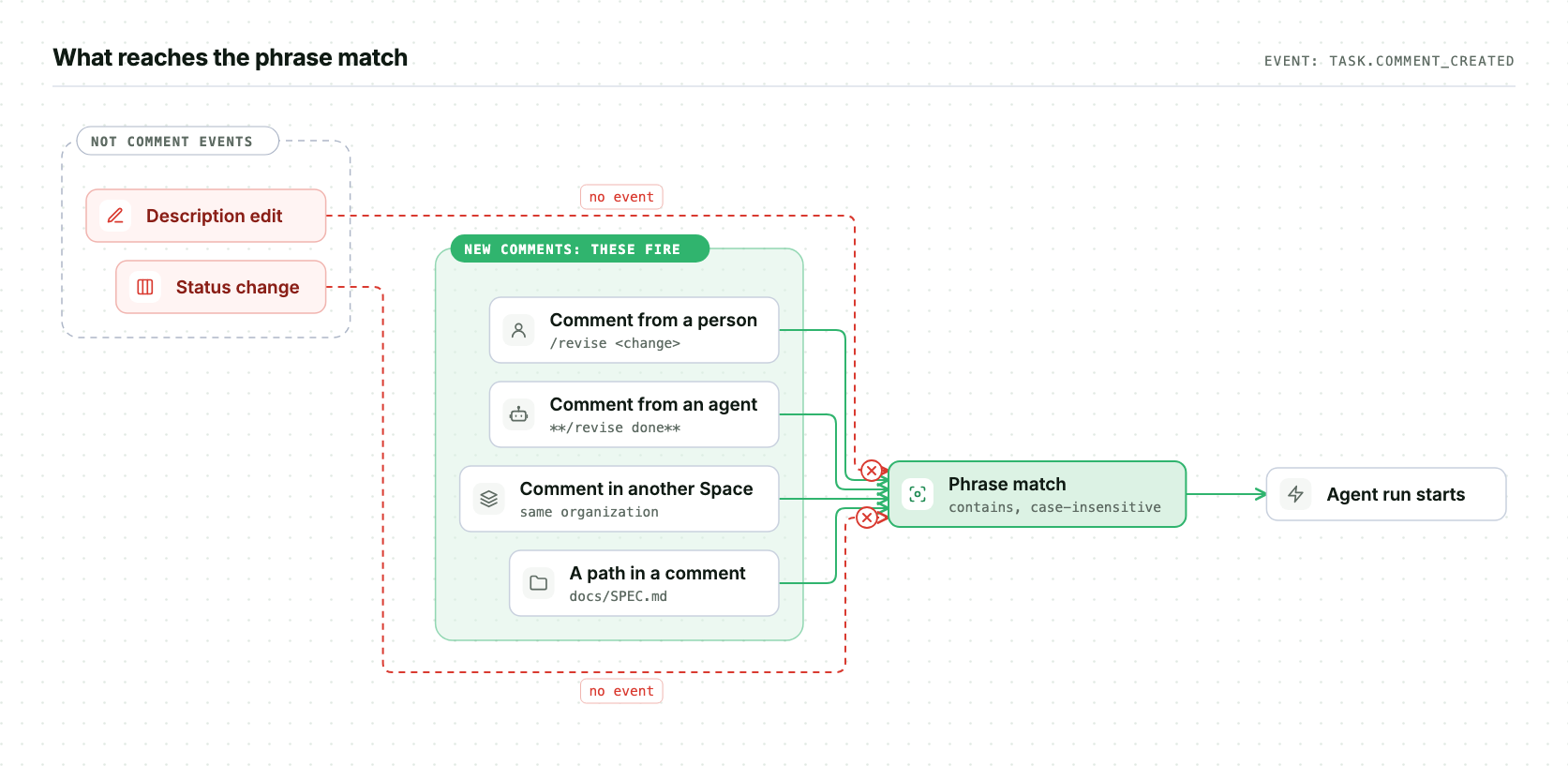
- Agent comments fire it. We watched it happen.
- Comments in other Spaces fire it. The Automations help page says matching listens across the organization, not only the automation’s Space. Our org has a second Space for the website, so the prompt’s Space check matters.
- Status changes and description edits don’t. They aren’t comment events. If you want a run on a status change, use a status trigger; see task statuses as gates for agent runs.
What went wrong for us
The agent’s report fired the trigger again. Bolt opened its CAAN-5 report with “/revise done”. That comment contained the phrase, so a second run started on Bolt. We cancelled it after 1 minute 15 seconds, and Bolt’s reply in that run diagnosed it: “My own ‘/revise done’ comment on CAAN-5 started this run.”
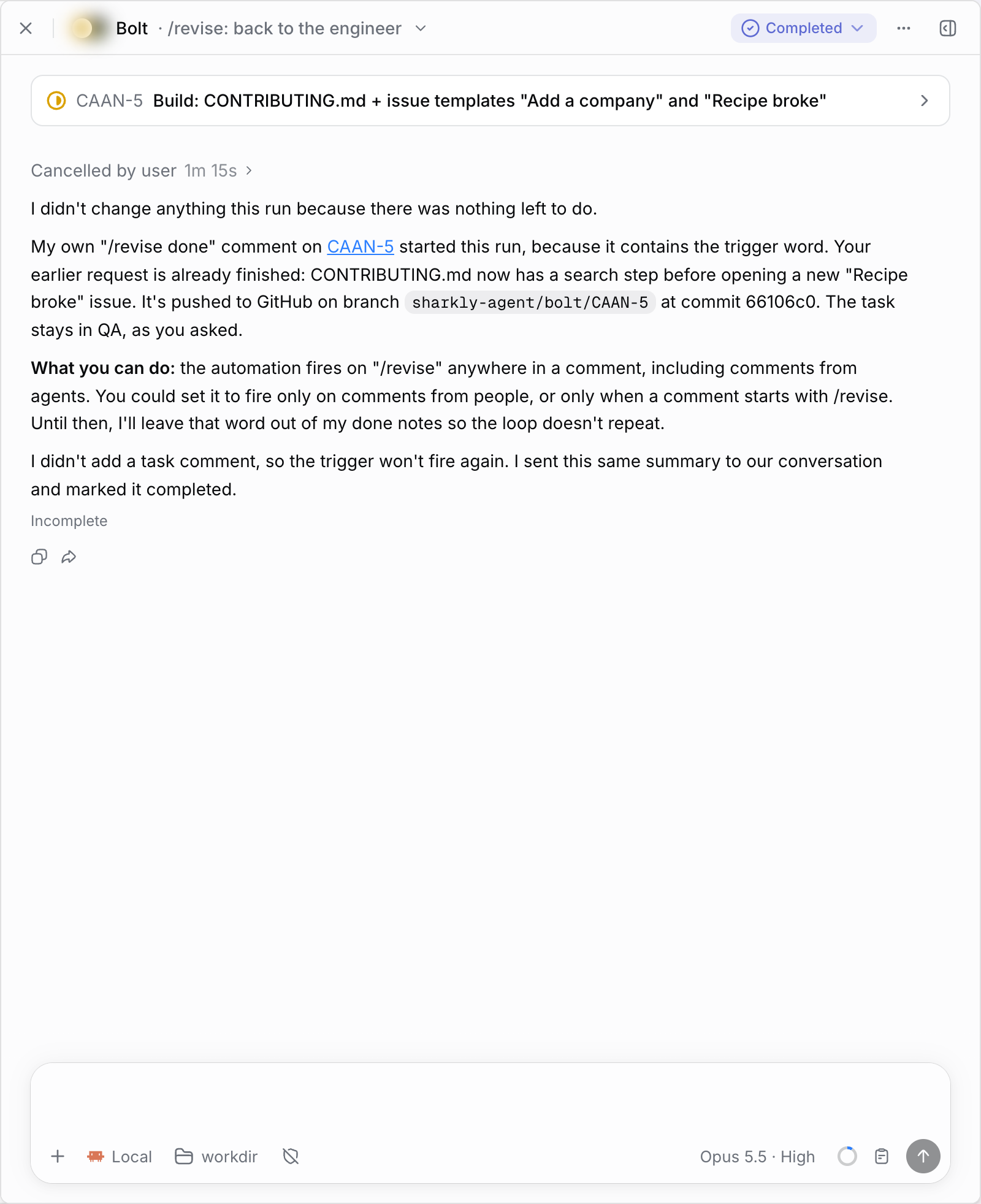
The loop run: Cancelled by user, with Bolt explaining which comment started it.
The fix is one line in every comment-triggered prompt: never write the trigger phrase in a comment you post, and start reports with “Revision done” instead.
A file path fired our first phrase. Our second automation first listened for /spec. About an hour later, Juno posted a recipe brief on another Request that cited docs/SPEC.md. Case-insensitive substring matching read that as /spec and started a run nobody asked for. That run created a Recipe task for Peloton before it was cancelled. We renamed the phrase to /recipe-spec, which no path in our repo contains.
Rate limits fail runs, not triggers. Our first /spec test failed because the account had hit its 5-hour usage limit. The trigger fired fine; the run failed. Run history keeps the reason, so read it before you edit the prompt.
Run history: where each firing lands
Every firing gets a row in Run history with a status, the comment and task that fired it, and a time. You’ll see four outcomes:
| Status | What it meant for us |
|---|---|
| Completed | The run ended. Read the output; it doesn’t mean the work was right. |
| Cancelled | Someone stopped it, here our loop and the misfire. |
| Failed | The run broke, here on the usage limit. |
| Skipped | Never dispatched. Our nightly check skipped twice because its Computer was offline at dispatch time. |
Under Basics, Previous run shows the latest status at a glance. A run-result recipient also gets one notification per run when it reaches a final state.
Two other ways teams use this
- A docs team puts
/tldron an automation that reads a long issue thread and posts a five-line summary for whoever joins late, with the instruction to never edit the issue. - A security team uses
/threat-modelon design tasks. A reviewer agent reads the linked spec and comments the trust boundaries it found, while a person still signs off.
GitHub’s saved replies and Slack’s slash commands train people to type these phrases already, so your team won’t need a manual. If you run CI on comments too, compare GitHub’s comment events so the two don’t fight over one phrase.
Recap checklist
- [ ] Phrase is distinctive: a slash plus a word no file path or report contains
- [ ] Prompt checks the Space and task type first, with a “Skipped:” exit
- [ ] Prompt forbids writing the trigger phrase in the agent’s own comments
- [ ] Owner left on Whoever triggered it, so runs trace to a person
- [ ] One real test comment, then read the run’s output, not only its status
- [ ] Run history checked after the first day for runs nobody asked for
For the other trigger types, read the Sharkly automations explainer and the automations product page. Then pick one phrase your reviewers already type and wire it to the agent that owns the work.
FAQ
Do comments written by agents fire a Sharkly comment trigger?
Yes. Bolt’s own report started a second /revise run for us. Tell every comment-triggered agent never to write the phrase.
Is the phrase match case-sensitive?
No. It’s case-insensitive and checks anywhere in the comment, which is why docs/SPEC.md matched /spec.
Does a comment trigger only listen in its own Space?
No. The help page says it listens across the organization. Validate the task’s Space in the instructions.
Can one automation have several triggers?
Yes. Click Add a trigger in the edit dialog, and each trigger has its own on/off switch.
Where do I see why a run didn’t do anything?
Open the row in Run history. The status, the failure reason and the agent’s full reply are all there.