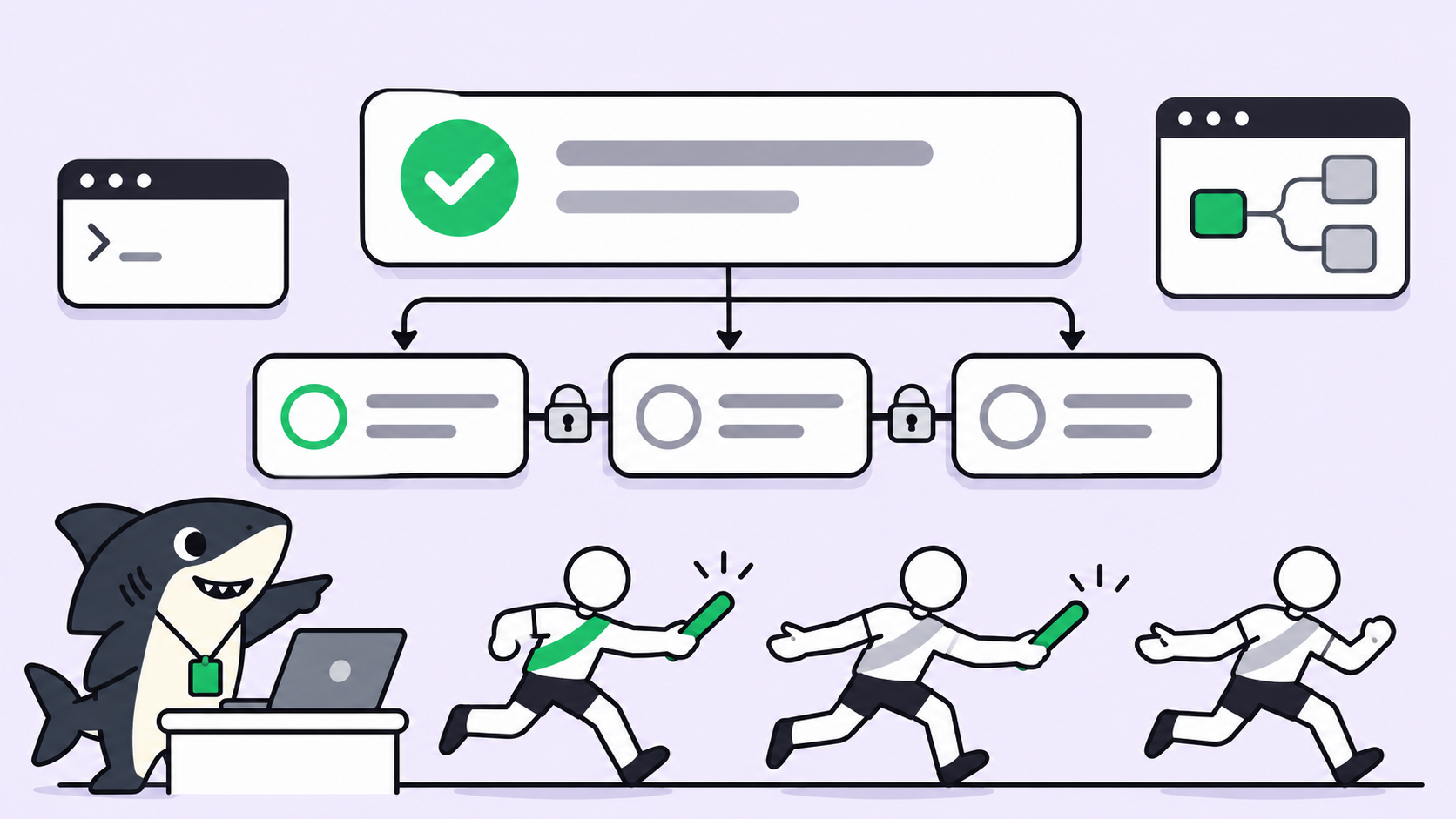
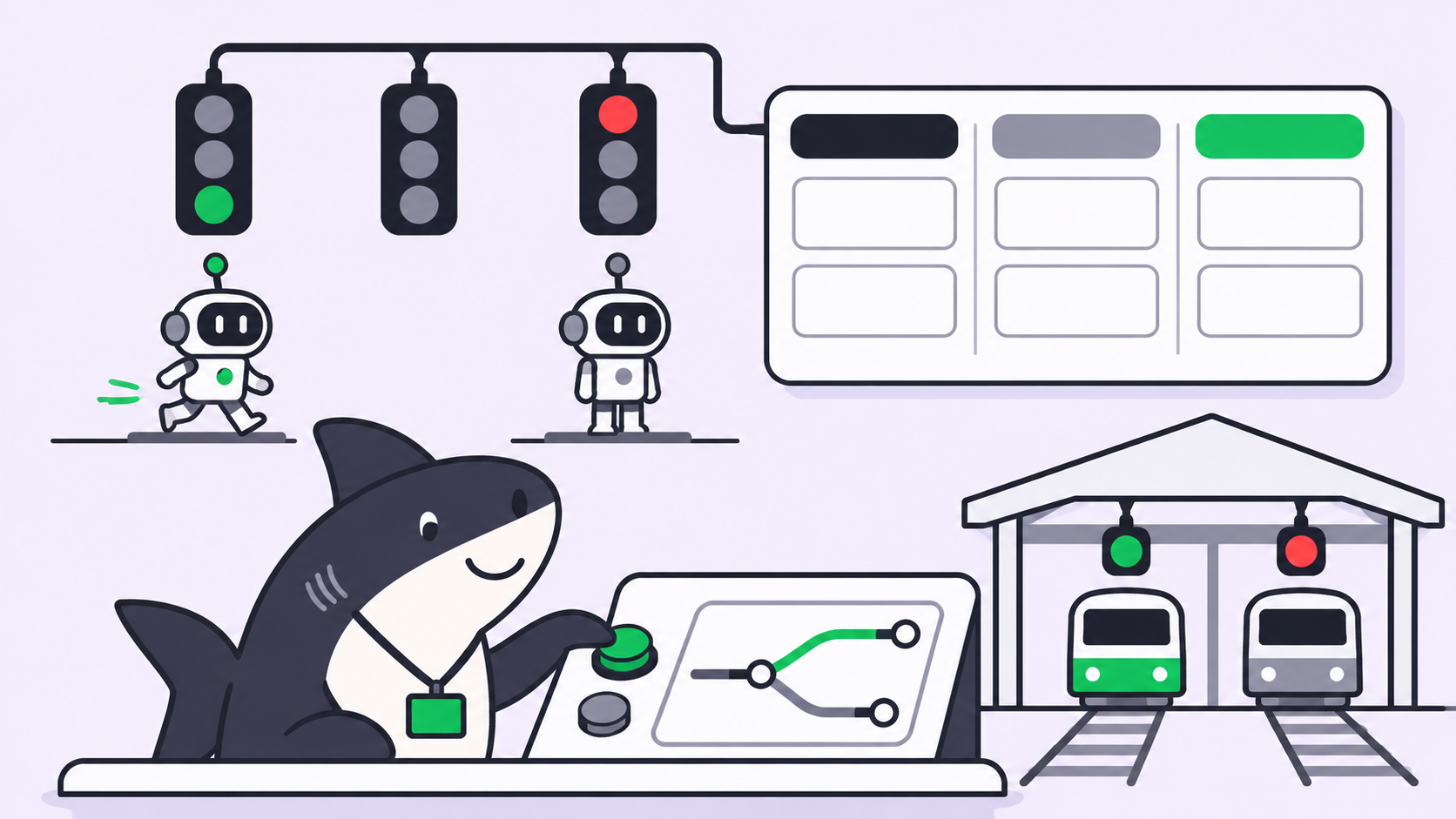
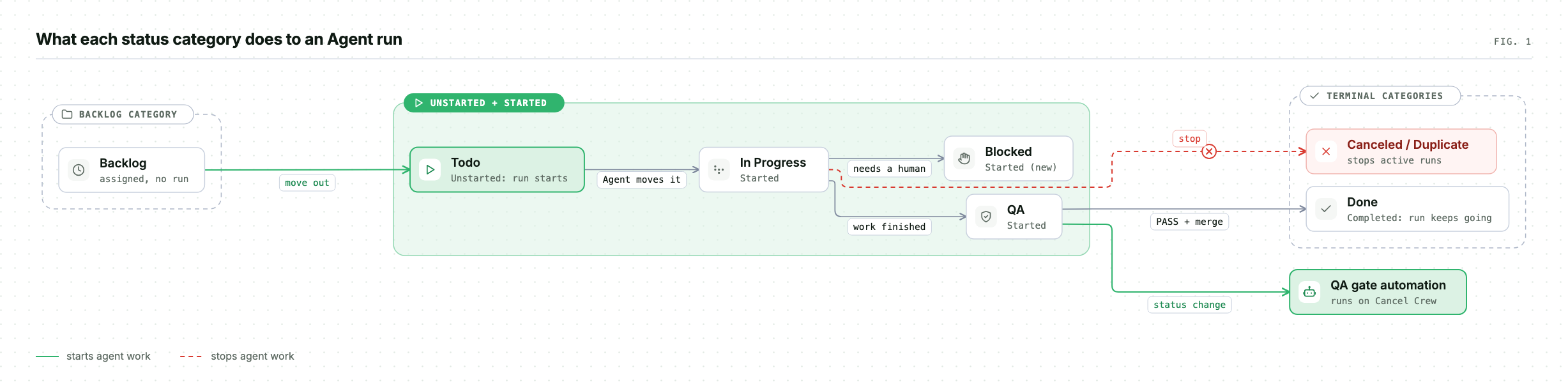
Quick answer: Sharkly task statuses each belong to a fixed category, and the category decides what happens to agent work. A task assigned to an Agent in Backlog never starts a run. Moving it out of Backlog to a non-terminal status starts one. Canceled and Duplicate stop active runs. Done ends the task but leaves a running agent alone.
You’ll learn this by doing it on a real team. Below, we take a real Build task through the Cancel Anything workspace, a small subscription-cancelling CLI team that runs its engineering on Sharkly. One engineering Agent writes the code, a QA Agent reviews it, and the status column decides who works when.
By the end you’ll have:
- A Workflow where every status you need is attached to the task type
- One real agent run started by a status move, and one review started by another
- A new “Blocked” status that parks work without losing track of it
- A clear rule for which statuses start, pause and stop agents
Before you start
You need three things in place. Sharkly’s Free plan is currently free for organizations of up to 5 people, so you can follow along on your own organization.
- A Space with at least one task type. Ours is Cancel Anything (key CAAN), with the types Build, Recipe, Bug and Request.
- A Computer with an online Runtime. Agents run on a connected Computer through Claude Code, Codex or another runtime. See what a Sharkly Agent is if this part is new.
- An Agent assigned to the Space. Ours is Bolt, the engine engineer (Claude Code). For the review step we also use Cancel Crew, a Crew led by Juno with Vera as its QA member. Crews group agents under a lead that hands out the work.
How Sharkly status categories decide agent runs
A status is the name on the column (Todo, QA). A category is the fixed lifecycle stage underneath it: Triage, Backlog, Unstarted, Started, Completed, Canceled or Duplicate. You can rename statuses freely. Sharkly’s run behavior, Sprint metrics and reports read the category, never the name.
| Category | Example statuses | What it does to agent work |
|---|---|---|
| Triage | Triage | Holds incoming work outside regular views |
| Backlog | Backlog | Parks work; an assigned Agent does not start |
| Unstarted | Todo | Ready; moving here from Backlog can start a run |
| Started | In Progress, QA, Blocked | Work in motion; no new lifecycle effect |
| Completed | Done | Terminal; an active run keeps going |
| Canceled | Canceled | Terminal; stops active runs for the task |
| Duplicate | Duplicate | Terminal; stops runs, asks for the original task |
Those rules come from the task statuses help page, and every one of them held when we tested it below.
Step 1: Find the status catalog and the task type’s Workflow
Statuses live in two places, and mixing them up causes the most common failure.
- Open All settings, then under Global configuration click Task Statuses. This is the organization catalog: every status, grouped by category, with a count of tasks and task types using it.
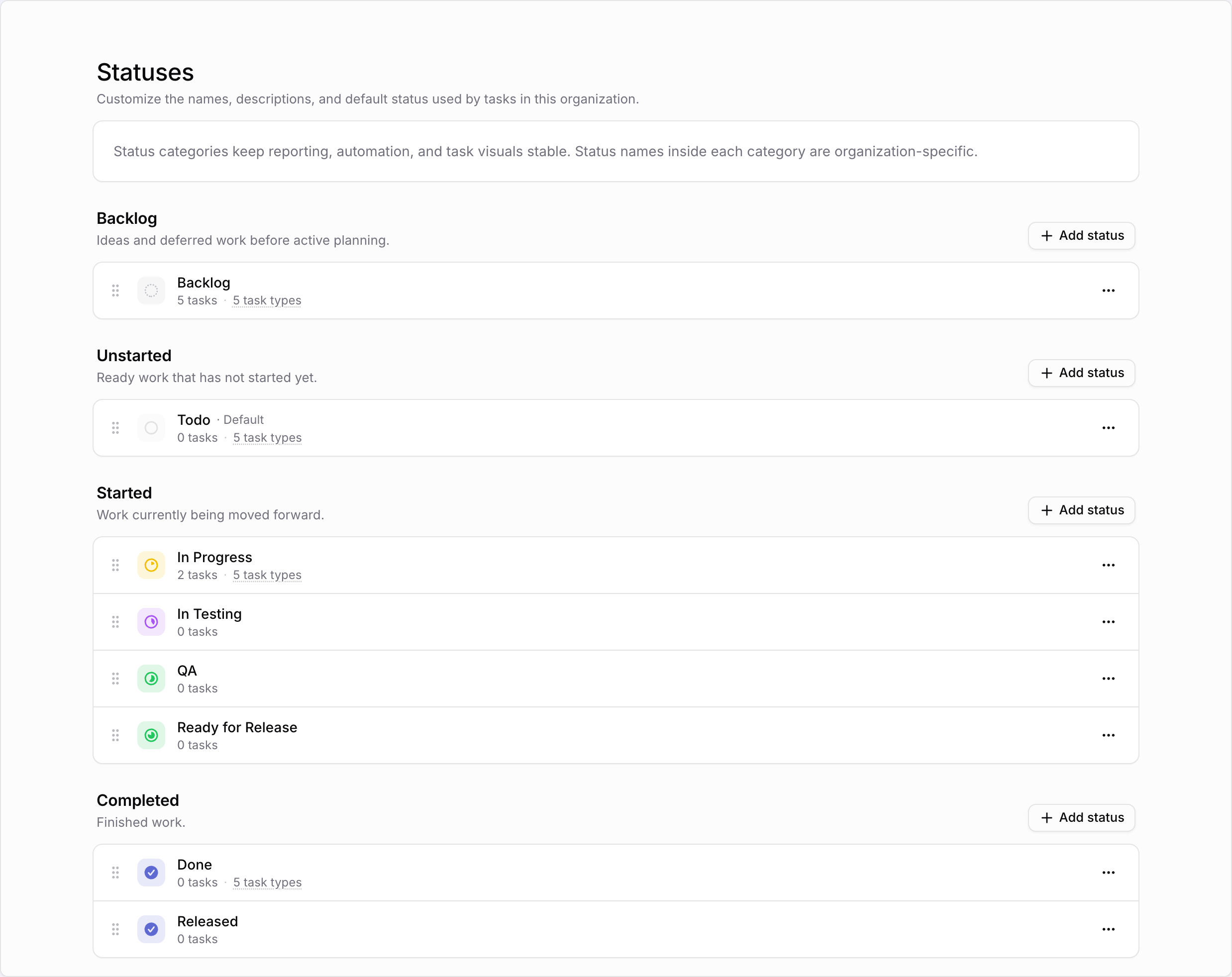
Look at QA in the Started group. It reads “0 tasks” with no task-type count, while In Progress reads “5 task types”. A status can sit in the catalog and still belong to no Workflow.
- Go to All settings, click your Space under My spaces, then Task types & statuses, open Build and pick the Statuses tab. This is the Workflow: the bounded list of statuses a Build task can move into.
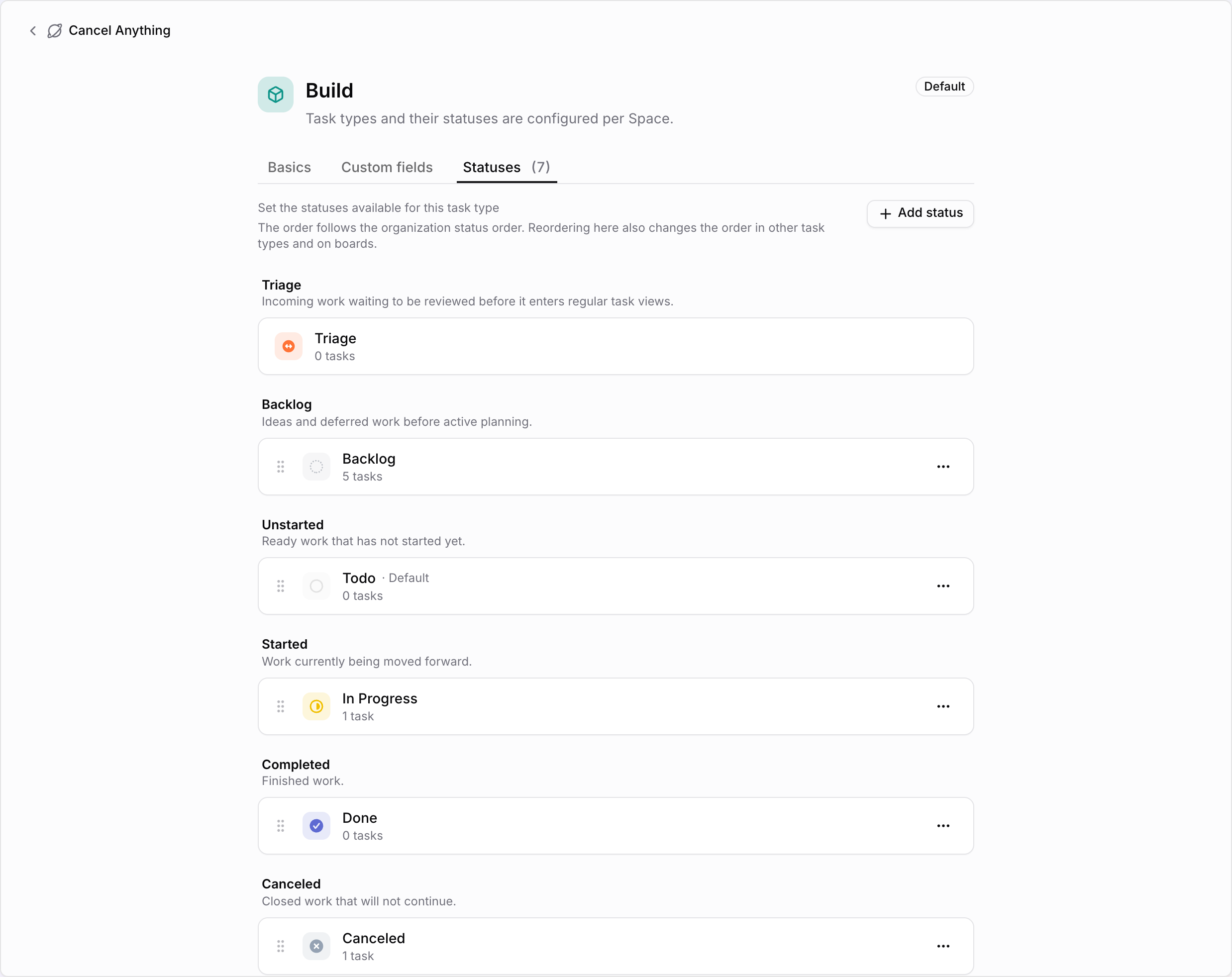
Build had seven statuses and no QA. A task can only move to a status in its type’s Workflow, so no Build task could ever reach QA.
Step 2: Attach the missing status to the Workflow
- On the Build Statuses tab, click Add status.
- Open Select statuses…. Statuses already in the Workflow are greyed out.
- Pick QA and click Add status in the dialog.
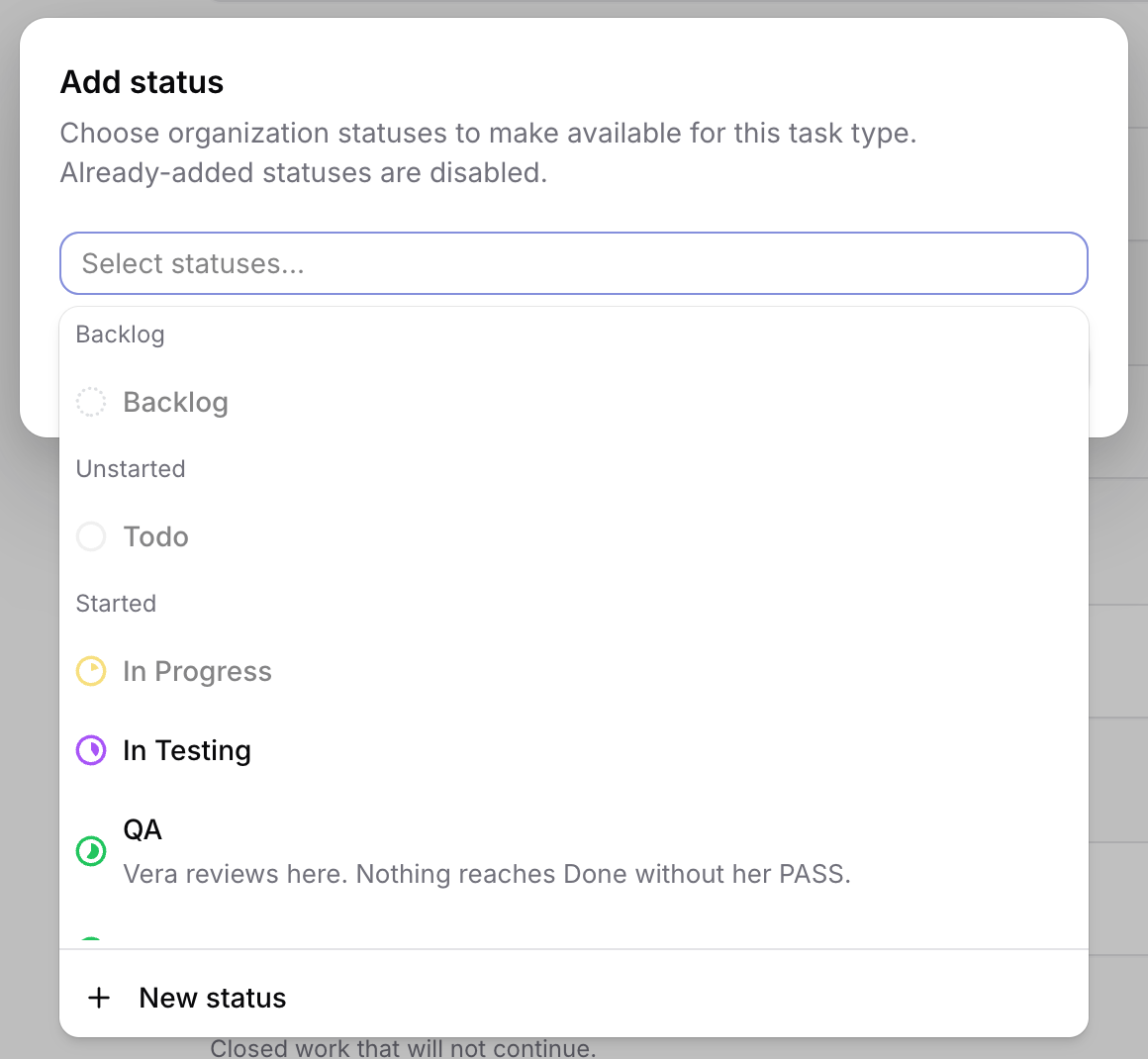
QA now shows under Started with “0 tasks”. Nothing else changed: the status definition is shared, and you only added membership.
Step 3: Assign the Agent while the task is in Backlog
Our task was CAAN-5: write CONTRIBUTING.md plus two GitHub issue forms, “Add a company” and “Recipe broke”. It sat in Backlog. We set Bolt as the assignee and waited.
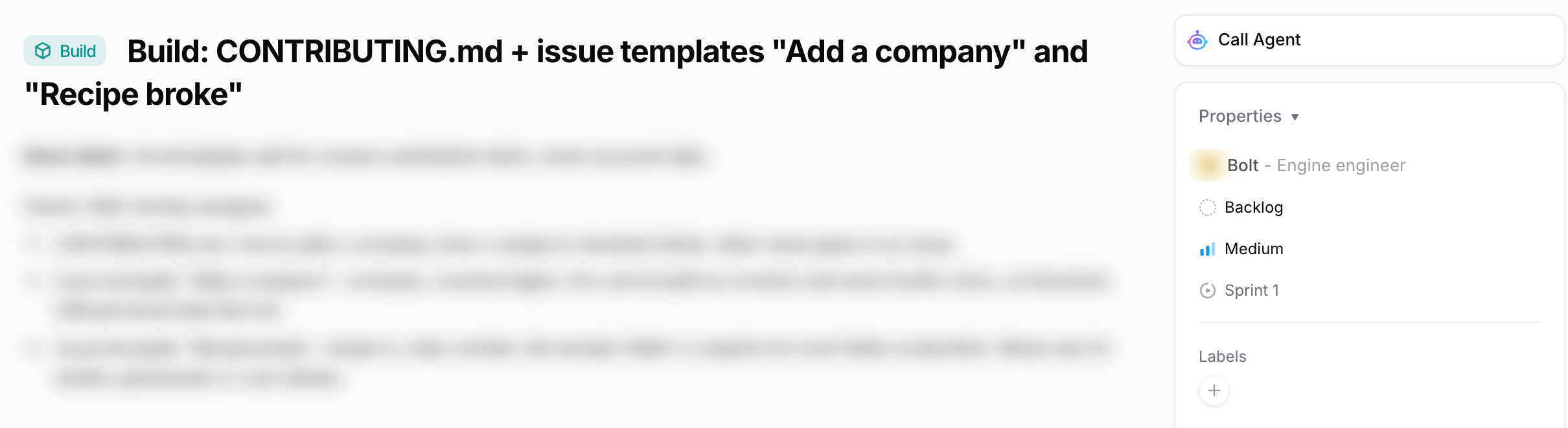
Nothing happened, which is the point. The run list for CAAN-5 stayed empty and the agent working state stayed at none. Backlog is where you stage agent work before you commit to it, so you can line up ten tasks without spending a token.
Step 4: Move the task to Todo and watch the run start
Change the status from Backlog to Todo in the Properties panel (or drag the card on the board).
Here’s what we saw, timed from the CLI:
- The run appeared as Queued right away.
- About 20 seconds later it was Running.
- Bolt posted “Started.” in the task chat and moved the task to In Progress on its own.
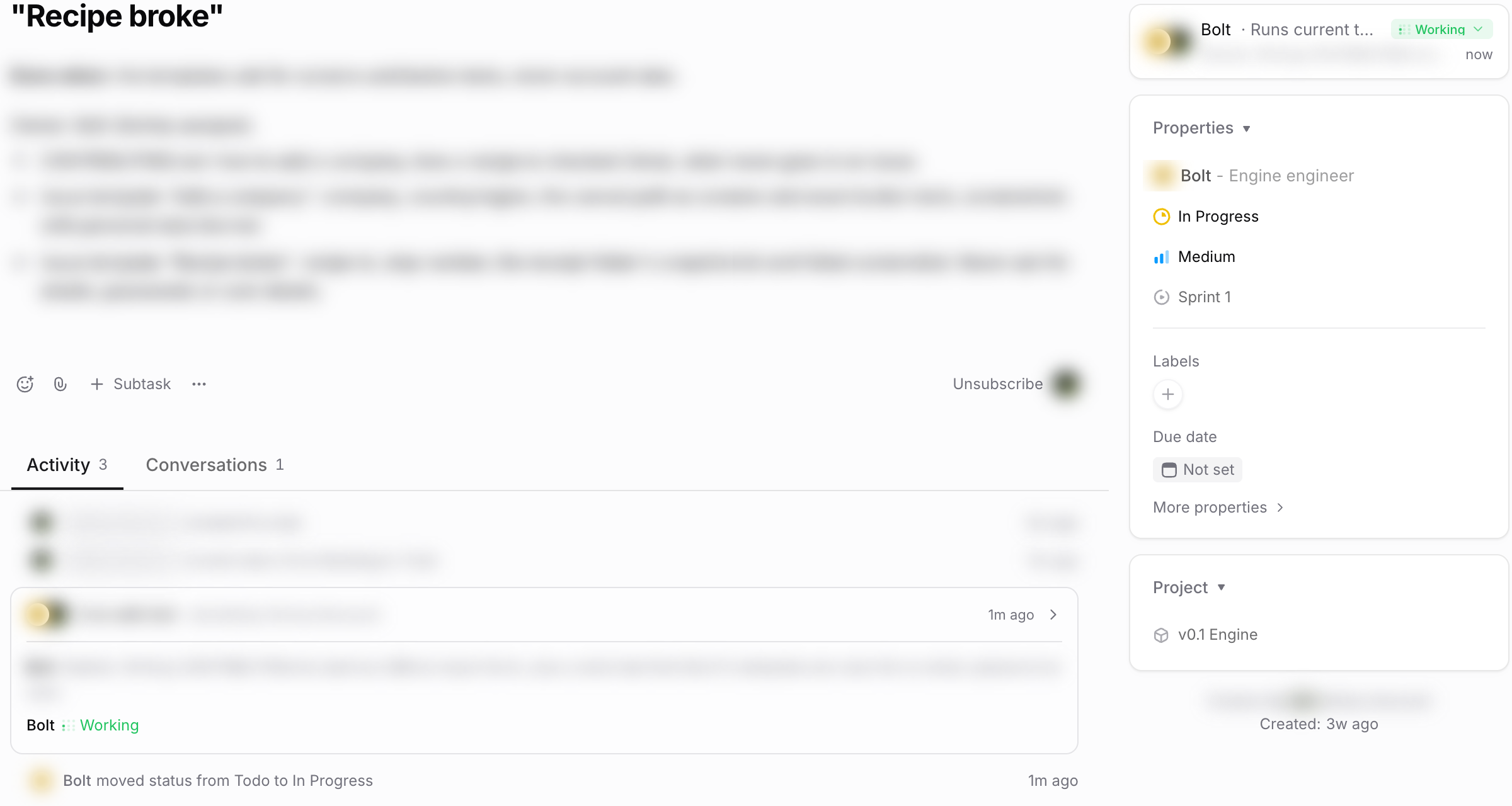
Three minutes later the run completed. Bolt pushed a branch with CONTRIBUTING.md, both issue forms and a test that fails if any form field asks for an email, password or card. npm test passed 18 of 18. Bolt then marked the conversation Needs your review.
Notice what didn’t change: the task stayed in In Progress. Task status and agent working state are separate. “Needs your review” is a hand-off state on the conversation, not a column.
Step 5: Use a Started status as a gate
The team routes every finished task through QA with an automation. Open Autopilot in the Space sidebar and you’ll find it: a Task status change trigger, “When task status changes to QA”, running on Cancel Crew.
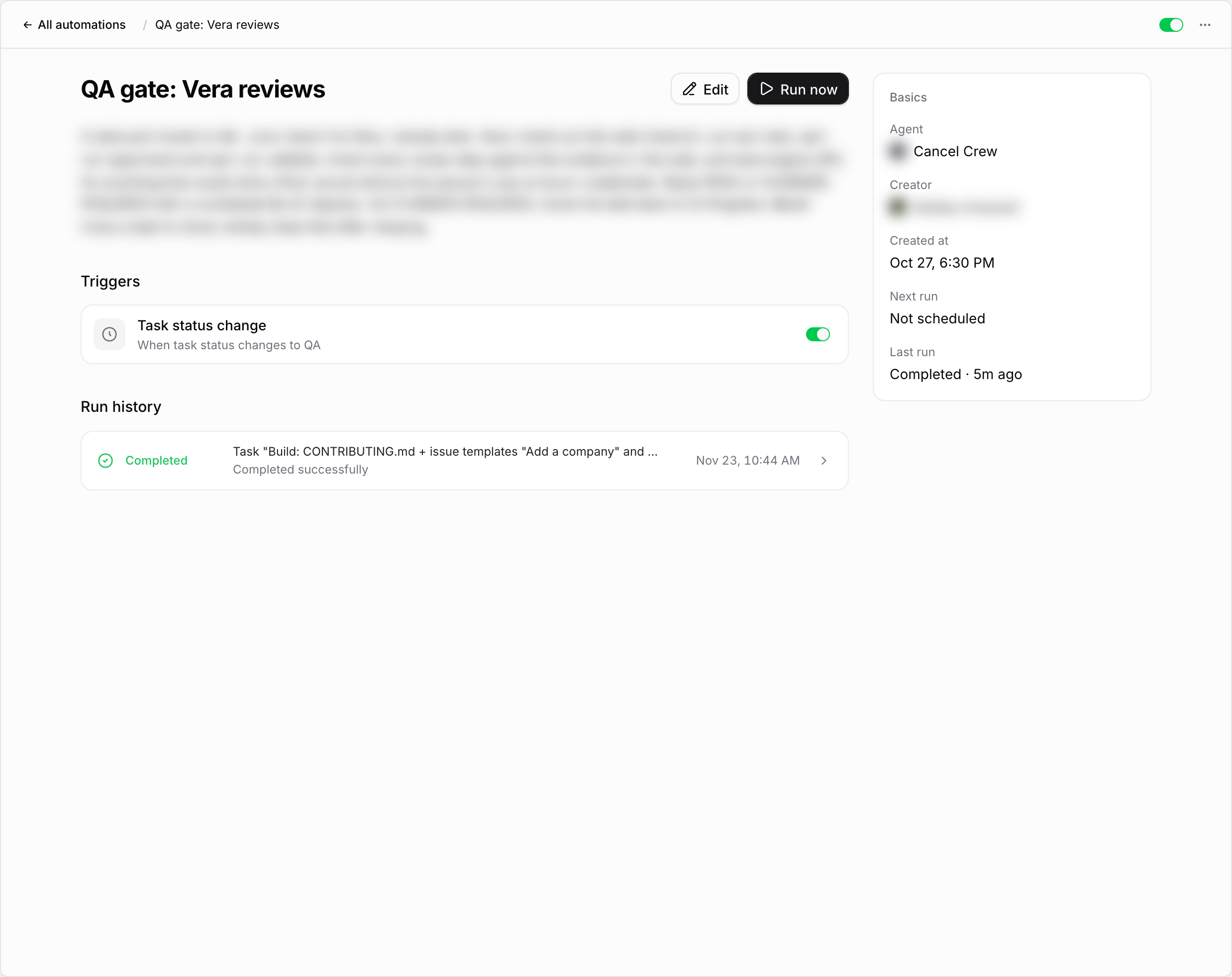
We moved CAAN-5 from In Progress to QA. The automation fired, Juno (the Crew lead) handed the review to Vera within 30 seconds, and Vera’s run finished about two minutes later. Her verdict: PASS, with tests, typecheck and recipe validation green and two non-blocking follow-ups. The task stayed in QA for a human to merge.
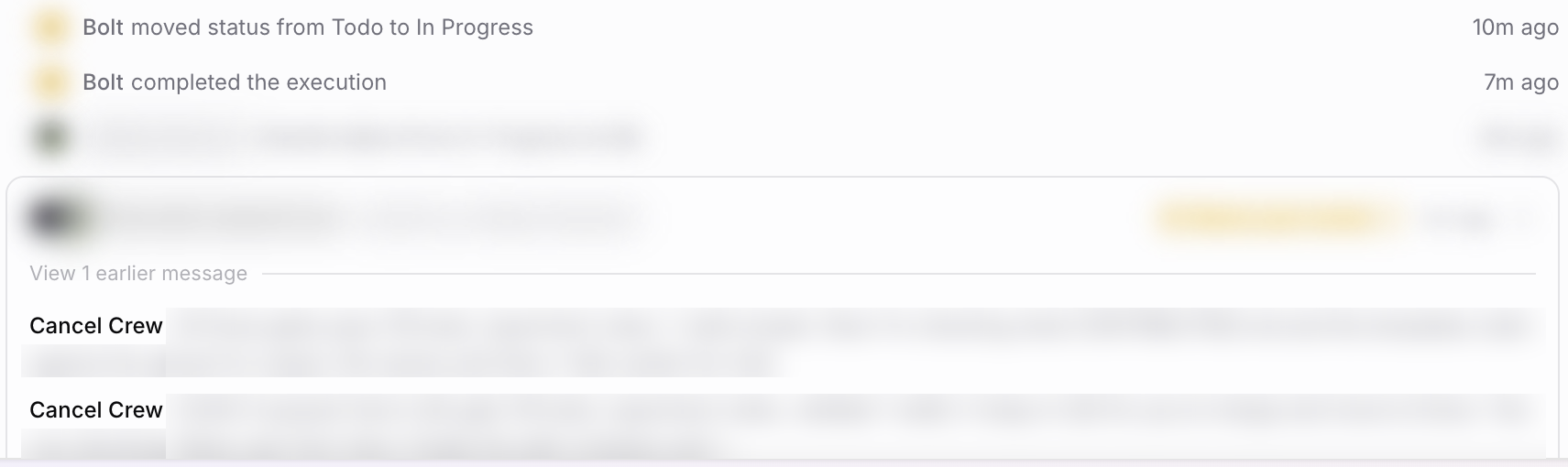
Why route through the Crew instead of pointing the automation at Vera? Vera is crew-exclusive, and Sharkly refuses an automation that targets a crew-exclusive Agent directly. More on status-triggered automations in Sharkly Automations.
Step 6: Know what the terminal statuses do
We didn’t kill a real run for a screenshot, so this step comes from the help page rather than our own test.
- Done (Completed): the task is terminal, but an active run is not canceled. If you close a task while the agent is mid-run, it finishes and reports anyway.
- Canceled: stops active runs started for the task. Use it when the work is no longer wanted.
- Duplicate: also stops runs, and asks you to pick the original task in the same Space.
The practical rule: to stop an agent, cancel the task. Moving it to Done only closes the task, and the run keeps going.
Step 7: Add a status of your own
We added Blocked for work waiting on a person, a secret or another task.
- On the Build Statuses tab, click Add status, open Select statuses… and choose New status at the bottom.
- Enter the name Blocked, a description, and a color (we used
#ef4444). - Set Status group to Started, then click Save.
Sharkly creates it in the organization catalog and adds it to Build in one step. Build now lists nine statuses, with Blocked under Started.
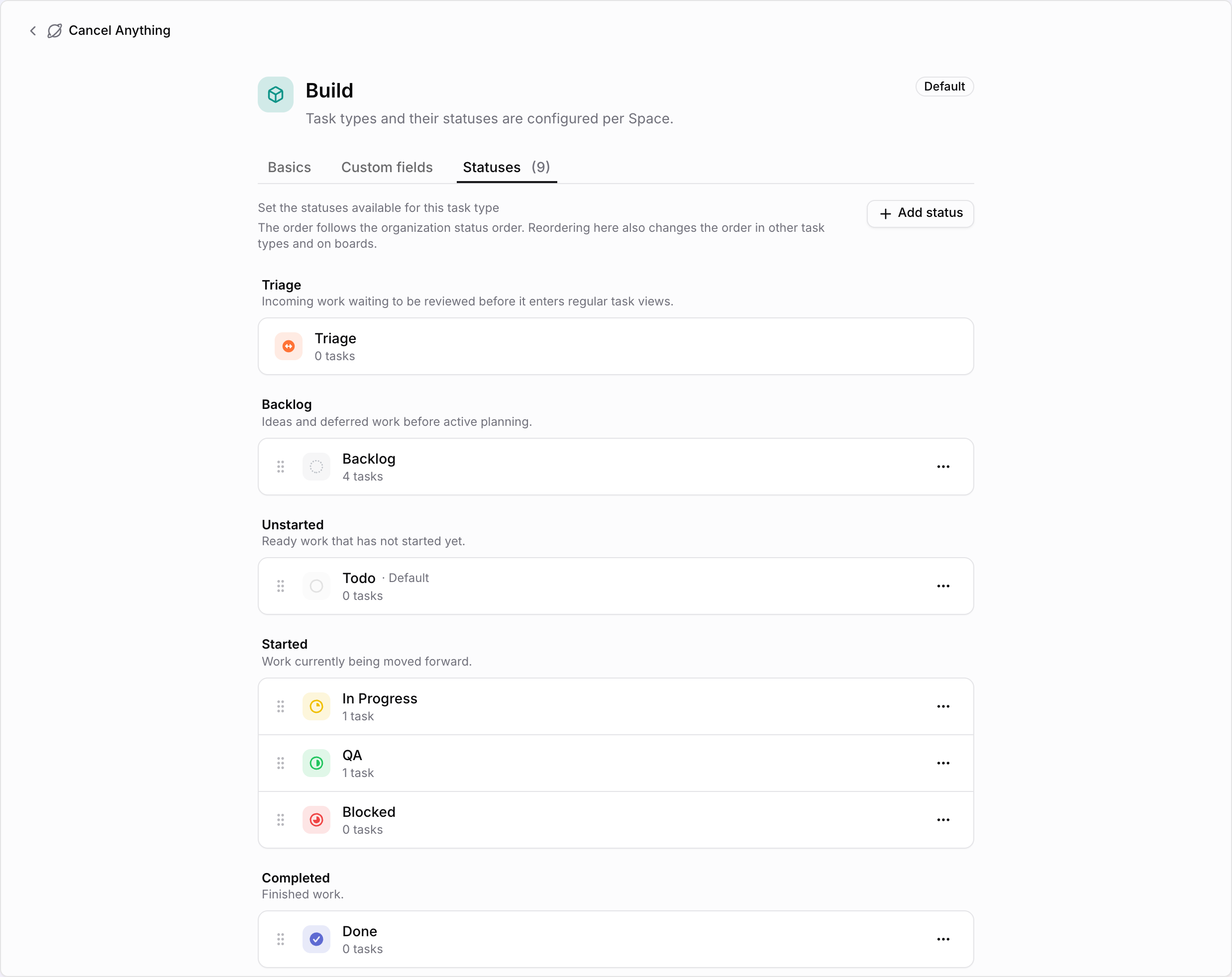
Why Started and not Backlog? Moving a task from Backlog to any non-terminal status can start a run. A Started status keeps the task inside the active Sprint and its metrics without reading as parked.
What went wrong for us
QA wasn’t in the Build Workflow. The setup notes said QA had been renamed from Ready for Release. In fact both still existed in the catalog, and neither belonged to Build. On an earlier task, Bolt reported that it couldn’t move the work to QA and left it in In Progress. Fix: attach the status to every type that needs it (Step 2), then check the task-type count in the catalog.
The agent didn’t move its own task to QA. Even with QA attached, Bolt stopped at “Needs your review”. That’s fine for a team where a human decides when work is ready. If you want agents to hand off on their own, say so in the agent’s instructions and name the status.
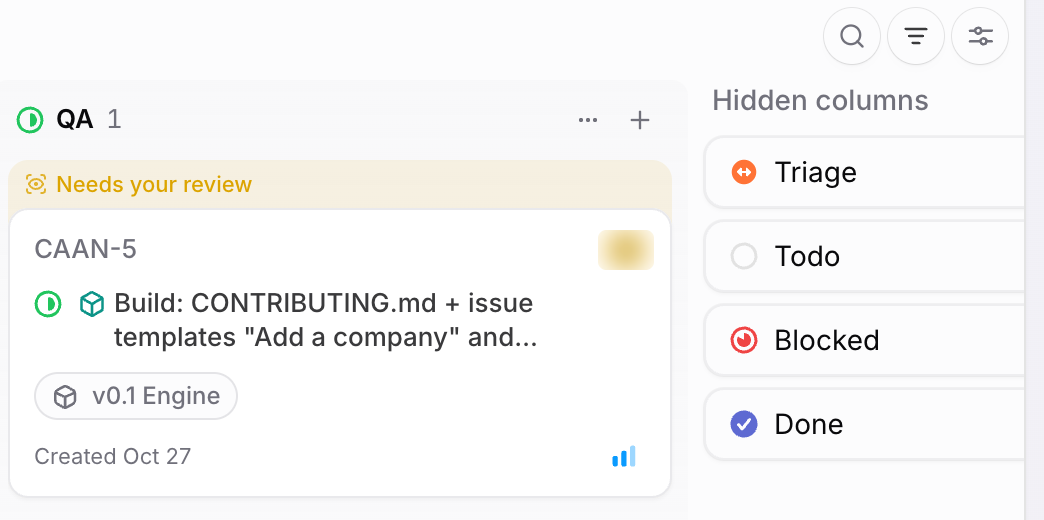
Blocked didn’t show on the board. The board hides empty columns, so Blocked waited under Hidden columns until a task used it.
Variations
A support team can keep agent drafts in Backlog all day and move a batch to Todo once someone has read them. The status move is the approval, and nothing runs before it.
A platform team with paid model limits can add a “Ready for Agent” status in the Unstarted category. Humans file work into Backlog, and a lead promotes it to Ready for Agent when there’s budget. That one column becomes the spend control.
Recap checklist
- [ ] Every status you move tasks into is in the task type’s Workflow, not only the catalog
- [ ] Agents are assigned in Backlog, and the move out of Backlog is your start button
- [ ] Review statuses are Started, with a status-change automation on them
- [ ] You cancel tasks to stop agents, and use Done only to close work
- [ ] New statuses get their category picked by meaning, not color
Set up your own board on Sharkly, then read the full category rules on the task statuses help page. New to the product? Start with getting started with Sharkly.
FAQ
Does assigning an agent in Backlog start a run?
No. Creating or assigning a task in Backlog does not start a run. The run starts when you move the task out of Backlog to a non-terminal status and the Agent is ready.
How do I stop a running agent from the board?
Move the task to a Canceled or Duplicate status. Both stop active runs started for the task. Moving it to Done does not.
Why can’t I select a status on a task?
The status isn’t in that task type’s Workflow. Open the Space’s task type, go to the Statuses tab, and add it.
What’s the difference between a status and a category?
A status is the name your team sees, such as QA. Its category is the fixed stage underneath, such as Started. Agent runs, Sprint metrics and reports all read the category.
Can a status trigger an agent?
Yes. A Task status change trigger on an automation can run an Agent or a Crew whenever a task enters a chosen status.