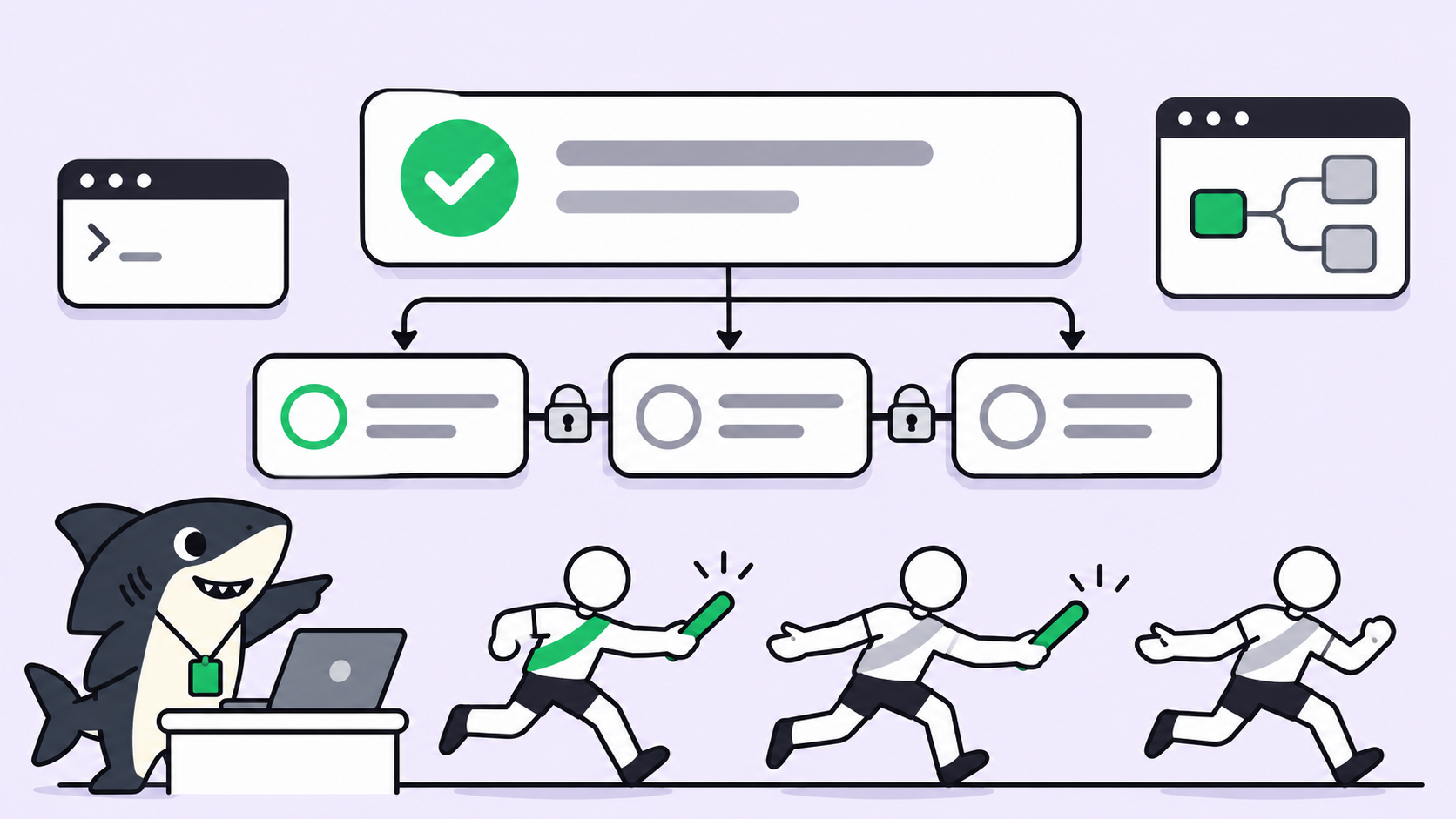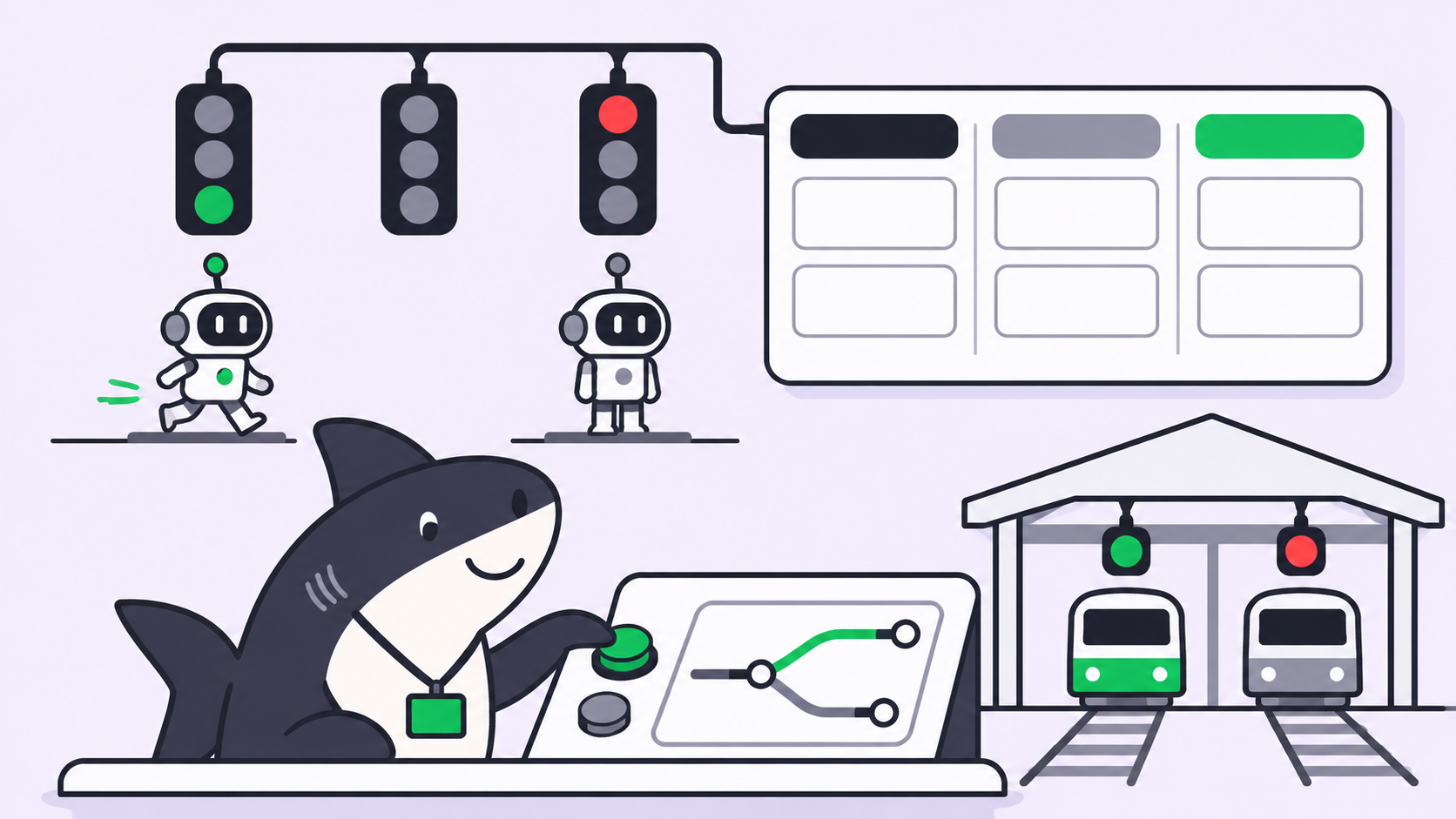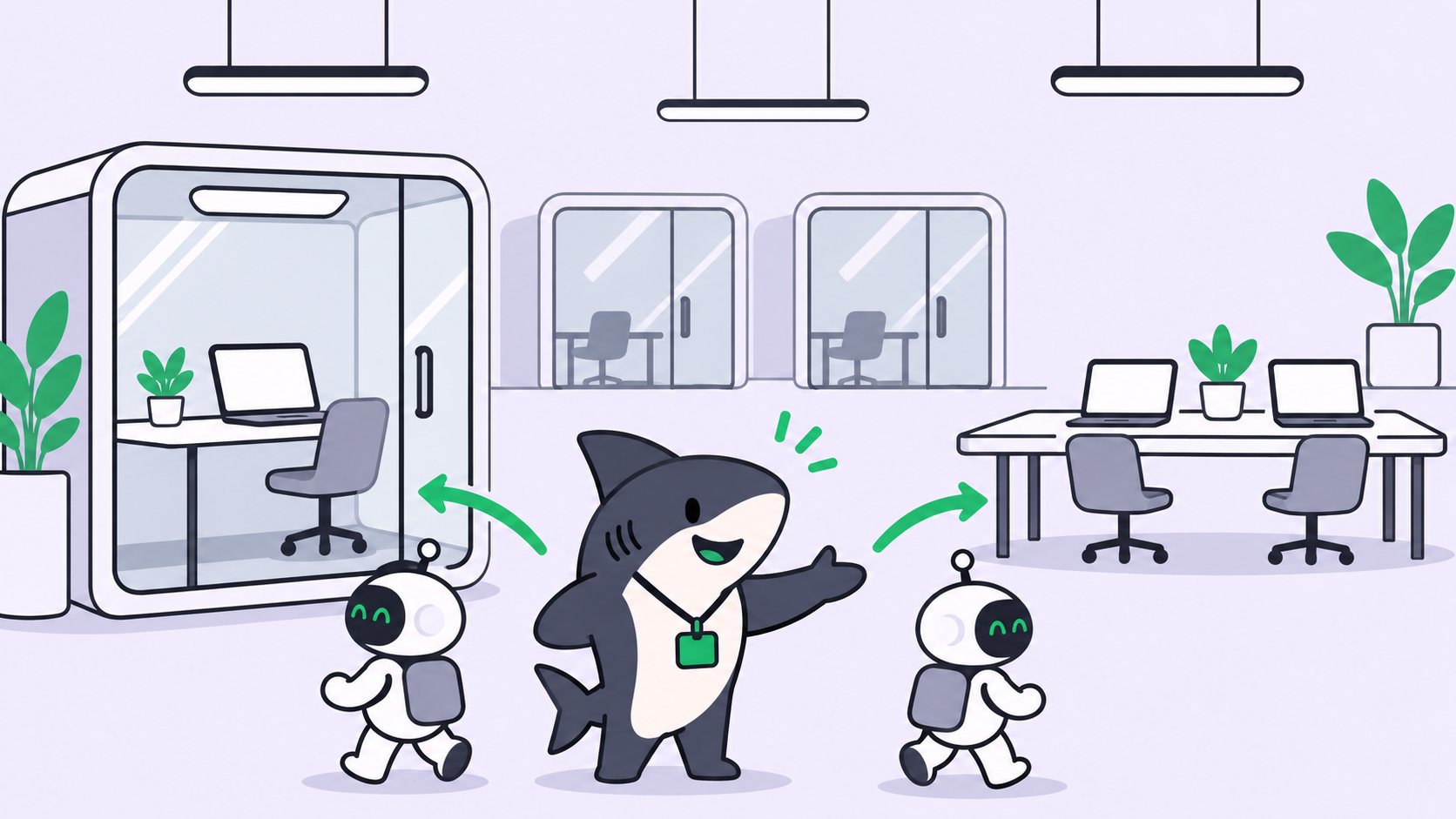
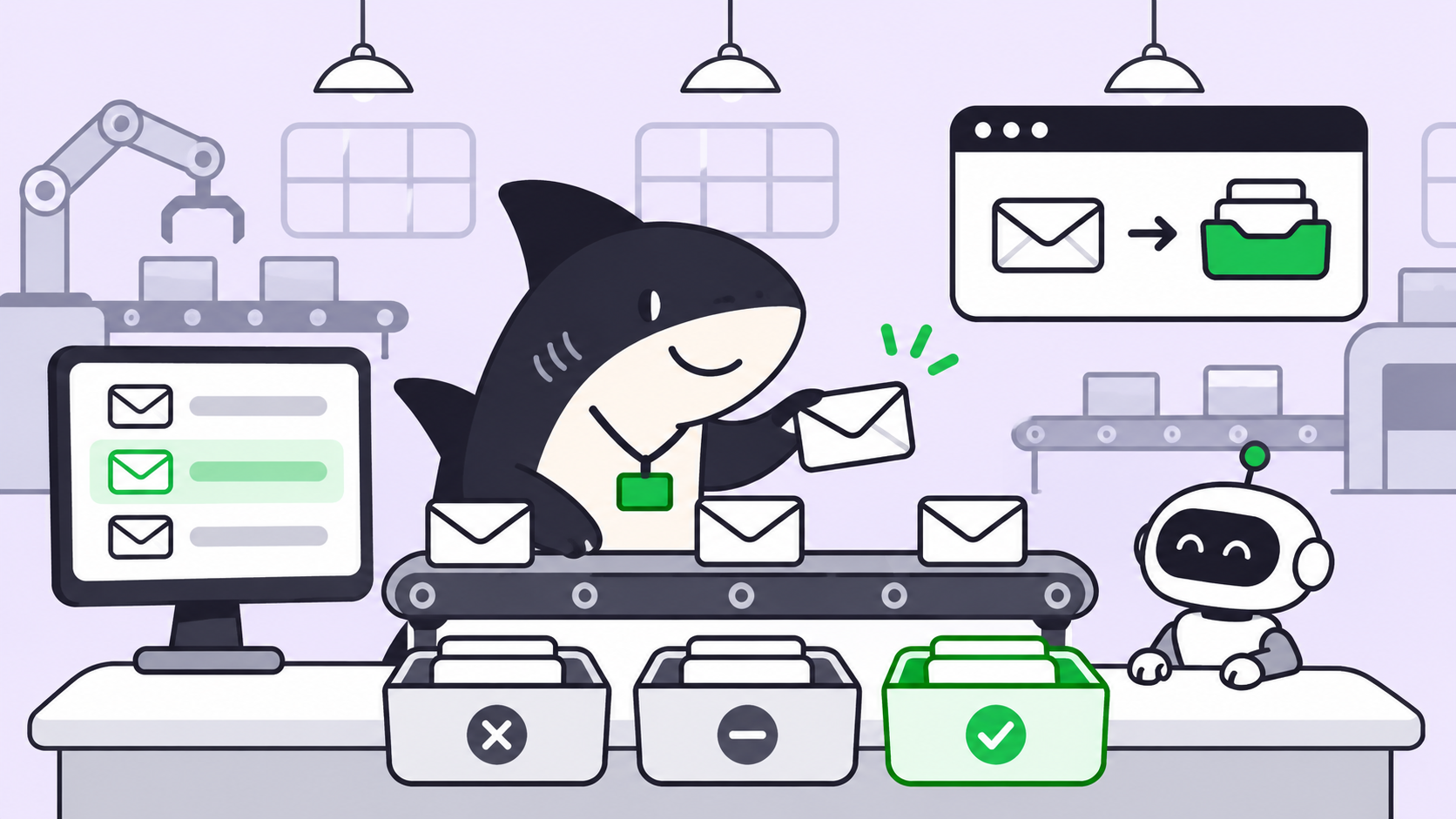
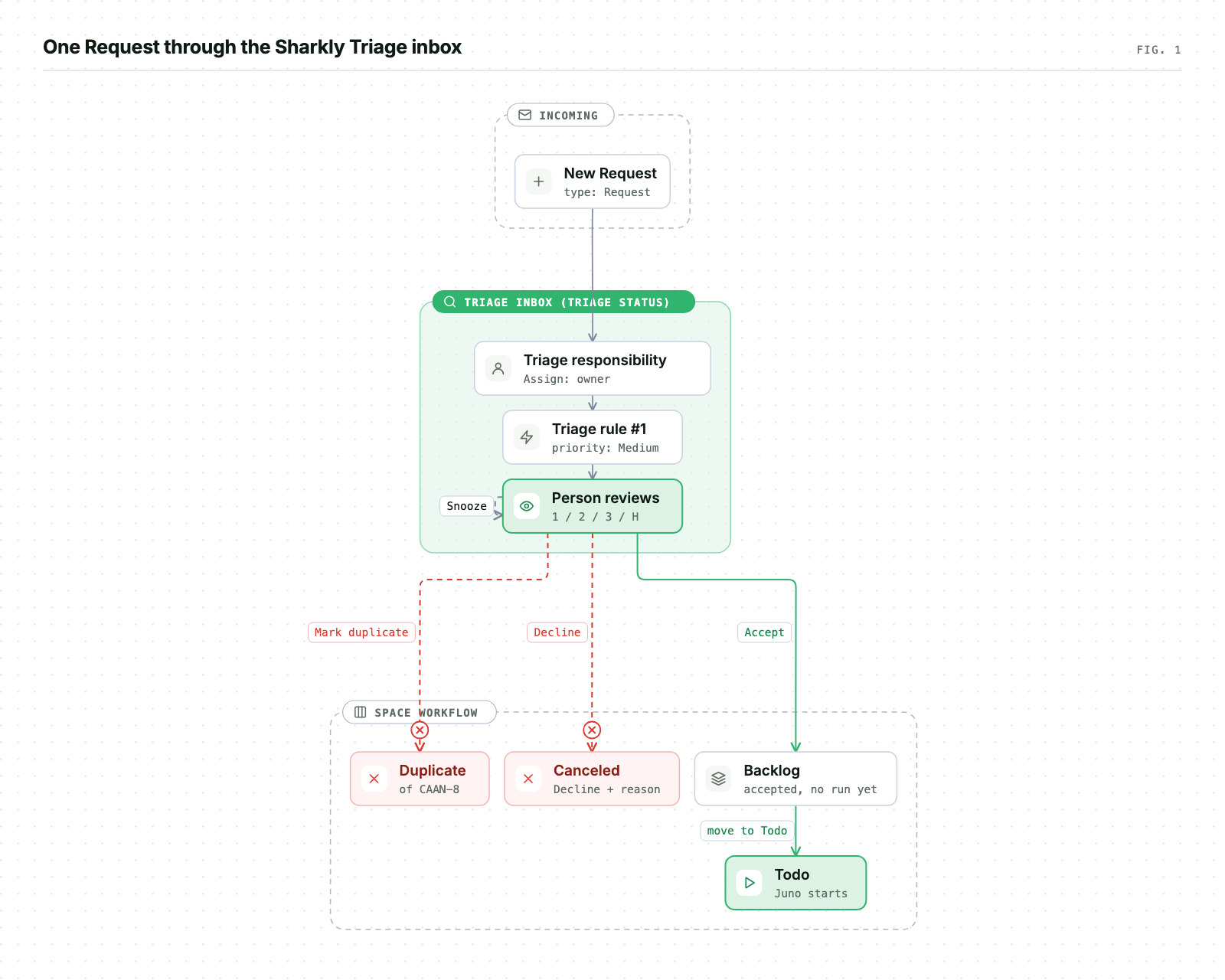
The Sharkly Triage inbox is a per-Space review queue. New work lands there in the Triage status, off your boards and out of My Tasks, until a person accepts it (key 1), marks it a duplicate (2), declines it (3) or snoozes it (H). Triage responsibility picks who owns new arrivals, and triage rules set fields such as priority before anyone looks.
You file requests from three channels, half of them vague, and somehow an agent starts on the wrong one. The Sharkly triage inbox fixes that by putting a person between “someone asked” and “an agent is working on it.” This tutorial runs the whole flow for real in a working Sharkly org, Cancel Anything, a small subscription-cancelling CLI team. By the end you’ll have a configured inbox, a triage rule that fires on new requests, and one accepted request that an Agent has already worked on.
If you don’t have a Space yet, Sharkly is free to start, and the getting started guide takes about ten minutes.
Before you start
You need four things in place:
- A Space with the Triage module on. Open Space settings, then Triage, and turn on Enable triage. Only Organization Owners, Organization Admins and Space Administrators can change it.
- A task type for incoming work. Our Space has a
Requesttype for anything a user asks for, next toRecipe,BuildandBug. - Labels and a Project to route into. We use three label groups (
category,dark-pattern,region) and a Project called Recipes: launch 10. - An Agent on a connected Computer. Ours is Juno, a PM Agent on Claude Code with Sonnet. If Agents are new to you, read how Sharkly Agents work first.
How the Triage inbox works
A task enters Triage when the inbox is on and its type’s workflow has a Triage status. According to the Sharkly Triage docs, that covers tasks filed with Create triage task, submissions from Organization members outside the Space, new issues from a connected Jira sync or a linked GitHub repository, and anything a Viewer creates in a Private Space. A Space member creating a task from the ordinary task page skips it.
The word comes from medical triage: sort first, treat second. Here, “treat” means an Agent run.
Use the Sharkly Triage inbox, step by step
Step 1: File three real requests
We filed three requests the way users send them:
- Request: add SiriusXM. A user had to cancel through a chat window and turn down two discounts first. US account.
- Request: add The New York Times. A reply to the launch post, no region given.
- Recipe broke? demo-merchant hangs after the receipt with --cdp. A report from the bug channel.
You can file one from the Triage page with Create triage task (shortcut C), or from the CLI with an explicit status:
sharkly task create --space CAAN --type Request --status Triage \
  --title "Request: add SiriusXM" --body-file request.md
Step 2: Read the queue, and notice what’s missing elsewhere
Open the Space in the sidebar and click Triage. The queue shows each task’s type icon, key and age, with a count next to the heading.
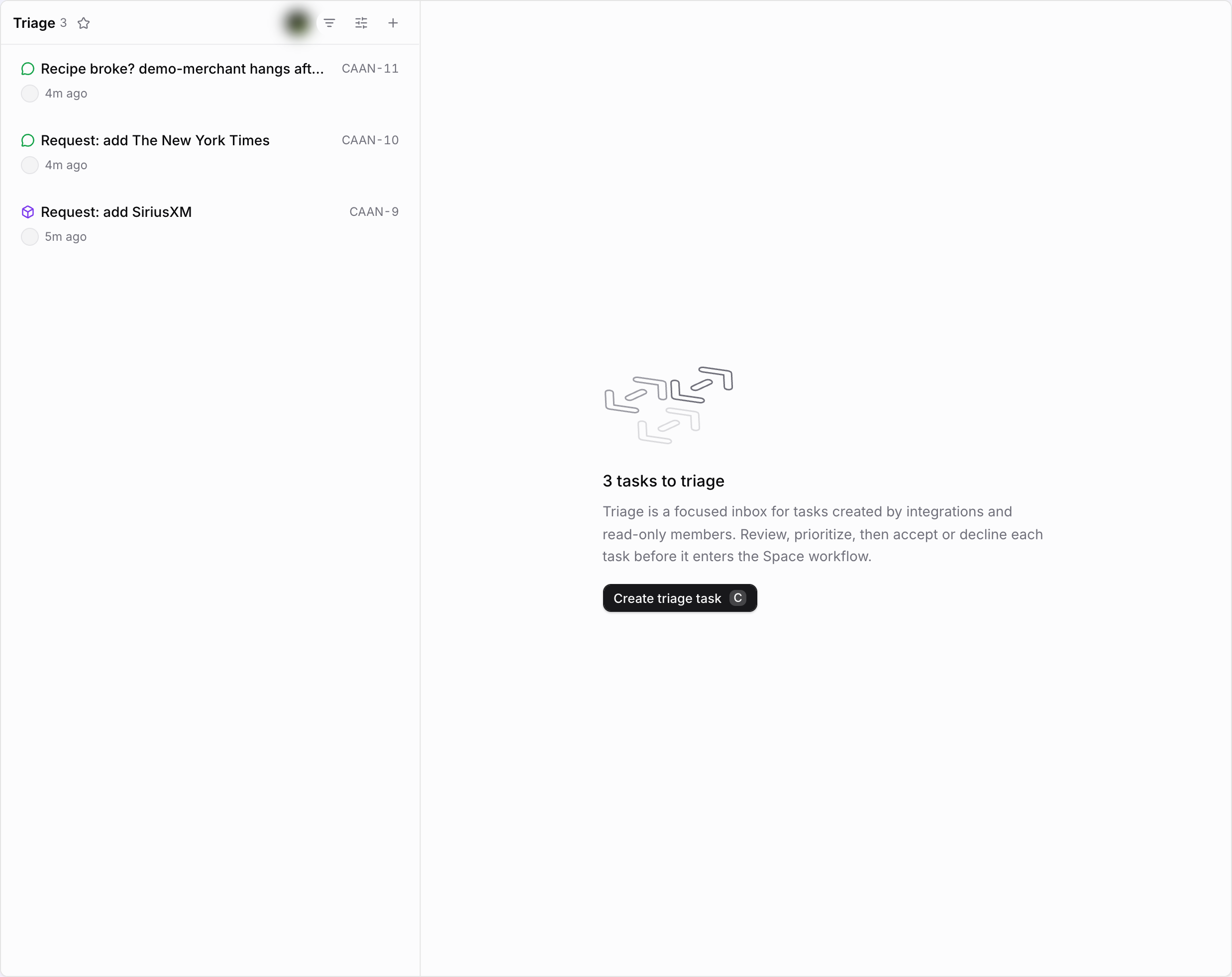
Now open the board or My Tasks. None of the three are there. Boards and task lists exclude the Triage status by default, and our CLI listing skipped them too. That’s the point: nothing reaches an Agent’s queue until a person says yes. To see them on a board anyway, turn on Show Triage tasks in display options.
Step 3: Set who owns triage, and add a rule
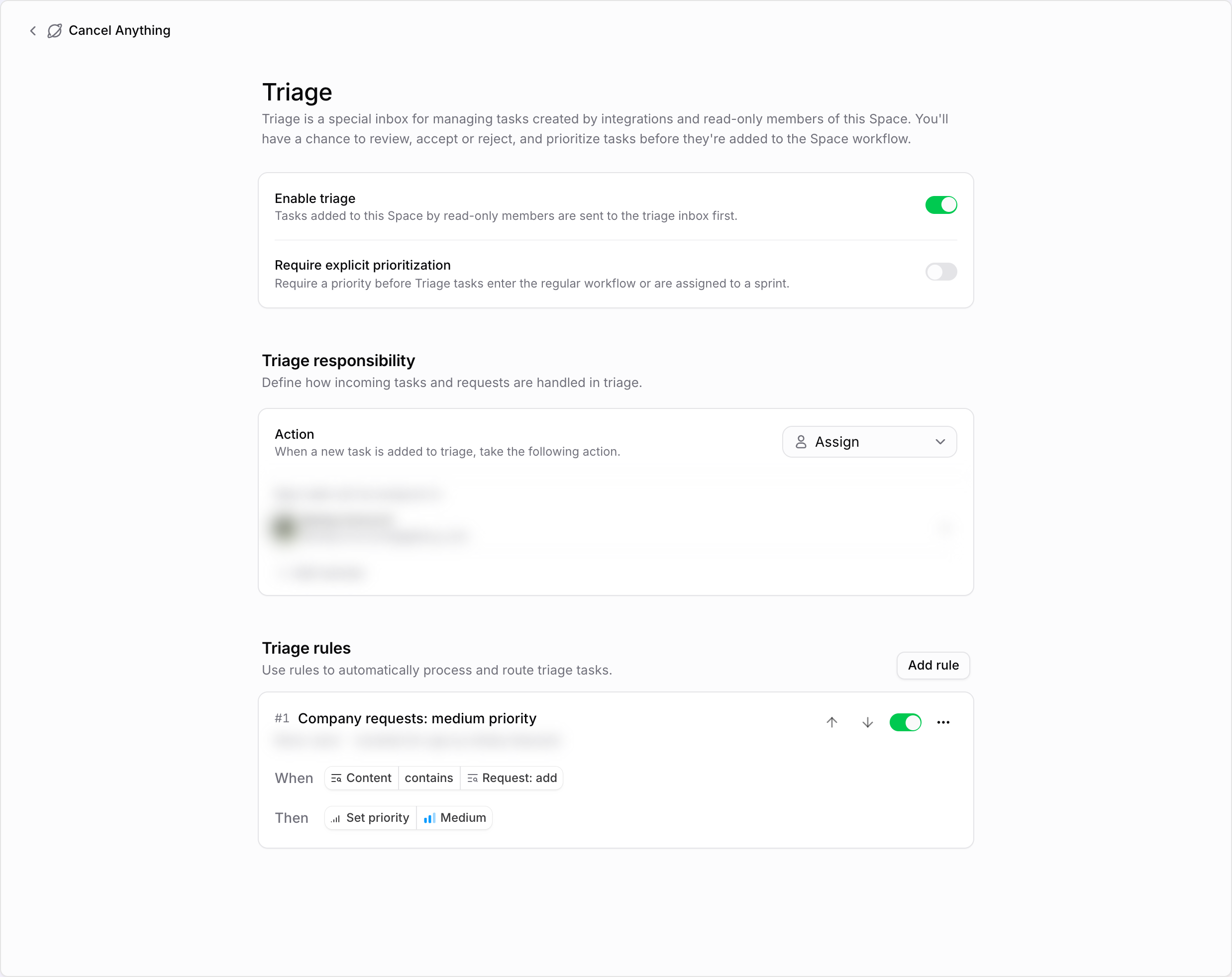
Click Configure triage responsibility at the top of the queue. It opens Space settings on the Triage page. Under Triage responsibility, the Action menu has three choices: No action, Notify and Assign. We picked Assign and added the Space owner, so every new arrival has a name on it.
Under Triage rules, click Add rule, name it, then build it as When and Then:
- When: Add filter, then Content, contains,
Request: add. - Then: Add action, then Set priority, Medium.
Click Save rule. It shows up as #1, marked “Never used” until it fires.
Step 4: Accept one, retype it, and hand it to an Agent
Open Request: add SiriusXM. This one is real work, so it becomes a Recipe.
- Click the Request type badge next to the title and pick Recipe. Sharkly asks “Change task type?” and warns that values for custom properties that exist only on the old type are dropped. Click Change type.
- In the right panel, add labels
streaming,retention-offeranduswith the + under Labels, and pick Recipes: launch 10 under Project. From a terminal, one command does the same:
sharkly task edit CAAN-9 --label category/streaming \
  --label dark-pattern/retention-offer --label region/us \
  --project <project-id> --priority medium
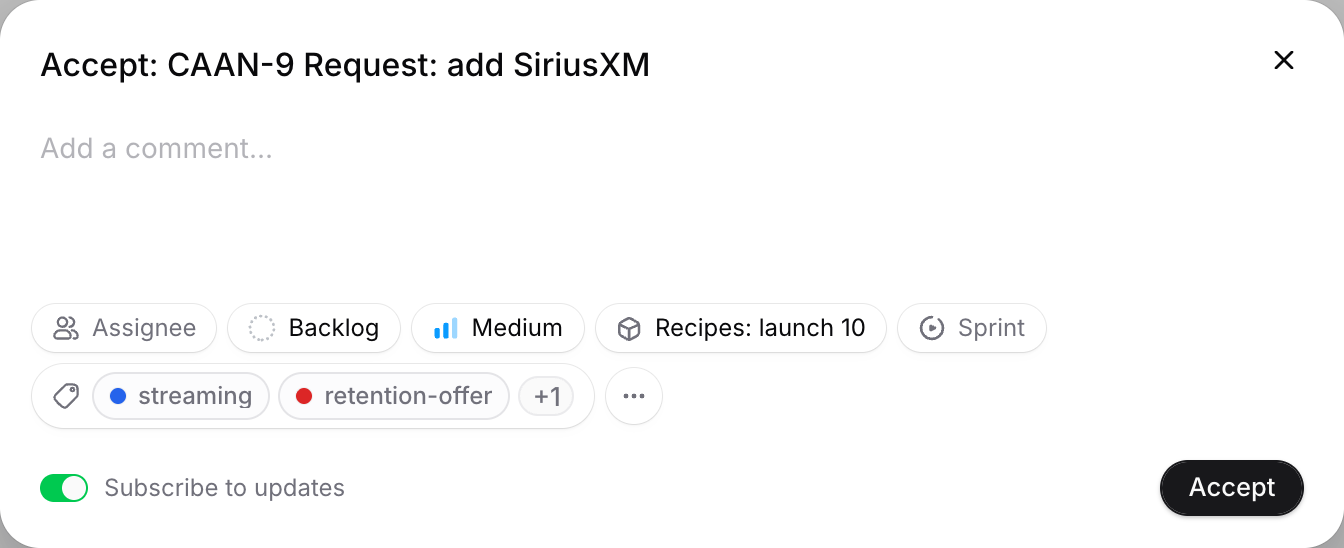
- Click Accept (or press 1). The dialog shows where the task goes: Backlog, Medium, the Project, the labels, and an empty Assignee.
- Click Assignee, type
Juno, and select it. The picker groups Crews, Agents and People. Our QA Agent wasn’t listed, because it’s exclusive to its Crew. - Write the brief in the comment box, then click Accept.
Step 5: Mark one duplicate and leave one for later
The demo-merchant report describes a bug the team already tracks as CAAN-8: the CLI hangs after printing the receipt in --cdp mode. Open it, click Mark duplicate (or press 2), search CAAN-8, and press Enter. The task moves to the Duplicate status and points at the original, so the reporter’s words stay attached to the real fix.

The New York Times request can’t be specced yet: digital and home delivery cancel differently, and nobody said which. The docs are clear here: comment or snooze, don’t accept. We commented with the question, then clicked Snooze (H). The menu lists In 1 hour, Tomorrow, Next week, Next month and Custom. We picked Tomorrow, and the task left the queue until 8:00 am.
Use Decline (3) for work you won’t do. It moves the task to Canceled and lets you write a reason.
Step 6: Watch the rule fire on a new request
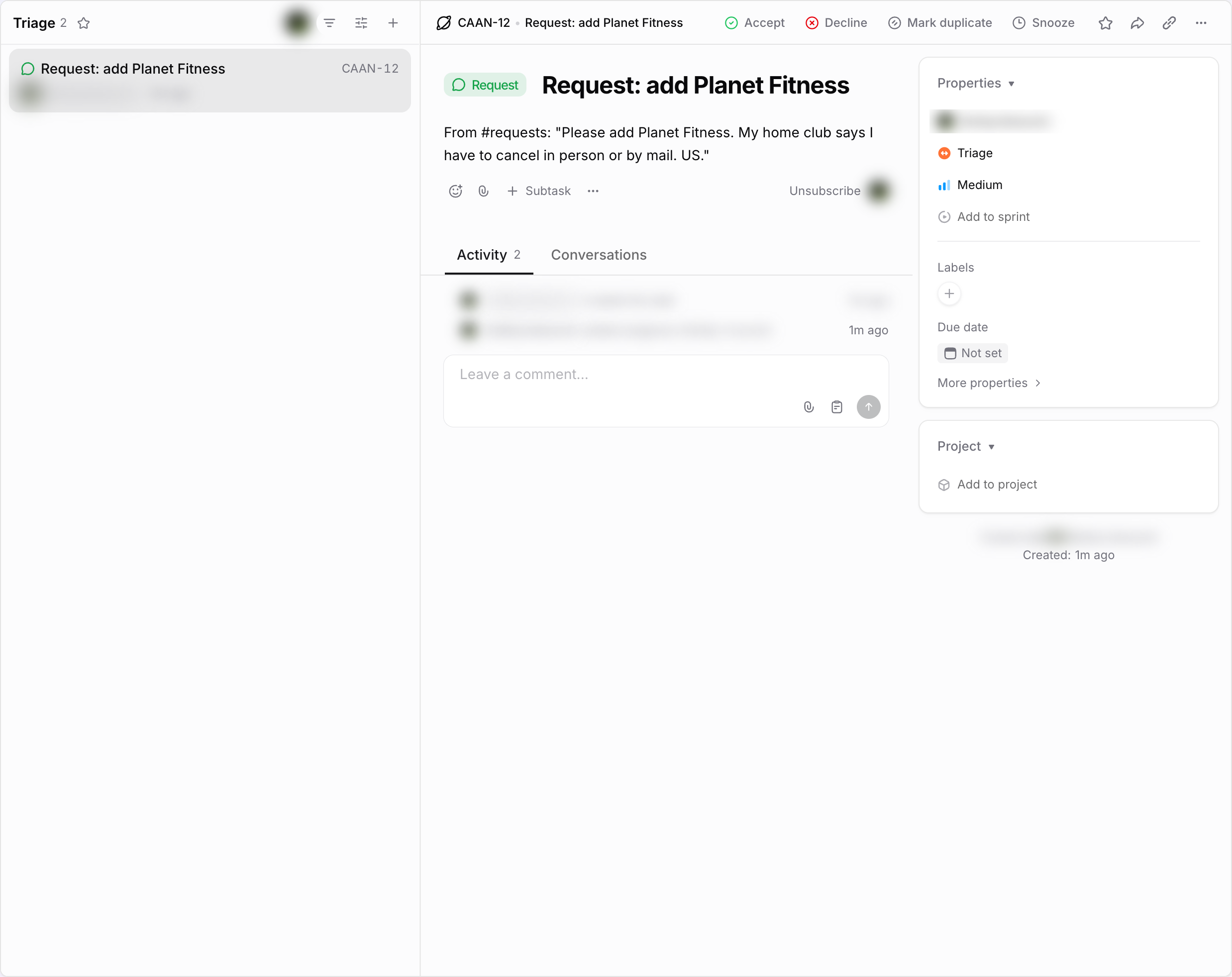
With the rule saved, we filed a fourth request: Request: add Planet Fitness, from a user whose home club wants cancellation in person or by mail. It arrived in Triage already at Medium priority with an assignee set, before anyone opened it.
The real result: what Juno left on the task
Once SiriusXM moved to Todo (more on that below), Juno’s run took about 75 seconds. Juno moved the task to In Progress, posted a recipe spec as a comment, and flagged the conversation Needs your reply.
The spec was honest. It listed what the request proves (US account, chat-based cancel, two declined discounts), sketched the recipe’s six steps, and then listed seven unknowns it refused to guess: the account page URL, the button wording, the discount amounts, whether a bot or a person runs the chat. It asked for one real walkthrough before writing the full spec. For a tool that clicks through dark patterns on real accounts, that’s the right call.
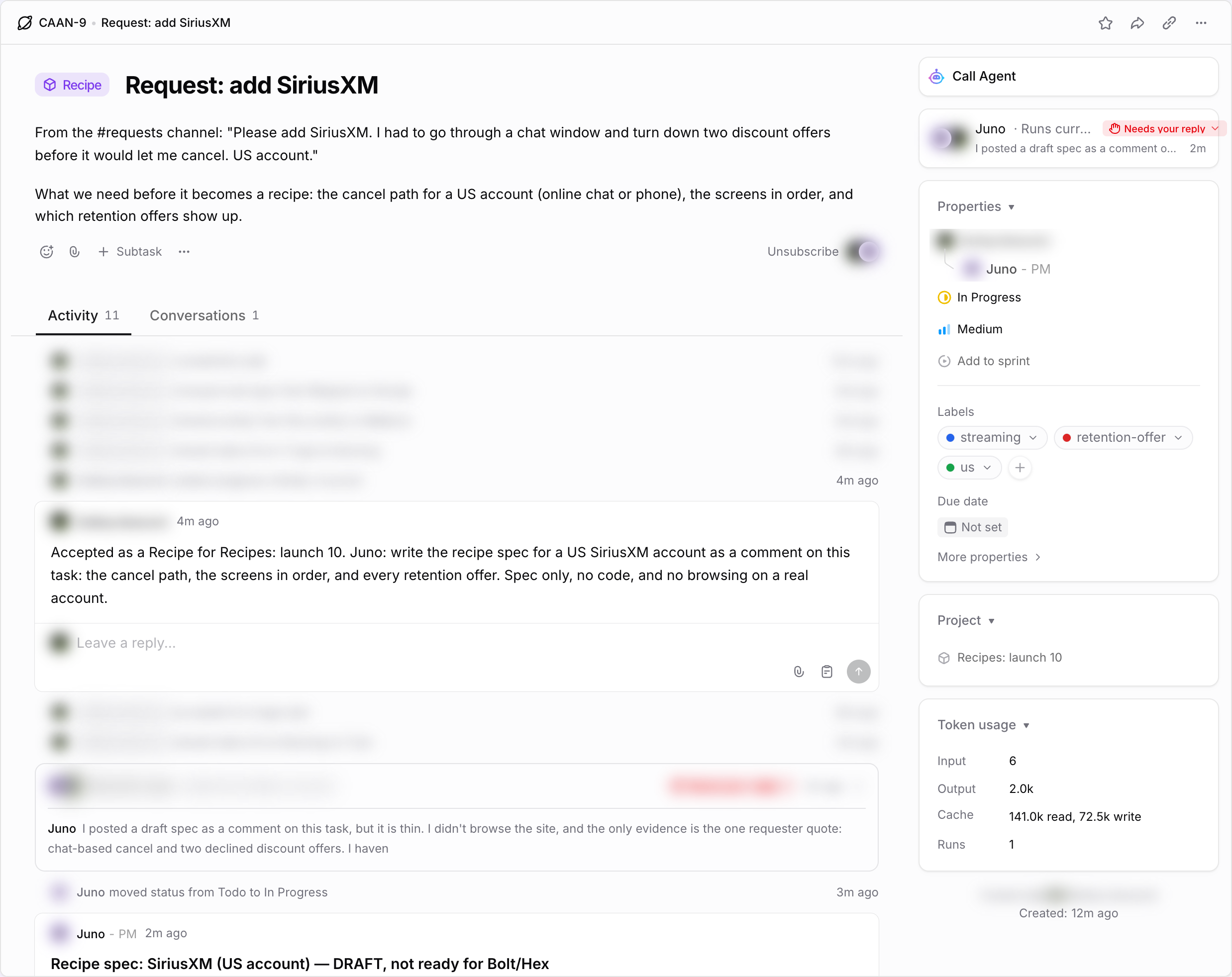
The right panel also shows the run’s token usage: one run, about 2,000 output tokens.
What went wrong for us
- Accept didn’t start the Agent. Accept sent the task to Backlog, the Recipe type’s default, and Juno sat idle with no run. Moving it to Todo started the run within seconds. The task statuses docs say it plainly: assigning a task in Backlog doesn’t start a run. If you want an Agent working right after triage, check which status Accept proposes.
- We assigned the wrong Agent once. The Assignee list shifted while it loaded and the click landed on Bolt, our engine Agent. Type the Agent’s name in the picker and press Enter instead.
- The rule had fewer actions than the docs list. The help page says rules can set a Project or move a task to another Space. In the app on 2026-11-23, the actions were Label, Assign, Set status and Set priority. We set the Project by hand. The app is the source of truth.
- Three requests predated the rule. Rules apply to new arrivals, so the first three had no priority. Set responsibility and rules before you announce the intake channel.
Variations: two other teams
A support team with a bug channel. Set responsibility to Notify for two on-call people, so each new report lands in their personal Inbox as “This task needs your triage”. Add a rule: content contains crash sets priority Urgent and a bug label. Accepted bugs go straight to an Agent in Todo.
A maintainer with GitHub issues. Link the repository, and new issues arrive in Triage instead of on the board. Pair it with GitHub issue templates so titles start with a fixed prefix, then match that prefix with Content contains. Turn on Require explicit prioritization so nothing enters a Sprint without a priority.
For the broader pattern, see how operations teams split triage between people and agents and AI backlog management and triage.
Recap checklist
- [ ] Space settings, Triage: Enable triage is on.
- [ ] Triage responsibility is Assign or Notify, with a real person.
- [ ] At least one rule sets priority or labels on new arrivals.
- [ ] Each accepted task has a type, labels, a Project and an Agent.
- [ ] The accepted status is one that starts runs, or you move it to Todo.
- [ ] Duplicates point at the original; unclear requests get a question and a snooze.
FAQ
Why don’t Triage tasks show on my board?
Boards, task lists and My Tasks exclude the Triage status by default. Review work in the Triage inbox, or turn on Show Triage tasks in display options.
Does accepting a task start the Agent?
Not always. Accept moves the task to its type’s default status. In our Space that was Backlog, and Juno didn’t run until the task moved to Todo.
What’s the difference between the Triage inbox and Inbox?
The Triage inbox is a shared queue for one Space. Inbox is your personal notification feed. With responsibility set to Notify, the task shows up in both.
Are triage rules the same as Automations?
No. Triage rules only process tasks in the Triage status, and they live in Space settings. Sharkly Automations are separate and can start Agent runs on triggers.
Can a Viewer bypass Triage?
No. In a Private Space, a Viewer can only create tasks in the Triage status, and if the inbox is off, Viewers can’t create tasks. See Space members and roles.
Next step
Turn on Triage in one Space today, write one rule, and route the next request you accept to an Agent in Todo. Start from the Triage feature page, then put a Crew behind the queue once single Agents keep up.