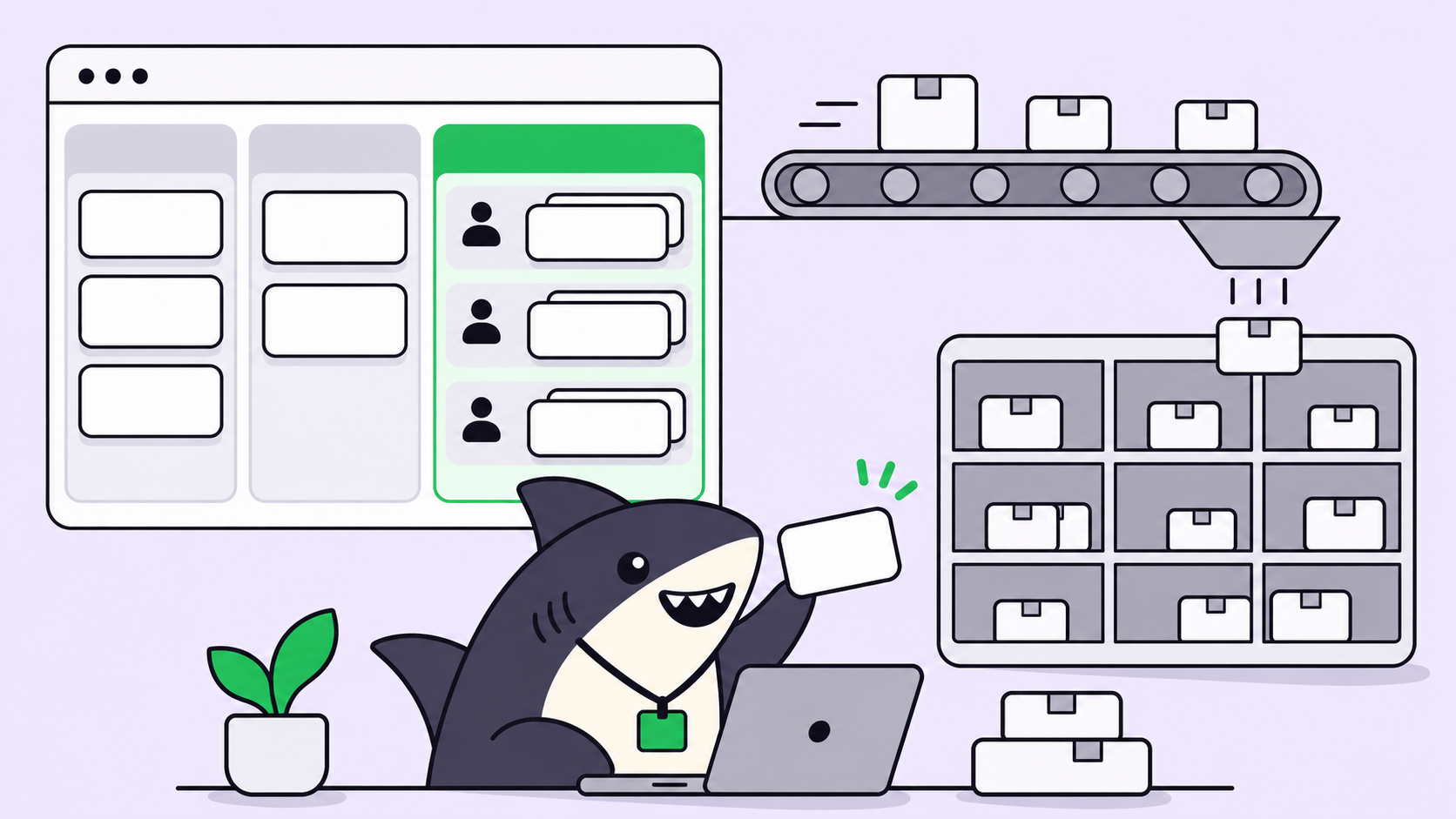
Sharkly Views are saved task lists for one Space. A View stores filters, a layout, grouping, sort and card properties, so the whole team opens the same question with one click. This tutorial builds a “Waiting on review” board that shows every task an agent finished and parked in QA, with one column per reviewer.
The job, and what you end with
Agents finish work faster than people review it. On Cancel Anything, a small team building a subscription-cancelling CLI, four agent tasks sat in QA on the same morning, and nobody could say at a glance which of them had a reviewer.
Sharkly Views fix that with one saved board. By the end you’ll have a Space-shared View called “Waiting on review”, published as the team’s default layout, plus one edit to an existing View so you see how changes are saved. Everything below was done in the Cancel Anything organization on 2026-11-24, with real tasks.
If you’re new to the product, Sharkly is free to start.
Before you start
You need three things:
- A Space with a review status. Ours is Cancel Anything (key
CAAN), where QA sits between In Progress and Done. - Agents that move their own tasks to that status when they finish. Ours are Bolt, Hex, Juno and Echo. If agents are new to you, read what Sharkly agents are first.
- Owner rights on the View you build. The person who creates a View owns it, and only the owner or an Organization Owner or Admin can save changes to a Shared View.
How the Waiting on review View works
A View is a lens, not a container. The Views help page says it plainly: a View “does not copy tasks and does not change task ownership.” A task shows up while it matches the filters and drops out the moment it stops matching.
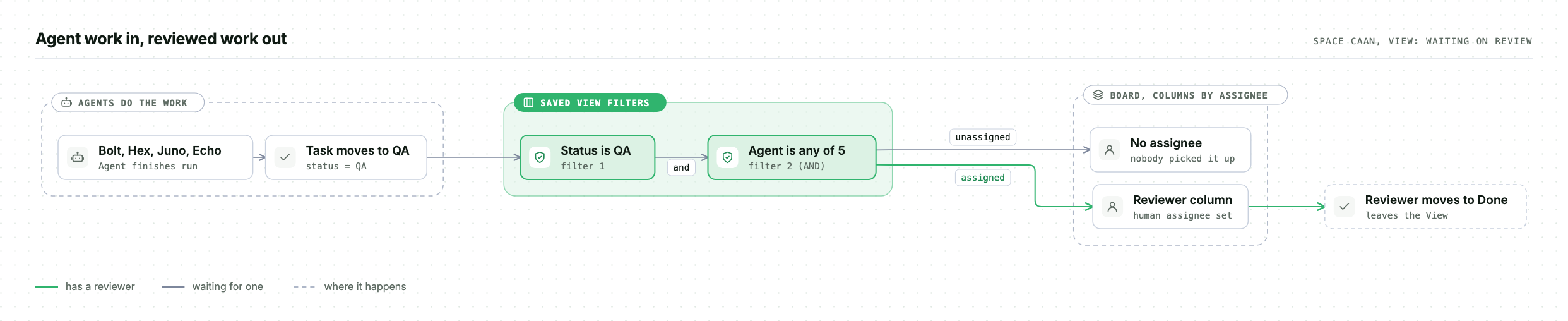
So the board stays short on its own. When a reviewer moves a task to Done, it leaves the View. Nobody has to clean it up.
Step 1: Open Create a view
In the sidebar, open your Space and click Views. The page lists every Shared View under “Everyone in this Space can see it”. Click Create a view in the top right.

The empty form: name, description, Visibility, and the Filter button.
Type the name, “Waiting on review”, and a description that says what the columns mean. Ours reads: “Agent work sitting in QA. One column per reviewer; No assignee means nobody has picked it up yet. Oldest update first.” Leave Visibility on Shared. Personal would hide the View from everyone else.
Step 2: Add the two filters
Click Filter, pick Status, and tick QA. Click Filter again, pick Agent, and tick each agent whose work needs a human check. We ticked Bolt, Juno, Echo, Hex and Hex (Claude Code). Agents with no matching tasks fold under a row like “4 options without matches”; expand it to reach them.
The two conditions combine with AND, so a task needs both: it’s in QA, and an agent did the work.

The saved filter row: Status is QA, and Agent is any of five agents.
Click Save. A toast confirms “The view is live”, and the View opens with 4 tasks.
Step 3: Set the layout, grouping and sort
Click Display settings (the slider icon, top right). Pick Board, set Columns to Assignee, and set Ordering to Updated date, so the task that has waited longest stands out.
Why Assignee? Sharkly has no reviewer field. A task carries the Agent that did the work and can also carry a person as Assignee, so the person you add becomes the reviewer. On CAAN-13 we added Ashley as Assignee next to Bolt. Adding a person didn’t start a new agent run.
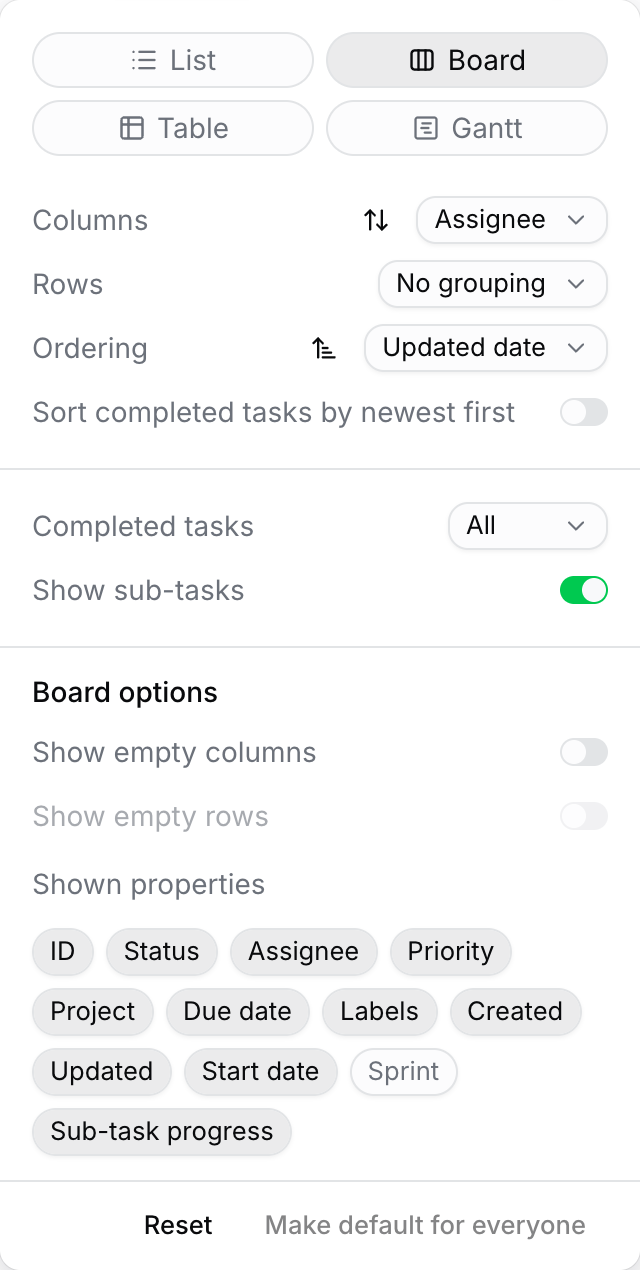
Board, Columns by Assignee, Ordering by Updated date. The greyed button means the team default already matches.
Step 4: Make it the team default
Display settings are personal. The help page lists the order Sharkly applies: your own settings, then the team default, then the built-in default. Until you publish, teammates opening your View see the built-in layout.
At the bottom of Display settings, click Make default for everyone. It needs the View owner or an Organization Admin. Once your settings match the published default, the button greys out, which is how you check it worked. Someone who already changed their own settings keeps them until they click Reset.
Then click the star, Favorite this view, to pin a shortcut in your sidebar. Teammates find the View under Views in the Space, or through a copied link.
The real result in Sharkly
Here’s the board the team opens each morning:
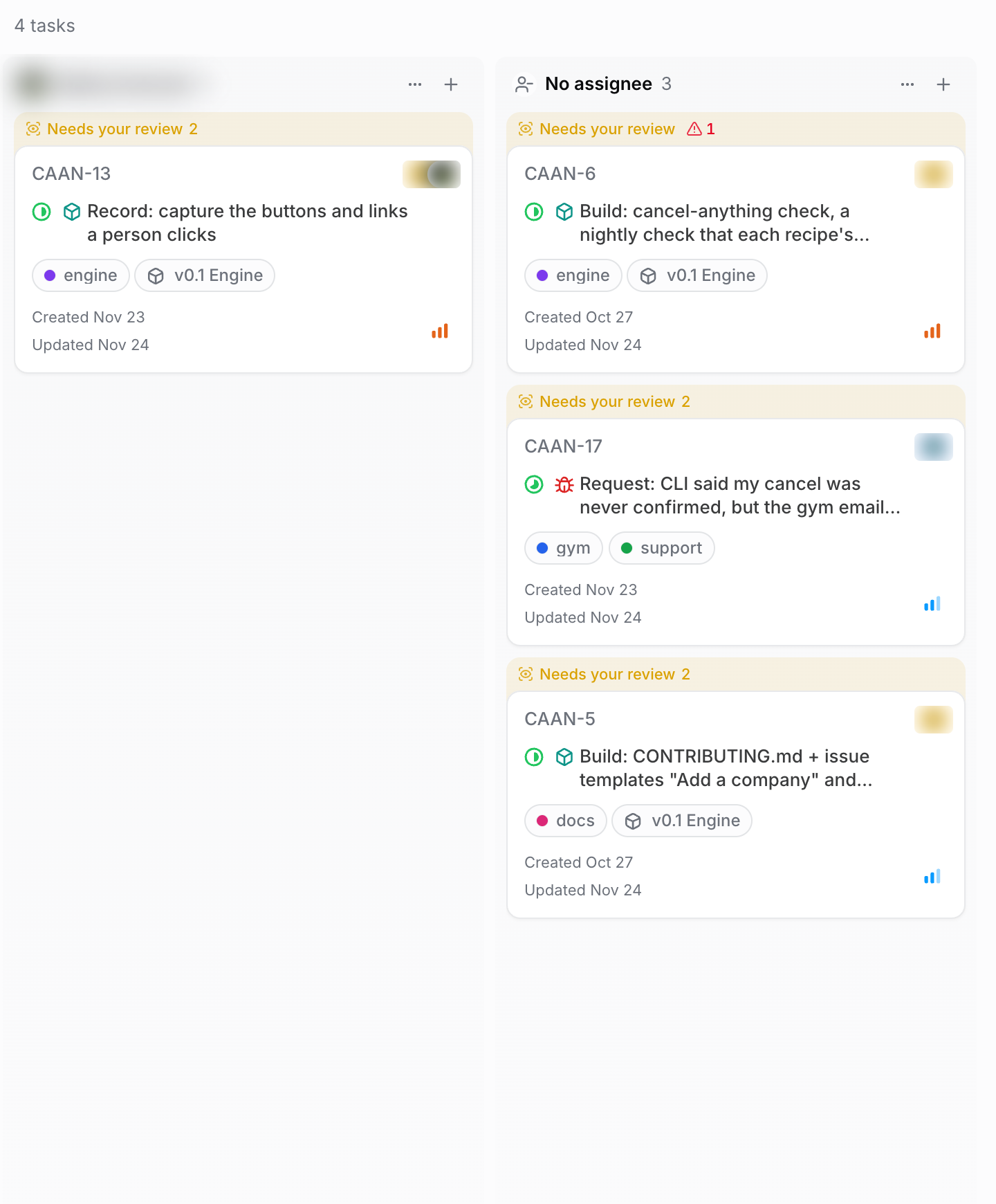
One reviewer column holds CAAN-13. The No assignee column holds the three tasks nobody has claimed.
The No assignee column is the point of the whole View. CAAN-5, CAAN-6 and CAAN-17 each have a finished agent run and a “Needs your review” banner, and no person on them. Google’s code review guidelines put one business day as the maximum wait for a first response, so that column is your queue for the morning.
Step 5: Edit an existing View
Cancel Anything already had a Shared View, “Hall of shame”, that filters tasks by four dark-pattern labels. We tightened it. Open the View’s menu (View options), click Edit, then Filter, Task type, Recipe. We also rewrote the description and clicked Save.
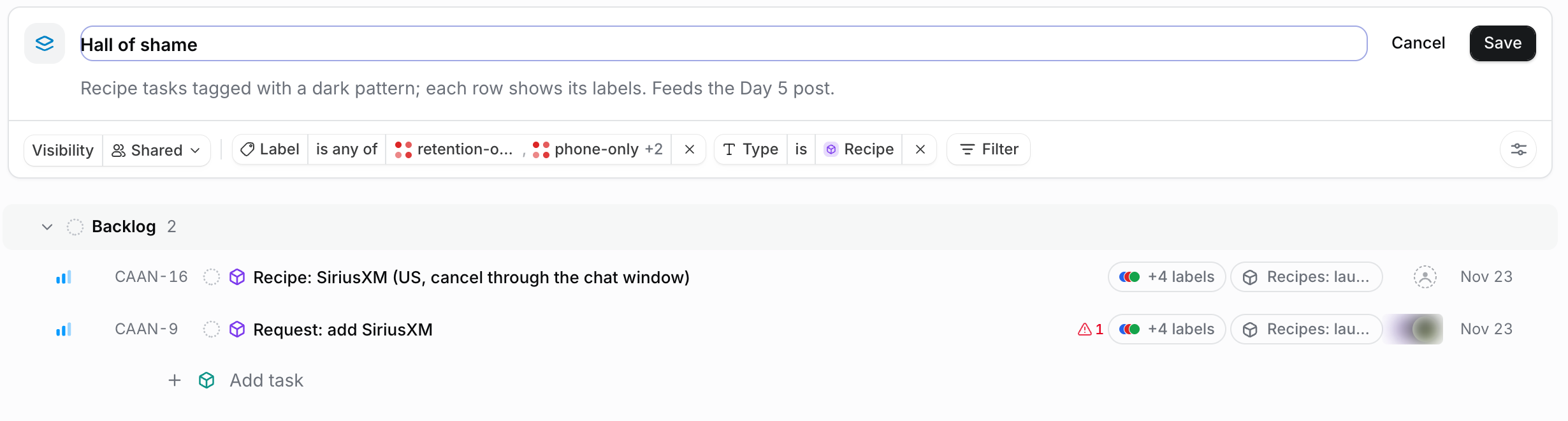
The edited View: the Label filter plus the new Type is Recipe filter.
In Edit mode, Save applies the change and Cancel throws it away. Nothing is saved until one of the save actions succeeds.
What went wrong for us
Grouping set during creation didn’t stick. We set Columns to Assignee on the Create a view page, saved, and the View opened grouped by Status. The fix was Step 3: open the saved View, set Display settings again, then publish them. Set the layout after the first save.
The old description promised something the app can’t do. Hall of shame said “grouped by label”, but its rows were grouped by status. The Grouping menu on a list shows Status, Assignee, Crew and Sprint, and no Label. Labels show on each row instead, so we rewrote the description to say that.
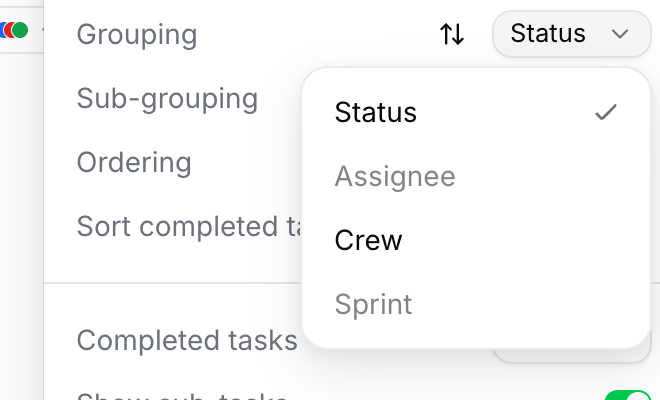
No Label in the Grouping menu, so filter by label and let the rows show it.
A title said “Request”, the type said Recipe. We expected Type is Recipe to drop CAAN-9, “Request: add SiriusXM”. It stayed, because its task type is Recipe. Filters read fields, not titles.
The button name differs from the docs. The help page calls it “Set default for everyone”; the app shows Make default for everyone. Trust the app.
Saved filters vs Views, and board vs list
Filters you add while viewing a View are temporary. Clear drops them, Save to this view keeps them if you can edit the View, and Create new view… saves a copy with both the old and new filters. A teammate who isn’t the owner can only create a copy, which keeps your Shared View safe.
Pick the layout by the question. A board answers “who owns what” at a glance: columns by Assignee or Status. A list fits long queues you scan top to bottom, and a table fits comparing fields. Views also differ from Projects and Sprints: a task can sit in many Views but in at most one Project and one Sprint.
Variations
A support team. A View with Status is QA and Agent is Echo, as a list sorted by Priority, shows which drafted customer replies a person still has to approve before they go out.
A platform team. Columns by Status, Agent is any of the code agents, and Rows by Assignee. Each person sees their own lane across In Progress, QA and Done, and work in progress stays visible, the core rule of a Kanban board.
Recap checklist
- The View’s description says what each column means.
- Filters: Status is your review status AND Agent is any of the agents that need checking.
- Saved first, then Board, Columns by Assignee, Ordering by Updated date.
- Make default for everyone is greyed out, which proves the default is published.
- People are added as Assignee on tasks they review; the No assignee column is the morning queue.
Want the statuses behind this to be solid too? Read how task statuses drive agent runs, then open Views in your Space and click Create a view.