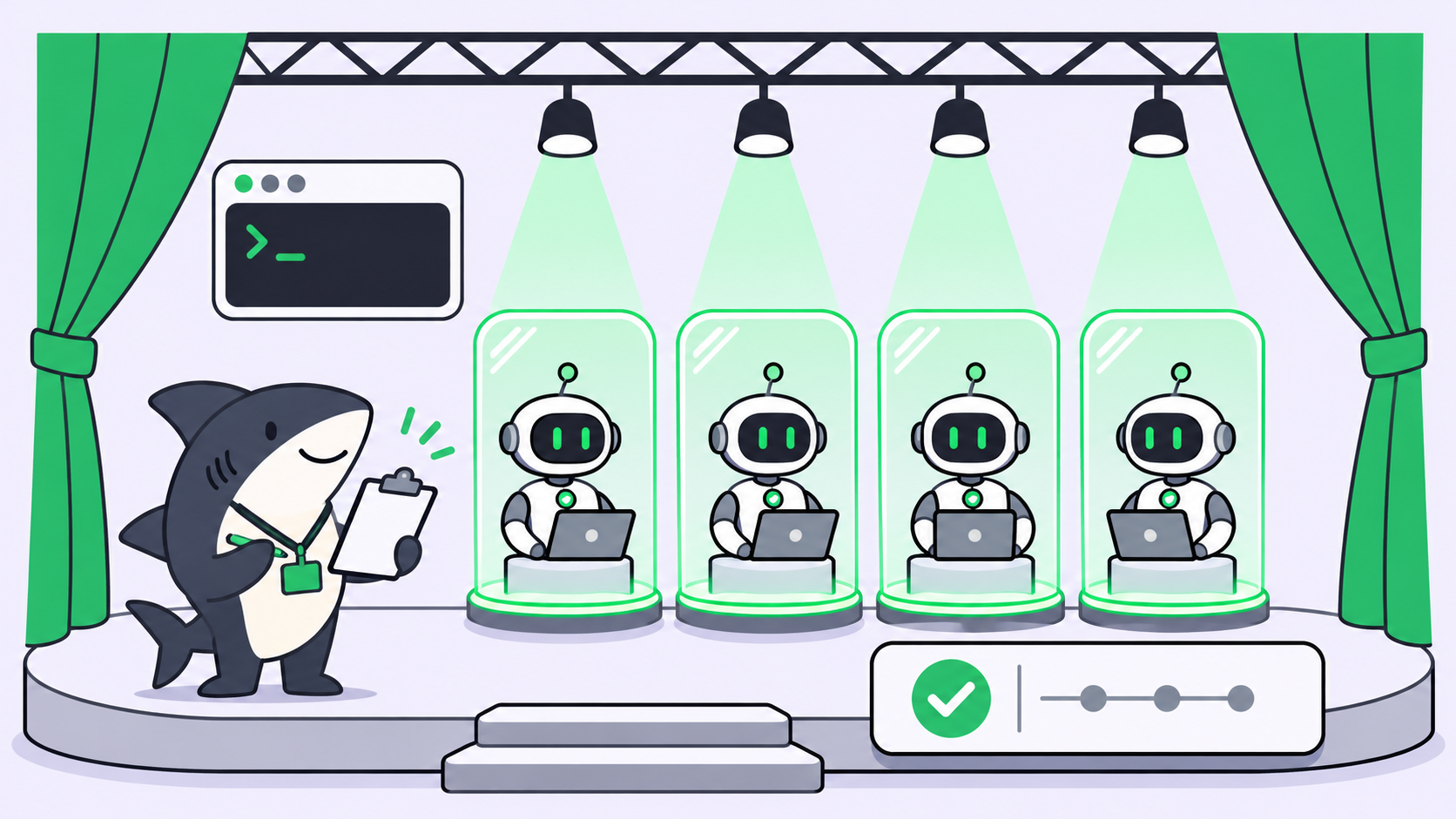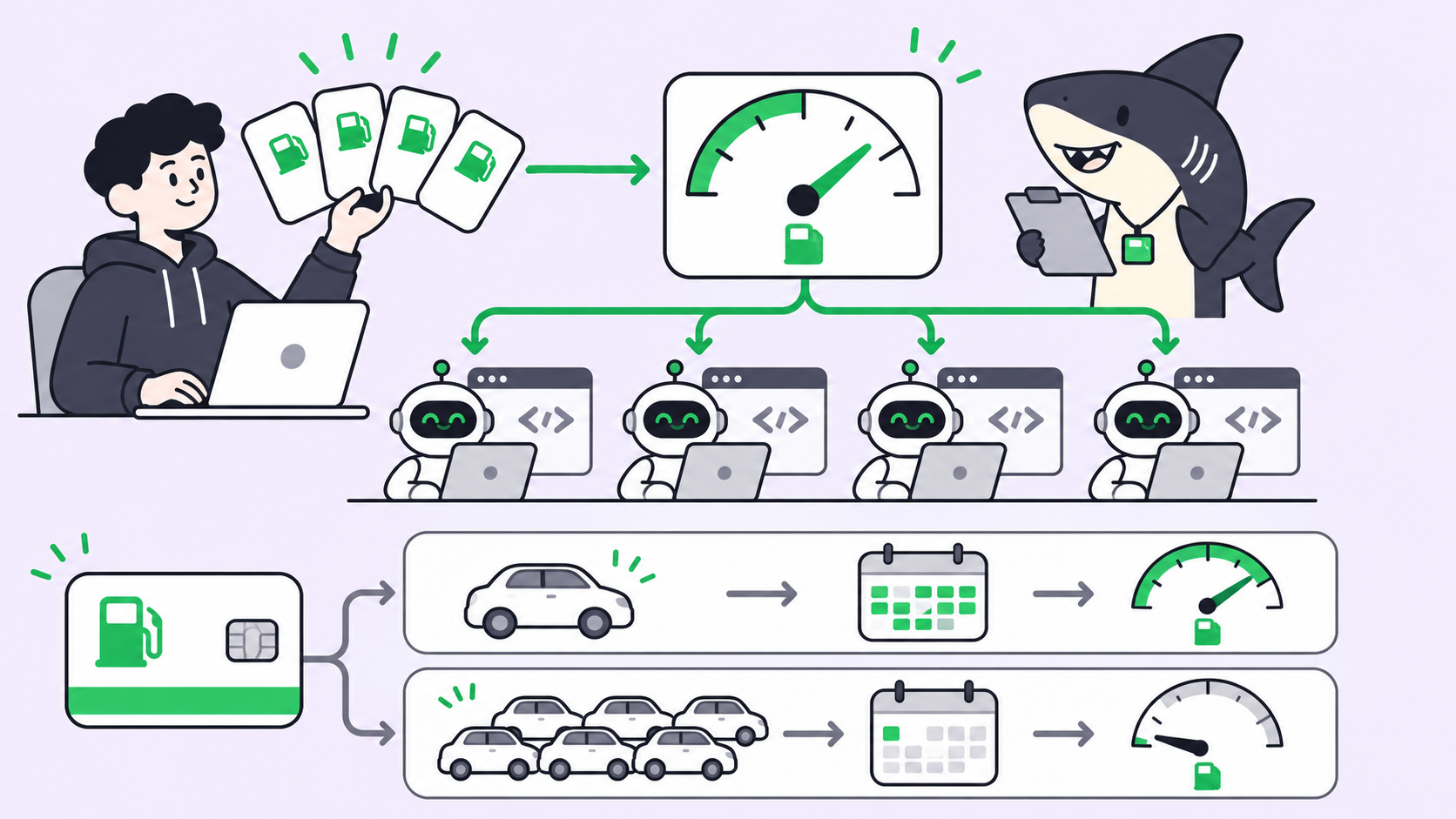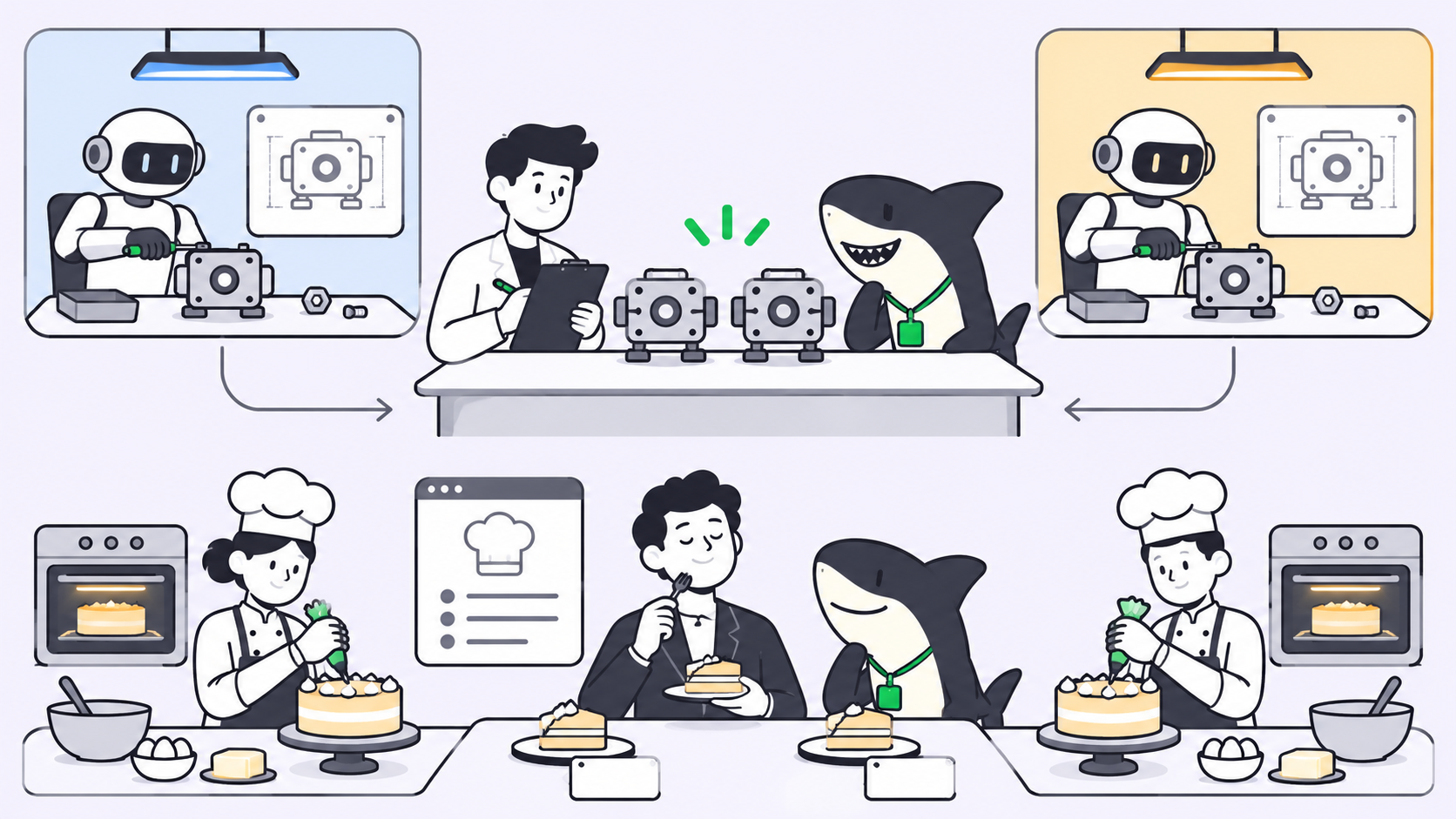
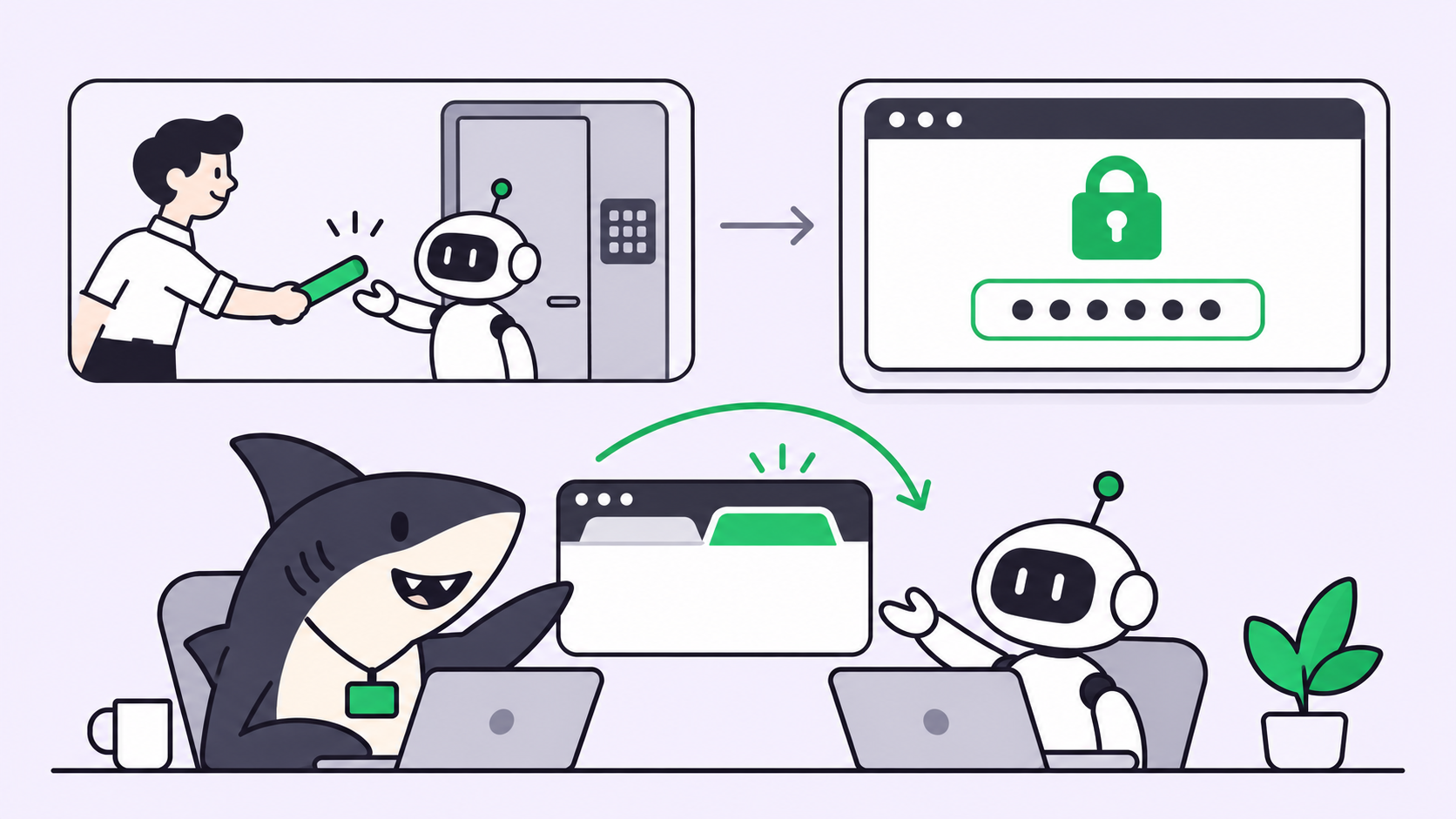
To let AI agents work in tools with no API, give the agent the browser you already sign in with, through an MCP server that drives real tabs. The agent reads pages, clicks, types and captures evidence, then hands the tab back to you for logins, 2FA and payments. Put each job on a task with a clear done-check, so a person reviews the result before anything is final.
Every team has a tool the agents can’t reach: the vendor portal with no export button, the internal admin panel, the dashboard whose API skips the setting you need. Your coding agent refactors a service in ten minutes, then stalls on a form a person fills in by hand.
Why tools without an API block AI agents
An agent acts through tools. MCP, the Model Context Protocol, is the open standard that lets an agent call an external tool through one interface. When a product has an API, someone can wrap it in an MCP server. Plenty of work lives where no wrapper exists:
- Vendor and partner portals that only offer a web UI
- Internal admin panels with no public endpoints
- SaaS settings pages the vendor’s API doesn’t cover
- Dashboards where the number you need is on screen but not in any export
- Flows gated by single sign-on, 2FA or a captcha
The old answers were brittle. A headless script breaks on the next redesign and can’t hold your session, and copying data out by hand keeps a person as the integration layer.
The signed-in browser approach
The signed-in browser approach means the agent drives a real tab in your everyday browser, with your existing logins, through a browser extension and a local MCP server. The agent never holds your password. It works inside sessions you already opened, and it pauses at a login, a 2FA prompt or a payment until a person confirms.
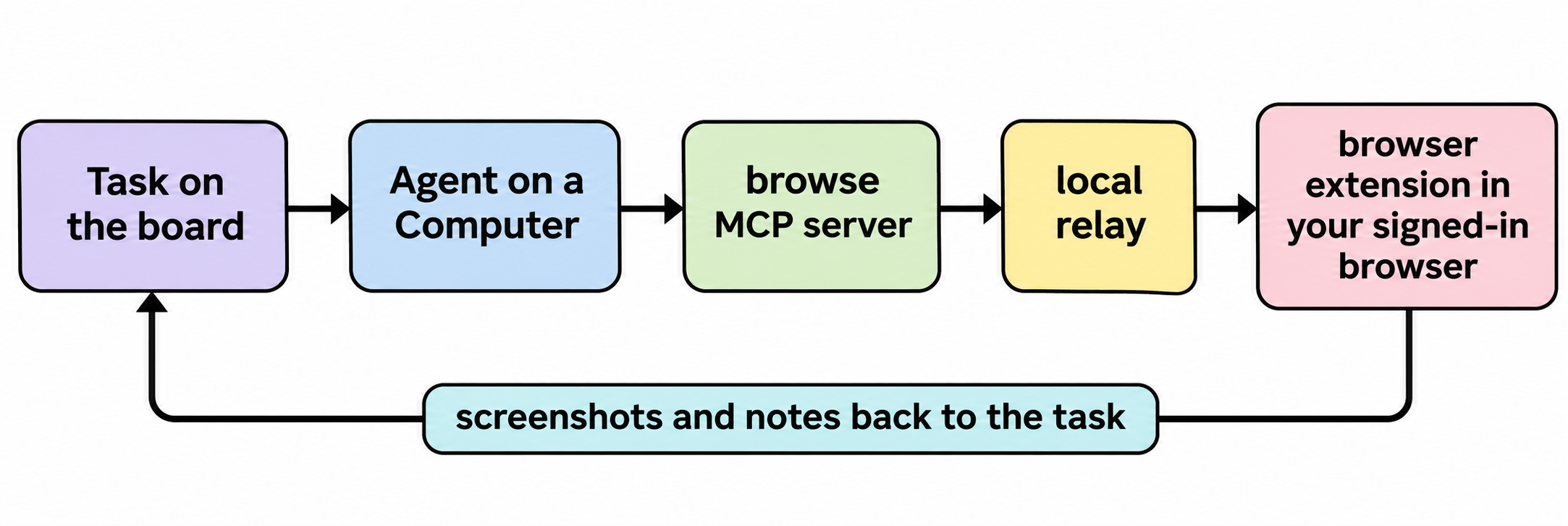
How OpenCode Browse lets agents use your browser
Browse is “an MCP server and a Chromium extension” from the OpenCode team. Its source repository carries an MIT licence, and its 0.1.0 release shipped on November 16, 2026. It works in Chrome, Edge, Brave, Arc, Helium, Vivaldi, Opera and Chromium, and with OpenCode, Claude Code, Codex, Cursor, Zed and other MCP clients.
Install it on the computer where your agent runs:
# macOS / Linux
curl -fsSL https://opencode.ai/browse/install | bash

# or through npm, then register it with specific agents
npm i -g @opencode/browse
browse install -a claude codex
browse install adds the MCP server to each agent’s user-level config (for example ~/.claude.json for Claude Code and ~/.codex/config.toml for Codex), then pairs the extension. Pairing uses a one-time code that expires after 10 minutes, and each browser gets its own key.
The agent opens tabs in the background, grouped and collapsed out of your way, and works through these tools:
| Tool | What the agent does with it |
|---|---|
navigate, tabs |
Open a page in a new background tab, or name a tab for reuse |
snapshot |
Read a compact outline of the page with element refs |
click, fill, type, select |
Act on a ref, with human-paced input |
screenshot, recording |
Capture the screen or record the tab to a video |
network, console |
Capture traffic (credentials redacted) and console errors |
handoff |
Ask you to do the part only a person can do |
You can also lend an open tab with the toolbar button; clicking again takes it back.
What happens at a login, 2FA prompt or payment?
The agent calls handoff. A small card appears on the page with the site’s origin. You sign in, approve the prompt or confirm the payment, then click Continue. Only a real click on the card or the toolbar button finishes a handoff, so a page can’t fake it. Browse reports Cloudflare and captcha walls and tells the agent to hand them to you; it never solves them.
Can you restrict which sites the agent visits?
Partly. A tab opened with allowedOrigins limits navigation and the tabs and popups the agent opens. A tab opened as readOnly refuses clicks, typing and navigation. The README is direct about the limits: these are “guardrails, not a data boundary.” Requests a page makes on its own aren’t filtered. Its advice: “for pages you don’t want an agent to read, don’t open them in browse.”
Running browser work as tasks in Sharkly
Browse gives one agent hands in your browser. Once several agents share portals, you need to know who is doing what and who checked the result. That’s the layer Sharkly adds around the agents you already run:
- Pick the Computer. In Sharkly, a Computer is the connected host where an Agent runs; it provides the files, credentials and tools the work needs. Install Browse on that Computer as the same OS user the Sharkly local service runs as, so the agent’s user-level config includes the
browseserver. - Keep the Agent on that host. Browse runs where the agent runs, so pin portal work to the Computer whose browser holds the sessions. See Computers in Sharkly for local versus server hosts.
- Write the task like a work order. Name the portal, the exact change, and a done-check the reviewer can confirm (“the invoice list shows 40 rows dated October; attach a screenshot of the filter and the count”).
- Assign the task to the Agent. The run picks up the task title, description, recent comments, Agent instructions and Skills.
- Ask for evidence on the task. Agent instructions can tell the Agent to save screenshots and attach them to its report with
sharkly task comment <task-id> --attachment <file>.
Handing a login to a person without stalling the run
A handoff waits for someone at that browser; if nobody is there, the run sits until its per-task timeout. A cleaner loop is to let the agent stop and ask through the task.
The agent hits the sign-in page, posts a comment (“Vendor portal session expired; sign in on the Computer’s browser, then reply”), and leaves the task waiting for a human reply. According to the execution docs, that signal feeds Inbox, where the responsible person opens the task and answers in context. You sign in once in that browser, reply on the task with an @ mention of the Agent, and a follow-up run continues with the session in place.
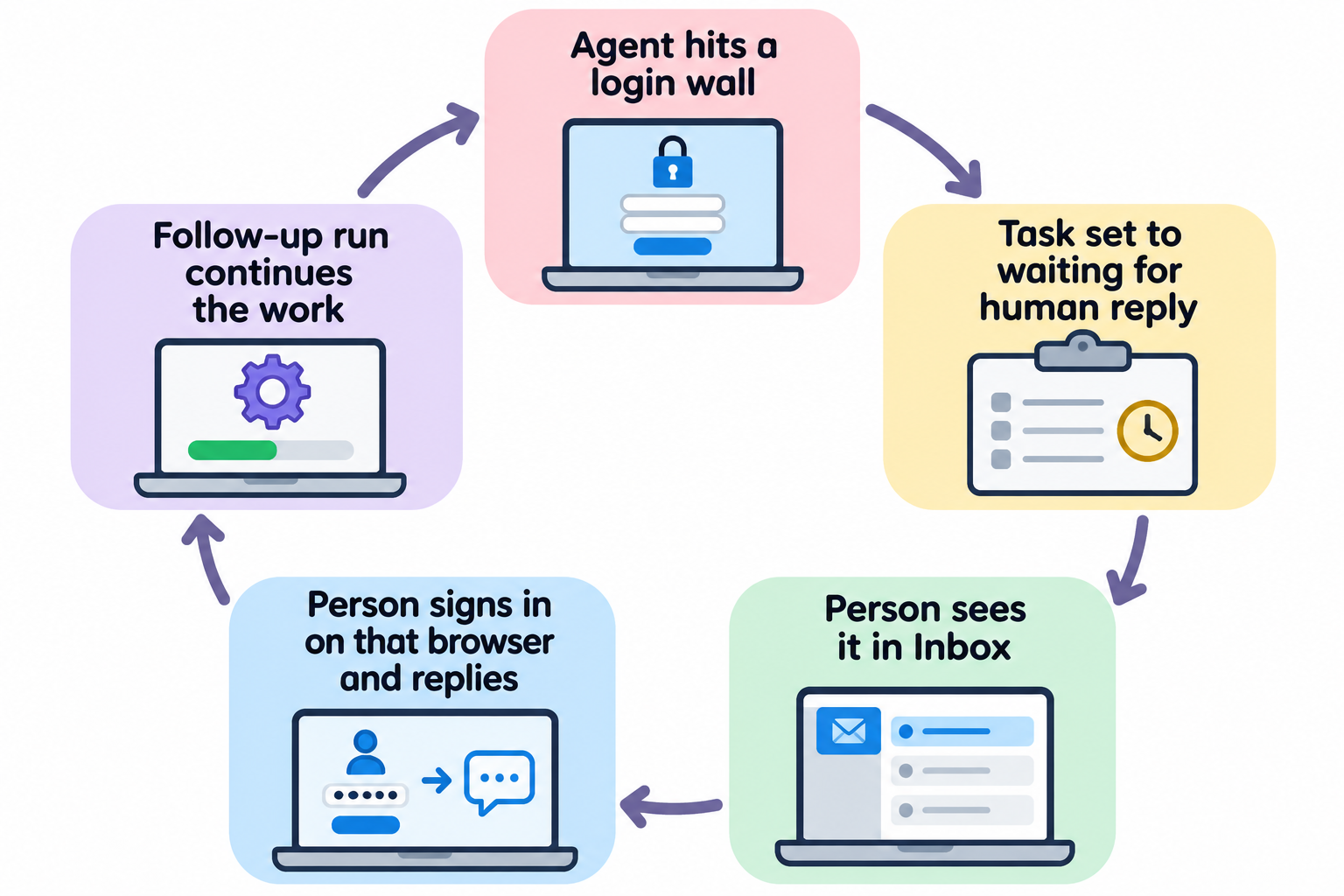
Sessions in a real browser persist, so one sign-in usually covers many tasks. Keep live handoff for the moments you’re at the keyboard anyway, such as a payment you want to watch.
Stop before the irreversible step
For any action that submits, pays or deletes, write the stop into the task. The agent fills the form, attaches a screenshot of the filled state, and waits for review. A person checks the evidence and releases the last step with a comment. We cover this pattern in approval gates for coding agents and the cost side in the browser-agent review queue.
Risks to plan for
- Prompt injection. Browse “assumes that what an agent reads (a web page, an email) may try to steer it.” Read prompt injection and agent guardrails before you point an agent at inbound email or support queues.
- What leaves your computer. Browse says nothing leaves your computer except what your agent sends to its model provider. Screenshots and page text go to that provider, so keep payroll screens and customer records out of agent tabs.
- Masking is partial.
fillhides values only in password and one-time-code fields. Network capture redacts credentials by name and shape, so a secret under an ordinary field name can still come through. - The debugging bar. Browse drives tabs through Chrome’s debugger API, so the browser shows its “started debugging” bar. Clicking Cancel disconnects Browse from every tab.
Browser agent vs API vs computer use: when to use each
Use an API or an MCP server built on one whenever the tool has it: it’s faster, cheaper to verify, and won’t break on a redesign. Use the signed-in browser when the work lives only in a web UI, especially behind single sign-on. Use full computer use when the work leaves the browser, such as a desktop app, and accept a higher review load; our take on governing computer-use agents covers that case.
| Option | Best for | Main cost |
|---|---|---|
| API or MCP server | Tools with documented endpoints | Building or finding the wrapper |
| Signed-in browser (Browse) | Web-only portals, SSO-gated dashboards | Review of on-screen results |
| Full computer use | Desktop apps and cross-app work | Slower runs, heavier review |
Conclusion
Tools with no API stop being a wall once the agent can work in the browser you already sign in with. Browse is one open, MIT-licensed way to do it, with handoffs that keep logins, 2FA and payments in your hands. The part that keeps it safe at team scale is the work around it: a task per job, a done-check, evidence attached, and a person who releases the last step. Pick one portal your team visits every week, write it up as a task, and assign it to an Agent in Sharkly.
FAQ
Can AI agents use websites that have no API?
Yes. With a browser MCP server such as Browse, the agent reads and acts on real pages in your browser, using sessions you already opened. It needs no API key for the site, only the extension, the local server and your sign-in.
Is OpenCode Browse open source?
The Browse repository is public under the MIT licence. Its 0.1.0 release shipped on November 16, 2026.
Does the agent see my passwords?
Browse’s fill tool hides values typed into password and one-time-code fields, and handoffs let you type credentials yourself. The agent still sees page text and screenshots, so keep sensitive pages out of agent tabs.
Which coding agents work with Browse?
Browse names OpenCode, Claude Code, Codex, Cursor and Zed, and browse install writes configs for more than 30 MCP clients. Any stdio MCP client can run browse mcp.
Can the agent run on a server while my browser is on my laptop?
Yes. Run browse install --remote on the agent’s host and connect the extension across the network. Browse doesn’t encrypt that link itself, so use an encrypted network such as Tailscale or WireGuard.