TL;DR
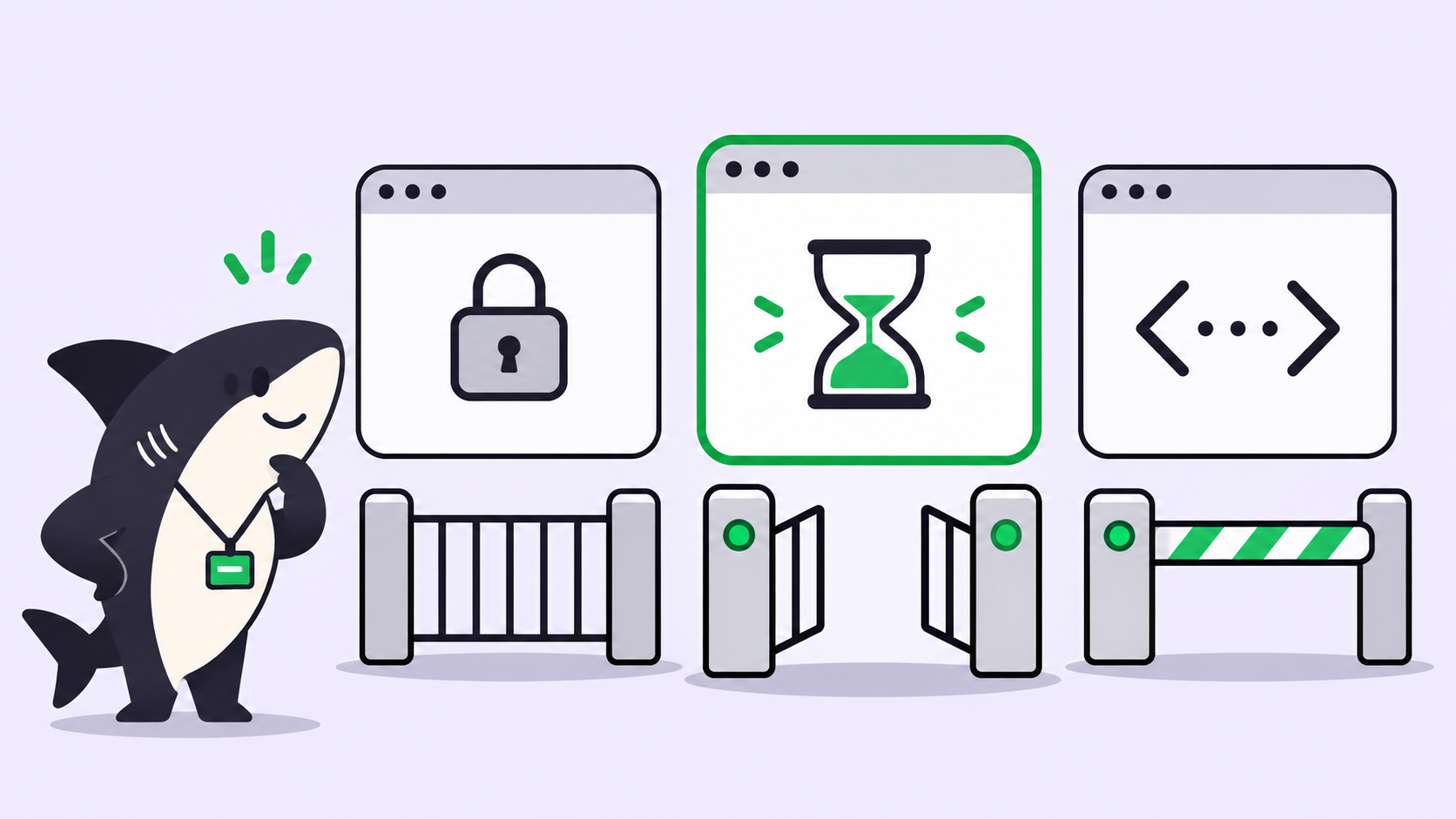
To keep AI coding agents running when your laptop sleeps, you have three fixes in order of effort. Keep the laptop awake with caffeinate or a power setting, move the agent to an always-on Computer such as a Mac mini or a Linux server, and put a queue in front of it so work waits for that Computer instead of dying with the lid.
Why your agent stops when the lid closes
You start Claude Code or Codex on a long refactor, close the laptop, and head home. The next morning the terminal shows the same step it was on when you left. Nothing finished, and nothing told you.
Here’s what happened. When macOS sleeps, it suspends every process, including your agent. The agent’s open connection to the model API drops, and so does any connection to a tool or a board. When the laptop wakes, the agent may retry, error out, or sit waiting for a reply that never comes. Whichever one you get, the hours you slept are gone.
This guide covers the three ways to keep AI coding agents running, what each one costs, and what still needs your laptop. If you already route agent work through a shared board like Sharkly, fix 2 and fix 3 take about ten minutes.
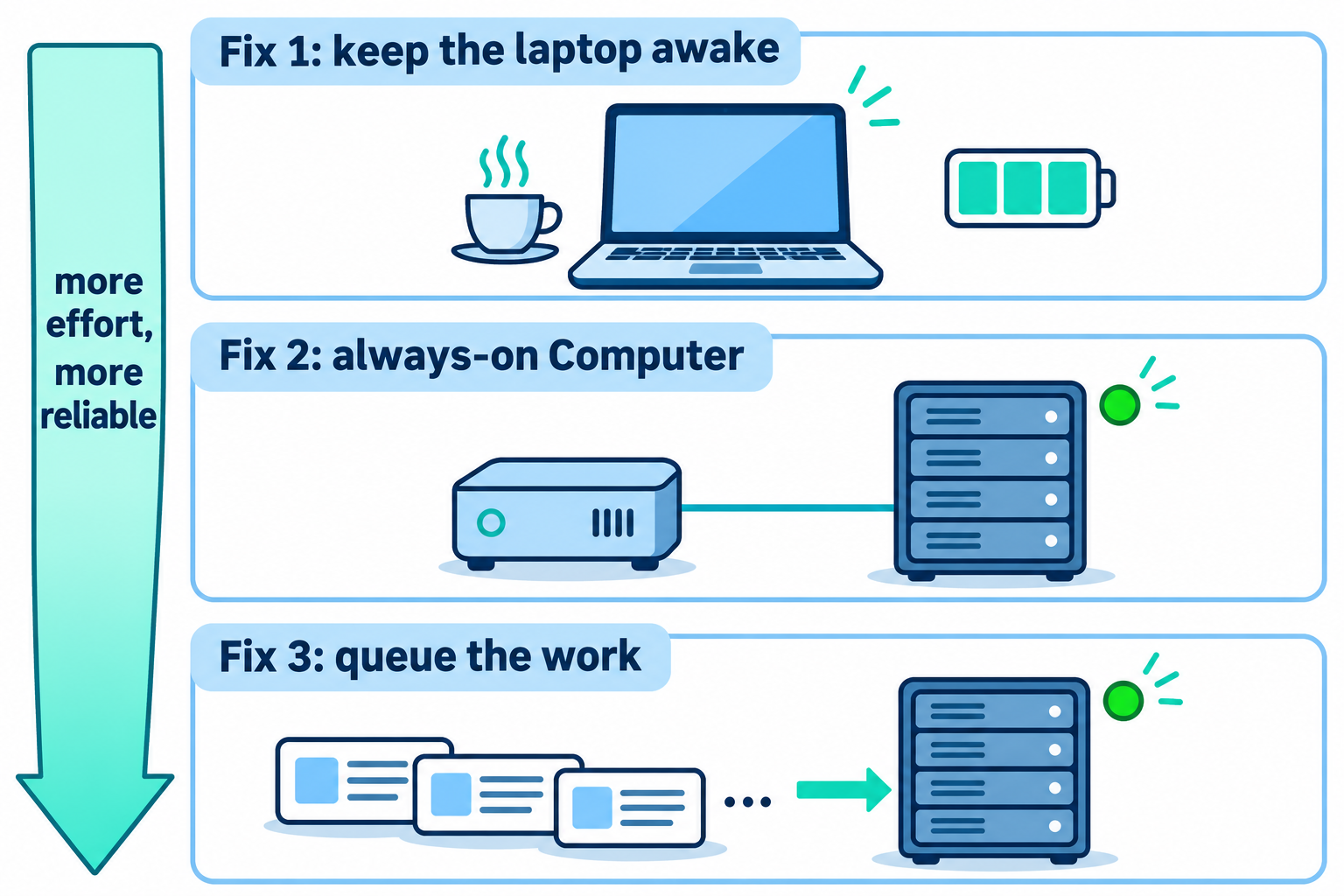
Fix 1: keep the laptop awake
The fastest fix is to stop the laptop from sleeping. It costs you battery and heat, and it doesn’t survive a closed lid unless you meet Apple’s conditions. Use it for a run of a few hours, not as your plan for every night.
How do I stop my Mac sleeping while an agent runs?
macOS ships a command for this called caffeinate. It holds a power assertion, a request that tells the system not to sleep, for as long as it runs. The flags you’ll use, per the caffeinate reference:
-iprevents idle sleep.-sprevents system sleep, but only on AC power.-dkeeps the display on (you rarely need this).-w <pid>releases the assertion when that process exits.-t <seconds>drops the assertion after a set time.
The cleanest pattern wraps the agent itself, so the assertion ends when the agent ends:
# Hold the assertion for exactly as long as the agent runs
caffeinate -is claude -p "Refactor the billing module and run the tests"

# Or attach to an agent that's already running
pgrep -f codex          # prints the PID, for example 48213
caffeinate -i -w 48213
If you’d rather click than type, open System Settings, then Battery. Under Additional Options, turn on “Prevent automatic sleeping on power adapter when the display is off” (Apple’s battery settings guide). It only works while the laptop is plugged in.
Does caffeinate work with the lid closed?
Not on its own. Closing the lid of a MacBook puts it to sleep unless you’re in closed-display mode, which Apple describes as running with the lid shut while connected to power, an external display, and an external keyboard and mouse (Apple’s closed-display mode guide). If you leave without the monitor, assume the agent stops.
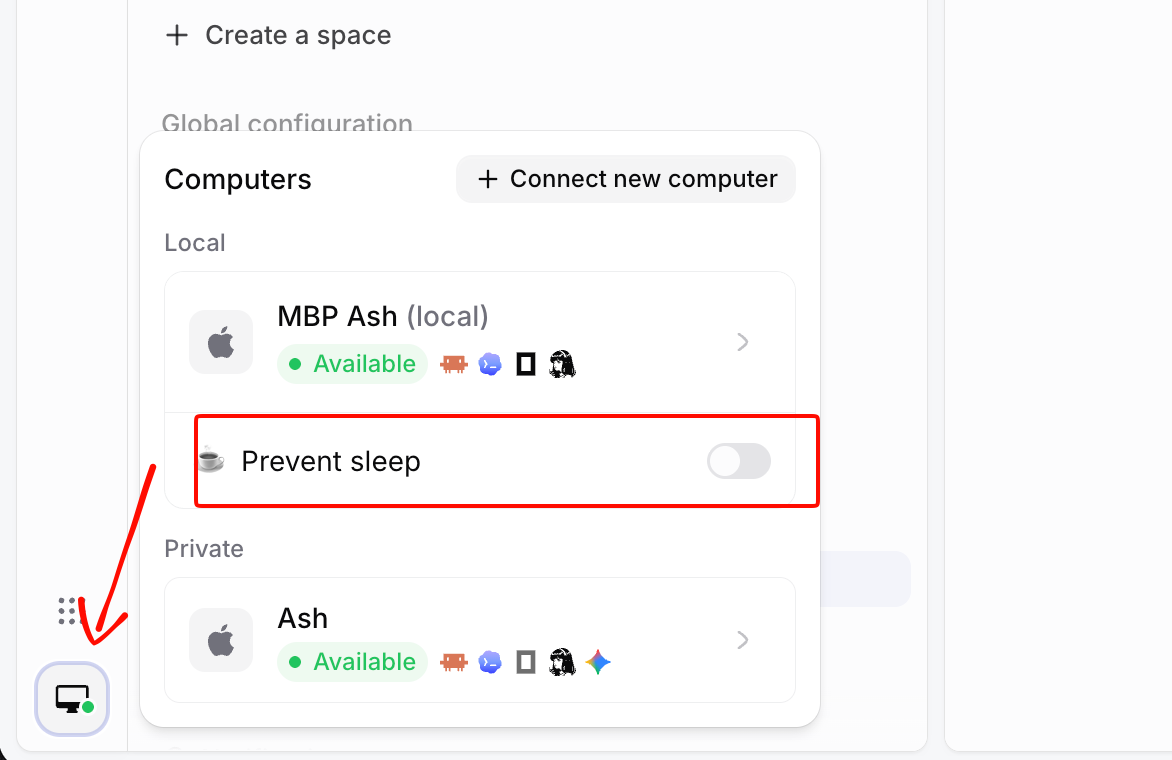
If you run Sharkly Desktop, you can skip the command. The Computer settings carry a Prevent sleep switch with durations of 5 minutes, 30 minutes, 1, 2, 5 or 8 hours, or Always. The Computers docs say it keeps the system awake while the display can still sleep, and it turns off when the duration ends. It’s available only for this computer, not for a shared or remote one.
Fix 2: run agents on an always-on Computer
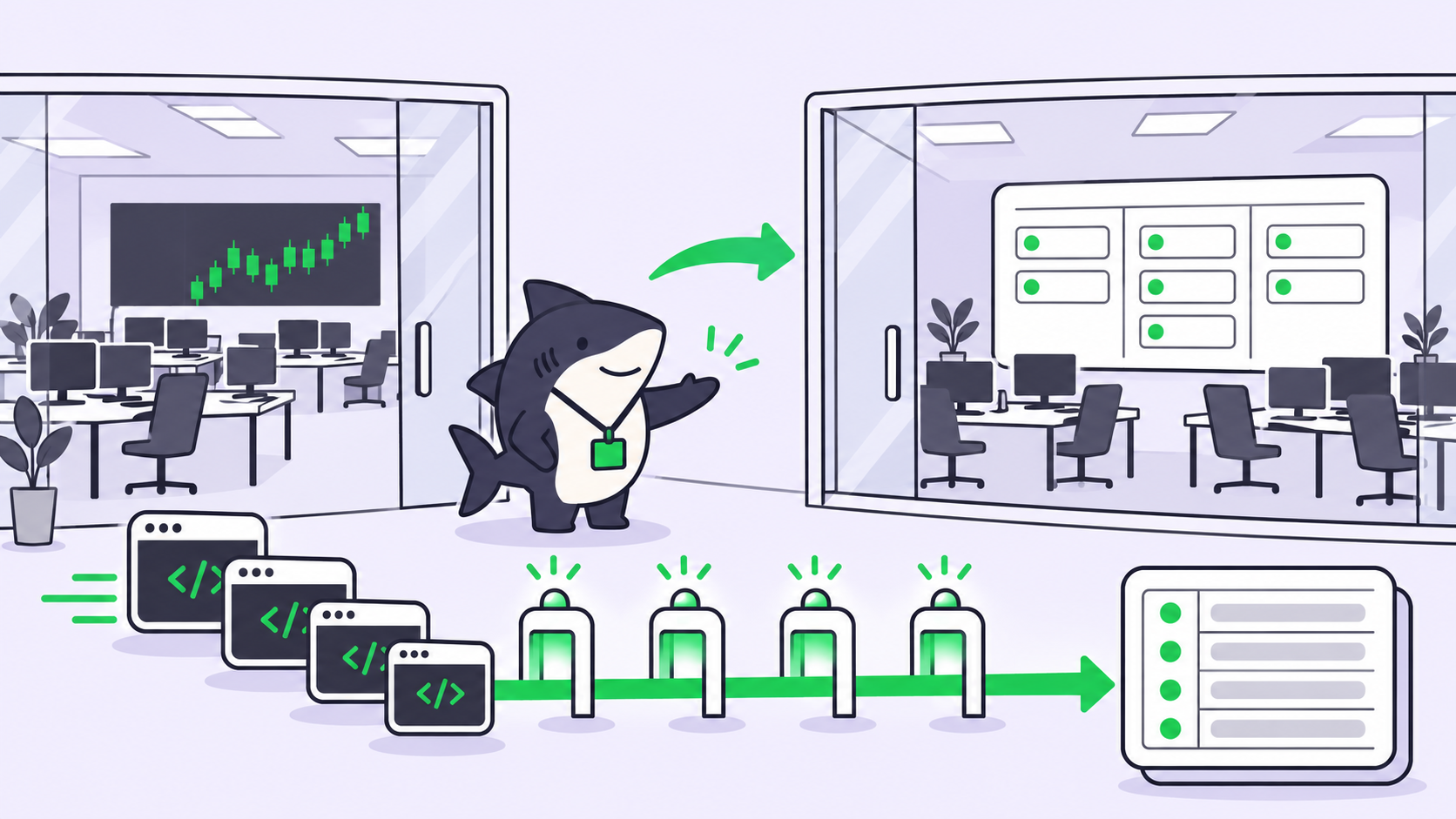
The durable fix is to stop running long jobs on a laptop. Put the agent on a box that never closes: a spare Mac mini on your desk, a Linux server in a closet, or a cloud VM. Your laptop becomes the place where you write the task and review the result.
The DeepSeek Harness team describes the same split in their super-agent design essay. They call it BYOM: the agent loop and session state live in the cloud, while each environment that holds your code runs a small daemon and stays where it is. The essay describes an architecture, not a product you can switch on, but the idea holds. Code and tools stay on hardware you control; the loop that hands out work keeps going whether your laptop is open or not.
On the always-on box, the minimum setup is the agent CLI, your Git credentials, and a way to keep a session alive. On Linux that usually means tmux or a systemd unit so the agent survives your SSH session ending. That works for one agent. It gets harder when you run five, because now you’re SSHing in to check which one finished.
How do I add a remote Computer to Sharkly?
In Sharkly, a Computer is any connected host that runs agents. A small local service on it detects the installed agent tools (Claude Code, Codex, and others), reports each one as a Runtime, sends heartbeats, and receives work. The service opens the connection outward, so a typical setup needs no inbound port.
To connect the server:
- In Sharkly, open Settings, then Computers, and choose to connect a new Computer.
- Generate the one-time install token. It’s short-lived and single-use, so don’t put it in a script or image.
- On the server, install the Sharkly CLI and register:
sharkly computer register --install-token <install-token>

# Check it from any terminal
sharkly computer list
sharkly computer ping <computer-id> <runtime-id>
- Wait for the Computer to show as online, then confirm at least one Runtime is available.
The Computers docs cover Linux packages (AppImage, deb, tar.gz) and the Runtime checks. For a longer walk-through of the server-versus-laptop decision, read running coding agents remotely and the Computers in Sharkly guide.
Fix 3: let work queue instead of fail
An always-on Computer still restarts for updates and drops off Wi-Fi. The last fix makes sure those gaps cost you minutes, not a night. You want work to wait for the Computer, not fail because it wasn’t there at the exact second the task came in.
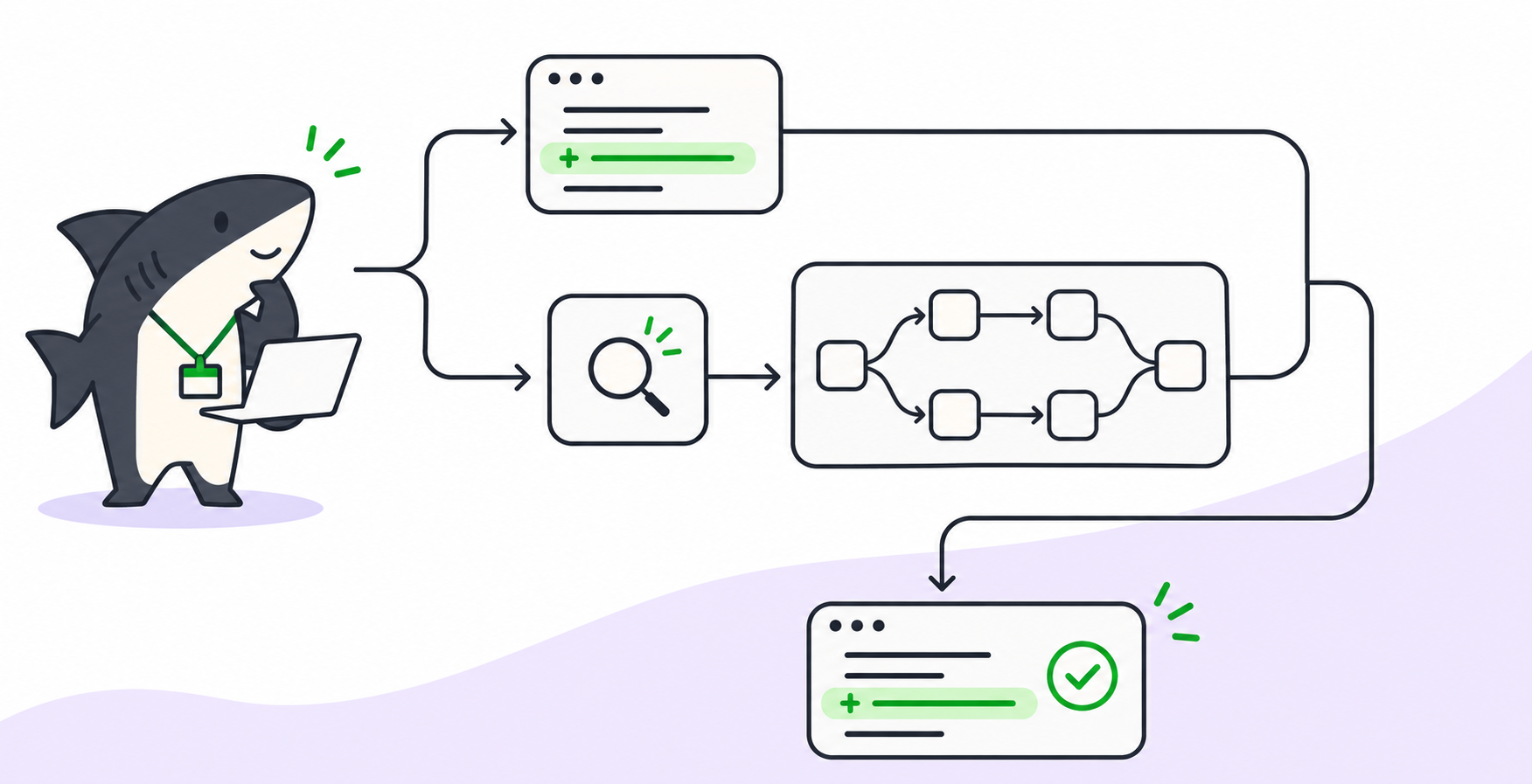
This is where a queue earns its keep. In Sharkly, you assign a task to an Agent, and the run goes to that Agent’s Computer and Runtime. According to the docs:
- If the Computer is offline, new runs normally wait for it to reconnect.
- If the Computer disconnects before dispatch, the run can stay queued.
- Each Computer has a task concurrency limit; work past that limit waits as Queued.
- With a temporary directory or isolated worktrees, an Agent’s default concurrency is 50% of the Computer’s limit.

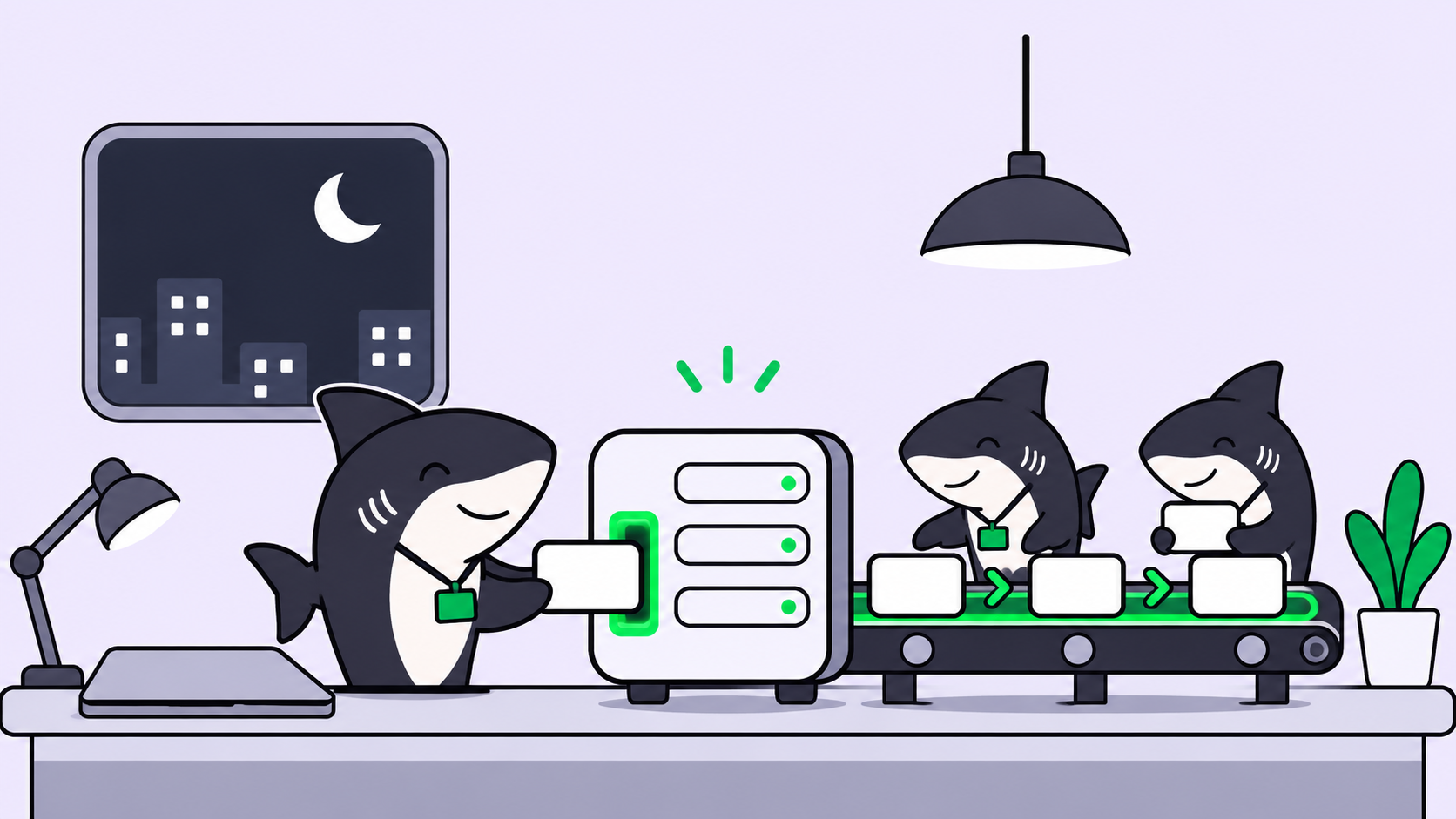
So the nightly pattern looks like this. Before you leave, you file five tasks and assign them to an Agent on the Mac mini. The Computer runs up to its limit, the rest sit Queued, and you read results in the morning. Each repository-backed run can get a fresh worktree, so parallel tasks don’t edit the same checkout. For how many to run at once, see how to run 10 AI coding agents at once.
Two limits worth knowing. The docs don’t promise that a run already in progress resumes after a Computer drops, and a canceled run doesn’t resume in place. When something stalls, open the task, check the run state, and retry or add a follow-up comment. For scheduled Automations, the docs list Skipped as a run state but don’t say how an offline Computer is handled, so test your schedule with Run now before you trust it overnight.
What still needs your laptop
Moving agents off the laptop doesn’t move everything. Keep these on the local Computer:
- Specified directories. Running in one fixed local folder, reusing what’s already there, is available only for local Computers.
- Prevent sleep. The switch appears only on this computer in the desktop app.
- Local-only credentials and files. If a task needs a VPN, a private key, or files that live only on your laptop, the server can’t reach them. Copy what’s safe, or keep that task local and use fix 1.
Everything else, from refactors and test runs to dependency bumps and doc updates, runs fine on a box that never closes the lid. Model usage still bills to the Claude Code, Codex, or API plan already on that Computer, since Sharkly doesn’t sell tokens. If you’re watching cost, running AI agents for free and Codex cloud versus your own Computers compare the options.
Conclusion
Laptops sleep, and agents stop with them. For an afternoon run, wrap the agent in caffeinate or switch on Prevent sleep. For overnight work, move agents to an always-on Computer. For anything you rely on, put a queue in front, so a reboot or a dropped connection means a short wait instead of a dead run.
Your next step: connect one spare box as a Computer, assign it two tasks tonight, and close the lid. Sharkly is free to start, and the Computers docs take you from install token to first run.
FAQ
Why does my AI agent stop when my laptop sleeps?
Sleep suspends every process and drops network connections. The agent can’t reach the model API while suspended, so the run pauses, errors, or hangs when the laptop wakes.
How do I keep Claude Code running overnight on a Mac?
Plug in and run it under caffeinate -is so the Mac stays awake until the agent exits. With the lid closed, you also need closed-display mode. For nightly work, an always-on Computer is more reliable.
Does caffeinate stop sleep when I close the lid?
No. A closed lid sleeps a MacBook unless it’s in closed-display mode with power, an external display, and an external keyboard and mouse.
What happens to a Sharkly task if the Computer goes offline?
New runs normally wait for the Computer to reconnect, and a run that hasn’t dispatched yet can stay queued. Check the task’s run state after a long outage, because the docs don’t promise an in-progress run resumes.
Can I run coding agents on a Linux server?
Yes. Install the agent CLI and the Sharkly CLI on the server, register it with an install token, and it shows up as a Computer with its detected Runtimes.