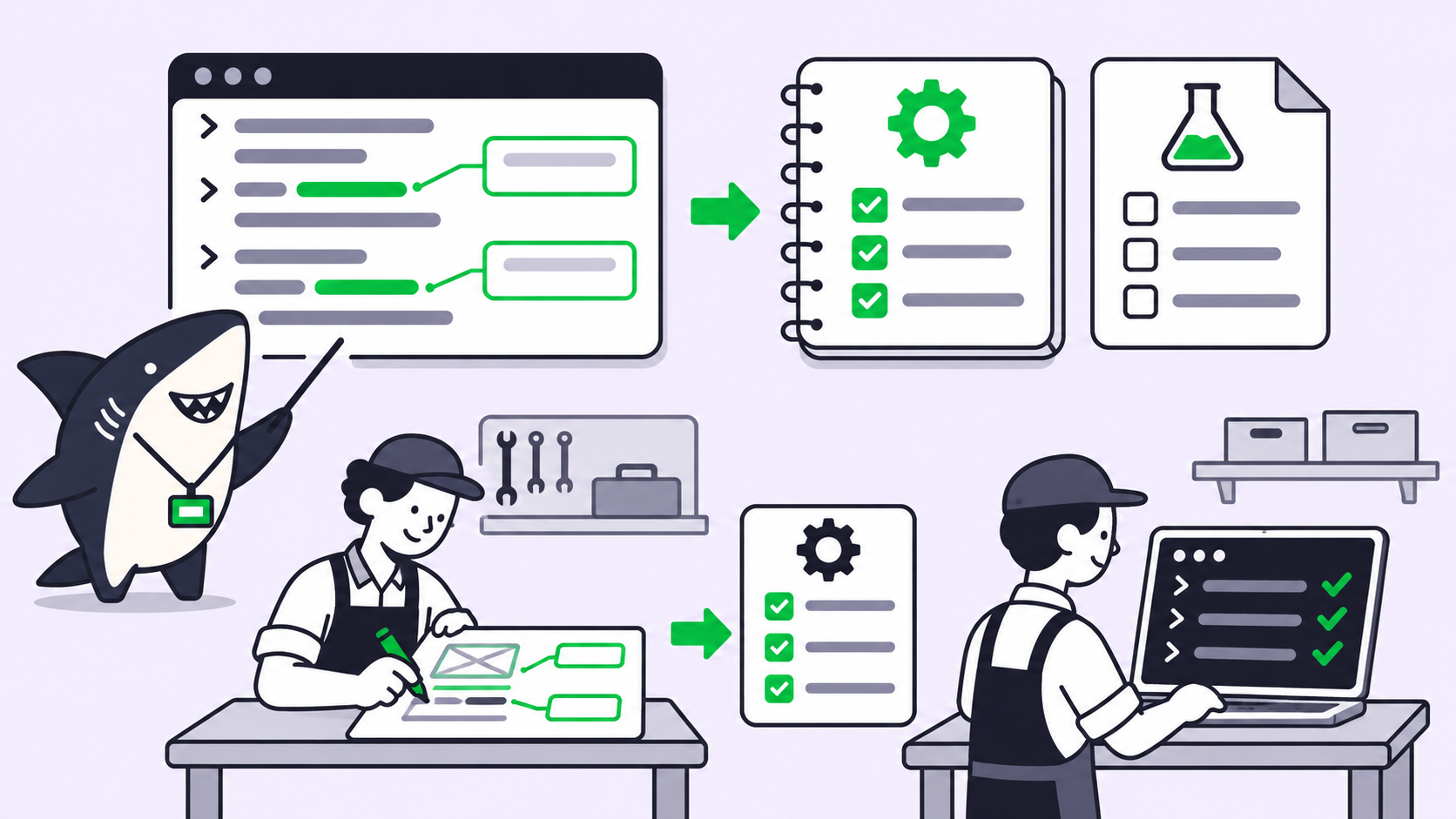
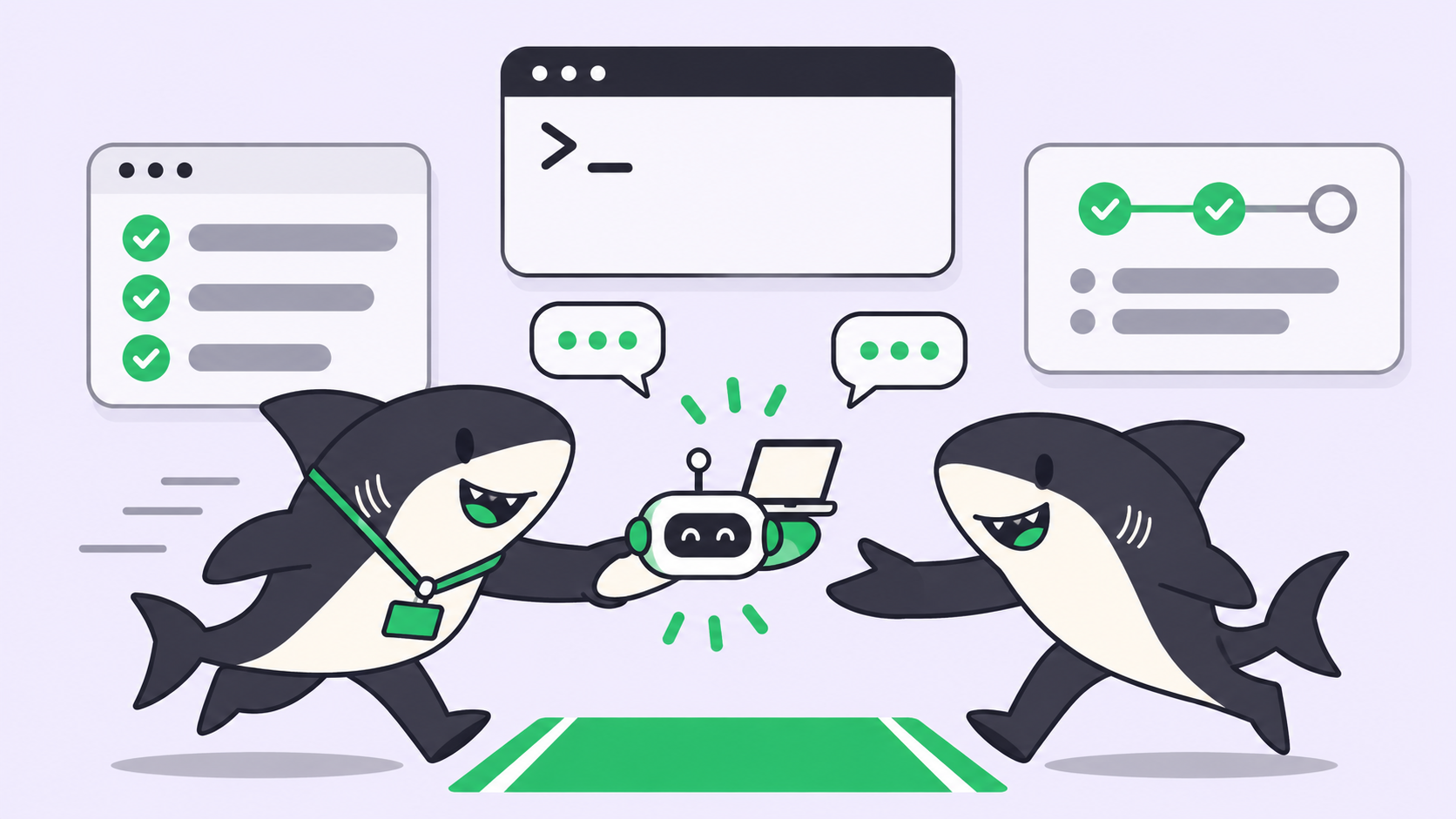
To transfer AI agent ownership in Sharkly, open the Agent’s settings, click the visibility line under its name, and press Transfer next to the owner. Pick a member and click Hand over ownership. For a conversation, open its More actions menu and choose Transfer this conversation to another member. Computer ownership is a separate, owner-only transfer.
When an engineer goes on leave, the work they started doesn’t stop. Their Agents keep taking tasks, their task conversations keep collecting replies, and their Computer keeps running jobs. If nobody owns those pieces, replies land in an empty inbox and settings drift with nobody allowed to fix them.
This tutorial walks the handoff in Cancel Anything, a small team building a subscription-cancelling CLI. We found everything one person owns, opened every transfer dialog, and stopped at each confirm button. You end with the menu path for each handoff and an offboarding checklist to copy. If you don’t have an organization yet, Sharkly is free to start.
Before you start
You need three things in place:
- A Space with real work. Ours is Cancel Anything (
CAAN). The conversation we hand off belongs to CAAN-31, “Request: Hulu recipe fails at the confirm step”, where Echo, the support Agent, drafted a reply. - A second person in the organization. Every transfer needs a recipient. See how to invite members and guests. Ours didn’t have one, which shaped the rest of this tutorial.
- Owner rights on what you’re moving. Only a conversation’s owner can transfer it, and only an Agent’s owner sees Transfer.
How ownership works in Sharkly
Ownership is who controls an Agent, a Computer or a conversation. Visibility is who can see and use it. Sharkly keeps them separate, so a public Agent still has exactly one owner, and that owner is the only person who can hand it over.
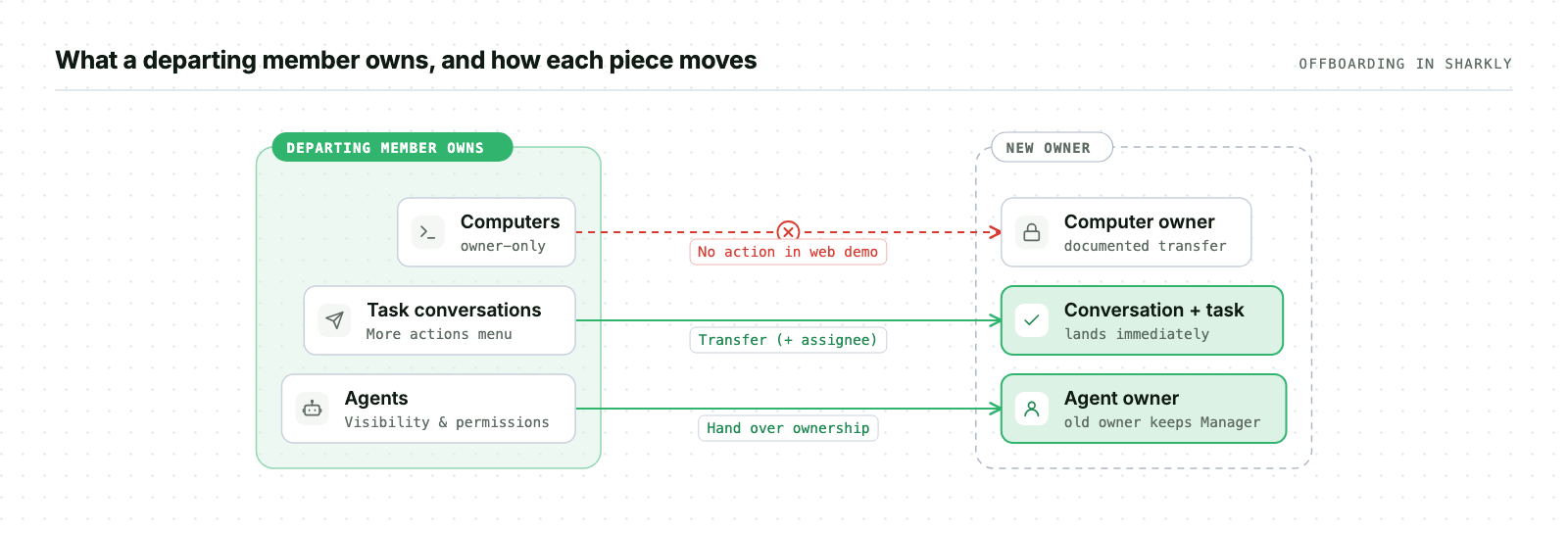
A departing person can own three kinds of things, and each moves through its own door:
| What they own | Where the handoff lives | What the old owner keeps |
|---|---|---|
| Task conversations | More actions in the conversation header | Nothing: it leaves their list |
| Agents | Visibility and member permissions, then Transfer | Manager permission |
| Computers | Owner-only transfer (help page) | Nothing |
A Computer is a laptop or server connected to Sharkly that runs Agents through a Runtime, the coding agent CLI such as Claude Code that does the work. More on that in how Computers work.
Step 1: Find what one person owns
Start with an inventory, because a transfer you forget is the one that bites. Open All settings, then work down Agents and resources:
- Agents lists every Agent with its Computer, Runtime, visibility and an Owner column.
- Computers lists each Computer with its Runtimes, status, visibility and Owner.
- Your Conversations list in the sidebar shows the task chats and standalone chats you own.
Click a Computer to open its page. The Computer info card at the bottom shows the owner, the visibility and the allowed organizations.
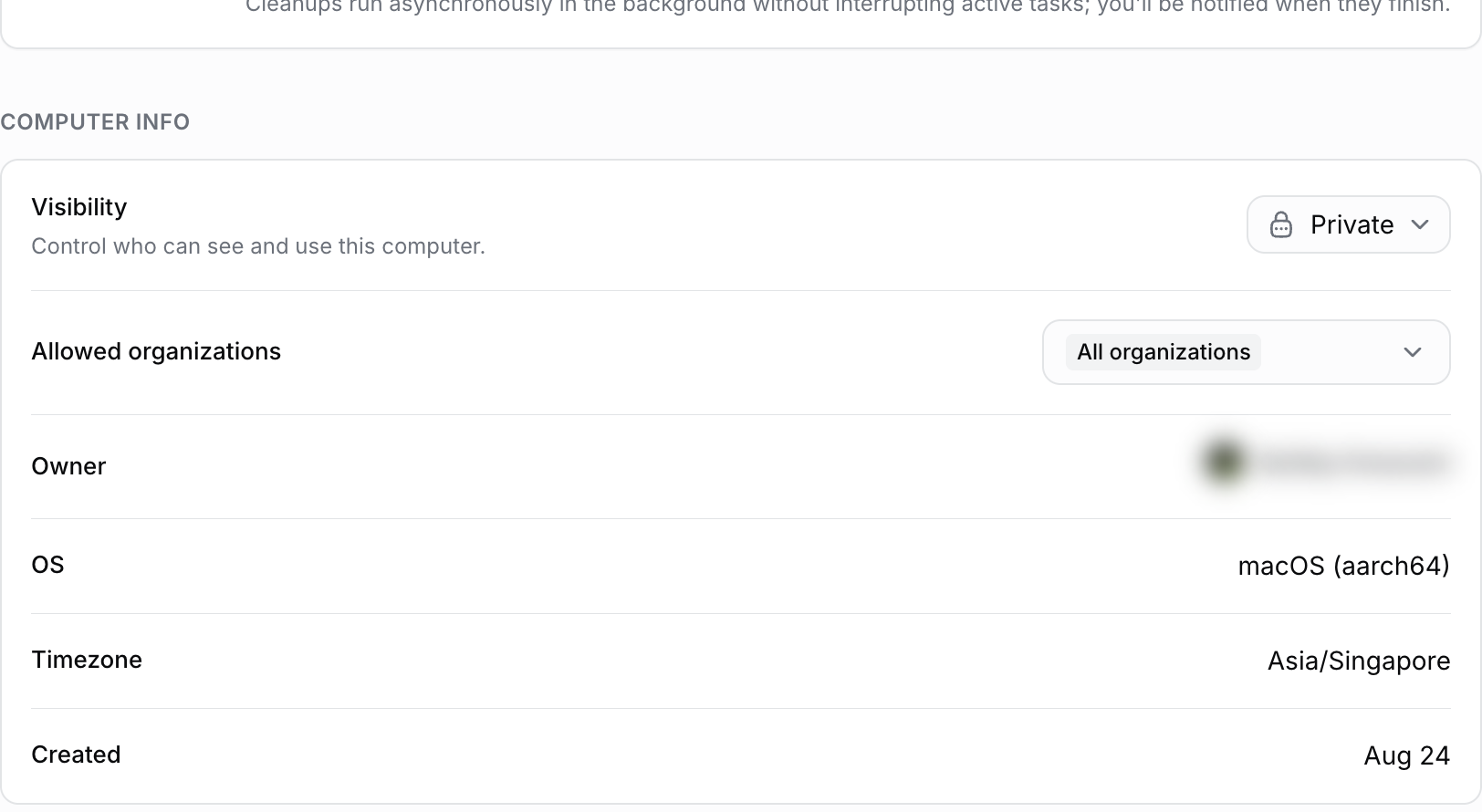
Check which Agents depend on the Computer. Our demo Mac was available to all organizations, so its Agents count included work outside Cancel Anything. List the affected Agents in your Space before you plan the handoff.
Step 2: Transfer a task conversation
Open the task, switch to the conversation, and click More actions (the ⋯ in the conversation header). The handoff items sit together in the middle of the menu.
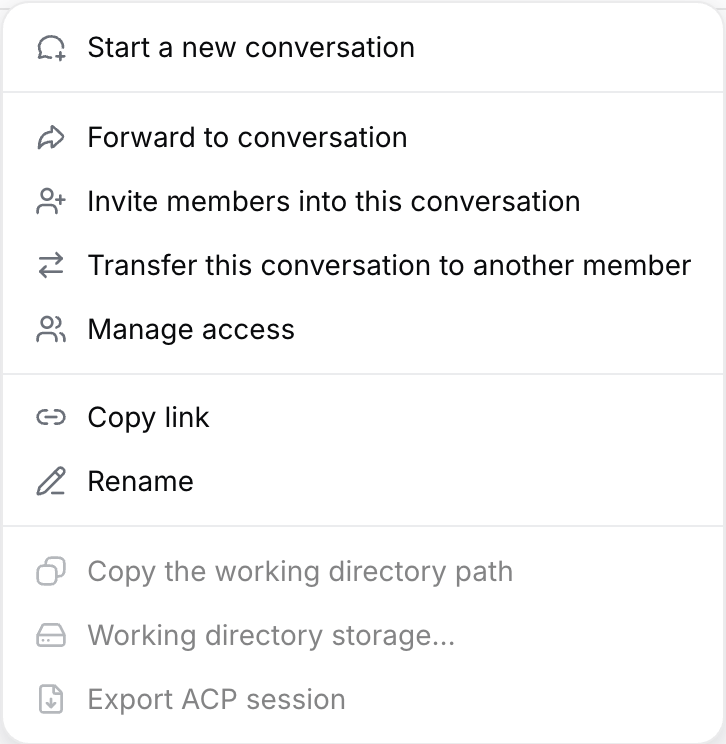
Choose Transfer this conversation to another member. The dialog has three parts:
- Pick a member: the recipient.
- Add a note (optional): context for the person taking over.
- Hand over the task’s assignee too: “Reassigns the task along with the conversation.”
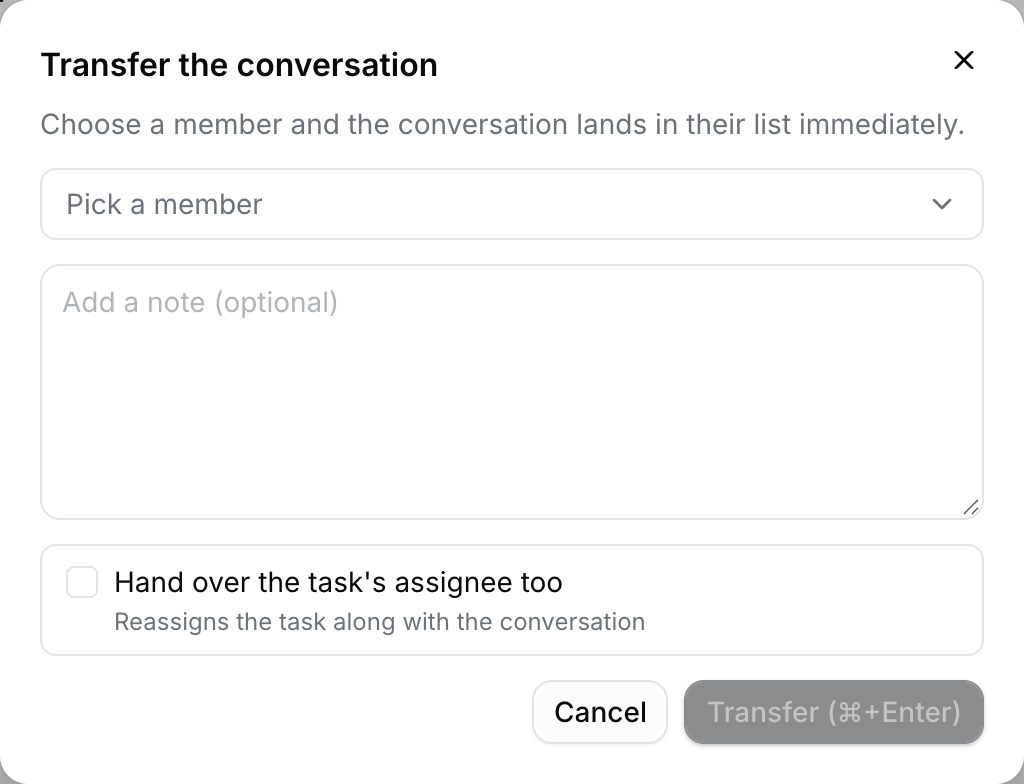
Click Transfer (or press ⌘+Enter) and it’s done. There’s no acceptance step: the conversation “lands in their list immediately.” The chat help page says the recipient gets an Inbox item, a desktop banner and an IM notification. New replies from the Agent now notify the new owner, which is the whole point: Echo’s next draft reaches someone who’s at work.
Tick the assignee box when the person leaving was also the task’s assignee. Otherwise the conversation moves and the task still points at someone who’s away.
Step 3: Invite instead of transfer
Sometimes the owner is only away for a week. Then you want a second pair of eyes, not a new owner. Choose Invite members into this conversation from the same menu. Any member who can see the conversation can invite, and the invitee gets an invitation card in a direct message and joins once they accept.
If the conversation belongs to a private Agent, the invitee also gets access to that Agent automatically (2026-11-06 changelog). That saves a second trip to the Agent’s settings.
To see who’s in, choose Manage access. It lists the owner and every authorized member, and the owner can revoke access at any time.
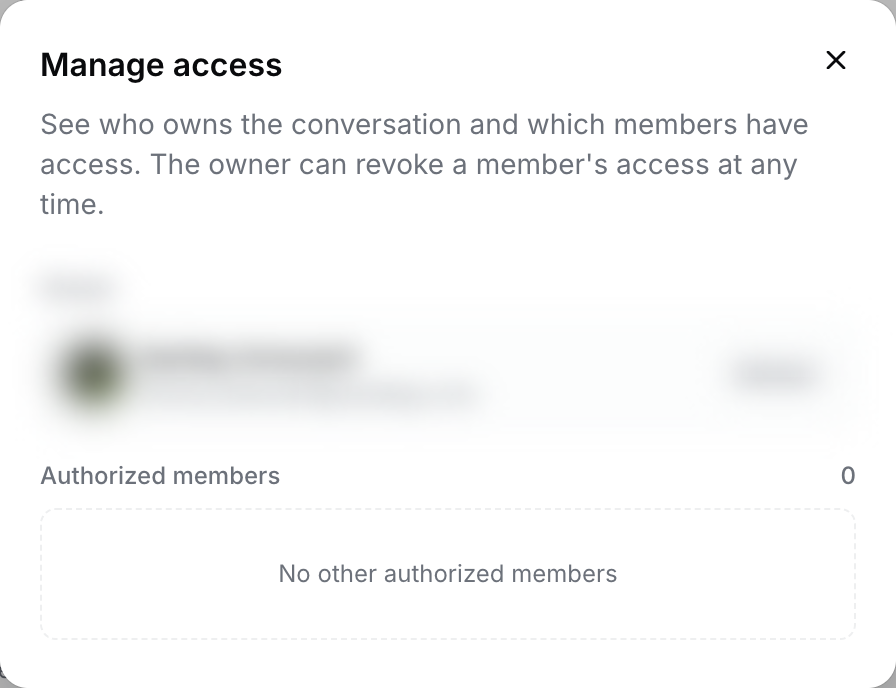
Going the other way: if a teammate opens a private Agent’s chat they don’t own, the composer shows Request to join instead of a message box. The owner gets the request, and a declined request can be sent again. We couldn’t show this one, because it needs a second member viewing someone else’s chat.
Step 4: Transfer an Agent
Open All Agents and click Settings on the Agent. Under its name is a line with the Space, visibility and owner; click it to open Visibility and member permissions.
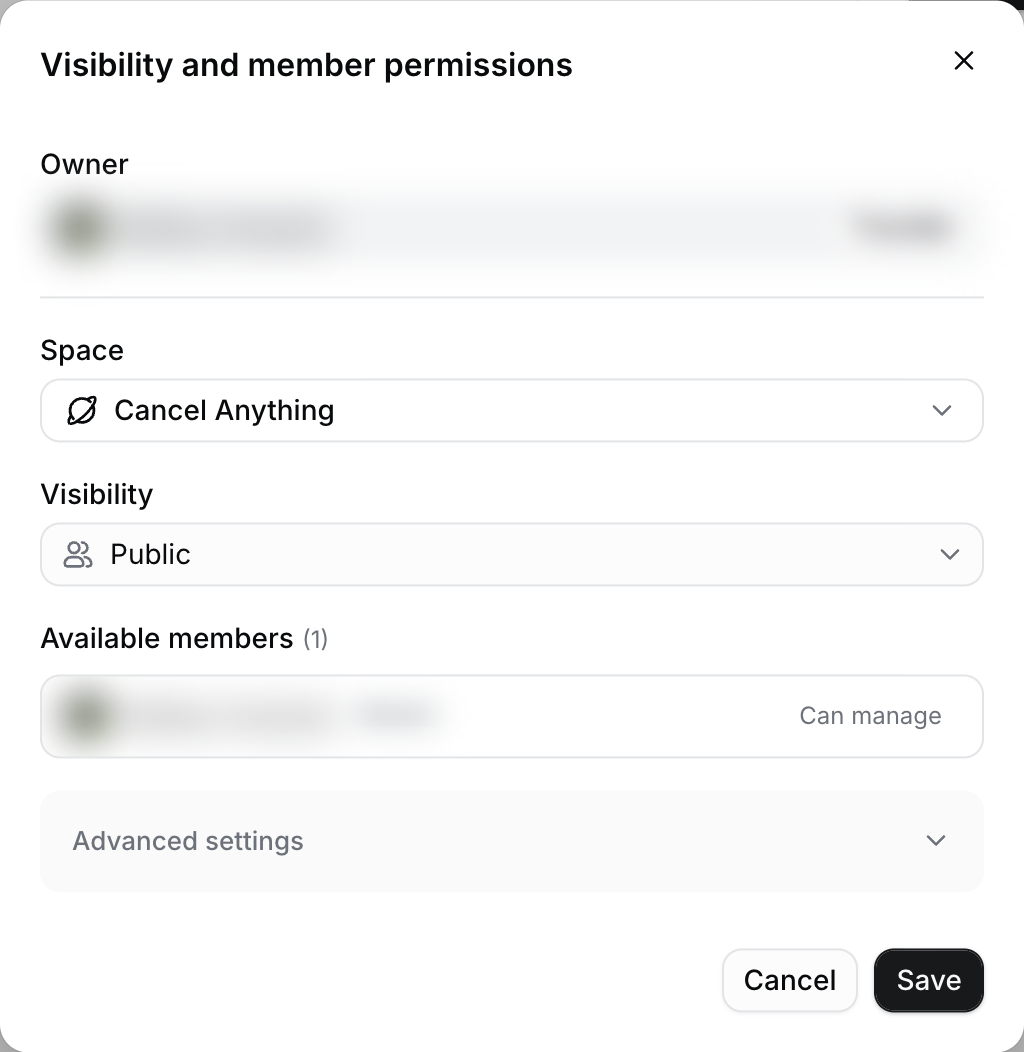
The Owner row at the top carries a Transfer button, visible only to the current owner. Click it and Transfer ownership opens:
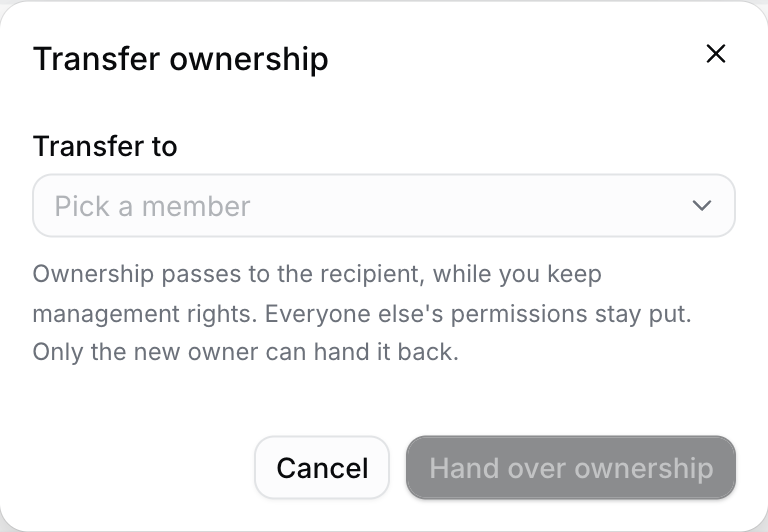
The dialog spells out the rules: “Ownership passes to the recipient, while you keep management rights. Everyone else’s permissions stay put. Only the new owner can hand it back.” Hand over ownership stays disabled until you pick a member. We stopped here and didn’t confirm.
Two things to check before you click. First, the Agent’s visibility: a Private Agent is usable only by invited members, so make sure the new owner’s team is on the list. Second, the Agent’s Computer: if the Agent runs on the leaver’s Computer, transferring the Agent alone doesn’t move the Computer.
Step 5: Transfer a Computer
The Computers help page says the owner “can transfer ownership to another person in the organization, and is the only person who can delete it.” After a transfer, allowed organizations “may include only the new owner’s current Organization.”
On the web page we used, the Computer’s More actions menu offered Detect again, Remove from this organization and a second option that deletes the Computer outright, with no transfer item. Neither remove option is a transfer, and the help page says deletion is blocked while an active Agent is still bound to it. If you can’t find the transfer, the owner can Unbind runtime for one Agent, or Unbind all; the Agents stay, their active runs are cancelled, and you rebind them to a Computer someone else owns.
The real result
Nothing changed hands in Cancel Anything, and that’s the honest result. CAAN-31’s conversation, Echo and the Mac are still owned by the same person. What we confirmed is the path: every dialog opens, states its rules, and holds its confirm button back until a recipient exists.
What went wrong for us
Nobody to transfer to. Cancel Anything has one member. The conversation picker said “Nobody to transfer to”, the invite picker said “No one to invite”, and the Agent picker listed only the owner, greyed out. Invite the successor first, then transfer.
The docs and the app disagree on one step. The Agents help page says picking a recipient “transfers ownership immediately (no separate save needed).” In the app, picking a member enables Hand over ownership, a separate confirm. Trust the button.
No Computer transfer on the web page. The help page describes it; the page we used didn’t show it. Plan for the unbind route above.
Variations
An agency rotating contractors. Each contractor owns a few private Agents and a stack of client conversations. On the last day, the lead transfers conversations with the assignee box ticked, then takes over the Agents. The old owner keeps Manager, so the contractor can still answer questions about their setup during a handover week. Read human ownership of agent work for why one named owner matters.
A platform team with shared build servers. Their Computers are owned by whoever registered them. When that person moves teams, the Computer is the first transfer, because a dozen Agents depend on it. Conversations come last, and most get an invite rather than a transfer.
Offboarding checklist
Copy this into the departing member’s offboarding task:
Before the last day
[ ] Successor is a member of the organization and the Space
[ ] Settings > Agents: list every Agent where Owner = leaver
[ ] Settings > Computers: list every Computer where Owner = leaver
[ ] Note which Agents run on the leaver's Computers

Hand off
[ ] Computers first: transfer, or unbind the Agents and rebind them
[ ] Agents: Visibility and member permissions > Transfer > Hand over ownership
[ ] Private Agents: confirm the new owner's team is invited
[ ] Task conversations: More actions > Transfer, tick "Hand over the task's assignee too"
[ ] Short absences: invite a member instead of transferring

After
[ ] Manage access on each private conversation: revoke what's no longer needed
[ ] Check the Inbox of the new owner: Agent replies now arrive there
Ready to run the checklist on a real team? Set up your organization on Sharkly, add the successor, and walk the four dialogs above before anyone’s last day. For the notification side, see how task subscriptions route agent updates.
FAQ
Can an admin transfer someone else’s Agent? The help page says only the current owner can use Transfer. Plan the handoff while the leaver still has access.
Does the old owner lose access after an Agent transfer? No. They keep the Manager permission, and everyone else’s permissions stay the same.
Can I undo an Agent transfer? Only the new owner can hand it back.
Does transferring a conversation need the recipient to accept? No. It takes effect immediately and the recipient is notified.
What’s the difference between inviting and transferring? An invite adds a member to the conversation and leaves ownership alone. A transfer moves ownership and notifications to the recipient.
Can I delete a Computer that still runs Agents? No. Deletion is blocked while an active Agent is still bound to one of its Runtimes. Unbind first.