TL;DR: Sharkly repositories tell an Agent which codebase and branch a run starts from. Add the repository once in the Space settings, set a baseline branch, enable it on the Agents that write code, and pick Use temporary directory so every task gets a fresh clone. Git access comes from credentials on the Computer, not from Sharkly.
Your coding agent finishes a task, and the diff lands in last week’s checkout on a stale branch. Nobody told it which code to start from. Sharkly repositories fix that: you name the repository and the branch once, and every run on that Agent starts from the same place. Sharkly is currently free for small teams, and you can set this up at sharkly.ai.
We did this for real in Cancel Anything, a small subscription-cancelling CLI a team is building on Sharkly. Two Agents write its code: Bolt (the engine, on Claude Code) and Hex (recipes, on Codex). By the end of this tutorial you’ll have a Space repository with a baseline branch, two Agents bound to it, and one real run that proves the binding works.
Before you start
You need three things in place:
- A Space for the project. Ours is Cancel Anything (
CAAN). - A Computer running the Sharkly local service, where the Agent’s Runtime lives. See how Sharkly Computers work.
- An Agent with a code Runtime such as Claude Code or Codex. If you’re new to Agents, start with Sharkly Agents explained.
You also need Space or Organization admin access. Repository management is limited to people with that role.
How Sharkly picks the repository and branch
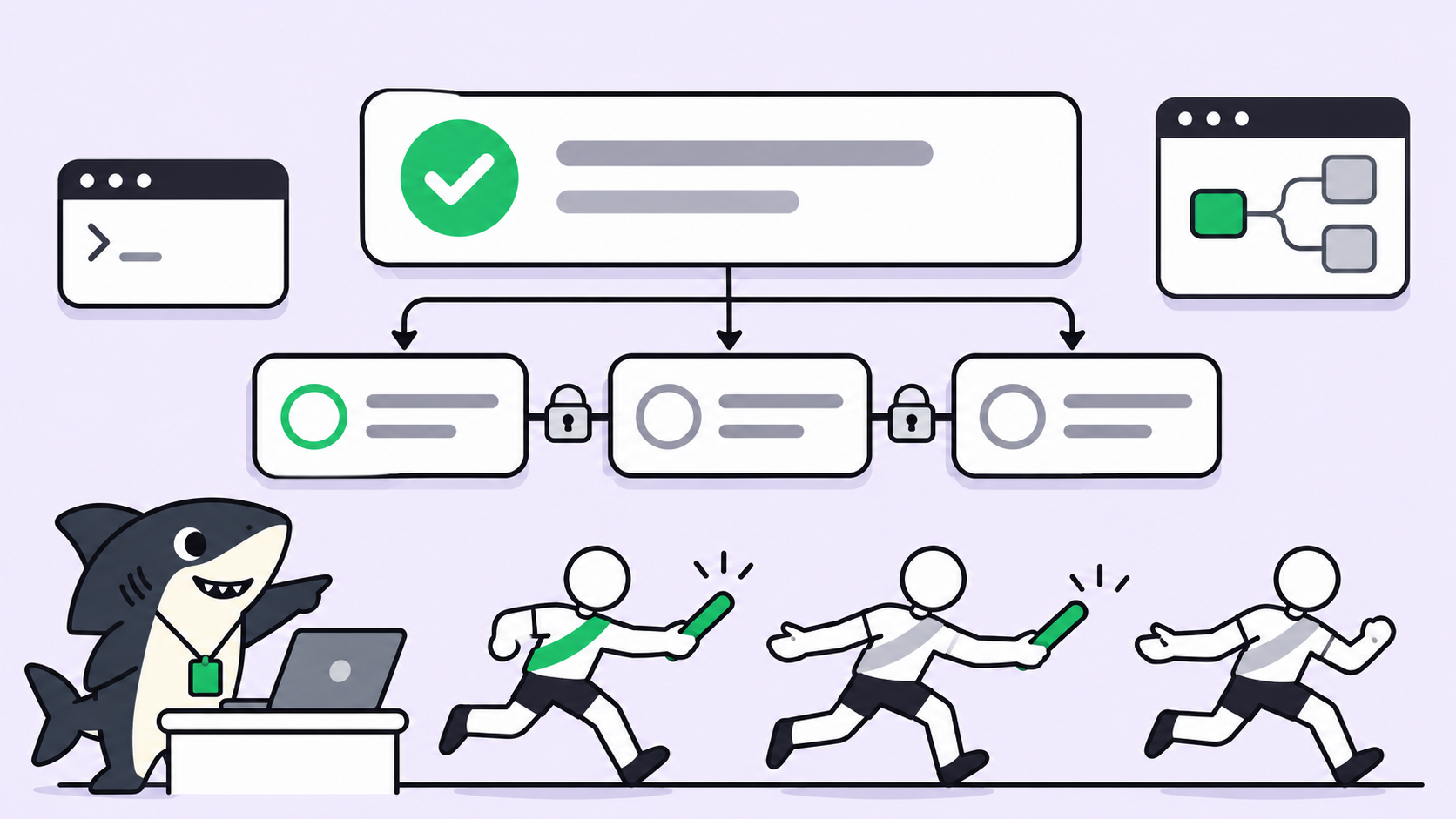
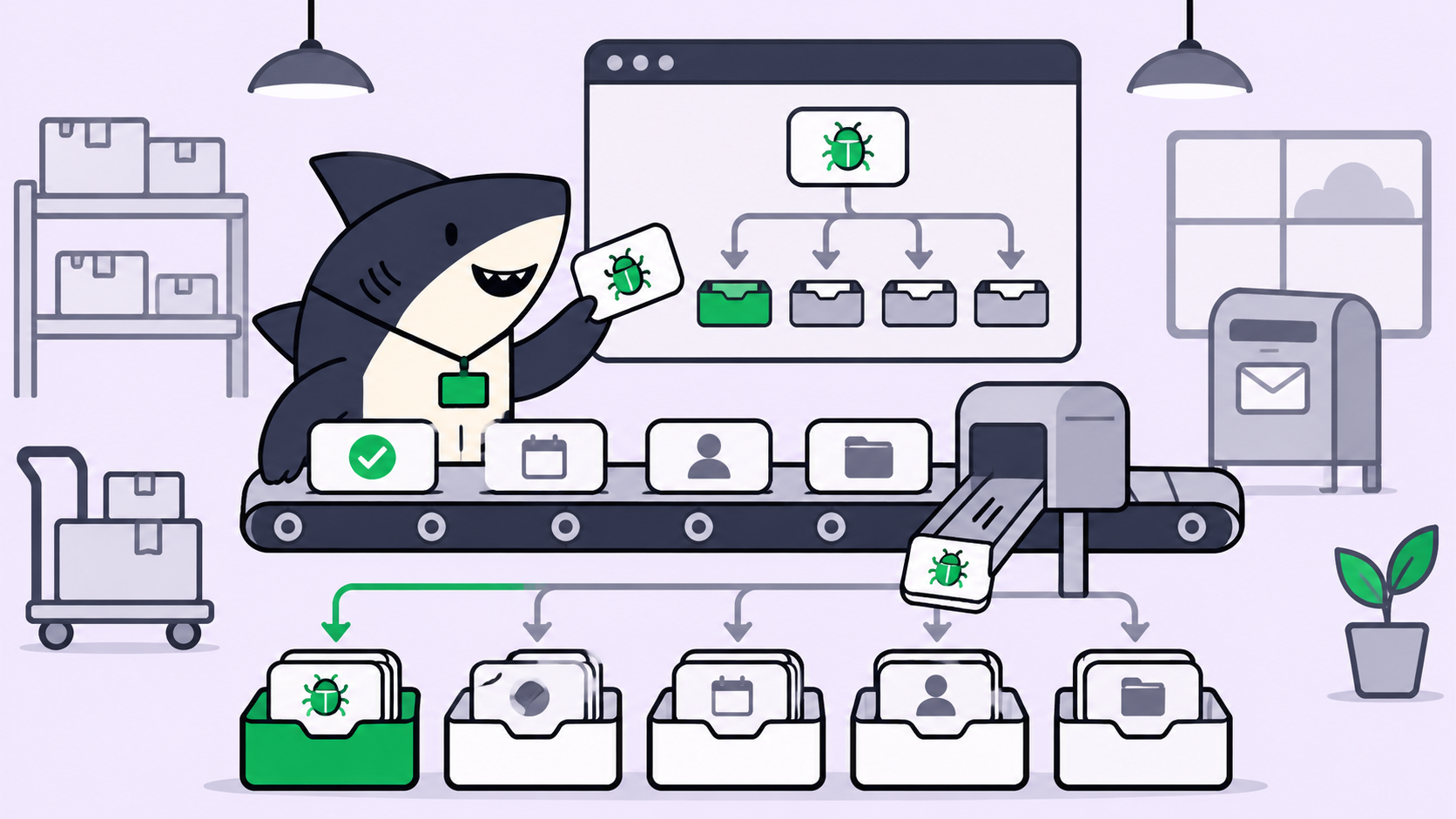
Sharkly resolves code at two levels. Space repositories are the defaults for every task in the Space. Agent repositories narrow or replace those defaults for one Agent. If an Agent has bindings, its runs use them; if it has none, Sharkly falls back to the Space’s list.
For the branch, the order is fixed:
- An explicit checkout ref for the run
- The Agent repository’s branch
- The Space repository’s baseline branch
- The remote’s default branch

Cancel Anything sets the branch once, at the Space level, and leaves the Agent entries empty. That keeps one source of truth: change main to a release branch in one place and both Agents follow.
Step 1: Check the organization Git settings
Open All settings, then Git repositories & settings under Global configuration. The page has two parts.
Global Git settings sets the commit identity every Space inherits: Commit author name, Commit author email, and the Co-authored-by trailer. Ours uses “Agent user name & Agent name” for the author, reads the email from the Computer’s git config, and keeps the trailer on, so every agent commit is labeled as one.
Below it, Space Git repositories & settings lists one collapsible panel per Space. It’s the same content as each Space’s own settings page, so you can manage every Space from here.
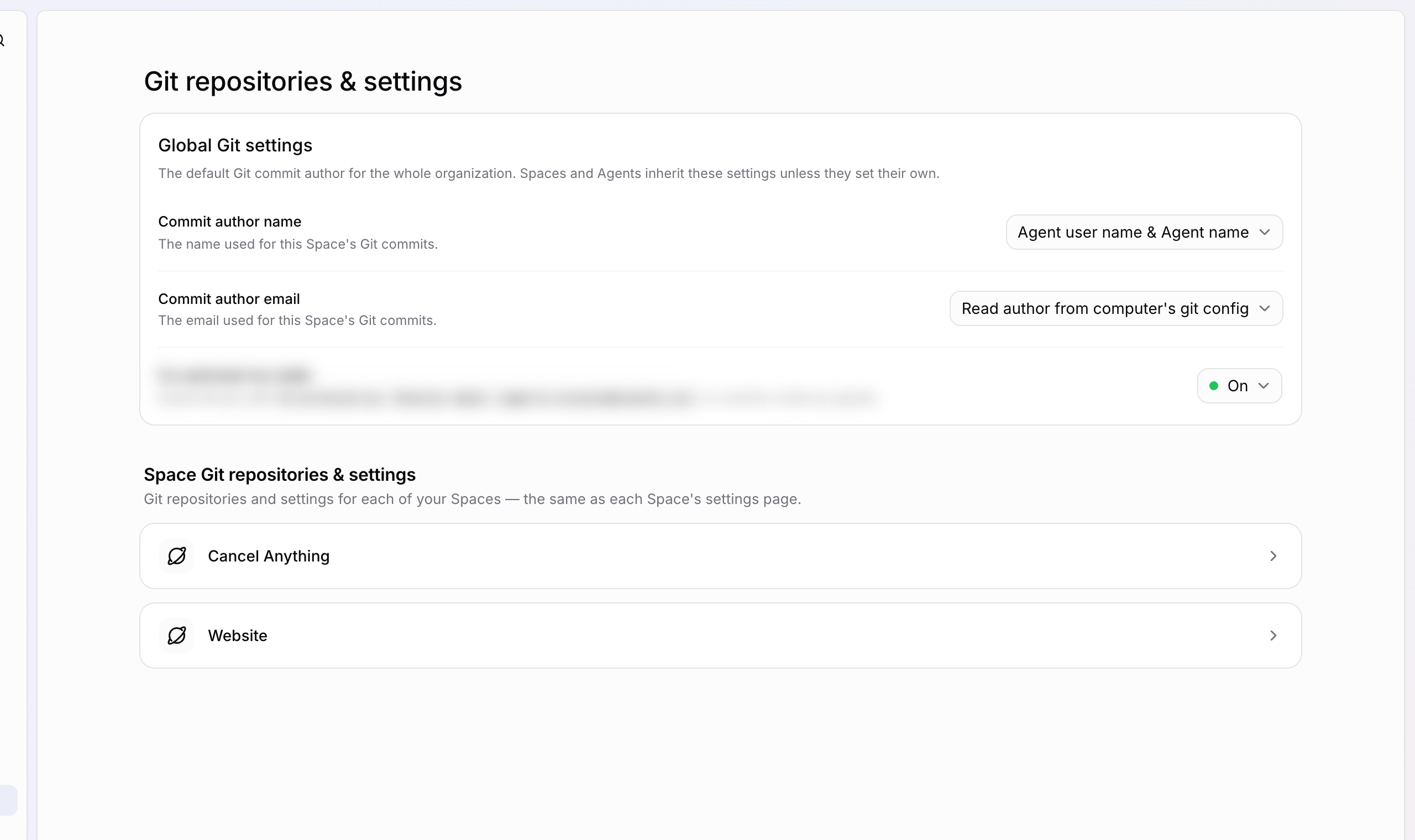
Look at the author fields first. If your team reviews agent commits, an author name that includes the Agent’s name makes git log readable at a glance.
Step 2: Add the Space repository and its baseline branch
Open the Space’s settings (for us, Spaces → Cancel Anything) and scroll to Git repositories & settings. Click Add repository and fill in three fields:
- Repository URL: the clone URL, HTTPS or SSH.
- Baseline branch: choose Manual input and type
main. Leave it empty to use the remote’s default branch. - Description: one line that tells people and Agents what the code is. Ours reads “The Cancel Anything CLI: recipe runner, recipes/, tests/. Start every task from main.”
Click Save. The repository now shows as a row with a Repository actions menu (Edit, Delete repository).
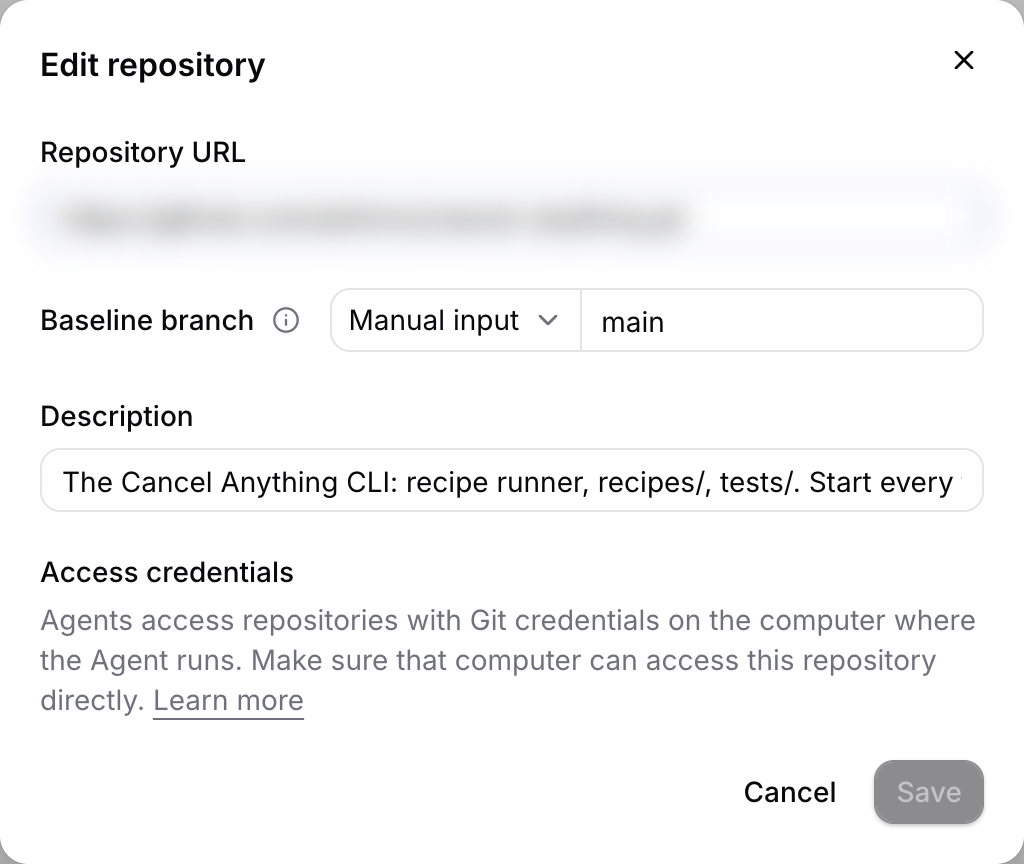
Read the Access credentials note at the bottom of the dialog. Agents reach the repository with Git credentials on the Computer where they run. Sharkly stores the URL, not a token. Never paste a token or private key into a task, comment, Agent instruction, or Skill.
Step 3: Enable the repository on Bolt and Hex
Open the Agent, click Settings, and expand Git repositories & settings. Under Git repositories · From this space you’ll see every Space repository with a switch.
Turn on the Cancel Anything repository. Enable all flips every Space repository at once. Auto-enable when the space adds repos decides whether a new Space repository lands on this Agent automatically; we left it off, so adding a repo later is a deliberate choice per Agent.
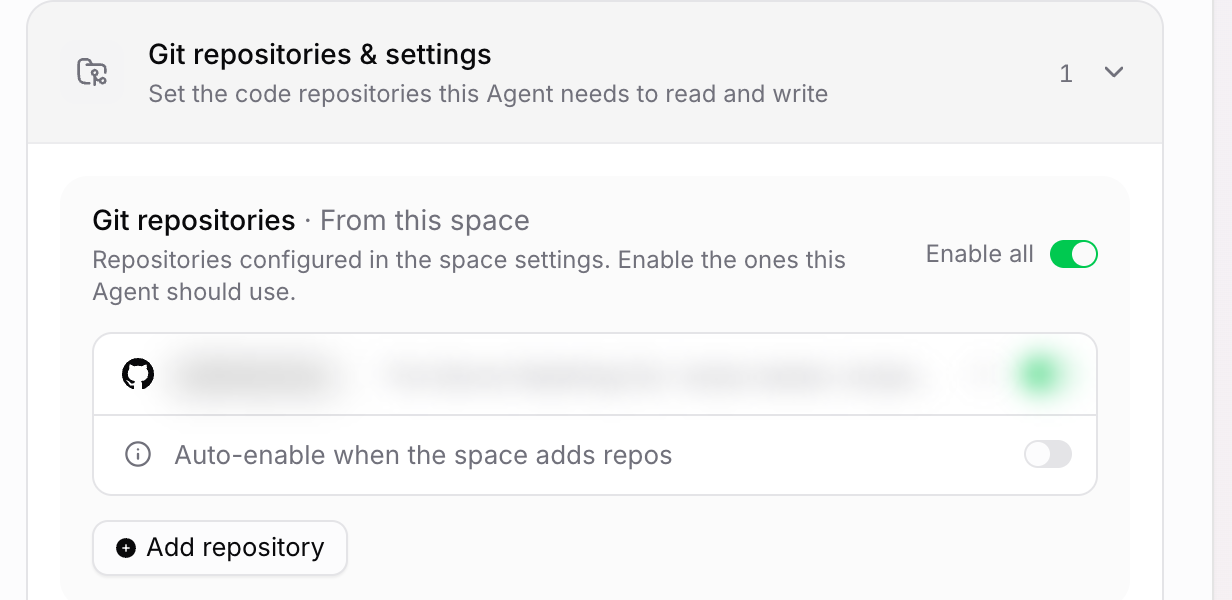
Repeat on Hex. The count beside the section title (1) tells you how many repositories the Agent will use.
Step 4: Give each run a fresh directory
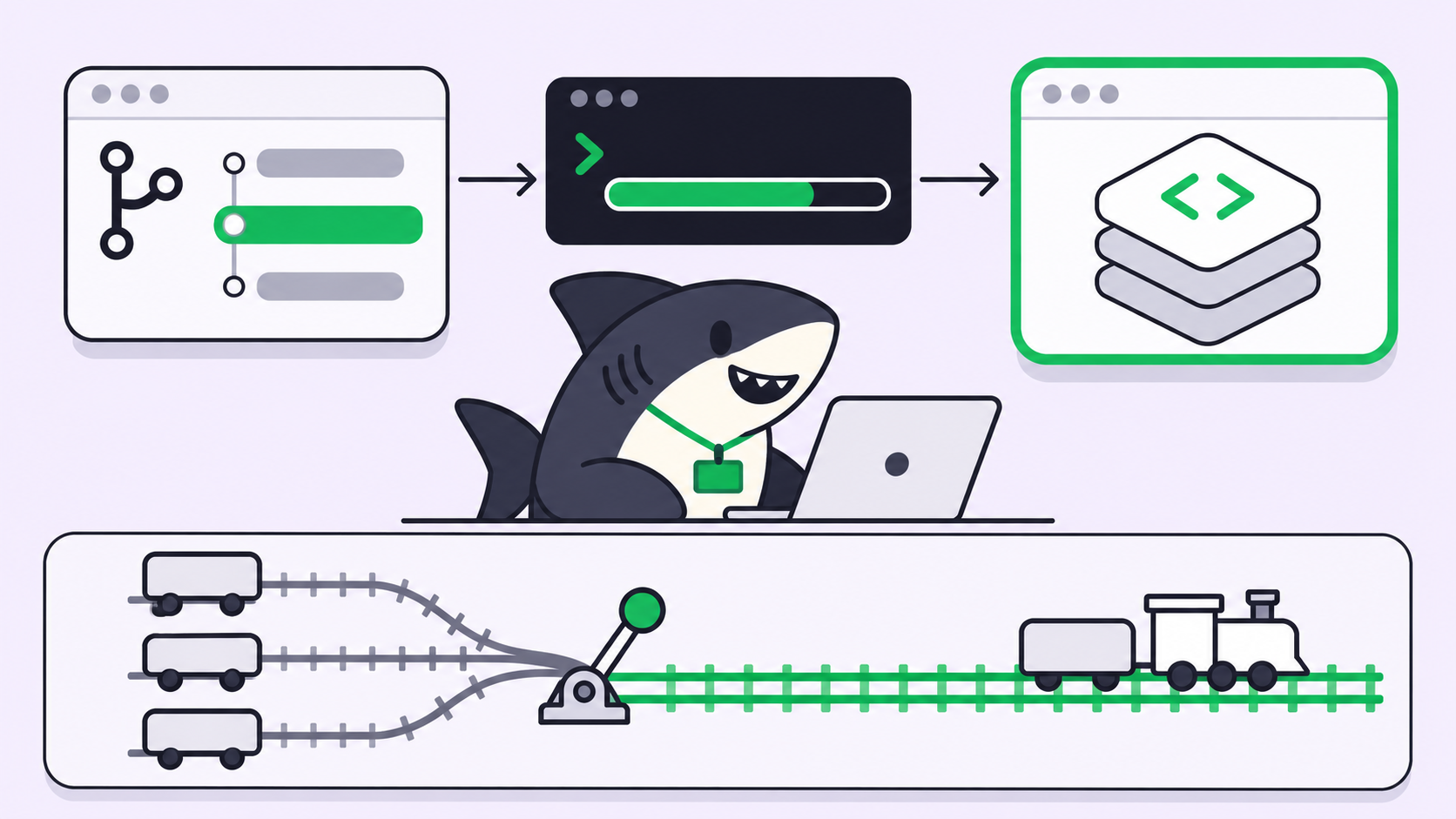
Still in the Agent’s settings, open Computer, Runtime & Working directory and set the default working directory to Use temporary directory. Each run then gets an isolated task directory with a fresh copy of the repository, starting from the baseline branch.
This is the setting that makes the binding bite. In Specified directory mode, the Agent works in a local folder you chose, and that folder’s current state wins. The working directory rules cover both modes in detail.
Step 5: Validate access with a read-only run
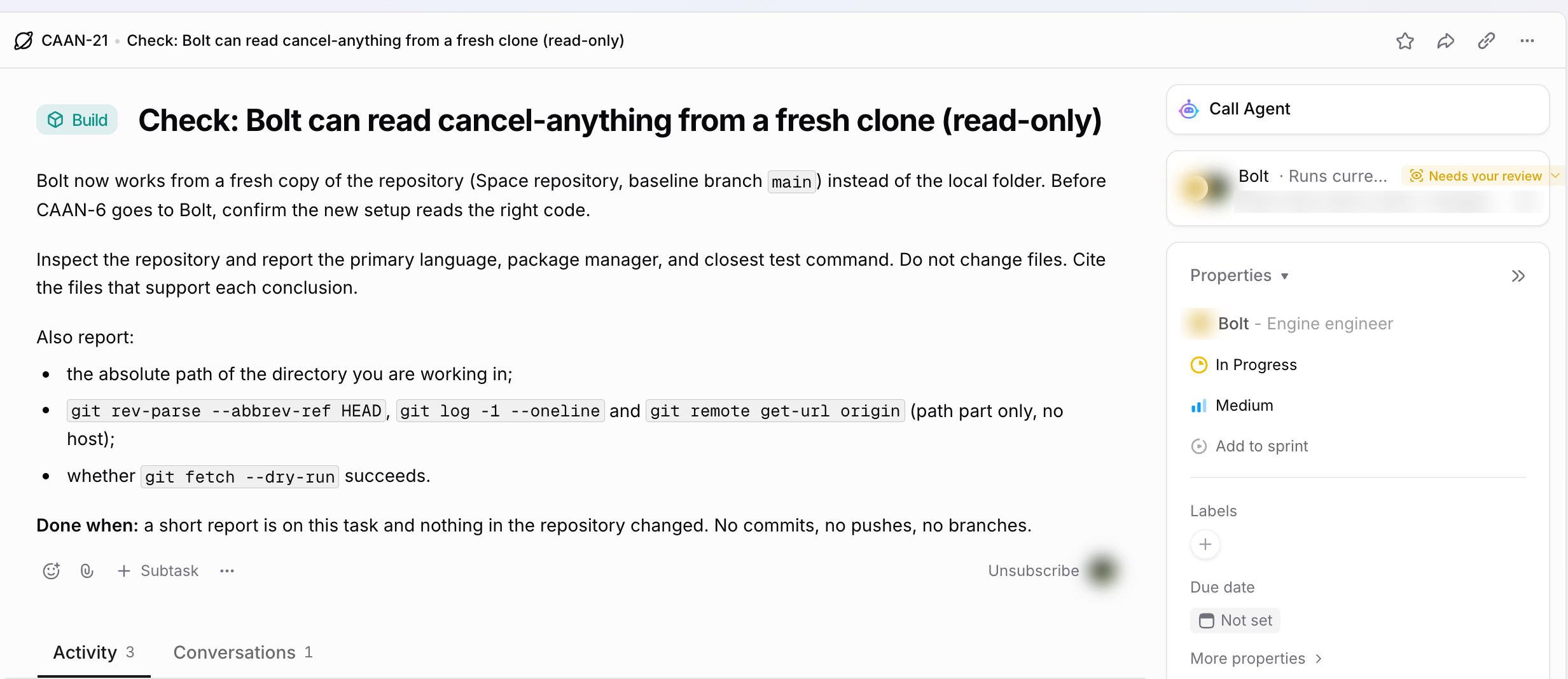
Before handing Bolt real work, we filed one check task, CAAN-21, and assigned it to Bolt. The task asked for facts only, with no changes:
Report the primary language, package manager and closest test command.
Also report:
- the absolute path of the working directory
- git rev-parse --abbrev-ref HEAD, git log -1 --oneline,
  git remote get-url origin (path only)
- whether git fetch --dry-run succeeds
Done when: a short report is on this task and nothing in the repository changed.
Bolt finished in 78 seconds. It cloned the Space repository into a new temporary directory, found TypeScript on Node 20 with npm and npm test, and reported HEAD on the same commit as remote main. git fetch --dry-run succeeded, which proves the Computer’s credentials can read the remote.
The real result
With access proven, we assigned CAAN-6 to Bolt: build cancel-anything check, a nightly command that opens each recipe’s cancel page logged out and confirms the first button exists.
Bolt ran sharkly repo checkout in an empty temporary directory, got main, wrote the command and its tests, and pushed a branch for review. Its gate passed 18 of 18 tests, typecheck was clean, and the check flagged a deliberately broken recipe copy with exit code 1. Bolt then moved the task to QA.
Both runs started from the same repository and branch, and neither touched the folder a person works in.
What went wrong for us
The binding did nothing at first. Bolt was set to a specified local directory, so its runs kept using that folder. Switching to Use temporary directory fixed it on the next run. If “the Agent cannot find the code” or edits the wrong checkout, check the working directory mode before anything else.
“No branches” isn’t quite possible. Our check task said “no branches”. sharkly repo checkout --ref main always creates a local branch named sharkly-agent/<agent>/<task>. It points at main, has no commits, and is never pushed. Write your read-only rule as “no commits, no pushes” instead.
No org-level GitHub connection. Our GitHub app installation already served another Sharkly organization, so this one showed no GitHub organization connected. Repositories still worked, because cloning uses Git credentials on the Computer. The GitHub integration matters for issue sync, covered in assigning a GitHub issue to an AI agent, not for repository access.
Wrong default branch. If runs land on an old branch, read the order from the top: an explicit ref or an Agent-level branch beats the Space baseline. Clear the Agent entry to fall back to the Space.
Two other ways teams use repositories
A monorepo team adds one Space repository and gives each Agent the whole thing, then narrows by instructions (Bolt owns src/, Hex owns recipes/). One baseline branch, many Agents, no per-Agent bindings.
An agency with client repos adds one repository per client to the Space and enables only the right one on each client’s Agent. With Auto-enable off, a new client repo never reaches the wrong Agent by accident. The Git worktree docs explain the isolation model that makes parallel runs safe.
Recap checklist
- [ ] Global Git settings: commit author and Co-authored-by trailer checked
- [ ] Space repository added with URL, description and baseline branch
- [ ] Repository enabled on every Agent that writes code
- [ ] Use temporary directory set on those Agents
- [ ] Computer can clone and fetch (one read-only run proves it)
- [ ] No tokens in tasks, comments or instructions
Set it up in your own Space at app.sharkly.ai, then hand your Agent a read-only check like CAAN-21 before its first real build. If you’re starting from zero, getting started with Sharkly walks through the workspace, and the Agents feature page shows where repositories fit.
FAQ
What are Sharkly repositories?
They’re Git repositories bound to a Space or an Agent. They tell each run which codebase to clone and which branch to start from.
Does an Agent need its own repository binding?
No. With no Agent bindings, runs fall back to the Space repositories. Add Agent bindings only to narrow or replace the Space list.
How does Sharkly choose the branch?
An explicit checkout ref wins, then the Agent repository branch, then the Space baseline branch, then the remote default branch.
Where do the Git credentials come from?
From the Computer where the Agent runs: SSH keys, HTTPS credentials or another setup the local service can use. Sharkly stores the URL only.
Do I need the GitHub integration to use repositories?
No. Our runs cloned and pushed without an org-level GitHub connection. The integration is for syncing issues into tasks.
Why does my Agent ignore the repository I added?
Check the working directory mode. In Specified directory mode the Agent uses that local folder. Use temporary directory gives each run a fresh clone.