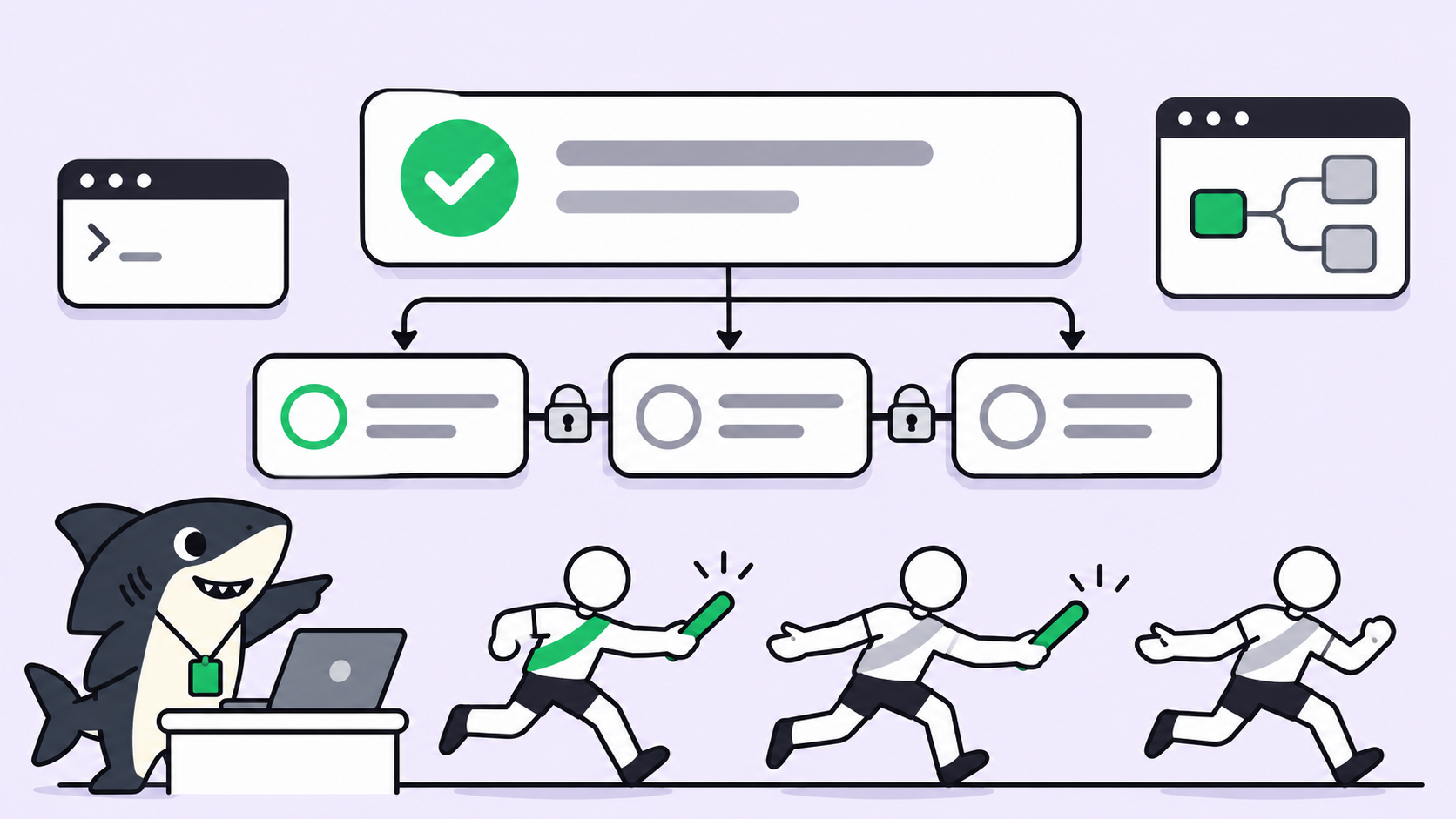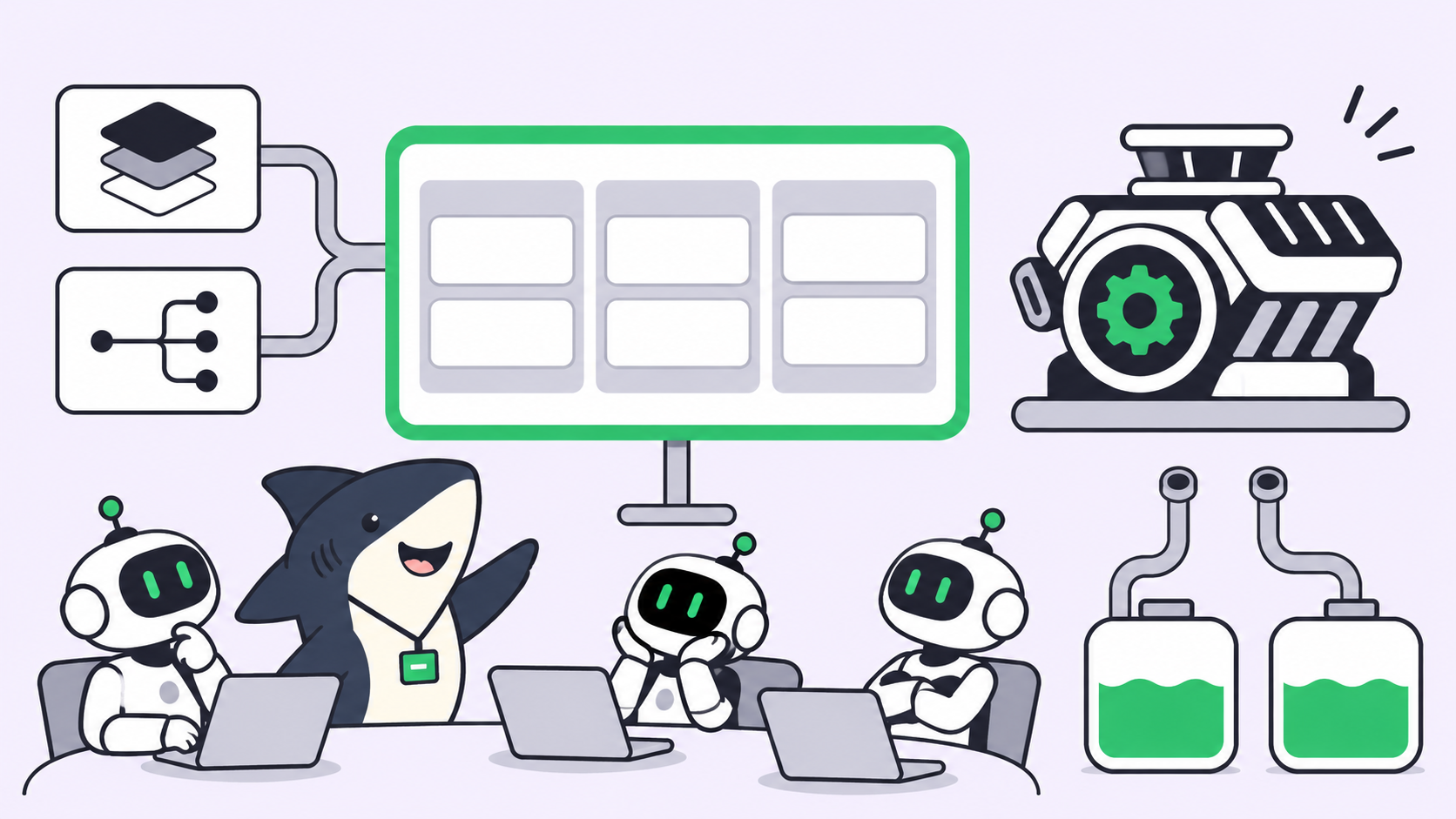
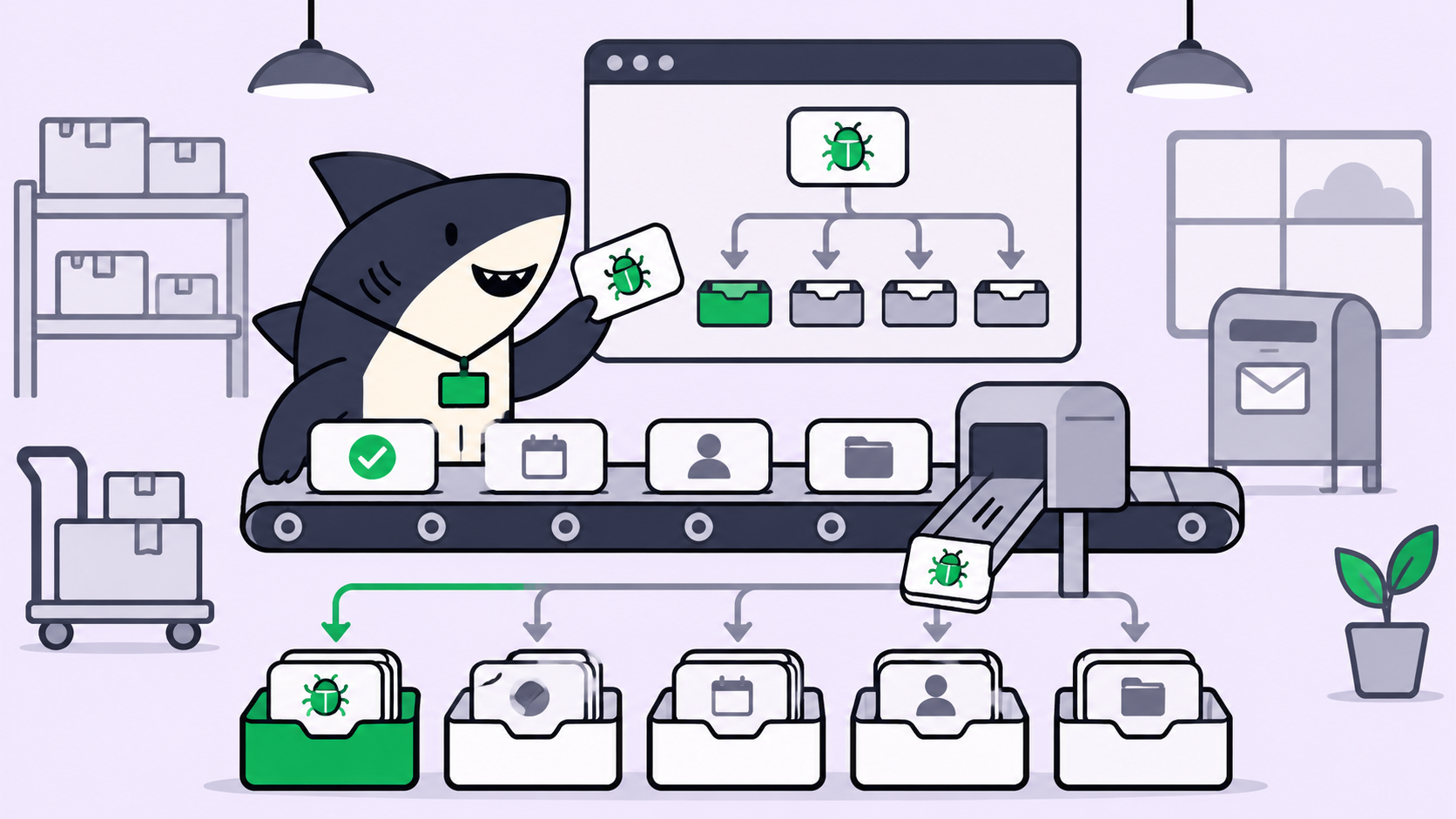
Sharkly task types let one Space hold different kinds of work without one shared form. Each type owns its own fields, its own bounded Workflow of statuses, and a default status. Add a type under Space settings, bind organization custom fields to it, pick its statuses, then browse or save Views by type.
Cancel Anything is a small subscription-cancelling CLI the team is building, and its work comes in four shapes. Build tasks change the engine. Recipe tasks describe one company’s cancel flow. Bugs report a run that went wrong. Requests are users asking for a company. A recipe needs a cancel page URL; a bug needs a short path to Done. One form for all four fits none of them.
This tutorial does the setup for real in the team’s Sharkly organization. By the end you’ll have:
- Four task types, each with its own Workflow
- Two custom fields that only appear on Recipe tasks
- A shorter Bug Workflow and a board that shows it
- A saved Bug board View, filtered by type
- A Request retyped as a Bug, and a clear picture of what survived the switch
Before you start
You need:
- A Space you can administer. Ours is Cancel Anything, key CAAN.
- Organization admin rights, because custom fields and statuses live in the organization library.
- An Agent with a connected Computer if you want to hand a retyped task to an Agent, as we do in Step 5. See what a Sharkly Agent is if that part is new.
What a Sharkly task type controls
A task type classifies a task and defines its structure. Per the task types help page, each type carries a name, icon and color, whether new tasks can use it, whether it’s the Space default, the custom fields bound to it, and one bounded Workflow with a default status.
Two pieces sit outside the type. Custom field definitions and status definitions belong to the organization. A type borrows them: it binds fields and picks statuses into its Workflow.
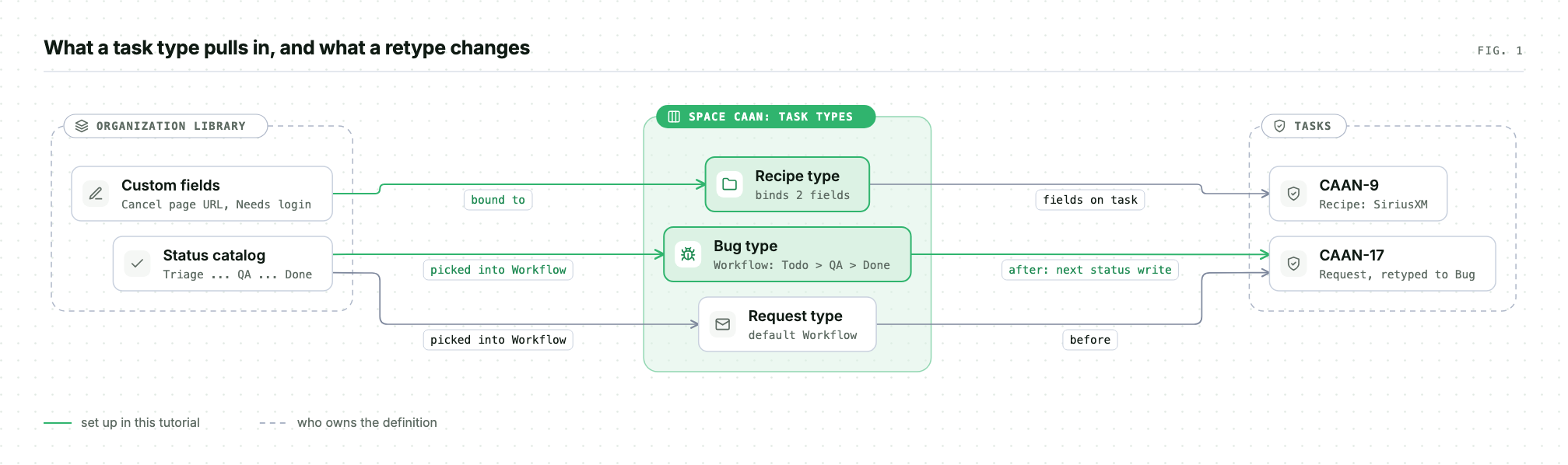
Step 1: Review the task types in your Space
Open All settings, click your Space under My spaces, then Task types & statuses. Every type in the Space is listed with its status count, custom field count and task count.
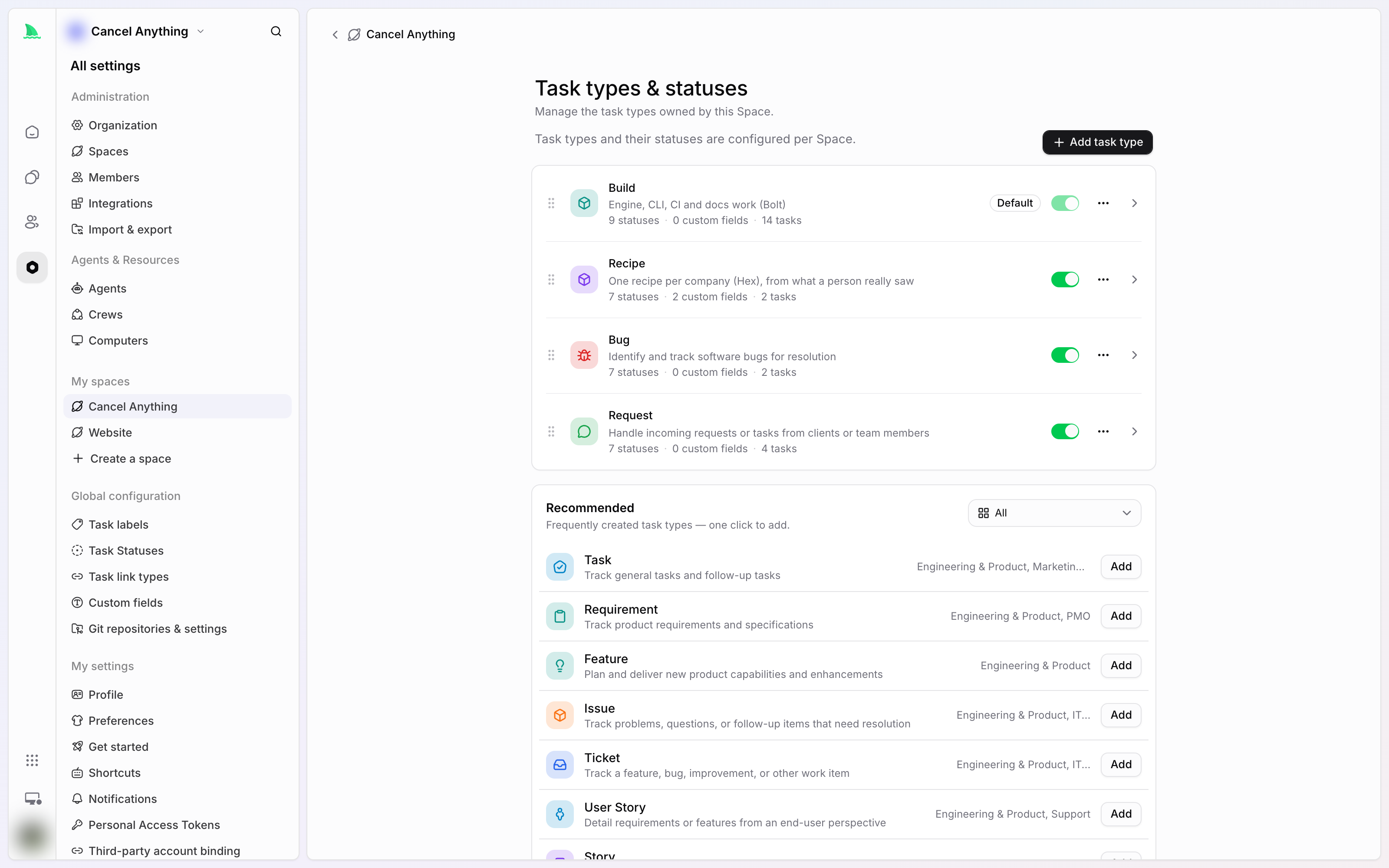
Look for the Default badge. Ours sits on Build, so a task created without a type becomes a Build task. A Space has exactly one default, and it can’t be disabled or deleted until another type takes the badge. The toggle on each row decides whether the type appears in the new-task picker; a disabled type keeps its existing tasks.
To add a type, click Add task type, or pick one from the Recommended list below (Task, Requirement, Feature, Issue, Ticket, User Story) with Add.
Step 2: Add custom fields to the Recipe type
A Recipe can’t be written without two facts: where the cancel flow starts, and whether it starts behind a sign-in.
- Go to All settings, then Global configuration, then Custom fields, and click Add custom field.
- Create Cancel page URL as a Text field. Our description: “The page where a signed-in customer starts cancelling. Becomes cancel_url in the recipe.”
- Create Needs login as a Boolean field with the default False.
The page warns you that creating a field only adds it to the organization library. Nothing shows on a task yet.
- Open Task types & statuses, click Recipe, pick the Custom fields tab and use Add custom field to bind both. Each binding gets a toggle: on means the field shows on task forms and details.
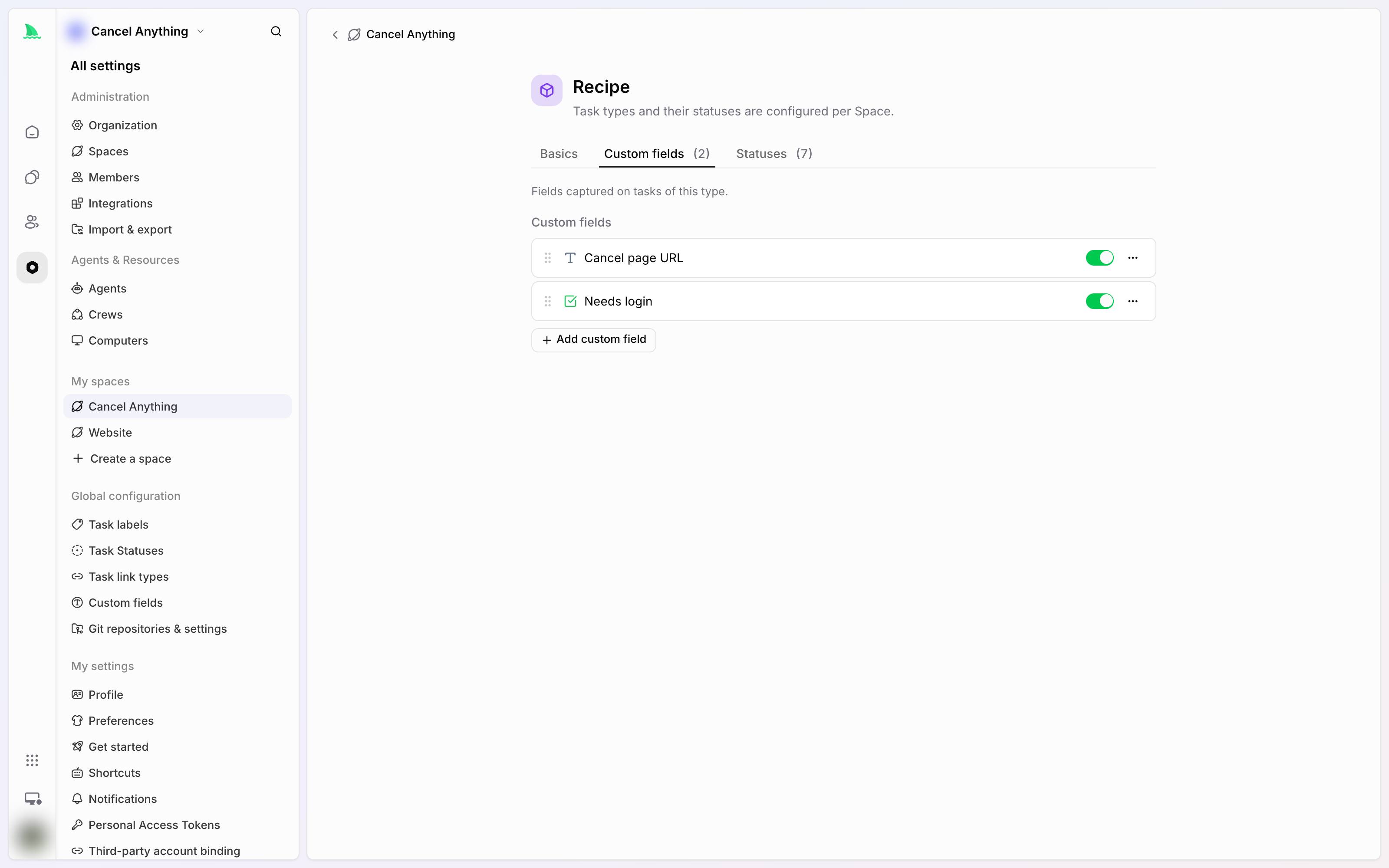
Now open a Recipe task. We filled both fields on CAAN-9, the SiriusXM request the team accepted as a Recipe.
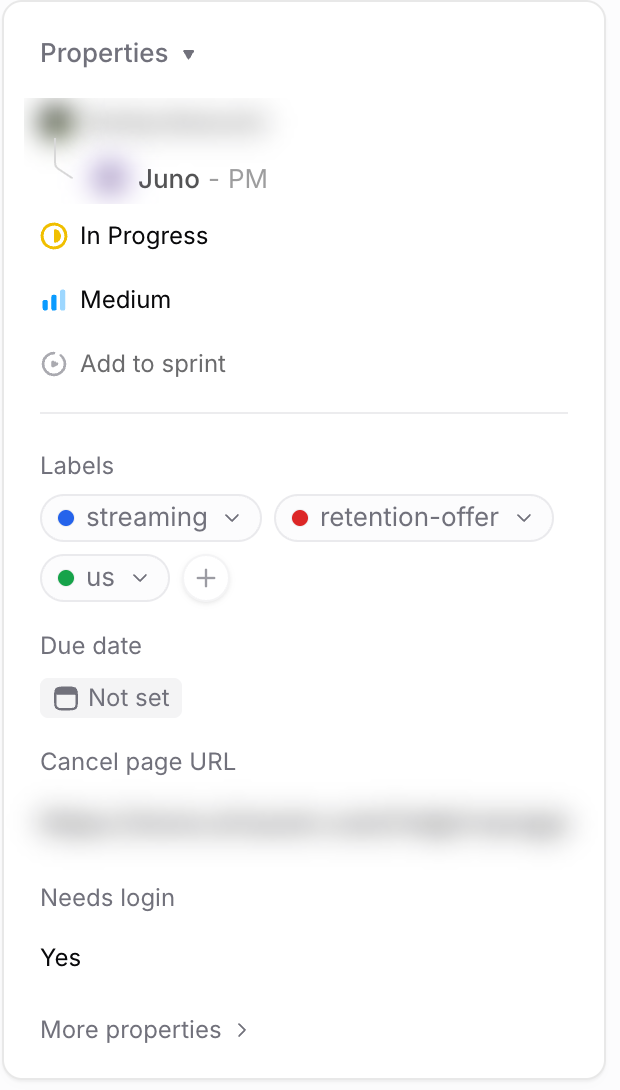
Check the Properties panel on the right: both fields sit under Labels and Due date. A Build or Bug task shows neither, which is the whole point.
Step 3: Give Bug a shorter Workflow
Build work goes through Backlog because it waits for a Sprint. A bug report shouldn’t wait there. We wanted Bug to go Todo, In Progress, QA, Done.
- In Task types & statuses, open Bug and pick the Statuses tab.
- Remove Backlog from the Workflow with the row’s ⋯ menu. Sharkly refuses this while Bug tasks still sit in Backlog, so move them first.
- Click Add status and add QA, the review status the Build type already uses.
- Set Todo as the default, so new bugs land ready to work.
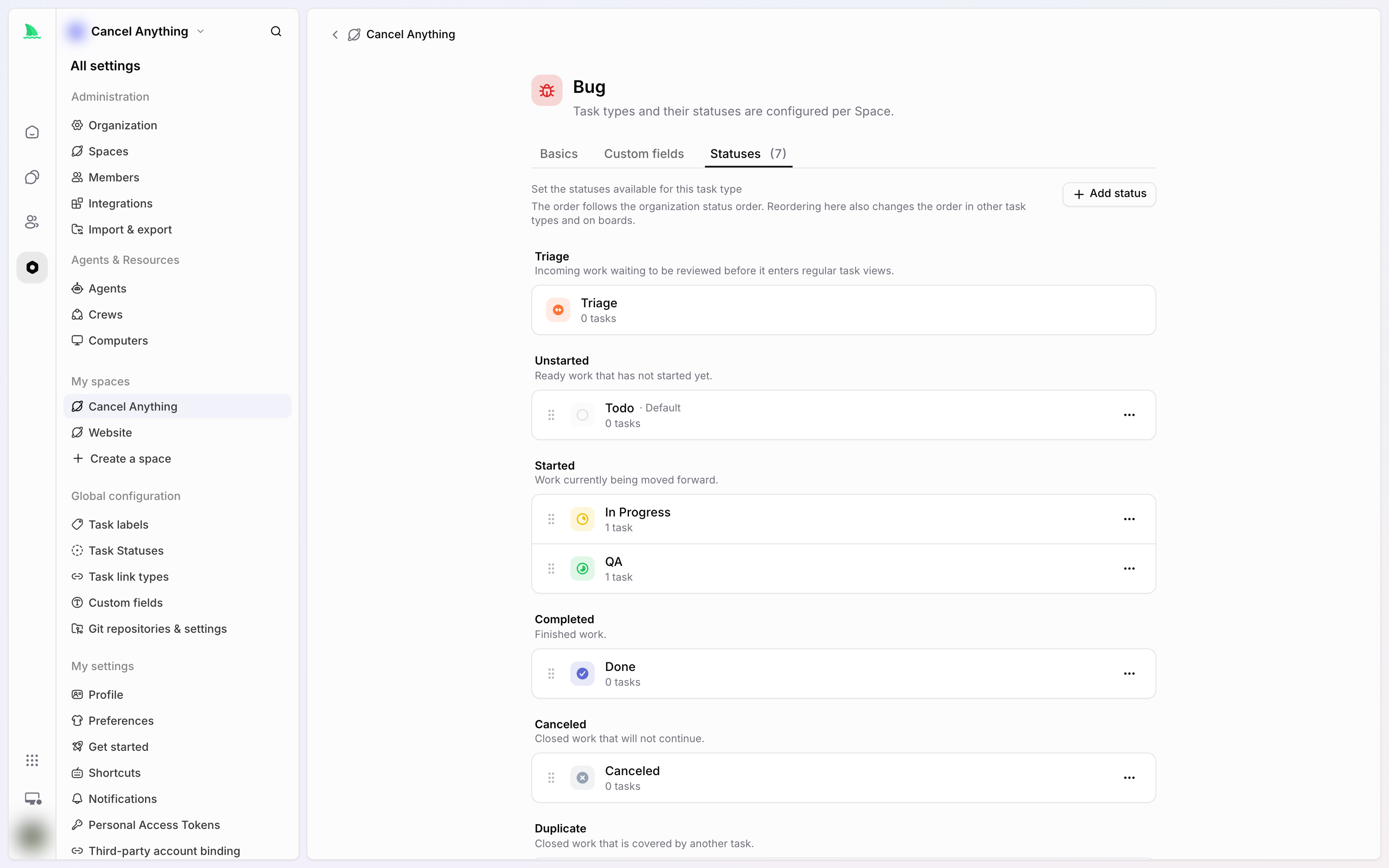
Statuses are organization definitions. Renaming QA here renames it for Build too. If one type needs a variant, create a new status instead of editing the shared one.
Now open Tasks and click the Bug tab. The board draws only the Bug Workflow’s columns.
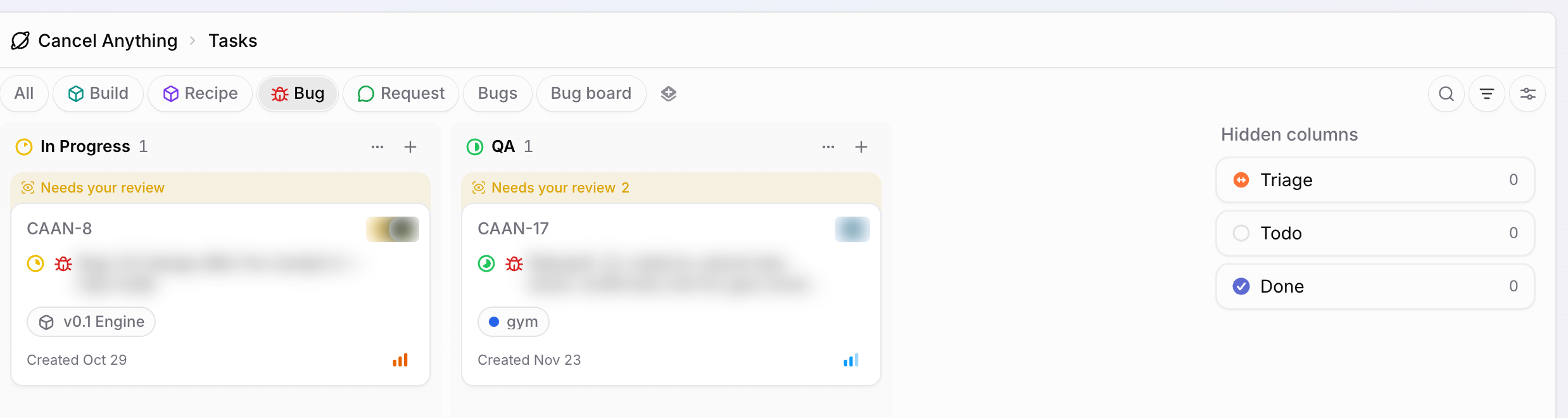
No Backlog column, no Blocked column. Empty columns fold under Hidden columns on the right.
Step 4: Browse by type and save a Bug View
The tabs across the top of Tasks (All, Build, Recipe, Bug, Request) appear on their own once a Space has more than one active type. They’re for quick browsing. To keep a perspective, save a View.
- On the Bug tab, click Create new view.
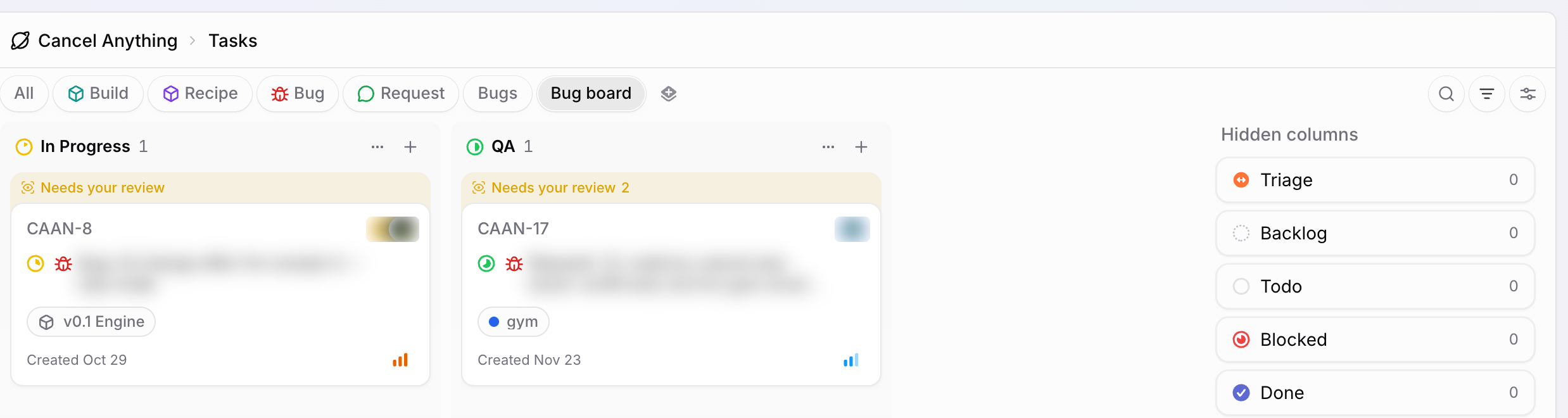
- Name it Bug board, add a description, keep visibility on Shared, and click Save.
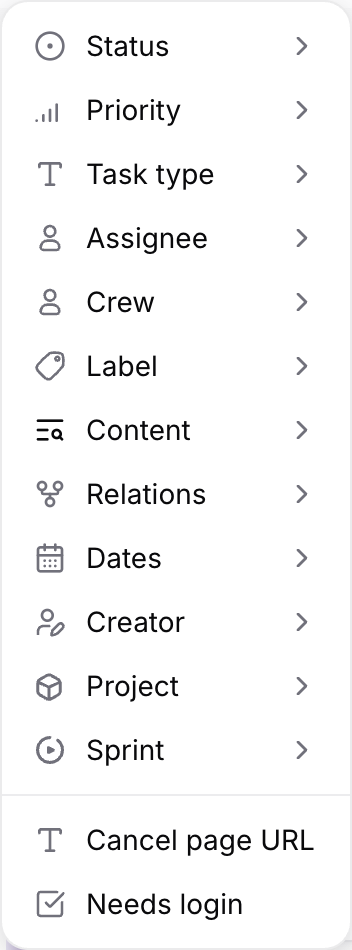
- Click Filter, then Task type, then tick Bug.
- Open the save menu next to Clear and choose Save to this view.
The Filter menu also lists your custom fields, so a “Recipes that need a login” View is one more filter away.
Step 5: Change a task’s type
CAAN-17 arrived from the #it-broke channel as a Request: “The CLI said my cancel was never confirmed, but the gym emailed a confirmation.” It read like a wording request. It was a bug: the click worked and the run reported unconfirmed.
Open the task, click the type badge next to the title (its tooltip reads Pick task type), and choose Bug. The activity log records “changed task type from Request to Bug”.
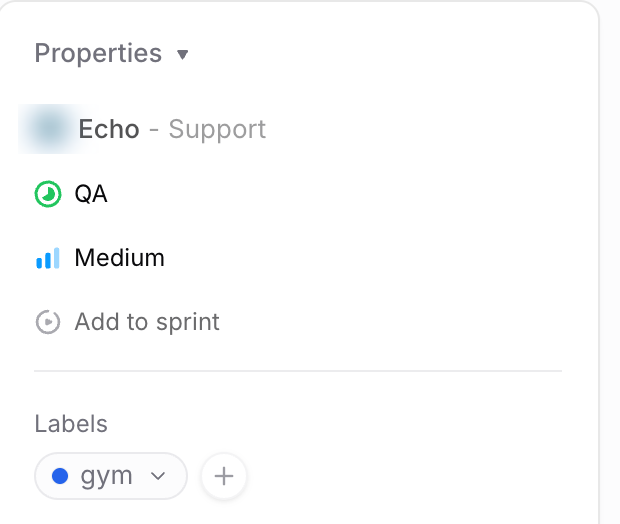
Here’s what carried over and what didn’t:
| Item | After Request to Bug |
|---|---|
| Title, description, comments | Kept |
| Labels (gym) and priority (Medium) | Kept |
| Custom field values | Kept only where the Bug type binds the same field; others are deleted |
| Status | Stayed Backlog, which isn’t in the Bug Workflow |
| Next status move | Must use a Bug Workflow status |
Request has no custom fields, so nothing was lost. A Recipe retyped to Bug would lose its Cancel page URL value. Check the fields before you switch.
The real result
We moved CAAN-17 from Backlog to Todo and assigned it to Echo, the team’s support Agent, with a read-only brief: find where a run ends as unconfirmed, write repro steps, draft a reply. Echo traced it to the runner’s 20-second wait for the recipe’s success text and moved the task to QA. The QA move fired the Crew’s QA gate, where Vera, the Crew’s QA member, flagged a wrong line reference. Echo fixed it, and Vera’s re-check passed. The bug never touched a Backlog column.
What went wrong for us
A View saved from a type tab saved no filter. Our first save from the Bug tab produced a View with “No filters”: it showed every task in the Space, Builds and Recipes included. The tab’s type filter isn’t part of the View. The fix is Step 4’s third move: add Task type is Bug in Filter, then Save to this view. Reopen the View and confirm only bugs remain.
A retyped task kept an invalid status. CAAN-17 stayed in Backlog after the switch, even though Bug no longer has Backlog. It doesn’t break anything, but the task hides in a column the Bug board doesn’t draw. Move it to a Bug status right away.
Triage stays in the Workflow. The brief said “no Triage.” The Statuses tab shows Triage in its own section with no row menu, so we kept it. Ordinary boards hide Triage anyway; incoming work is reviewed in the Triage inbox.
Two other ways to use task types
A support team could add a Ticket type with a “Customer plan” single-select field and a Workflow of Triage, Waiting on customer, Resolved. Agents answer tickets; humans own Feature requests in a separate type with a longer Workflow.
A platform team could split Incident and Change types. Incident gets a short Workflow and a “Severity” field; Change gets a Date field for the rollout window and a review status before Done, so an Agent’s change waits for a human sign-off, the same gate covered in Sharkly task statuses.
Labels vs types vs custom fields
| Use | When Cancel Anything uses it |
|---|---|
| Task type | The work needs its own fields or statuses: Recipe vs Bug |
| Label | Lightweight, combinable tags: the dark-pattern labels like retention-offer, plus streaming and us |
| Custom field | Structured data one type needs: Cancel page URL on a Recipe |
A SiriusXM Recipe can carry three labels at once. It can’t be a Recipe and a Bug at once. That’s the test: if two values can coexist, it’s a label; if they need different forms or Workflows, it’s a type. The help page draws the same line, and dark patterns are a good label example because one cancel flow often uses several.
Recap checklist
- [ ] Each kind of work with its own form or path has its own task type
- [ ] One type carries the Default badge
- [ ] Custom fields are created in the library, then bound to a type
- [ ] Each type’s Workflow lists only the statuses that work uses
- [ ] Saved Views filter on Task type explicitly
- [ ] Before a retype, check which field values the new type drops
- [ ] After a retype, move the task into a valid status
Task types pair well with Agents: a Bug that lands in Todo is a task an Agent can pick up without a human sorting it first. Set up your first two types on Sharkly, then read how status categories start and stop agent runs.
FAQ
How many task types can a Sharkly Space have? The help docs set no number. Every active Space has exactly one default type, and type tabs appear on the task list once more than one type is active.
Can two Spaces share a task type? No. A task type belongs to one Space, and a task can only use a type from its own Space. Statuses and custom field definitions are shared across the organization.
Does removing a custom field from a type delete data? Yes. Removing the binding deletes that field’s values from tasks of the type. Switching the binding off keeps the values and hides the field.
Can I delete a task type? Only an unused, non-default type. Disable or archive a type when older tasks still need it.