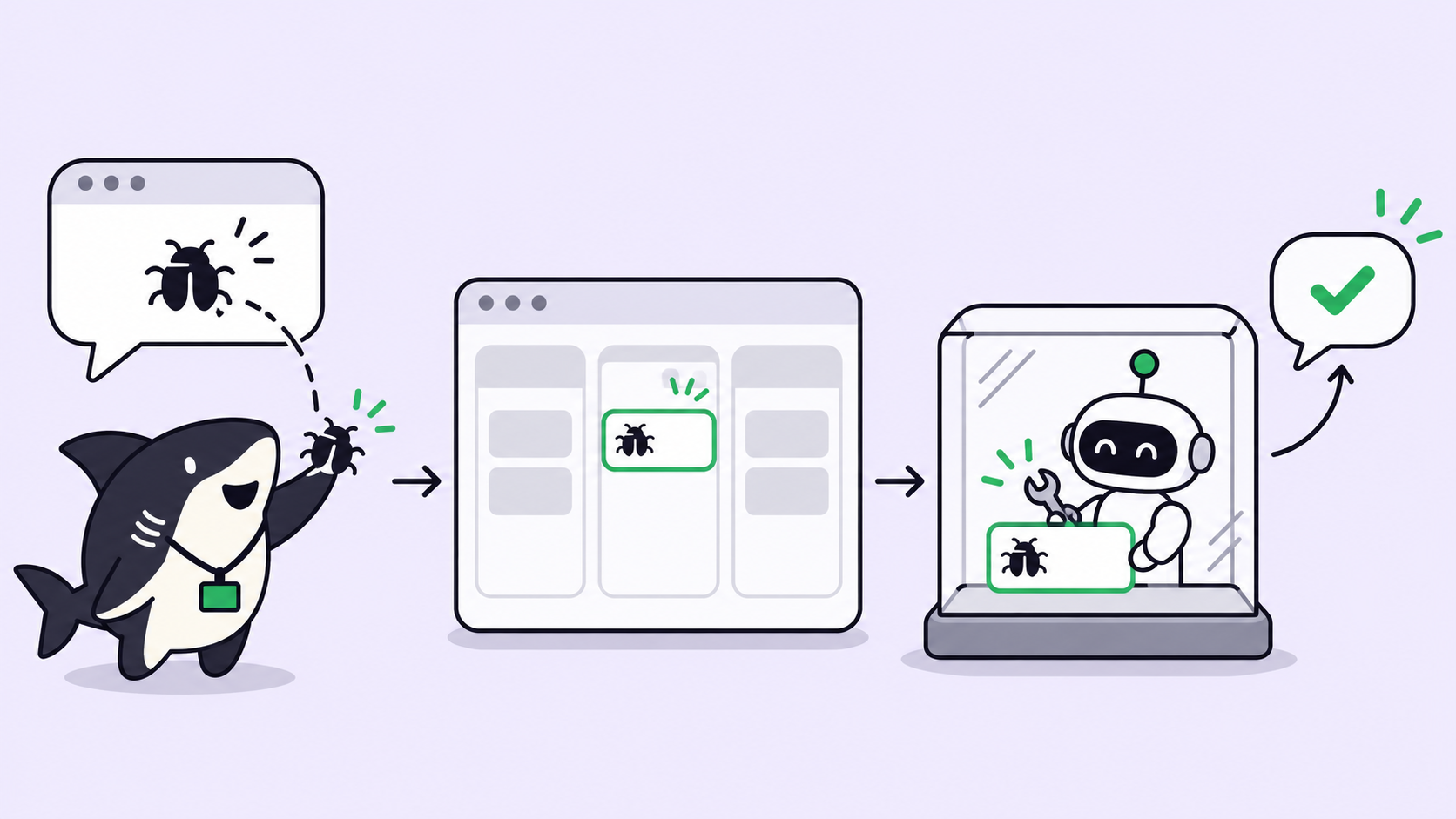
Quick answer: To turn a Slack bug report into an AI agent fix, file the report as a task straight from the Slack thread, assign it to a coding agent, and have the agent reproduce the bug in a fresh worktree before it touches code. The fix lands on a branch as a draft pull request, and the thread gets one short reply with the link.
A Slack bug report usually dies in one of two ways. Nobody picks it up, and it scrolls out of view by lunch. Or three people pick it up, ask the same question in the thread, and nobody owns the answer.
If you already run Claude Code or Codex, you have a worker that could take the bug. What you lack is the path from “someone typed this in #support” to “an agent is working on it, and the reporter knows.” This guide builds that path with Sharkly, using only what its Slack integration does today.
Why bug reports die in Slack threads
A thread is a conversation, not a work item. It keeps the report and screenshots together, then fails once work begins:
- No owner. “I’ll look” from two people is worse than none.
- No status. A fixed bug and a forgotten one look the same.
- No evidence trail. Repro steps and the PR link end up in a DM, or nowhere.
- Noise. An agent that posts every step gets muted within a week.
The fix is moving the work into a task while the thread stays the reporter’s window into it. Our post on sharing one coding-agent workflow without a Slack thread per run covers the team side of that model; this one covers the bug flow end to end.
The Slack bug report to AI agent flow
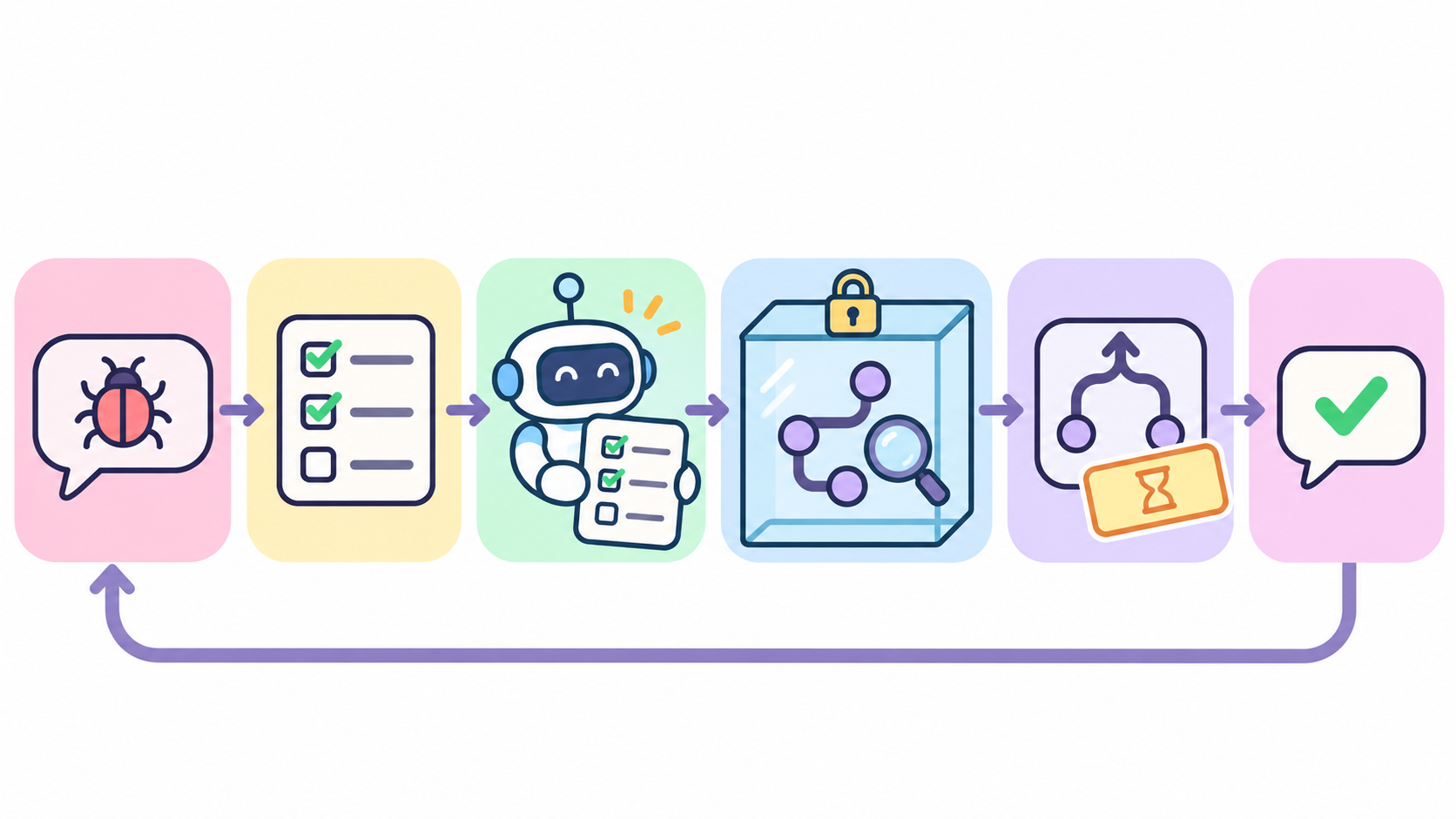
- Someone reports a bug in a Slack channel.
- A task assistant in the thread files it as a task, with the report and attachments in the body.
- The task is assigned to a coding agent.
- The agent reproduces the bug in a fresh worktree on its Computer.
- If the bug reproduces, the agent fixes it on a branch and opens a draft PR.
- The agent writes a short comment on the task, and the bound thread shows it.
Three Slack connections, and which one files the task
Sharkly’s Slack integration has three separate setups. They don’t enable each other, so it helps to know which one you need before you click anything.
| Connection | What it does | Creates tasks? |
|---|---|---|
| Slack workspace connection | Shared app: create tasks from a slash command or message shortcut, task linkbacks, link previews, Slack DMs for Inbox events | Yes, through a form the person fills in |
| Task assistant | One built-in assistant per Space; @ it in a channel and it reads the conversation, writes up the request, and files it as a task | Yes, from the thread’s context |
| Agent bot | Binds one Slack app to one of your Agents; messages become Agent conversations | No |
For bug reports, use the task assistant: it reads the thread, so nobody retypes the report. The Agent bot is the wrong tool here: the docs say its conversations do not create tasks, so the work has no owner or status.
Step 1: Connect Slack and bind the task assistant
An organization Owner or Admin opens Integrations, selects Slack, and connects the Slack workspace through OAuth. One Slack workspace can connect to only one Sharkly organization at a time.
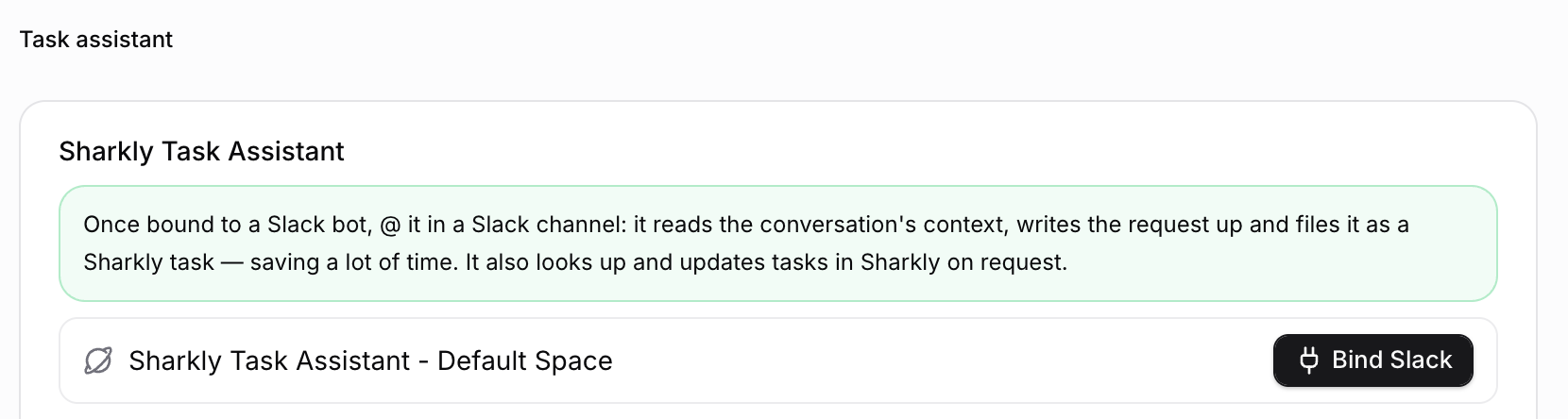
Then bind the task assistant for the Space where bugs should land. In the Task assistant section, pick your Space, choose the Runtime that runs the assistant, and create and install its Slack app in the same dialog. You don’t create an Agent first. Each Space gets one assistant, and its settings panel matches an Agent’s: Computer and Runtime, default model, instructions, and Skills.
Admins maintain a shared instruction template, and you can override it per Space. For bugs:
When asked to file a task from a thread:
- Title: "Bug: <one-line symptom>" (under 70 characters).
- Body: reporter's words quoted, then steps to reproduce,
  expected vs actual, environment, links to logs or screenshots.
- If the thread has no steps to reproduce, add a line:
  "Repro steps missing" and ask for them in the thread.
- Set type Bug and status Todo. Do not assign anyone.
Step 2: File the bug report from the thread
When a report comes in, anyone in the thread mentions the assistant: @Sharkly Task Assistant file this as a bug. It reads the conversation, writes the request up, and files the task. Images, videos, and other attachments from Slack can be carried into the task body.
If you’d rather fill the fields yourself, the workspace app also gives you a message shortcut and a slash command. You pick the Space, task type, and status in a form. Access follows the Slack user’s identity and their membership in the Sharkly organization, so a person who isn’t a member can’t file into your Space.
Next, bind the thread. The docs say that when an Agent creates a task from Slack, you can bind the current thread at the same time. After that, task comments and thread messages stay in sync, and status changes can post to the thread too. The task detail shows which thread it’s connected to, and you can stop sync from there without deleting anything.
Step 3: Assign the task to a coding agent
Now the bug is a task, and a task can have an owner. Assign it to the Agent that should fix it. You can do that on the board, or from the Slack task card, where a member can update status, priority, assignee, labels, and dates.
If you want routing without a person, use a status trigger. A Sharkly Automation runs an Agent’s instructions when a task enters a status you choose, such as Ready for agent. One catch from the Automations docs: status matching is organization-wide today. If two Spaces use the same status, either one can start the run, so the instructions must check the task’s Space and type first.
Slack and Feishu chat bridges are included on Sharkly’s Free and Team plans, and runs bill against your own Claude Code, Codex, or API plan; Sharkly sells no tokens. Free to start.
Step 4: Reproduce the bug in a fresh worktree
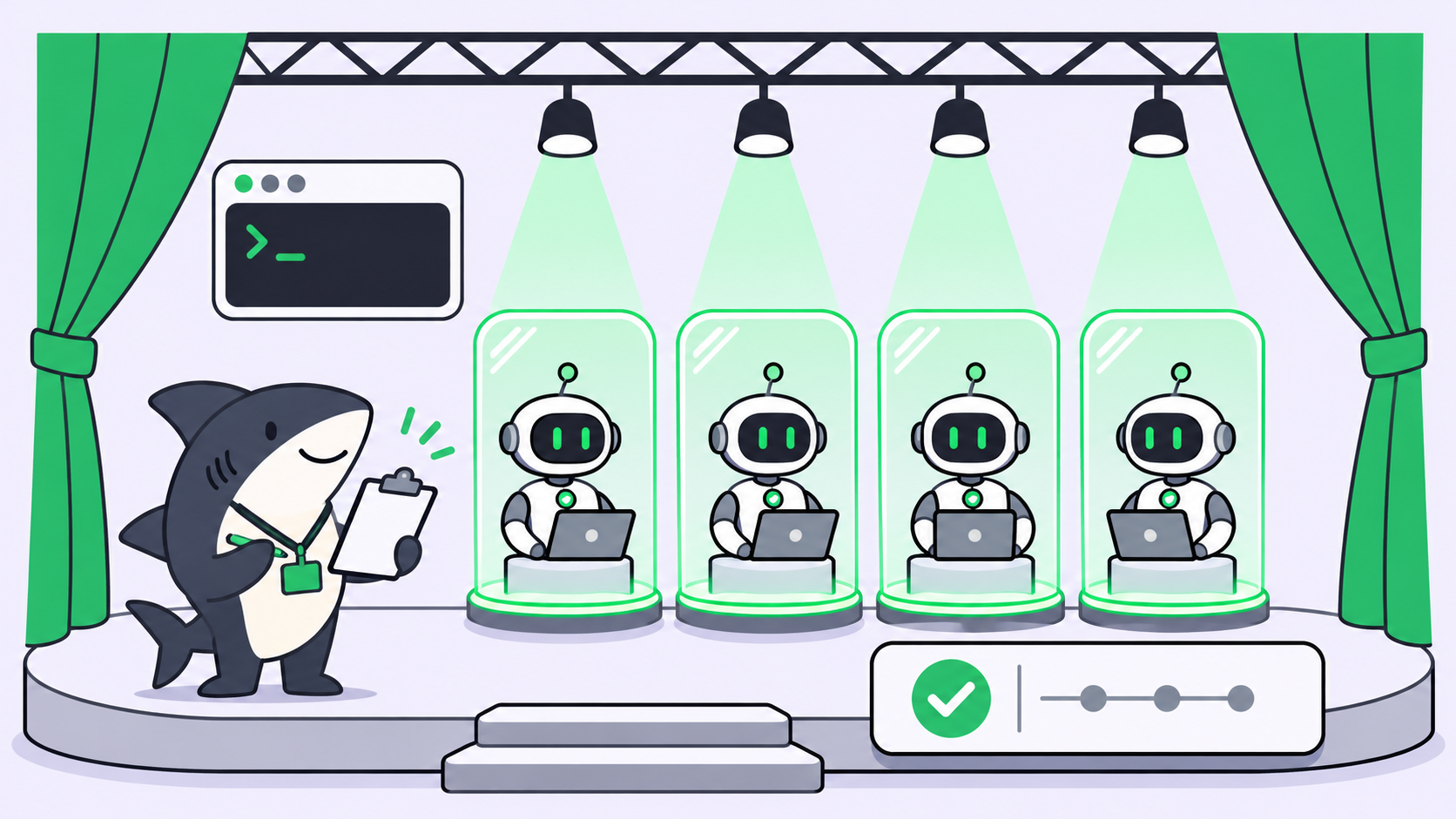
The agent runs on a Computer: a connected host with its own Runtimes, files, and Git credentials. Set the Agent’s repository to a temporary directory, or a specified directory with isolated worktrees. Each run then gets its own Git worktree, so two bugs filed a minute apart can’t overwrite each other’s files. Parallel agents in isolated worktrees covers the mechanics.
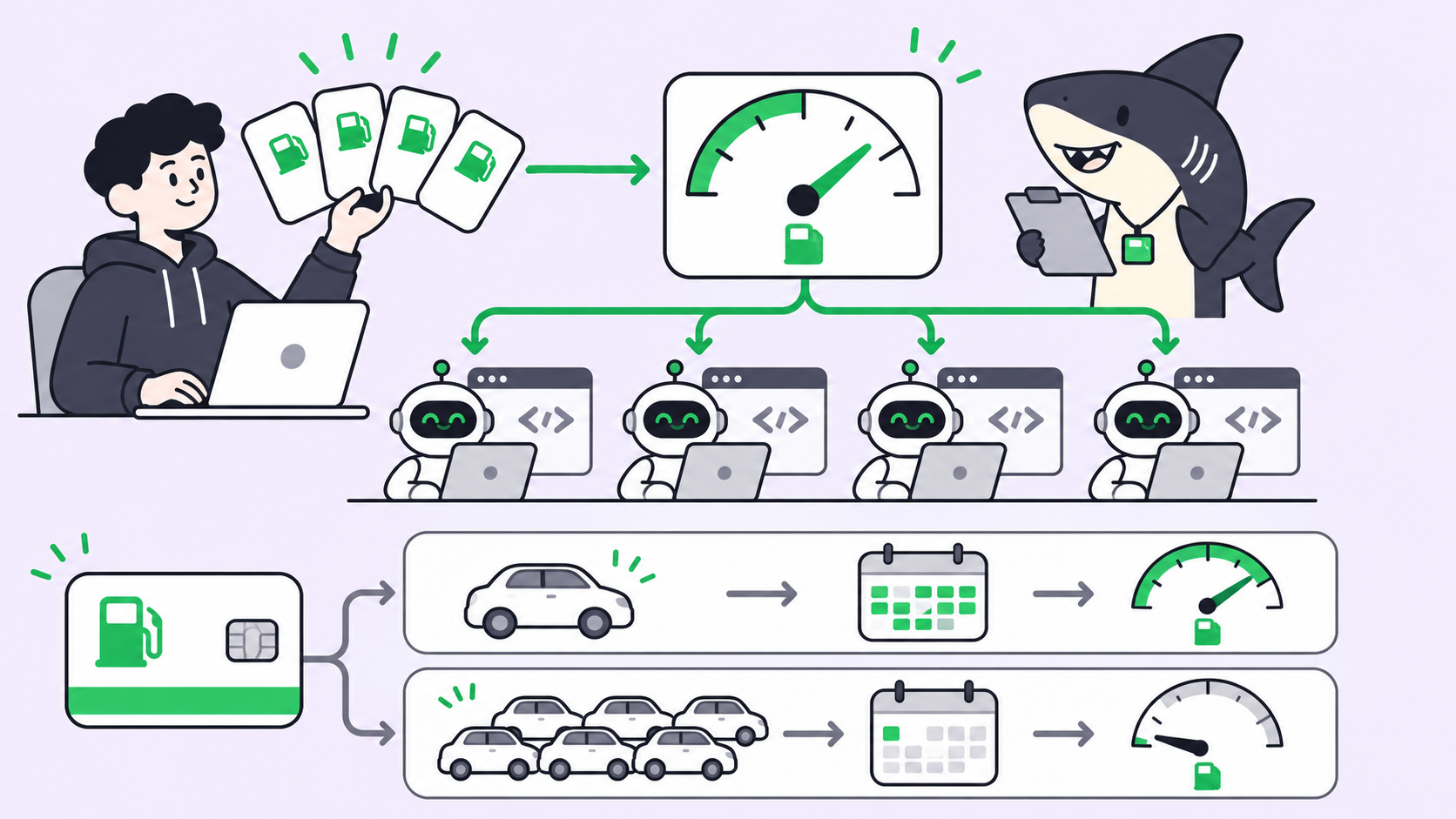
Every Computer has a concurrent-task limit, and worktree runs default to half of it. When it’s full, extra runs queue and start on their own. A bad Monday with 15 bug reports becomes a queue, not 15 agents fighting over one laptop.
The instructions do the rest. Put the repro rule first:
You are fixing a bug filed from Slack. The task body has the report.

1. Check out the default branch in a fresh worktree.
2. Write a failing test or script that shows the bug.
3. If you cannot reproduce it in 3 attempts, comment what you
   tried and what you need from the reporter. Change no code. Stop.
4. Make the smallest fix. Rerun your repro and the nearest tests.
5. Push branch fix/<TASK-ID>, open a draft PR with the task ID in
   the title, and put the full write-up in the PR body.
6. Post one task comment, 100 words or fewer: cause, fix, PR link.
Step 5: Open the fix as a draft PR
The agent pushes with its Computer’s Git credentials and opens the PR with gh pr create --draft. With the GitHub integration connected, the task ID in the branch name or PR title links the pull request back to the task. Keep the merge with a person. The agent’s job ends at a draft PR. See human-in-the-loop coding agents for where the review gate belongs.
Step 6: Reply in the thread, and keep it short
Because the thread is bound, the agent’s task comment can reach it. Which comments go out to Slack follows the product UI, so check one test task before you rely on it.
Cap that reply. A design essay the DeepSeek Harness team posted describes a multi-channel rule from their prototype: chat replies capped at 100 words, with structured write-ups going to GitHub, email, or docs. The essay describes a design, not a shipped product, but the rule ports well. Detail goes on the task and the PR. The thread gets the headline.
A good reply looks like this:
Reproduced: checkout fails when the cart has a 0-price item
(division by zero in tax rounding). Fixed and covered by a test.
Draft PR: <link>. Ships after review.
Rules that keep the flow honest
- No repro, no fix. An unreproduced patch is a guess with a green checkmark. The agent asks the reporter instead.
- 100-word chat replies. Long write-ups belong in the PR body.
- Silence by default. The agent posts when it has a result or a question, not at every step.
- Draft PRs only. The agent never merges.
Alternatives
You can file every report with the message shortcut instead: no automatic write-up, but a person decides what becomes a task. Or triage with an Agent bot first, then file a task; using Slack with AI agents for free compares those options. For volume, running 10 AI coding agents at once covers capacity.
Start with one channel
Pick the channel where bug reports pile up, bind the task assistant to one Space, and file the next three reports by hand with it. Read what it writes before you let an Agent pick them up. Once the write-ups look right, add the assignment step. Connect a Computer in Sharkly and give your existing coding agent the next bug report.
FAQ
Can Sharkly create a task from a Slack message?
Yes. With the Slack workspace connected, you can create a task from a slash command, global shortcut, or message shortcut. A bound task assistant can also file one from a channel thread when you mention it.
Does the Slack Agent bot create tasks?
No. Agent bot messages become Agent conversations, and the docs say they don’t create tasks automatically. Use the task assistant or a shortcut when the work needs an owner.
Will the agent’s updates show up in the Slack thread?
When a task created from Slack is bound to its thread, task comments and thread messages stay in sync, and status changes can post there. You can stop sync from the task detail.
What if the agent can’t reproduce the bug?
It should change no code. It comments what it tried and asks the reporter for missing steps, and the bound thread carries the question back.
Can a Slack message start an Automation?
Space Automations start from a schedule, a task status, a comment phrase, a webhook, or Run now. Slack events can start a separate automation workflow, but that uses its own Slack connection.