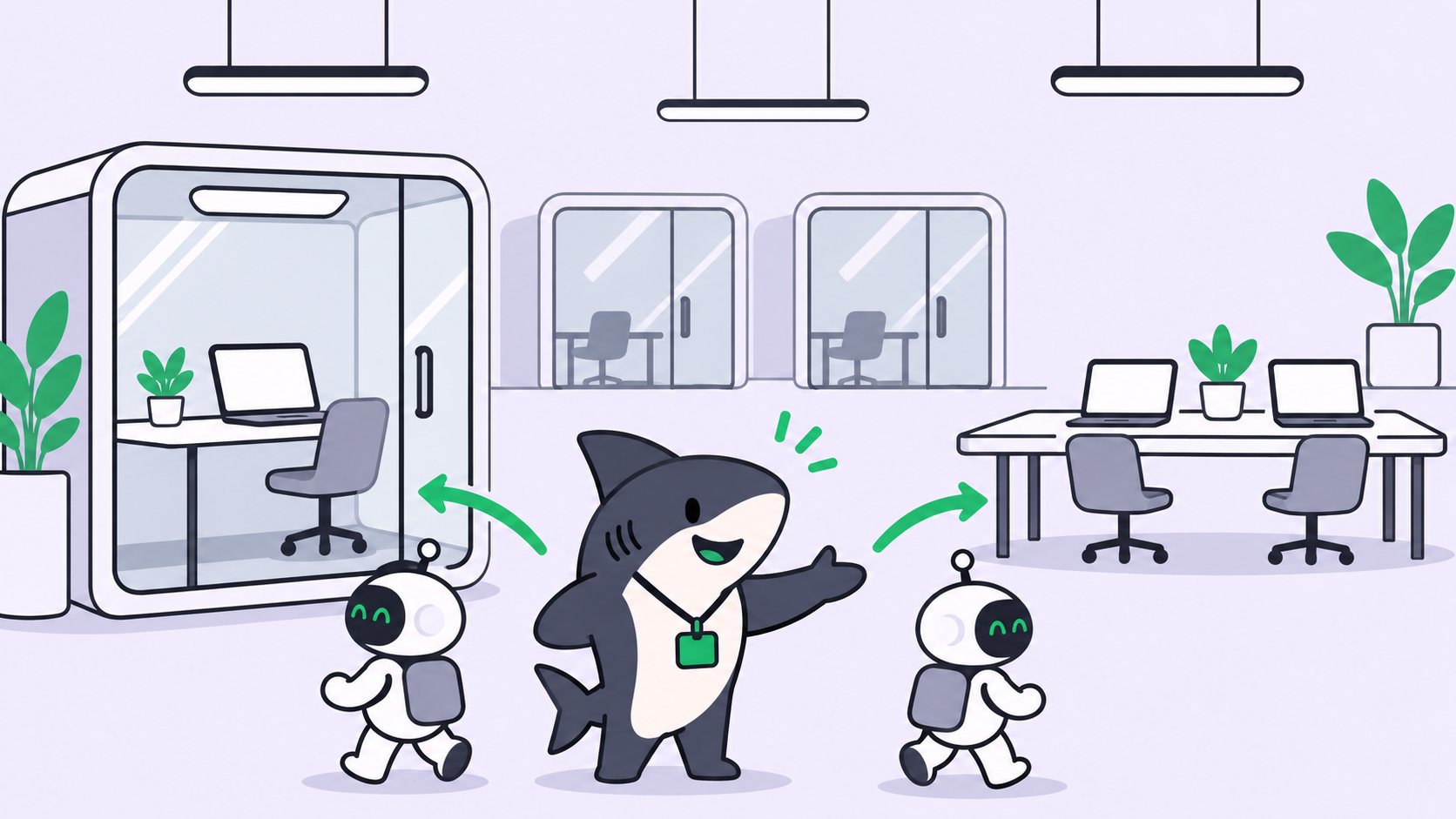
Quick answer: The Sharkly agent working directory is the folder a Runtime enters when an Agent runs a Task. Use temporary directory gives every Task a fresh workspace; Specified directory points runs at an existing folder on the Computer, and for a Git folder you then choose isolated worktrees or running directly in the folder.
Two agents edit one checkout at once, and one commits the other’s half-finished file. Your Sharkly agent working directory setting decides whether that can happen. This tutorial sets it up for real in Cancel Anything, a small team building a subscription-cancelling CLI, and runs two Tasks at once: one in its own worktree, one in place. You’ll end knowing which mode each Agent needs and how to check where a run worked.
If you don’t have an organization yet, Sharkly is free to start, and the getting started guide gets you to a first run in about ten minutes.
Before you start
You need three things in place:
- A Computer with a Runtime. Ours is a Mac running Claude Code and Codex, registered once with
sharkly computer register. See how Computers work if yours isn’t connected yet. - A project folder on that Computer. Ours is a Git repository with the CLI’s code, recipes and a
docs/folder. - At least two Agents. Cancel Anything runs five: Juno (PM), Bolt (engine), Hex (recipes), Vera (QA) and Echo (support). Bolt and Echo do the work in this tutorial.
The working directory is an Agent setting. We found no Space-wide default in the app.
How the working directory modes work
The help page describes the modes, and the app on 2026-11-23 matched it with one wording difference (more below). Here is what each choice does:
| Setting in the app | Where a Task runs | Parallel Tasks | Changes land |
|---|---|---|---|
| Use temporary directory | A new folder per Task; repository-backed runs get an isolated Git worktree | Yes | On the Task’s worktree |
| Specified directory + Run in isolated worktrees | A new worktree cut from your folder | Yes | On a branch named sharkly-agent/<agent>/<task> |
| Specified directory + Run directly in this folder | Your folder, as it is | One Task per path at a time | In the folder, uncommitted unless the Agent commits |
A Git worktree is a second checkout of the same repository in another folder, on its own branch. Worktrees share history but not files, so two Agents can edit src/ at once. The working directory is the folder a process starts in.
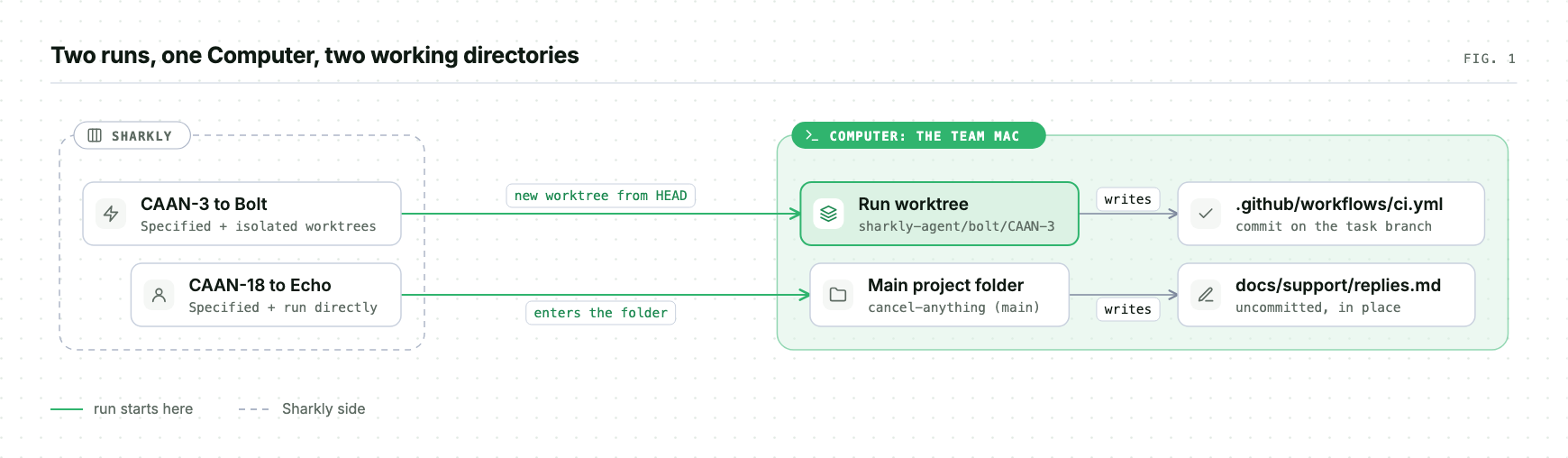
Set the Sharkly agent working directory, step by step
Step 1: Open the setting on an Agent
Go to All Agents, click the Agent, then Settings and expand Computer, Runtime & Working directory. Scroll past Runtime, model and Working hours to Default working directory. The dropdown holds the two modes.
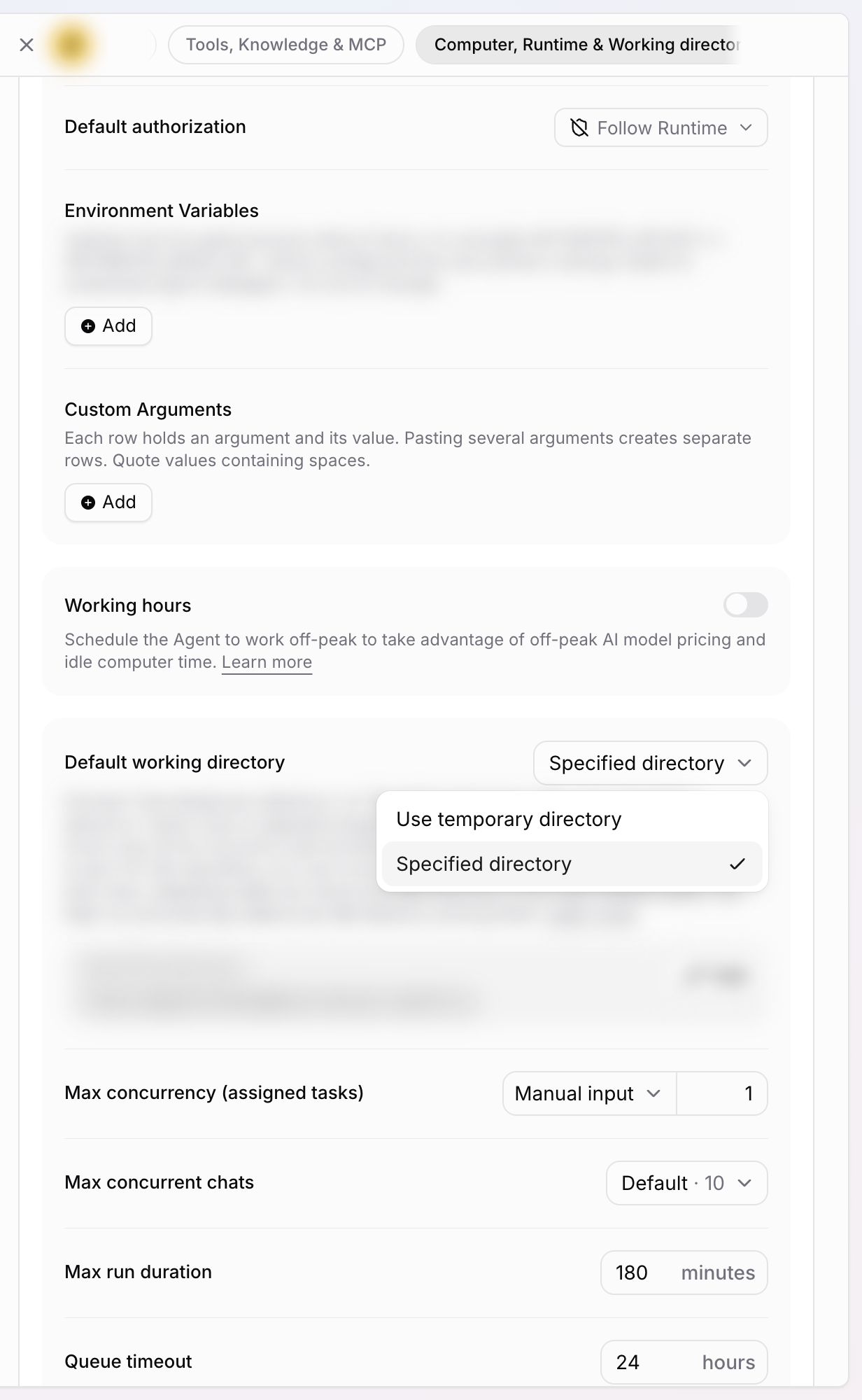
Look at the dropdown: two modes, and Max concurrency right below it, which caps how many assigned Tasks this Agent runs at once.
Step 2: Give the code Agent isolated worktrees
Bolt writes engine code, so every Task gets its own checkout. Choose Specified directory, click Edit, and pick the project folder with Choose…. Because it’s a Git repository, the dialog asks How should tasks use this folder? Select Run in isolated worktrees. Use current HEAD as the baseline branch cuts each worktree from whatever the folder has checked out. Click Save.
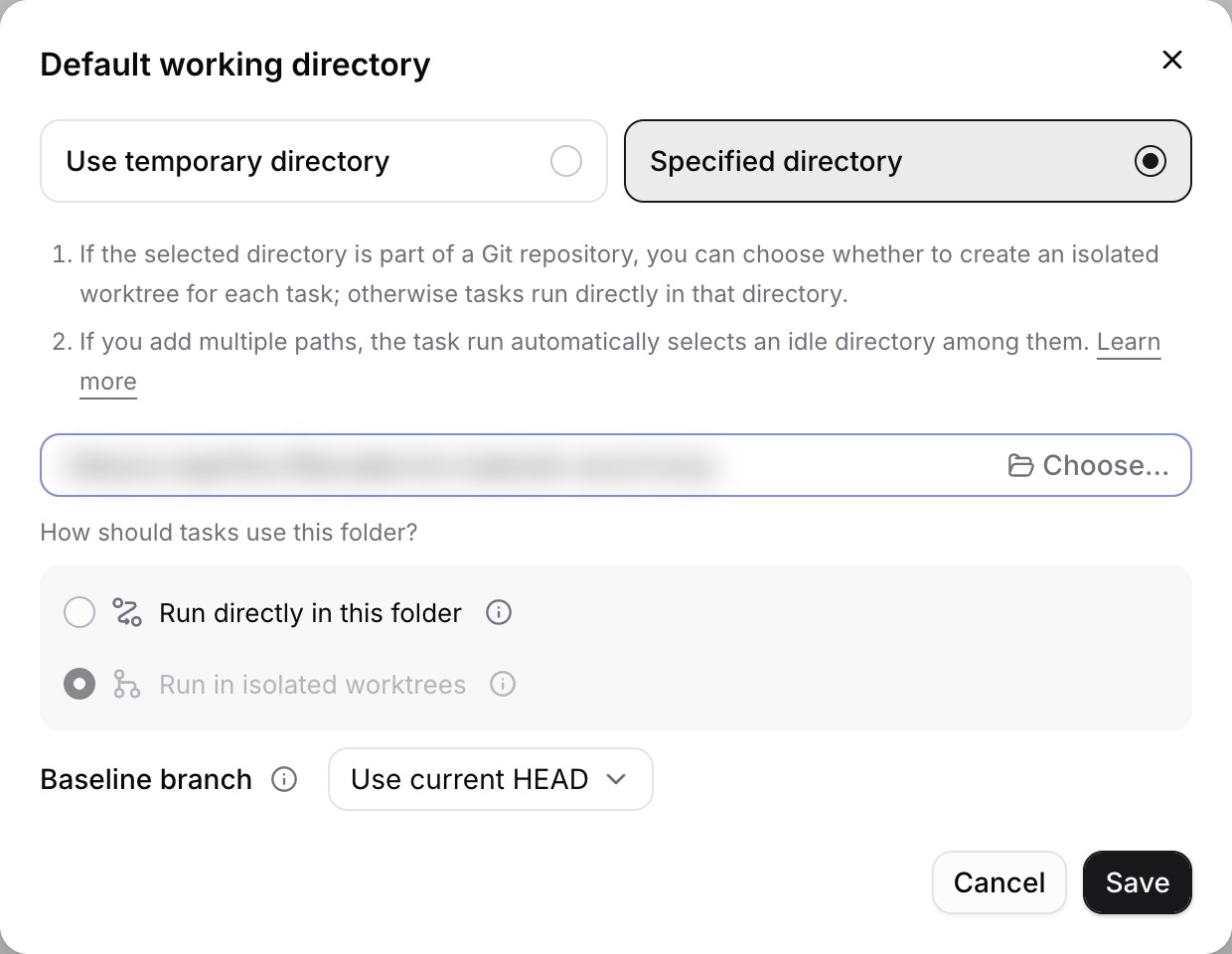
The baseline branch decides what each worktree starts from. Set it to main if your folder often sits on a feature branch.
Use temporary directory works too, and the help page recommends it for most code Tasks. Cancel Anything uses Specified because its folder already has node_modules installed, the case the help page names for Specified.
Step 3: Let the support Agent work in place
Echo writes support replies and docs, which belong in the main folder with no branch to merge. Open Echo’s settings the same way, choose Specified directory, pick the same folder, and select Run directly in this folder. The tooltip spells out the trade: “Tasks modify this folder directly. Tasks that target this path run one at a time.”
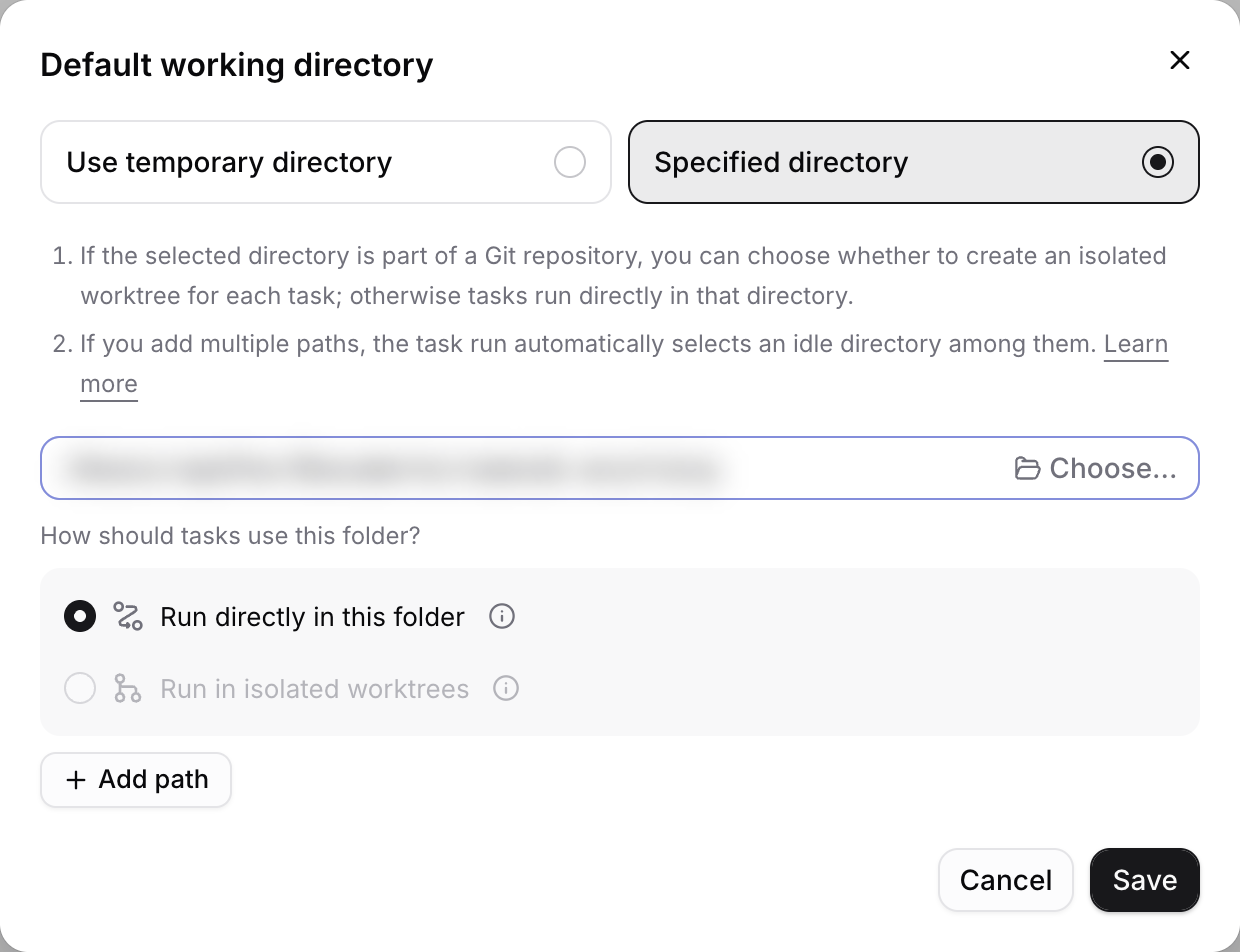
Note Add path: it only appears for in-place runs. Add a second folder and new work goes to an idle one first.
Step 4: Run both Agents at the same time
We assigned two real Tasks within seconds of each other:
- CAAN-3 to Bolt: “Build: CI on GitHub (test, typecheck, validate on every PR)”.
- CAAN-18 to Echo: “Docs: saved support replies for #it-broke and #requests”, with the instruction to leave the file uncommitted.
Both runs started at 03:39 UTC. The sidebar showed Bolt Working while Echo was already in Needs your review.
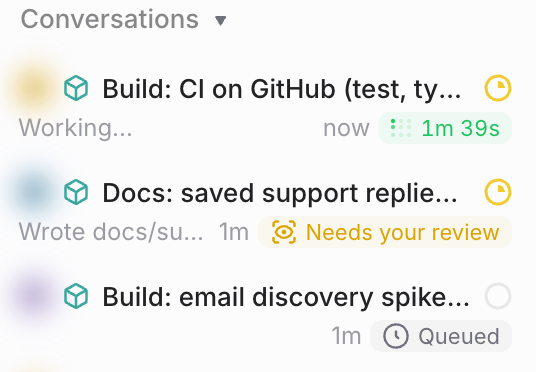
Two Agents, one repository, overlapping runs. Echo finished in 40 seconds; Bolt took 2 minutes 41.
Step 5: Check where each run worked
On the Computer, list the worktrees:
$ git worktree list
/Users/team/cancel-anything                                    ef8ed29 [main]
~/.sharkly/organizations/ea02/runs/2026/11/84049480/specified-worktree  195d268 [sharkly-agent/bolt/CAAN-3]
Bolt’s run got its own folder under the Computer’s runs directory, on the branch sharkly-agent/bolt/CAAN-3. That worktree holds the new .github/workflows/ci.yml and does not hold Echo’s file. The main folder shows the reverse:
$ git status --short
?? docs/support/
Echo’s docs/support/replies.md sits in the main folder, uncommitted, and the main folder has no CI file. Neither run touched the other’s work.
The chat composer carries the same setting per conversation. The Working directory button lets you point one chat at another folder without changing the Agent’s default.

The override covers one chat; the Agent’s Tasks keep the default.
Step 6: Share one folder across a Crew
Sometimes you want the opposite of isolation. When Bolt builds a command and Vera tests it, Vera should see Bolt’s uncommitted files. Open the Crew (All Agents, then the Crew’s Settings), expand Task run settings, and turn on Crew members on the same computer share one task workdir. The same Task then reuses the latest eligible workdir and keeps local changes. More on Crews in the Crews explainer.
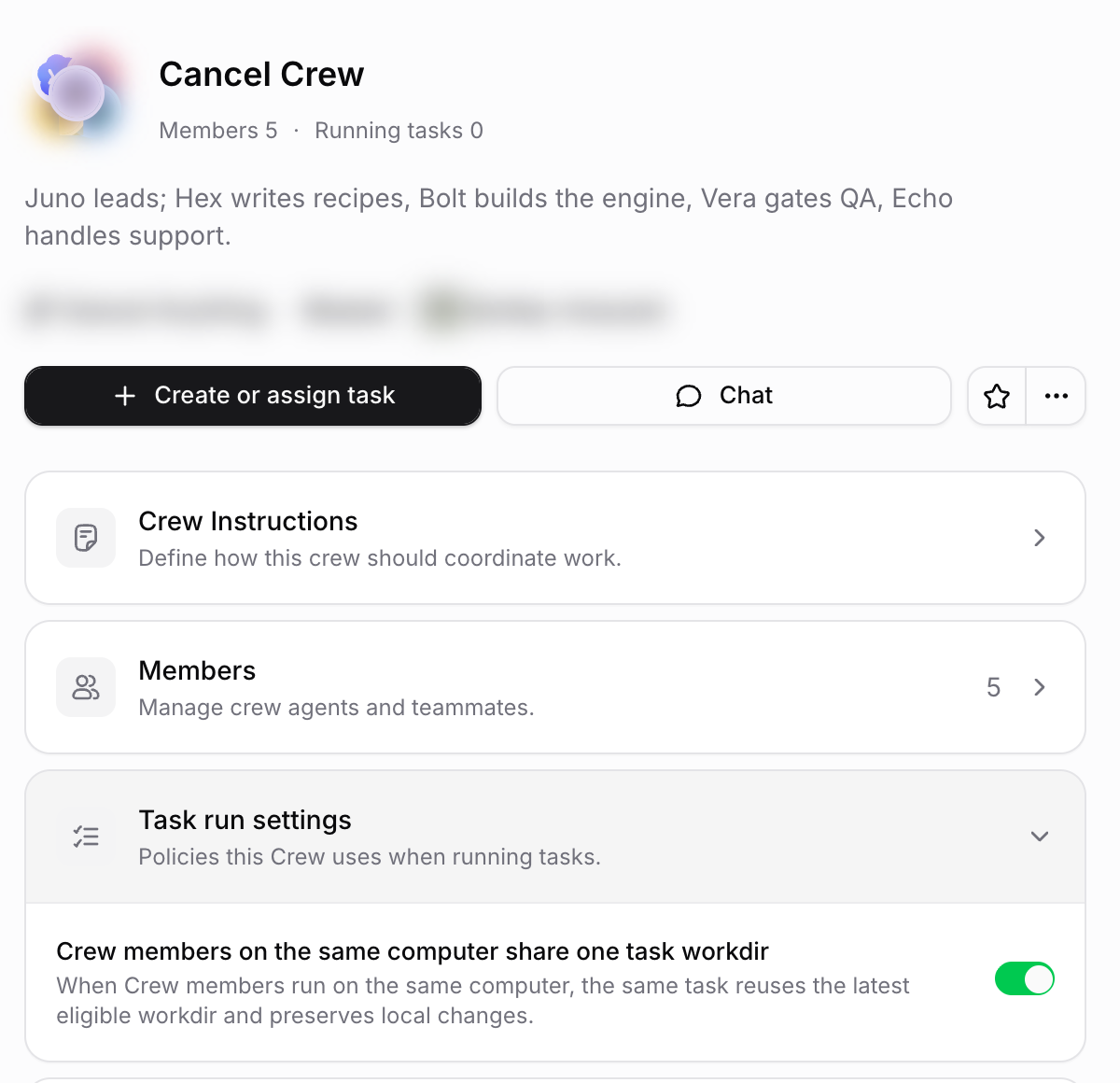
The switch is per Crew. Agents assigned directly, outside the Crew, keep their own directory rules.
The real result
Bolt’s run on CAAN-3 committed a GitHub Actions workflow with three checks (test, typecheck, validate), reported 11 of 11 tests passing, and opened a pull request without merging. Echo’s run on CAAN-18 wrote three saved replies and flagged a gap we hadn’t noticed: the “Recipe broke” issue template it was asked to link doesn’t exist yet. Both Tasks went to review with their files exactly where the mode said they’d be.
What went wrong for us
- Our plan was wrong about Bolt. The brief said Bolt used “Create temporary directory.” The app showed Specified directory with isolated worktrees. Check the dialog, not your notes.
- The label differs. The app says Use temporary directory; the help page says “Create temporary directory.”
- Our planned in-place Agent was asleep. Juno had an off-peak working hours schedule, so its run sat in Queued. We used Echo. If a run waits, check working hours first.
- The branch name changed on push. Bolt’s local branch was
sharkly-agent/bolt/CAAN-3, but it pushed asbuild/ci, the name the Task body asked for. - Old worktrees stay on disk. We found four worktrees from earlier Tasks. Review each one, then keep, merge or discard it, as the help page says.
- We didn’t reproduce “waiting for a local directory.” Our two-run budget was spent. Per the help page, every specified directory is busy, usually because several Tasks target one in-place path. Fix it with Add path, or isolated worktrees for code Agents.
Variations: two other teams
- A data team with a 40 GB model cache. Run directly in the folder that holds the cache, with Max concurrency at 1. A new worktree wouldn’t include the untracked cache.
- An agency with three client repositories. Each client’s Agent gets a Specified directory with isolated worktrees on
main, so every Task lands on its own branch and reviewers merge per client.
For the wider case on running agents side by side, read parallel agents in isolated worktrees and git worktrees for AI coding agents.
Recap checklist
- [ ] Every Agent has a deliberate Default working directory.
- [ ] Code Agents run in isolated worktrees or a temporary directory.
- [ ] Docs, spec and support Agents run directly in the folder.
- [ ] Baseline branch set when your folder isn’t always on
main. - [ ] A second path added for any in-place Agent that queues up.
- [ ] Crew shared workdir on only where members need each other’s files.
- [ ] Old worktrees reviewed and cleaned up.
FAQ
Does Specified directory modify the original folder?
It depends on the run style. Run in isolated worktrees leaves the original folder unchanged and delivers results on a Task branch. Run directly in this folder changes the original folder, which is what Echo did with docs/support/.
Can I mix Git and non-Git folders?
Yes, but not with isolated worktrees. A non-Git folder can only run in place, and the app warns you when you save a mix.
How does the working directory relate to repository bindings?
The working directory decides where the Agent works. Repository bindings decide which Git sources it knows about, and they live in Agent and Space settings. See Repositories.
Will existing Tasks move to a new default directory?
No. A Task or conversation keeps its original directory while that path stays usable. New Tasks use the new default.
Why is a Task waiting for a local directory?
All specified directories are busy, most often because several Tasks target one in-place path. It resumes when one frees up.
Next step
Open one Agent’s Computer, Runtime & Working directory section today and check which mode it runs in. Then assign two small Tasks at once and run git worktree list to see where they landed. The Agents page and Agents explainer cover the other settings; Bolt’s CI used GitHub Actions workflows.